
39 ICM Gateway Service User Guide
I. Profinet Communication Instructions
1. Environmental Configuration
(1) Hardware gateway Voltage: 12 V–24 V Current: 0.5 A–1 A
(2) TIA Portal (Botu) software Version: TIA Portal V16
(3) GSD file GSDML-V2.41-AUBO-irj45-20230720.xml
(4) Hardware PLC S7-1200 CPU 1214C DC/DC/DC 6ES7 214-1AG40-0XB0
(5) Software IP settings Ensure that the PLC address configured in the ARCS software under the industrial gateway settings is on the same subnet as the other devices. You can configure it on the Settings > System > Network page. If the gateway uses the default configuration, use the parameters shown below.
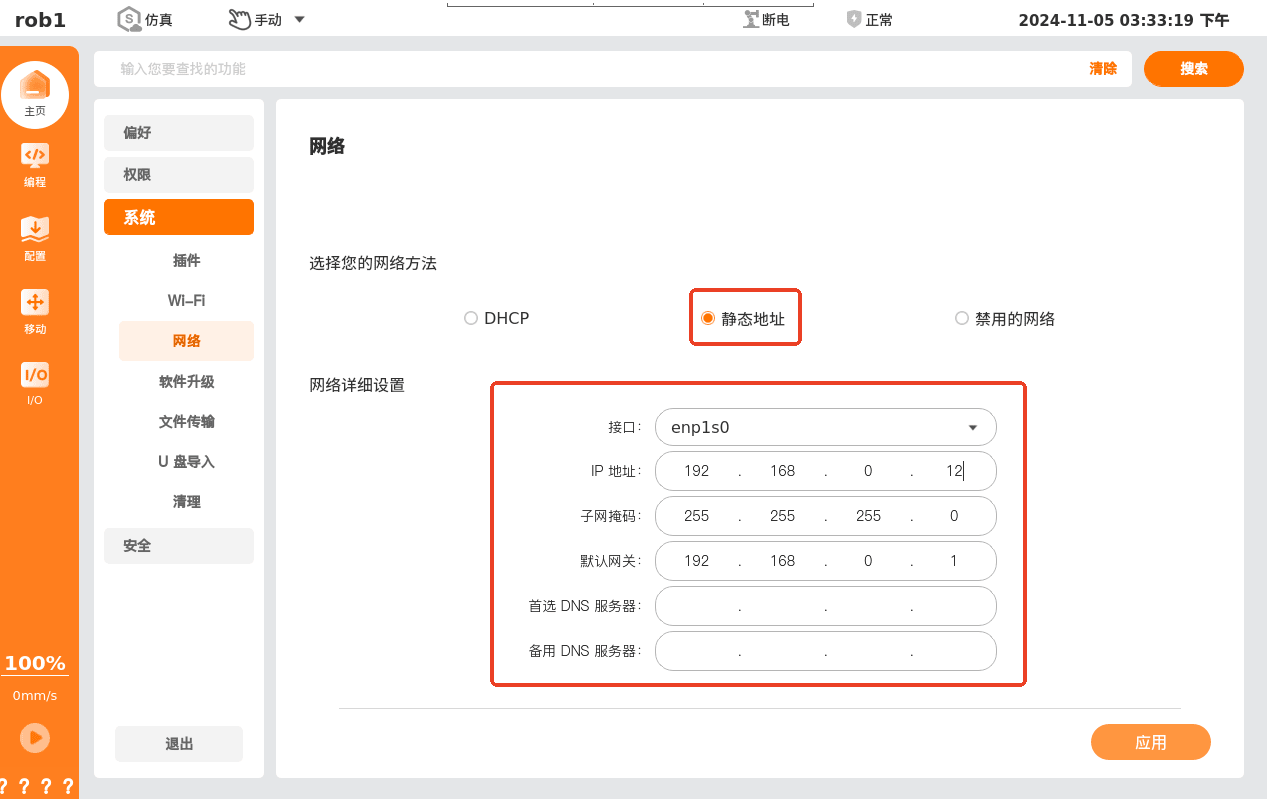
(6) Gateway service configuration file
The ICM service process configuration file is stored at /root/arcs_ws/config/aubo_icm.conf by default. It contains the required settings for using the gateway. Configure it before use. The available options are as follows.
Note: The gateway uses the default configuration. Modify it according to the actual situation. For example, the IP address and station name for Profinet communication are usually configured in TIA Portal or similar software, so the configuration file normally does not need to be changed.
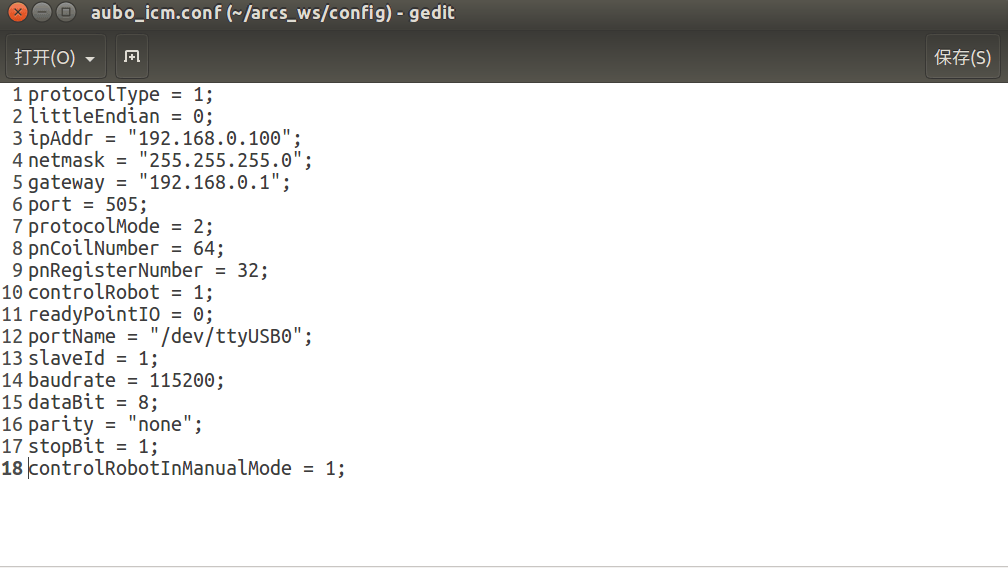
Configuration item description:
| Configuration item | Description | Default value | Required |
|---|---|---|---|
protocolType | Protocol type: 1: Profinet; 2: Ethernet/IP; 3: EtherCAT | 1 | Yes |
littleEndian | Data storage format: 0: big-endian; 1: little-endian | 0 | Yes |
ipAddr | Gateway module IP address | 192.168.0.100 | Yes |
netmask | Gateway module subnet mask | 255.255.255.0 | Yes |
gateway | Gateway module gateway address | 192.168.0.1 | Yes |
port | Gateway module port | 505 | Yes |
protocolMode | Protocol mode: 1: min mode; 2: standard mode; 3: custom mode | 2 | Yes |
pnCoilNumber | Number of coils | 64 | Yes |
pnRegisterNumber | Number of registers | 32 | Yes |
controlRobot | Robot control keyword: 0: robot control is disabled; 1: robot project start, pause, and other functions can be controlled. When starting a project, check whether the robot arm is at the ready point. | 1 | No |
readyPointIO | Whether the robot arm is at the ready point | 0 | No |
portName | Control cabinet serial port: /dev/ttyS*. If the control cabinet is connected through USB, use ls /dev/ttyU* to check the current serial port. For other RS485 ports, use /dev/ttyS2 for the nine-pin RS485 port on an iS or improved control cabinet, /dev/ttyS0 for the A1/B1-labeled RS485 port on a new C control cabinet, and /dev/ttyS7 for S and ES series control cabinets. | /dev/ttyUSB0 | Yes |
slaveId | Slave ID | 1 | Yes |
baudrate | Baud rate | 115200 | Yes |
dataBit | Data bits | 8 | Yes |
parity | Parity check | none | Yes |
stopBit | Stop bits | 1 | Yes |
controlRobotInManualMode | Whether to control the robot in manual mode | 1 | No |
2. Gateway Wiring
2.1 Hardware Modules
Note: This hardware module supports the Profinet, Ethernet/IP, and EtherCAT industrial protocols. Select the protocol according to the software. See [ICM Gateway Service Configuration].
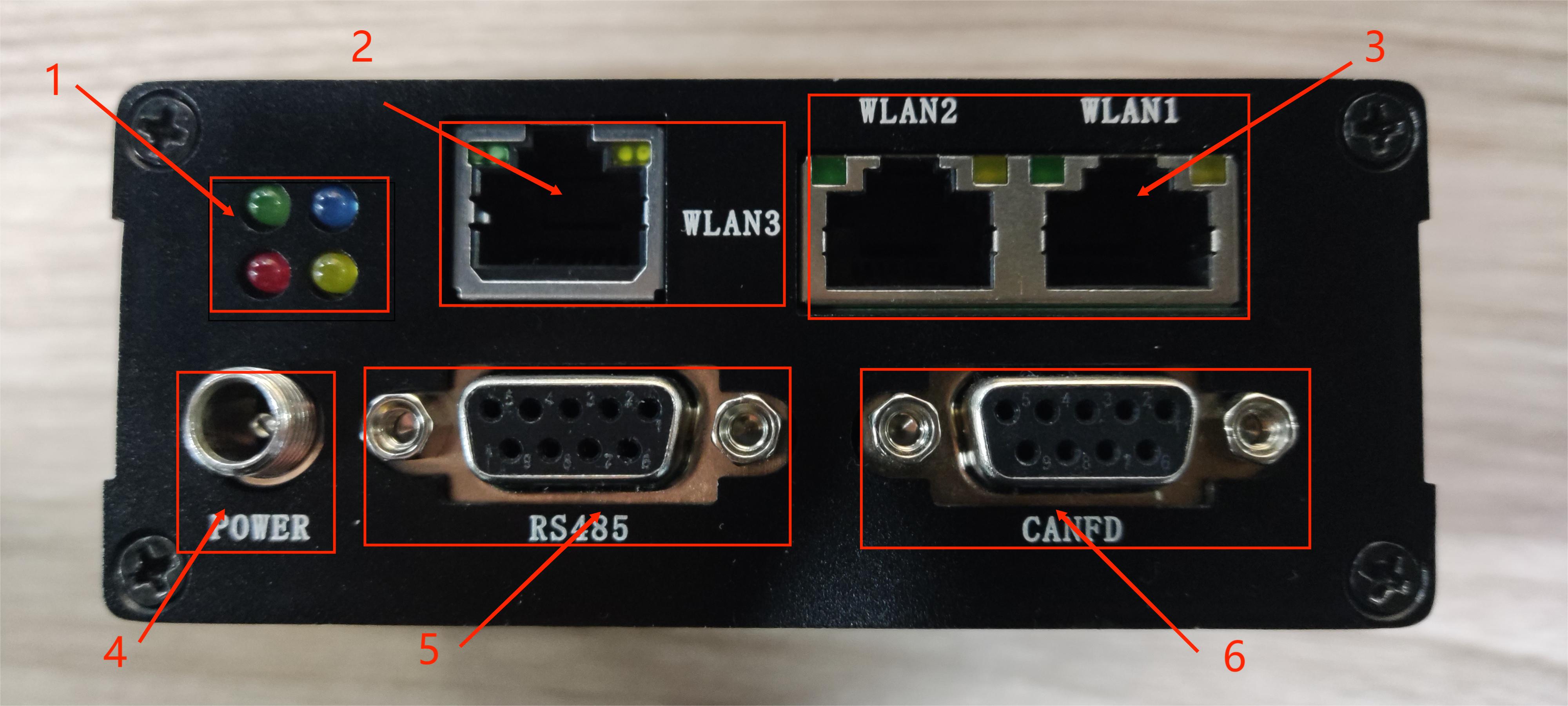
Interface module description:
- Module 1: Indicator light. Blue indicates a successful connection.
- Module 2: WLAN3, the internal microcontroller network port, reserved.
- Module 3: WLAN2 and WLAN1, the two industrial protocol ports. Connect WLAN1 to the PLC and WLAN2 to the computer running the Botu software.
- Module 4: Power (DC, 12 V–24 V).
- Module 5: RS485 bus for communication with the control cabinet.
- Module 6: CANFD, reserved for the internal microcontroller.
2.2 Hardware Wiring Diagram
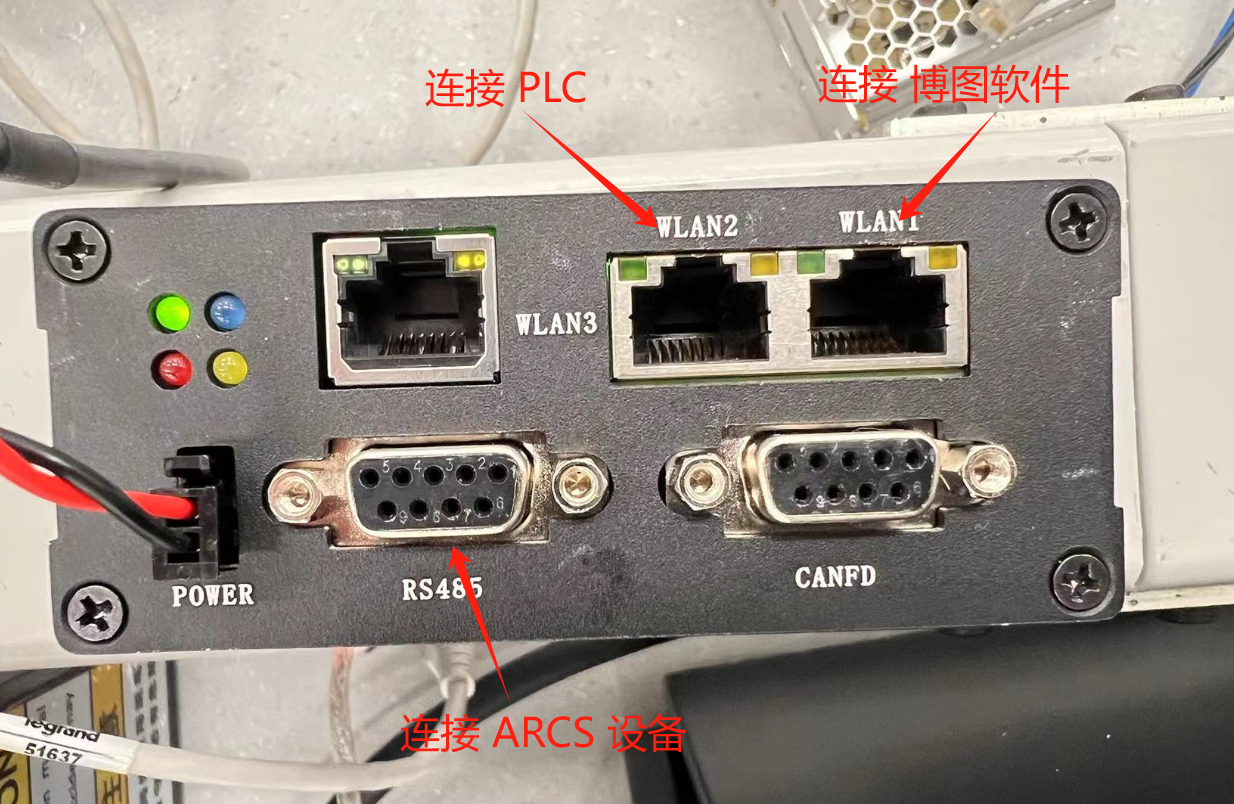
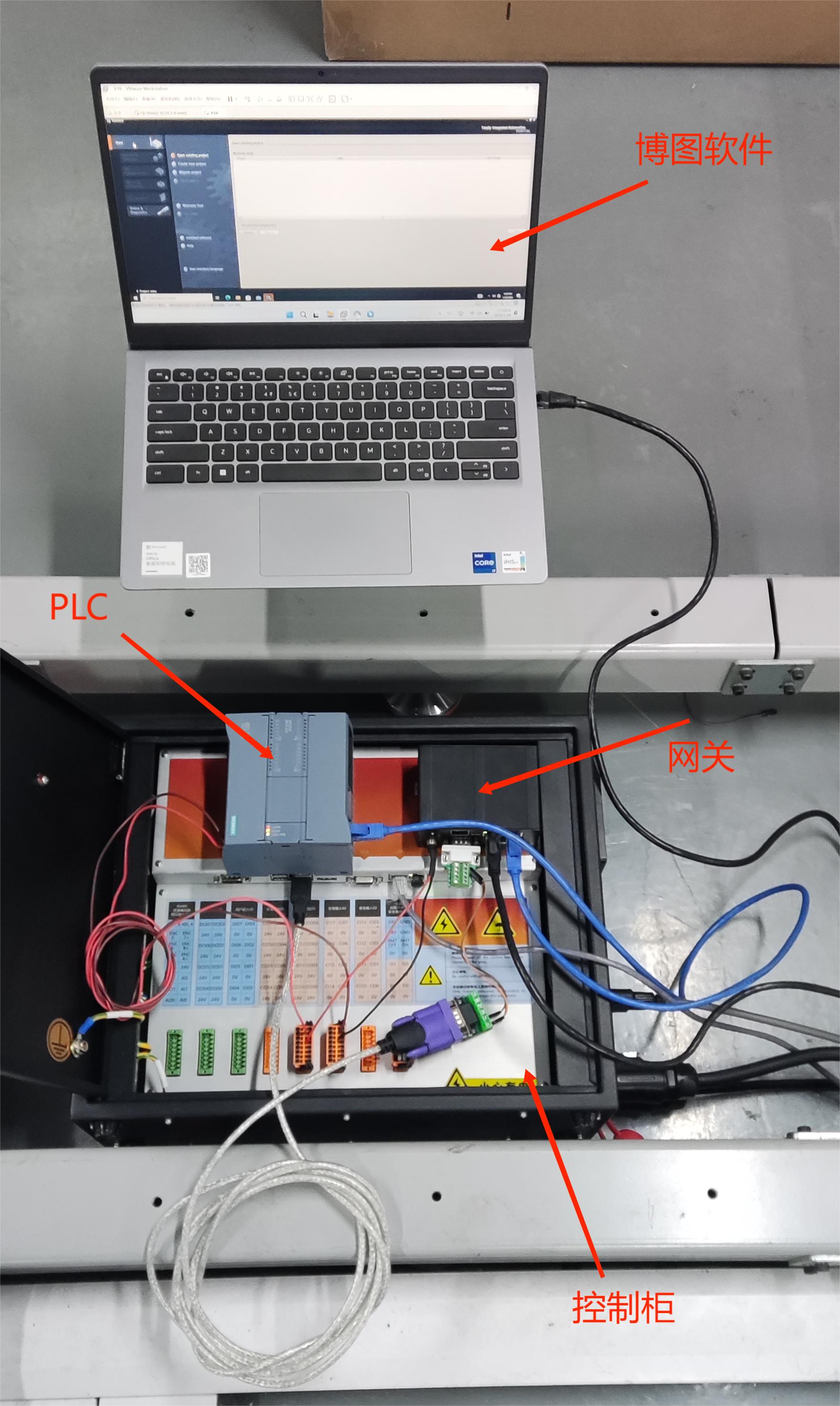
- Connect the power cable (red is positive and black is negative). The figure shows the cable connected directly to the robot arm control cabinet power supply.
- Use a shielded USB-to-485 communication cable in the field, and ground the metal shell.
- Check the wiring. After power-on, the gateway's
green light(the green gateway light shown above) turns on. When the gateway is connected to the PLC and can communicate normally, the gateway'sblue lightturns on.
3. Gateway and PLC Communication Configuration
The following configuration uses the Profinet protocol as an example. Configuration for the other protocols is similar.
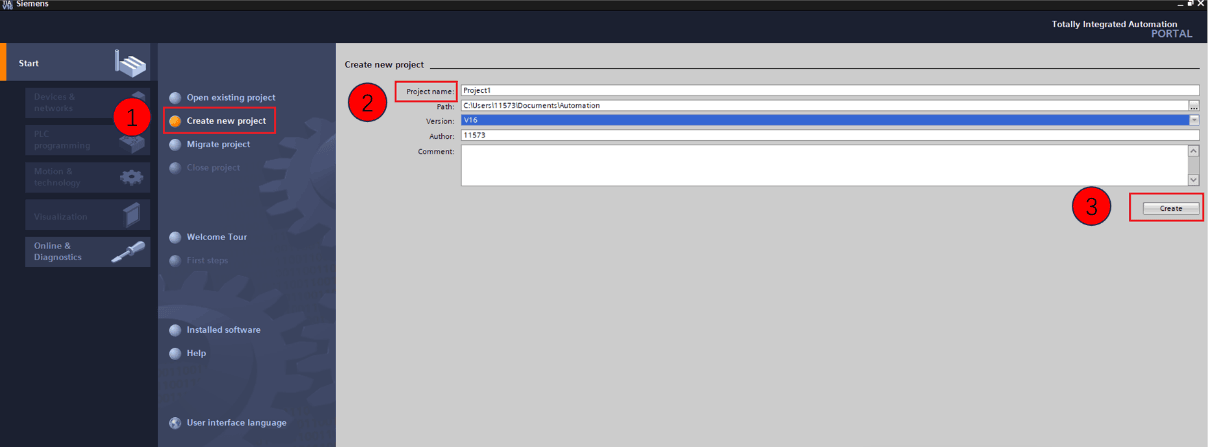
3.1 Create a New PLC Profinet Project
Open the Botu software, enter the main page, and select Start > Create a new project. Follow the operations marked in the figure.
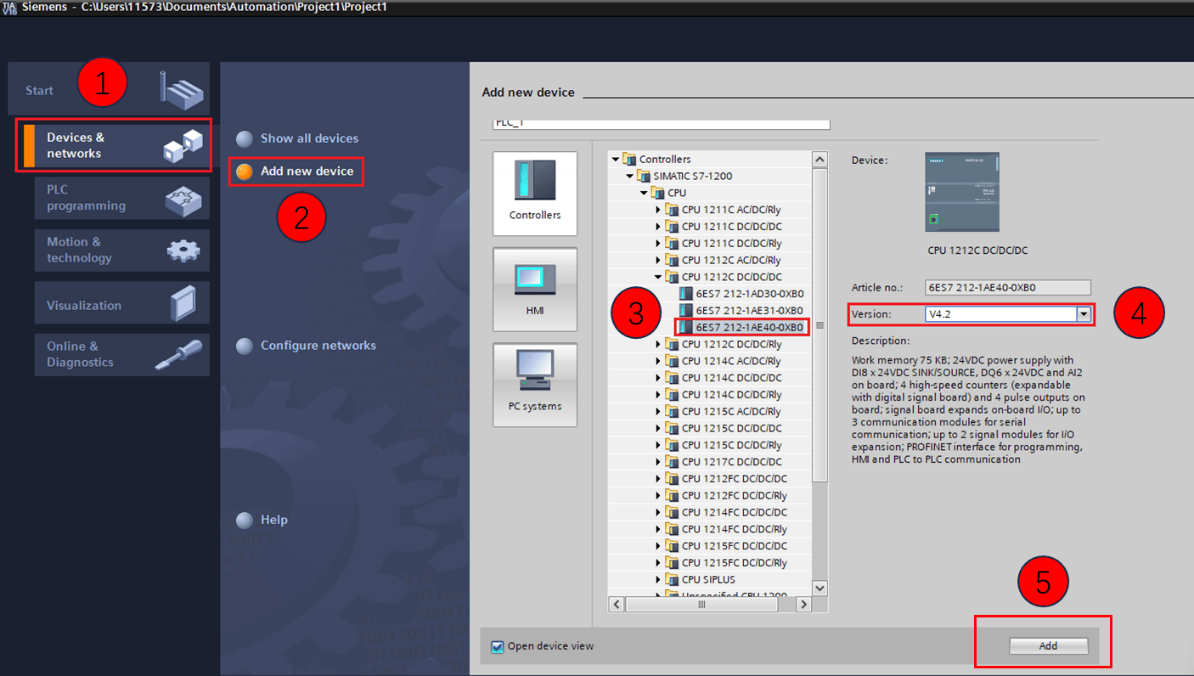
3.2 Configure the Siemens Model and Version
Under the new project, double-click Add New Device > Controller / CPU / CPU 1214C DC/DC/DC 6ES7 214-1AG40-0XB0, select the model shown below, verify the information, and click OK.
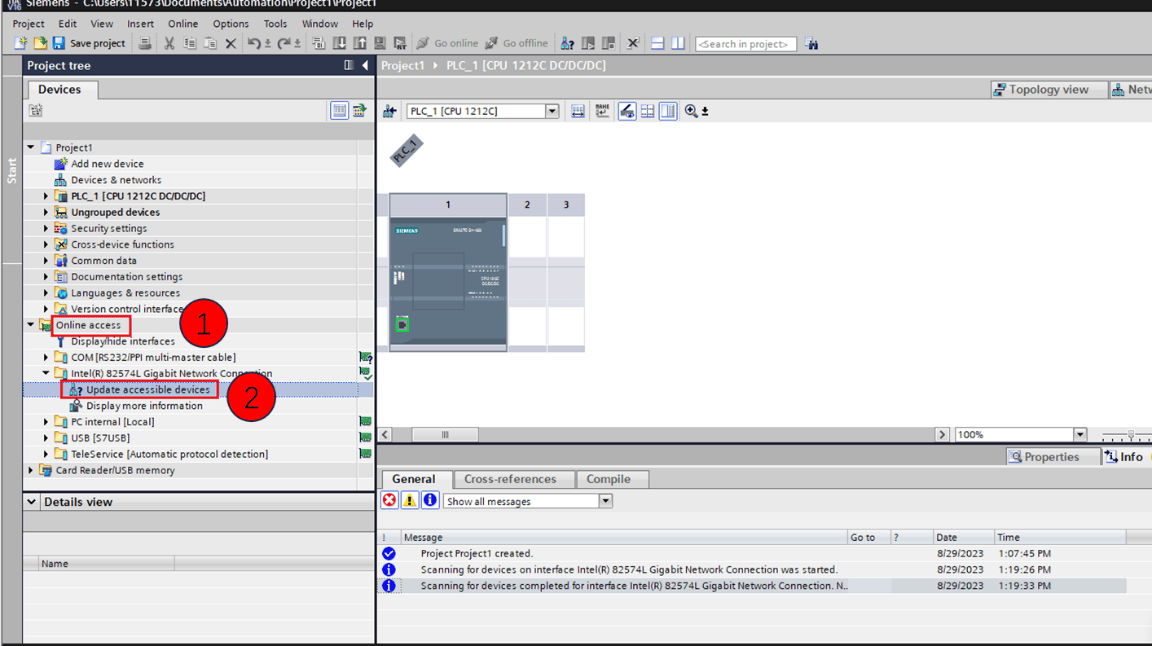
3.3 Configure the PLC
Search for the robot arm device station. Open the project, select Online Access > Computer NIC Name, and double-click Update accessible devices, as shown below.
3.4 Configure the Gateway IP Address and Device Station
Double-click Online and Diagnostics, then configure the IP address and device station name according to the following steps.
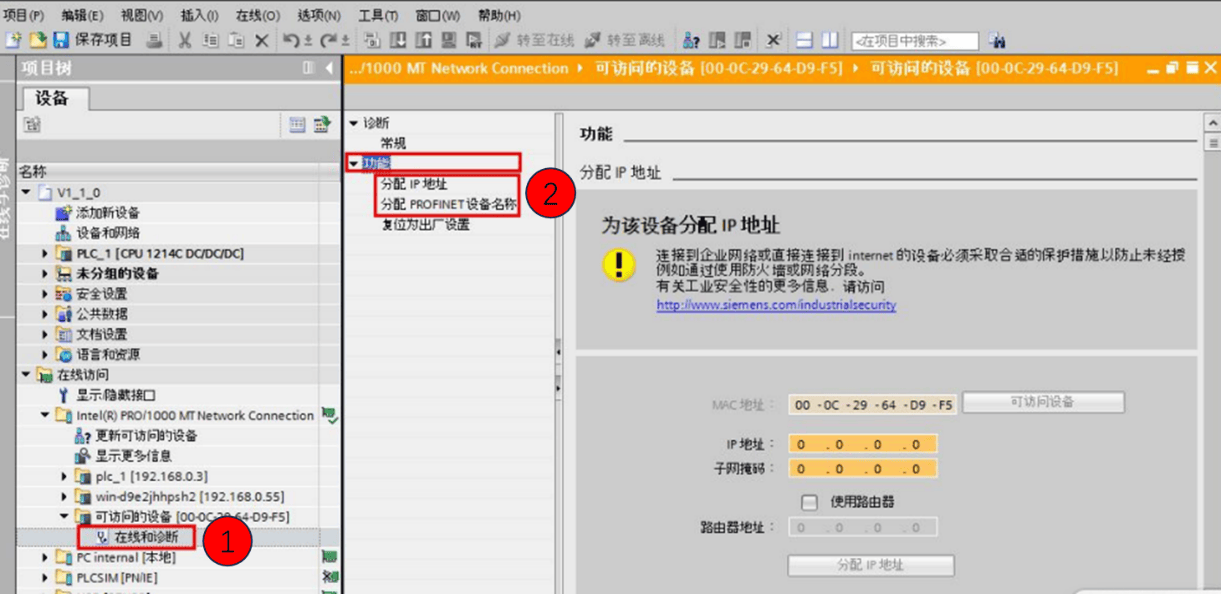
Note: If a default IP address and device station name are already displayed, they were configured previously. Verify the IP address and name. If they are correct, skip this step and continue with the following operations.
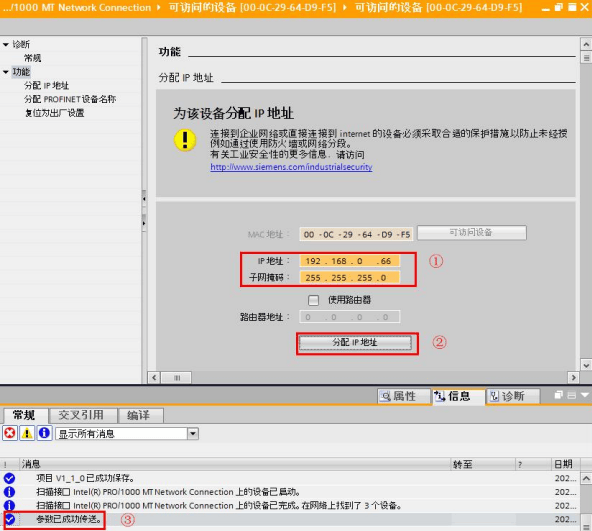
Assign a gateway IP address.
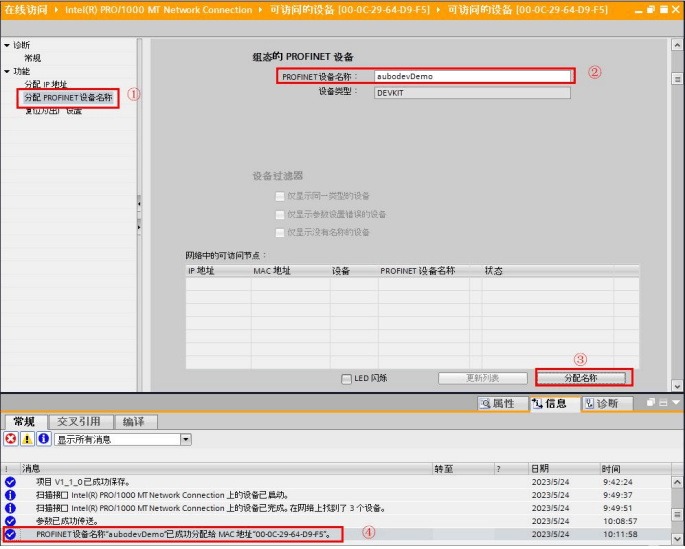
Assign a gateway device station name.
3.5 Import the GSD File into the PLC
In the Botu software menu bar, select Options > Manage General Station Description File (GSD), as shown below.
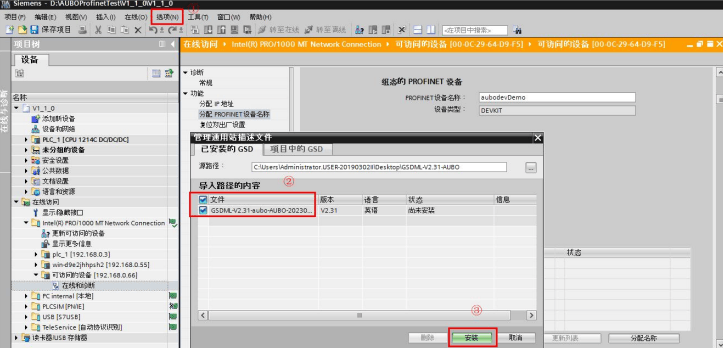
Note: The GSD file is provided by AUBO development. Contact the relevant engineer for the latest version.
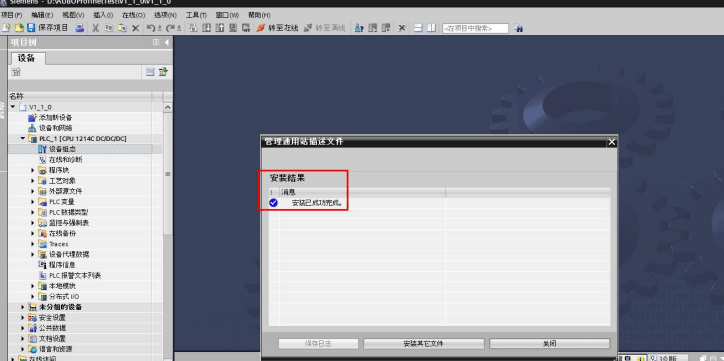
After the installation succeeds, a success message is displayed as shown below. Click Close.
3.6 Configure the PLC
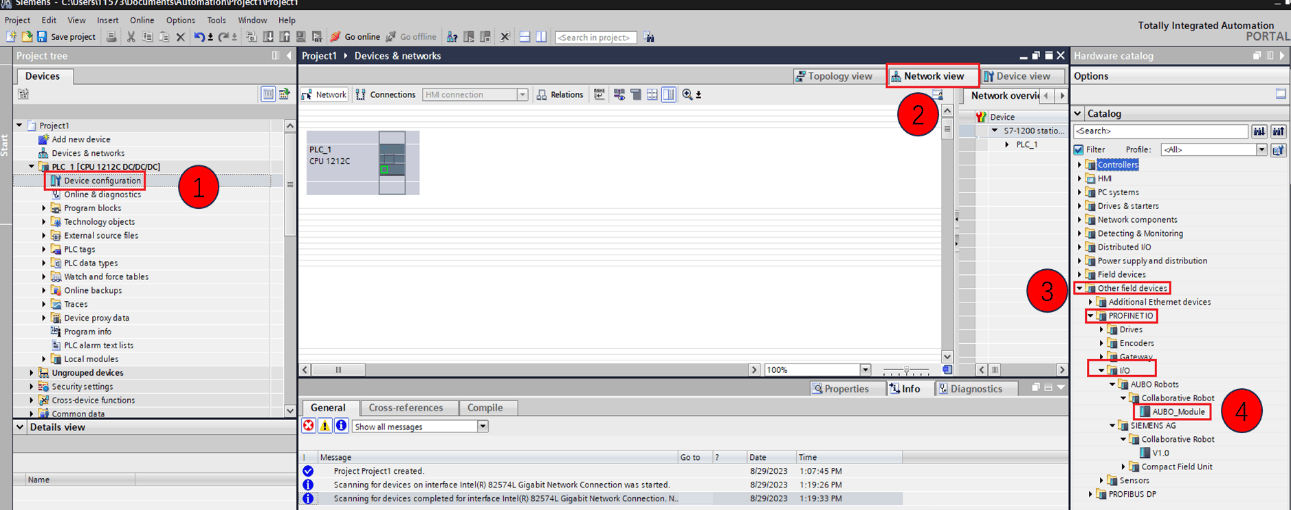
Double-click Device Configuration, click Network View, select Other Field Devices > IO > AUBO Robot, and double-click AUBO_Module, as shown below.
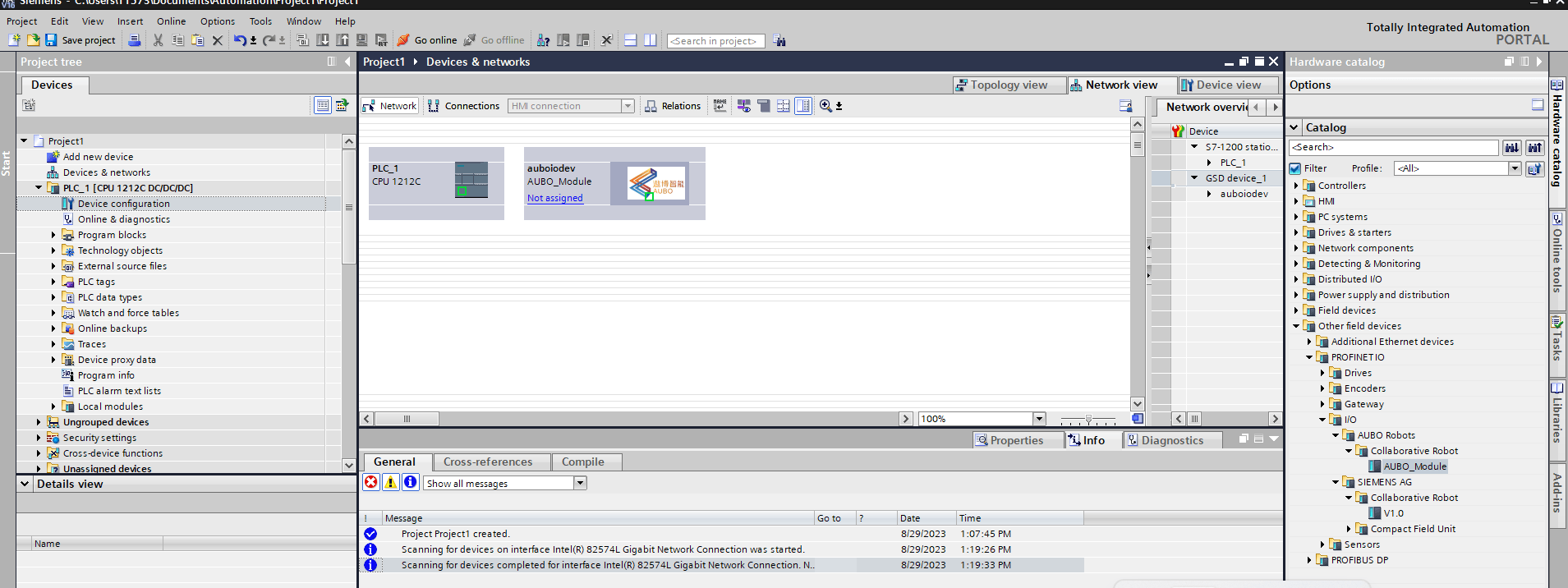
The successfully added device is shown below.
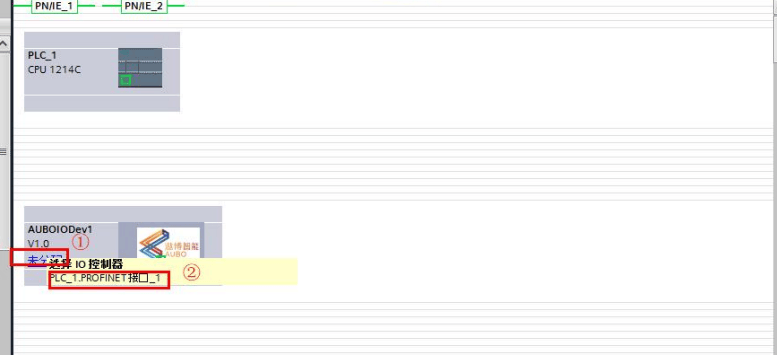
Click Unassigned and select item ②, as shown below.
The completed configuration is shown below.
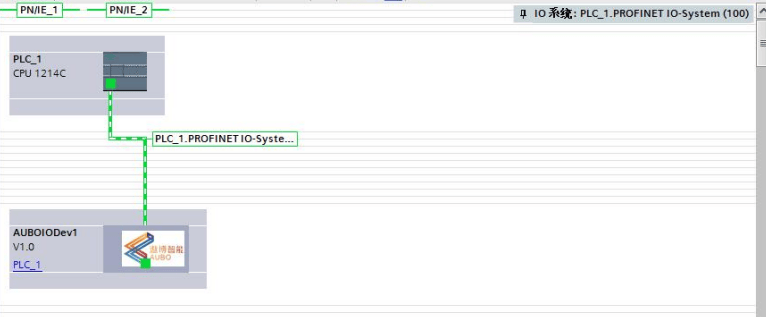
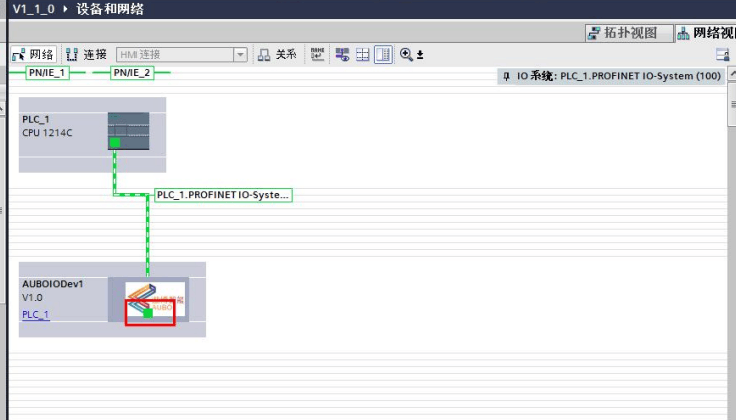
Communication settings
Double-click the Ethernet port in AUBOIODEV1, as marked in the following figure.
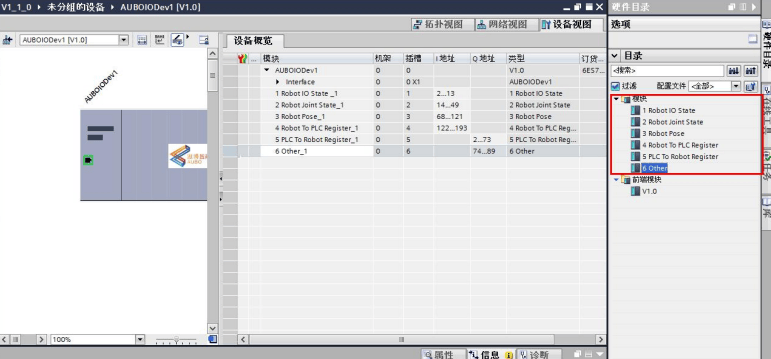
Add slot modules
Double-click each slot under Module. In the Module panel on the right side of the interface, double-click slots 1–6 to add them to the device, as shown below.
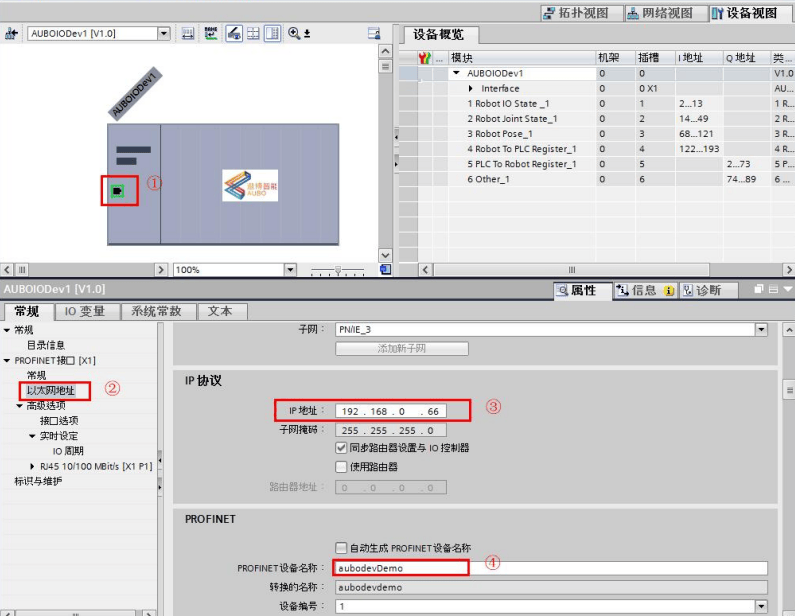
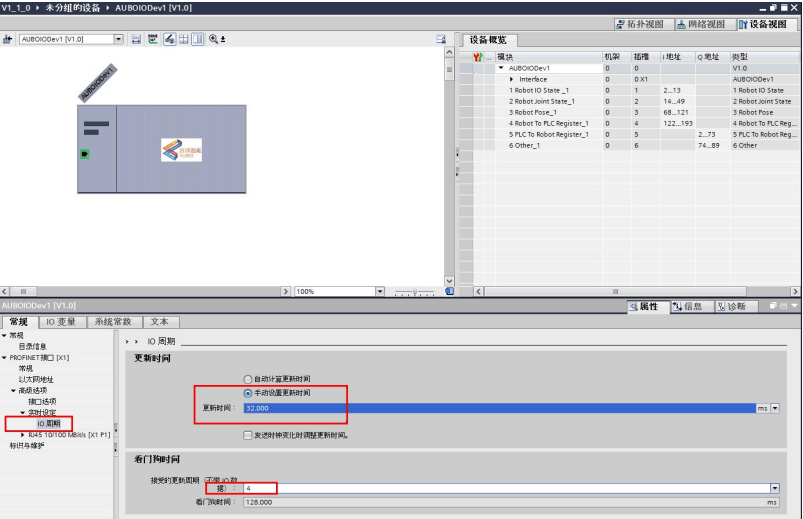
Configure the IP address of AUBOIODev1
Double-click the Ethernet port, select Ethernet Address, set the gateway device station IP address, and set the device station name, as shown below.
Recommended IO cycle settings
Configure the PLC IP address
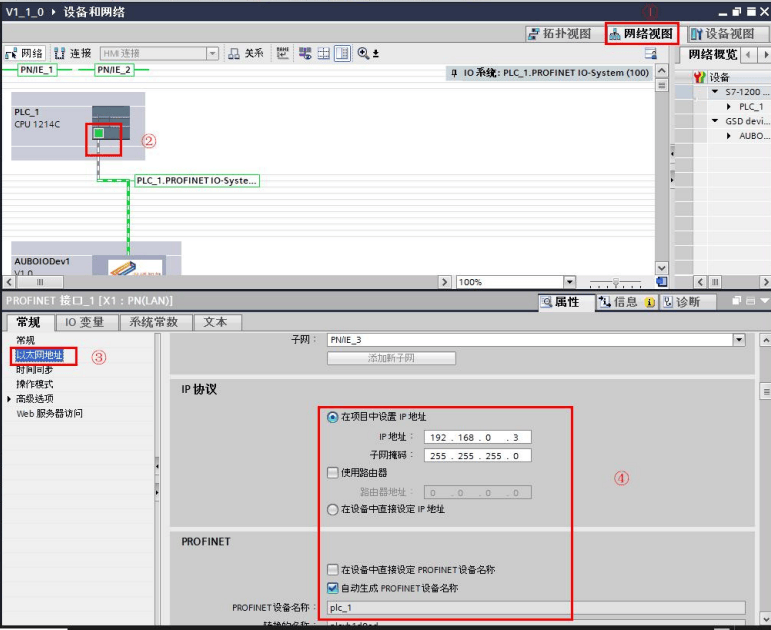
Click Network View, click the PLC Ethernet port, select Ethernet Address, and set the PLC IP address and device name, as shown below.
3.7 Save the Project, Compile, Download, and Load
After completing all configuration, save the project. Perform operations ①–⑤: compile, download, search for devices, and download. The steps are shown below.
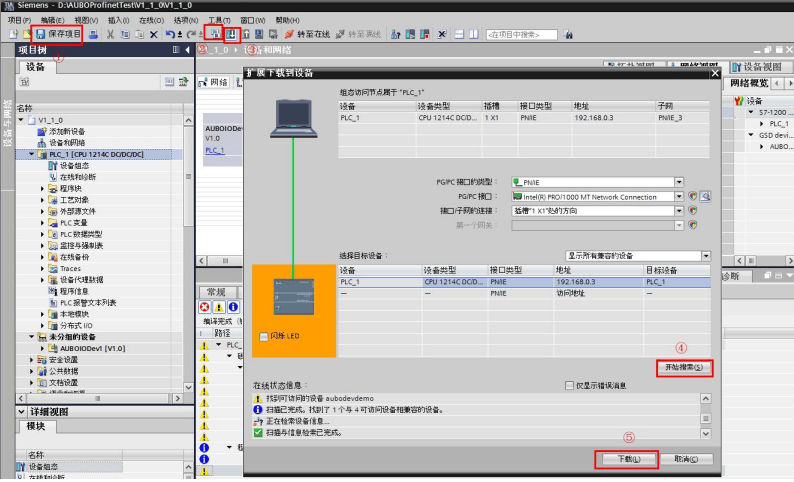
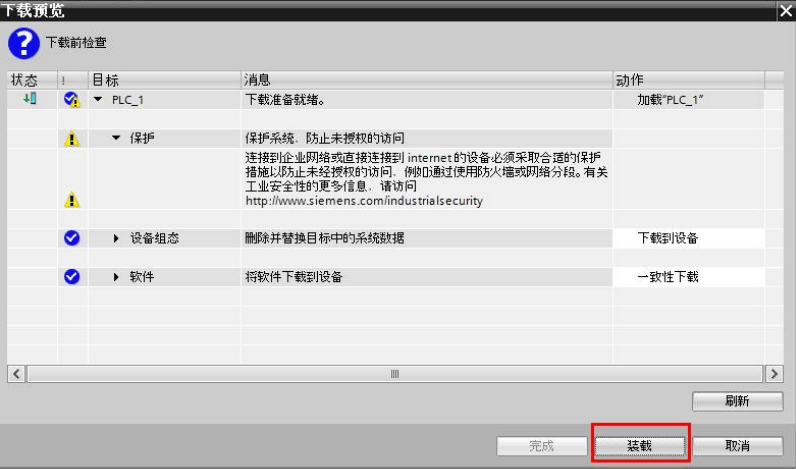
Note: If Start Search in step ④ is grayed out, check whether the AUBO robot arm station name is consistent. Follow the prompts step by step until Load appears.
3.8 Run the PLC and Go Online
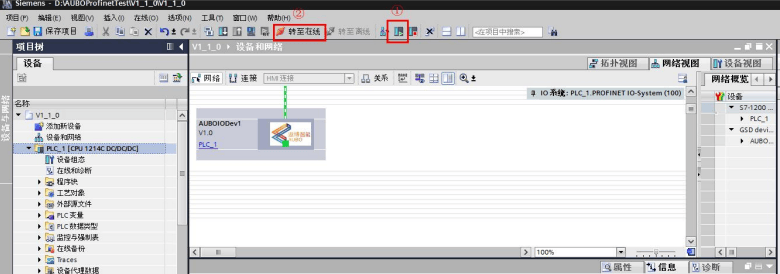
Switch the PLC to Run mode, click Go to Online, and perform the steps shown below.
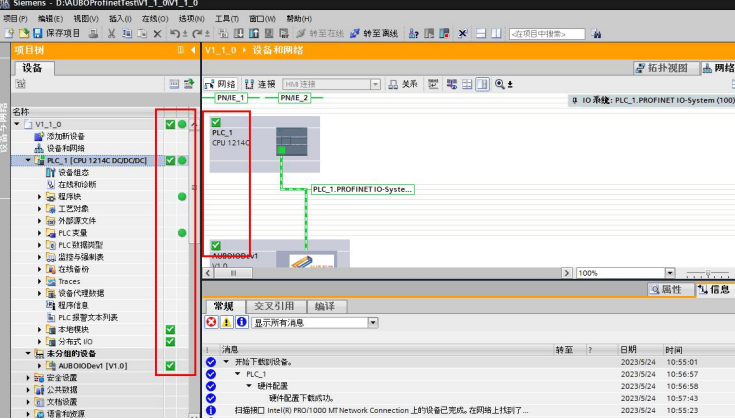
The PLC connects successfully to the gateway device station when the interface shows all connections in green, as shown below.
4. PLC and Controller Communication
4.1 Function Introduction
The hardware gateway is a transit device that converts between different protocols. It connects to the robot controller through RS485 on one side and to the PLC on the other side. The PLC can therefore read the robot IO status, pose information, coils, holding registers, and other data, and can use a control project to start, pause, resume, and stop a robot project. The gateway currently supports Profinet, Ethernet/IP, and EtherCAT. This test uses Profinet.
Communication schematic:

4.2 Using ICM
4.2.1 Starting and Stopping ICM
The ICM gateway service runs as a background process and exchanges data with the PLC. To use ICM, import the OEM package. For the installation procedure, see How to Install the OEM Package. After installation and device restart, ICM starts again. ICM starts automatically and can also be started or stopped manually with the following commands.
- View the ICM runtime log:
tail -f /root/arcs_ws/log/icm/aubo_icm.log - View the ICM communication log:
tail -f /root/arcs_ws/log/icm/icm_register.log - Start the ICM service:
systemctl start aubo_icm - Stop the ICM service:
systemctl stop aubo_icm - Restart the ICM service:
systemctl restart aubo_icm - View the ICM service status:
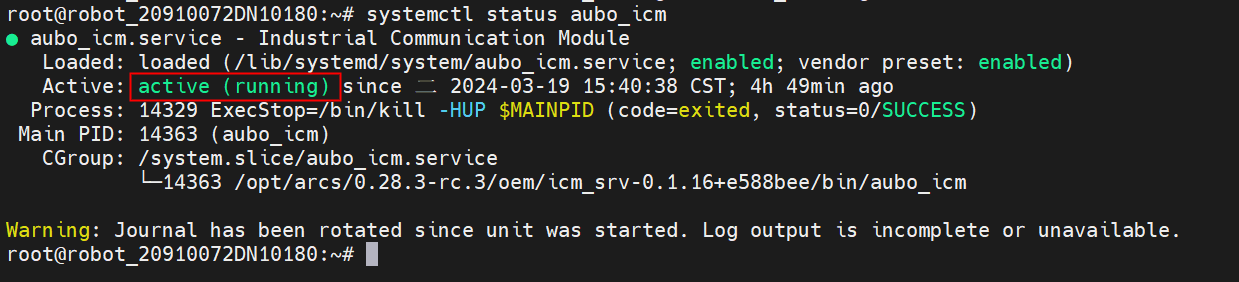
systemctl status aubo_icm
When the gateway is running normally, run systemctl status aubo_icm. The output is shown below.
4.2.2 Logs
(1) ICM log files
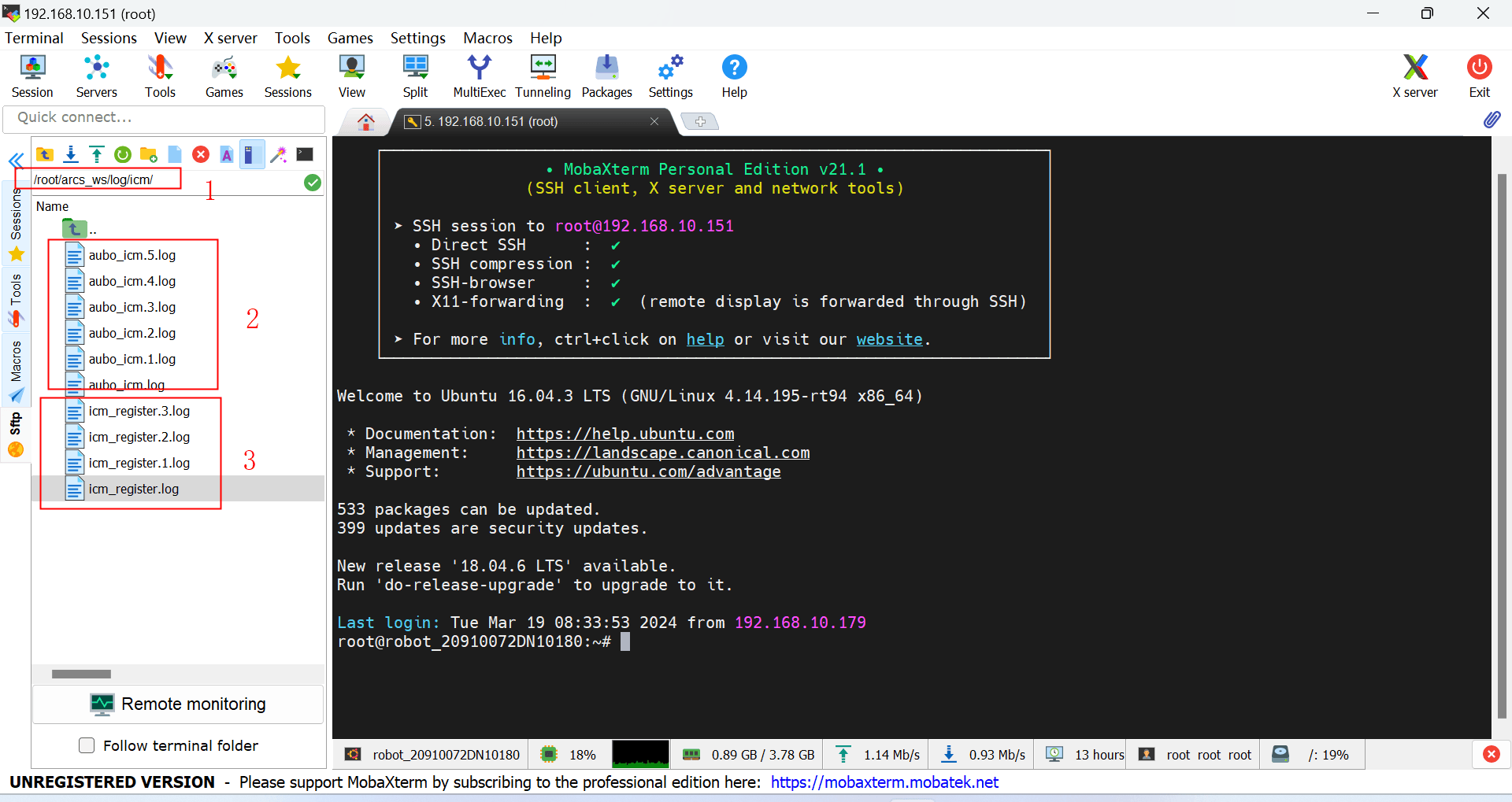
The ICM service logging system records information about program execution. Logs are stored in root/arcs_ws/log/icm/ by default and include the following two types:
aubo_icm.*.logstores ICM runtime logs.icm_register.*.logstores ICM communication logs.
(2) ICM runtime log
The content of root/arcs_ws/log/icm/aubo_icm.log is shown below.
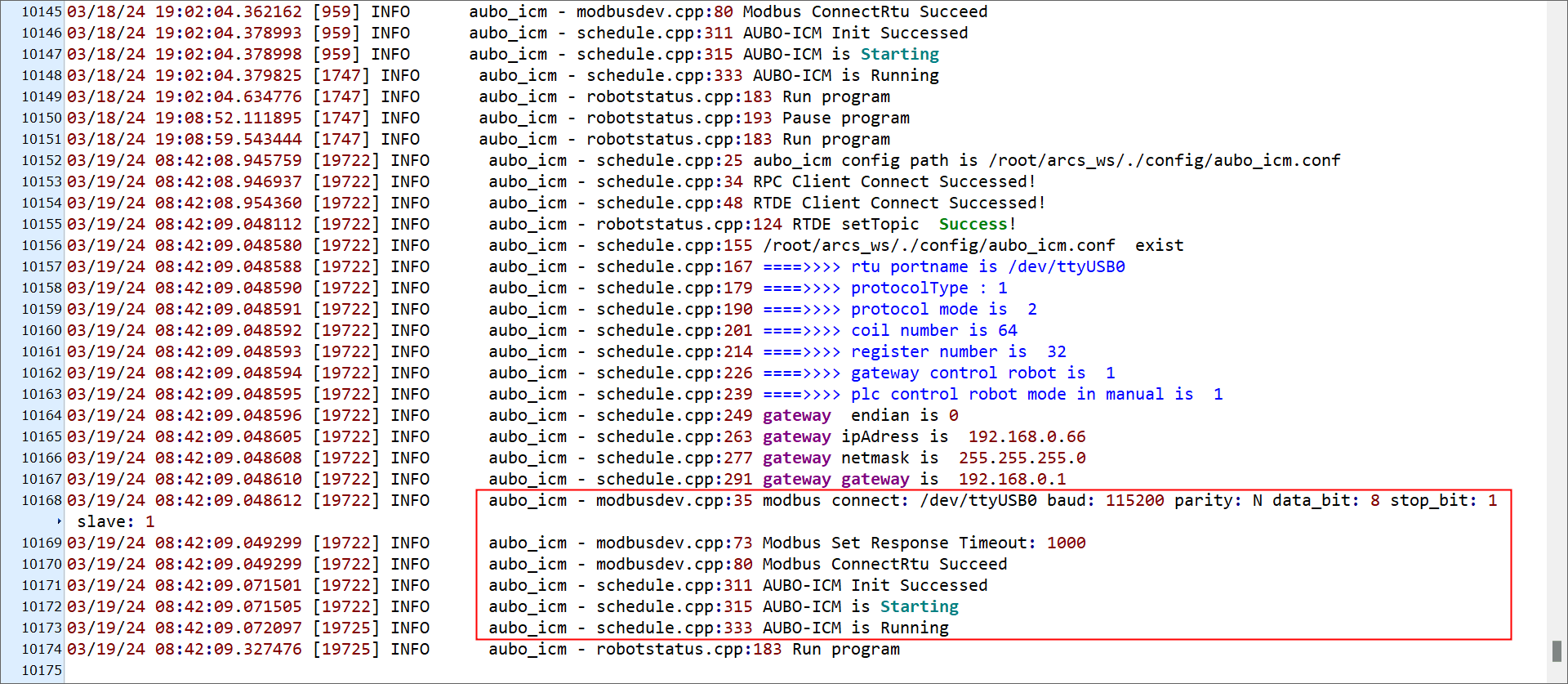
Runtime log explanation:
ICM is Runningindicates that the ICM service process started successfully.Run programindicates that the PLC controlled the robot arm to perform the “start program” action. Other actions have similar log messages.
(3) ICM communication log
The content of root/arcs_ws/log/icm/icm_register.log is shown below.
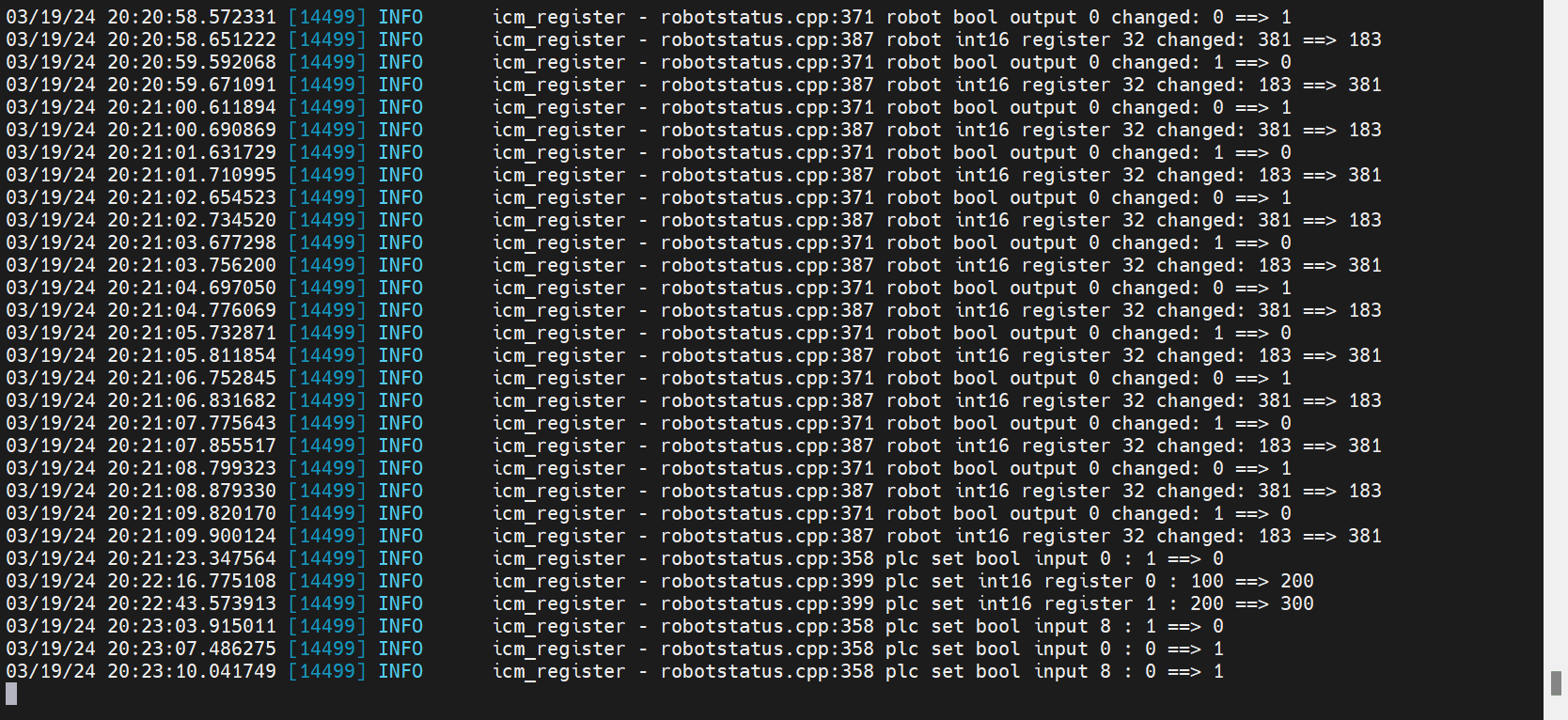
Communication log explanation:
plc set bool input 0: 0 ==> 1means thatPLC to RobotusesgetBoolInput(0)to read the first Boolean value at the start address of PLCslot_5. Its original value was 0 and the read value is 1.plc set int16 register 0: 100 ==> 200means thatPLC to RobotusesgetInt16Register(0)to read the first word (16-bit) value starting at the ninth byte of PLCslot_5. Its original value was 100 and the read value is 200.robot bool output 0 changed: 0 ==> 1means thatRobot to PLCusessetBoolOutput(0,true)to set the first Boolean value at the start address of PLCslot_4to true. Its original value was false.robot int16 register 32 changed: 183 ==> 381means thatRobot to PLCusessetInt16Register(32,381)to write 381 to the first data value in the PLCslot_4holding register. The ninth byte ofslot_4is the holding-register start address, and the original value was 183.
Teach pendant log display
Operations that use the PLC to control a project are displayed in the teach pendant log interface. The currently supported operations include powering on, starting the robot, starting a project, pausing a project, resuming a project, and stopping a project. Refer to the latest protocol for details. The log is shown below.
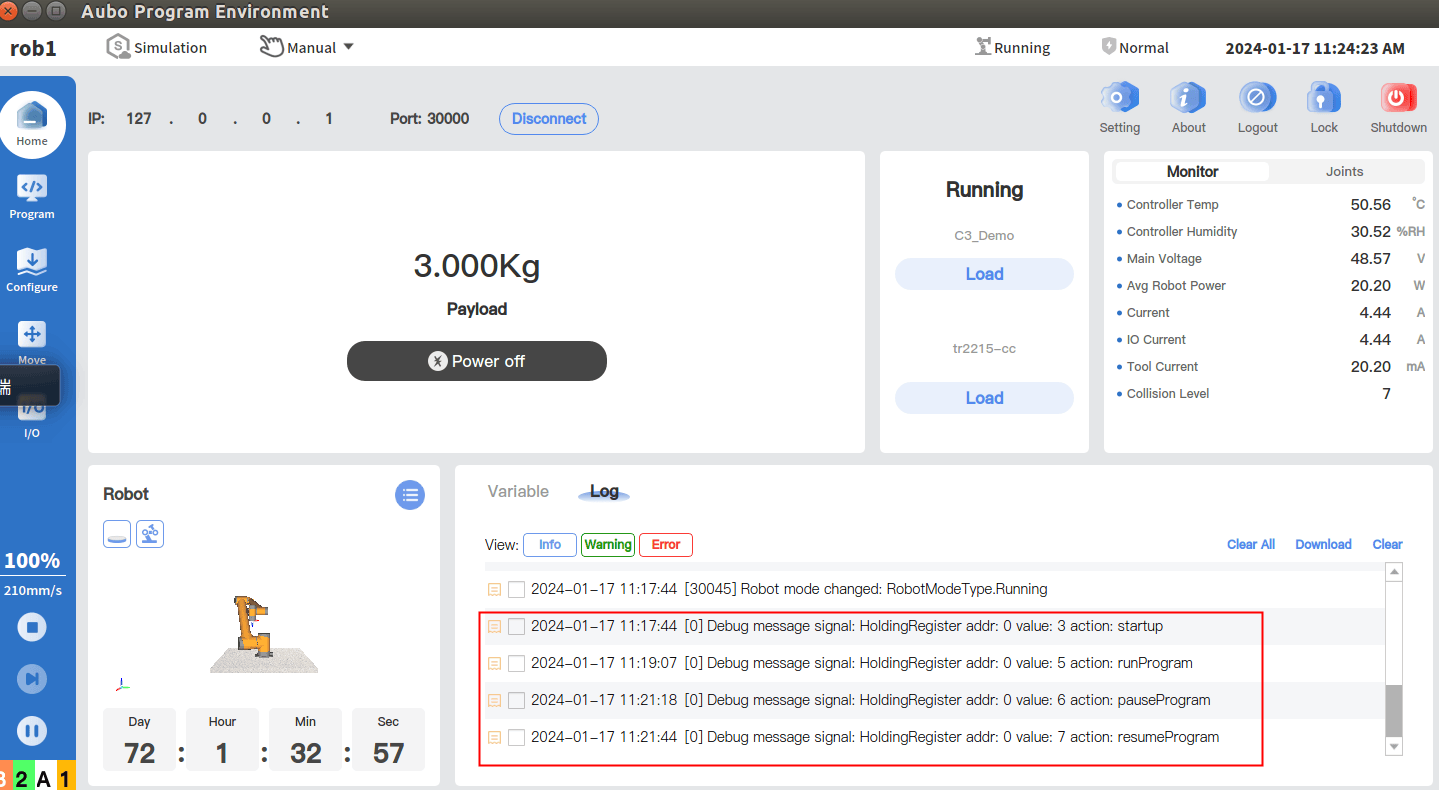
Log explanation:
For example: Debug message signal: HoldingRedister addr:0 value:3 action: startup
This means that the controller received signal value 3 from the PLC in the holding register at address 0, which triggered the controller's power-up action.
Note: When the PLC fails to read data, check the log system to confirm the cause.
5. PLC and Controller Communication Example
This communication uses the Profinet protocol. The PLC communicates with the robot arm as follows:
- Robot arm IO status (
slot_1) - Robot arm pose (
slot_2) - Robot arm joint current, voltage, and temperature (
slot_3) - Coils and holding registers (
slot_4,slot_5) - Control project (
slot_6)
The PLC can read slot_1, slot_2, and slot_3 directly, and can write slot_6 directly. The coils and holding registers in slot_4 and slot_5 are implemented through ARCS system script calls. The specific usage is described below.
Note: The protocol is updated periodically. Contact an engineer for the latest Profinet, Ethernet/IP, and EtherCAT protocol.
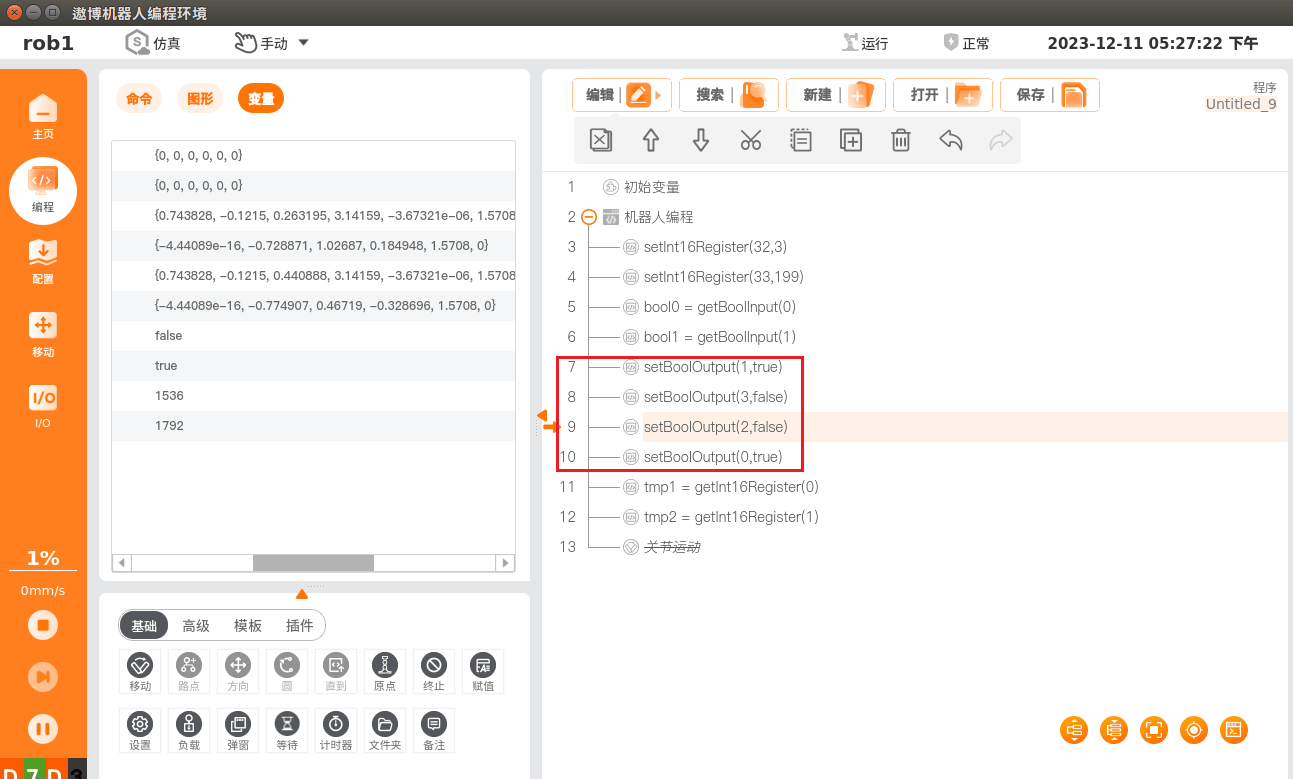
Coils
The first 8 bytes of slot_4 and slot_5 are used as coils (Boolean values). Starting with the ninth byte, the data is used as holding registers.
(1) PLC to Robot
bool0 = getBoolInput(0) reads the first Boolean value at the start address of PLC slot_5 and stores it in the variable bool0.
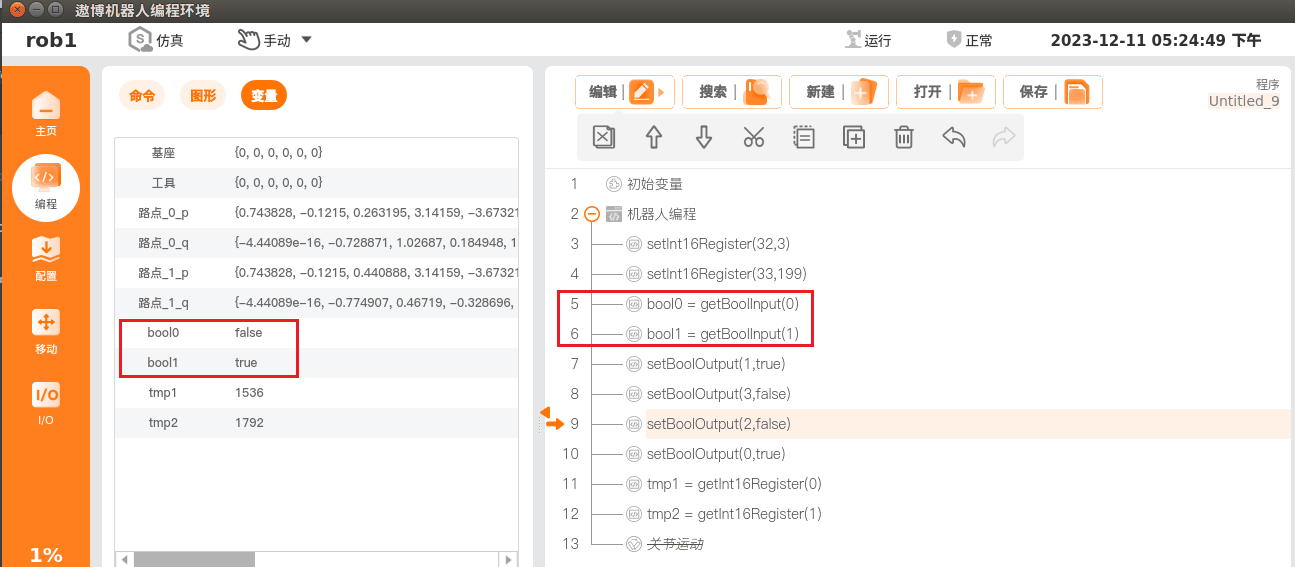
(2) Robot to PLC
setBoolOutput(0,true) sets the first Boolean value at the start address of PLC slot_4 to true.
Holding registers
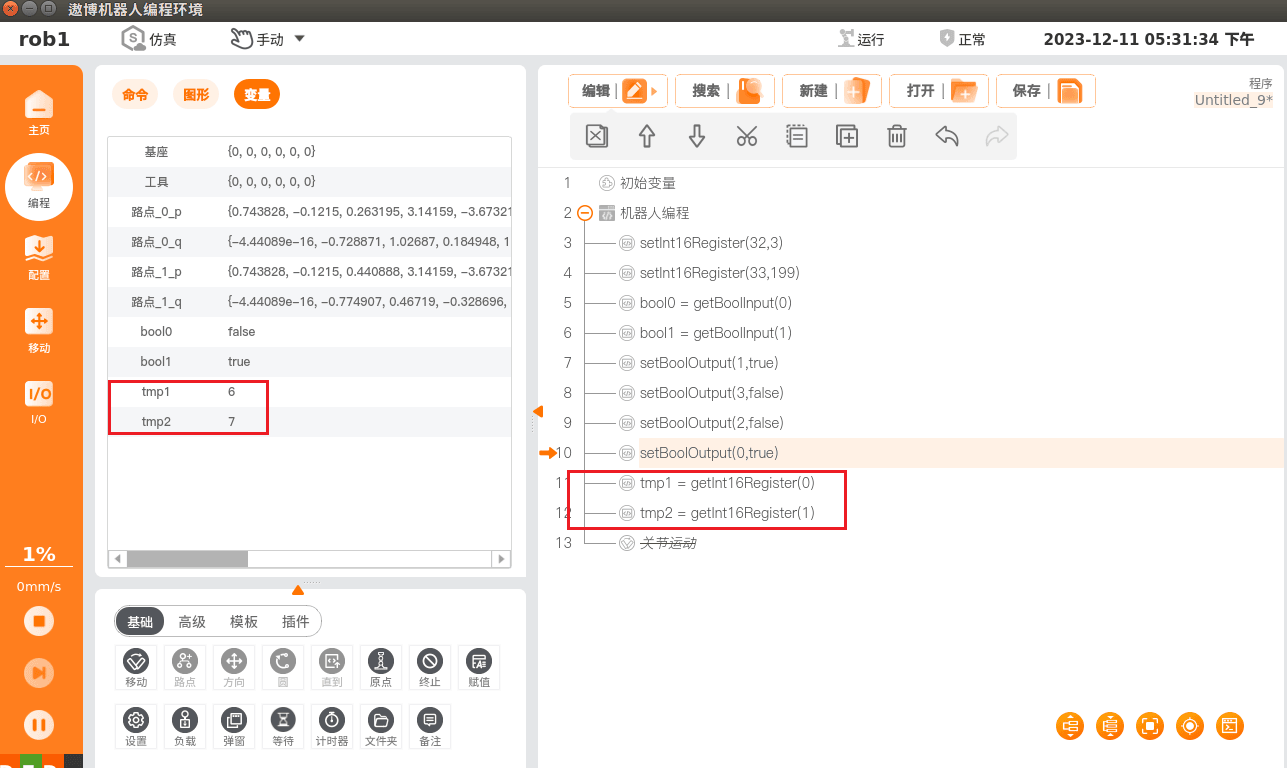
(1) PLC to Robot
tmp1 = getInt16Register(0) reads the first word (16-bit) value starting at byte 9 of PLC slot_5 and stores it in the variable tmp1.
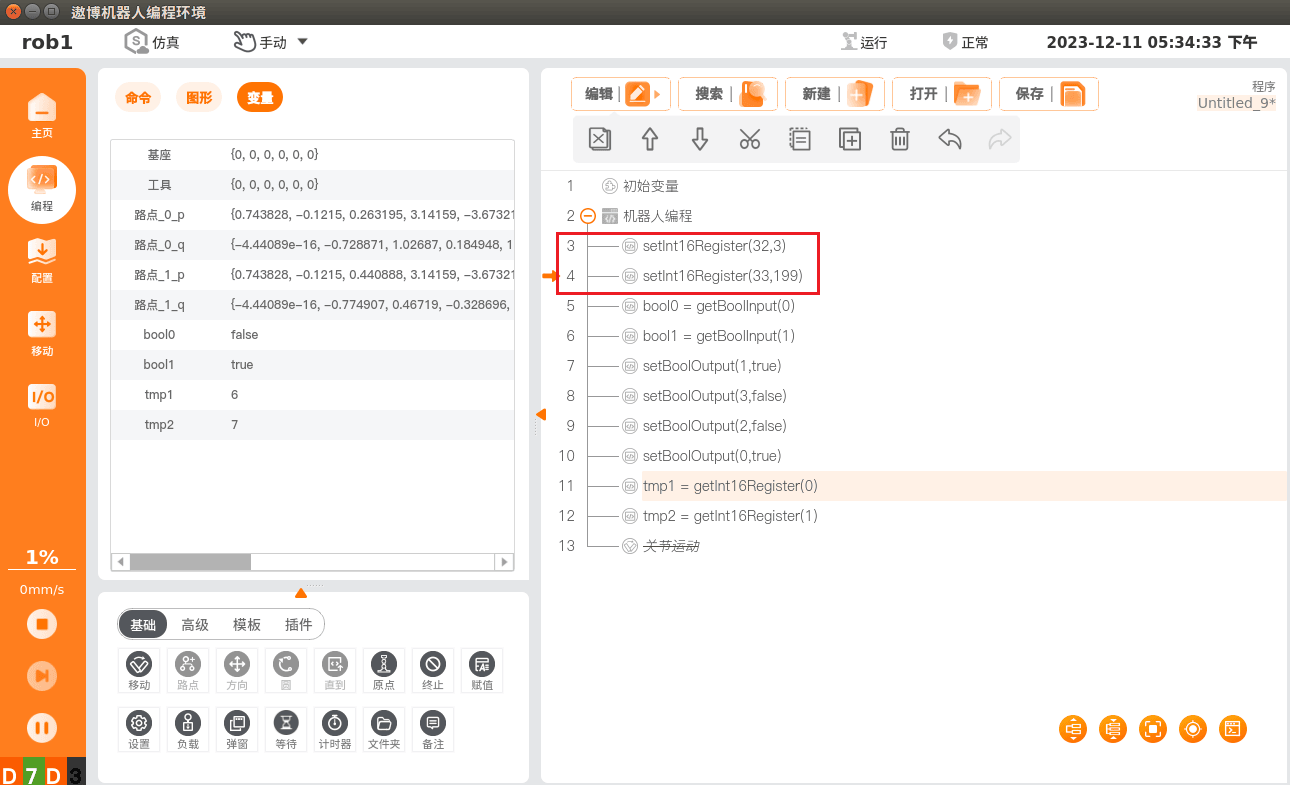
(2) Robot to PLC
setInt16Register(32,3) writes the value 3 to the first data value in the PLC slot_4 holding register. The ninth byte of slot_4 is the holding-register start address, and the start address passed to setInt16Register is 32.
Reading and writing data on the PLC side
Read and write PLC addresses in the Botu software according to the Profinet address protocol, as shown in the example below.
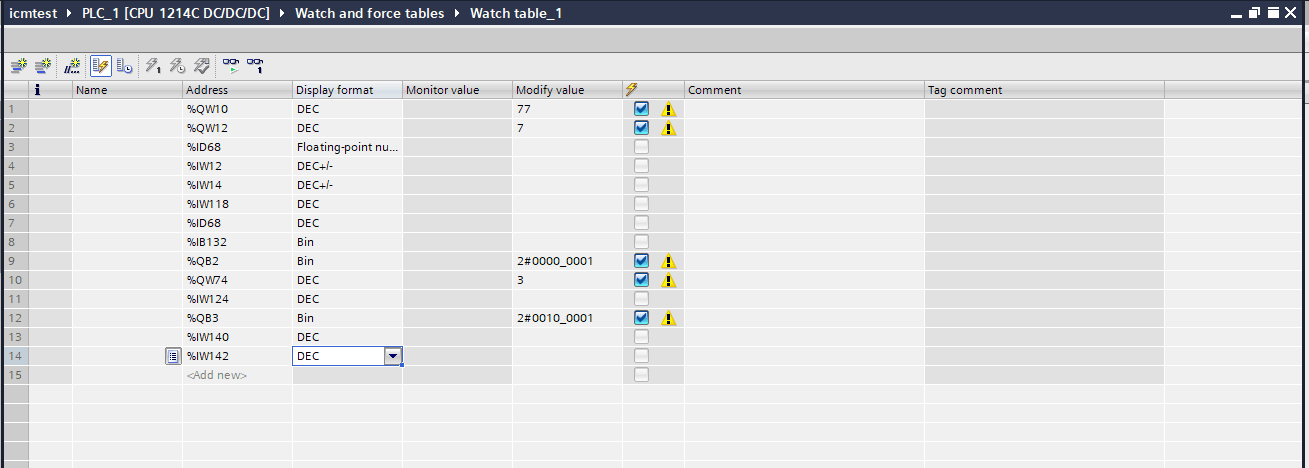
Note: The monitored addresses in this figure were filled in arbitrarily according to the protocol address table during testing. Change them according to the actual application.
II. Ethernet/IP Communication Instructions
1. Environmental Configuration
(1) Hardware gateway Voltage: 12 V–24 V Current: 0.5 A–1 A
(2) AutoShop software Version: V4.10.0.0
(3) EDS file eip_AuboRobot_v1.0.1.eds
(4) Hardware PLC Inovance Easy 521
(5) Gateway service configuration The ICM service process configuration file is stored at /root/arcs_ws/config/aubo_icm.conf by default. It contains the required settings for using the gateway. Configure it before use. The specific EIP configuration is shown below.
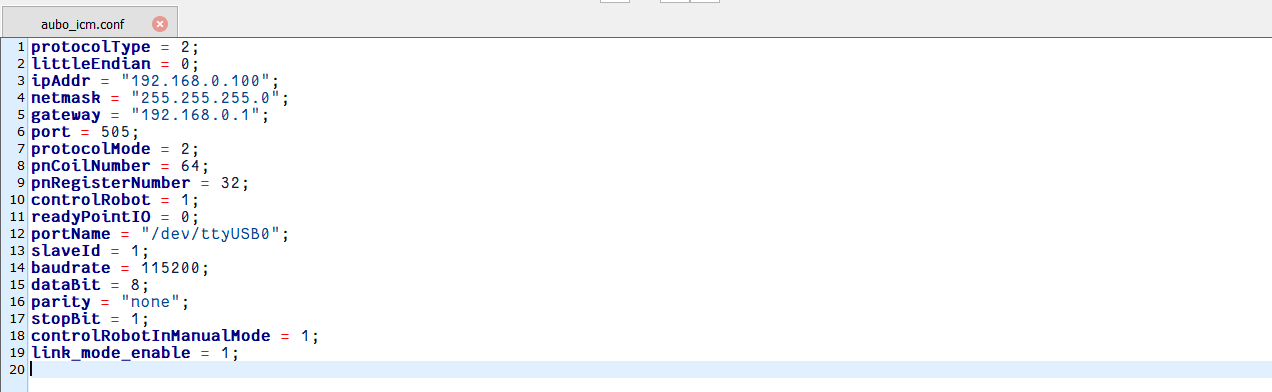
| Configuration item | Description | Default value | Required |
|---|---|---|---|
protocolType | Protocol type: 1: Profinet; 2: Ethernet/IP; 3: EtherCAT | 1 | Yes |
littleEndian | Data storage format: 0: big-endian; 1: little-endian | 0 | Yes |
ipAddr | Gateway module IP address | 192.168.0.100 | Yes |
netmask | Gateway module subnet mask | 255.255.255.0 | Yes |
gateway | Gateway module gateway address | 192.168.0.1 | Yes |
port | Gateway module port | 505 | Yes |
protocolMode | Protocol mode: 1: min mode; 2: standard mode; 3: custom mode | 2 | Yes |
pnCoilNumber | Number of coils | 64 | Yes |
pnRegisterNumber | Number of registers | 32 | Yes |
controlRobot | Robot control keyword: 0: robot control is disabled; 1: robot project start, pause, and other functions can be controlled. When starting a project, check whether the robot arm is at the ready point. | 1 | No |
readyPointIO | Whether the robot arm is at the ready point | 0 | No |
portName | Control cabinet serial port: /dev/ttyS*. If the control cabinet is connected through USB, use ls /dev/ttyU* to check the current serial port. For other RS485 ports, use /dev/ttyS2 for the nine-pin RS485 port on an iS or improved control cabinet, /dev/ttyS0 for the A1/B1-labeled RS485 port on a new C control cabinet, and /dev/ttyS7 for S and ES series control cabinets. | /dev/ttyUSB0 | Yes |
slaveId | Slave ID | 1 | Yes |
baudrate | Baud rate | 115200 | Yes |
dataBit | Data bits | 8 | Yes |
parity | Parity check | none | Yes |
stopBit | Stop bits | 1 | Yes |
controlRobotInManualMode | Whether to control the robot in manual mode | 1 | No |
2. Gateway Wiring
2.1 Hardware Modules
Interface module description:
- Module 1: Indicator light. Blue indicates a successful connection.
- Module 2: WLAN3, the internal microcontroller network port, reserved.
- Module 3: WLAN2 and WLAN1, the two industrial protocol ports. Connect WLAN1 to the PLC and WLAN2 to the computer running the Botu software.
- Module 4: Power (DC, 12 V–24 V).
- Module 5: RS485 bus for communication with the control cabinet.
- Module 6: CANFD, reserved for the internal microcontroller.
2.2 Hardware Wiring Diagram
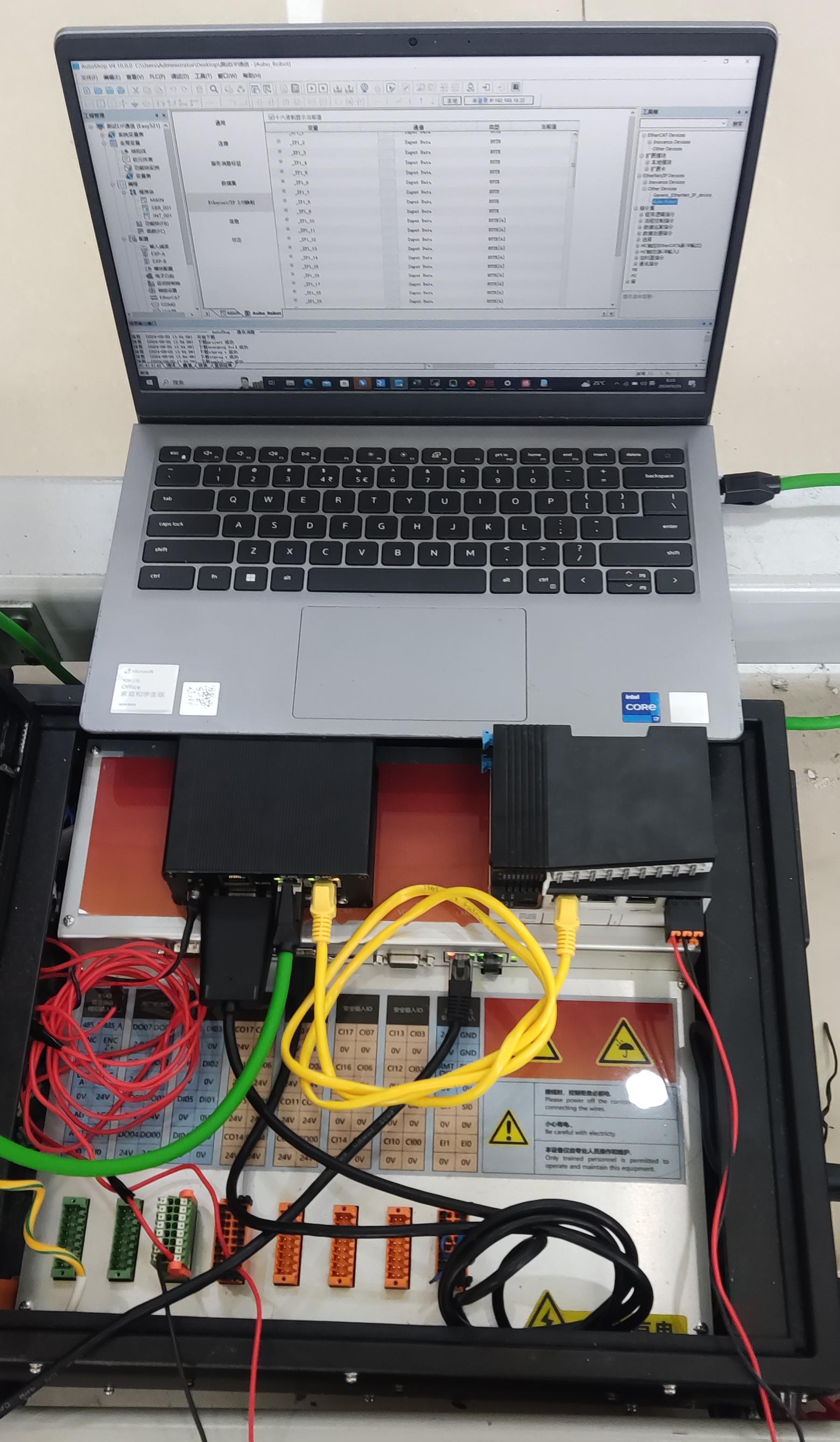
- Connect the power cable (red is positive and black is negative). The figure shows the cable connected directly to the robot arm control cabinet power supply.
- Use a shielded USB-to-485 communication cable in the field, and ground the metal shell.
- Check the wiring. After power-on, the gateway's
green light(the green gateway light shown above) turns on. When the gateway is connected to the PLC and can communicate normally, the gateway'sblue lightturns on.
3. Gateway and PLC Communication
3.1 Create a New PLC EIP Project
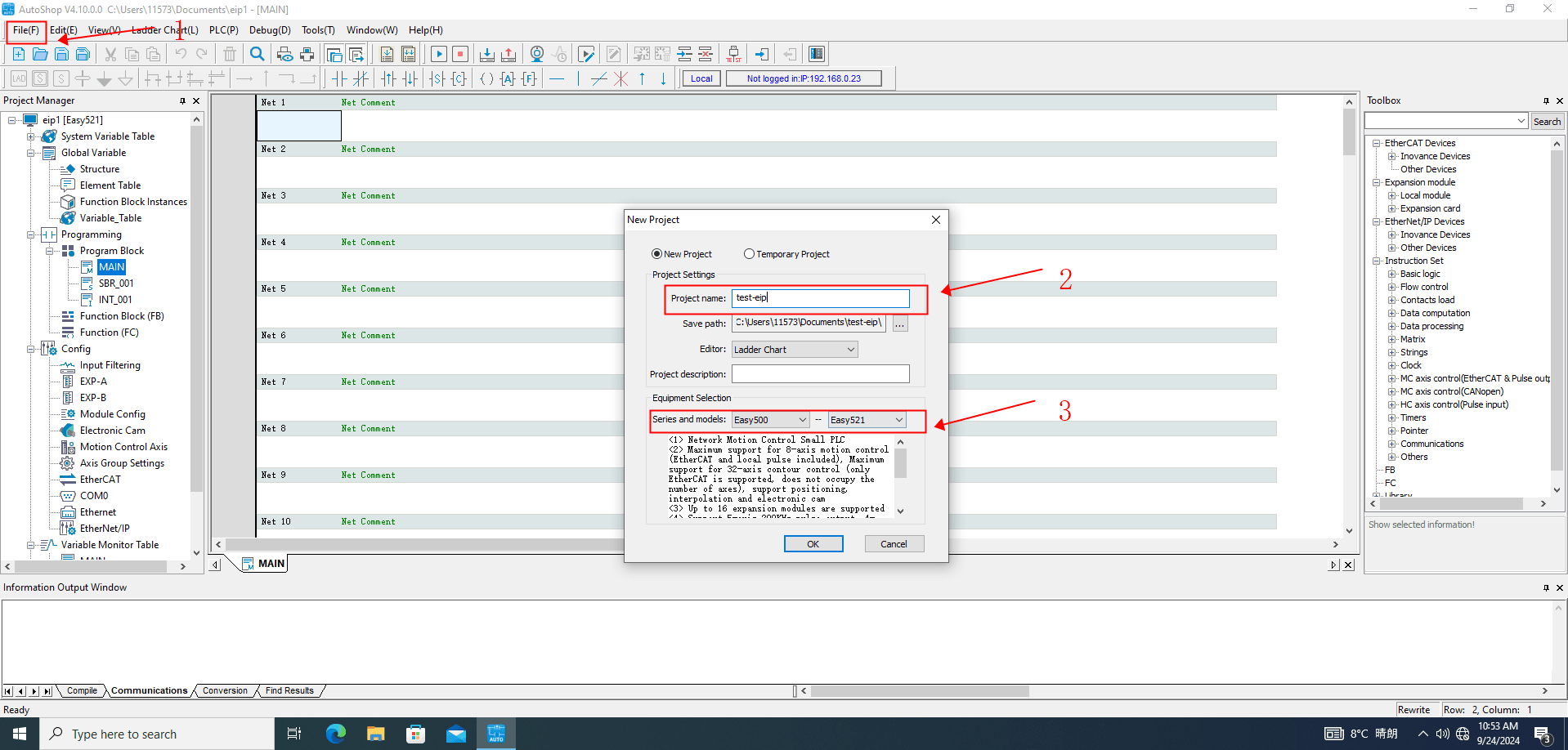
Open the AutoShop software, enter the main page, and select File > New Project. Follow the operations marked in the figure, enter the project name, and select the Inovance PLC model Easy521.
3.2 Configure the PLC
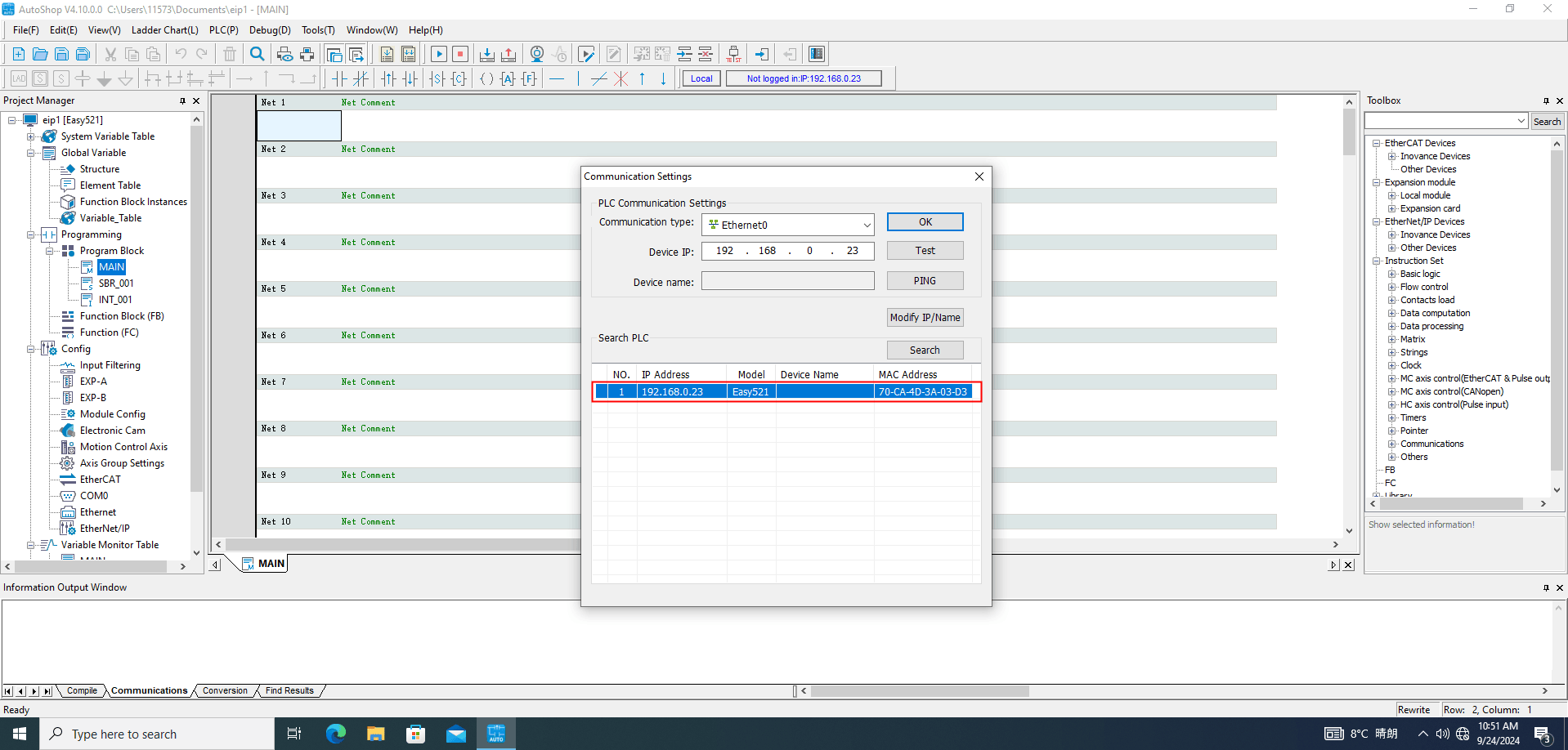
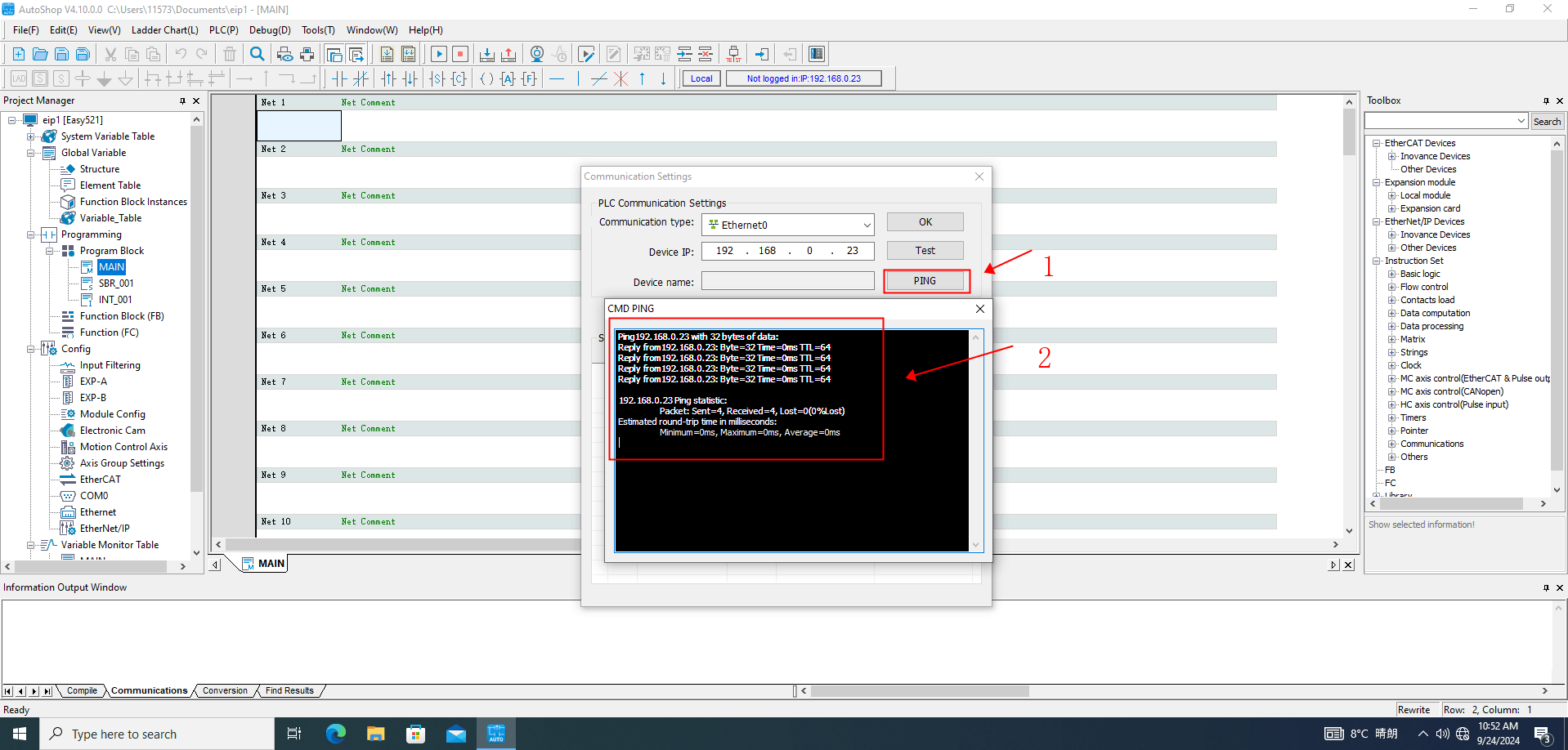
Select Tools > Communication, set the communication type to Ethernet0, and enter the PLC IP address. Click Test or Ping to check the network connection. If the connection fails, click Search. The software automatically searches for available PLC devices on the local network.
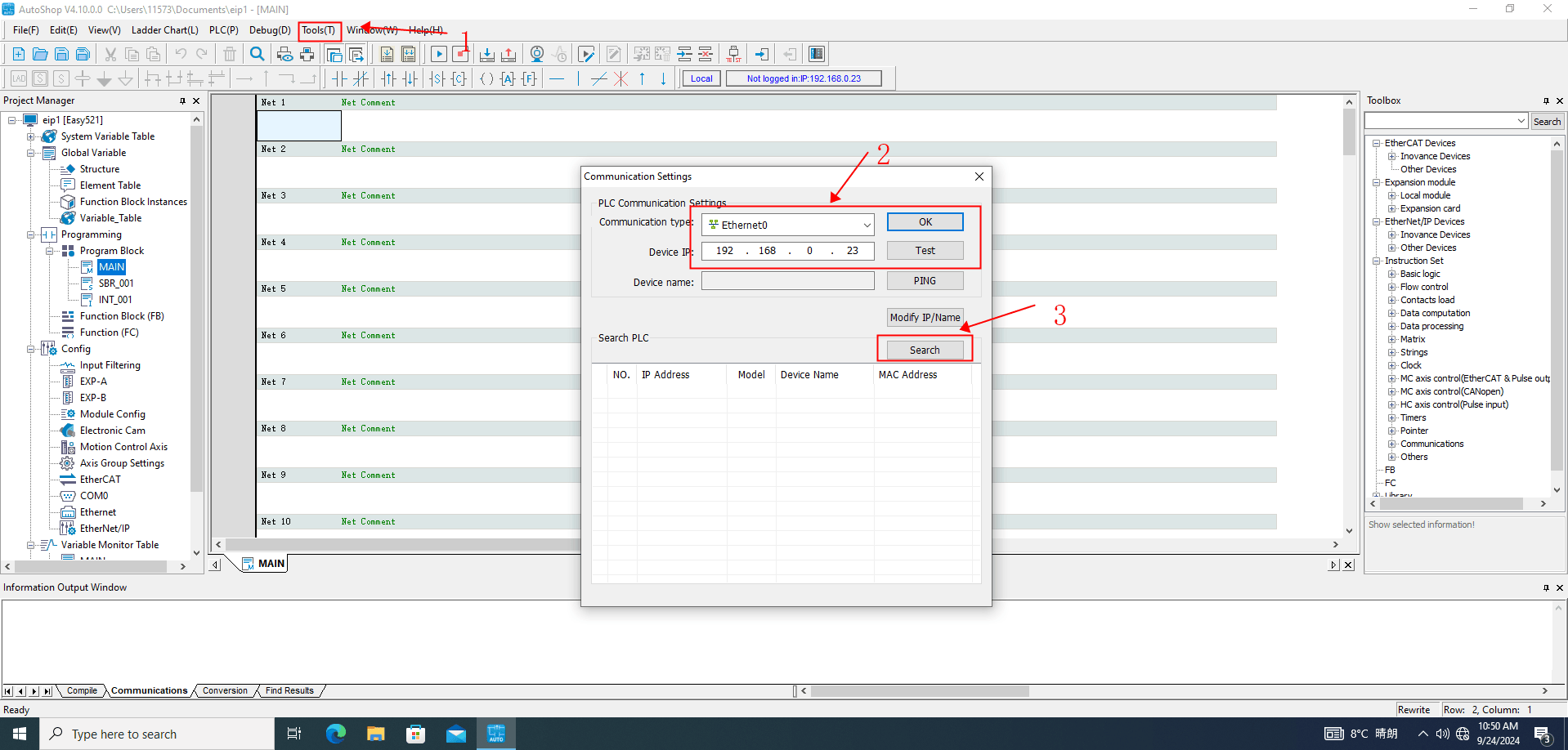
Use the PLC found by the search to fill in its target IP address in Device IP. Click Test or PING to check whether the communication connection is normal.
The communication is normal after running the Ping command, as shown below.
3.3 Import the EDS File into the PLC
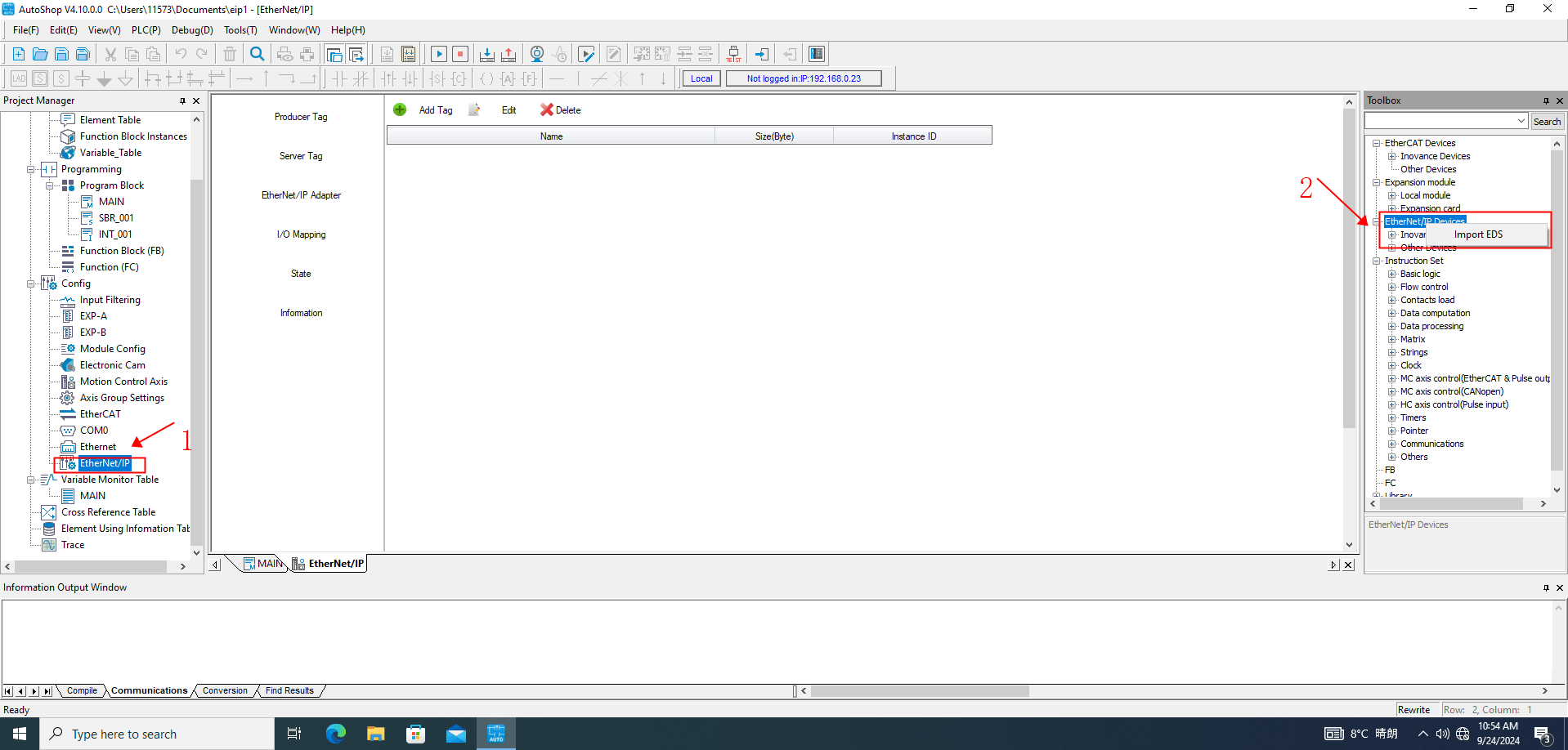
In the right-side menu of AutoShop, select ToolBox > Ethernet/IP Device, right-click Ethernet/IP Device, and select Import EDS to import the prepared EDS file, as shown below.
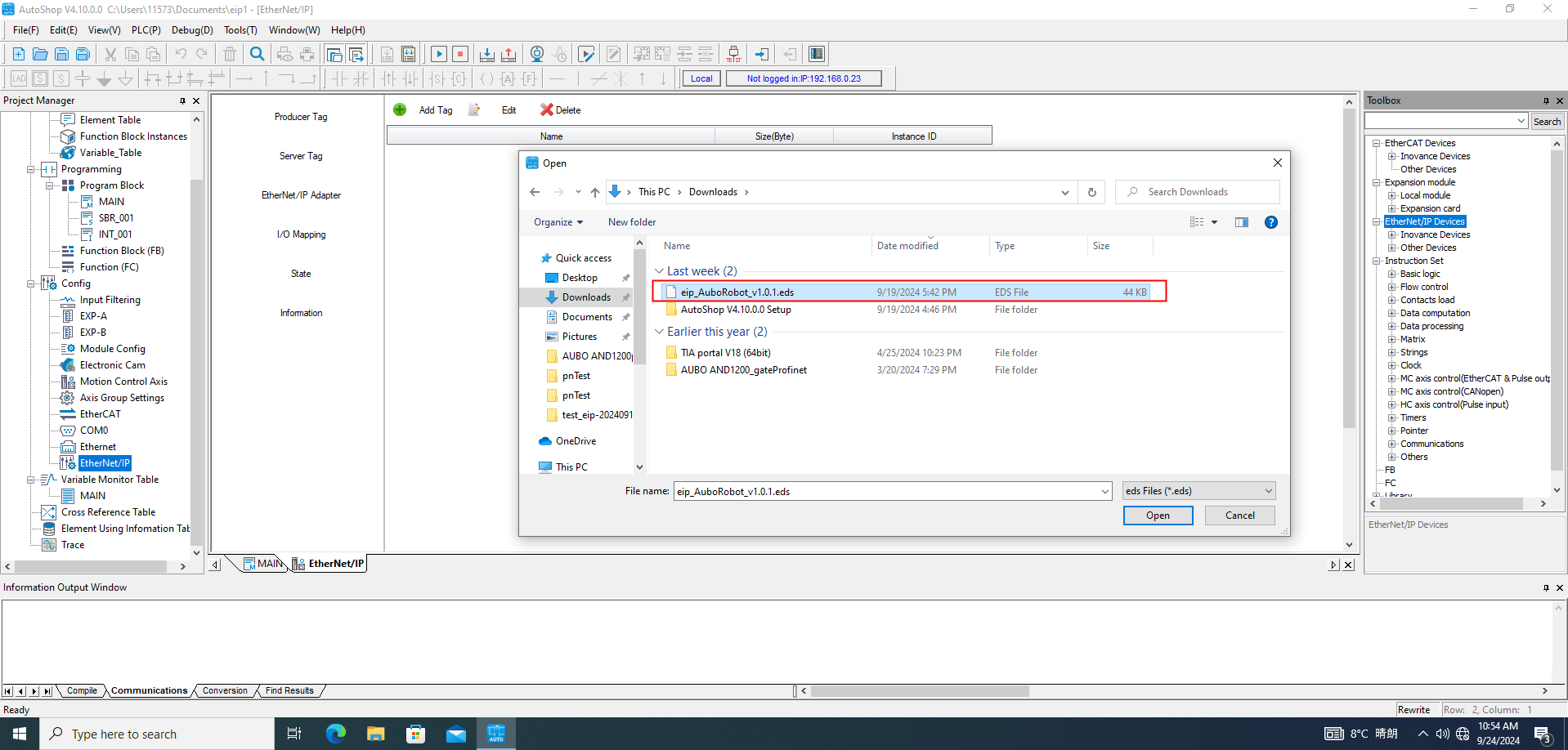
Note: The EDS file is provided by AUBO development. Contact the relevant engineer for the latest version.
3.4 Configure the Device Station Gateway IP Address
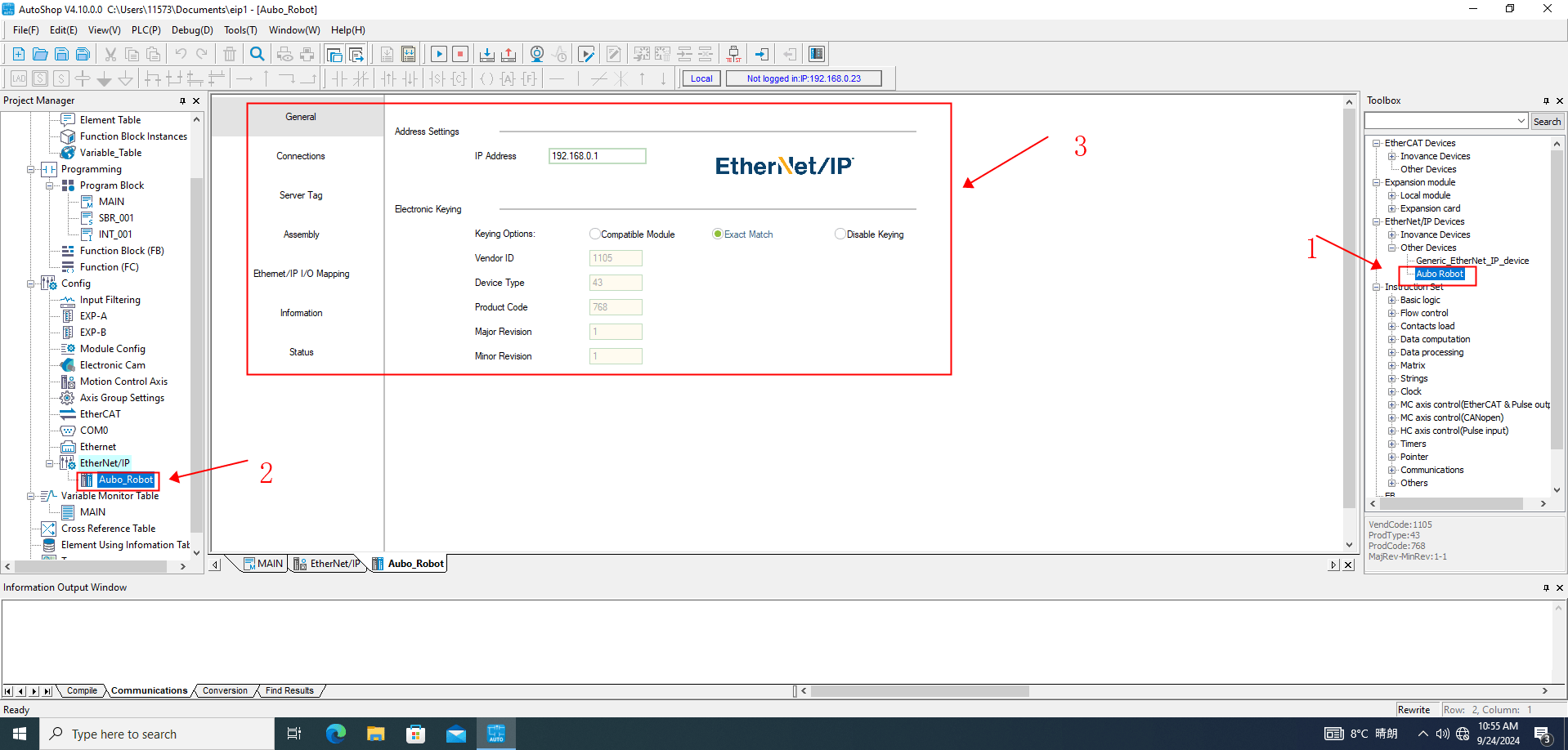
After the Ethernet/IP device is generated from the EDS file, double-click AuboRobot in the right-side ToolBox. Aubo_Robot is generated under Ethernet/IP in Project Manage on the left. Click Aubo_Robot to configure the gateway device station. Set IP Address to the gateway's actual IP address, which is the gateway IP configured in the ICM configuration file. In Electronic Keying, set keying Option to Exact Match and keep the other values at their defaults, as shown below.
3.5 Save the Project, Download, Run, and Monitor
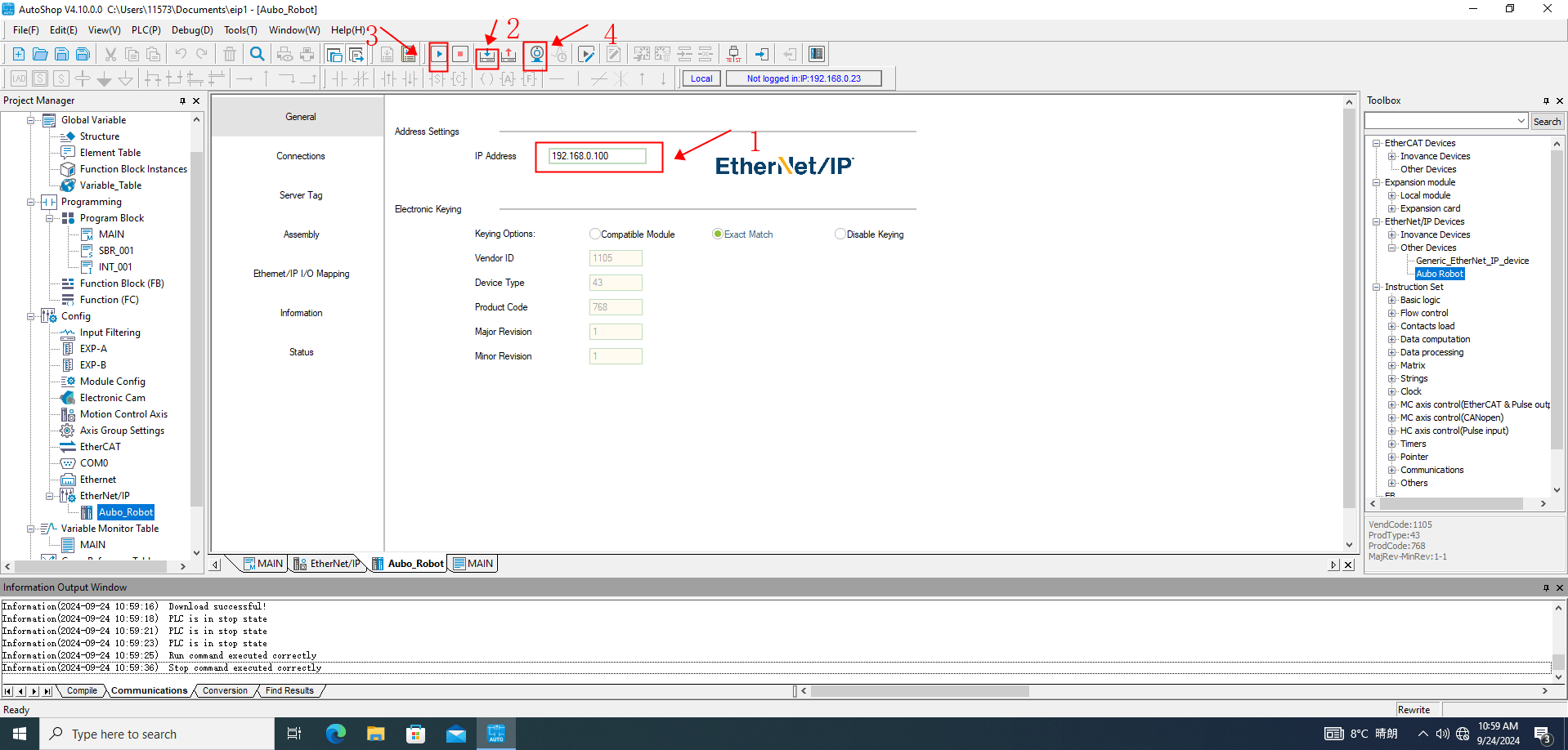
After completing all configuration, save the project, then select Download > Run > Monitor, as shown below.
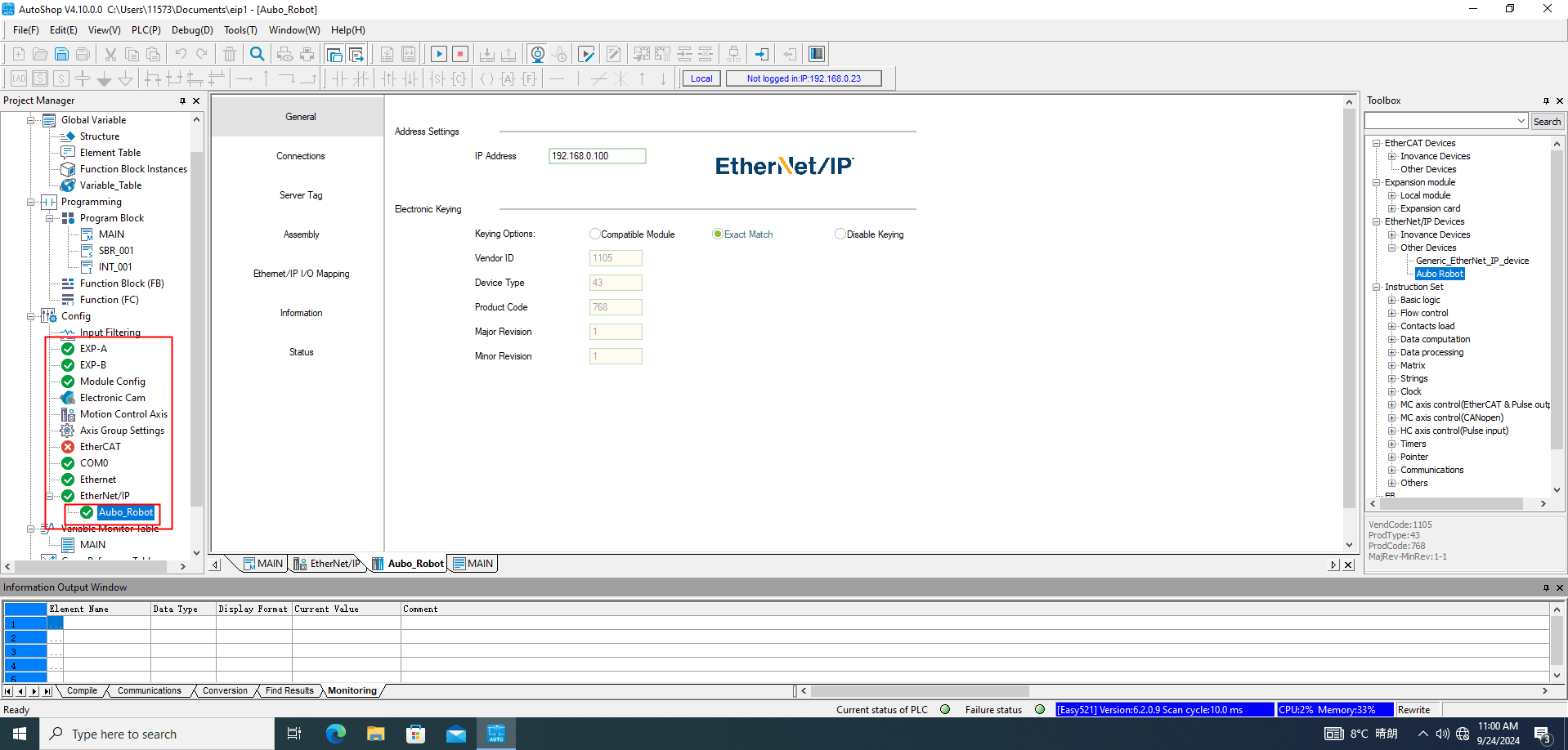
Switch the PLC to Run mode. After selecting Run > Monitor, select Config > Ethernet/IP on the left. When Ethernet/IP and Aubo_Robot both turn green, the PLC is connected successfully to the gateway device station and can communicate normally.
Add variables to the monitoring table. On the left, select Variable Monitor Table > MAIN. In the MAIN table, click ... to open the Variable Input Assistant dialog. Select UserVar > SYS_EIP and select the required address.
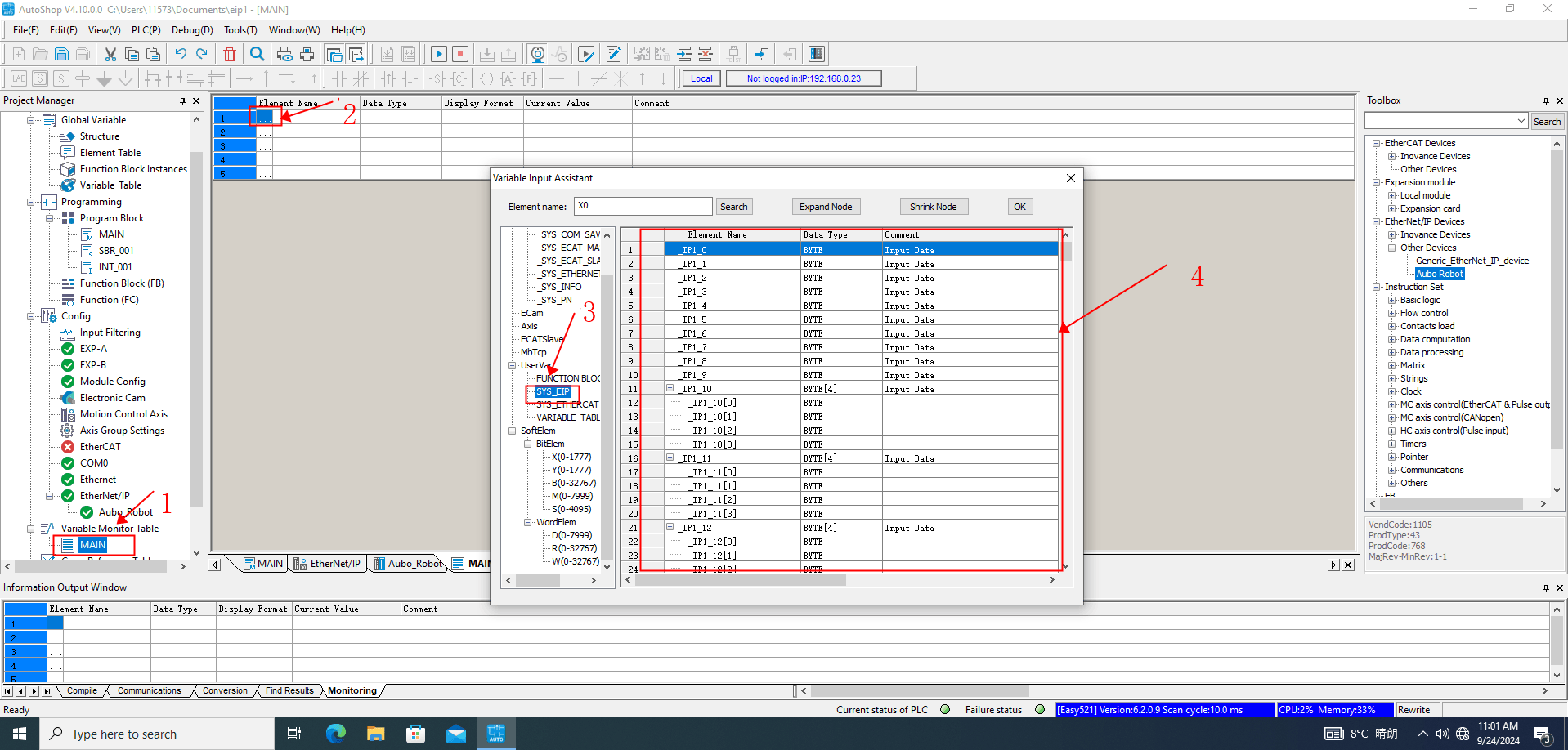
The addresses in SYS_EIP come from the EDS file. Development engineers assigned them in advance according to the EIP address table. This address table corresponds to the EIP communication address table provided by the development engineers. Select the required address fields according to the EIP address table.
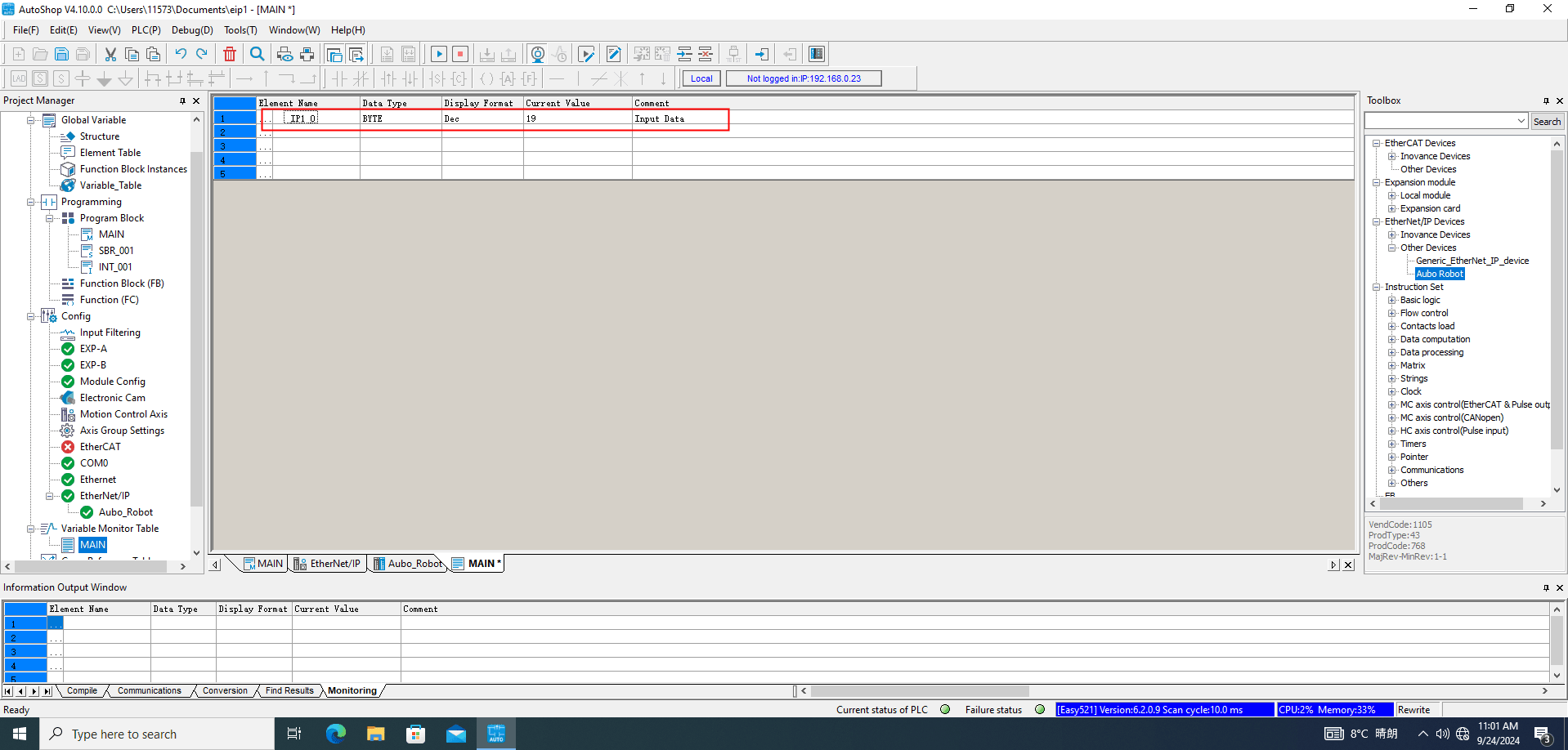
The following monitored addresses are added according to the EIP address table. They include the LO signal, position X coordinate, Joint6 angle, heartbeat, robot status, general coils (Robot => PLC), general registers (Robot => PLC), general coils (PLC => Robot), general registers (PLC => Robot), and the control project.
4. Gateway and Controller Communication
The gateway service configuration and log details are described in the ICM sections above.
The ICM runtime log at root/arcs_ws/log/icm/aubo_icm.log is shown below.
Successful operation indicators:
RTDE Client Connect Successedindicates that the gateway is communicating successfully with the robot arm.Modbus ConnectRtu Succeedindicates that Modbus communication between the gateway and controller succeeded.ICM is Runningindicates that the ICM service process started successfully.
When the ICM runtime log contains the preceding messages and no other error messages, ICM has started successfully and is running normally.
5. PLC and Controller Communication Example
5.1 Data Conversion Tool
C++ online tool: https://www.jyshare.com/compile/12/
#include <iostream>
#include <cstring>

int main() {
    // Convert a floating-point number to a byte array.
    float value = -0.957064038;
    unsigned char hex_bytes[sizeof(float)];
    memcpy(hex_bytes, &value, sizeof(float));

    std::cout << "Hex Result: ";
    for (size_t i = 0; i < sizeof(float); ++i) {
        std::cout << std::hex << static_cast<int>(hex_bytes[i]) << " ";
    }
    std::cout << std::dec << std::endl;

    // Convert a byte array to a floating-point number.
    unsigned char bytes[4] = {0x26, 0x2, 0x75, 0xBF};
    float result = 0.0;
    memcpy(&result, bytes, sizeof(float));
    std::cout << "Float Result: " << result << std::endl;
    return 0;
}Usage:
The preceding code converts between a hexadecimal byte array and a signed floating-point value. Use it to inspect converted data and check whether the data received by the PLC is correct. Copy the code directly into the online tool and run it.
5.2 Communication Examples
This communication uses the EIP protocol. The PLC communicates with the robot arm as follows:
- Robot arm IO status (
slot_1) - Robot arm pose (
slot_2) - Robot arm joint current, voltage, and temperature (
slot_3) - General coils and general holding registers (
slot_4,slot_5)
The PLC can read slot_1, slot_2, and slot_3 directly. slot_4 and slot_5 contain coils and holding registers, and communication between the PLC and robot arm is implemented through ARCS system script calls.
5.2.1 Read the Robot Arm Pose
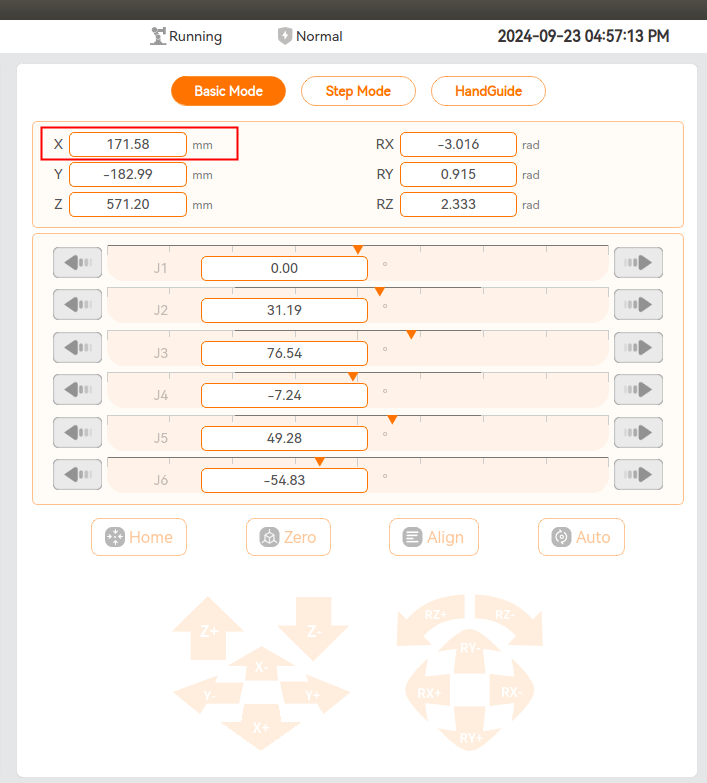
Move the robot arm to any position and record its pose. In the example below, the robot arm is at X = 171.58 mm.
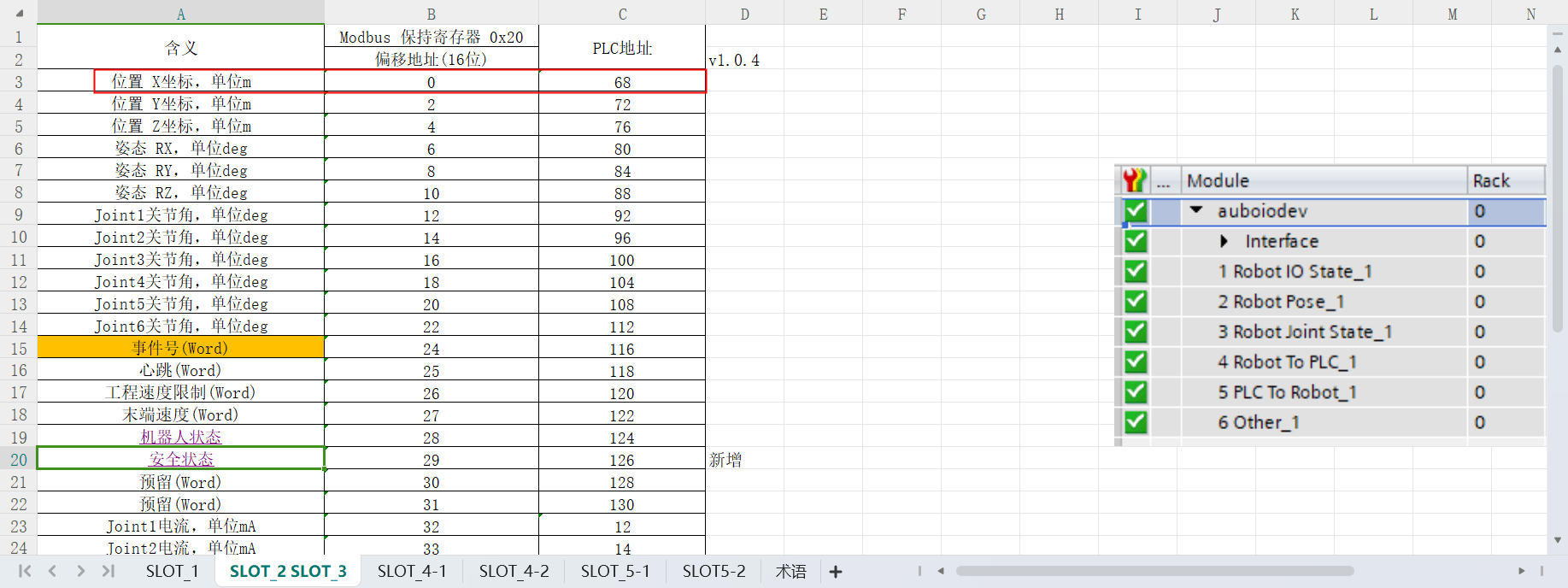
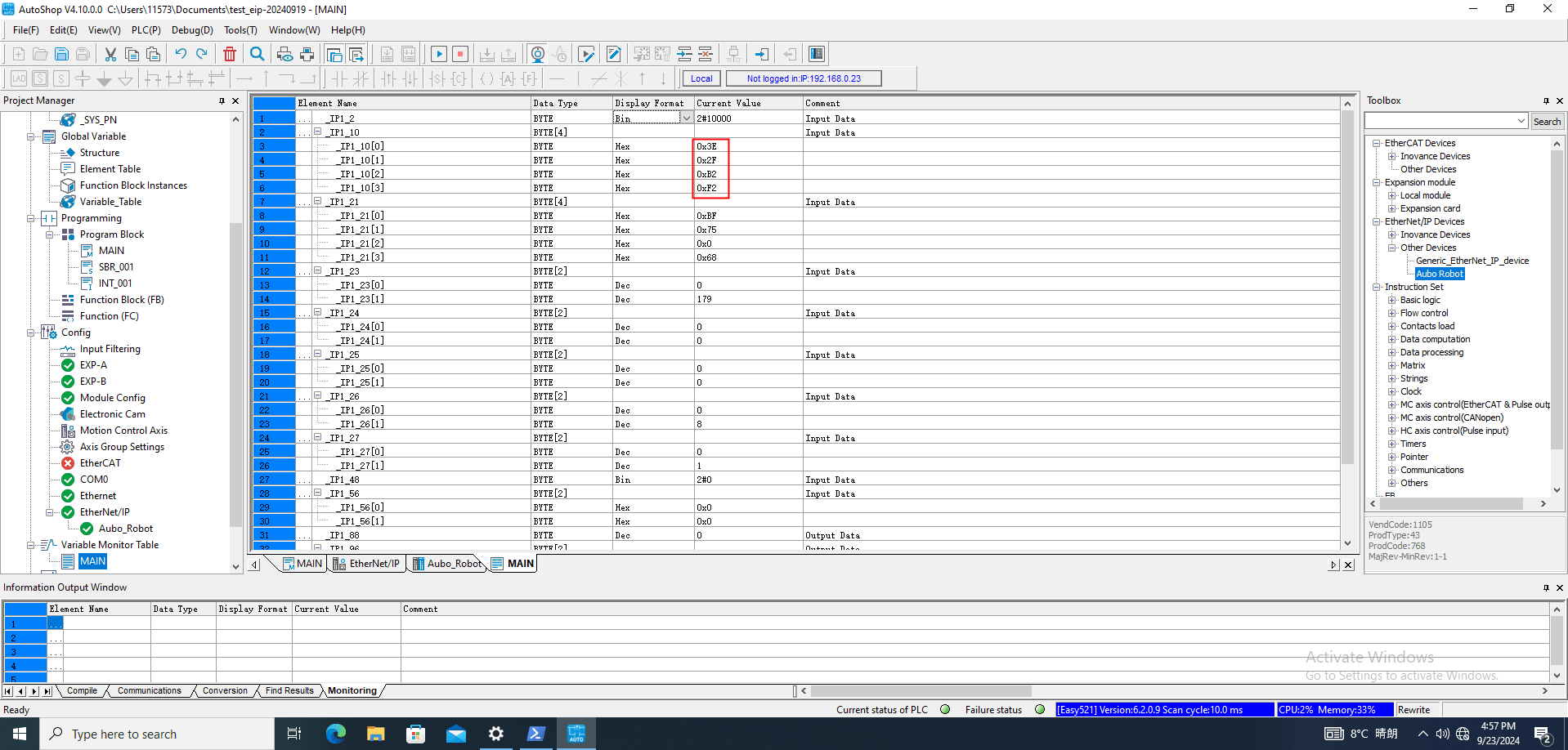
According to the X-coordinate address in the address table, add the monitoring address _IP1_10 to the MAIN table in AutoShop.
The AutoShop monitoring address _IP1_10 receives 0xF2 0xB2 0x2F 0x3E from the robot arm.
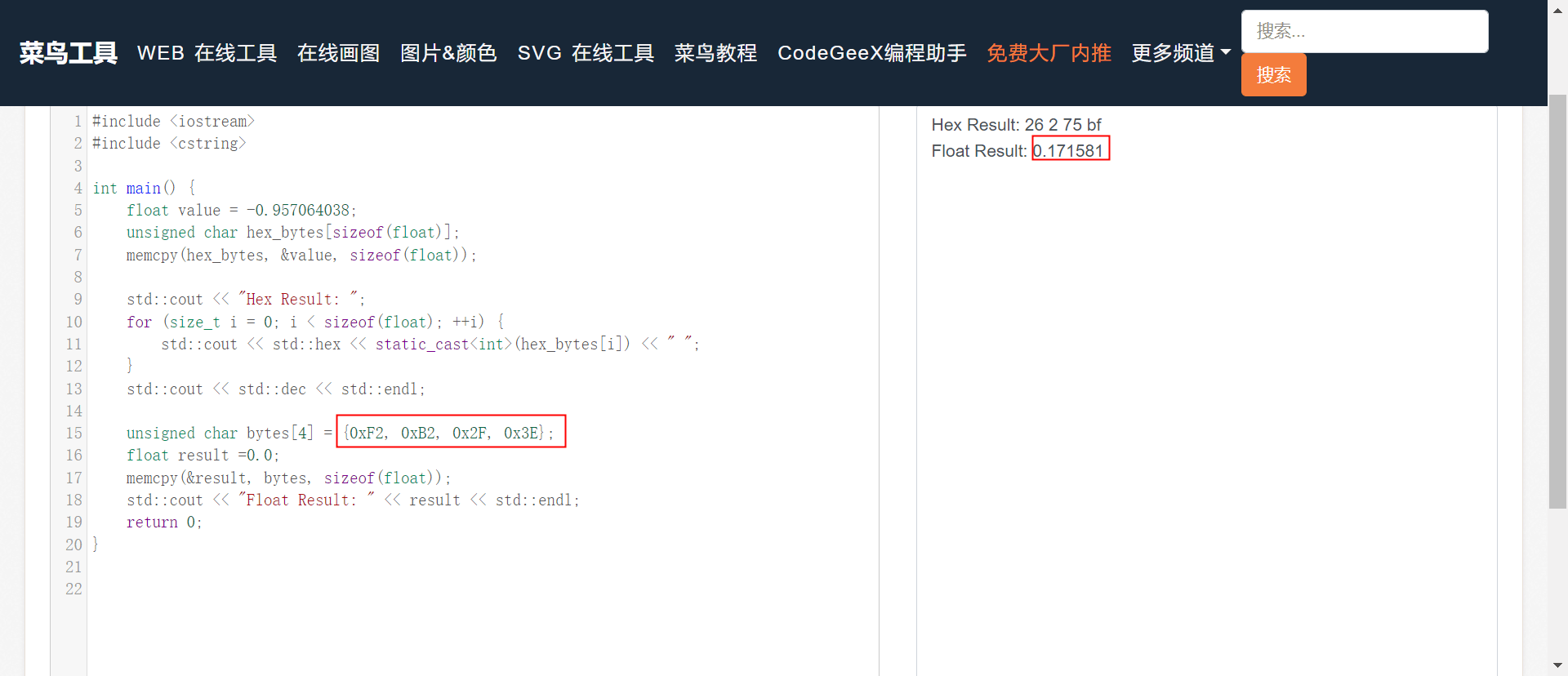
Use the tool to convert the hexadecimal byte array 0xF2 0xB2 0x2F 0x3E to the floating-point value 0.171581. This corresponds to the actual robot arm X pose value, so the data transmission is correct.
5.2.2 Read the Robot Arm Safety Status
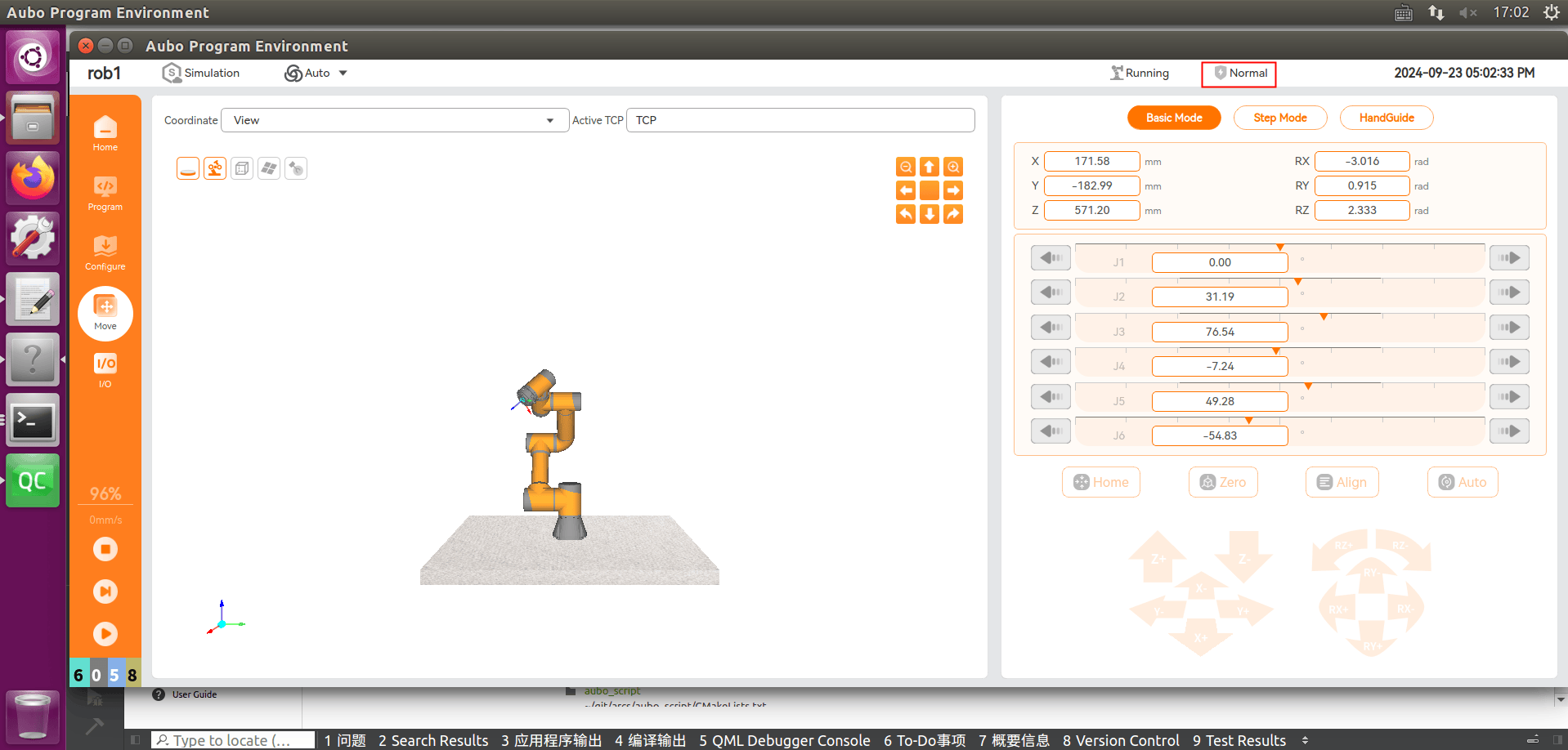
Use the teach pendant to power on the robot arm and release the brakes. Record the safety status. In this example, the current robot arm safety status is Normal.
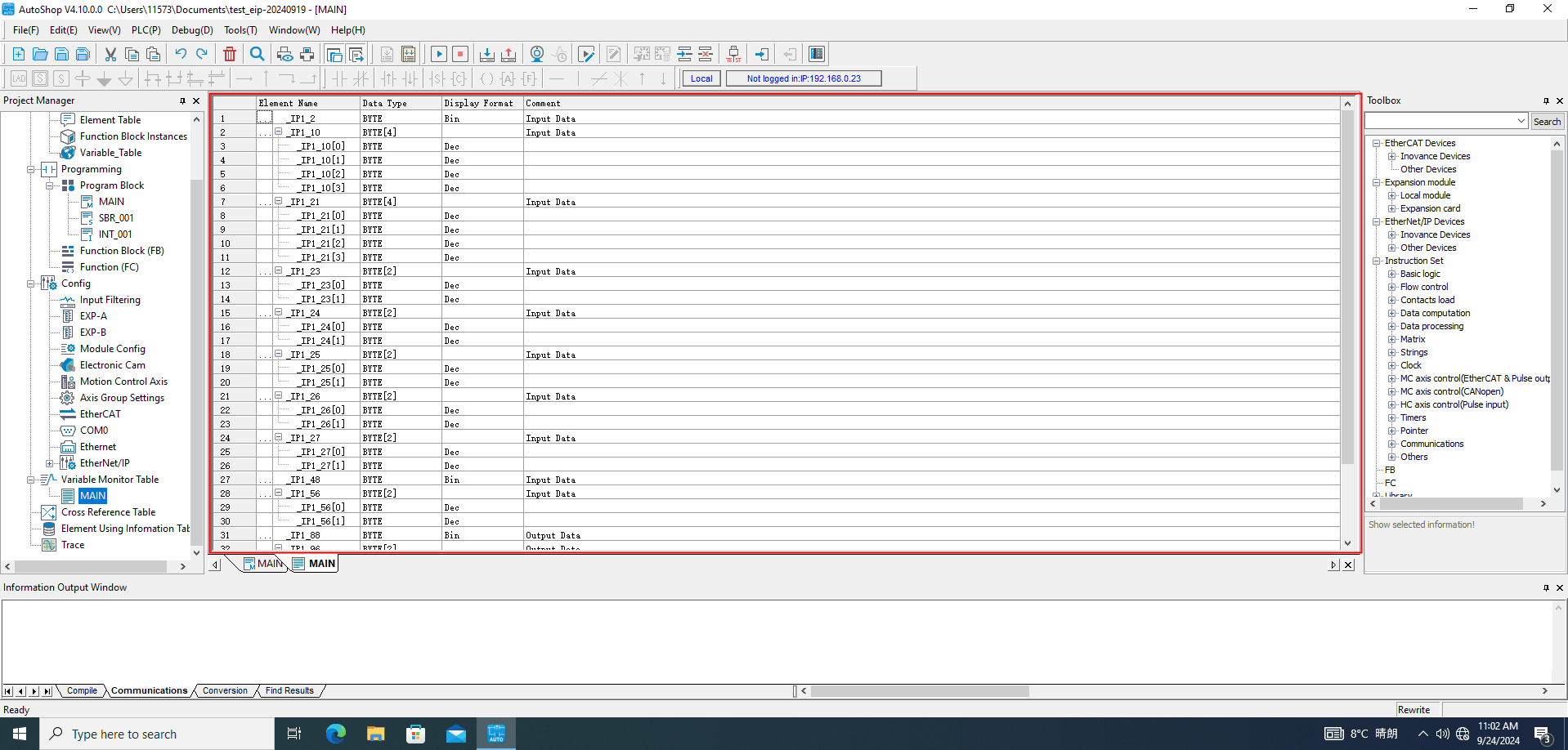
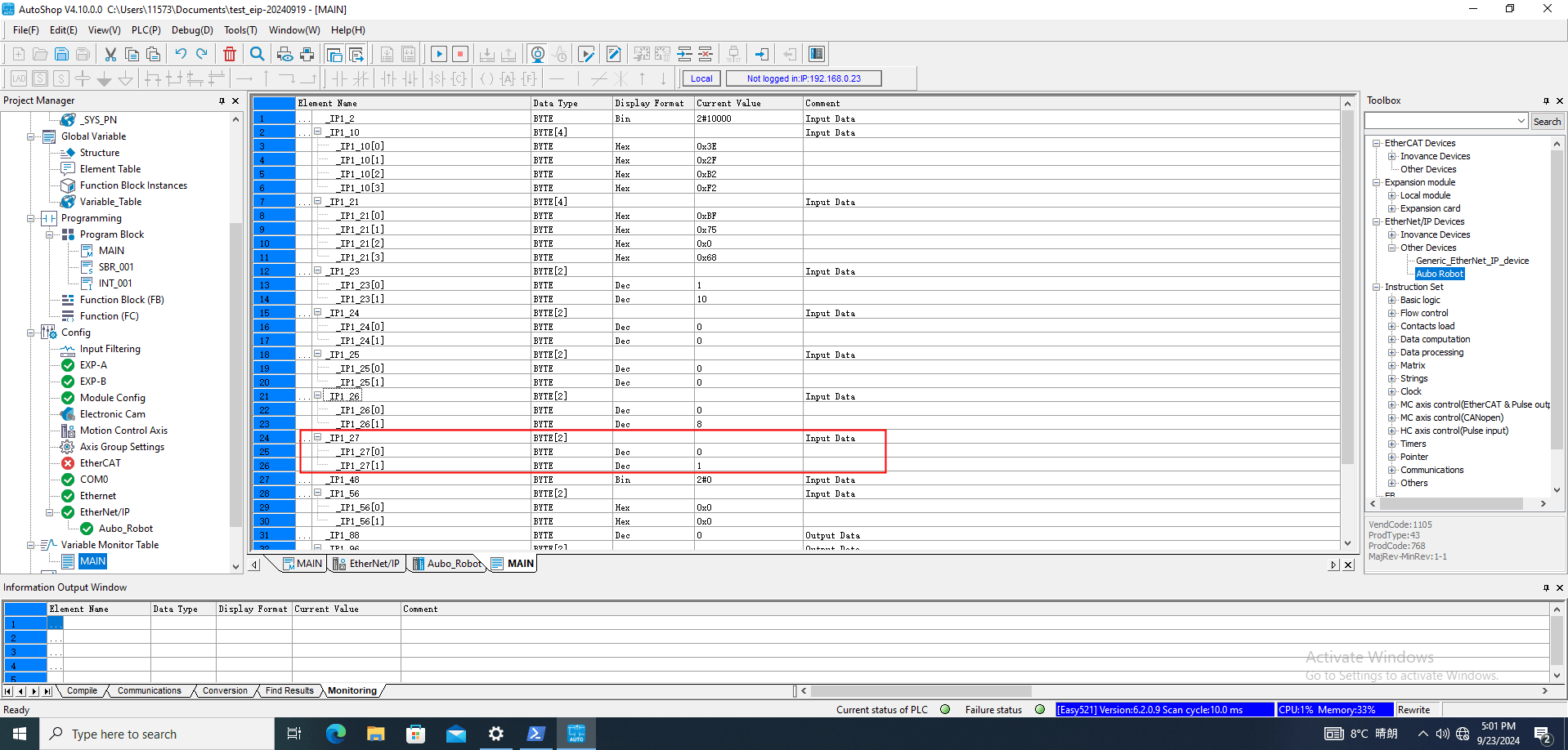
According to the safety-status address in the address table, add monitoring address _IP1_27 to the MAIN table in AutoShop.
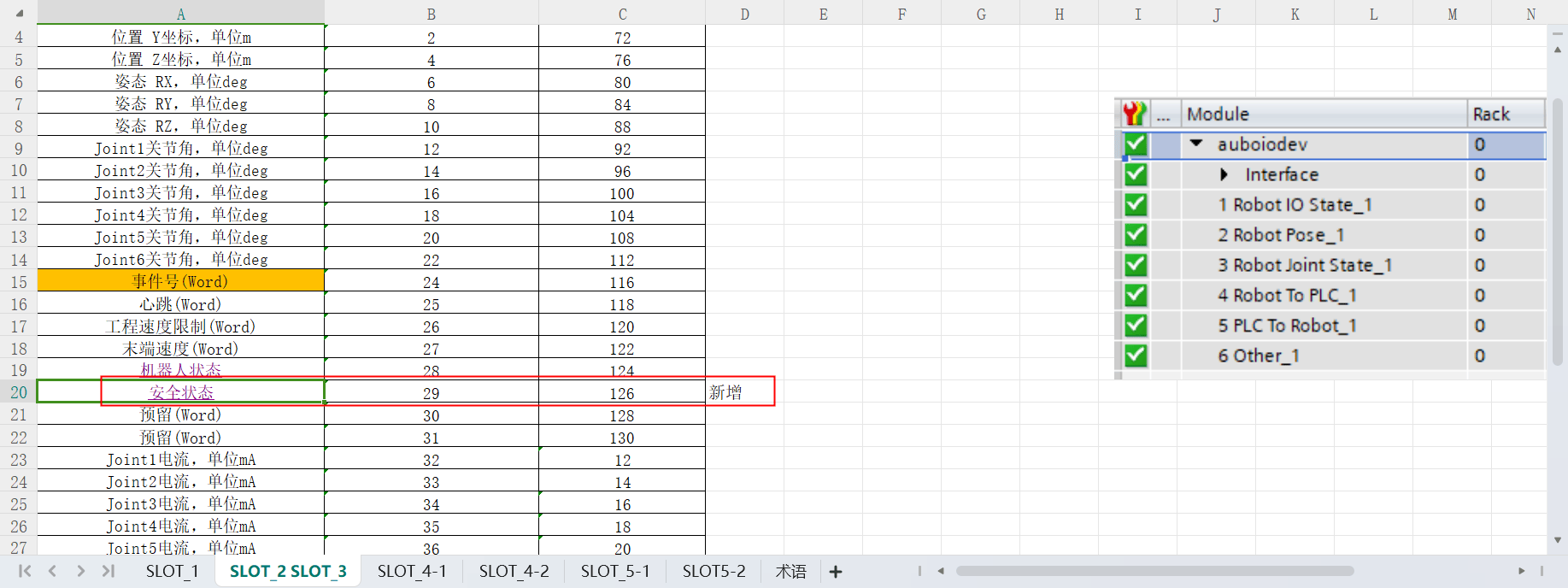
The monitoring address _IP1_27 reads value 1, indicating that the robot arm is in normal operation mode (Normal).
5.2.3 General Coil (Robot => PLC)
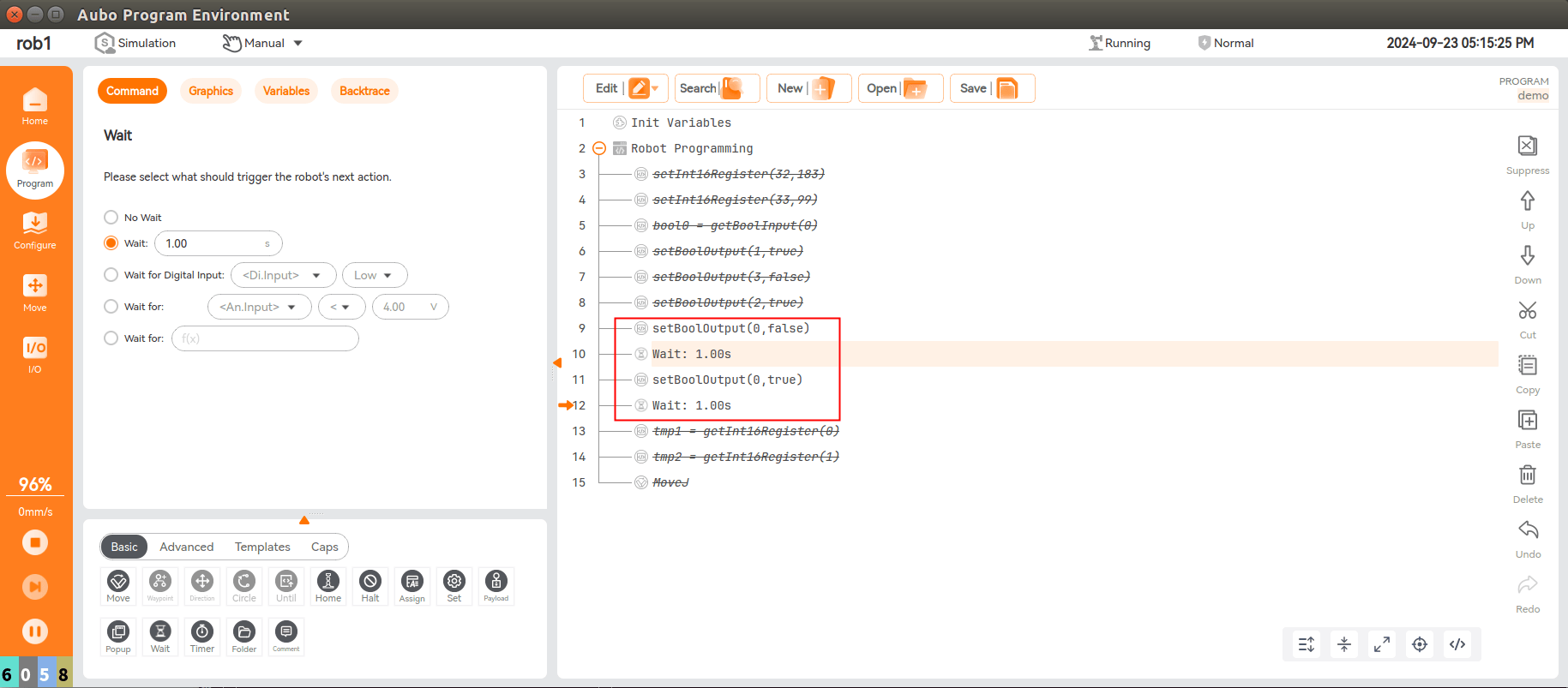
setBoolOutput(0,true) sets the first Boolean value at the start address of PLC slot_4 to true.
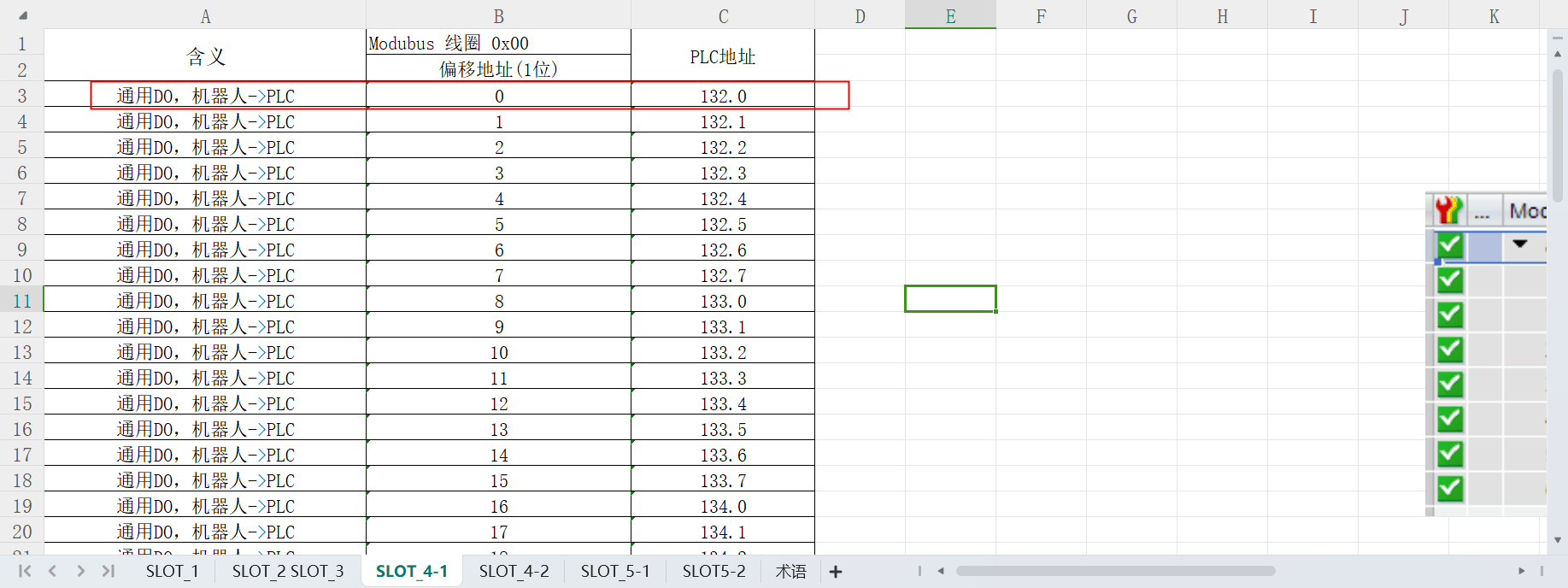
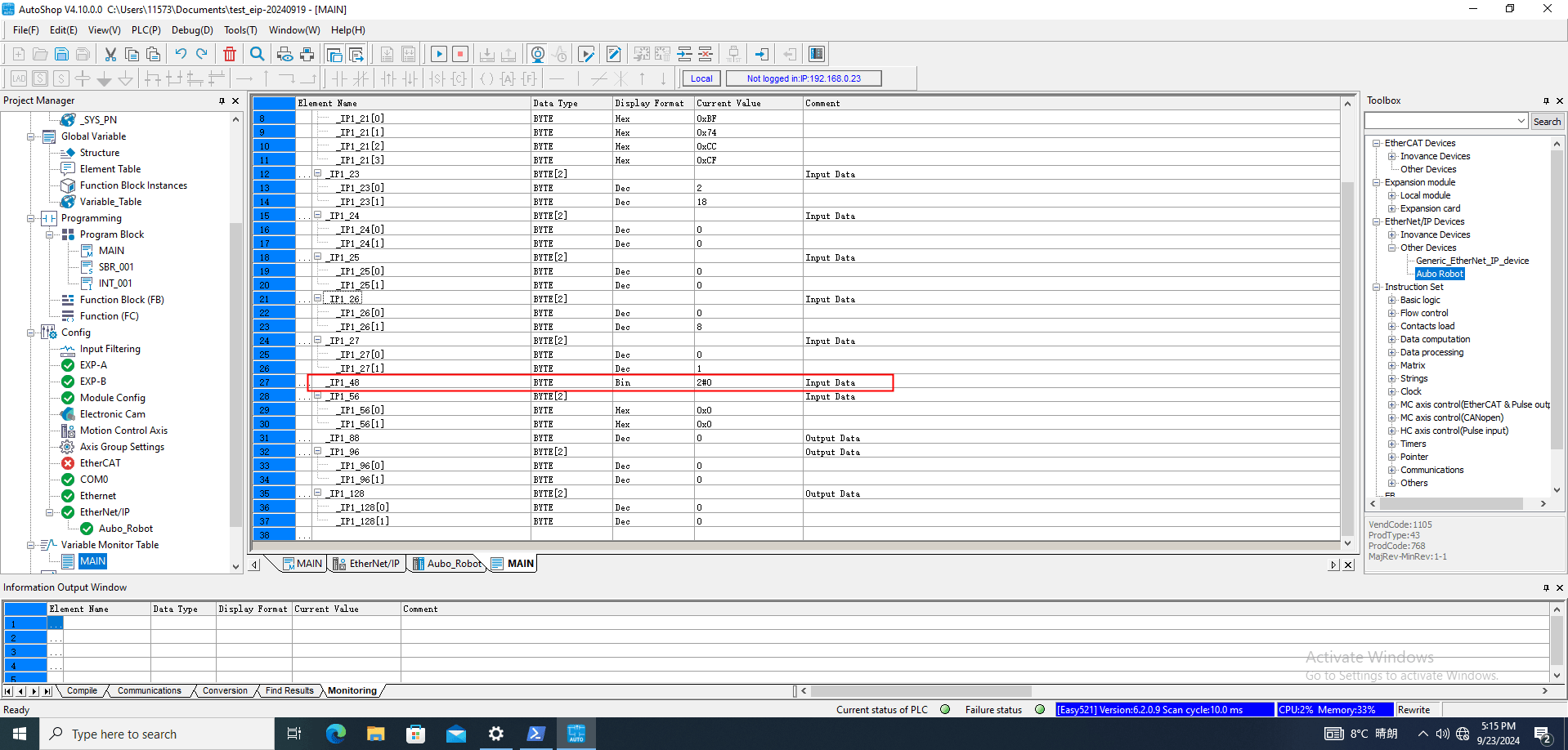
According to the address of the first general coil (Robot => PLC) in the address table, add monitoring address _IP1_48 to the MAIN table in AutoShop.
After adding monitoring address _IP1_48 to the MAIN table, its value is 0, which means false. After 1 second, its value becomes 1, which means true. The monitored value alternates between 0 and 1.
5.2.4 General Holding Register (Robot => PLC)
setInt16Register(32,183) writes 183 to the first data value in the PLC slot_4 holding register. The ninth byte of slot_4 is the holding-register start address, and the start address passed to setInt16Register is 32. After 1 second, change the data to 99.
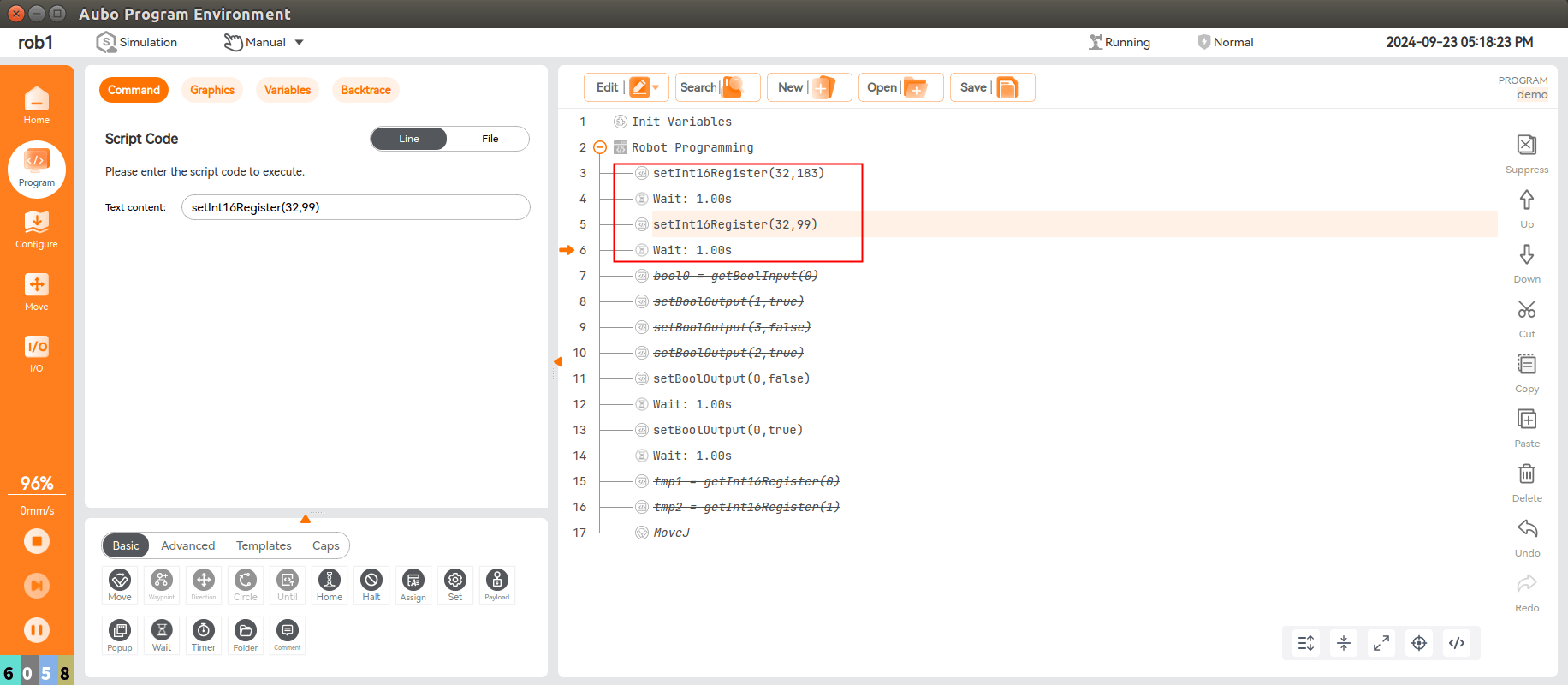
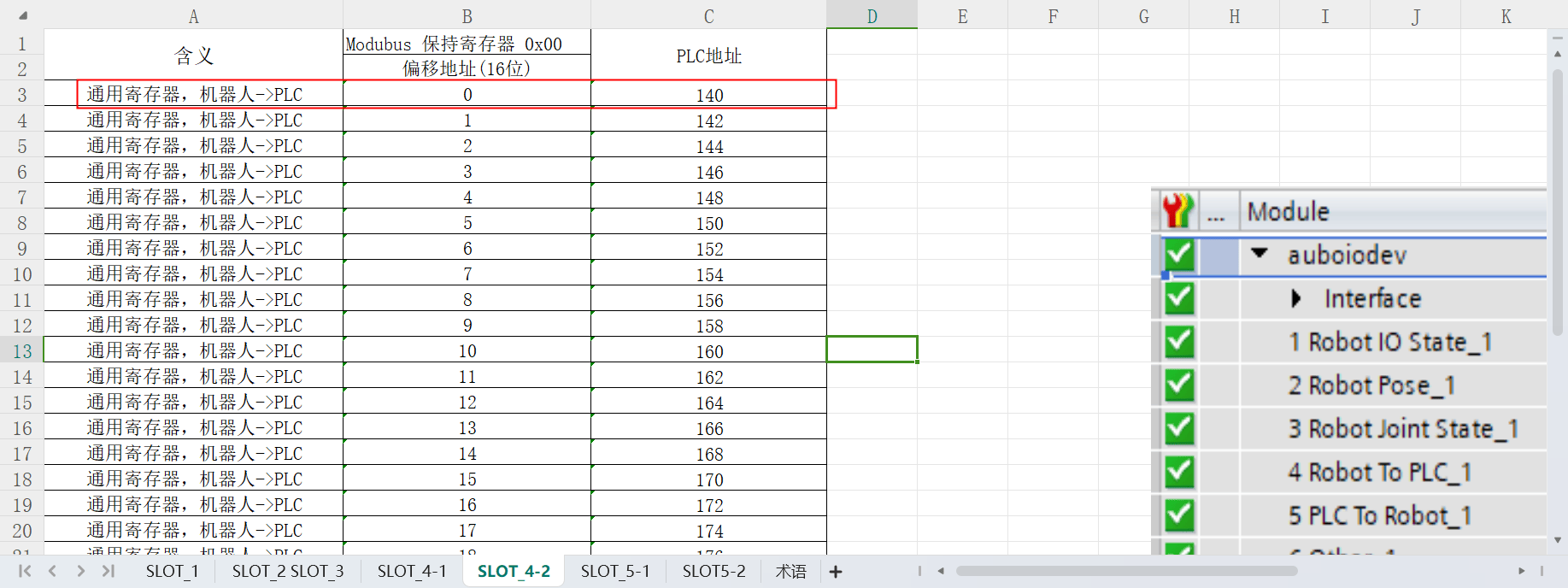
According to the address of the first general register (Robot => PLC) in the address table, add monitoring address _IP1_56 to the MAIN table in AutoShop.
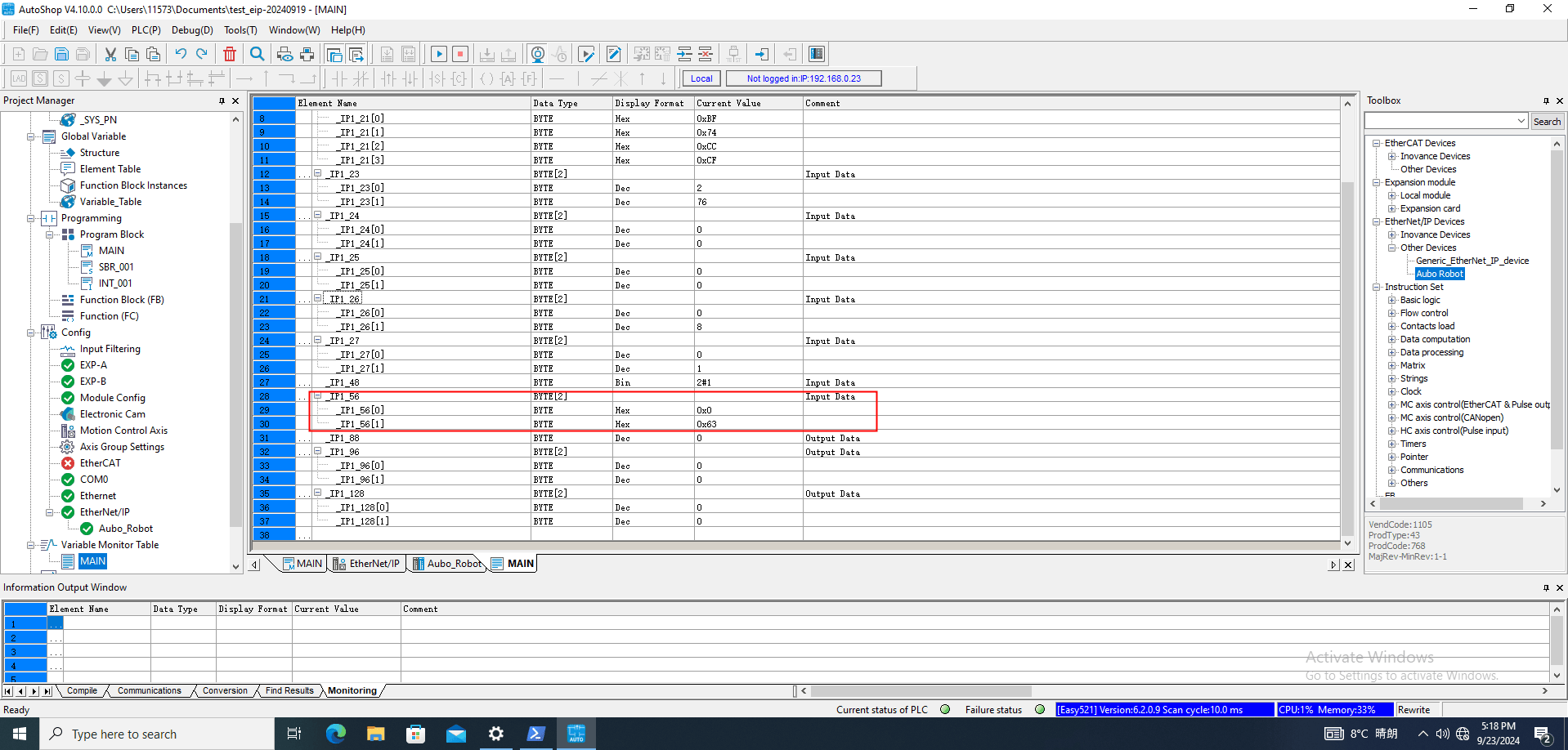
After adding monitoring address _IP1_56 to the MAIN table, its value is 183. After 1 second, the value becomes 99. The monitored value changes between 183 and 99.
5.2.5 General Coil (PLC => Robot)
According to the address of the first general coil (PLC => Robot) in the address table, add monitoring address _IP1_88 to the MAIN table in AutoShop.
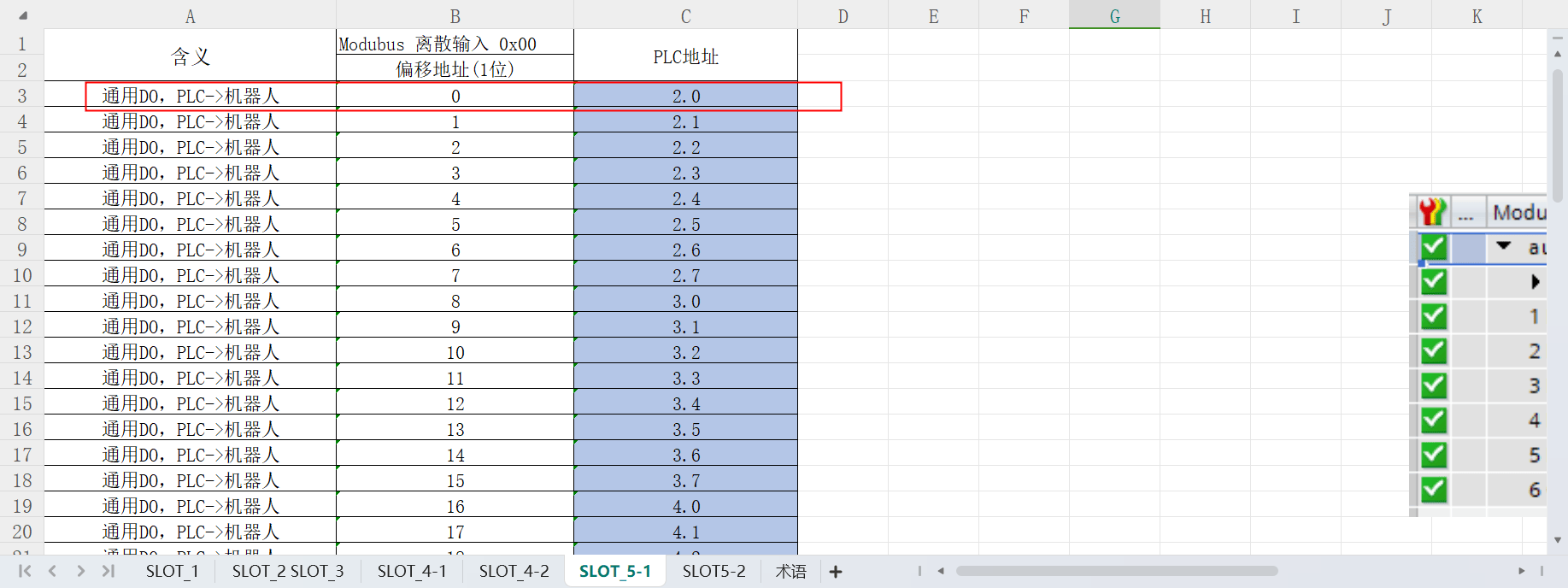
Write 1 to address _IP1_88 in the MAIN table in AutoShop.
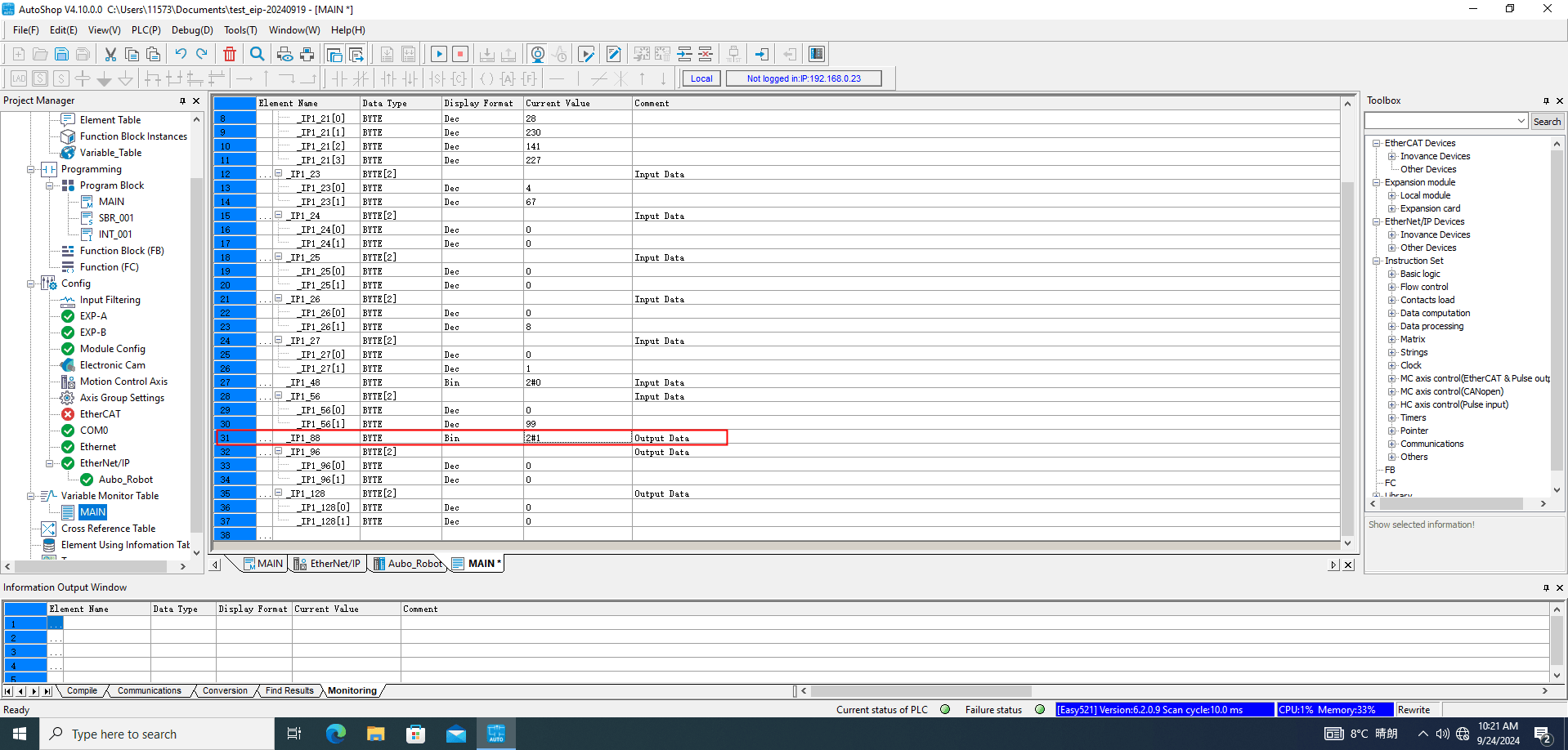
bool0 = getBoolInput(0) reads the first Boolean value at the start address of PLC slot_5 and stores it in the variable bool0. The corresponding PLC address now reads true.
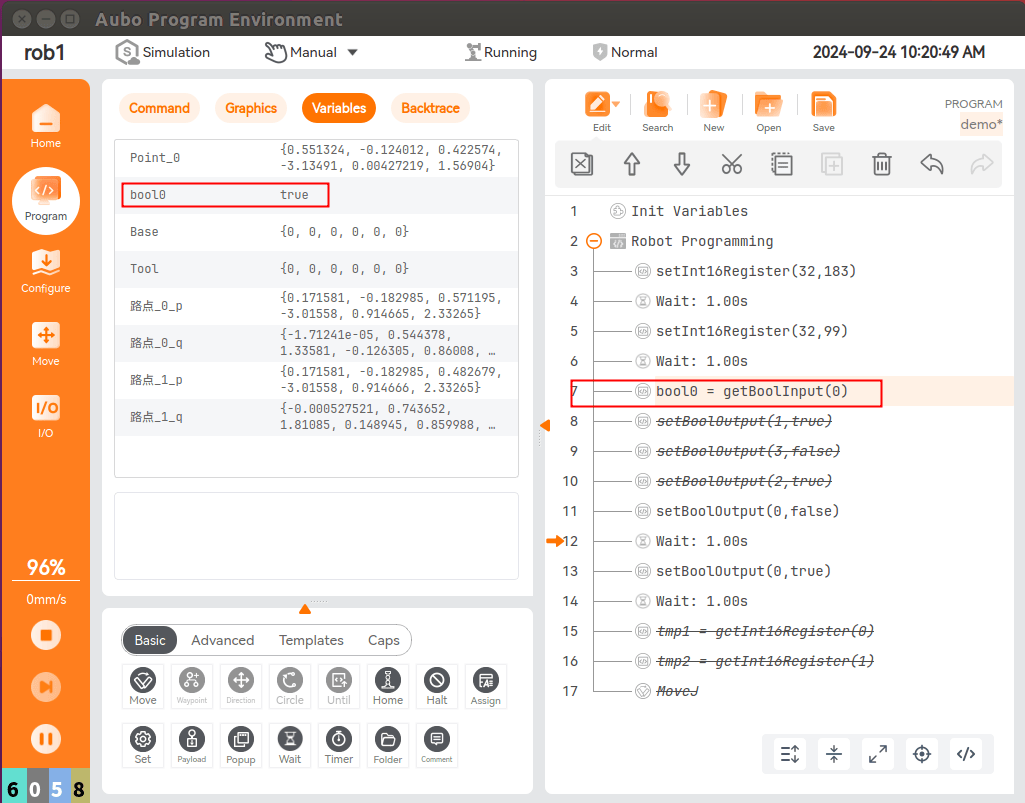
5.2.6 General Holding Register (PLC => Robot)
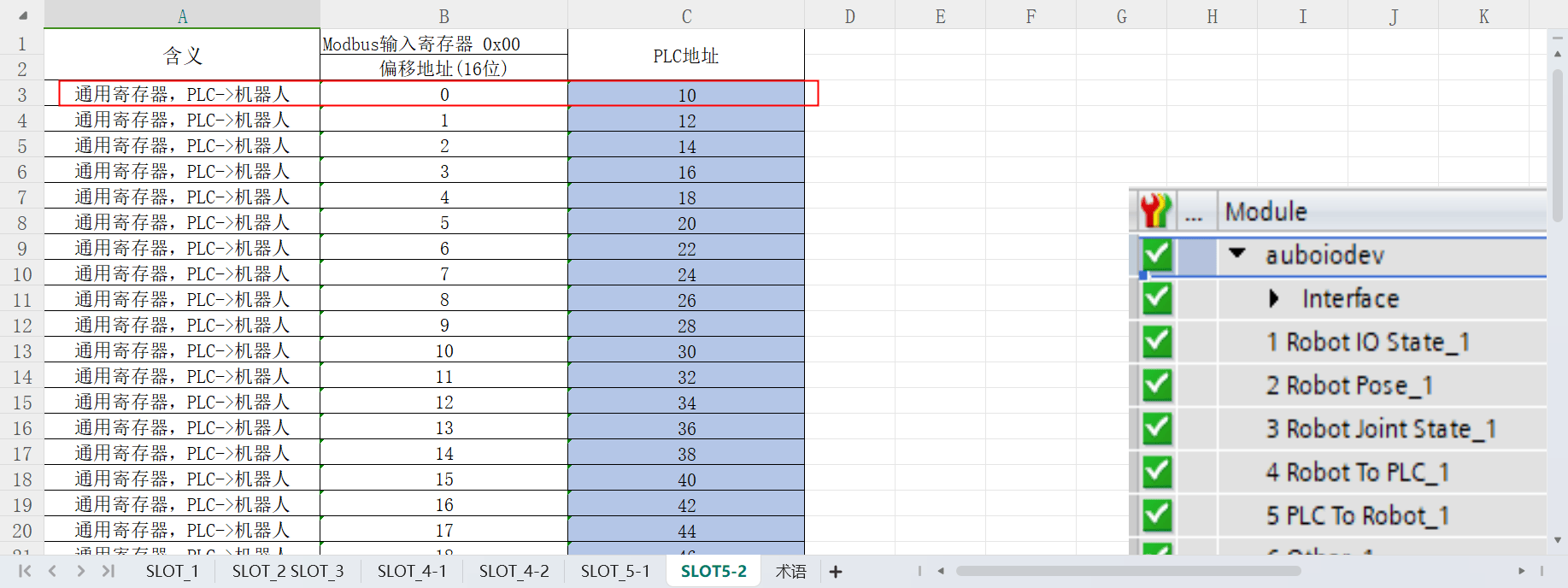
According to the address of the first general register (PLC => Robot) in the address table, add monitoring address _IP1_96 to the MAIN table in AutoShop.
Write 100 to address _IP1_96 in the MAIN table in AutoShop.
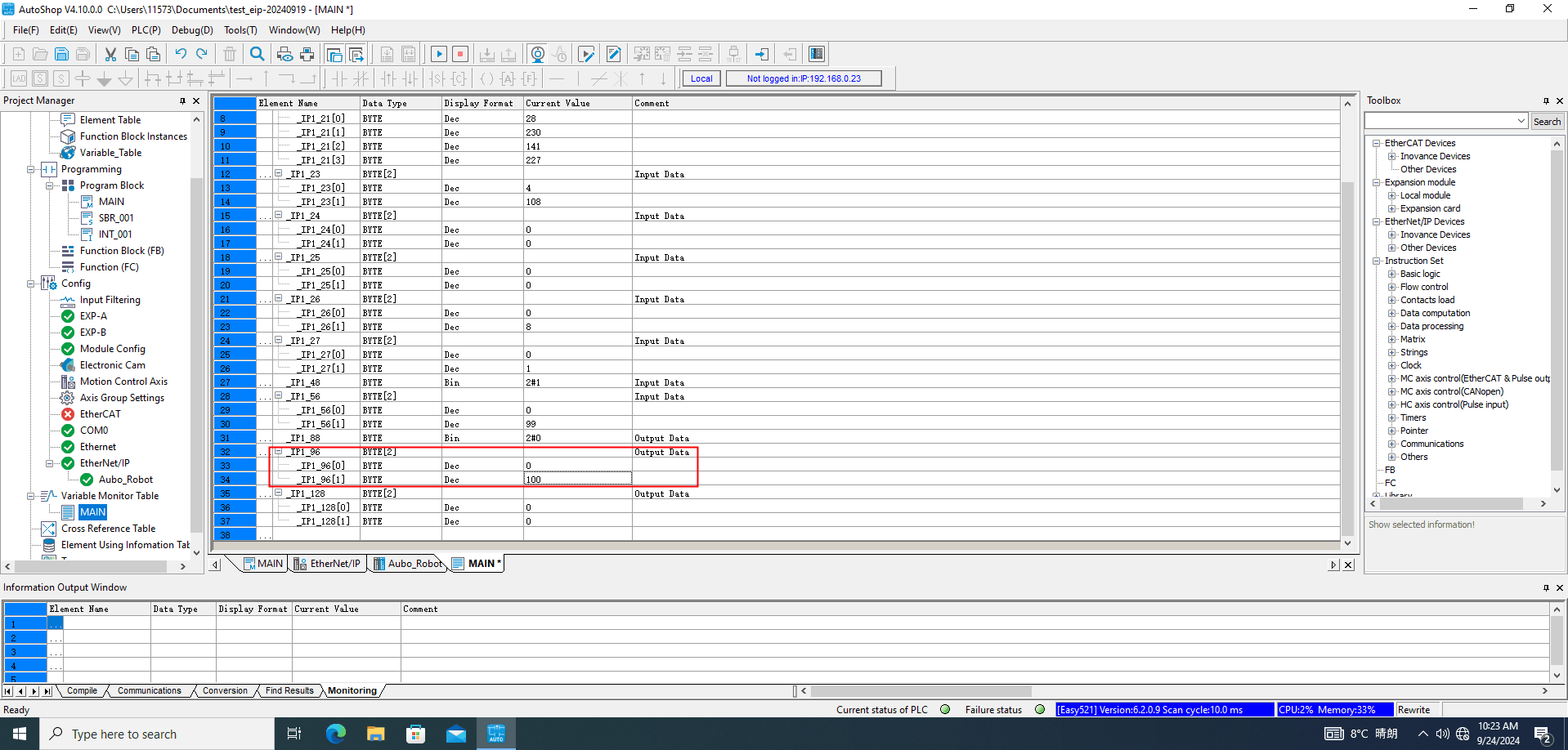
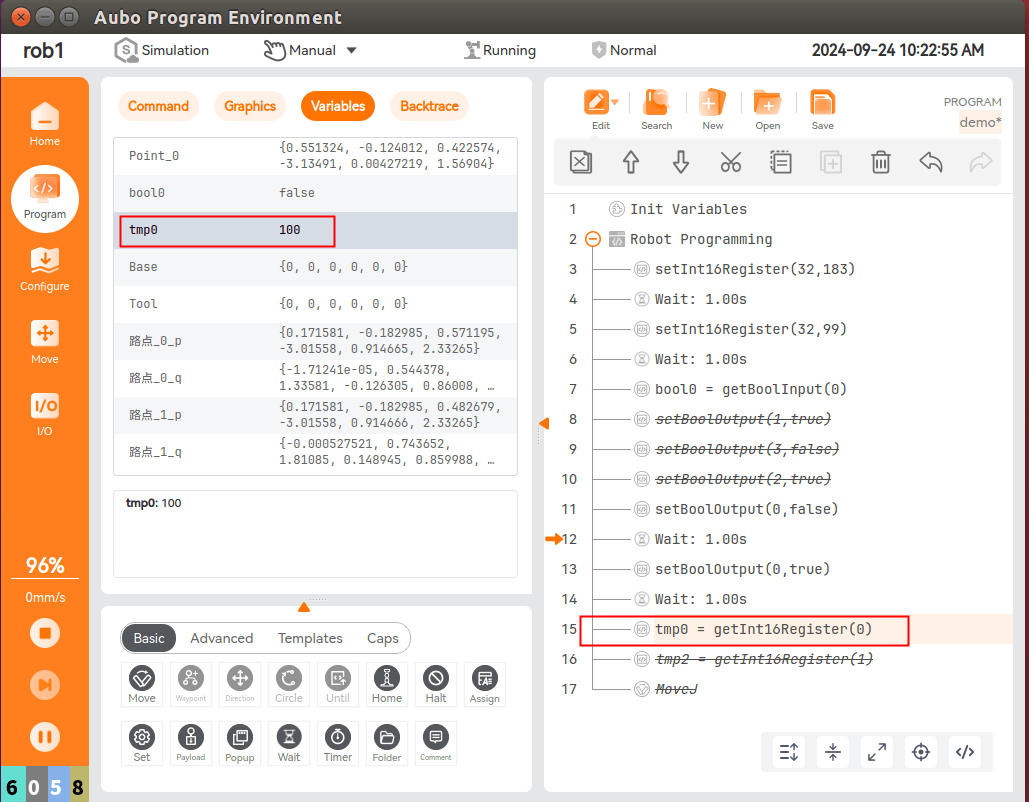
tmp0 = getInt16Register(0) reads the first register (16-bit) starting at byte 9 of PLC slot_5 and stores it in the variable tmp0. The corresponding PLC address now reads 100.
Common Problems
1. Communication Failure
- Check whether the hardware is wired correctly, whether the network cable and serial cable are loose, and whether the gateway and PLC power cables are loose.
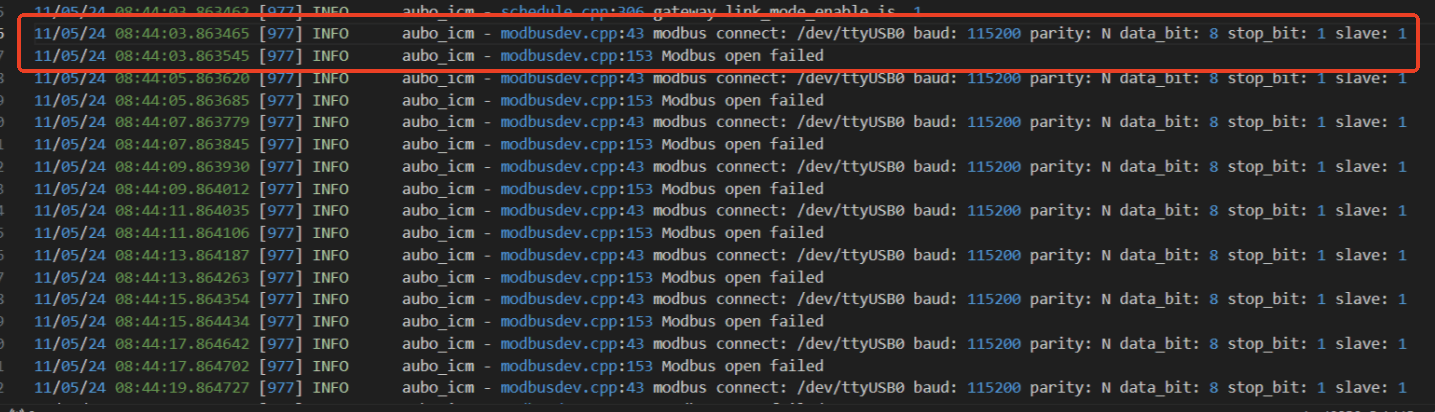
- If the wiring is correct and the IP settings are correct but the PLC still cannot scan the gateway, check the latest ICM runtime log. The error shown below may indicate an incorrect serial port in the gateway configuration or a problem with the serial cable.
- Open the robot terminal and check whether the gateway and PLC can be reached with
ping. If the gateway cannot be reached, the IP settings between the robot and gateway are incorrect. If the gateway can be reached but the PLC cannot, the IP settings between the PLC and gateway are incorrect. After the gateway connects to the PLC, the blue light turns on and no red light is lit on the gateway.
Note: Ensure that the ARCS software, gateway configuration, and PLC IP addresses are on the same subnet. For example, if the gateway IP address is
192.168.0.100, set the ARCS software IP address to192.168.0.12and the PLC IP address to192.168.0.33. The first three network octets must be the same, the final host octet must be different, the subnet mask must be255.255.255.0, and the gateway must be192.168.0.1.
- Check the ICM runtime log. The log shown below indicates that the gateway service is running normally. If it does not appear, there is a problem.
- The configuration file generated automatically by ICM cannot be used as-is. Configure it according to the actual situation. Refer to the following configuration.
2. Communication Succeeds but Data Is Read Incorrectly
- If the data changes but the result is incorrect, modify
littleEndianin the configuration file and check whether the wrong byte order is selected. - If the data does not change while the ICM service process is running, restart the ARCS software and check the last line of the log.
AUBO-ICM is Runningindicates that the service started and is transmitting data with the gateway.