
AUBO-G40-MINI Controller User Manual
1 About This Manual
1.1 Version Information
| Item | Content |
|---|---|
| Manual Name | AUBO-G40-MINI Controller User Manual |
| Manual Version | v1.0.2* |
| Release Date | 2026-09-22 |
| Applicable Product | AUBO-G40-MINI Controller |
This User Manual will be regularly reviewed and revised, and updated in the form of a new version. The content or information in this manual is subject to change without prior notice.
Please read this manual before installing or using the product, and keep it in a safe place for easy reading and reference.
All pictures in this manual are for reference only; please refer to the actual product received.
1.2 Copyright and Disclaimer
This manual is the exclusive property of AUBO (Beijing) Intelligent Technology Co., Ltd. Without the written permission of AUBO (Beijing) Intelligent Technology Co., Ltd., this manual may not be copied, reproduced in whole or in part, or transformed into any other form of use.
AUBO (Beijing) Intelligent Technology Co., Ltd. is not responsible for any errors or omissions that may occur in this manual, or for any incidental or consequential damages arising from the use of this manual and the products described herein.
Copyright © 2015-2026 AUBO. All rights reserved.
1.3 Purpose of This Manual
This manual is intended to guide the installation, commissioning, pre-operation inspection, maintenance, repair, handling, storage, and disposal of the AUBO-G40-MINI controller.
This manual does not replace the system integrator's risk assessment, on-site safety design, work instructions, or the laws, regulations, and safety standards applicable in the country or region of use.
1.4 Intended Use of the Controller
The AUBO-G40-MINI controller may be used with general industrial equipment and general commercial equipment, and is only permitted to be used under the specified environmental conditions. For specific information about the operating environment and operating conditions, refer to the Technical Specifications table.
The AUBO-G40-MINI controller has special safety-grade characteristics. The use of sharp end effectors or tool connectors may be hazardous.
Prohibited uses include, but are not limited to, the following:
- Use in hazardous environments such as flammable and explosive environments.
- Use in devices that move or carry people or other animals.
- Use in devices that involve human life, such as medical equipment.
- Use in devices that have a significant impact on social and public interests.
- Use in environments subject to vibration, such as on vehicles and ships.
- Use as a climbing tool.
1.5 Intended Readers
This manual is intended for the following professionals:
- Installation personnel
- Commissioning and operating personnel
- Maintenance and repair personnel
- Safety management personnel
1.6 Operating Prerequisites
Personnel reading and using this manual shall meet the following requirements:
- Have received relevant training provided by AUBO (or a dealer authorized by AUBO).
- Possess the basic knowledge required for the installation and maintenance of mechanical, electrical, and automation equipment.
- Be familiar with on-site safety management requirements, and have basic awareness of risk identification and safe operation.
- Have read and understood the safety instructions in this manual and related documents.
1.7 Related Documents
When using this manual, it is recommended to also read the following documents:
1.8 More Information
For more information on products, services, training, or technical support, visit https://www.aubo-robotics.cn.
2 Safety
2.1 Safety Instructions
This chapter introduces the basic safety principles to be followed when operating the controller or the robot system. Integrators, users, and operators must read this chapter carefully and strictly follow the instructions marked with safety warning signs.
Due to the complexity and potential hazards of the robot system, this manual cannot list all possible hazardous scenarios. Users and integrators shall carry out a risk assessment based on the actual application, end tooling, peripheral equipment, working environment, and personnel movement range, and take appropriate risk reduction measures.
2.2 Safety Warning Signs
This manual uses the following safety warning signs to describe important safety information. When you see the relevant signs, be sure to read and follow the corresponding instructions.
| Sign | Level | Description |
|---|---|---|
 | DANGER | Indicates a situation that may cause hazards and, if not avoided, may result in death or serious injury. |
 | WARNING | Indicates a situation that may cause hazards and, if not avoided, may result in personal injury or serious damage to equipment. |
 | CAUTION | Indicates a situation that may cause hazards and, if not avoided, may result in minor personal injury or equipment damage. Depending on the specific circumstances, matters marked with this symbol may sometimes have the possibility of serious consequences. |
 | NOTICE | Indicates a situation that, if not avoided, may result in personal injury or equipment damage. Depending on the specific circumstances, matters marked with this symbol may sometimes have the possibility of serious consequences. |
2.3 General Safety Rules
When operating the controller and its related equipment, the following basic safety guidelines must always be followed. The requirements listed in this section are general safety requirements; safety instructions for specific scenarios are described in detail in the relevant chapters of this manual.
Install the machine and all electrical equipment in accordance with the requirements and specifications in this manual.
Before using the machine for the first time and putting it into production, preliminary testing and inspection of the machine and its protection system are required.
Before starting the machine and system for the first time, check that the machine and system are complete, that operation is safe, and whether any damage is detected. During this inspection, observe whether the machine conforms to the effective national or regional safety production rules and regulations, and all safety functions must be tested.
The user must check and ensure that all safety parameters and user programs are correct and that all safety functions are working properly. Personnel qualified to operate the robot are required to check each safety function. The robot can be started only after comprehensive and careful safety testing and after the safety level is reached.
Professional personnel are required to install and commission the machine in accordance with the installation standards.
After the machine installation and construction are completed, a comprehensive risk assessment must be carried out again and the documentation must be kept.
Authorized personnel shall set and change safety parameters, and passwords or isolation measures shall be used to prevent unauthorized personnel from changing or setting safety parameters. After safety parameters are modified, the related safety functions need to be analyzed.
In case of an accident or abnormal operation of the robot, the emergency stop switch can be used to stop the robot.
The robot arm has a collision detection function. When the robot is powered on and running, if the external force exceeds the normal force range set by the user safety parameters, the robot automatically stops to prevent machine damage or operator collision injury.
This function requires the robot system to be within the normal operating range and to use a controller of the AUBO series. If the user develops a controller by themselves, the robot does not have the above functions. The user shall bear the resulting hazardous consequences.
Connecting different machines may aggravate hazards or introduce new hazards. Always carry out a comprehensive risk assessment of the entire installation. When different safety and emergency stop performance levels are required, always select the highest performance level.
AUBO (Beijing) Intelligent Technology Co., Ltd. shall not be liable for any damage to the machine or personal injury caused by improper operation of the machine.
Prohibited items:
| Sign | Description |
|---|---|
| 1. Do not start the robot system before completing safety inspection and risk assessment. Before the first startup, system integrity inspection, all safety function tests, safety parameter correctness verification, and risk assessment documentation review must be completed. 2. Do not power on the controller without connecting the protective grounding wire (PE wire). Poor grounding may cause electric shock, equipment damage, or electromagnetic interference. 3. Do not use the controller in a humid environment or an environment with conductive dust, as it may cause personal injury or death. 4. Do not artificially and frequently switch the power supply system on and off. Brakes are installed in the robot arm joint modules to hold the robot posture when power is off. Never artificially and frequently switch the power supply system on and off. It is recommended that the interval between each power-on and power-off be greater than 10 s. 5. Do not touch hot parts while the equipment is running. Do not operate or touch the equipment while the robot is working or just stopped working. Disconnect the power supply and wait for one hour for the equipment to cool down. 6. Do not modify safety parameters or bypass safety functions without authorization. |
Operating specifications:
| Sign | Description |
|---|---|
| 1. Ensure that the controller and related equipment are installed firmly. Loose installation may cause equipment to fall off or operate abnormally. 2. Ensure that the working space of the robot system is sufficient, free of obstacles, sharp corners, or crushing points. The operator's head and face shall be outside the reachable range of the robot arm. 3. Do not connect safety devices to general I/O interfaces; only dedicated safety-type interfaces may be used. 4. Configure installation parameters correctly, including installation angle, TCP weight and offset, safety parameters, etc. 5. Do not continue using the controller or robot system if it is damaged. Stop the machine immediately and contact AUBO or an authorized service provider. 6. A safety assessment must be carried out after each installation to confirm that all safety functions are normal. |
| 1. Check the insulation and protective measures before transporting the controller, and handle it carefully during transportation to avoid collisions. 2. Do not expose the controller to a strong magnetic field for a long time, as a strong magnetic field may cause equipment damage. 3. Do not modify the controller without authorization. Any unauthorized modification will void the warranty, and AUBO shall not bear any responsibility arising therefrom. |
2.4 Personnel Safety
When operating the robot system, personnel safety shall be given priority. Users and integrators shall at least take the following measures:
- Ensure that all relevant personnel have received training from AUBO (or a dealer authorized by AUBO) and fully understand the safe and standardized operating procedures. For training inquiries: support@aubo-robotics.cn.
- Tie up hair, do not wear loose clothing or jewelry during operation. The robot may be in a standby state when stationary and shall be regarded as continuously running; do not approach it casually.
- In an emergency such as a person being pinched or trapped, the joint can be forced to move by pushing or pulling the robot arm forcefully. Manually moving the robot arm without electric drive is only for emergencies and may damage the robot arm joints.
- Personnel shall not place their head, face, neck, fingers, or other body parts in areas where they may be hit, pinched, or drawn in.
2.5 Responsibilities and Regulations
The controller is a component of a complete robot system and does not constitute a complete machine by itself. Therefore, this manual does not cover the full set of design, installation, and operation solutions for a complete robot, nor does it list all the risk conditions that may affect the safety of peripheral equipment of the entire integrated system. The installation safety performance of the complete robot equipment depends on the design and construction of the whole-machine integration solution. The equipment integrator shall carry out a full-process risk assessment of the design and installation of the entire integrated system in accordance with applicable local laws and regulations, safety specifications, and industry standards.
None of the safety information contained in this manual shall be regarded as a guarantee by AUBO (Beijing) Intelligent Technology Co., Ltd. Even if operators strictly follow all the safety instructions in this manual, there is still a potential risk of personal injury or equipment damage.
AUBO (Beijing) Intelligent Technology Co., Ltd. continuously optimizes product performance and reliability and reserves the right to iterate and upgrade products without further notice. We have made every effort to ensure that the content of this manual is accurate and reliable, but we shall not be liable for any omissions or errors in the document.
2.5.1 Responsibilities of the Integrator
The integrator shall bear the following key responsibilities:
- Carry out a comprehensive risk assessment of the complete robot system.
- Ensure that the design, installation, and commissioning of the entire system meet the safety requirements.
- Provide necessary training to users and relevant operators.
- Formulate complete system operating specifications and emergency plans.
- Establish and maintain appropriate safety protection measures.
- Use appropriate methods in the final installation to eliminate hazards or reduce all hazards to an acceptable level.
- Inform the end user of the residual risks.
- Mark the integrator information on the robot.
- Archive all relevant technical documents and risk assessment reports.
2.5.2 Reference Standards
Integrators may refer to the following international standards to carry out the risk assessment process:
| Standard No. | Name | Description |
|---|---|---|
| ISO 12100:2010 | Safety of machinery — General principles for design — Risk assessment and risk reduction | Basic framework for risk assessment |
| ISO 10218-2:2025 | Robots and robotic devices — Safety requirements — Part 2: Industrial robot systems and robot applications | Safety requirements for industrial robot integration |
| RIA TR R15.306-2014 | Technical Report for Industrial Robots and Robot Systems — Safety Requirements, Task-based Risk Assessment Methodology | Guidelines for task-based risk assessment |
| ANSI B11.0-2010 | Safety of machinery — General requirements and risk assessment | American machine safety standard |
For the applicable standards and regulatory guidelines, visit the AUBO official website www.aubo-robotics.cn or consult local regulatory agencies.
2.6 Hazard Identification
The risk assessment shall consider potential hazards during normal use, commissioning, maintenance, cleaning, abnormal recovery, and reasonably foreseeable misuse. Without peripheral safety protection devices, the use of a collaborative robot arm may involve the following potential hazards:
- Risk of puncture or cuts caused by the use of sharp end effectors or tool connectors.
- Risk of exposure when handling toxic, corrosive, or other hazardous substances.
- Risk of the operator's fingers or limbs being pinched by the robot arm joints or base.
- Risk of collision with personnel during robot arm movement.
- Risk of falling objects caused by improper fixation of end tooling.
- Hazards caused by the impact between the robot payload and a solid surface. The integrator must measure such hazards and their related risk levels through risk assessment, and determine and implement corresponding measures to reduce the risk to an acceptable level. Note that specific robot equipment may also have other significant hazards.
Combined with the inherent safety design of AUBO robots and the safety specifications and risk assessment formulated by the integrator and end user, the risks related to collaborative operation of the robot arm can be reduced to a reasonably feasible range. This document aims to convey the residual risks existing before robot installation to the integrator and the end user. If the integrator determines, after a risk assessment, that the corresponding application scenario has hazards that may cause unacceptable risks to operators, the integrator must take appropriate risk reduction measures to eliminate or minimize these hazards until the risk level reaches an acceptable standard. Use of the machine is prohibited before the necessary risk reduction measures are completed.
If the robot adopts a non-collaborative operation deployment solution (such as carrying hazardous work tools), the risk assessment result may require the integrator to add safety equipment (such as a safety start device) during the program development stage to ensure the safety of personnel and equipment operation.
2.7 Emergency Handling
2.7.1 Emergency Stop Device
Pressing the emergency stop button stops all motion of the robot. The emergency stop device shall not be used as a risk reduction measure, but may be used as a secondary protective device. If multiple emergency stop buttons need to be connected, they must be included in the risk assessment of the robot application. The emergency stop button complies with the requirements of IEC 60947-5-5.
| Sign | Description |
|---|---|
| 1. Pressing the emergency stop button triggers a Category 1 stop. For descriptions of stop categories, see Appendix. 2. Tools or equipment connected to the end that may pose a potential threat must be integrated into the emergency stop circuit of the system. Failure to comply with this warning may result in death, serious personal injury, or major property damage. |
2.7.2 Recovery from Emergency Stop State
All push-button emergency stop devices have a "latching" function. This "latch" must be released to end the emergency stop state of the device.
Rotating the emergency stop button can release the "latch".
| Sign | Description |
|---|---|
| Recovering from an emergency stop state is a simple but very important step. This step can only be performed after ensuring that the hazards of the robot system are completely eliminated. |
3 Handling and Precautions
When packing for transportation, the product shall be packed in accordance with the packing standards, and the required marks shall be printed on the outside of the packing box.
During transportation, ensure that the equipment is stable and remains fixed in an appropriate position.
The controller shall be lifted by its handle. When handling, appropriate measures shall be taken to position the moving parts so that they do not produce unexpected movement during handling and transportation, causing hazards.
When moving the AUBO-G40-MINI controller from the packing material to the installation position, hold the equipment firmly and avoid collisions.
After fixing, power on the equipment and observe whether it is normal.
Keep the original packaging after transportation. Store the packing material in a dry place for future repacking and moving of the equipment.
| Sign | Description |
|---|---|
| 1. Ensure that your back or other body parts are not overstrained when lifting the equipment. 2. All regional and national guidelines shall be followed. AUBO (Beijing) Intelligent Technology Co., Ltd. is not liable for any damage caused during the transportation of the equipment. 3. Ensure that the installation instructions in this manual are strictly followed when installing the equipment. |
4 Maintenance, Repair and Disposal
4.1 Maintenance and Repair
When carrying out various maintenance and repair operations, all safety specifications in this manual must be strictly followed.
Equipment maintenance, calibration, and repair operations must be carried out in accordance with the latest version of the service manual, which can be obtained from the official technical support website www.aubo-robotics.cn. All dealers authorized by AUBO (Beijing) Intelligent Technology Co., Ltd. can log in to this website.
Equipment repair can only be carried out by authorized system integrators or AUBO factory personnel. If parts need to be returned to AUBO (Beijing) Intelligent Technology Co., Ltd., the relevant procedures in the service manual must be strictly followed.
During the operation, the safety level requirements corresponding to maintenance and repair shall be met, and the current local safety production regulations shall be observed. After the operation is completed, all safety functions shall be tested one by one to confirm that they are operating normally.
Maintenance and repair work is used to ensure stable operation of the equipment, or to restore normal working conditions after an equipment failure, covering two types of operations: fault diagnosis and physical repair.
When operating the controller or robot system, strictly follow the following safety procedures and warning requirements:
| Sign | Description |
|---|---|
| 1. Remove the main input cable from the rear of the controller to ensure that it is completely powered off. Take necessary precautions to prevent others from reconnecting the system energy during maintenance. After powering off, re-check the system to ensure that it is powered off. 2. Check the grounding connection before restarting the system. 3. Observe ESD (electrostatic discharge) regulations when disassembling the robot arm or controller. 4. Avoid disassembling the power supply system of the controller. After the controller is turned off, its power supply system may retain high voltage for several hours. 5. Prevent water or dust from entering the robot arm or controller. |
| 1. Replace faulty parts with new parts with the same part number or corresponding parts approved by AUBO (Beijing) Intelligent Technology Co., Ltd. 2. Immediately reactivate all disabled safety measures after the work is completed. 3. Record all repair operations in writing and keep them in the technical documentation related to the entire robot system. 4. The controller has no parts that can be repaired by the end user. If maintenance or repair service is required, contact your dealer or AUBO (Beijing) Intelligent Technology Co., Ltd. |
4.2 Disposal
The AUBO-G40-MINI controller must be disposed of in accordance with applicable national laws, regulations, and national standards.
5 Quality Assurance
5.1 Product Warranty
The CB-G40-MINI controller has a limited warranty period of three years.
If new equipment and its components exhibit defects caused by poor manufacturing or materials within three years of being put into use, AUBO (Beijing) Intelligent Technology Co., Ltd. shall provide necessary spare parts to replace or repair the relevant parts.
Ownership of the equipment or components that are replaced or returned to AUBO (Beijing) Intelligent Technology Co., Ltd. belongs to AUBO (Beijing) Intelligent Technology Co., Ltd.
If the product is no longer within the warranty period, AUBO (Beijing) Intelligent Technology Co., Ltd. reserves the right to charge the customer for replacement or repair.
Outside the warranty period, if the equipment exhibits defects, AUBO (Beijing) Intelligent Technology Co., Ltd. shall not bear any damage or loss caused thereby, such as production loss or damage to other production equipment.
5.2 Disclaimer
If the equipment defect is caused by improper handling or failure to follow the relevant information described in the User Manual, the "Product Warranty" shall become invalid.
Failures caused by the following circumstances are not covered by this warranty:
- Products purchased through channels not recognized by AUBO.
- Failure to install, wire, or connect to other control equipment in accordance with industrial standards or the requirements of the User Manual.
- Use beyond the specification conditions or standards stated for the product.
- Use of this product for purposes other than those specified.
- Use under environmental conditions beyond the product's specifications.
- Use in a grinding environment or special use environment without product protection.
- Product damage caused by improper transportation.
- Failures, damage, or indirect damage caused by accidents or human factors.
- Failures, damage, or indirect damage caused by modification.
- Installation of non-genuine parts and accessories.
- Damage caused by a third party other than AUBO (Beijing) Intelligent Technology Co., Ltd. or its designated integrators modifying, debugging, or repairing original parts.
- Failures, damage, or indirect damage caused by natural disasters or other force majeure.
- In addition to the above, failures not caused by AUBO (Beijing) Intelligent Technology Co., Ltd.
The following circumstances are not covered by the warranty:
- The product traceability number cannot be identified.
- The production date or warranty start date cannot be identified.
- Changes to software or internal data.
- The failure cannot be reproduced or cannot be identified by AUBO (Beijing) Intelligent Technology Co., Ltd.
- Use of this product in radioactive equipment, biological test equipment, or uses judged by AUBO (Beijing) Intelligent Technology Co., Ltd. to be hazardous.
- Appearance parts and wearing parts. In accordance with the product quality assurance agreement, AUBO (Beijing) Intelligent Technology Co., Ltd. only provides warranty commitments for the defects and flaws in the products and parts sold to dealers.
AUBO (Beijing) Intelligent Technology Co., Ltd. does not assume any other express or implied warranties or liabilities, including but not limited to any implied warranties of merchantability or fitness for a particular purpose. In addition, AUBO (Beijing) Intelligent Technology Co., Ltd. does not assume any liability for any form of indirect damage or consequences arising from the related products.
6 Controller Description
6.1 Introduction
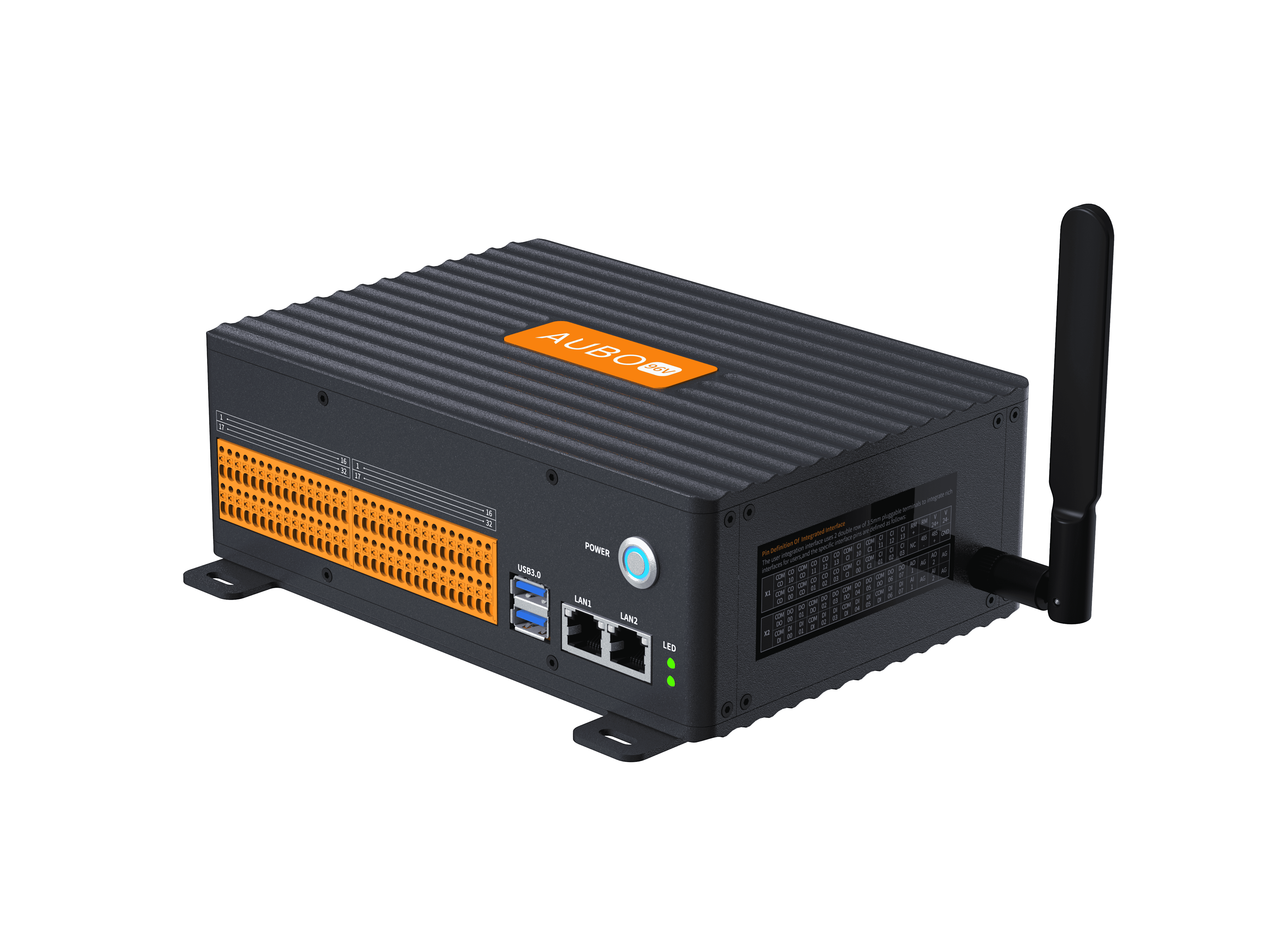
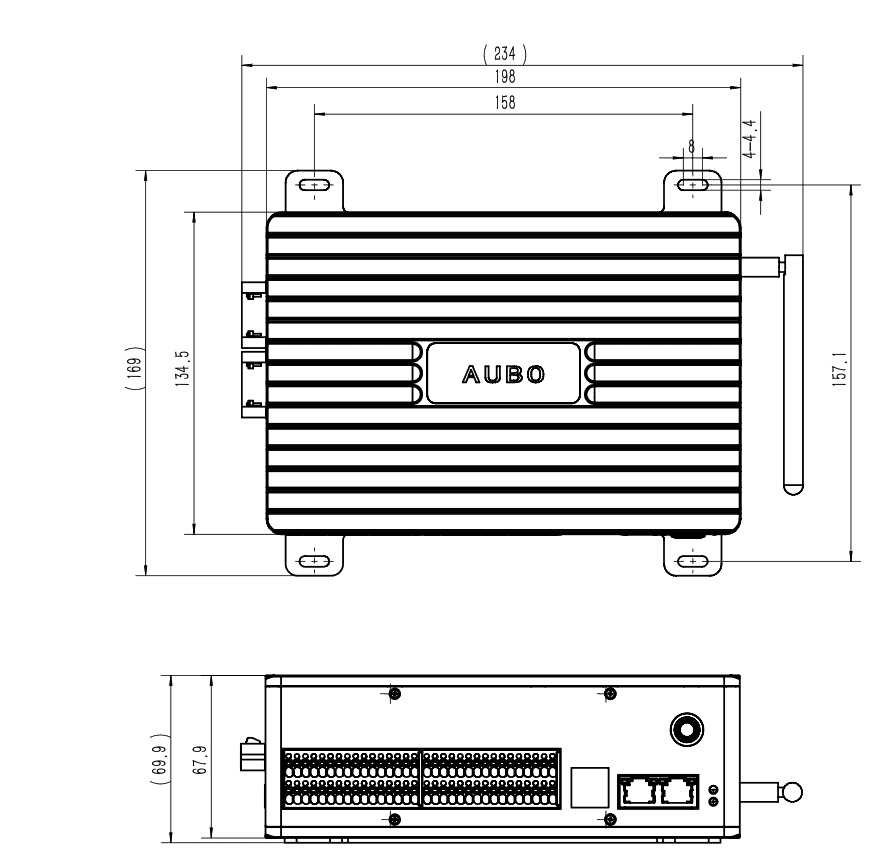
The G series mini controller is a compact product tailored by AUBO for lightweight, mobile operations, space-constrained, and embedded integration scenarios. The device is extremely compact, with overall dimensions of only 234×169×69.9 mm and a weight of 8 kg, yet the compact body can still drive large-payload robot arms. It can be used with the self-developed G-STICK handle kit.
6.2 Important Safety Instructions
| Sign | Description |
|---|---|
| 1. Ensure that the controller, teach pendant, and cables do not come into contact with liquids. A damp controller may cause personal injury or death. 2. The controller and teach pendant must not be placed in a dusty environment, or in a place where the humidity exceeds the requirements of the equipment IP protection rating; if conductive dust is present on site, extra attention must be paid to protection. 3. There are hazardous voltages inside the cabinet. Non-professionals must not open the cabinet while it is energized. 4. Do not directly touch the screws and other metal parts inside the controller with your hands, and never remove wiring while energized. |
| 1. A safety assessment must be carried out after each robot installation, and the instructions in the Safety chapter must be strictly followed. 2. The controller should be placed horizontally on the ground. A clearance of 50 mm should be reserved on each side of the controller to ensure ventilation and heat dissipation. 3. The teach pendant can be hung on the controller. Ensure that the cables do not trip personnel. 4. If non-AUBO original components (cables, etc.) are added to the robot, the user must ensure that such components do not interfere with or damage the equipment safety functions. 5. The robot system software only supports upgrading and using the default software. Installing other software systems such as ROS is prohibited. Pre-use inspection: 1. Check whether the controller power cable is properly connected. 2. Check whether the controller and the robot are properly connected. 3. Check whether the controller support is stable, and whether the whole machine remains level without shaking or offset. |
6.3 Introduction to the Controller Panels
6.3.1 Controller Front Panel
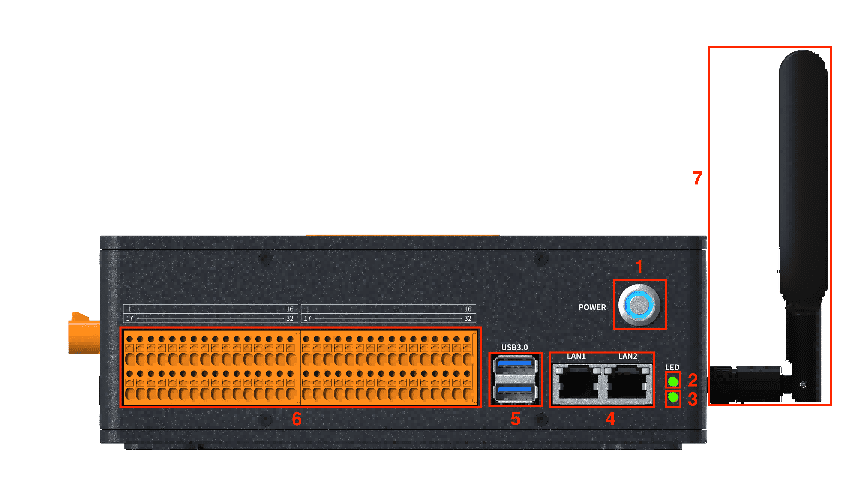
The structure of the controller front panel is shown in the following figure:
| No. | Name | Function |
|---|---|---|
| 1 | Power button | Power on: when the device is powered off, press and hold the power button for 2 seconds and then release it. Power off: when the device is running normally, press and hold the power button for 2 seconds and then release it. Forced shutdown: in any working state, press and hold the power button for 10 seconds and the device will be forcibly powered off immediately. Power status indicator: off when the power is not connected, and on when the power is connected. |
| 2 | Connection indicator | Off when not powered on or during power-on; flashes slowly at 0.5 Hz after power-on while waiting for the teach pendant to start; stays on after the teach pendant is connected. |
| 3 | Power indicator | Flashes slowly at 0.5 Hz when powered on, and stays off when not powered on. |
| 4 | Ethernet port | Gigabit Ethernet port, used for remote access and control. |
| 5 | USB 3.0 port | Used for device connection, software upgrades, and project file export. |
| 6 | I/O port | Enables external device signal connection and system expansion. |
| 7 | WiFi antenna | Wirelessly connects to a wireless handheld tablet. |
6.3.2 Controller Rear Panel
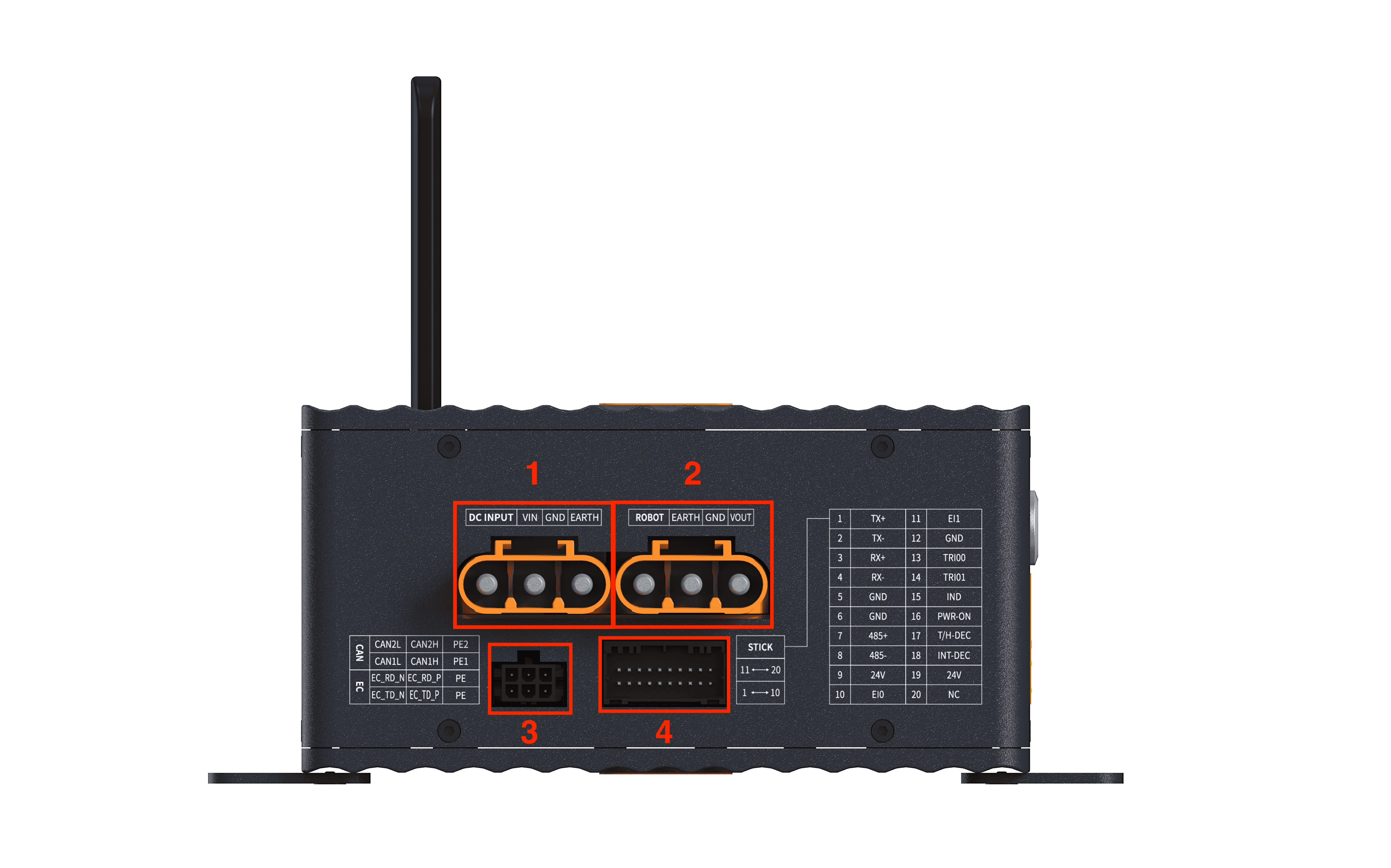
The structure of the controller rear panel is shown in the following figure:
| No. | Name | Function |
|---|---|---|
| 1 | DC power input | DC 96V DC power input, used to supply power to the controller. |
| 2 | Robot power output (ROBOT port) | Robot power input, used to supply power to the robot body. |
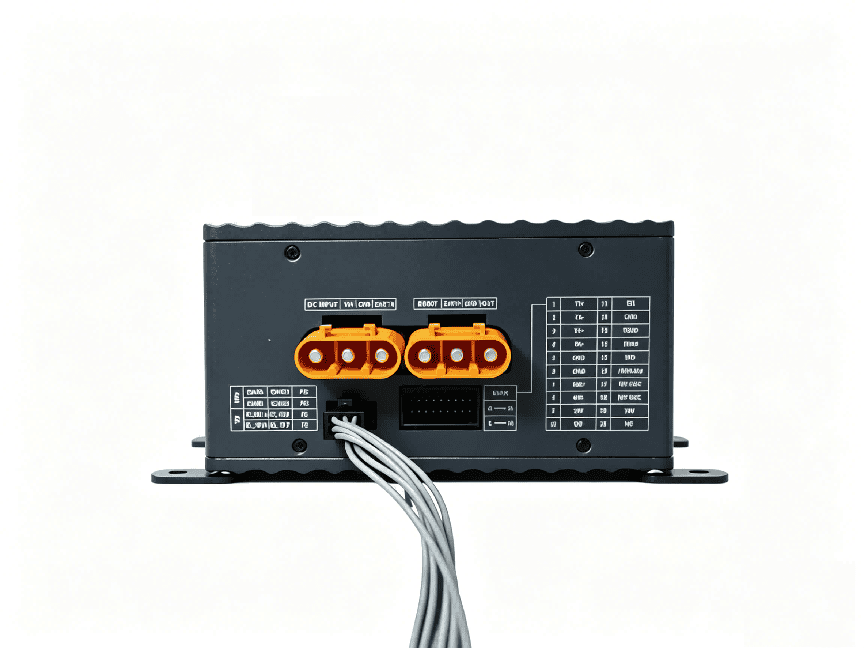
| 3 | CAN/EtherCAT | Robot communication input, used for communication between the controller and the robot body. |
| 4 | Handle port | Port for connecting the control handle to the controller. |
6.4 Wiring Instructions
6.4.1 Robot Cable Connection
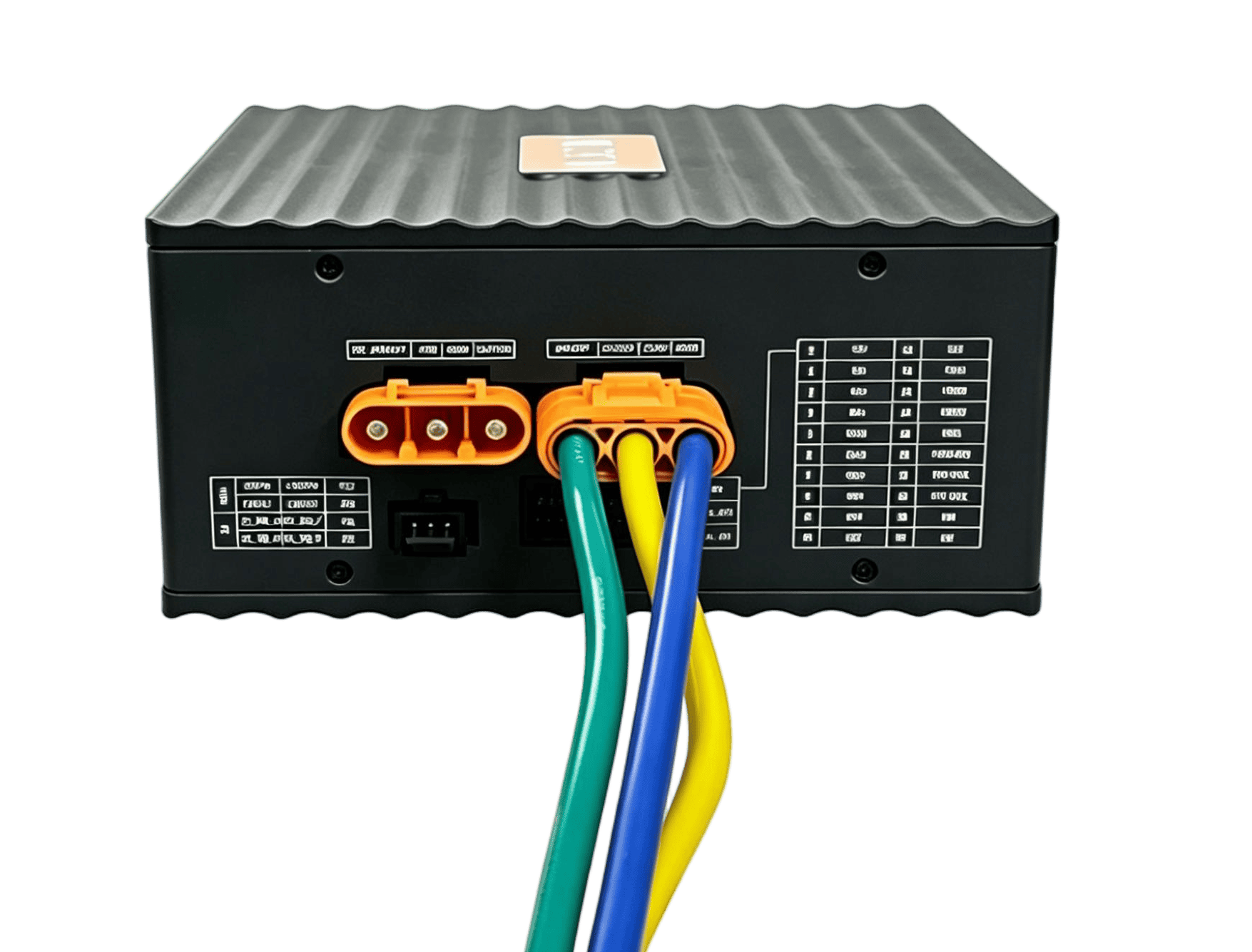
First insert the aviation plug of the robot body cable into the ROBOT port of the controller, then fasten the buckles on both sides, as shown in Figure 6-4.
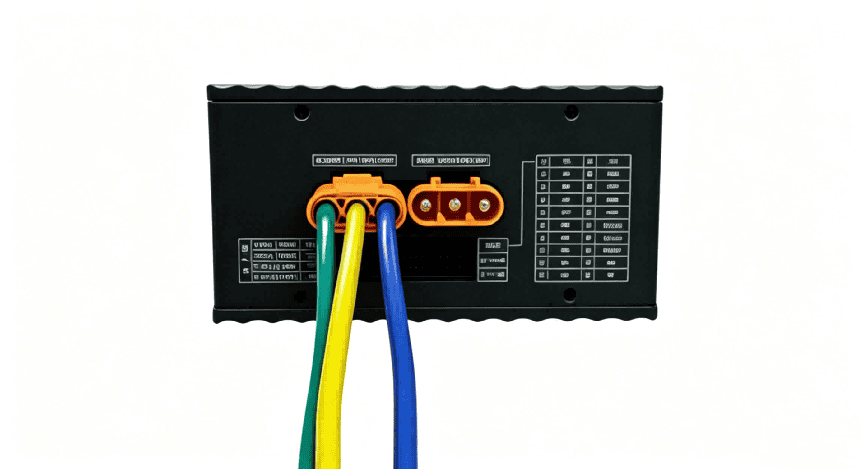
6.4.2 Power Connection
The rated input voltage of the controller is DC 96V. The DC power cable must be connected to the DC power input port of the controller when the power is off, as shown in Figure 6-5.
6.4.3 Robot Arm Communication Interface Connection
The robot arm communication interface is used for communication between the controller and the robot body. The connection is shown in Figure 6-6.
6.5 Installation Instructions
The controller supports two installation methods: horizontal mounting and vertical mounting. During installation, ensure that a clearance of at least 50 mm is reserved on the mounting side to guarantee sufficient heat dissipation space for the controller.
After mounting the horizontal mounting brackets to the bottom of both sides of the controller, place the controller on a flat and stable mounting surface, and fix it to the mounting surface with four M3*8mm screws, as shown in Figure 6-7. Its mechanical dimensions are shown in Figure 6-8.
6.6 Powering On
- Place the controller in a suitable position.
- Connect the cables of the controller as described in the sections above.
- Check whether all cables of the controller are properly connected (power, robot arm communication interface, handle, etc.).
- Connect the power cable and turn on the power switch; the power indicator on the controller front panel flashes slowly.
- After the teach pendant starts up and connects successfully, the connection indicator lights up. You can then normally control the power-on and operation of the robot arm.
6.7 Powering Off
There are several ways to power off normally:
Method 1: Press and hold the controller power button for 2 seconds, turn off the power switch, and disconnect the power cable.
Method 2: Click the [Shutdown] button on the teach pendant software interface, turn off the power switch, and disconnect the power cable.
Method 3: Press and hold the power button on the control handle, turn off the power switch, and disconnect the power cable.
Forced shutdown:
Method 1: Press and hold the power button on the controller for 10 seconds.
Method 2: Press and hold the power button on the control handle for 10 seconds.
Method 3: Directly unplug the power cable or turn off the power switch directly.
| Sign | Description |
|---|---|
| 1. Directly unplugging the power cable from the socket to shut down the system may damage the machine file system, resulting in machine function failure. |
7 Electrical Interfaces
7.1 Overview
The CB-G40-MINI controller provides diversified electrical interfaces to meet the needs of different automation application scenarios. It integrates functions such as robot motion control, safety logic processing, and external device communication. See Table 7-1 for a summary of the terminal interfaces.
| Interface Type | Category | Interface Name |
|---|---|---|
| User I/O | Safety output | COM-CO / CO00~CO03 (MCU side), CO10~CO13 (3576 side) |
| Safety input | COM-CI / CI00~CI03 (MCU side), CI10~CI13 (3576 side) | |
| RS485 communication | 485- (RS485-B) / 485+ (RS485-A) / GND (RS485-GND) | |
| DC24V output | V24+ (24V output positive) / V24- (GND) | |
| Remote control | RM+ / RM- (user remote power on/off control) | |
| Power detection | NC (power loss detection, ≤DC24V) | |
| Digital input (DI) | COM-DI / DI00~DI07 (MCU side general input) | |
| Digital output (DO) | COM-DO / DO00~DO07 (MCU side general output) | |
| Analog output (AO) | AO1 / AO2 (digital-to-analog conversion signal 0/1, 0~5V) / AG (AGND) | |
| Analog input (AI) | AI1 / AI2 (analog-to-digital conversion signal 0/1, 0~5V) / AG (AGND) | |
| Main power | DC96V (96V version) / DC48V (48V version) / GND / PE (protective ground) | |
| Communication interface | CAN (multiplexed with EtherCAT) | GND_CAN1 / CAN1_H (CAN1/+) / CAN1_L (CAN1/-) / GND_CAN7 / CAN7_H (CAN7/+) / CAN7_L (CAN7/-); multiplexed with ENET_TD_P (EtherCAT/TX+) / ENET_TD_N (EtherCAT/TX-) / ENET_RD_P (EtherCAT/RX+) / ENET_RD_N (EtherCAT/RX-) |
| Handle port | Ethernet communication | TX+ / TX- / RX+ / RX- |
| RS485 communication | 485+ (RS485+) / 485- (RS485-) | |
| Emergency stop | EI0 (emergency stop/NC) / EI1 (emergency stop NC1) | |
| Three-position switch | TRI00 (three-position switch/NO1) / TRI01 (three-position switch/NO) | |
| Power | 24V (power 24V+) / GND | |
| Control / detection | PWR-ON (power on/off/NO) / IND (power-on indicator/+) / T/H-DEC (handle detection signal) / INT-DEC (aviation plug insertion signal) | |
| Reserved | NC |
7.2 Electrical Warnings and Cautions
The following warnings and cautions must be observed when designing and installing robot and controller applications, and they must also be followed when performing maintenance work.
| Sign | Description |
|---|---|
| 1. Make sure that all equipment that must stay dry is kept dry. If water enters the product, cut off the power and contact your supplier. 2. Use only the original cables of the robot. Do not use the robot in applications where those cables need to be bent. If longer cables or flexible cables are required, contact your supplier. 3. All GND terminals mentioned in this document are only intended for supplying power and transmitting signals. For protective grounding (PE), use the screw terminals marked with the grounding symbol in the controller. The grounding connector should be rated for at least the highest current in the system. 4. Be careful when installing interface cables to the robot's I/O. |
| 1. Never connect safety signals to a non-safety PLC whose safety level is inappropriate. Failure to observe this warning may cause serious injury or death due to failure of a safety stop function. 2. The controller must be powered off when wiring the controller's electrical interfaces. |
| 1. Interference signals above the levels specified in the IEC standards will cause abnormal behavior of the robot. Excessively high or overexposed signal electrodes will cause permanent damage to the robot. EMC problems usually occur during welding and are usually indicated by error messages in the log. AUBO (Beijing) Intelligent Technology Co., Ltd. is not responsible for any loss caused by EMC problems. 2. The length of I/O cables used to connect the controller to other machines and equipment must not exceed 30 meters, unless extended testing shows that it is feasible. |
7.3 User I/O Interface
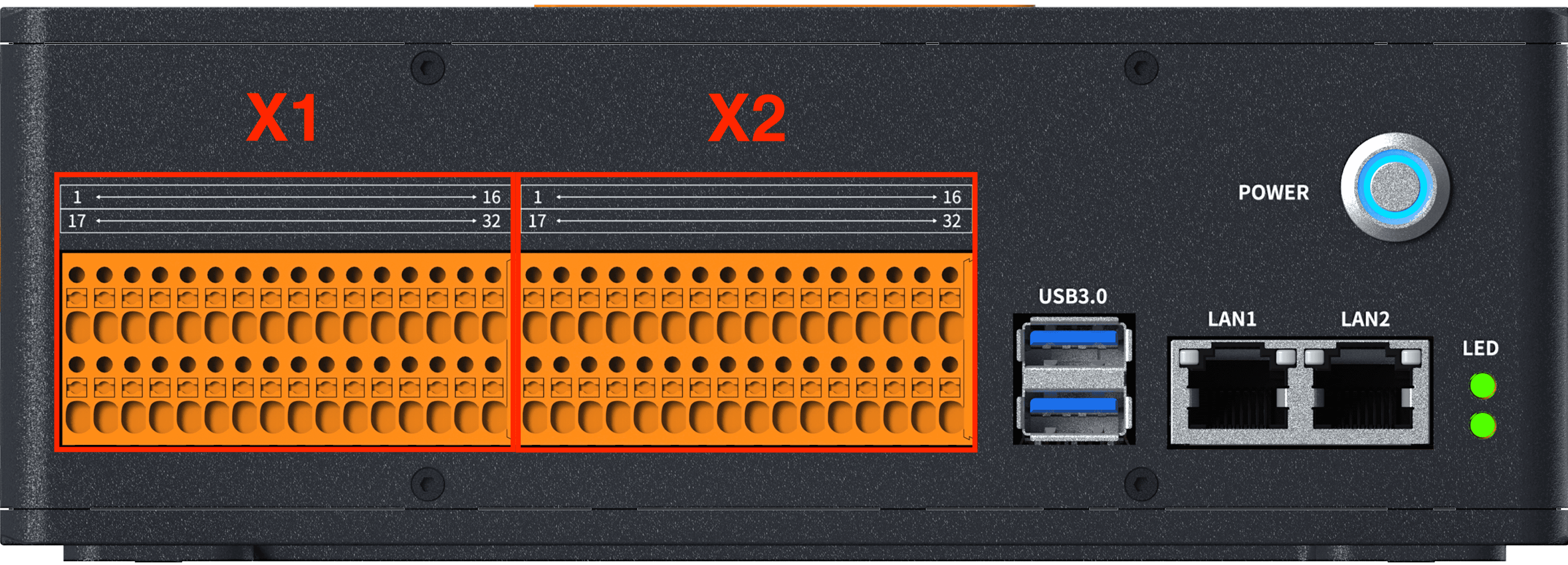
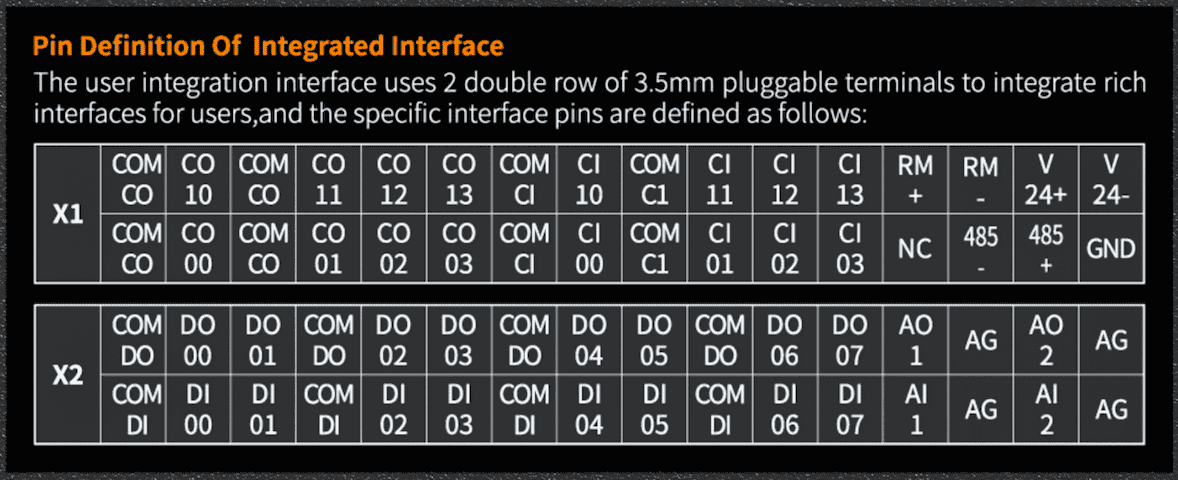
The CB-G40-MINI controller provides two user I/O interfaces, one on the left and one on the right, each of which is a 32-pin high-density connector, as shown in Figure 7-1. The X1 interface on the left side of the controller mainly provides safety I/O, RS485 communication, DC24V power output, and remote control functions; the X2 interface on the right side of the controller mainly provides general digital I/O and analog I/O functions. They are referred to as the "left I/O interface" and the "right I/O interface" in the following sections.
7.3.1 RS485 Interface
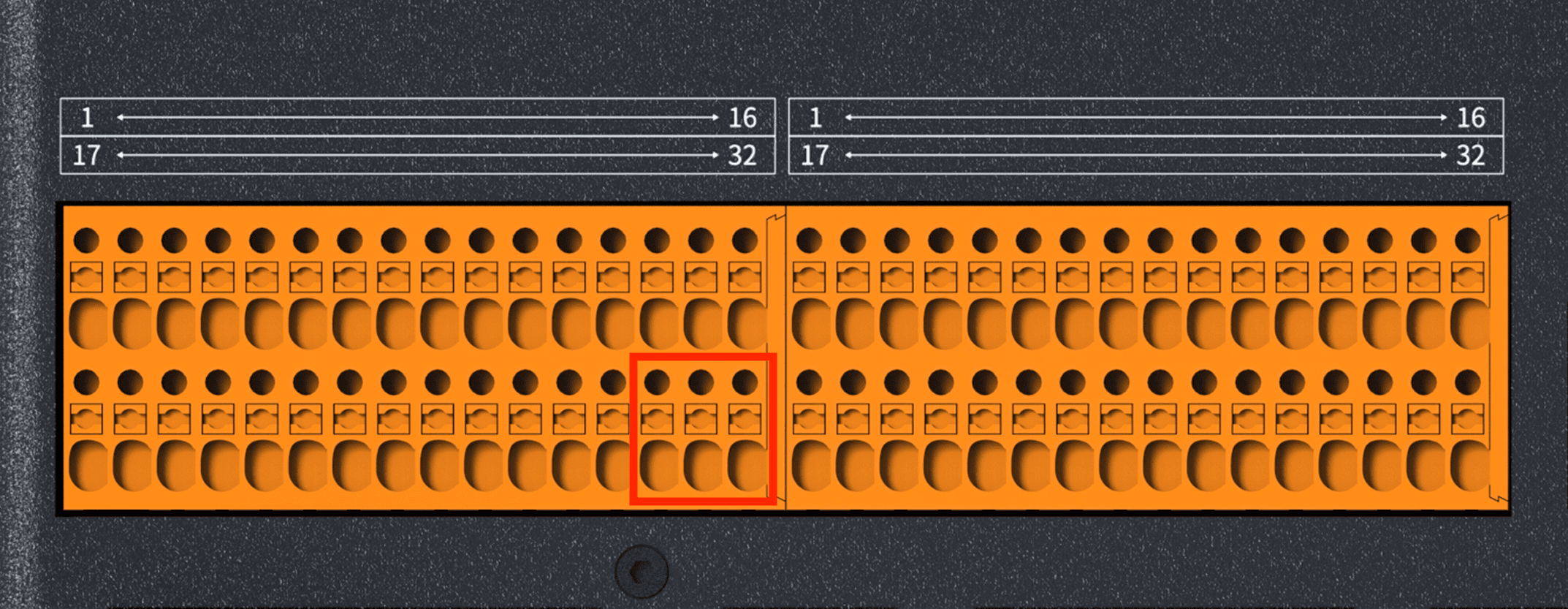
Pins 30, 31, and 32 of the left I/O interface correspond to RS485-, RS485+, and GND respectively, as shown in Figure 7-2. They can be used for Modbus RTU communication.
| Pin No. | Name | Function |
|---|---|---|
| 30 | 485- | RS485-B |
| 31 | 485+ | RS485-A |
| 32 | GND | RS485-GND |
7.3.2 DC24V Output Power
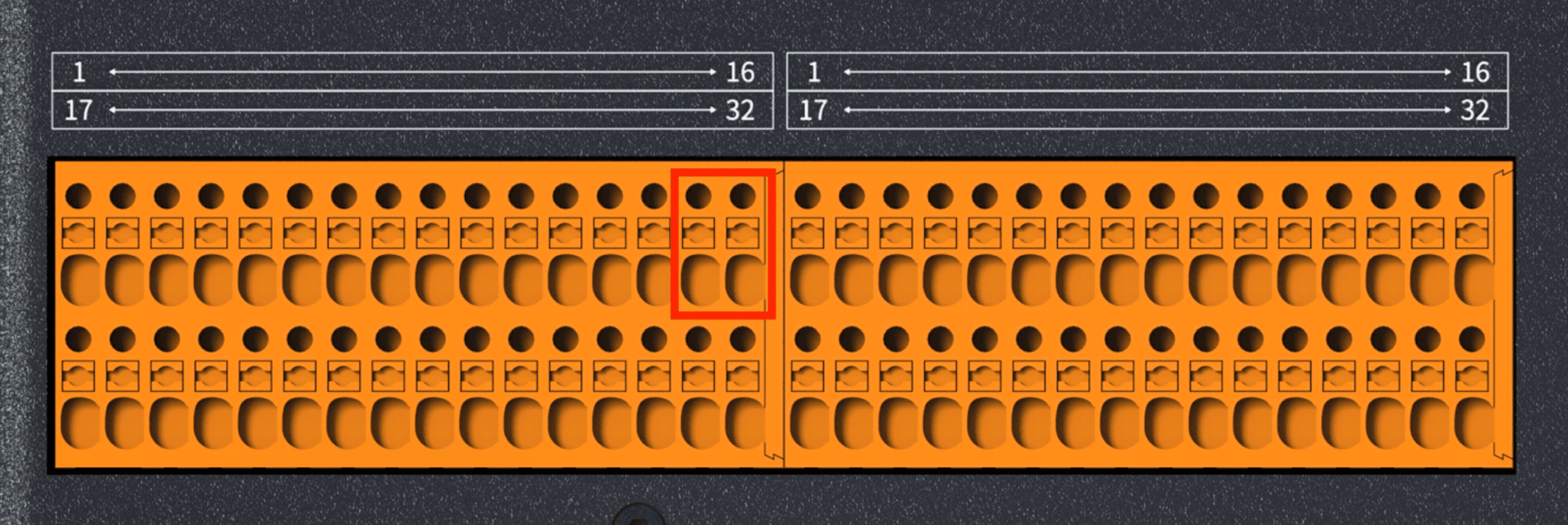
Pins 15 and 16 of the left I/O interface correspond to the V24+ and V24- output terminals respectively, as shown in Figure 7-3.
| Pin No. | Name | Function |
|---|---|---|
| 15 | V24+ | 24V |
| 16 | V24- | GND |
7.3.3 Safety Output
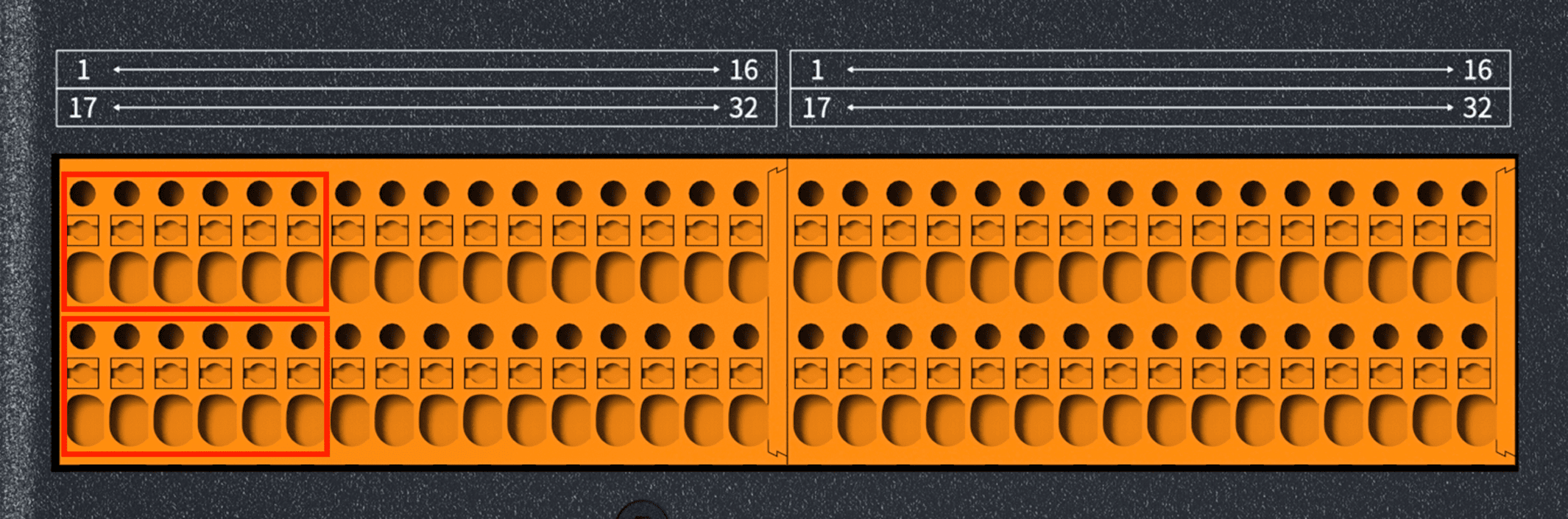
Pins 1-6 and 17-22 of the left I/O interface are safety outputs, as shown in Figure 7-4.
| Pin No. | Name | Pin No. | Name |
|---|---|---|---|
| 1 | COM-CO | 17 | COM-CO |
| 2 | CO10 | 18 | CO00 |
| 3 | COM-CO | 19 | COM-CO |
| 4 | CO11 | 20 | CO01 |
| 5 | CO12 | 21 | CO02 |
| 6 | CO13 | 22 | CO03 |
7.3.4 Safety Input
Pins 7-12 and 23-28 of the left I/O interface are safety inputs, as shown in Figure 7-5.
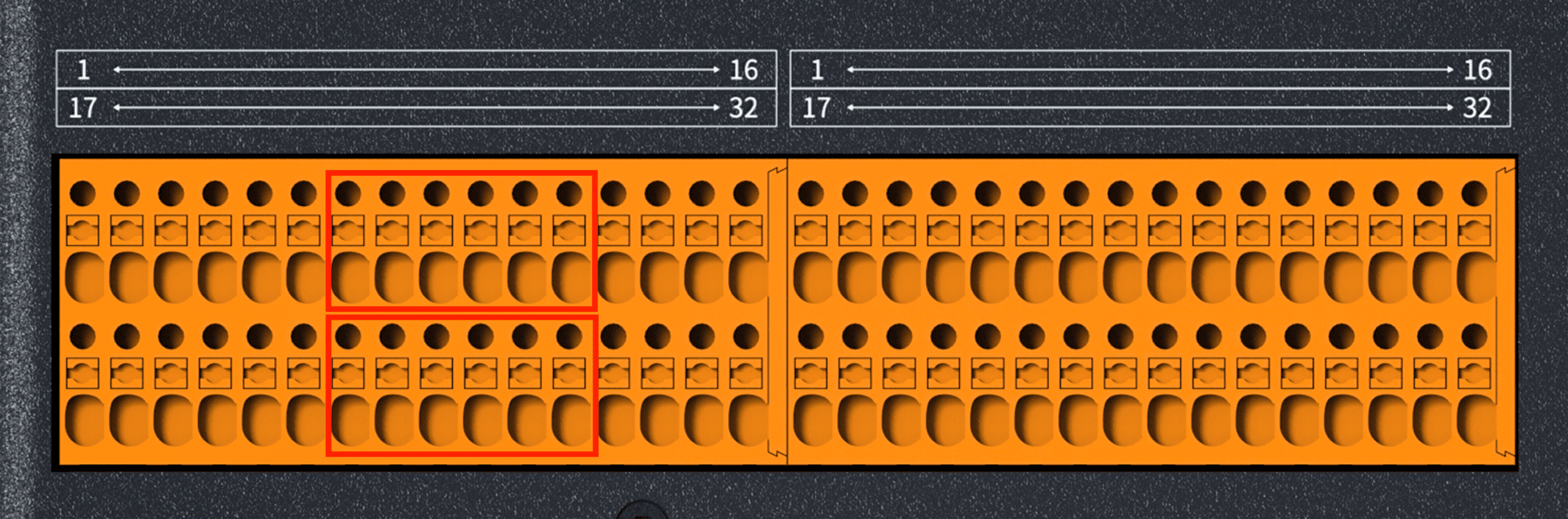
| Pin No. | Name | Pin No. | Name |
|---|---|---|---|
| 7 | COM-CI | 23 | COM-CI |
| 8 | CI10 | 24 | CI00 |
| 9 | COM-CI | 25 | COM-CI |
| 10 | CI11 | 26 | CI01 |
| 11 | CI12 | 27 | CI02 |
| 12 | CI13 | 28 | CI03 |
7.3.5 Remote Power On/Off Control
Pins 13 and 14 of the left I/O interface are the remote power on/off control interface, as shown in Figure 7-6. The remote power on/off interface can be used to control turning the controller on or off.
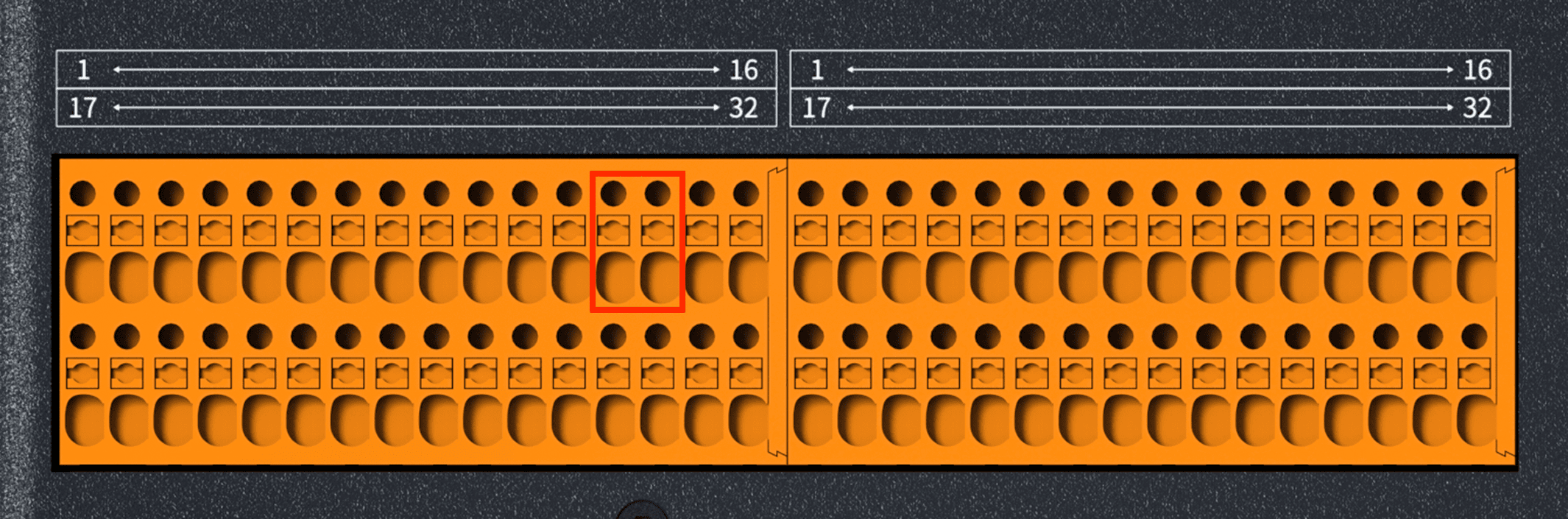
| Pin No. | Name | Function |
|---|---|---|
| 13 | RM+ | User remote power on/off control |
| 14 | RM- | User remote power on/off control |
7.3.6 Power-On Detection
Pin 29 of the left I/O interface is the power-on detection interface, and this interface must not exceed DC24V, as shown in Figure 7-7.
| Pin No. | Name | Function |
|---|---|---|
| 29 | NC | Power-on detection |
7.3.7 General Digital I/O Input Interface
Pins 17-28 of the right I/O interface are the general digital I/O input interface, as shown in Figure 7-8.
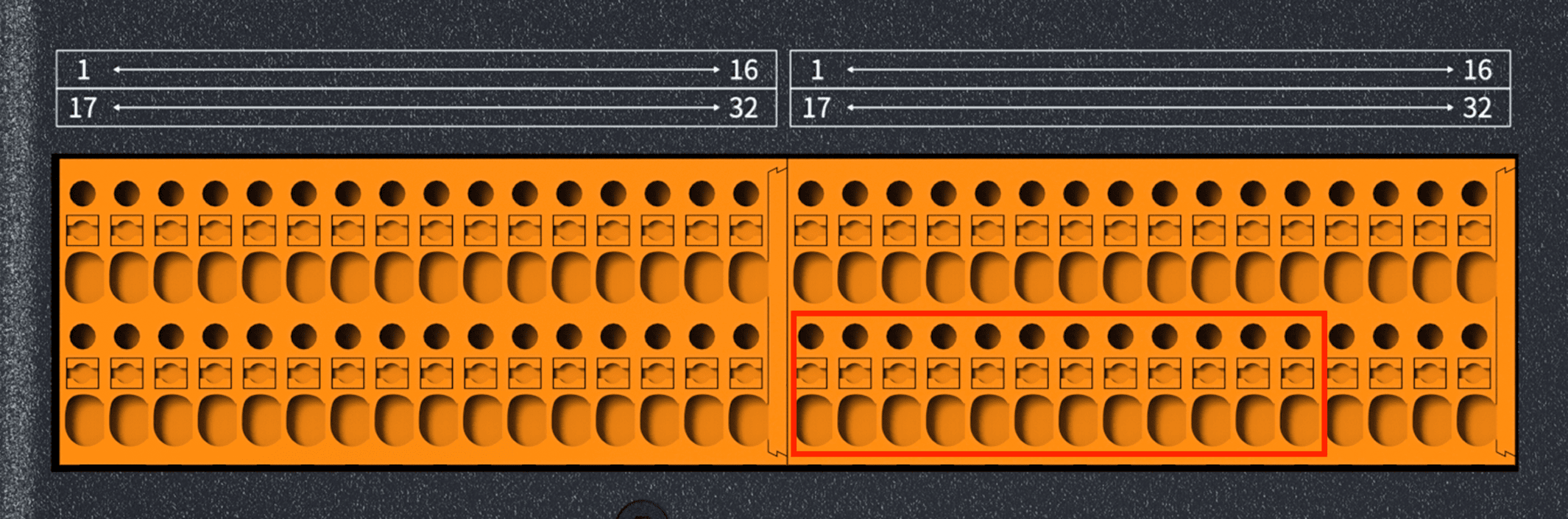
| Pin No. | Name |
|---|---|
| 17 | COM-DI |
| 18 | DI00 |
| 19 | DI01 |
| 20 | COM-DI |
| 21 | DI02 |
| 22 | DI03 |
| 23 | COM-DI |
| 24 | DI04 |
| 25 | DI05 |
| 26 | COM-DI |
| 27 | DI06 |
| 28 | DI07 |
7.3.8 General Digital I/O Output Interface
Pins 1-12 of the right I/O interface are the general digital I/O output interface, as shown in Figure 7-9.
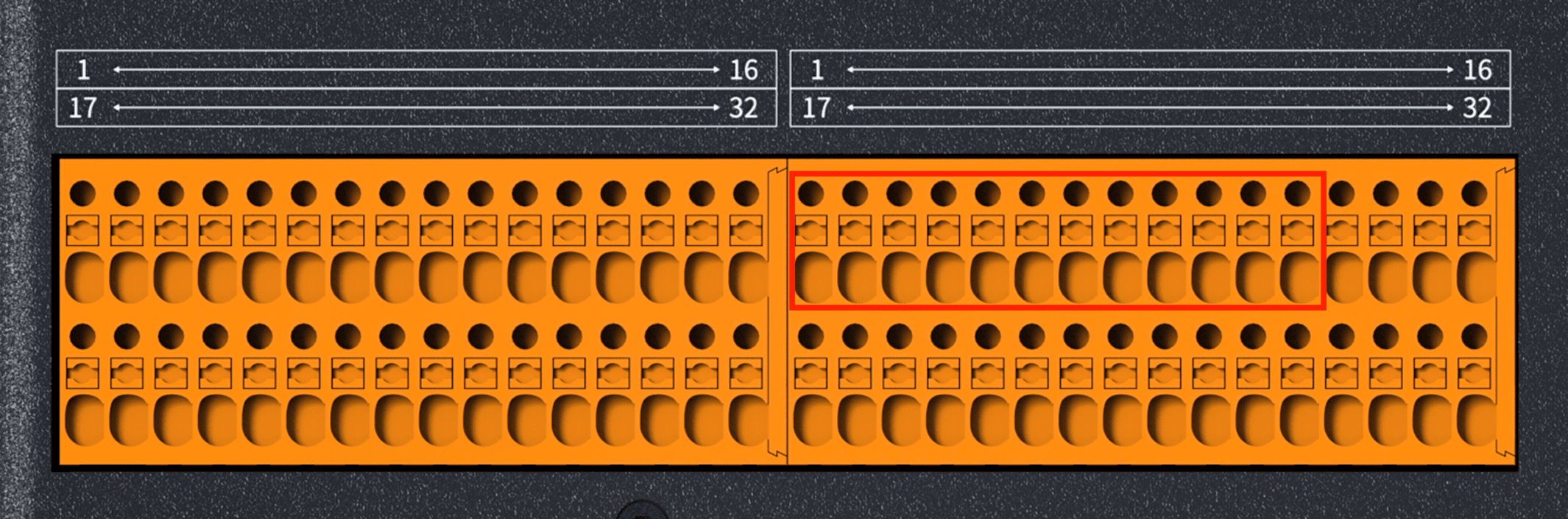
| Pin No. | Name |
|---|---|
| 1 | COM-DO |
| 2 | DO00 |
| 3 | DO01 |
| 4 | COM-DO |
| 5 | DO02 |
| 6 | DO03 |
| 7 | COM-DO |
| 8 | DO04 |
| 9 | DO05 |
| 10 | COM-DO |
| 11 | DO06 |
| 12 | DO07 |
7.3.9 Analog Output Interface
Pins 13-16 of the right I/O interface are the analog output interface, and the port supports a maximum of 0-5V analog output, as shown in Figure 7-10.
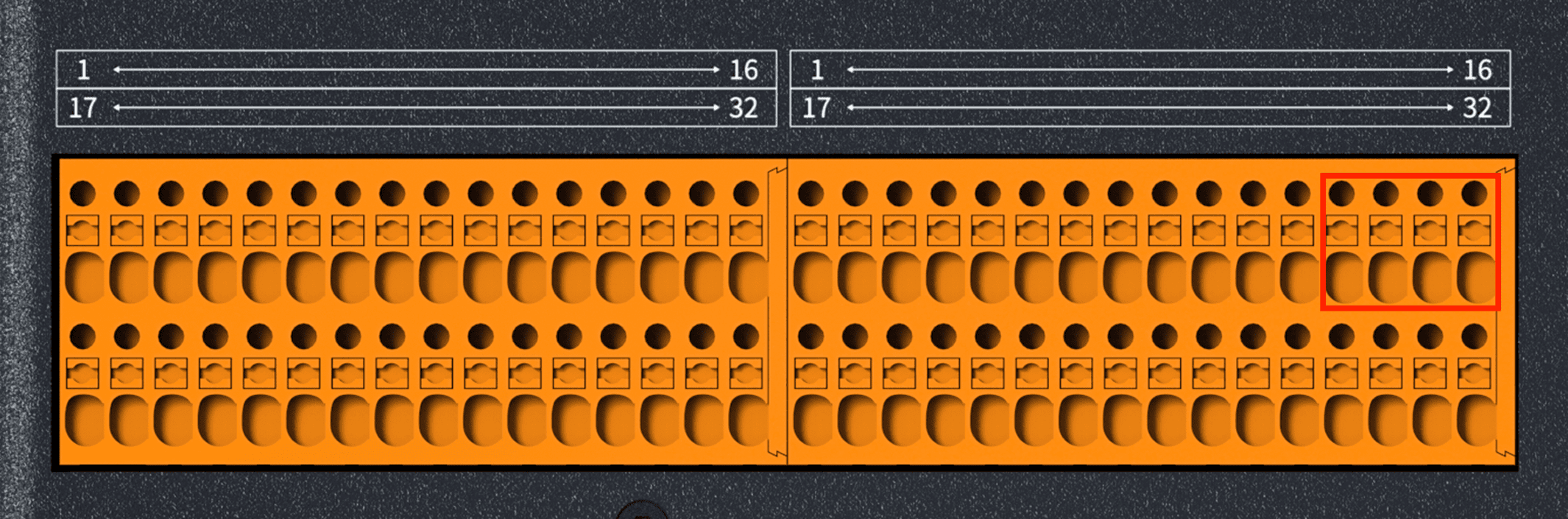
| Pin No. | Name | Function |
|---|---|---|
| 13 | AO1 | Digital-to-analog conversion signal 0 |
| 14 | AG | AGND |
| 15 | AO2 | Digital-to-analog conversion signal 1 |
| 16 | AG | AGND |
7.3.10 Analog Input Interface
Pins 29-32 of the right I/O interface are the analog input interface, and the port supports a maximum of 0-5V analog input, as shown in Figure 7-11.
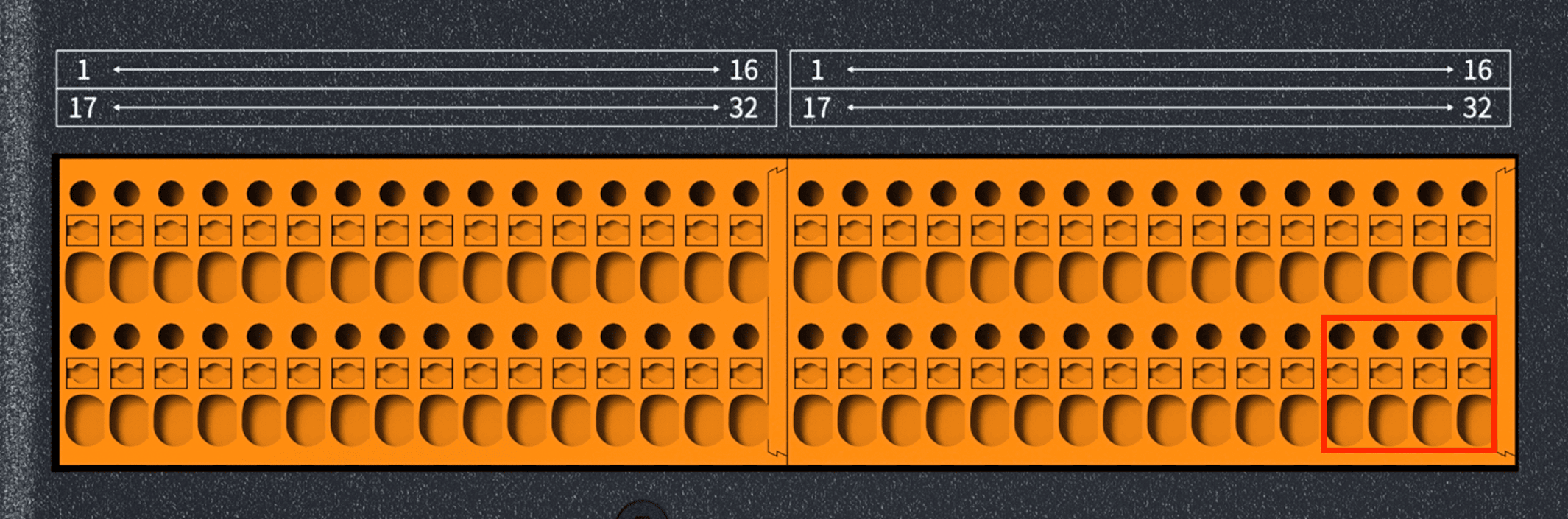
| Pin No. | Name | Function |
|---|---|---|
| 29 | AI1 | Analog-to-digital conversion signal 0 |
| 30 | AG | AGND |
| 31 | AI2 | Analog-to-digital conversion signal 1 |
| 32 | AG | AGND |
7.4 Power Interface
The controller power supply voltage is available in two versions: 96V and 48V. The power interface is shown in Figure 7-12.
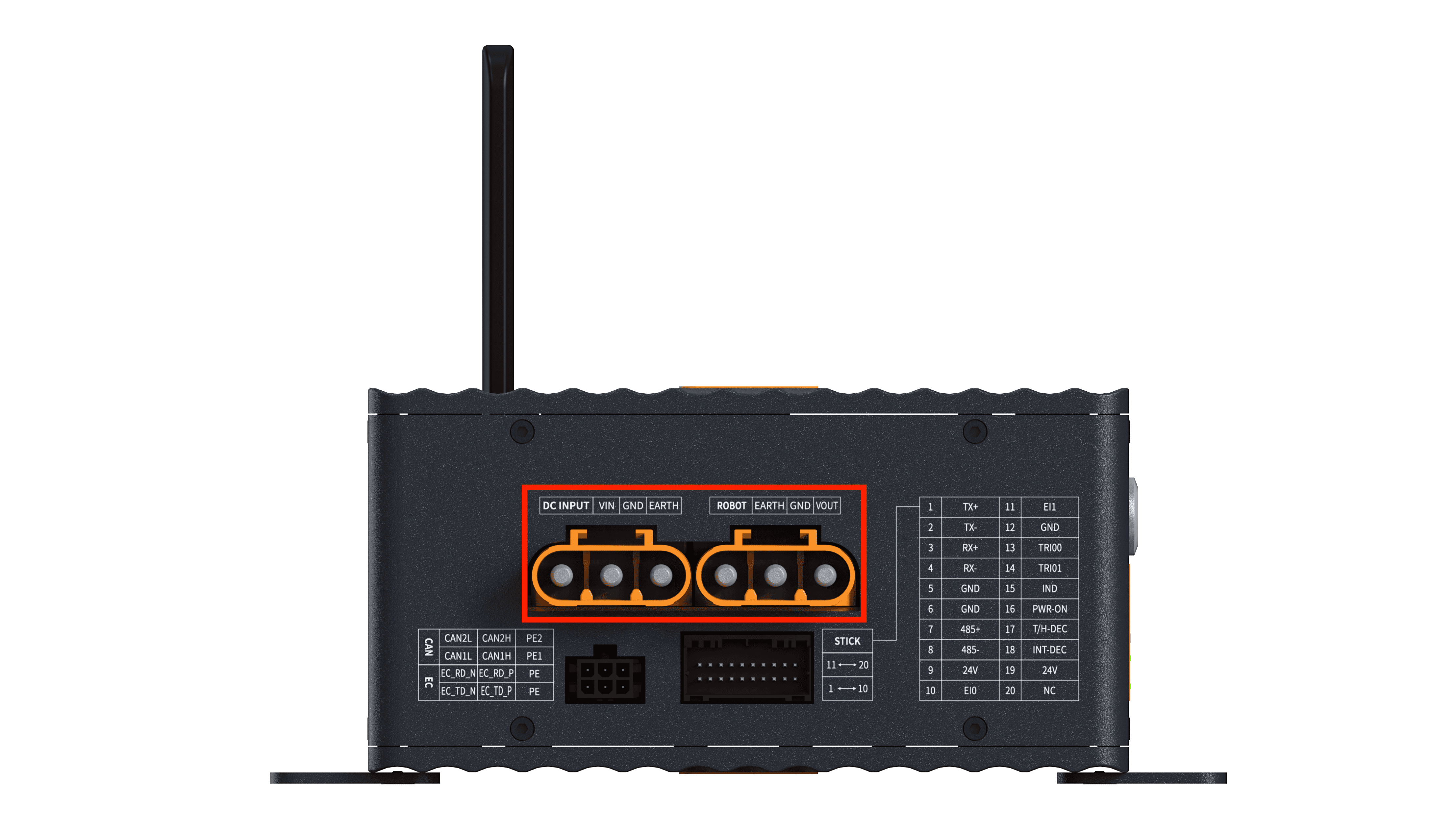
| Plug Position | Voltage Version | Pin Sequence from Left to Right |
|---|---|---|
| Left plug | 96V | DC96V → GND → PE |
| 48V | DC48V → GND → PE | |
| Right plug | 96V | PE → GND → DC96V |
| 48V | PE → GND → DC48V |
7.5 Robot Arm Communication Interface
The pin distribution of the robot arm communication interface is shown in Figure 7-13.
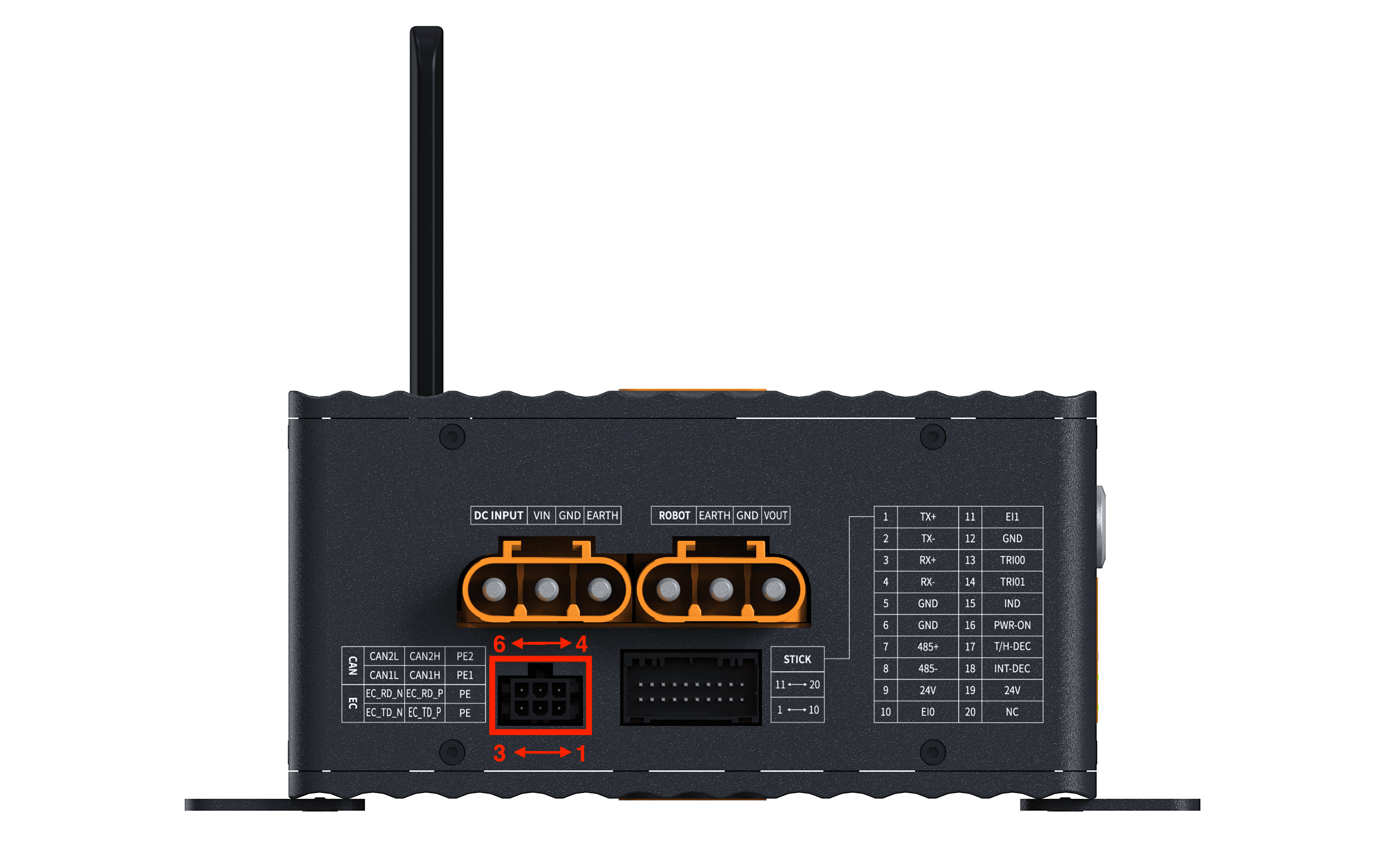
| CAN Interface Definition (Multiplexed with EtherCAT) | ||||
|---|---|---|---|---|
| Pin | Function 1 | Function 2 | ||
| 1 | GND_CAN1 | CAN1-GND | ||
| 2 | CAN1_H | CAN1/+ | ENET_TD_P | EtherCAT/TX+ |
| 3 | CAN1_L | CAN1/- | ENET_TD_N | EtherCAT/TX- |
| 4 | GND_CAN7 | CAN7-GND | ||
| 5 | CAN7_H | CAN7/+ | ENET_RD_P | EtherCAT/RX+ |
| 6 | CAN7_L | CAN7/- | ENET_RD_N | EtherCAT/RX- |
7.6 Handle Interface
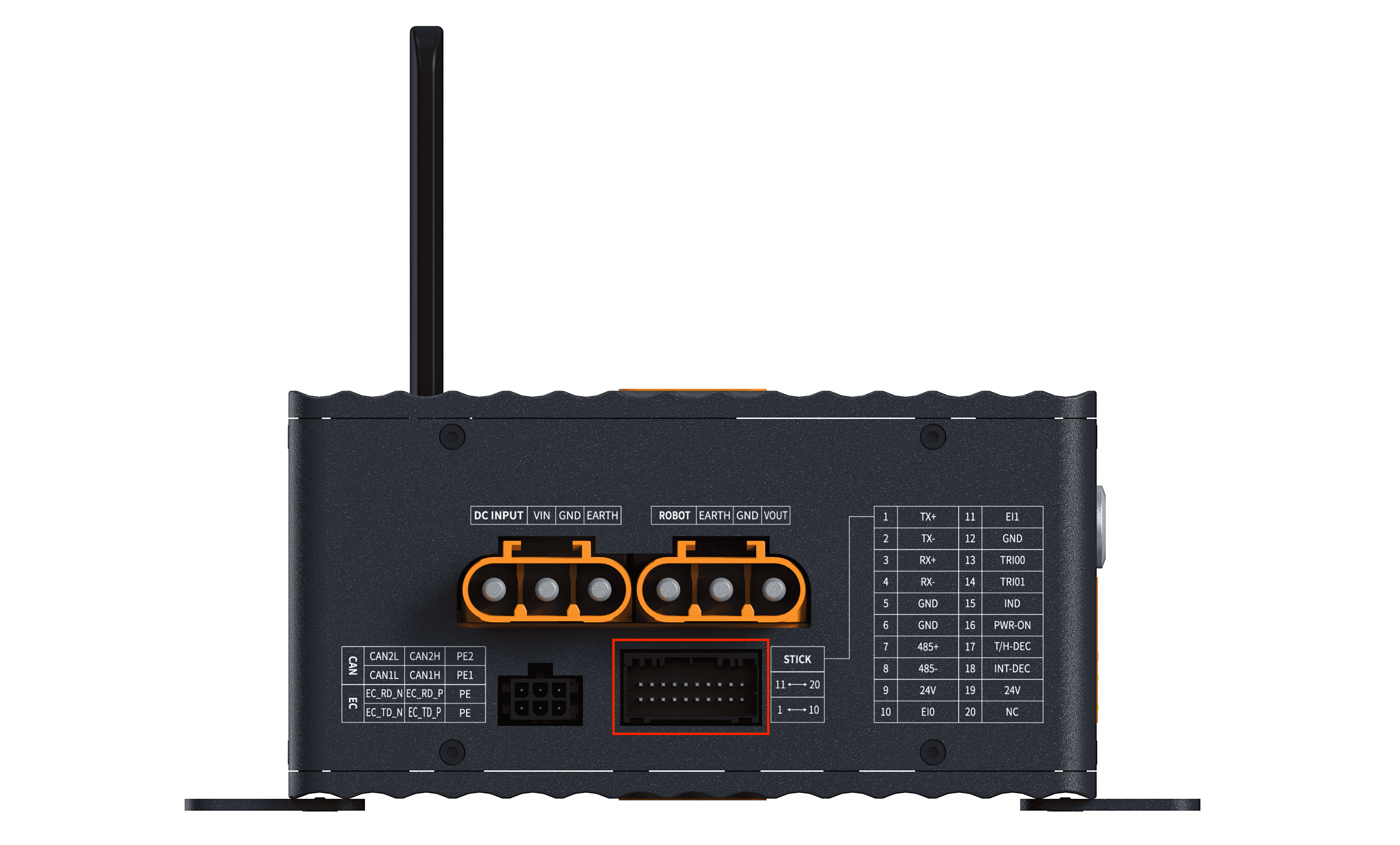
| Pin No. | Name | Function | Pin No. | Name | Function |
|---|---|---|---|---|---|
| 1 | TX+ | Ethernet/TX+ | 11 | EI1 | Emergency stop NC1 |
| 2 | TX- | Ethernet/TX- | 12 | GND | GND |
| 3 | RX+ | Ethernet/RX+ | 13 | TRI00 | Three-position switch/NO1 |
| 4 | RX- | Ethernet/RX- | 14 | TRI01 | Three-position switch/NO |
| 5 | GND | GND | 15 | IND | Power-on indicator/+ |
| 6 | GND | GND | 16 | PWR-ON | Power on/off/NO |
| 7 | 485+ | RS485+ | 17 | T/H-DEC | Handle detection signal |
| 8 | 485- | RS485- | 18 | INT-DEC | Aviation plug insertion signal |
| 9 | 24V | Power 24V+ | 19 | 24V | Power 24V+ |
| 10 | EI0 | Emergency stop/NC | 20 | NC |
8 Use of the Control Handle
8.1 Introduction
The robot system can be operated quickly through the control handle. In the AuboStudio teach pendant software, the control handle function can be configured to be disabled or enabled, and it is enabled by default at the factory. A magnet is placed on the back of the control handle for easy attachment. Its structure is shown in Figure 8-1 below.
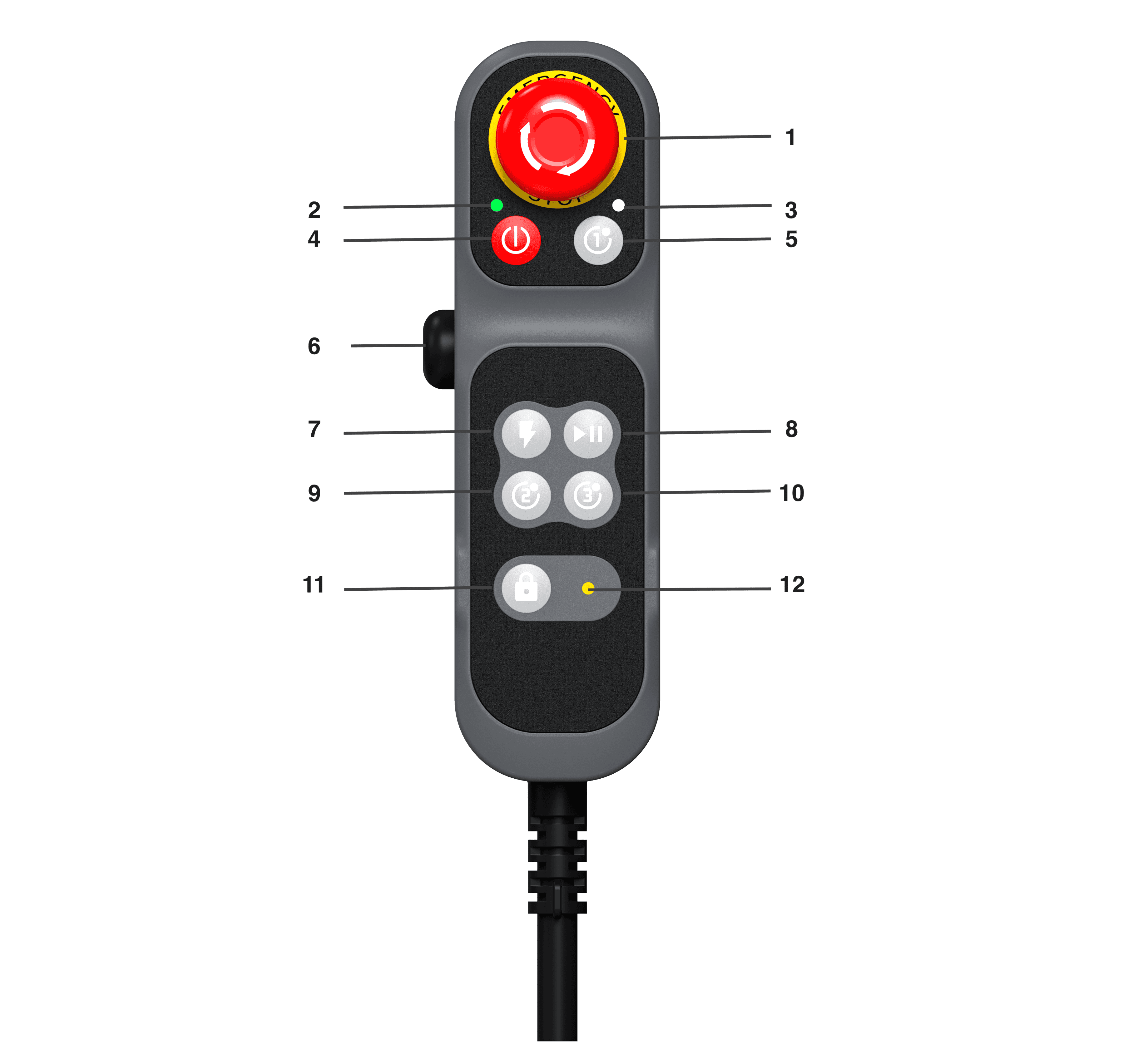
| No. | Name | Function |
|---|---|---|
| 1 | Emergency stop button | Pressing down the button can realize the emergency stop of the robot. Rotating the button in the direction shown on the button can restore it to the normal state. |
| 2 | Power-on indicator | Indicates the controller power-on/off status: Off: the controller is not powered on Flashes slowly at 1 Hz: the controller is powering on Flashes fast at 4 Hz: waiting for the teach pendant to start On: the teach pendant has started, and the APP can scan and connect. The robot arm is in the standby state without power. Breathing: the robot arm is in the standby state with power on. Flashes fast at 4 Hz (3 seconds): searching for the robot (teach pendant control) Flashes slowly at 1 Hz: shutting down |
| 3 | Button indicator | Off when no button is pressed On when any button is pressed |
| 4 | Power on/off button | 1. Power on: press and hold for 2 seconds and then release it. The buzzer emits a "beep", and the controller enters the power-on process. After about 20s, when the buzzer emits a "beep" again, the handle power indicator starts to flash, and the controller completes power-on. 2. Power off: press and hold for 2 seconds and then release it. The power indicator goes off, and the buzzer emits a "beep beep" sound to indicate that shutdown is complete. 3. Forced shutdown: in any state, press and hold for 10 seconds to force shutdown. The power indicator goes off, and the buzzer emits a "beep beep" sound to indicate that shutdown is complete. |
| 5, 9, 10 | Customizable buttons | Users can customize the functions of these buttons in the AuboStudio teach pendant software. |
| 6 | Three-position enabling switch | The three-position enabling button has three stages of travel: 1. Release OFF (initial) 2. Half-press ON 3. Press to the bottom OFF Drag teach button: The system is configured as a drag teach function button by default. When the device is in manual mode and the button is ON, the drag teach function is enabled, supporting manually dragging the robot arm to complete teaching operations; when the button is OFF, the drag teach function is disabled, and the robot arm cannot be dragged for teaching. Safety enabling switch: The safety enabling switch mode can be enabled by switching in the software interface. When the device is in manual mode and the switch is ON, the robot arm can be manually controlled normally; when the switch is OFF, the robot triggers safety stop protection and immediately terminates all manual control actions. |
| 7 | Robot power on/off button | Controls the robot arm power on/off and enabling: 1. Robot arm power on: when the robot arm is powered off, short-press the button. The buzzer emits a "beep", and the robot arm starts to power on. After about 20s, when the buzzer emits a "beep" again, the power indicator changes from flashing to steady on, and the robot arm power-on is complete. 2. Robot arm enabling (brake release operation): when the robot arm is powered on but not enabled, short-press the button. The robot arm vibrates and the six joints emit clicks in sequence, releasing the braking system. After that, the robot arm can be operated normally. 3. Robot arm power off: when the robot arm is powered on, press and hold the button for 2 seconds and then release it. The robot arm is enabled and powered off, the power indicator changes from steady on to flashing, and the buzzer emits a "beep beep" sound to indicate that power-off is complete. |
| 8 | Program start/stop button | This button is used to control the start, termination, pause, and resume of the robot arm program. It can be operated quickly without the teach pendant, meeting the needs of on-site operations, whole-machine deployment, and maintenance debugging. 1. Program start: press and hold the start/stop button on the control handle for 2 seconds and then release it to start the default program. The buzzer emits a "beep" to indicate that the program is running. If no default program is set, the robot arm does not execute any action and the buzzer gives no prompt. 2. Program pause/resume: when the program is running, short-press the button to pause/resume the program. The buzzer emits a "beep" to indicate pause/resume. 3. Program termination: press and hold for 2 seconds and then release it. The program stops (after stopping, it cannot be resumed and can only be restarted). The buzzer emits a "beep beep" sound to indicate that the program has terminated. |
| 11 | Handle lock button | Handle lock button: controls the enabling and locking of the control handle, used to prevent misoperation of the handle during program running. 1. Lock: when the handle is not locked, press and hold the button for 2 seconds and then release it. The buzzer emits a "beep", the handle lock indicator stays on, and all buttons except the emergency stop are disabled. 2. Unlock: when the handle is locked, press and hold the button for 2 seconds and then release it. The buzzer emits two "beep beep" sounds, the handle lock indicator goes off, and the handle buttons return to normal use. |
| 12 | Handle lock status indicator | Indicates the handle lock status: 1. On: the handle is locked, and operations of other buttons are invalid. 2. Off: the handle is not locked, and other buttons are valid. |
| Sign | Description |
|---|---|
| Pressing the emergency stop button triggers a Category 1 stop. For descriptions of stop categories, see Appendix. |
8.2 Customizable Functions of the Handle
- Users can configure the functions of the customizable buttons in the teach pendant software. The configurable functions are shown in the following table. For specific operations, please refer to the AuboStudio software manual.
| Button | Function Definition |
|---|---|
| Customizable button | Return to origin, triggered by long press |
| Drag teach, triggered by long press | |
| Record feature point, triggered by short press | |
| Trajectory playback, triggered by short press |
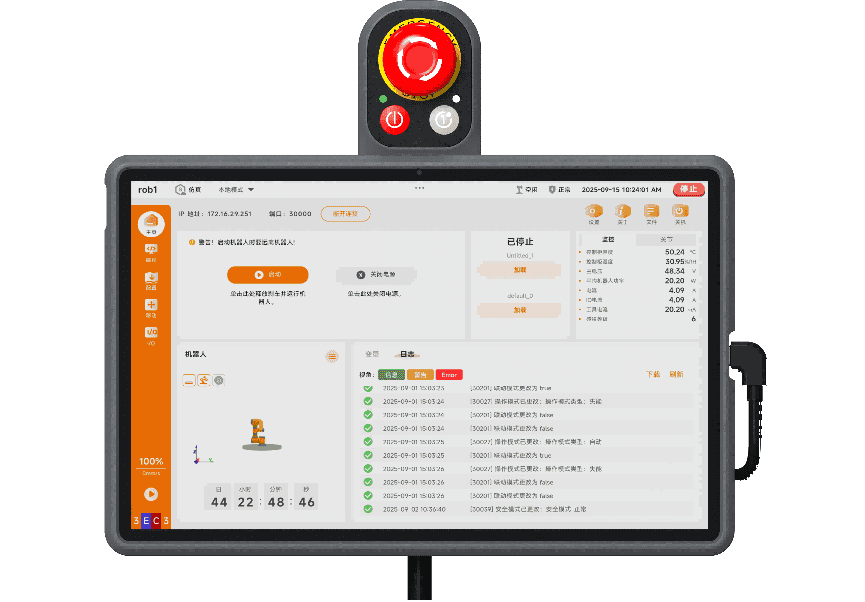
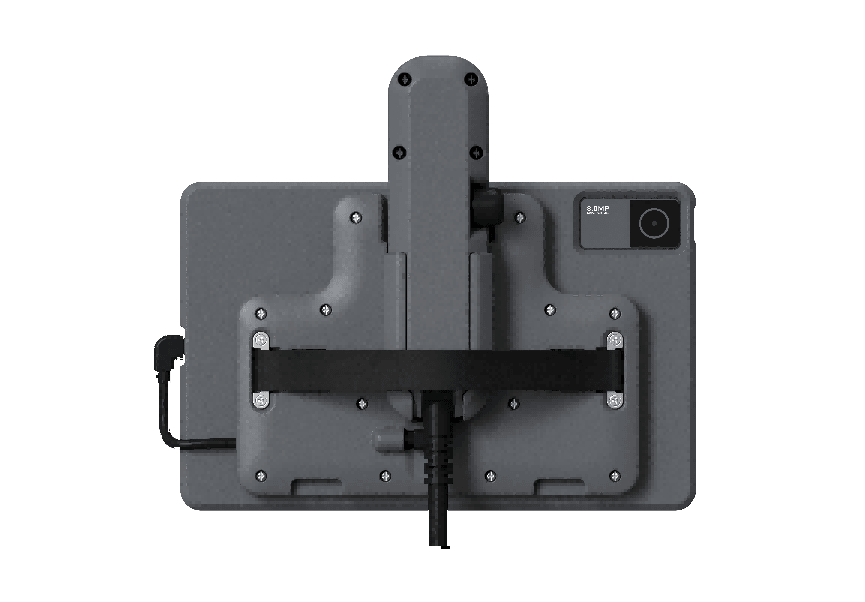
8.3 G-STICK Handle Kit
The G series handle comes with a tablet back-clip kit, as shown in the figure. This accessory can realize the connection and assembly of the handle and the tablet, optimizing the operation experience.
9 Appendix
9.1 Glossary
Category 0 stop: Uncontrolled stop, power is cut off immediately and the joint brakes apply with no controlled deceleration, so the robot may deviate from the programmed path. It applies only to extreme cases such as exceeding the safety-rated limit or a failure in the safety-rated part of the control system. For the definitions of stop categories and the requirement to remove power immediately, refer to IEC 60204-1:2016 (9.2.2 Stop categories); for the design requirements of the emergency stop function, refer to EN ISO 13850:2015.
Category 1 stop: Controlled stop with power removal afterwards, the robot stops along the programmed path and the power is removed once the stop is achieved, balancing safety and path stability. For the definitions of stop categories and the requirement to remove power after the stop, refer to IEC 60204-1:2016 (9.2.2 Stop categories); for the design requirements of the emergency stop function, refer to EN ISO 13850:2015.
Category 2 stop: Controlled stop with power maintained, the robot stays powered after it stops, and the safety-rated control system holds it in the stopped position, so work can be resumed quickly. For the definitions of stop categories and the requirement to maintain power, refer to IEC 60204-1:2016 (9.2.2 Stop categories). A category 2 stop is not permitted as an emergency stop, and is therefore not covered by EN ISO 13850:2015.
9.2 Technical Specifications
| Controller Model | CB-G40-MINI | |
|---|---|---|
| Controller Dimensions (L*W*H) | 234mm x 169mm x 69.9mm | |
| Controller Weight | About 8kg | |
| IP Protection Rating | IP20 (IP43 customizable) | |
| Power Input | 96VDC | |
| I/O Port | Digital input | 8 (configurable) |
| Digital output | 8 (configurable) | |
| RS485 | 1 | |
| I/O Power | Output voltage: 24V Output current: 3A max | |
| Operating Temperature | -10℃~55℃ | |
| Transportation and Storage Temperature | -40℃~60℃ | |
| Humidity | 95% relative humidity (non-condensing) | |
| Cooling Method | Air cooling | |
| Cable Length | Robot arm cable length | 5m |
| Handle cable length | 4m | |
9.3 Revision Records
| Version / Time | Description |
|---|---|
| v1.0.0* / 20260626 | v1.0.0* (Trial) released. |
| v1.0.1*/20260827 | 1. Released v1.0.1* trial version. 2. Unified manual structure, safety instructions, chapter names, and warning signs. |
| v1.0.2*/20260922 | 1. Released v1.0.2* trial version. 2. Added descriptions of stop categories in the appendix. |