
Compound Robot AGV User Manual
Manual revision date: 2023-03
1 Body Introduction
1.1 AGV Body Parameters
1.1.1 Outline Dimension Parameters
AGV (Automated Guided Vehicle), usually also called an AGV cart. In the general sense, it refers to a transport vehicle equipped with automatic navigation devices such as electromagnetic or optical devices, capable of traveling along a specified navigation path and having safety protection and various load transfer functions.
In application, it is a transport vehicle that does not need a driver and uses a rechargeable battery as its power source. Its travel path and behavior can generally be controlled by a computer. On a compound AGV, a rotatable laser scanner is installed; laser positioning marks are installed on the walls or pillars along the travel path. The AGV relies on the laser scanner to emit a laser beam and then receives the laser beam reflected back from the surrounding positioning marks, that is, the navigation method of SLAM mapping. The on-board CPU of the AGV calculates the current position and the direction of motion of the vehicle, and corrects the orientation by comparing it with the built-in digital map, thereby realizing automatic path navigation.
The body design of the AUBO compound robot and the complete standard drawings are as follows:
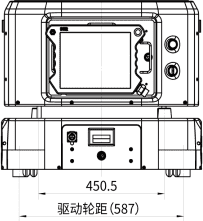
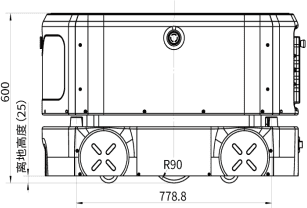
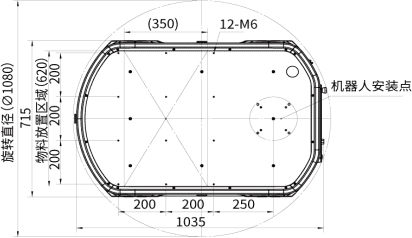
The basic outline parameters of the compound robot AGV body are shown in the table below:
| No. | Parameter name | Parameter description |
|---|---|---|
| 1 | Dimensions (LWH) | 1000*700*600mm (excluding the height of the robot arm), tolerance ±2mm |
| 2 | Load surface dimensions (L*W) | 650*620mm, tolerance ±2mm |
| 3 | Dead weight | 250Kg (excluding the robot arm) |
| 4 | Maximum load | 300Kg (including the weight of the robot arm and the carrier) |
1.1.2 Motion Parameters
The basic motion parameters of the compound robot AGV are as follows:
| No. | Parameter name | Parameter description |
|---|---|---|
| 1 | Number of laser sensors | 2 |
| 2 | Maximum speed | 1.3m/s |
| 3 | Working speed | Forward: 1.0m/s (configurable), backward: 1.0m/s (configurable) |
| 4 | Turning radius | 0mm |
| 5 | Rotation radius | 550mm |
| 6 | Climbing capability | 6° |
| 7 | Obstacle crossing height | 10mm |
| 8 | Gap crossing width | 30mm |
| 9 | Ground clearance | 25mm |
| 10 | Travel aisle width | ≥ 900mm |
| 11 | Turning aisle width | ≥1300mm |
| 12 | Station positioning accuracy | ± 10mm |
| 13 | Ground flatness | 6mm |
1.1.3 Performance Parameters
The basic performance parameters of the compound robot AGV are as follows:
| No. | Parameter name | Parameter description |
|---|---|---|
| 1 | Drive form | Two-wheel differential drive |
| 2 | Battery capacity | 48V 52Ah, lithium battery |
| 3 | Charger power supply parameters | 220V 800-1000W |
| 4 | Endurance time | 6h (300Kg full load) |
| 5 | Battery life | 800 cycles (DOD 100%), capacity retention rate 80% |
| 6 | Charging method | Optional manual charging or automatic charging: maximum charging current 15A |
| 7 | Charging time | 3h (from 15% to 95%) |
| 8 | Robot arm | AUBO-i5, AUBO-i10, etc. are optional |
1.2 AGV Interface Layout
1.2.1 Mechanical Interface Layout
The mechanical interfaces of the compound robot refer to the interfaces reserved for users (including bolt holes, dowel pin holes, etc.), which serve as connections for external parts in the user's application development.
The reserved mechanical interfaces exist on the upper table of the compound robot and at the end of the robot arm flange. Typical applications of the upper table of the compound robot include: installing a controller, installing an industrial computer, and installing a pallet.
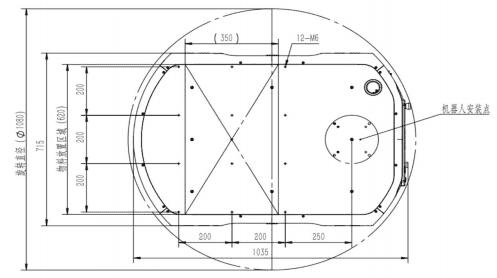
The common typical applications of the upper table of the compound robot AGV body and their descriptions are shown in the table below:
| No. | Name | Application description |
|---|---|---|
| 1 | Controller | Assists peripheral electrical equipment in closed safety management |
| 2 | Industrial computer | A small industrial computer based on the PC bus, with strong stability |
| 3 | Air compressor | Air compressor, providing an air source for the equipment |
| 4 | Material pallet | Places materials temporarily, serving as a fixture (jig) for handling and loading/unloading |
| 5 | Robot arm | Standard i5, i10, and other types of robot arms are optional |
The mechanical interfaces at the end of the compound robot flange refer to the interfaces reserved for users; the specific mechanical dimension diagram is shown in the figure.
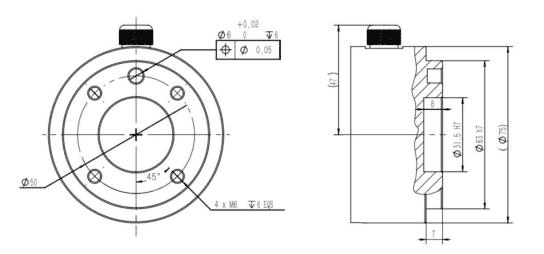
Some common typical applications at the end of the compound robot arm flange are as follows:
| No. | Name | Application description |
|---|---|---|
| 1 | Suction cup | Can maintain the suction function for objects |
| 2 | 2D camera | Compatible with industrial 2D cameras in an eye-in-hand configuration, enabling 2.5D positioning with positioning accuracy up to 0.5mm |
| 3 | 3D camera | Compatible with structured light cameras, stereo 3D cameras, etc., in an eye-in-hand configuration, with 3D positioning accuracy up to 1mm |
| 4 | Gripper | Compatible with two-finger adaptive electric grippers, three-finger adaptive electric grippers, two-finger parallel electric grippers, pneumatic grippers, self-designed cylinder bracket grippers, etc. |
1.2.2 Hardware Interface Layout
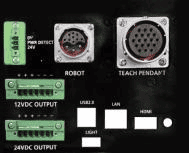
The rich hardware interfaces meet the needs of mainstream robot development and support interfaces such as Ethernet, Modbus RTU, and USB. The schematic diagram of the default terminal panel interfaces is shown in the figure.
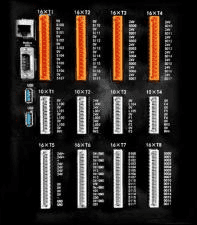
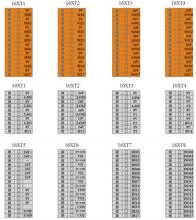
Controller interfaces:
- Reserved 12V interface, unlimited number of devices, maximum current 4A, maximum power 48W
- Reserved 24V interface, unlimited number of devices, maximum current 10A, maximum power 240W
- Supports an inverter, providing an AC power supply solution
Note: Inside the cabinet there are 100V-240V AC and 48V DC power supply modules. Non-professionals shall not open the cabinet while it is energized. For details, please refer to the AUBO-i5 & CB-M collaborative robot user manual.
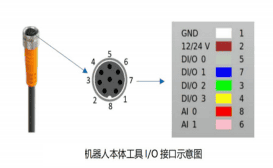
1.2.3 Software API Overview
The software interfaces of the compound robot refer to program interfaces, whose function is to cooperate with the user's application development to complete device communication, control, and status collection.
According to the development depth, they are divided into two categories: teach pendant program interfaces and API interfaces.
Teach pendant program interfaces: shallow development depth and low development difficulty. Scripts are written in the Lua language, which is convenient to use, fast to develop, simple to debug, and low in learning cost, and can meet the basic application requirements of users. The teach pendant also supports plug-in development; for details, please refer to the teach pendant plug-in development guide.
API interfaces: deeper development depth and higher development difficulty. Programming languages include but are not limited to C\C++ and Python. API interface programs exist as independent programs, establish TCP\IP network communication with the compound robot, and realize the collaborative work between the robot and the application development equipment. For details, please refer to the SDK Development Manual.
The features of the robot API are as follows:
- The robot API is open source
- The robot API ports are independent
- It has fool-proofing and autonomous shutdown functions (if any erroneous data packet that does not conform to the header of this protocol is received, the TCP connection will be actively closed without any reply)
- It has request and automatic keep-alive mechanisms (the TCP KeepAlive mechanism is used for keep-alive, and dead connections are cleared in time)
The open contents of the six common robot APIs are as follows:
- Robot status API: used to query various status quantities of the robot, such as position, speed, and alarm information.
- Robot control API: used to send open-loop control commands to the robot, such as forward speed, steering speed, and relocalization.
- Robot navigation API: used to send navigation commands to the robot, such as path navigation, translation, and rotation.
- Robot configuration API: used to set robot parameters and to download and upload maps.
- Other APIs: miscellaneous items, such as audio control.
- Robot push API: used by the robot to actively push data to the currently connected client.
Each category uses a different port and is independent of each other. The whole set of APIs mainly adopts TCP question-and-answer mode; the robot acts as a server, accepting requests from the client and responding to the client.
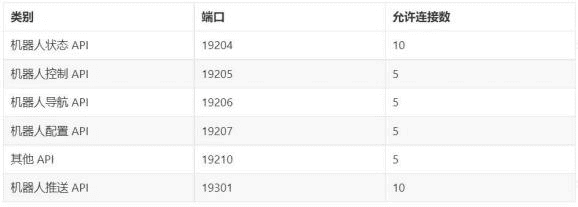
The corresponding API testing tool is open-sourced in the Source directory on Github. The tool is written in Qt, and its source code can be used as a reference example. The compiled single Windows executable file can also be downloaded in Release.
API messages follow a certain structure; the header and the received json file are shown below.
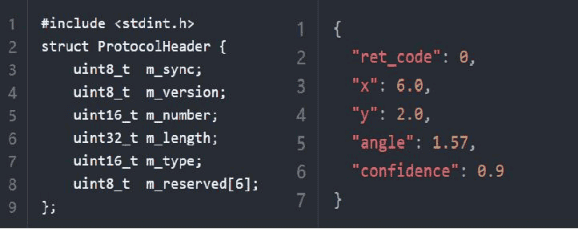
The robot opens APIs for related operations. The whole set of APIs adopts TCP request/response question-and-answer mode; the robot acts as a server, accepting requests from the client and responding to the client. An API request consists of a header and a data area, indicating that the data packet is serialized JSON data, which can be parsed and used in various ways. For details, please refer to the documentation.
2 AGV Overall Disassembly and Assembly
2.1 Shell Disassembly and Assembly
The disassembly and assembly process of the compound robot mainly includes three parts: disassembly and assembly of the robot arm, of the upper shell, and of the lower shell. During the process, be sure to ensure that the power supply is cut off, that is, disassembly and assembly may only be carried out in the powered-off state.
For the disassembly and assembly of the compound robot (Haina series), note that the robot arm is relatively the simplest: it has the fewest fixing bolts. It is connected to the base through four bolt holes. Unscrew the robot arm power cable (fool-proof design) and then remove the four bolts of the robot arm base. Note that if the robot arm needs to be packed for transportation, the robot arm pose must be adjusted to the packing position through the robot arm settings section of the teach pendant, and then the power should be turned off before disassembly.
For the disassembly and assembly of the AGV body shell of the compound robot, it is recommended to remove the corresponding shells in the order K01 to K08. The schematic diagram of the specific removal order is shown in the figure:
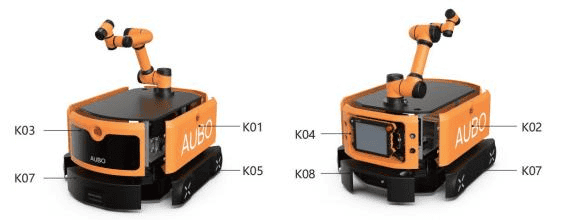
Note that there are snap fits between the shell and the adjacent shell. During removal, the steps must be strictly followed to prevent the snaps from breaking. Remove the fixing screws used to take off the shell, and pull it apart gradually and slowly.
The specific disassembly procedure is shown in the figure:
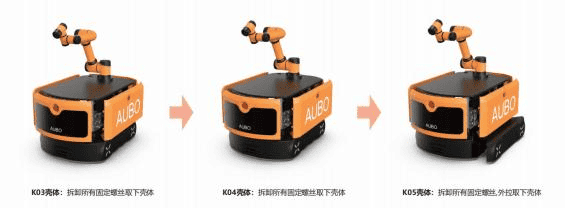
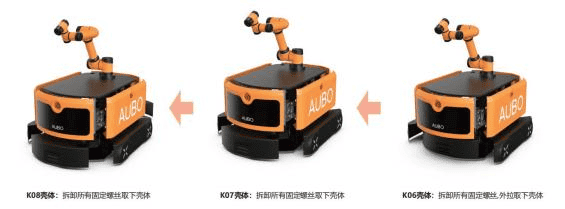
Precautions:
- To prevent the snaps of the vacuum-formed shell from breaking, the disassembly and assembly procedure must be strictly followed;
- The screws of the vacuum-formed shell are easy to lose; please keep them properly;
- The AGV table must be kept intact. If drilling is required for application development, it may cause damage to the robot's electrical equipment;
- During transportation, wooden crates and foam must be used for packaging; the wooden crates and foam are already provided with the product;
- Do not step on the vacuum-formed shell or place heavy objects on it, to prevent damage to the shell;
- The electrical interfaces of the compound robot are fragile; do not hit them during application development;
- Do not hit the LiDAR housing to prevent wear or even damage to the LiDAR;
- Please keep the robot packaging wooden crate properly;
- The compound robot must be locked during transportation to prevent battery consumption. If it is not locked, the battery will be consumed and there is a risk of the battery becoming unusable. For details, please also refer to the user manual.
2.2 Quick Battery Replacement
2.2.1 Removing the Battery
The specific idea of the battery removal method is as follows:
First open the battery compartment to get an overview of the battery, as shown in the figure: in the powered-off state, slowly rotate the knob and then unplug the aviation connector to stop the battery power supply.
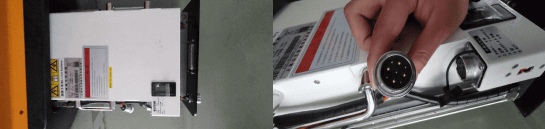
At the same time, note the switch on the side. When the battery is kept for a long time or the equipment is not plugged in, the manual switch of the battery needs to be turned off to prevent power leakage and other contact, as shown in the figure:
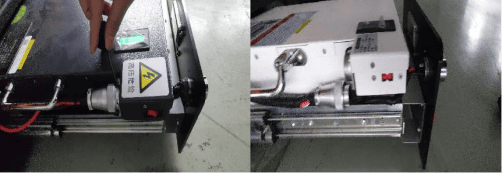
Pay special attention to ensuring the safety of the connector, especially moisture-proofing and anti-static protection.
2.2.2 Charger-related Configuration
There are two types of manual chargers, corresponding to three-pin and four-pin connectors respectively. The actual connectors are shown in the figure.
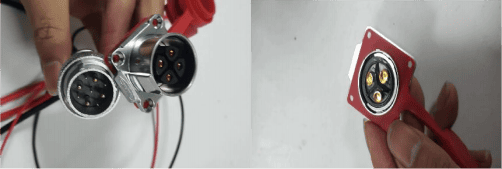
There are numbers on the back for a better understanding of the wiring method. These numbers refer to the charger-side connector: the red wire connects to 1, the black wire connects to 2, and the other pins may be left unconnected (or for the four-pin connector, terminals 3 and 4 may be short-circuited and left unused).
When charging, align the connector position and, after confirming that it is safe, connect the power supply.
The wiring port connected to the charger is laid out in accordance with the standard electrical connection method. The actual schematic diagram is as follows.
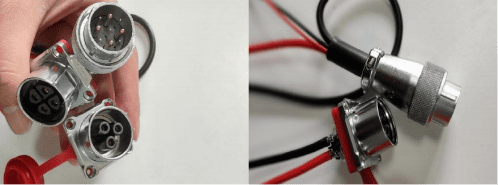
The pin wiring of the robot-side charging port (the end connected to the charger) is as follows (the pin numbers follow the markings on the port):
2 positive and 8 negative (thick), 3 red and 7 black (medium), 1 and 5 short-circuited (thin), and pins 4, 6, and 9 may be left unconnected.
2.3 Anti-slip Wheel Disassembly and Assembly
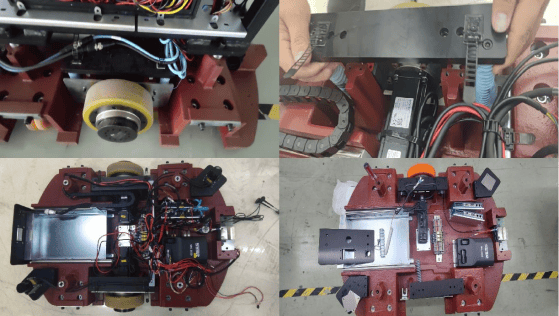
The standard driving wheel of the compound robot uses a polyurethane-coated wheel. Because this type of tire material is hard and smooth, it may affect the positioning accuracy of the robot on wet and slippery floors, causing work contents (such as machine tool loading and unloading) to fail. Another type of anti-slip wheel is a coated wheel with a frosted surface (hereinafter referred to as the anti-slip wheel). After slip calibration, the compound robot can drive on wet and slippery floors using anti-slip wheels as the driving wheels.
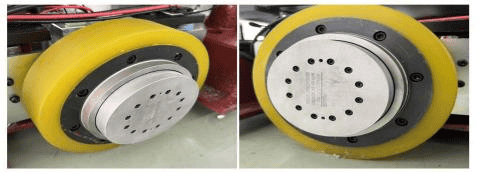
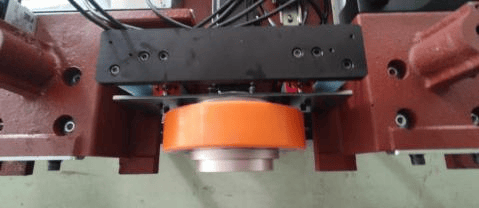
After a certain number of uses, the wheel reaches the end of its service life and needs to be replaced, which requires removal. In this case, the anti-slip wheel must be replaced after the overall shell of the AGV has been removed.
Some photos of the AGV body disassembly and assembly process are shown below.
3 Teach Pendant Plug-in Instructions
3.1 Interface Introduction
The teach pendant is a handheld device that users can use for manual control of the robot, program writing, parameter configuration, and real-time monitoring. For the teach pendant of the compound robot, a relatively independent control method is separately integrated in the AGV part, realizing the basic operation functions of the AGV in the form of a plug-in.
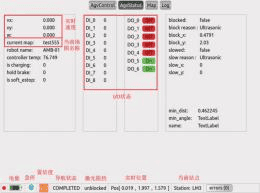
The specific path of the plug-in is in the AGV part; the AGV extension plug-in path is: Extension → Peripheral → AGV. The AGV plug-in includes the following 4 tabs; the contents and descriptions are shown in the table below. Items 5 to 11 are the status information displayed in the AgvStatus tab:
| No. | Name | Description |
|---|---|---|
| 1 | AgvControl | Connect/disconnect the AGV |
| 2 | AgvStatus | Obtain common status |
| 3 | Map | Map and open-loop control, etc. |
| 4 | Log | Log information |
| 5 | I/O status | Displays the IO status of the AGV controller |
| 6 | Battery information | Displays the battery level percentage. |
| 7 | Emergency stop status | Blue indicates no emergency stop; red indicates that the emergency stop has been pressed |
| 8 | Confidence | Between [0, 1]; the larger the value, the higher the position accuracy |
| 9 | Laser blocking | Displays the laser status and whether it is blocked |
| 10 | Current station | Displays the current station information of the AGV |
| 11 | Error information | Displays the AGV error information, such as motor, laser, and communication exceptions |
3.1.1 AGV Extension Function Description
Teach pendant AGV extension function description
- Real-time position: x coordinate (unit: m), y coordinate (unit: m), angle (unit: rad)
- Current station: displays the name of the current station
- Error log: records error information, such as motor, laser, and communication exceptions
- Others: the interface also displays other AGV status information, such as real-time speed, current map name, IO status, and laser blocking details.
The following table analyzes the display of navigation and laser status.
| No. | Display name | Status |
|---|---|---|
| 1 | NONE | No navigation |
| 2 | RUNNING | Navigating |
| 3 | SUSPENDED | Navigation suspended |
| 4 | COMPLETED | Navigation completed |
| 5 | FAILED | Navigation failed |
| 6 | Unblocked | The laser is not blocked |
| 7 | Slowed | The laser is in the deceleration state, and the AGV moves slowly |
| 8 | Blocked | The laser is blocked, and the AGV cannot move |
3.1.2 AGV Extension Function Application
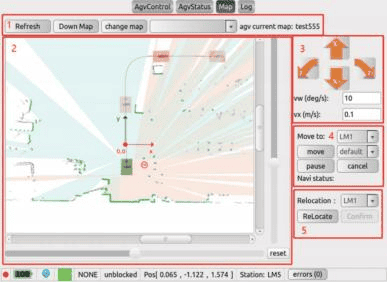
The function application part of the AGV plug-in mainly includes the following five functions. The specific operations and instructions are as follows:
- Map operation: displays map information, queries the map list, and switches maps.
- Map drawing: displays information such as the AGV position, LM stations, paths, obstacles, and laser data.
- Open-loop control: controls the AGV to move forward, backward, or turn.
- Navigation control: issues path navigation commands to the AGV.
- Relocalization: after the AGV restarts or the map is updated, relocalization is required and the AGV position must be confirmed to be correct before navigation can be performed. Move the AGV near a station LMx (the direction must also be close; x indicates the station number name, which is an Arabic numeral), perform relocalization, and confirm in the pop-up window when done.
3.2 Project Creation and Use
When creating a project, the logical approach of the project needs to be clarified, for example: the number of stations, the specific work content, and the standard recommended loading/unloading project case, which can be used as a logical template for online programming.
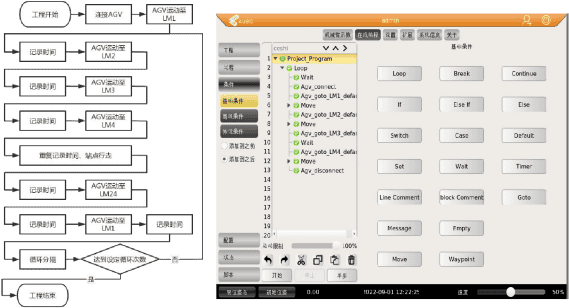
The case demonstrates the loading/unloading work simulated by the compound robot. Specifically, the AGV is connected first and runs to a waiting station LM1 (the initial starting point); recording and waiting can then be performed, and the robot arm moves to simulate a single loading/unloading operation, then repeatedly moves to the next station and continues execution, finally completing the cycle (the project ends after the cycle condition is met).
For the guide to the online programming part of the teach pendant, please refer to the official AUBO Academy materials.
4 RoboshopPro Instructions
4.1 Installation and Configuration
4.1.1 Recommended Hardware Environment
The documentation in this part is for reference and operation only. It is intended to help engineers who have not been exposed to Roboshop understand and operate the RoboshopPro robot commissioning application tool.
The recommended hardware requirements for installing the software are as follows:
Windows 7 or later, 64-bit operating system, PC memory of 4GB RAM or more, hard disk space of 8G or more available, display resolution 1920*1080, and network devices capable of normal wired and wireless network access.
The hardware network requirements of the device must support the wireless network protocol IEEE 802.11 a/b/g/n, with a bandwidth speed of not less than 100Mbits, a signal strength of not less than -60dBm, and an average network delay of not more than 100ms.
4.1.2 Installation Process
Download the compressed package, extract it, and then double-click RoboshopProInstaller_x64_x.x.x.exe (where x.x.x represents the version number, such as 2.4.0, 2.3.27, etc.) to start the installer. Select the required installation language (this language will also be applied to the Roboshop Pro software language). Click Next, and then click I accept (I) to agree to the software license agreement. Then the installation location selection interface appears; click Browse to select the target installation folder. Click Install to start the Roboshop Pro installation process and wait for the installation to complete.
It is recommended to add the Roboshop Pro startup shortcut to the desktop.
If a Windows Firewall warning appears while using Roboshop Pro, check both Private networks and Public networks as shown in the figure below, and click Allow access. If only one is checked, some functions of Roboshop Pro may not work properly when the computer connects to another network. If other antivirus software or firewalls pop up a block prompt, also click Allow.
To allow an app through the firewall, find System and Security in the Control Panel, find the Windows Defender Firewall column, and select it. The procedure is shown in the figure:
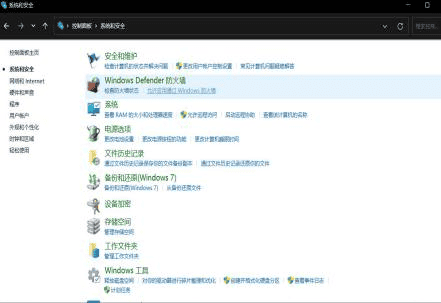
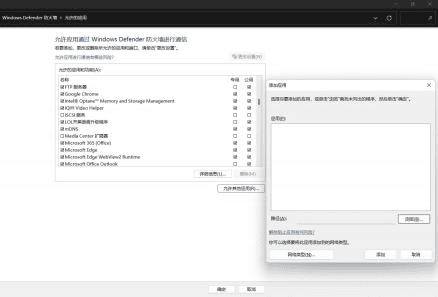
Then select the corresponding application. If roboshop is not in the list, select Allow another app and browse to the local installation file location so that the .exe file passes through the firewall.
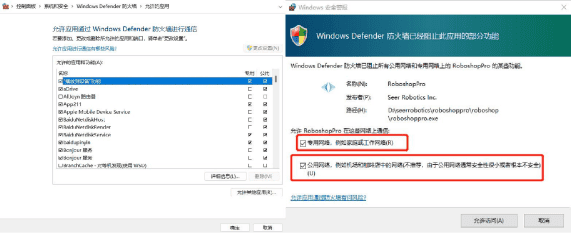
At the same time, note that:
Be sure to install this software on a non-system drive (usually drive D). If the computer has only one hard disk, do not install it in the Program Files and Program Files(x86) directories of that disk. The recommended path is D:\SeerRobotics\RoboshopPro.
If the computer is equipped with security protection software, a prompt such as "a program is modifying documents" may appear during installation; if so, select Allow modification.
If the firewall denies access and no pop-up window appears, modify the firewall to allow applications, find the location of the corresponding application file, and add it through Manage.
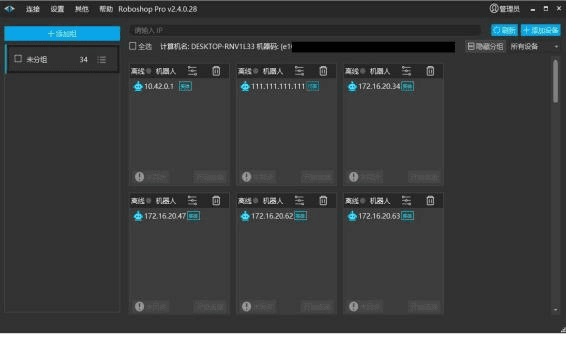
The interface after the software opens normally is as follows:
4.2 Network Configuration
The network environment requirements for using the AGV are as follows: wireless network protocol: IEEE 802.11 a/b/g/n
- Bandwidth speed: ≥100Mbits
- Signal strength requirement: ≥-60dBm
- Network delay requirement: average delay ≤100ms
4.2.1 Viewing Network Information
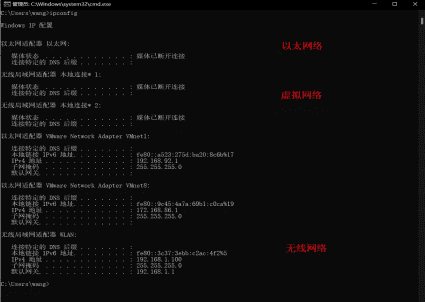
Command under Windows: ipconfig + IP address
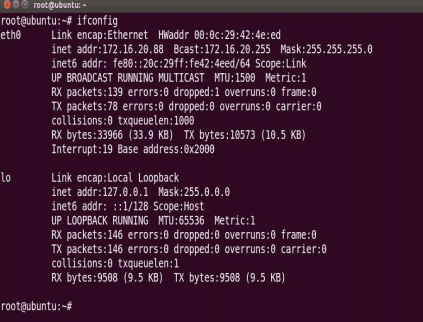
Command under Ubuntu: ifconfig + IP address
4.2.2 Computer IP and Firewall Configuration
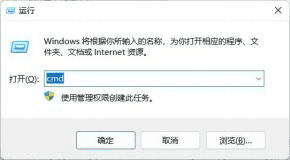
To view the network information status, open a terminal. On the computer, press win+r and enter cmd to open a terminal, as shown in the figure
Right-click the Windows icon on the computer, select Windows Terminal, and then run it as administrator. After entering, the command to view network properties is ipconfig; the interface is normal as shown below:
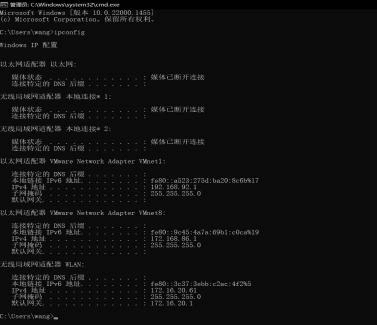
In the IP configuration under Windows, the first is Ethernet, and the corresponding IPv4 address of the local computer is 192.168.x.x; the last is the wireless LAN, and the corresponding IPv4 address of the local computer is 172.16.x.x. To connect to the robot, the connection must be in the same network segment as the robot, either a wireless connection within the same LAN or a direct connection through the Ethernet network.
The addresses such as 192.168.x.x and 172.16.x.x in this document are examples, where x stands for any value. Use the actual network settings of your site.
Custom modification of the computer's Ethernet and wireless network properties: find the advanced network settings or the Network Sharing Center in the computer settings, or open Network and Internet properties through the Control Panel, and configure as shown in the figure.
In this process, note that automatic IP configuration must be turned off, the DHCP service must be turned off, the manual switch must be turned on, and a custom IP address and gateway must be configured.
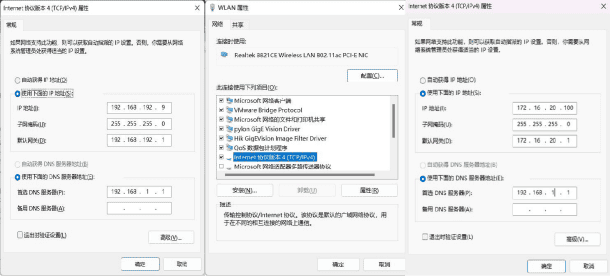
Checking the final result: modify the robot's network properties manually, open the software, and find the robot connection home page.
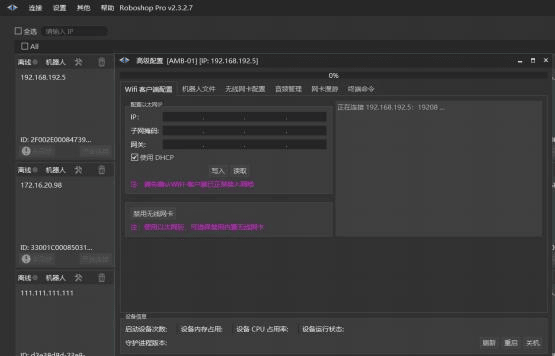
Enter the wifi client configuration, manually configure the IP address to a fixed value, cancel the DHCP function; the configuration can also be performed at the wireless IP connection. After that, the robot's IP address becomes a fixed address that can be accessed.
4.2.3 Common Network Connection Problems
1. Unable to connect remotely over the wireless network
First determine whether the wireless network IP is in the same network segment as the AGV IP, for example: IP address 192.168.1.101, subnet mask 255.255.255.0. To be in the same network segment, the IP address needs to be 192.168.1.1-192.168.1.254.
Sometimes the subnet mask is 255.255.254.0; then its IP network segments are 192.168.0.1-192.168.0.254 and 192.168.1.1-192.168.1.254. The addresses ending in 0 and 255 are the network number and broadcast address respectively. For the principles, please refer to Computer Networks.
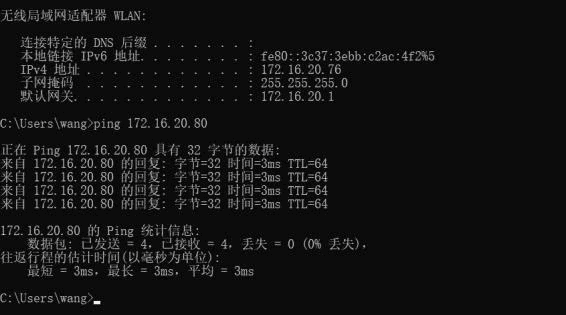
Use ping + IP address to check the network connection. If the content shown below is displayed, it proves that the devices are in the same network segment and can connect. A normal successful connection with an unobstructed network is shown in the figure.
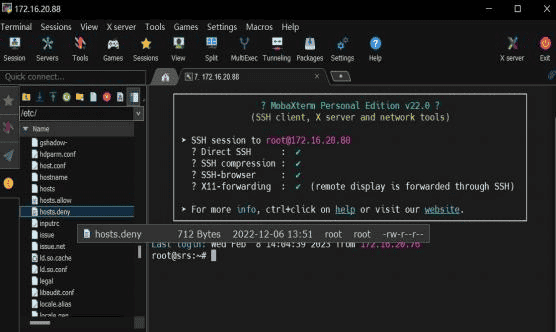
When using MobaXterm software for remote connection, it is found that the connection cannot be established; the result is as follows:
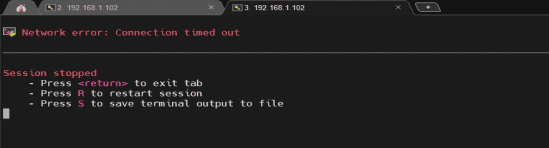
In this case, which is a general network fault, enter the Ubuntu system in the AGV. Select the /etc/hosts.deny file and delete all IP addresses in it, or delete your current IP address.
The hosts.deny configuration file restricts which IP addresses may establish TCP connections and how many connections are allowed.
2. Abnormal network IP address (169.254.xxx.xxx)
When performing Ethernet connections, network cables are often hot-plugged, so repeated operations after DHCP assigns an IP address to the host cause the DHCP service to crash. Its IP network segment becomes 169.254.222.xxx. This network segment is a reserved address; when DHCP cannot assign an IP, the host automatically uses this network segment as its IP address. This network segment discards all received network packets and cannot access the network segment.
The solution is to run ipconfig /release and ipconfig /renew in the terminal, and then reset. If the above network reset commands are still ineffective, perform the following operations.
(1) Enter Task Manager in Windows. Press ctrl+alt+delete or right-click the taskbar to display Task Manager; after entering, open the Services module.
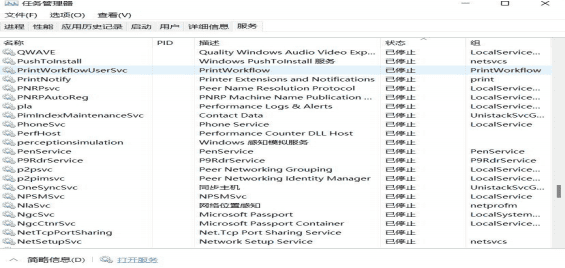
(2) Find the Services module and select DHCP
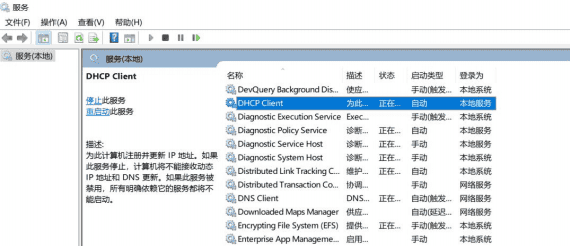
(3) Find DHCP client, double-click to enter the edit page, select Stop in the service type and click it, and then the service will restart.
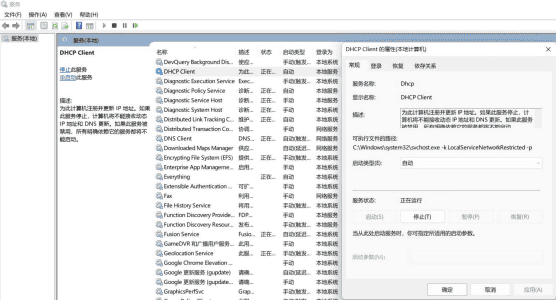
(4) Finally run ipconfig /renew, and then enter ipconfig again to see that the IP address has returned to normal, after which it can be used.
4.3 Basic Software Functions
The home page interface is shown below; it displays all robots that have been connected. Add Device in the upper right corner allows you to add a robot by entering the robot's IP address.
4.3.1 Map Building and Editing
After entering the home page, the robot's current map is opened by default, as shown in the figure:
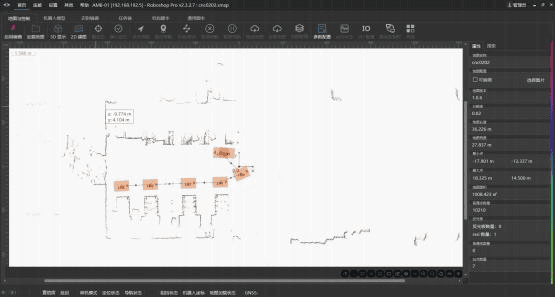
1. Map building
When using the robot for the first time, a map needs to be built through 2D mapping using the SLAM module. Select Map and Control and 2D Mapping in the menu bar; in the lower column, select the first SLAM option, real-time localization and mapping. A window will pop up; select the set speed, acceleration, linear motion, and rotational motion conditions, and then manually control the AGV to scan and gradually build the map.
Note that while the robot is moving, the area in front of the AGV must be kept clear, movable obstacles should be kept behind or to the rear side of the AGV as much as possible, and personnel should follow behind the AGV (since the AGV mapping and scanning algorithm is mainly based on the laser in front, priority must be given to ensuring stability in front of the robot). At the same time, pay attention to maintaining the AGV's safe obstacle avoidance and functions.
After scanning is completed, click the Save button in the upper right corner, and then enter a custom name and path as prompted to save.
After saving successfully, a dialog box will pop up asking whether to open it. Generally, select Push map and open, which pushes the map just built to the robot and opens the map, and relocalization is performed automatically. The map displayed by the software is consistent with the map used by the actual robot operation and can be used directly.
It is recommended that the mapping route be a loop, forming a closed circuit, so that the map is scanned for one round and the AGV returns to the initial position.
2. Map editing
Under the Map and Control tab there is a map editing box for map editing processing, mainly enabling and exiting editing.
After editing is enabled, the listed modes are as follows:
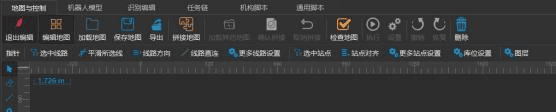
(1) Pointer. This function is often used for selection and can manually move and edit the selected elements (including stations, paths, areas, etc.). It is generally used for attribute editing of map stations and path editing and modification, such as editing the position and angle of a station, the movement speed of a path, and other parameters. Stations and routes can also be deleted with the delete key.
(2) Eraser. This can erase ordinary points and lines on the map and is mainly used to erase noise interference on the map. During use, the size of the eraser rectangle can be adjusted as needed; click with the left mouse button to erase. Attention should generally be paid to isolated points and non-straight edge noise on the map. 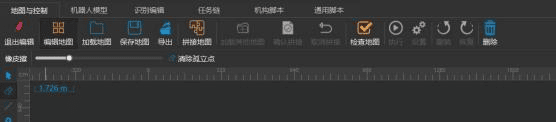
(3) No-go line. Used to prohibit the robot from passing; it is generally equivalent to a set safety line and restricted zone.
(4) Station. Most commonly used as a stop-and-wait position for the robot or a temporary buffer point for executing other tasks. Stations are generally divided into three types: ordinary stations, work stations, and special work stations.
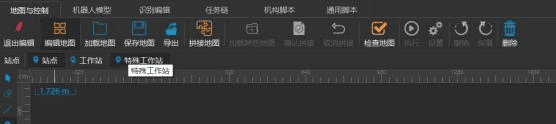
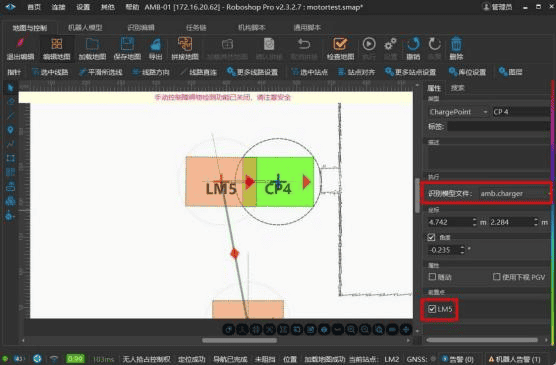
The most commonly used is the ordinary station, which is used for general point setting. Work stations require a separate model file, and AP points need to be set according to the model attributes. Special work stations are applied to the configuration of automatic charging piles: create a CP point in the current map, edit the address coordinates, then configure the recognition model file according to the model file as the charging station, and also configure a front point as an auxiliary to carry out automatic charging of the robot.
(5) Connecting line. Used for the robot to travel along the trajectory. When editing the map, add lines to each station to connect them. There are three ways to connect lines: straight line, cubic Bezier curve, and circular arc.
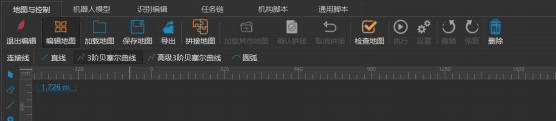
The corresponding attributes can be configured separately according to the real scenario. The path attributes include the path type, the annotation description of the path, and the operation and movement direction of the path.
With the straight line method, the connecting line attribute can only be a straight line, and the connection type of the line cannot be changed by dragging, etc.; the path is a fixed straight line, the two points are directly connected by a straight line, and the robot center moves directly along the straight line.
With the cubic Bezier curve method, which is generally used for curve transitions, two stations are connected, the shape of the route is edited, and the shape of the curve and the curvature of the arc can be dragged and selected with the pointer.
With the circular arc method, the line attribute of this connection can only be a standard circular arc. The path can be selected with the pointer and then the control points on the dashed line can be dragged to change the arc shape and size of the route.
(6) Other descriptions: none for now; not commonly used and can be ignored.
4.3.2 Path Navigation and Task Chains
The path navigation of the robot is mainly carried out based on the path connections established when building the map. According to the set direction and stations, the AGV automatically navigates and moves to the specified position.
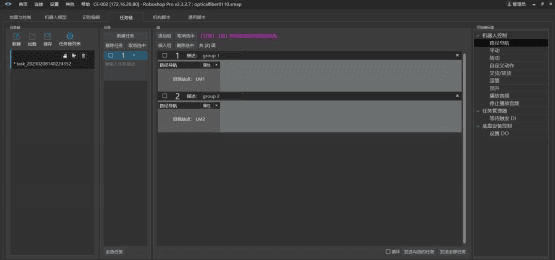
For the task chain part, queues and task groups need to be established and assigned to determine how they run. A reference case is shown in the figure:
4.4 Robot Automatic Charging Configuration
4.4.1 Introduction
The application background of the automatic charging pile is to improve the automatic working capability of the compound robot. It can replace manual work to perform charging for the compound robot, reduce manual intervention, reduce human error, and ensure the stable and reliable operation of the compound robot. The automatic charging pile is a charging device whose electrical parameters are consistent with those of the manual charger provided with the compound robot. Through the contact between the charging piece inside the charging pile and the charging interface of the compound robot, the compound robot is charged.
The structure of the automatic charging pile is shown in the figure below. Its basic components include: charging pile structural parts, reflectors, charging docking module, charger, etc.
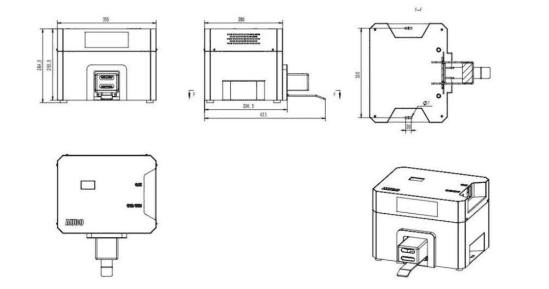
The charging pile structural parts form the basic frame of the automatic charging pile, used to support the reflectors, the charging docking module, the charger, and other equipment.
The reflectors are installed on the housing of the charging pile; their purpose is to locate the automatic charging pile and guide the docking of the compound robot, etc. The method is to cooperate with sensors such as the LiDAR of the compound robot and realize the positioning and guided docking of the robot to the automatic charging pile through the charging pile positioning algorithm.
The charging docking module is the module through which the automatic charging pile docks with the compound robot, including the charging piece, charging piece cover, and other equipment.
In the non-docking state, the charging piece cover wraps the charging piece to protect the charging piece and prevent accidental short circuits. In the docking state, the charging piece cover retracts into the charging pile, exposing the charging piece, so as to dock the charging piece with the charging port of the compound robot and realize automatic charging.
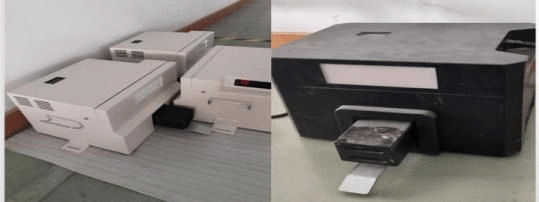
For the new version of the charging pile, its model is shown below:
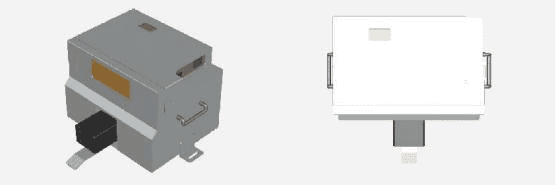
The actual photos of the two charging piles are shown below:
4.4.2 Technical Parameters
The technical parameters of the automatic charging pile are shown in the table below:
| No. | Parameter type | Technical indicator |
|---|---|---|
| 1 | Maximum output voltage | 54.6V+0.2V |
| 2 | Output current | 15A+5% |
| 3 | Maximum output power | 900W |
| 4 | Input voltage | 180~260Vac |
| 5 | Rated input voltage | 220Vac |
| 6 | Rated output | 54.6Vdc, 15A |
| 7 | Input frequency | 50~60Hz |
| 8 | Conversion current | 0.75A |
Environmental condition requirements:
| No. | Parameter type | Technical parameter |
|---|---|---|
| 1 | Operating temperature | -20~45C. |
| 2 | Relative humidity | 5%~95% |
| 3 | Storage temperature | -40~70C. |
| 4 | Cooling method | Forced air cooling |
| 5 | Altitude | 0~3000m |
4.4.3 Automatic Charging Configuration
The AGV is controlled by software to perform automatic charging. The configuration process is as follows.
- Fix the automatic charging pile
Place the charging pile against the wall (temporarily) or fix it to the ground with expansion bolts. Ensure that the charging pile and the robot, as well as the reflective strip and the laser, are in the same plane.
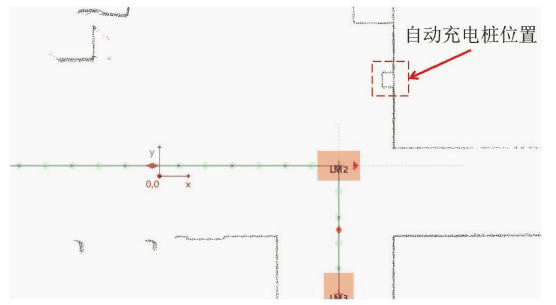
- Create a map
Scan the charging pile into the map through functions such as map building or map editing and stitching, to facilitate the later creation of special work stations.
- Modify safety parameters
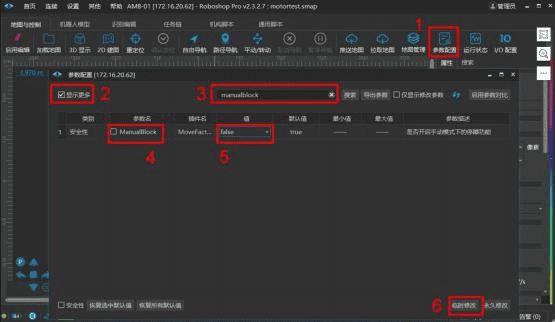
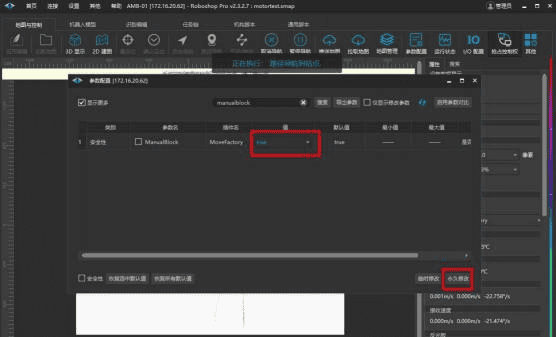
Modify the ManualBlock safety parameter, that is, the obstacle avoidance function in manual mode. [ManualBlock] in [Parameter Configuration] needs to be configured as [false]; otherwise the robot cannot automatically approach the charging pile. As shown in the figure:
When a problem occurs inside the robot, Roboshop Pro will issue an alarm in the Robokit alarm box in the lower right corner, displaying a red-blue alternating flashing state and the number of errors.
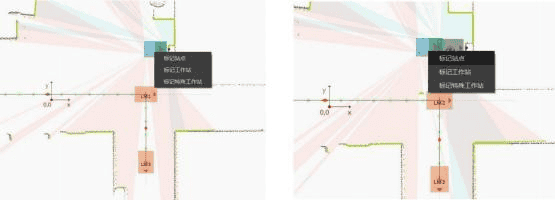
- Create the charging station CP and the front station LM. The specific steps are as follows:
- Manually control the robot so that the robot's automatic charging port is inserted into the charging pile.
- Place the mouse cursor on the robot and right-click [Mark Special Work Station] to create a CP point. Manually control the robot to move backward about 0.5m~1m.
- Place the mouse cursor on the robot and right-click [Mark Station] to create an LM point.
- Configure the automatic charging model
Place the mouse on the CP point and set the recognition model file to amb.charger. For the front point, check the preset ordinary station.
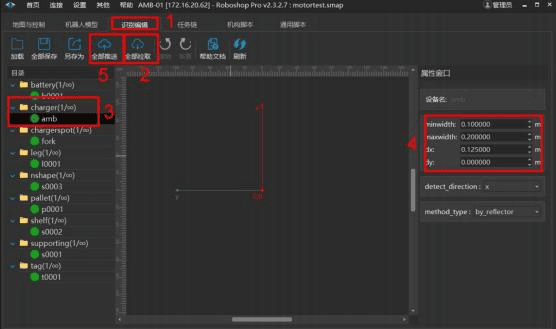
Modify the recognition file and change the parameters of the recognition model to: dx: 0.125, where dx represents the distance between the AGV and the reflector; other values can keep their defaults.
- Modify safety parameters
Change ManualBlock back to true and click Permanent Modification.
4.5 Sound and Light Prompts and Alarm Configuration
4.5.1 Three-color Light Steering Prompt Configuration Instructions
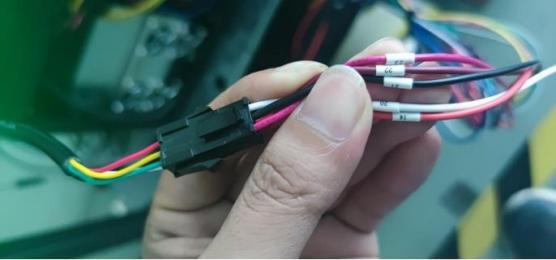
This is output through the set connection ports; for specific configuration please refer to the documentation. The schematic diagram of the completed three-color light interface is shown in the figure:
This method requires the use of both software and hardware: modify the turn signal configuration file in the Roboshop robot model to configure the DO output that controls the turn signals.
Hardware part: relevant lines need to be connected and laid out, as shown in the figure: install 4 light strips; the positive poles of the light strips are connected in parallel to 24V+, and the negative poles are respectively connected to the corresponding enabled DOs.
Light strip left front LF connects to DO0, light strip right front RF connects to DO1, light strip left rear LB connects to DO2, light strip right rear RB connects to DO3.
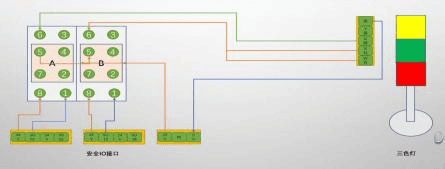
Software part: the robot model file needs to be modified, the robot model parameters adjusted, the relevant file attributes modified, and the configuration debugged.
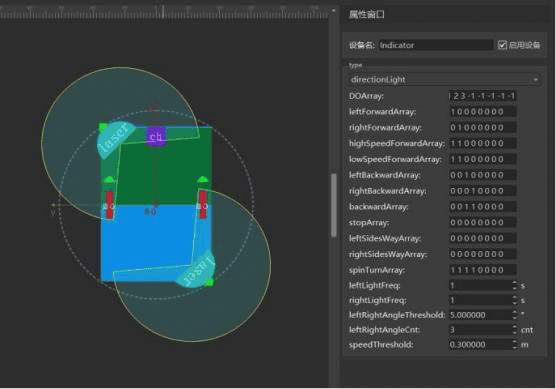
The specific implementation steps are shown in the figure:
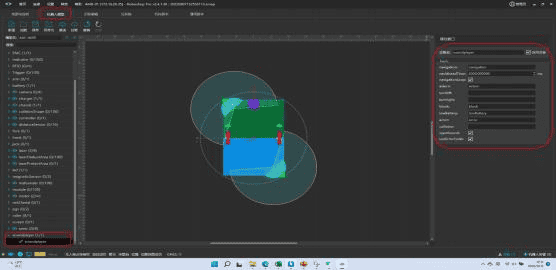
This method can realize light testing (including buzzer alarms) for the AGV in the following situations: front-left turn, front-right turn, rear-left turn, rear-right turn, forward direction, backward direction, stop, and in-place rotation.
4.5.2 Light Safety Alarm Configuration Instructions
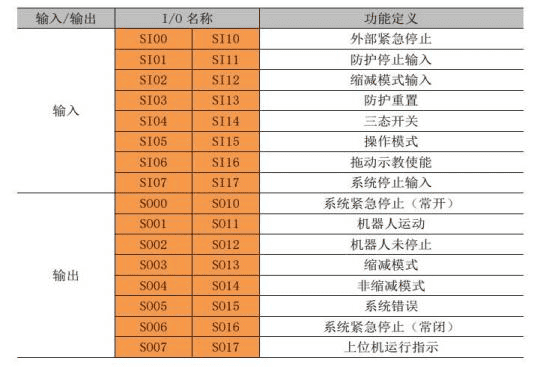
Refer to the user manual for the functions and definitions of the safety IO.
The default safety IOs are as follows:
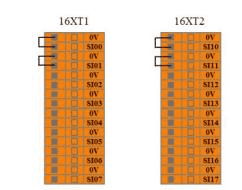
The commonly used IO input table is as follows:
4.5.3 Program Running Prompt Configuration Instructions
During online programming, the program-linked IO expansion used can be added with monitoring and status feedback as required.
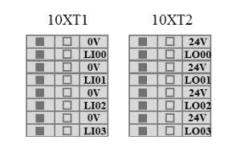
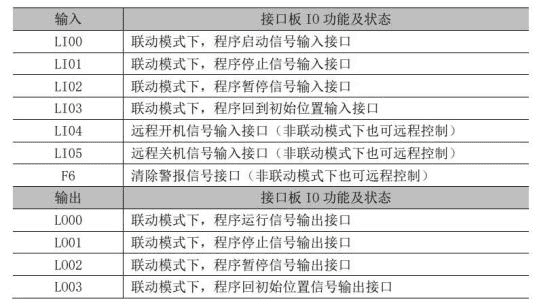
In linked mode, the robot arm can communicate with one or more external devices (robot arms, etc.) through the linked mode IO ports. This mode is generally applicable to online programming or collaborative motion between the AGV and the robot arm.
The linked mode IO functions available to users and their statuses are described below:
4.6 AGV Safety Configuration
Laser safety attribute configuration is shown in the figure below. After connecting to the robot in the Roboshop software, select Parameter Configuration, select Safety, show more, and find the relevant parameters under this mode.
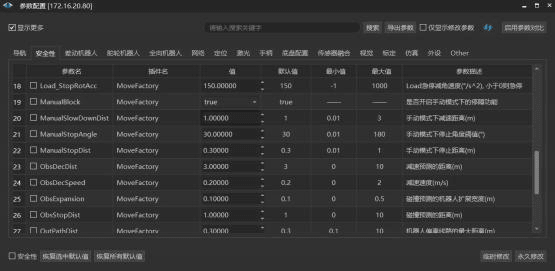
One is the variable used in the automatic charging pile configuration, and there are other related ones, such as deceleration distance and deceleration speed. Among them, the robot expansion width for collision prediction represents the safety prediction distance on both sides of the AGV.
4.7 Robot Slip Calibration
The slip calibration steps for the compound robot are as follows.
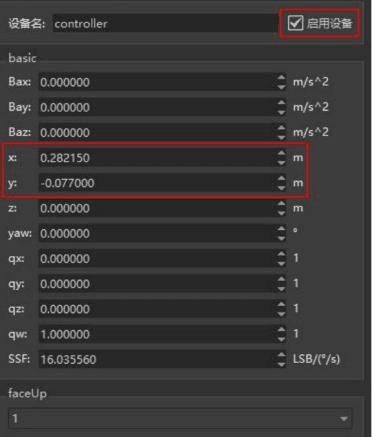
Open the robot model -> controller. First enable the device, then set the coordinates. Reference coordinates x: 0.282150, y: -0.077000.
Then, modify the parameters in the show more section of the Parameter Configuration tab.
Change Startskiddetection to false, DiffLaserOdomCalibSize to 1.000000, Laserodomcalibspeed to 0.200000, and Laserodommaxrotvel to 15.000. After the parameters are modified, calibration can be performed. Environmental requirement: move the compound robot to an open area so that there are no obstacles within a 3m radius.
In the Map and Control window, click Other and select Calibrate Robot. Select laser1 to start calibration and wait for about 2min.
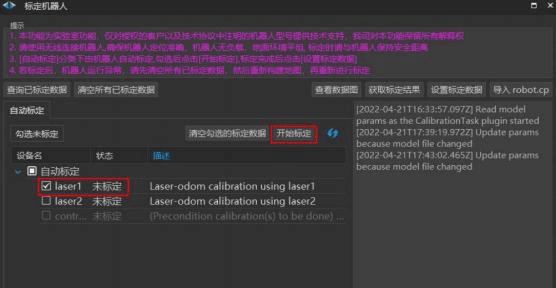
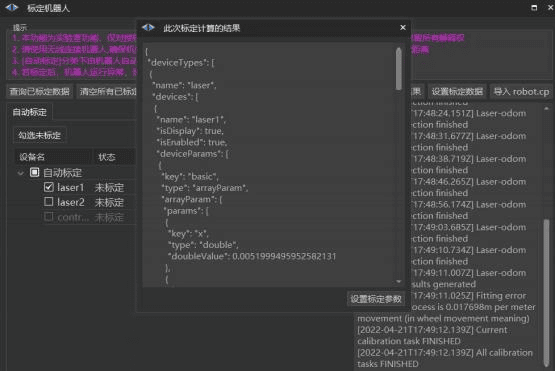
After this step is completed, calibration is finished; set the calibration parameters and click OK, and the calibration of laser1 is now complete.
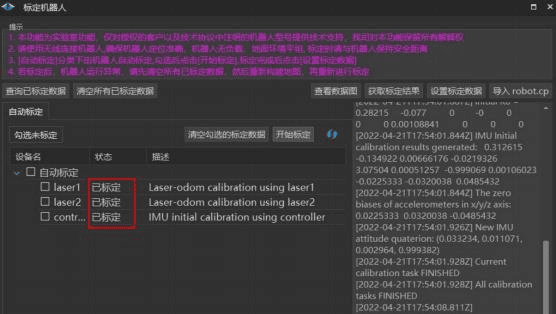
In the same way, calibrate laser2 and controller. After all calibrations are completed and saved, the device status will show as calibrated.
Modify the parameters, change Startskiddetection to true, and enable the slip detection function to achieve automatic slip correction; the AGV will automatically shift back to the initially set station/route.
4.8 AGV Log Export
The locations of the AGV logs in the teach pendant directory are as follows; for details, please refer to the later section on using the Moba communication software.
/auborobotstudio/robotstudio/teachpendant/bin/agv_plugin_logs
/auborobotstudio/robotstudio/teachpendant/bin/logfiles
5 Using MobaXterm
5.1 Overview of the Remote Login Software
Moba is one of the most powerful free terminal programs, providing access to a variety of remote network functions and tools. With this application, you can continue working on your Windows computer from a remote location. The software allows Linux and Windows users to conveniently use a range of formats. Moba provides convenient access to Linux terminals on the Windows operating system. Moba downloads focus on bringing a range of multi-functional remote network features into a single program. The powerful terminal contains rich features for efficient remote work; with MobaXterm, you can easily switch between Windows and Linux in seconds. In addition, various remote network tools and Unix commands can be accessed without any hassle.
Connecting a laptop to the controller through the Moba software requires the controller to support ssh. Controllers currently sold generally come with client software and server software, and can be connected directly through the Moba software.
5.2 Prerequisites for Using the Software
- Ensure that the laptop and the controller are on the same network segment;
- Obtain the controller's IP address directly from the controller's teach pendant through Settings—Network—ifconfig, including the main wlan0 and eth0. These correspond to the WiFi connection address and the default Ethernet connection respectively (eth0 is disconnected by default);
- Check and configure the local IP, WIFI properties/network adapter properties, and ensure consistency;
- In some cases, pay attention to the firewall and allow applications through the firewall; for specific related configuration, please refer to the Roboshop software installation and firewall settings in this manual.
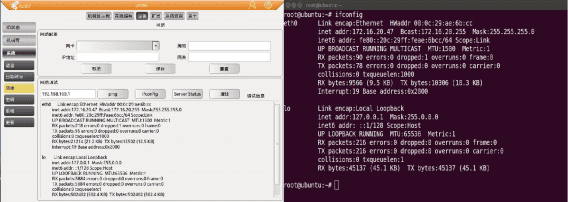
The IP query result interface is shown below; the case in the figure is an IP address obtained on a virtual machine, for reference.
5.3 Software Installation Instructions
The software installation and usage instructions are briefly as follows.
Copy the compressed package to the laptop and extract it.
Click the
.exeicon to run the software, as shown in the figure: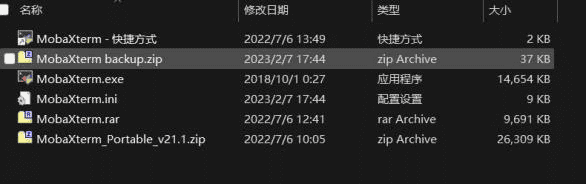
Enter the Moba software interface, click session, then enter ssh, enter the specified robot IP address in the Remote host field, and click OK to confirm. Common operation instructions are as follows:
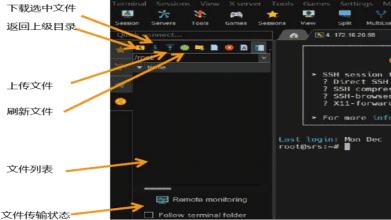
After entering, log in as root. Obtain the controller factory default credential from AUBO support, and change the password immediately after the first login. Press Enter to enter the administrator backend terminal interface, that is, the internal files of the controller.
IP address query command:
ifconfig(Linux), ipconfig(Windows).
5.4 Software Usage Instructions
Commonly used folder paths under the teach pendant directory are as follows:
- Teach pendant folder
/root/auborobotstudio/robotstudio/teachpendant/share/teachpendant/- Project directory
/root/auborobotstudio/robotstudio/teachpendant/share/teachpendant/script/- Procedure directory
/root/auborobotstudio/robotstudio/teachpendant/share/teachpendant/produce/- Script directory
/root/auborobotstudio/robotstudio/teachpendant/share/teachpendant/script/- Trajectory directory
/root/auborobotstudio/robotstudio/teachpendant/share/teachpendant/recordtrack/
/root/auborobotstudio/robotstudio/teachpendant/share/teachpendant/offlinetrack/- Data configuration directory
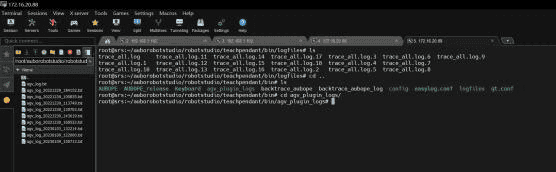
/root/auborobotstudio/robotstudio/teachpendant/share/teachpendant/database/- AGV log directory:
/auborobotstudio/robotstudio/teachpendant/bin/agv_plugin_logs
/auborobotstudio/robotstudio/teachpendant/bin/logfiles
As shown in the figure, just copy the files out:
6 Network Debugging Assistant Instructions
The Network Debugging Assistant is a network debugging tool integrating TCP/UDP server and client. It helps network application designers, developers, and testers check the data sending and receiving status of the network application software and hardware they develop, improves development speed, and is a common tool for network developers.
The Network Debugging Assistant (NetAssist) integrates a TCP/UDP server and a TCP/UDP client. The server can manage multiple connections, and the client can also establish multiple links, each operating independently with convenient management. Operation is simple: only the corresponding host and listening port need to be entered. It provides users with multi-link and multi-data-format parsing functions, making it an efficient TCP/UDP application development assistant.
6.1 Prerequisites for Use
- Ensure that the laptop and the robot are on the same network segment;
- Obtain the controller IP address directly from the robot's teach pendant through Settings—Network—ifconfig; wlan0 corresponds to the WiFi connection address, and eth0 is the default Ethernet connection which is disconnected;
- Check and configure the local IP, WIFI properties/network adapter properties, and ensure consistency;
- In some cases, pay attention to the firewall and allow applications through the firewall.
6.2 Brief Software Installation and Usage Instructions
NetAssist.exe is an installation-free software;
Click the .exe icon to run the software.
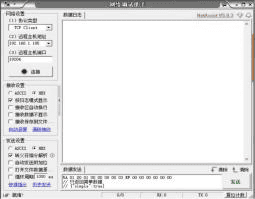
Confirm the protocol type, remote host address, and port. In the case, the robot acts as the client at 192.168.1.101, the port is 1206, and the local IP address is 192.168.1.104, which belongs to the same LAN. As shown in the figure, the connection is successful.
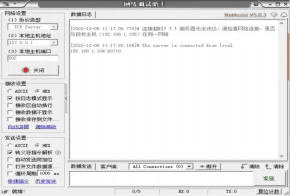
The local machine can also act as the server side, as shown in the figure:
6.3 Software Usage Precautions
6.3.1 Robot Request/Response Channel
The robot acts as the TCP server, and the scheduling system acts as the TCP client. The scheduling system serially sends tasks, and the robot responds. "Serially" means that the scheduling system will not send the next task until it has sent and received the response.
Delivering a navigation task to the robot:
Port: 19204. This port belongs to the request/response channel.
Querying the status of a navigation task:
Port: 19204. This port belongs to the request/response channel.
6.3.2 Robot Data Reporting Channel
For the compound robot, the TCP server configuration currently only supports port 19206 for data reporting to the scheduling system.
The robot acts as the TCP server, and the scheduling system acts as the TCP client. When the scheduling system connects to the robot through this channel, the robot actively pushes the robot's data and status to the scheduling system at the specified frequency.
Note: For the specific use and description of scheduling communication, please refer to the TCP/IP communication protocol.
7 Modbus Debugging Assistant Instructions
The compound robot integrates Modbus modules, including a ModbusRTU slave and a ModbusTCP server. The structure and communication content of the Modbus protocol are shown in the figure:
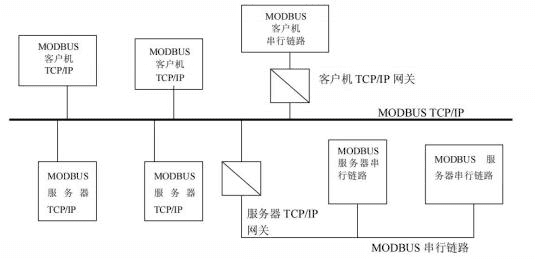
An external ModbusRTU master or ModbusTCP client can communicate with the robot or read part of the robot's status. For more specific protocol content, please refer to the official Modbus protocol reference document.
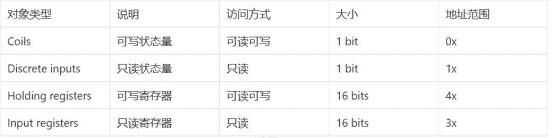
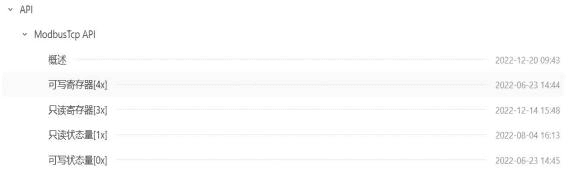
Modbus TCP is the server/client implementation of the Modbus protocol; it is the implementation of the Modbus protocol at the TCP/IP layer. (Note: because it is implemented at the TCP/IP layer, communication relies on the network layer in TCP/IP; this is a request/response communication mode.) Corresponding stations can communicate and access each other. The robot can be used as a slave; when acting as a slave, it can only communicate using port 502, and the communication protocol supports four types of objects.
For users who need to control the robot using Modbus RTU, serial-to-TCP protocol conversion is involved, so a gateway device is required for IP address mapping, and the gateway device must have the function of modifying the RTU address (the address must be set correctly; otherwise multiple devices on the bus will be unable to exchange message data with the master device). The following points must be noted when using conversion:
- The gateway device must be able to perform wired/wireless IP address mapping (gateway IP — robot IP)
- The RTU station address needs to be set on the gateway device, and the gateway device must have this function
- The slave address must be set correctly
- The message propagation mode needs to be set on the gateway device (note: the slave address must be set in RTU mode)
After the connection is established, Modbus communication can be carried out. For the specific data types, parameters, and other transmission protocols, please refer to the official Modbus documentation and the API reference.
7.1 Master (Poll) Software Operation
The robot acts as the slave (equivalent to a server), and the external device acts as the master (equivalent to a client).
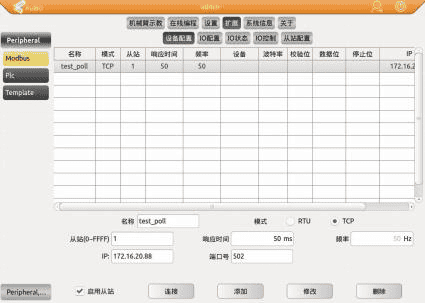
- Robot-side configuration
Open System Settings and check the network properties; the local IP is obtained as 172.16.x.x. Open the Modbus plug-in, add a device, configure the IP and port, and then create IO variables.
- Computer-side configuration
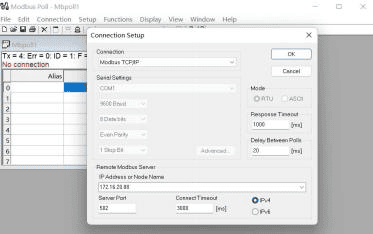
Open Modbus Poll as the Poll (master). Check that the computer's local IP is 172.16.x.x; to be on the same network segment it needs to connect to the AGV's IP, which also takes the 172.16.x.x form. Open the Poll end of the Modbus assistant and configure it:
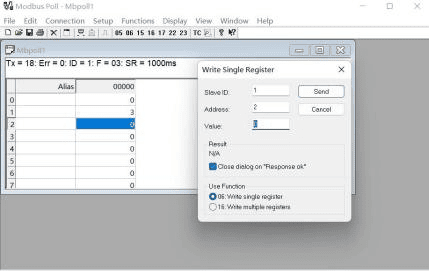
The status of the variables can then be seen, and the values of the variables corresponding to the addresses in the registers can also be read and written.
7.2 Slave Software Operation
The robot acts as the master (equivalent to a client), and the external device acts as the slave (equivalent to a server).
- Computer-side configuration
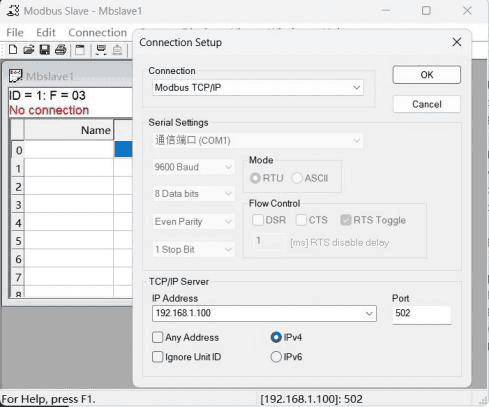
Open Modbus Slave as the Slave. Check the computer's local IP, which is 172.16.x.x, and use it as the slave IP address with port 503; configure as shown in the figure.
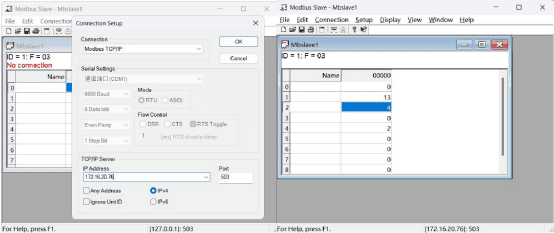
The connection is shown as successful.
It is recommended to avoid the fixed port 502, as address/type conflicts in the API protocol may occur on that port. The figure shows such a case: with port 502, the robot acts as the master to read data, and the AGV status is obtained from the input registers defined in the protocol.
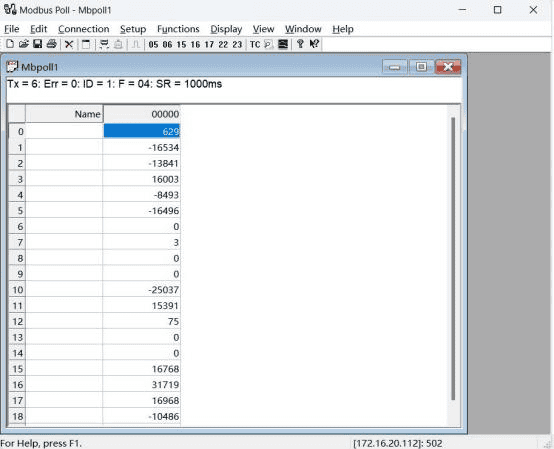
- Robot-side configuration
To check the robot IP and status, enter the terminal, type ifconfig and press Enter, and ensure that both are on the same network segment.
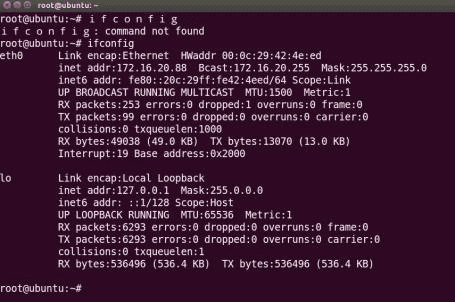
Then return to the teach pendant and set the relevant properties of the Modbus device. As shown in the figure:
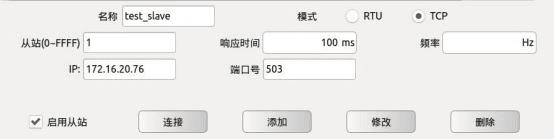
Then add the IO configuration one by one to realize data interaction.
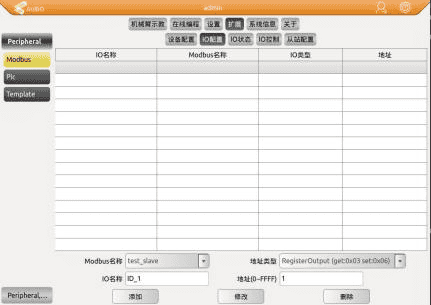
Communication can be realized once the pop-up window shows a successful connection.
7.3 Modbus Communication Cases
Complete cases are shown below:
Here, Modbus communication tests are carried out in request and response modes respectively, combined with the robot and external devices for debugging and application.
Case 1:
With the robot as the master and the external device as the slave, the test results are as follows. The IP address of the external device is 192.168.1.100, the IP address of the robot is 192.168.1.X, and port 503 is taken as an example. The slave is simulated through modbus slave, as shown below.
The configuration on the robot side is as follows:
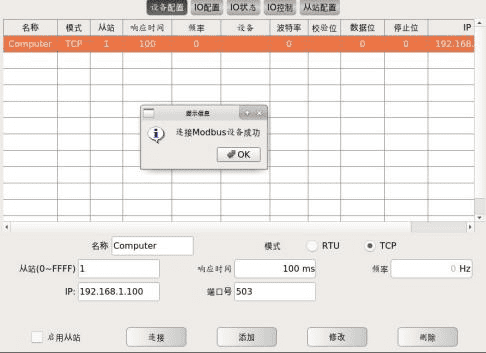
The connection is finally successful.
Case 2:
With the robot as the slave and the external device as the master, the test results are as follows. The IP address of the robot is 172.16.x.x, and port 502 is taken as an example. The IP address of the external device only needs to be in the same network segment, also in the 172.16.x.x form.
The configuration on the robot side is as follows:
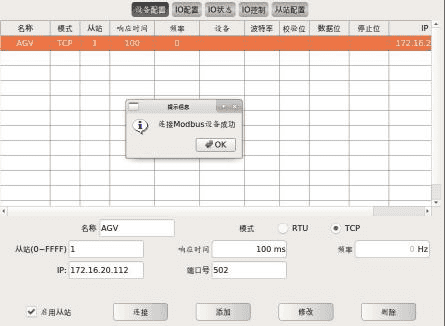
The computer simulates the master through modbus poll; the configuration is as follows:
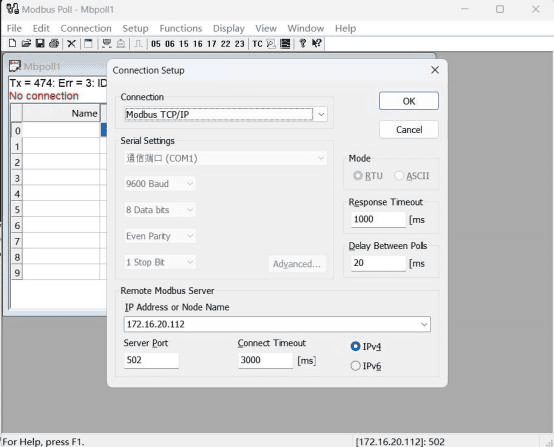
The connection is finally successful.
8 Scheduling System Instructions
8.1 One-to-Many Scheduling System User Manual
The one-to-many scheduling system is a system for task allocation while the AGV is working. This system can greatly reduce the amount of engineering design code, save the AGV's unnecessary repetitive time, and provide factories with faster and more efficient work.
Types of one-to-many scheduling systems
There are currently two versions of the one-to-many scheduling system: a general version and a PLC version. Both versions have their own characteristics.
The general version can schedule any device. This plug-in performs path planning and task allocation for, for example, n CNC machine tools inside the AGV, and all processing can be carried out through the AGV. However, the problem with this scheduling system is that it creates multiple threads: as many devices as there are, that many threads are created, so if the network is unstable there will be many unknown problems. This version has a hard requirement that the scheduled devices have network modules.
The PLC version requires the scheduled devices to be equipped with PLC modules. The characteristic of this version is stability: it only connects to the PLC from beginning to end, so there is no multi-thread instability problem. The PLC connects to the devices to be scheduled; each device corresponds to an address in the PLC, and the scheduling system only reads the specified register addresses and performs shortest-path planning and task allocation. The disadvantage is that the PLC is a hardware requirement, which places certain demands on the skill level of PLC engineers.
8.1.1 Environment Configuration
Import the plug-in into the specified path of the AGV operating system.
Put libSchedule.so or libPlcSchedule.so into the path /root/auborobotstudio/robotstudio/teachpendant/lib/teachpendant/plugins/, and finally restart the AGV.
Since version 1.1, the general version of the one-to-many scheduling system plug-in has no configuration file; the plug-in automatically generates the configuration file. However, be sure not to modify the generated configuration file manually at will. If there is a manually configured 1.0 file under /root/, the previous configuration file must be deleted when using a higher version of the plug-in. Version 1.0 requires manual import of the configuration file; its configuration file is shown in the figure:

Path_tool is a script written in Python, and lansicfg.json is the configuration file. For specific usage, please refer to the earlier "One-to-Many Scheduling System Manual". Currently version 1.2 is mainly promoted, and the PLC version is 1.0.
There are various ways to import the plug-in: copy it in with a USB flash drive, or import it using remote software such as MobaXterm. If problems occur during network debugging, please refer to the "Network Testing Manual".
8.1.2 General Scheduling System
The interface of the general scheduling system is shown in the figure.
Schedule
Path_set
Slave_set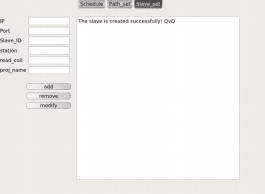
This version has three modules: Schedule, Path_set, and Slave_set.
In the Schedule module, the register types are Coil Status, Input Status, Holding Register, and Input Register, corresponding to the four Modbus types respectively. After the Start button is clicked, "starting up" is displayed; when the button changes to Stop, initialization is successful. Stop shuts down the scheduling system. There is also a Clear Screen button to clear the screen.
Path_set is the path generation function. Select the starting point in the from LM text box and the ending point in the to LM text box; distance is the distance between the two segments, which should be filled in according to the actual distance in Roboshop. Note that the starting point and ending point here refer to the distance between two adjacent stations in Roboshop. For example, if the distance of LM1_LM2 is 2 and the distance of LM2_LM3 is 3, then these two distances are what should be filled in this module. Other distances such as the distance 5 of LM1_LM3 will be calculated internally, and LM2_LM1 is also calculated internally, so there is no need to enter them repeatedly. Stations also include LM1_LM1, whose distance is 0 and is also calculated internally, so no input is needed. Add adds a station path: the two values of from LM and to LM form the primary key, that is, the unique identifier. If the segment path already exists in the record file, a prompt will indicate that it exists; otherwise, after clicking, it will be automatically added to the file and the paths will be recalculated. Remove removes a path; the primary key is the same as Add, except that the deletion is performed when the primary key exists, and distance can be filled in arbitrarily and the path can still be deleted; finally it will also recalculate. Modify modifies a path, with the same primary key; this function modifies the distance value when the primary key exists.
Slave_set is the station setting function. Its add, remove, and modify are the same as those of Path_set; this module uses the IP address as the primary key for adding, deleting, and modifying. IP is the IP address and must be unique. Port is the port number. Slave_ID is the station number, which also needs to be unique but is not the identifying primary key. station is the station number, that is, the time station; currently only stations starting with LM can be set. read_coil is the address read by Modbus. proj_name is the project name, and the project must actually exist.
Path_set display
Slave_set display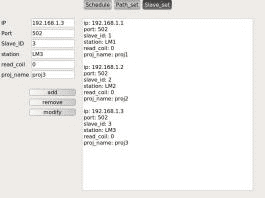
In the initial connection set in this plug-in, if the IP address in the configuration file does not exist or the connection fails, no subsequent connection will be made until it is stopped and restarted. During scheduling, if the Modbus connection drops and three reconnection attempts fail, the connection to that IP will be disconnected, and no further connection or reading will be performed. When reading the value at a Modbus register address, if the read fails 5 times, that IP address will also be disconnected and no further connection or reading will be performed.
8.1.3 One-to-Many Scheduling System Based on PLC
The interface of the PLC scheduling system is shown below.
schedule
path_set
Slave_set
Like the general register version, this version also has three modules: Schedule, Path_set, and Slave_set.
In Schedule, the ip address and port number here belong to the PLC device; the IP address text box automatically saves the last used IP address. The Connect button can pre-connect the PLC; after clicking Connect, the project list in the AGV will be obtained, as shown in the figure:

- The other functions in Schedule are the same as the general version.
- The Path_set module is identical to that in the general version.
- In the Slave_set module, the primary key is the register address; the rest of the configuration is the same as in the general version.
8.2 Multi-to-Multi Scheduling System ARDS Instructions
8.2.1 Software Installation
Windows platform
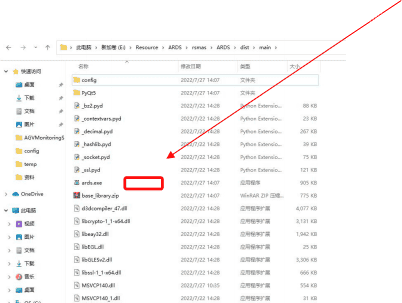
The Compound Robot Scheduling System (ARDS) is installation-free software. On the Windows platform, simply double-click the ards.exe file in the software directory to run it.
Ubuntu platform
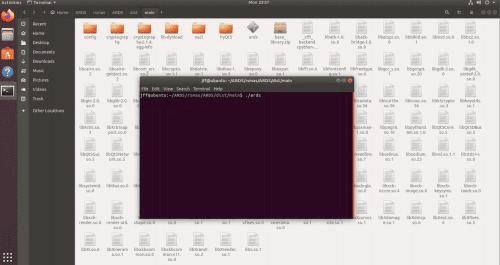
On the Linux platform, you can run it directly in the terminal by opening the ards file in the software directory with the command ./ards.
8.2.2 File Configuration
- Database configuration file configuration
Before running the software, confirm that MySQL database has been installed on the local computer or on the remote computer to be connected.
For database download and installation, please refer to MySQL Download and Installation_codelinkworld's Blog-CSDN.
Configure the parameter file dbconfig.ini required by the scheduling system software according to the MySQL database to be used, as shown in the figure: the left side shows the database-related information, and the right side shows the corresponding dbconfig.ini configuration settings.
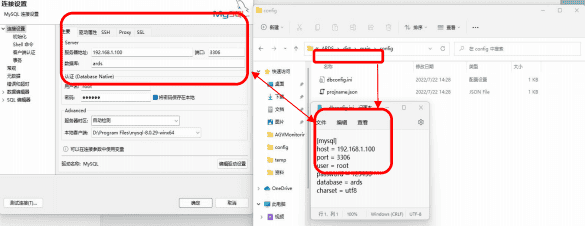
- Database configuration
Machine tool configuration: configure the name, IP address, port number, read register address, write register address, and the position of the machine tool in the map and the corresponding station in the lathe_info table according to the actual situation.

Robot configuration: configure the robot IP address and the robot name in the robot_info table according to the actual situation.

Project name file configuration
Configure the project name corresponding to the machine tool according to the actual situation, in json format. Example:
json{ "lathe1": { "1": "proj_1", "2": "proj_2" } }The above information means that if the value of the read register of the machine tool named lathe1 is 1, the project named proj_1 is executed; if the value of the read register is 2, the project named proj_2 is executed, and so on.
Configure the charging task of the vehicle according to the actual situation, in json format; the charging project must contain the letters
ch. Example:json"robot1": "proj_ch1"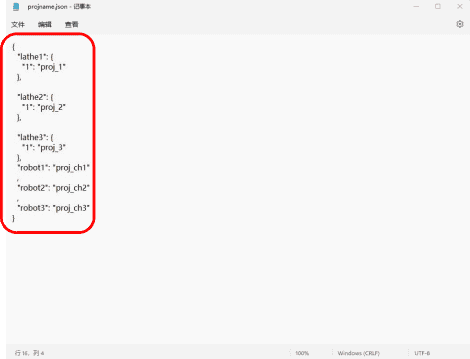
Traffic control intersection configuration
Configure the traffic intersection control data in the
crossing_infotable according to the actual map situation:crossing_location(station name),location_dir(station direction),crossing_location_mutex(mutually exclusive station name), andlocation_mutex_dir(mutually exclusive station direction).
Intersection control data table
**Schematic diagram of the robot's running direction in the map**
<img src="../../zh/compound_robot/pics/AGV_user_manual_mysql6.png" style="width:20em;">


Taking the intersection in the following figure as an example, LMx(dir) means that the robot's movement direction at station LMx is dir:
The four intersection control points LM2(3), LM3(1), LM6(4), and LM7(2) are implemented in the intersection control data table as shown above:
1. Station LM2(3) is mutually exclusive with stations LM6(4) and LM7(2)
2. Station LM3(1) is mutually exclusive with stations LM6(4) and LM7(2)
3. Station LM6(4) is mutually exclusive with stations LM2(3) and LM3(1)
4. Station LM7(2) is mutually exclusive with stations LM2(3) and LM3(1)

<img src="../../zh/compound_robot/pics/AGV_user_manual_mysql7.png" style="width:20em;">
Map configuration
Before using this software, the compound robot needs to use RoboShop to scan a usable map and store it as a file named
ards.smapin theconfigfolder.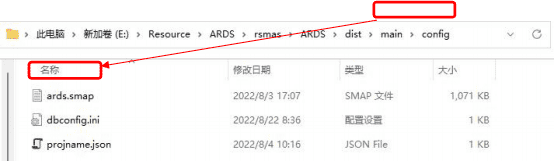
8.2.3 Interface Introduction
Main interface Mainly includes the software name, menu options (including device management, map monitoring, data display, and user settings), maximize/minimize/exit buttons, and the menu option display area.
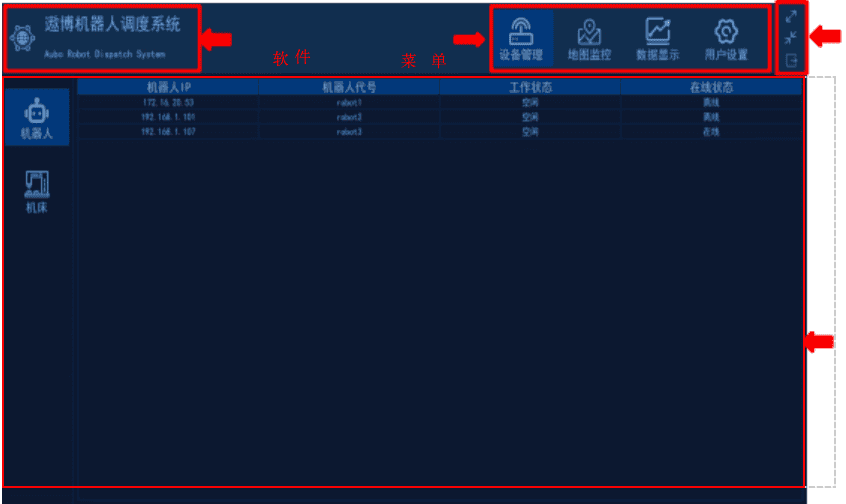
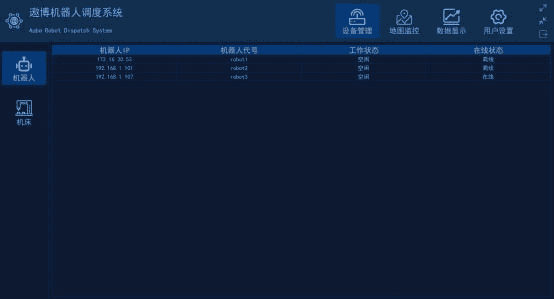
Device management
Device management includes two parts: robots and machine tools. Robot interface: displays the robot IP, robot code, working status (including idle and working), and online status (online and offline).
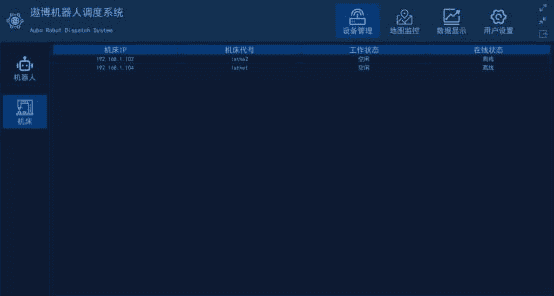
Machine tool management interface: displays the machine tool IP, machine tool code, working status, and online status (online and offline).
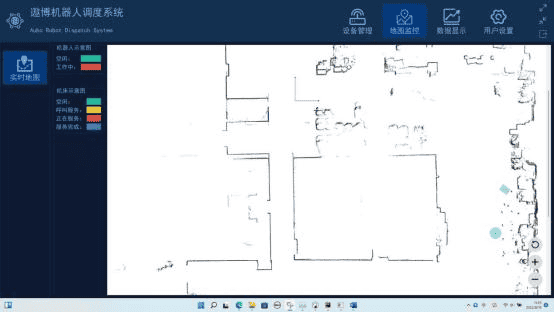
Map display
The left side contains modules for the robot schematic diagram and the machine tool schematic diagram; different colors correspond to different states of robots and machine tools. The right side displays the positions of machine tools and robots in real time, and the map display can be operated through the refresh, zoom in, and zoom out buttons in the lower right corner.
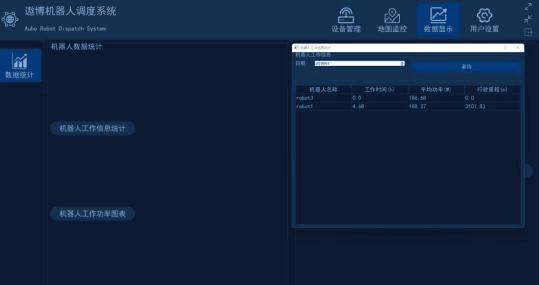
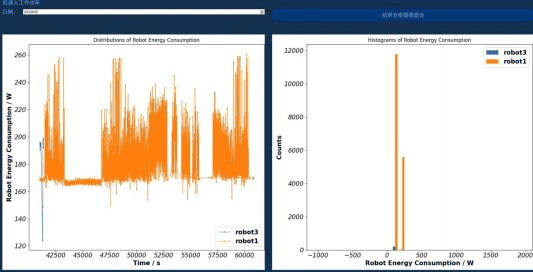
Data statistics Statistics can be made on the operating data of the robots, including the working time, working power, and driving mileage of each robot on a certain day, and the average working power chart is displayed.
Data statistics interface
Power chart interface
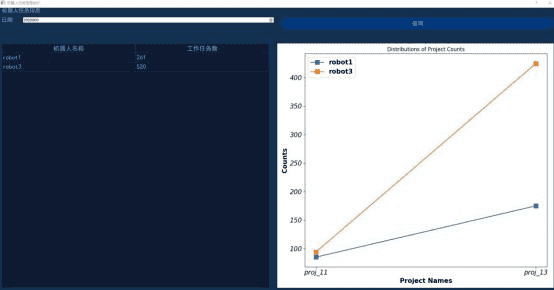
Statistics on the task execution data of the robot for one day:
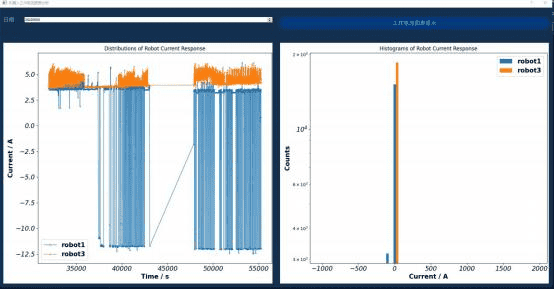
Statistics on the working current of the robot:
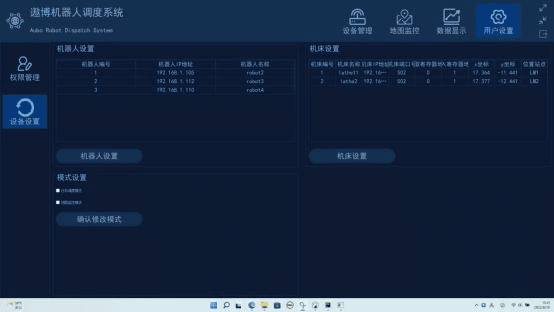
User settings
- Permission settings (to be developed)
- Device settings: includes robot settings, machine tool settings, and mode settings
- Robot settings: modify robot attributes, and add or delete robots
- Machine tool settings: modify machine tool attributes, and add or delete machine tools
- Mode settings mainly select the software operating mode according to requirements. The map monitoring function is enabled only when the map monitoring mode is checked. After modifying the function, click the Confirm Mode Modification button below for the software operating mode to take effect.
User settings interface
Robot settings interface
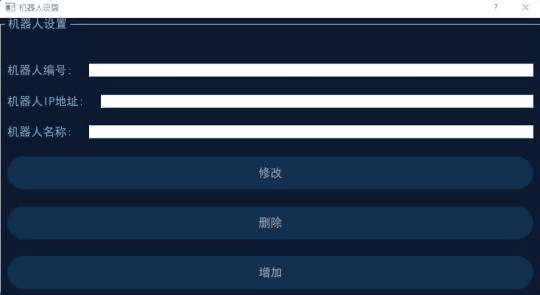
- Modify: modify the IP address and name of the robot with the specified number according to the robot number
- Delete: delete the robot with the specified IP address according to the robot IP
- Add: enter the robot IP address and robot name to add a robot with the specified IP address and name
Machine tool settings interface
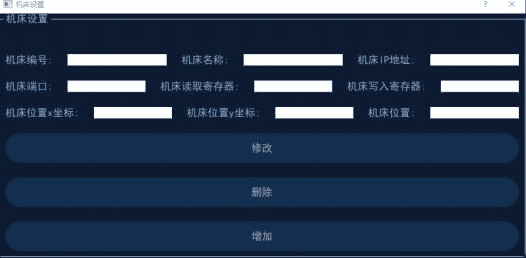
- Modify: modify the name, IP address, port number, read register address, write register address, machine tool X coordinate, machine tool Y coordinate, and machine tool position value of the machine tool with the specified number
- Delete: delete the machine tool with the specified IP address according to the machine tool IP
- Add: enter the machine tool name, IP address, port number, read register address, write register address, machine tool X coordinate, machine tool Y coordinate, and machine tool position value to add the specified machine tool
8.2.4 Precautions
- All robots using the same compound robot scheduling system software must use the same map.
- Only one compound robot scheduling software can be started; multiple scheduling system software cannot run at the same time.
- The area where the compound robot operates must be fully covered by the network to ensure stable network signals (for details, see the second phase test report of the ARDS traffic control test report, file name "ARDS Scheduling System Test Report.pdf").
- The computer running the scheduling system software must ensure a stable network connection during operation and must not enter sleep mode.
- When using the scheduling system, ensure that the positions of the intersection control points allow robots at mutually exclusive intersections to pass without obstacles, and keep the intersection control points outside the safety distance of the robots.
- Before using the scheduling system, ensure that the compound robot has been successfully localized.
9 Vision System Instructions
9.1 Vision System Overview
The advantages of the robot vision system are space saving, ease of use, and ease of commissioning. The vision system provides open-loop verification functions for feature code localization and template matching, meeting the vision positioning and guidance requirements in most application scenarios. It also provides one-click calibration of vision cameras and supports quick replication of vision functions among multiple robots.
During application, it provides a quick installation solution for QR codes and operation training. While reducing the commissioning difficulty and learning cost for users, it builds a safe, stable, simple, easy-to-use, and flexibly deployable application development platform.
9.2 Vision Software Installation
The installation steps are as follows:
Copy the installation files to the robot controller, including the installation script
aubovisioninstall.shand the installation packageaubovisioninstall_*.zip(the suffix is the version number).
Copy the files to the home directory of the teach pendant.
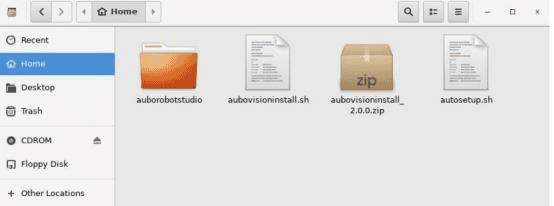
Run the installation script in the terminal. The three commands are as follows:
bashcd /root chmod +x aubovisioninstall.sh ./aubovisioninstall.shWait until the terminal shows that the installation is complete, as shown below:

Then restart the robot, and the software installation is complete.
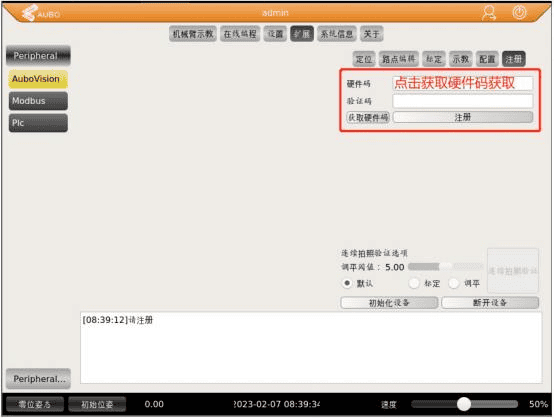
After the plugin is installed for the first time, a registration code must be entered on the plugin page. The registration code is bound to the hardware code. Enter it with reference to the
code.txtfile to complete registration. If the usage permission of the plugin is bound to the robot hardware, the corresponding verification code must be entered on the registration page before the first use.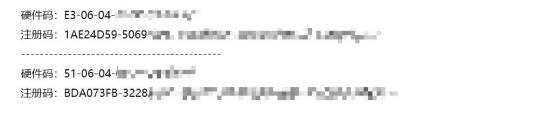
9.3 Vision Hardware Installation and Parameter Configuration
9.3.1 Electrical Wiring
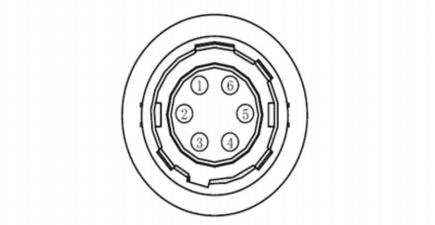
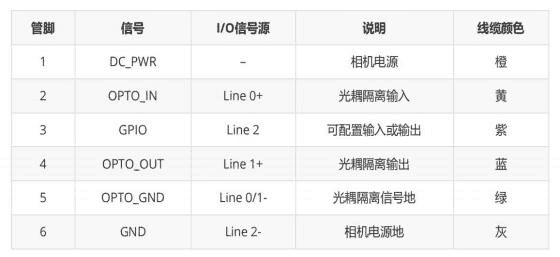
For hardware installation, refer to the Hikrobot industrial camera IO trigger camera light source wiring and configuration method. The pin diagram in the camera manual is generally as follows:
The appearance of the light source is shown below:
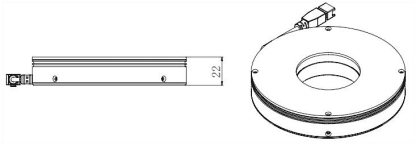
The wiring is based on the standard 6-pin cable provided by Hikrobot; for third-party cables, match the wires according to the wire labels. For general pins and diagrams, refer to the manual. A standard example is as follows:
The wiring method for the camera lead Line 1 output is as follows:
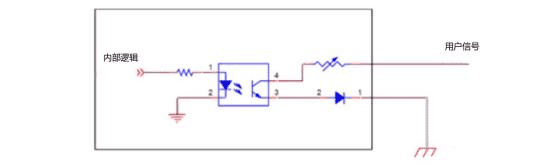
The reference parameters of lead Line 1 are:
The maximum output current is 25 mA. When the external voltage is 3.3 V and the external resistor is 1 KΩ, the output logic low level is 575 mV and the output logic high level is 3.3 V.
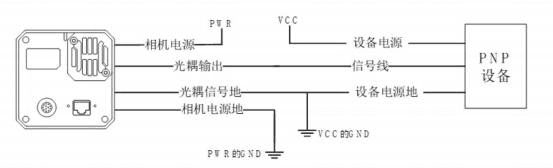
The wiring diagram for output PNP devices is as follows:
The wiring method for output NPN devices is as follows.
Wiring method 1
The pull-up power supply provides the driving voltage output and triggers external devices (recommended). (1) If the VCC of the NPN device is 24 V, a pull-up resistor of 1 ~ 4.7 KΩ is recommended. (2) If the VCC of the NPN device is 12 V, a pull-up resistor of 1 KΩ is recommended.
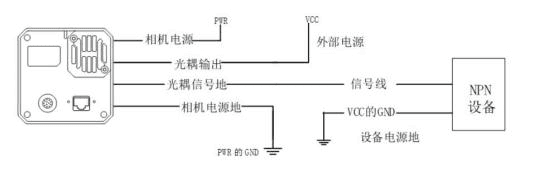
Wiring method 2
When the potential difference between VCC and the signal ground is greater than 12 V, it is recommended to connect a 1 K resistor in series between VCC and the camera output, as shown below.
Reference wiring steps between the camera and the light source:
- Connect the camera power positive (orange) to the 24 V output of the compound robot interface board.
- Connect the camera power ground (gray) to the 0 V of the compound robot interface board.
- Connect the optocoupler isolated output (blue) to the light source power ground.
- Connect the optocoupler isolated signal ground (green) to the 0 V of the compound robot interface board.
- Connect the light source power to the 24 V output of the compound robot interface board.
- Connect the input and output ends of the network cable to the terminal panel and the camera communication port respectively.
After the wiring is completed and the shutdown check is normal, power on for testing. A normal result is that the blue power indicator and the yellow signal indicator are on, indicating that the hardware connection is successful.
9.3.2 Basic Camera Parameter Settings
For the basic parameter configuration of the camera, that is, the camera hardware output, refer to the usage here: reference usage. It is mainly divided into two types. One is strobe output, which works with a stroboscopic light source for shooting; the IO output follows the exposure, and the output period is synchronized with the exposure period. The other is software output, which is output at a user-defined time and controlled by the user, and an OK or NG signal can be output when necessary. The main camera hardware strobe output configuration is as follows.
The camera uses strobe output and works with a stroboscopic light source for shooting; the IO output follows the exposure, and the output period is synchronized with the exposure period.
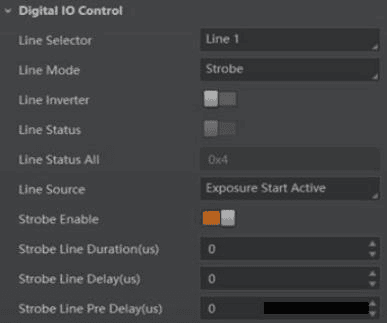
The general operation process is as follows. First open the terminal, enter the command line, and enter the following command:
cd /opt/MVS/bin/
./MVS
The software then opens for configuration. First connect the camera.
Configure the input signal source: select Line1.
Set Line mode to strobe; no parameter configuration is required.
Test line inverter by clicking repeatedly to test level changes and verify whether the wiring is normal.
Configure the output event source Line source: select Exposure Start Active.
Configure the output signal timing: StrobeLineDuration (signal duration; the default is 0, meaning the duration equals the exposure time; if other values are set, that value is used), StrobeLineDelay (delayed output, from the start of exposure, how long to delay the output), StrobeLinePreDelay (advance output, delaying the start of exposure).
Enable the output, strobe Enable (after enabling, the IO output follows the start of exposure).
Save the settings. For the user setting option and default user setting, select User Set 1, and click user setting save.
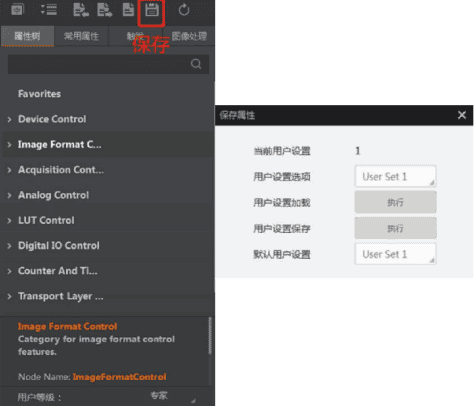
After configuration is complete, power off and restart the camera.
9.4 Vision Plugin Interface Description
9.4.1 Plugin Path
The AuboVision vision system is deployed as a plugin in the AUBOPE teach pendant software. The AuboVision plugin path is: Extension -> Peripheral -> AuboVision.
The plugin contains five tabs:
- Localization: select the vision localization method and create templates
- Waypoint editing: edit taught points and generate vision scripts
- Calibration: edit hand-eye calibration waypoints and calculate hand-eye calibration results
- Teaching: control the robot arm movement
- Configuration: adjust camera parameters
The main interface of the vision plugin is shown below:
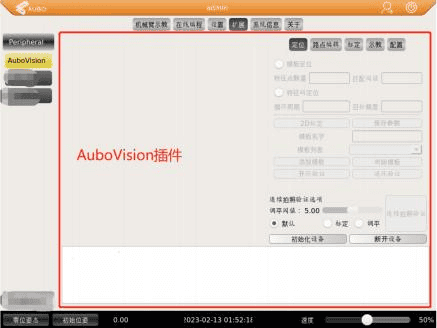
9.4.2 Localization Tab
The main functions of the Localization tab of the AuboVision plugin include:
1. Vision localization type selection:
Template localization (2D) The user defines the ROI and the recognition object, such as a workpiece or a specified marker.
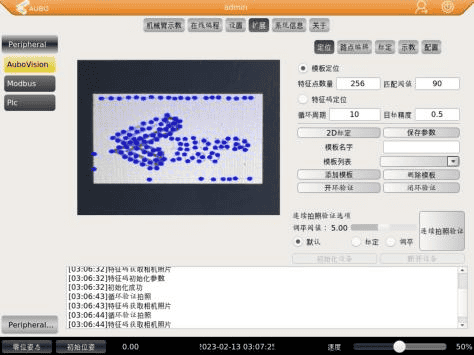
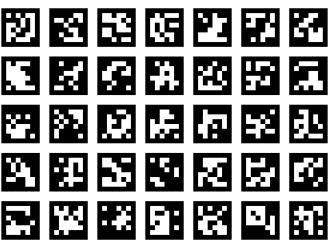
Feature code localization (2.5D) Recognizes a specified feature code. It is not required and not recommended to shoot with the camera optical axis perpendicular to the plane where the feature code is located.
2. Template localization parameter configuration: number of feature points, matching threshold
3. Feature code localization parameter configuration: cycle period, target accuracy
4. 2D calibration:
Used only with template localization. After the camera is leveled, the pixel distance is calculated by recognizing the calibration board, which is used by the subsequent template matching algorithm.
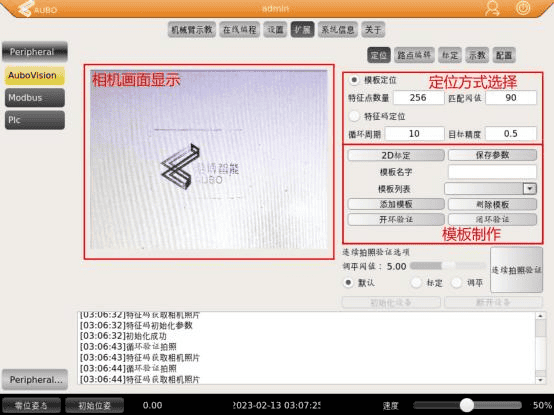
- Template name: the user can customize the template name. If no name is entered, the template name is generated randomly.
- Template list: select a created template
- Add template: create a template and add it to the template list
- Save parameters: save the template and parameters locally. After the template is saved, it can be called through open-loop verification or closed-loop verification.
- Open-loop verification: perform open-loop verification of the vision algorithm according to the selected algorithm type and template
- Closed-loop verification: perform closed-loop verification of the vision algorithm according to the selected algorithm type and template
9.4.3 Waypoint Editing Tab
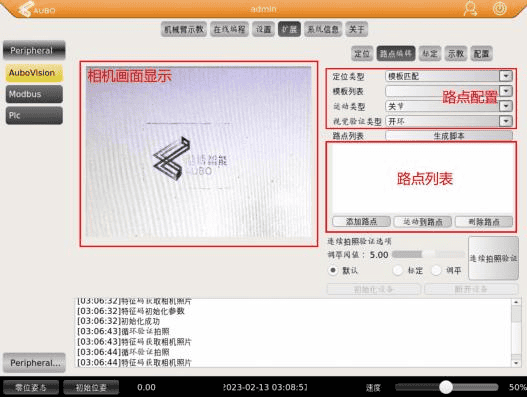
The main functions of the Waypoint Editing tab of the AuboVision plugin include:
- Add waypoint: add a taught point that requires vision compensation.
- Move to waypoint: move the robot arm to the waypoint selected by the user in the waypoint list.
- Delete waypoint: remove the waypoint selected by the user from the waypoint list.
- Generate script: automatically generate a vision script according to the localization type, template name, vision verification type, taught point motion type, and taught points selected by the user in the interface.
9.4.4 Calibration Tab
The main functions of the Calibration tab of the AuboVision plugin include:
Add pose: trigger the camera to take a photo and recognize the calibration board shown in the figure below. If the calibration board is recognized successfully, the text box below prompts that the recognition is successful, and the current pose of the robot arm is recorded as a valid calibration pose and added to the calibration waypoint list. If recognition fails, the text box below prompts that the recognition failed, and the pose needs to be adjusted again.
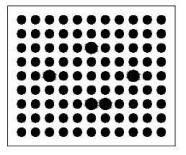
Delete pose: remove the waypoint selected by the user from the calibration waypoint list.
Save pose: save the robot arm pose information in the calibration waypoint list locally.
Auto calibration: the robot arm moves according to the pose information saved by the user, tries to recognize the calibration board, and finally returns the hand-eye calibration result.
Calculate calibration result: calculate the hand-eye calibration result and output it in the text box below.
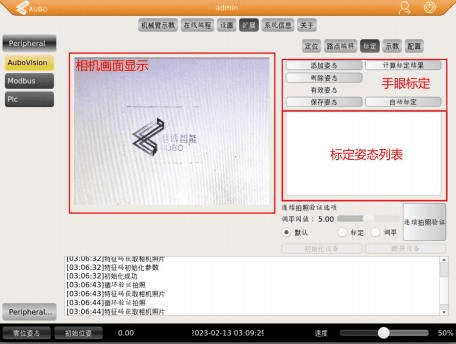
9.4.5 Teaching Tab
The main functions of the Teaching tab of the AuboVision plugin include:
Control the robot arm to perform joint motion
Control the robot arm to perform linear motion in the base coordinate system
Control the end pose adjustment of the robot arm in the flange coordinate system
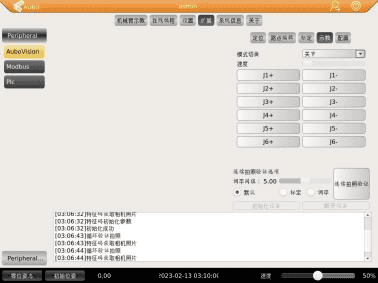
9.4.6 Configuration Tab
The main functions of the Configuration tab of the AuboVision plugin include: adjusting white balance and setting camera exposure.
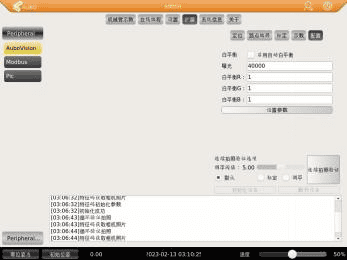
9.5 Hand-Eye Calibration
9.5.1 Manual Hand-Eye Calibration
Basic requirements and operation instructions:
Determine the calibration position, place the calibration board, and adjust the lens focal length and aperture to ensure that the calibration board is clear in the camera image.
In the continuous photo verification option, select calibration, and click the continuous photo verification button to start taking photos.
Move the robot arm so that the calibration board enters the camera field of view, and ensure that all feature points on the calibration board are recognized.
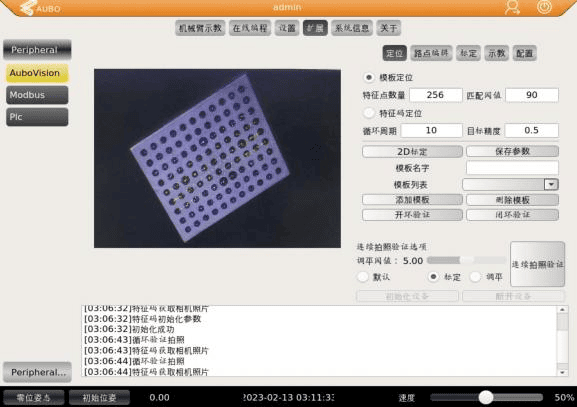
After the text box below the interface prompts that single-image recognition is successful and the feature points of the calibration board are marked in the camera image, click Add Robot Pose and wait for the addition to succeed.
Change the robot pose and repeat steps 2, 3, and 4 at least 15 times.
Click Save Pose.
Click Calculate Calibration Result. If the text box below prompts that the calibration result verification is successful, the hand-eye calibration is complete; if the text box below prompts that the calibration result verification fails, adjust the robot arm calibration pose and recalculate the calibration result.
9.5.2 Automatic Hand-Eye Calibration
Automatic calibration controls the robot arm to move according to the hand-eye calibration poses saved by the user and recognizes the calibration board.
- Click Auto Calibration.
- If fewer than 5 hand-eye calibration poses have been saved, automatic calibration will not start.
- Wait for automatic calibration to finish and check the calibration result.
During automatic calibration, if the calibration board is not successfully recognized at a certain pose, that pose is removed. The user can readjust the hand-eye calibration poses as required.
9.6 Feature Code Localization
The basic steps are as follows:
- Click the Localization tab and select feature code localization as the localization type.
- Set the cycle period (default 10) and the target accuracy (default 0.5).
- Select the photo position and photo height: These depend on various factors such as the camera lens, ambient light, and end device size. The following is based on a 12 mm lens, a Φ90 camera light source, and an end device length of 200 mm. (1) The shooting height is usually about 200 mm. (2) Shooting angle: the feature code is at about 45 degrees to the camera (ensure that the x, y, and z axes can be recognized, and avoid shooting with the camera optical axis perpendicular to the feature code plane).
- Enter the feature code localization template name (optional).
- Click Add Template. (1) The feature code in the camera image will be marked, and the x, y, and z axes of the feature code will be displayed. (2) Click Save Parameters.
- Select the created template name in the template list, and click open-loop or closed-loop verification to check whether the feature code localization template is created successfully.
- After successful verification, click the Waypoint Editing tab.
- Select feature code localization as the localization type.
- Select the created template name in the template list.
- Teach the robot arm points, select the required motion type in the plugin interface, and click Add Waypoint.
- After all waypoints are added, select the vision verification type; the default is open-loop verification.
- Click Generate Script.
Feature code localization script name: hmakescript + feature code localization template name. The higher the recognition rate of the QR code in the feature code, the higher the final vision guidance accuracy.
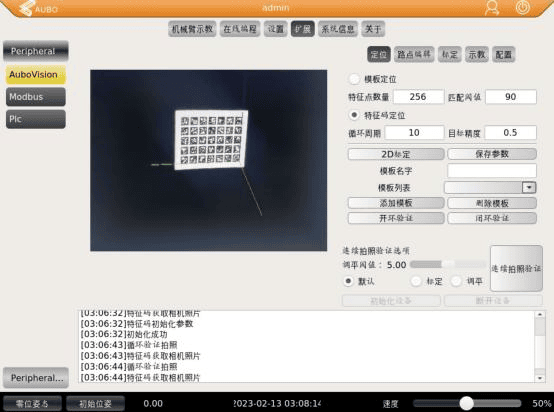
9.7 Template Localization
The basic steps are as follows:
Click the Localization tab.
Select template localization as the localization type.
Set the number of feature points (default 256) and the matching threshold (default 90).
Perform 2D calibration on the plane where the target template is located. (1) Select the leveling option in the continuous photo verification option. (2) Click the continuous photo verification button to perform leveling verification on the calibration board. (3) Manually adjust the robot arm pose so that the camera optical axis is perpendicular to the plane where the target template is located. (4) If leveling is complete, the calibration board in the camera image will be surrounded by a green box; if leveling is not complete, the calibration board in the camera image will be surrounded by a red box. (5) After leveling is complete, turn off continuous photo taking and click 2D Calibration. (6) Wait for calibration to complete; the pixel distance is displayed in the text box below.
Move the target template into the camera field of view, select the default option for continuous photo verification, and trigger a photo.
Manually drag the ROI in the camera image to select the template range.
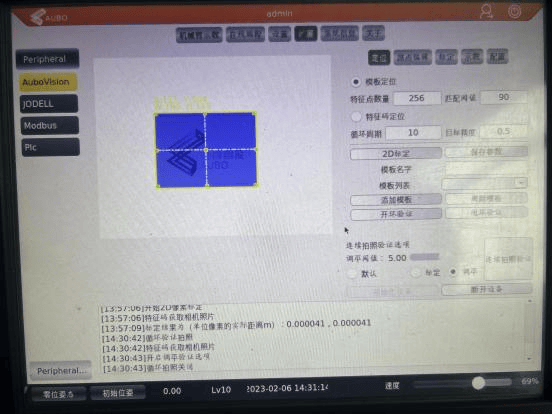
Enter the template localization template name (optional).
Click Add Template and wait for the template to be created.
Click Save Parameters.
Select the created template name in the template list, and click open-loop or closed-loop verification to check whether the template localization template is created successfully.
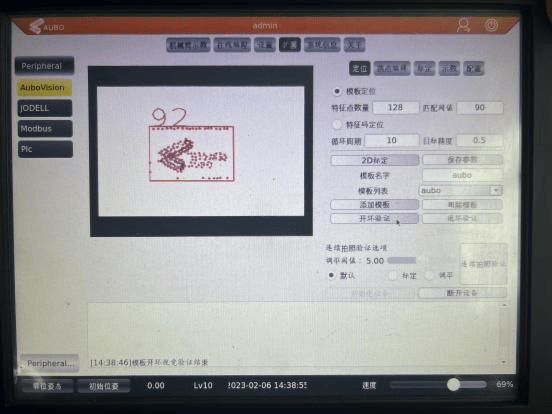
After successful verification, click the Waypoint Editing tab.
Select template localization as the localization type.
Select the created template name in the template list.
Teach the robot arm points, select the required motion type in the plugin interface, and click Add Waypoint.
After all waypoints are added, select the vision verification type; the default is open-loop verification.
Click Generate Script.
Template localization script name: rmakescript + template localization template name.