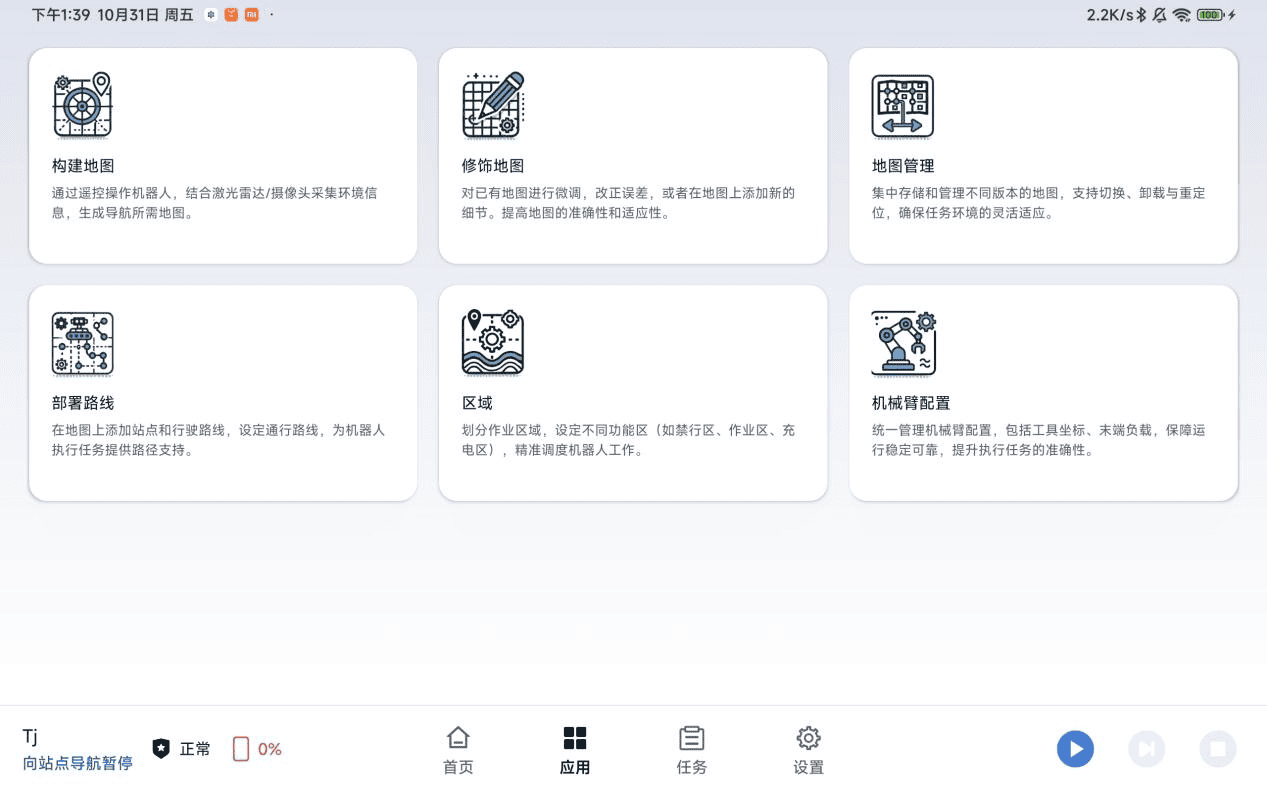
Steering System Function Description
System Overview
The Steering system is a complete robot control and management platform, covering device connection, system settings, map management, task scheduling, and navigation control. Through an intuitive graphical interface and professional toolset, it provides users with an efficient and convenient robot operation experience.
Function Details
1. Connecting to a Device by Entering its IP Address
Function description: Users can directly connect to and access the system by entering the device IP address. This is the primary method for initial connection and applies to scenarios where the device IP address is known.
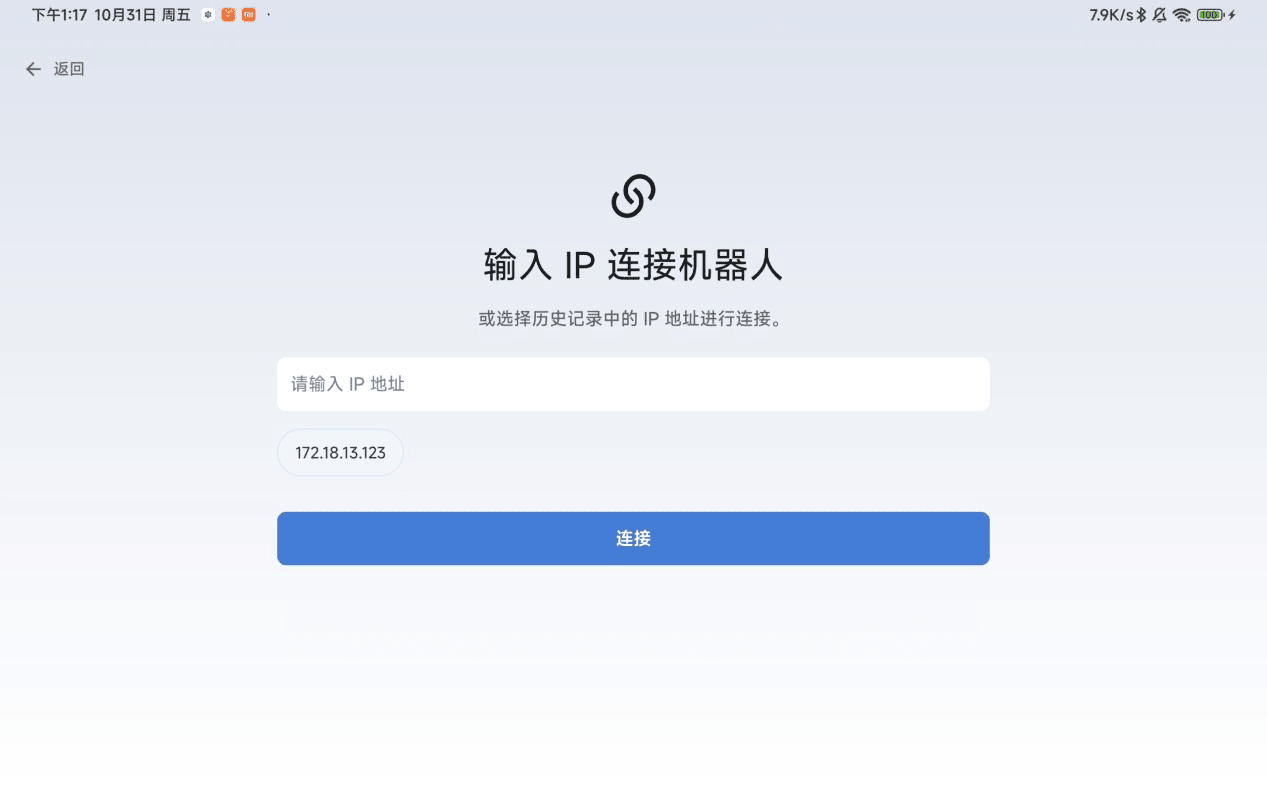
Usage description:
- After opening the system, enter the main connection interface.
- Enter the robot's IP address accurately in the input box (for example: 192.168.1.100).
- Click the "Connect" button, and the system will attempt to establish communication with the device.
- During the connection process, the interface displays the connection status (such as "Connecting", "Connected", or "Connection Failed").
- If the connection fails, check whether the IP address is correct and whether the network is reachable, then try again.
2. Searching for Devices
Function description: The system supports automatically searching for available devices on the same network, making it easy for users to quickly discover and connect devices without manually entering IP addresses.
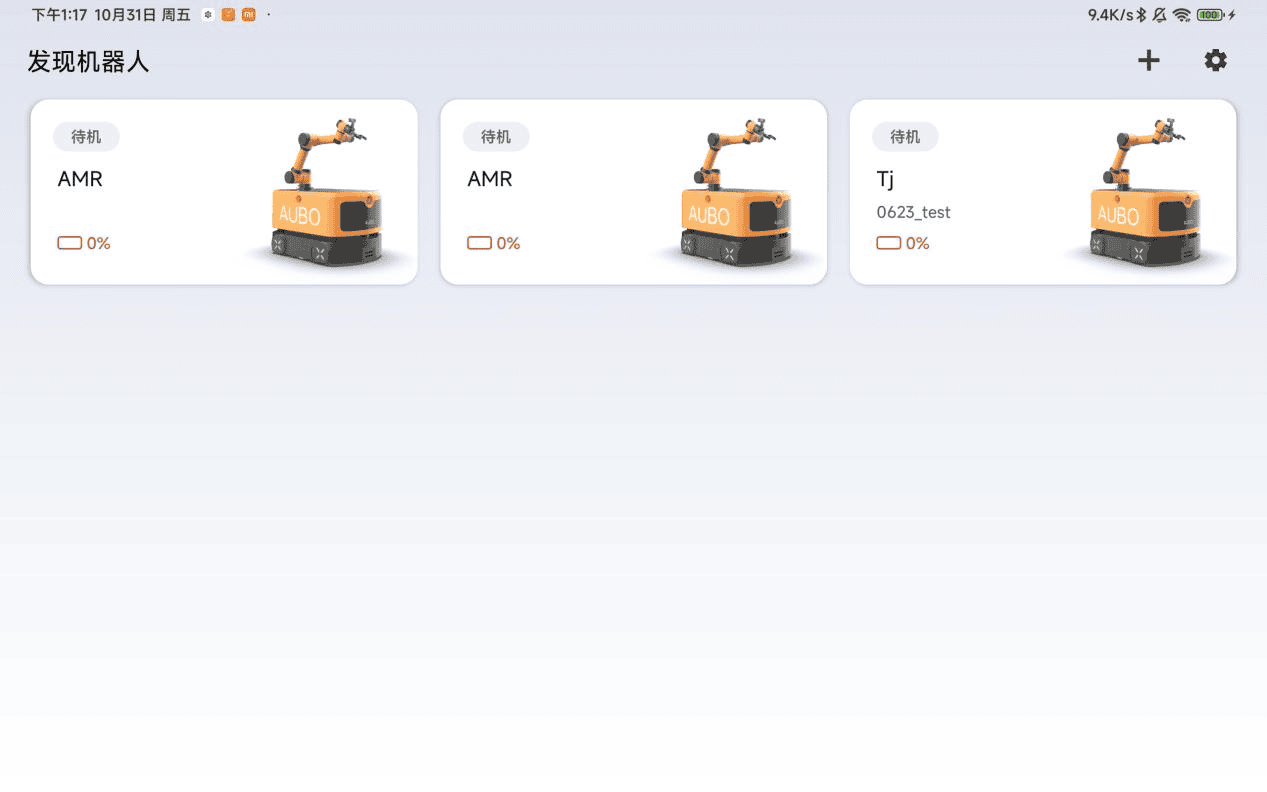
Usage description:
- On the connection interface, click the "Search Devices" button.
- The system automatically scans all online robot devices in the current LAN.
- After the scan is completed, the device list displays the names and IP addresses of all discovered devices.
- Users can select a target device from the list and click "Connect" to quickly establish a connection.
- If the device is not listed, try pulling down to "Refresh" to search again.
3. Settings - Export Logs
Function description: Complete log export capability, allowing users to select the time range and log type, which facilitates troubleshooting and system maintenance analysis.
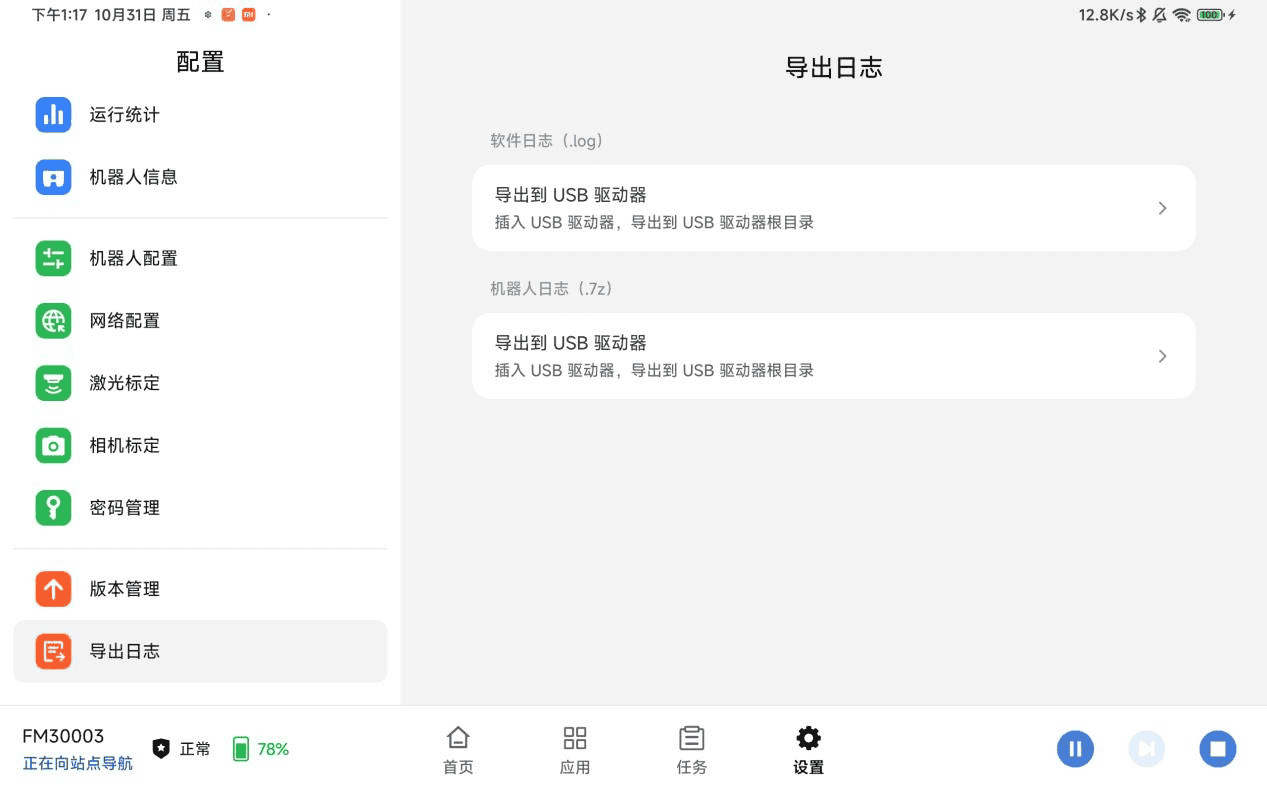
Usage description:
- Go to the "Settings" menu and select the "Export Logs" option.
- Choose to export the software (App) logs or the robot logs.
- Insert a USB flash drive and confirm to complete the export.
4. Settings - Version Management
Function description: Displays the current system version information and supports software update/uninstallation, keeping the system in the best state at all times. 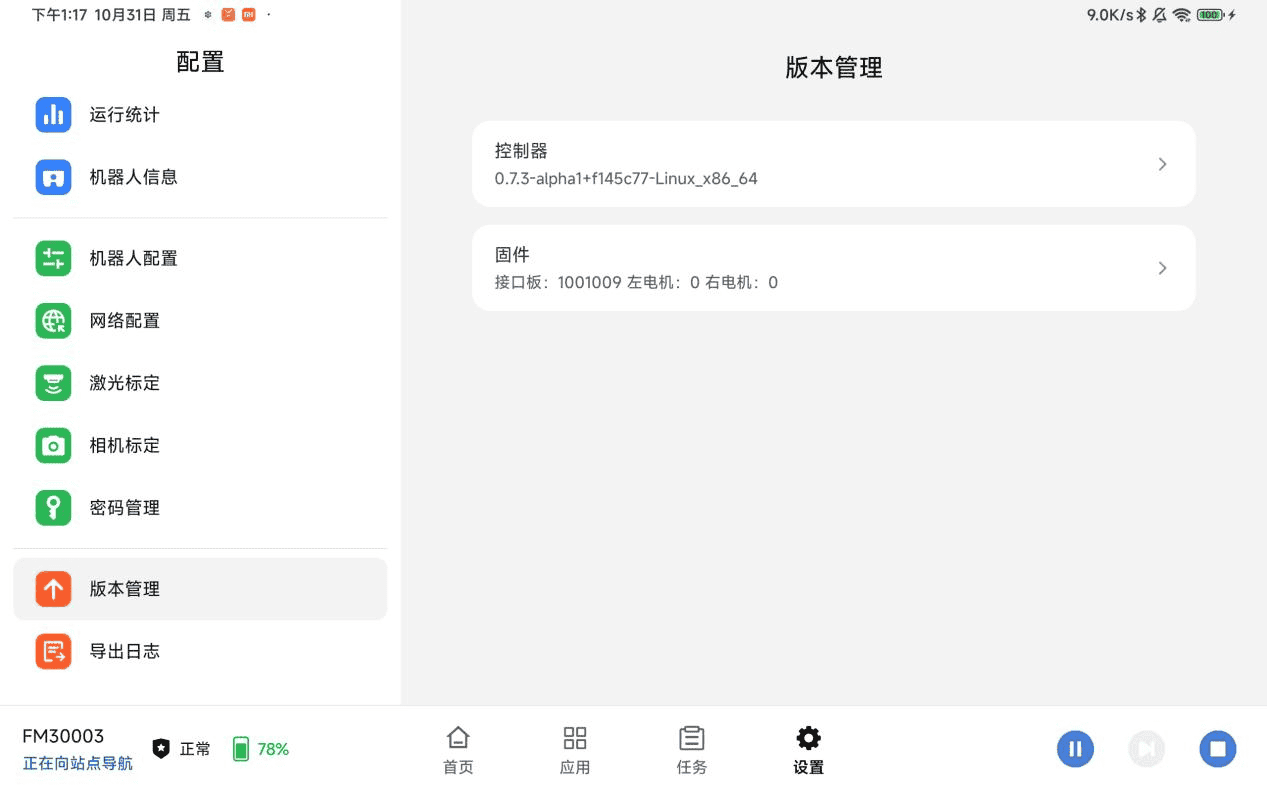
Usage description:
- Supports controller update operations.
- View the current system version number, release date, and other information.
- Complete software installation/uninstallation through a USB flash drive.
5. Settings - Password Management
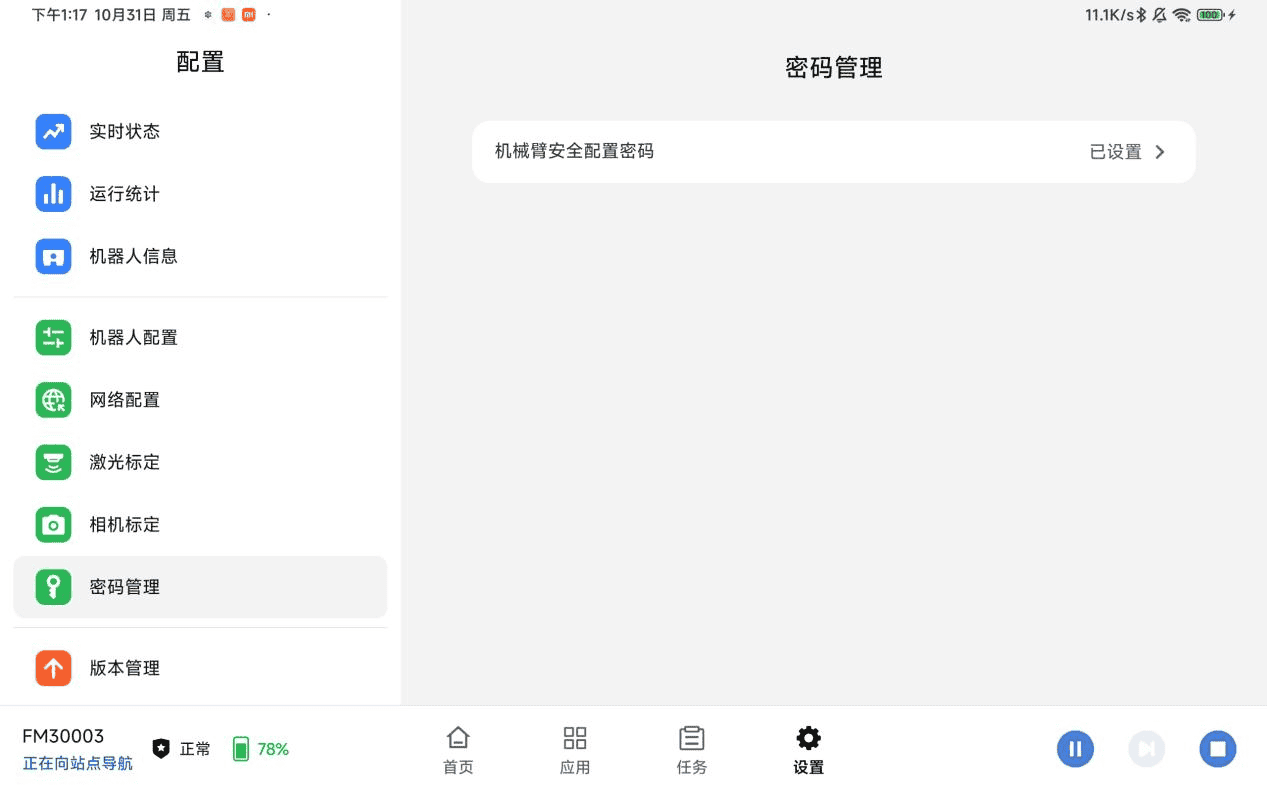
Function description: Users can change the login password here. Password strength verification is supported, which enhances system security and account protection.
Usage description:
- Go to "Settings" → "Password Management".
- Enter the current password for identity verification.
- Enter the new password.
- Click "Save" to complete the password change, and the system will indicate success.
6. Settings - Camera Calibration
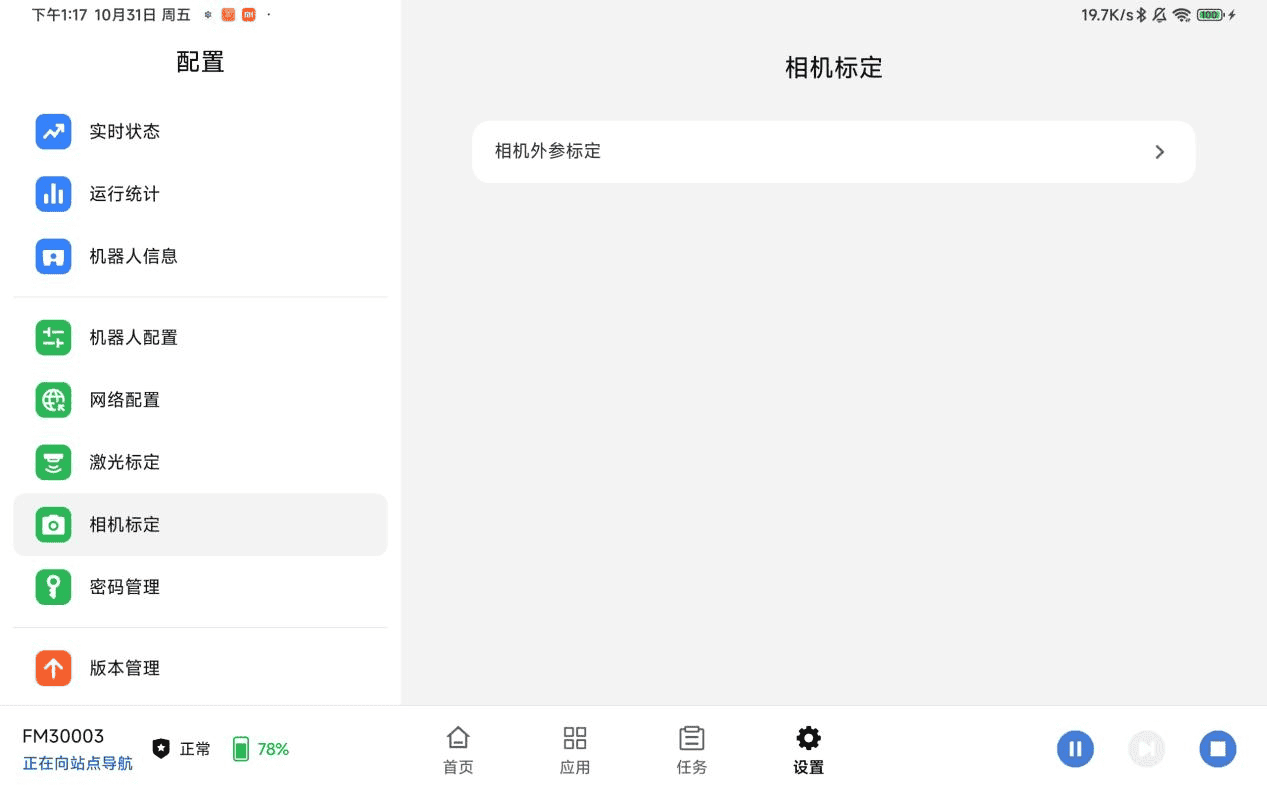
Function description: Provides professional camera calibration tools and procedures to ensure the accuracy of image acquisition and the precision of visual navigation. Parameter adjustment and calibration verification are supported.
Usage description:
- Go to "Settings" → "Camera Calibration".
- Place the calibration board within the camera's field of view and make sure it is clearly visible.
- Click "Start Calibration", and the system will automatically capture multiple images and calculate the parameters.
- Users can manually adjust the focal length and preview the effect.
7. Settings - Laser Calibration
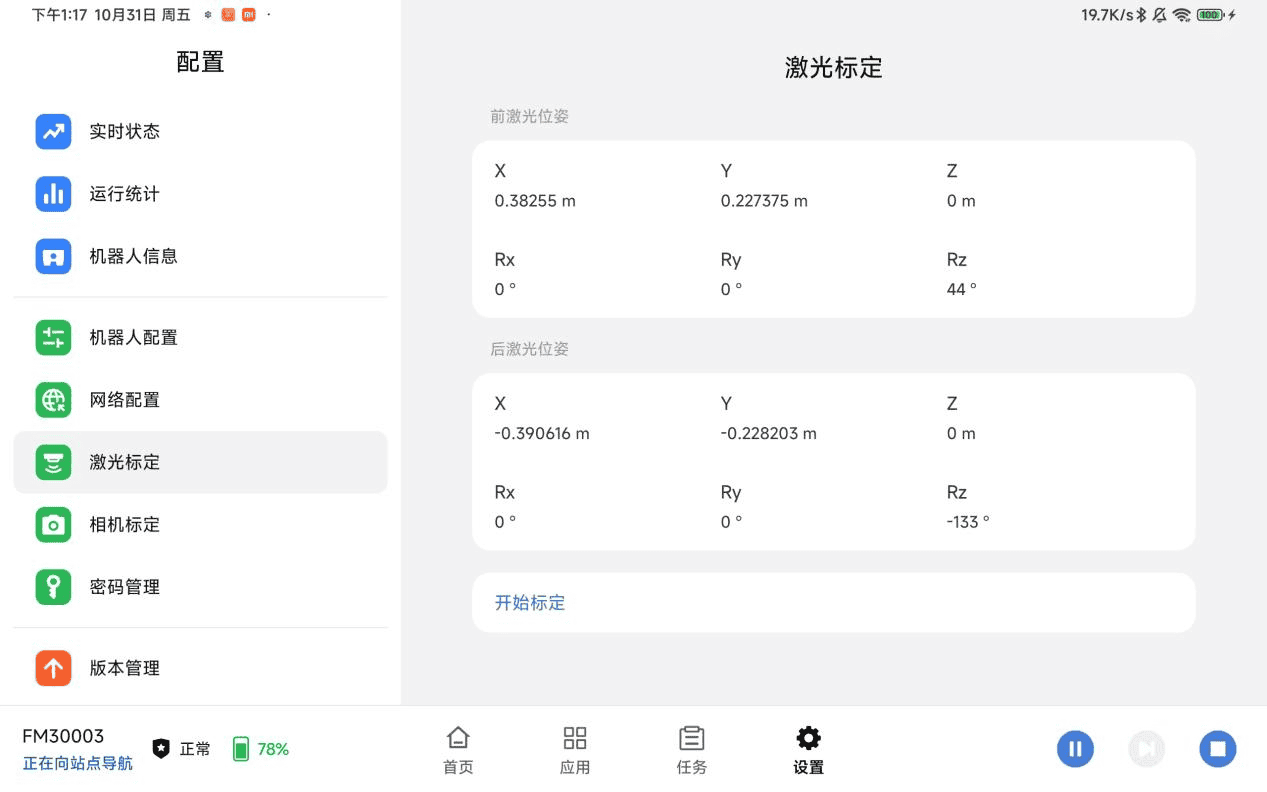
Function description: The calibration interface for LiDAR devices, providing calibration parameter configuration and accuracy testing to ensure the accuracy of ranging and navigation.
Usage description:
- Go to "Settings" → "Laser Calibration".
- In automatic mode, the system guides the user through environment scanning and parameter calculation.
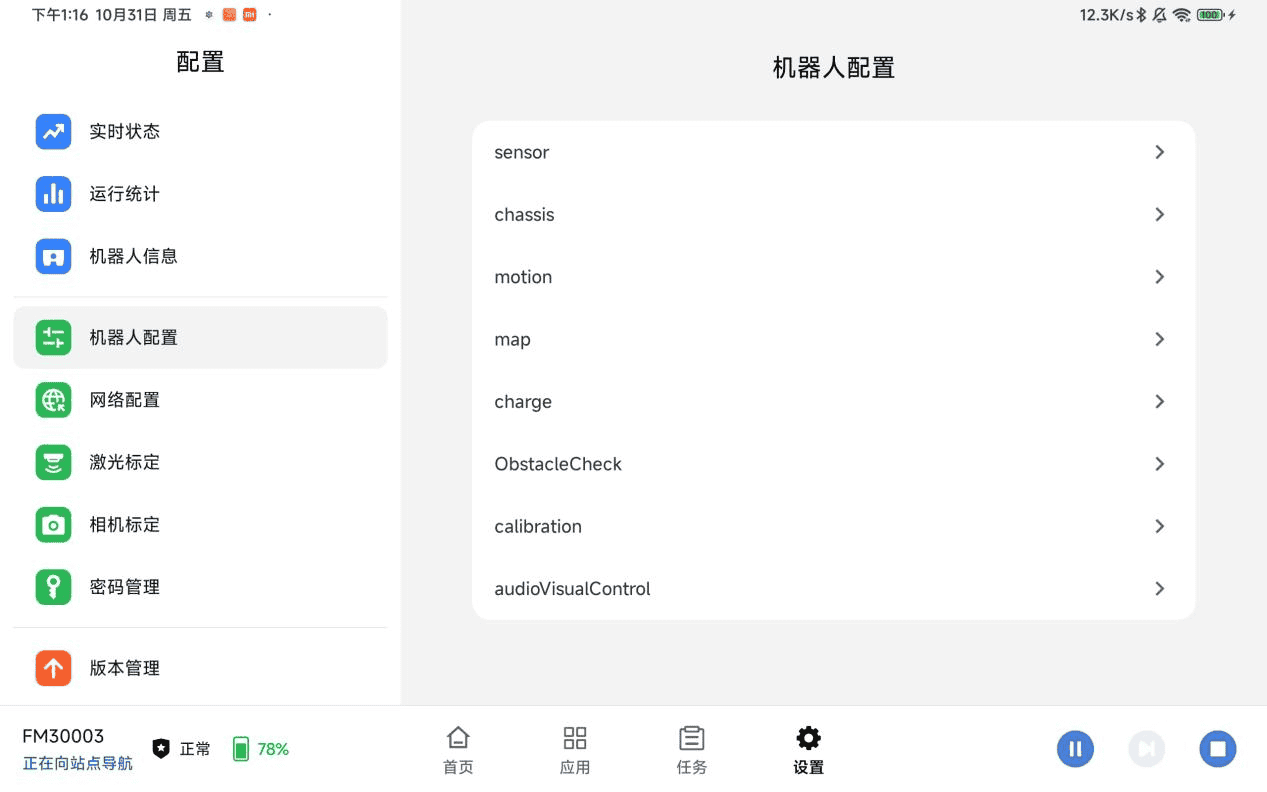
8. Settings - Robot Configuration
Function description: Users can configure various robot parameters in detail, including motion control parameters, communication settings, sensor configuration, and other system-level parameters.
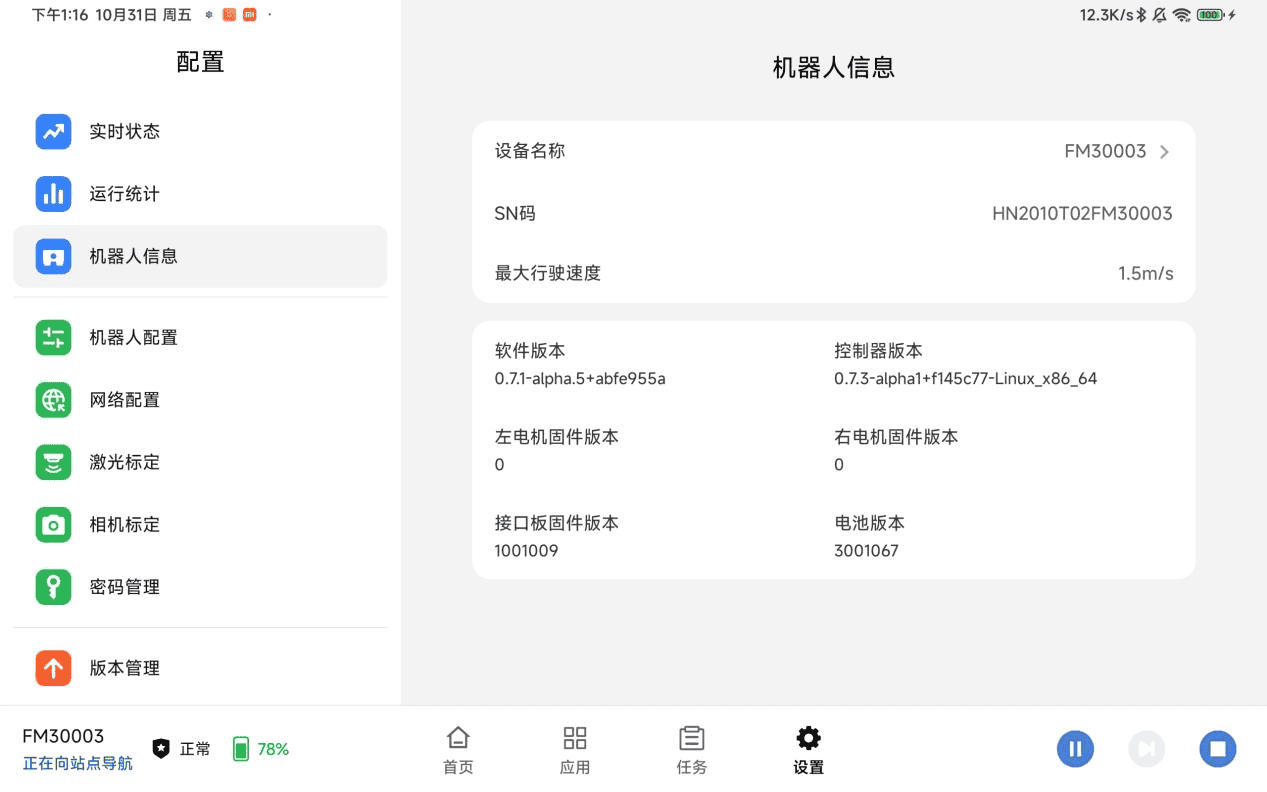
9. Settings - Robot Information
Function description: Displays a detailed information panel of the robot, including basic information such as model, serial number, hardware version, and software version, as well as an overview of the real-time status.
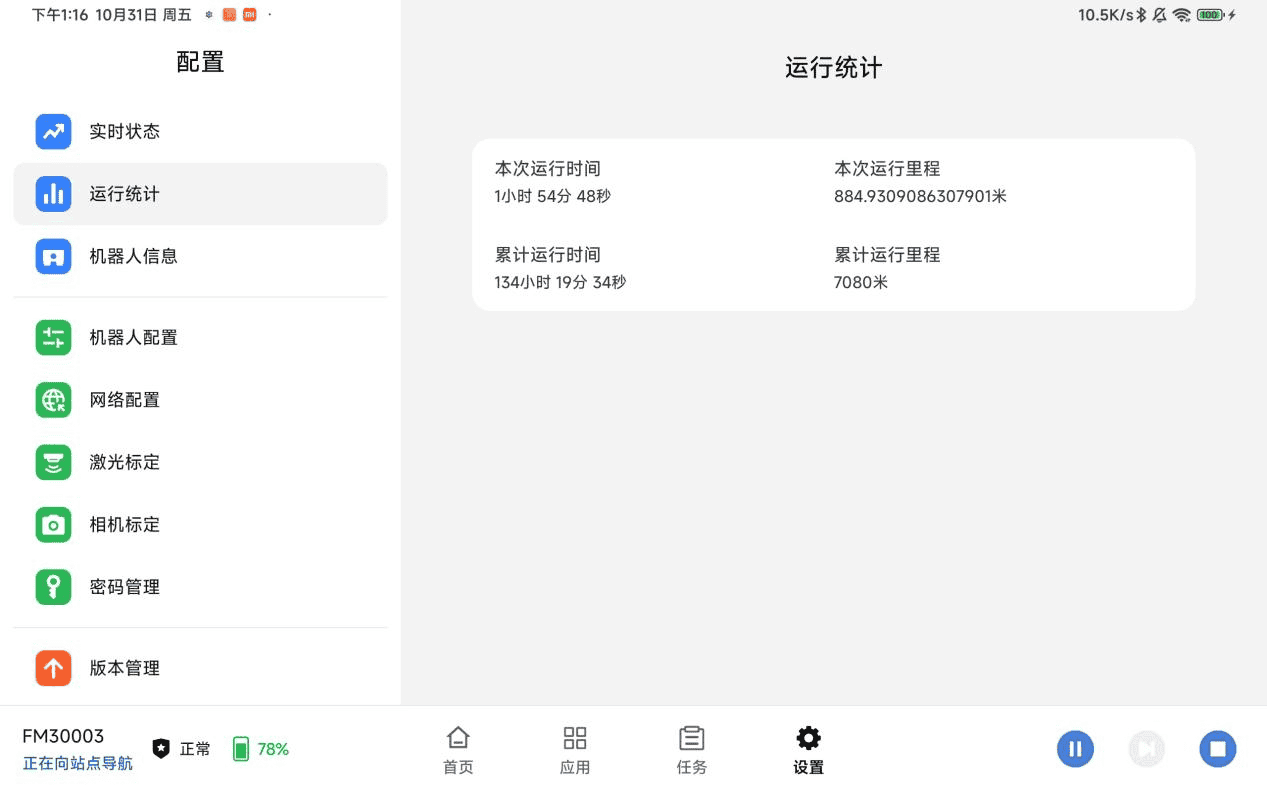
10. Settings - Operation Statistics
Function description: Collects and visualizes the robot's operating data, including total working hours, number of task executions, mileage statistics, and other operating indicators.
Usage description:
- Go to "Settings" → "Operation Statistics".
- Select the statistics time range (such as today, this week, this month, or custom).
- View the charts and figures for operating hours, number of tasks, mileage, etc.
- Statistics reports can be exported in Excel or PDF format.
- Click "Reset Statistics" to clear the historical data.
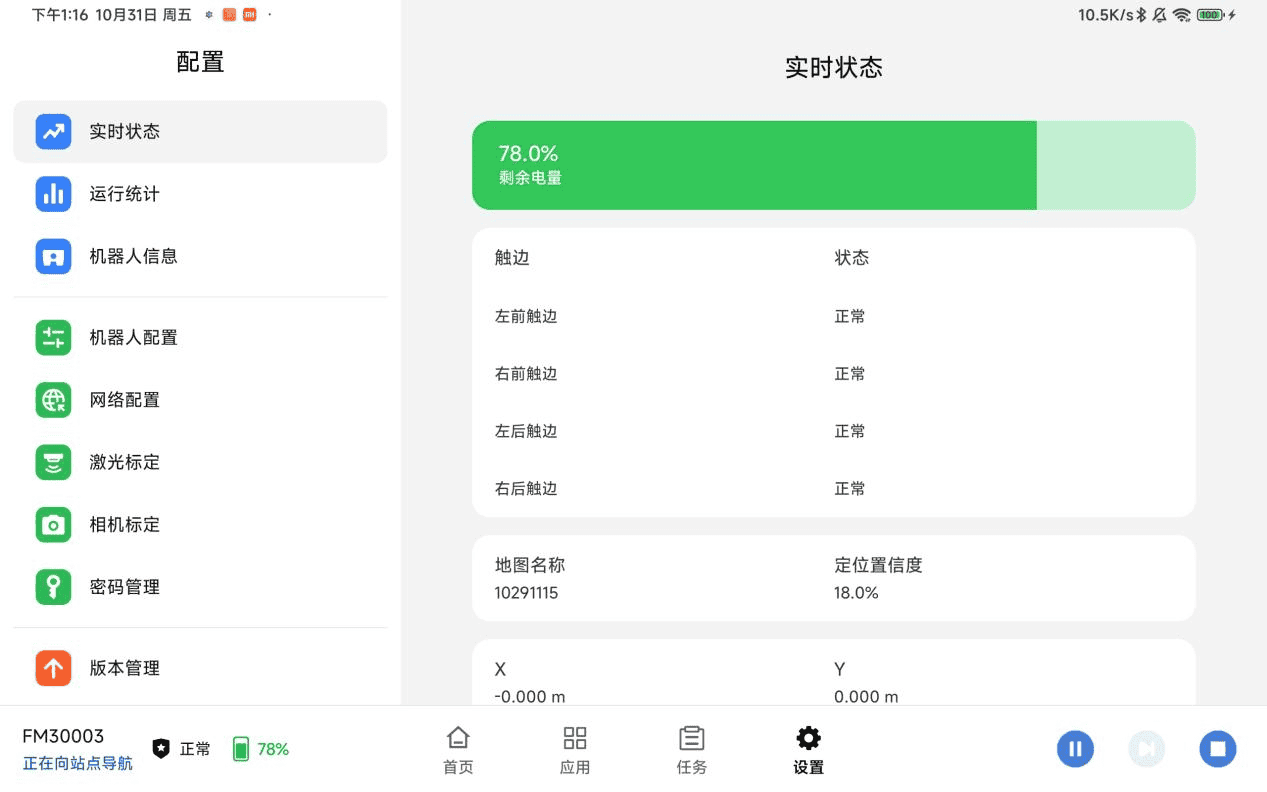
11. Settings - Real-time Status
Function description: Real-time monitoring and display of various robot status information, including battery level, network connection status, sensor data, system load, and other key indicators.
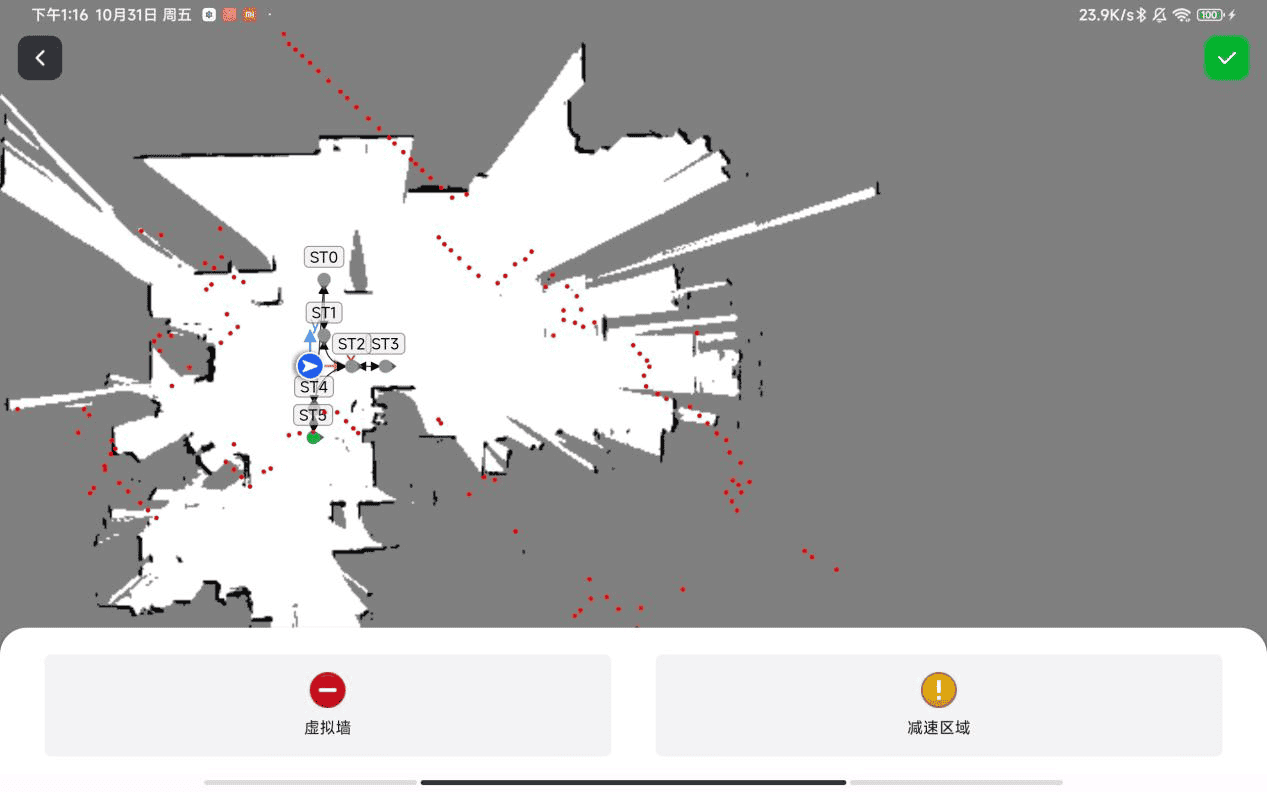
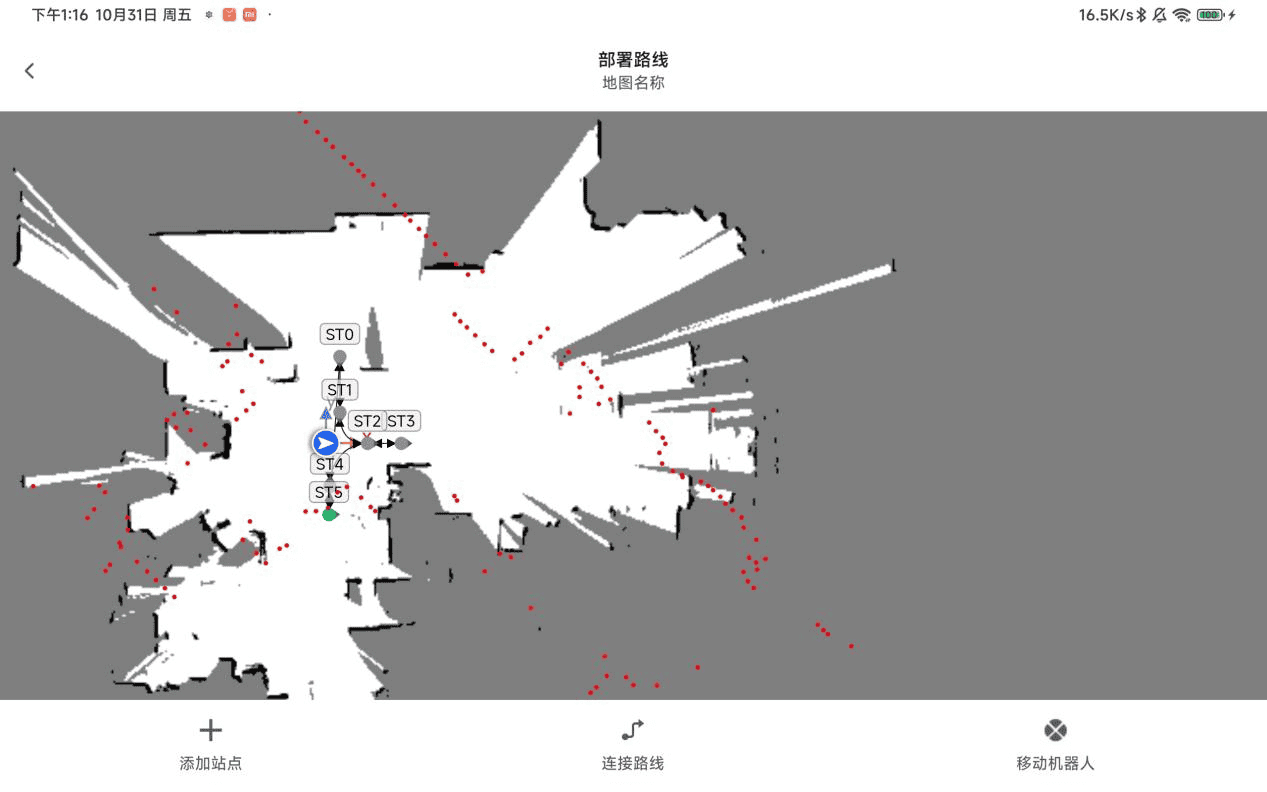
12. Application - Route Deployment (Edit Sites and Routes)
Function description: A complete map route editing interface. Users can add and edit sites on the map, add and edit areas to plan the robot's travel path, and set path attributes.
Usage description:
- Click "Add Site" to add a site.
- Click "Connect Route" to connect a route.
- Select a site or route on the map to edit it.
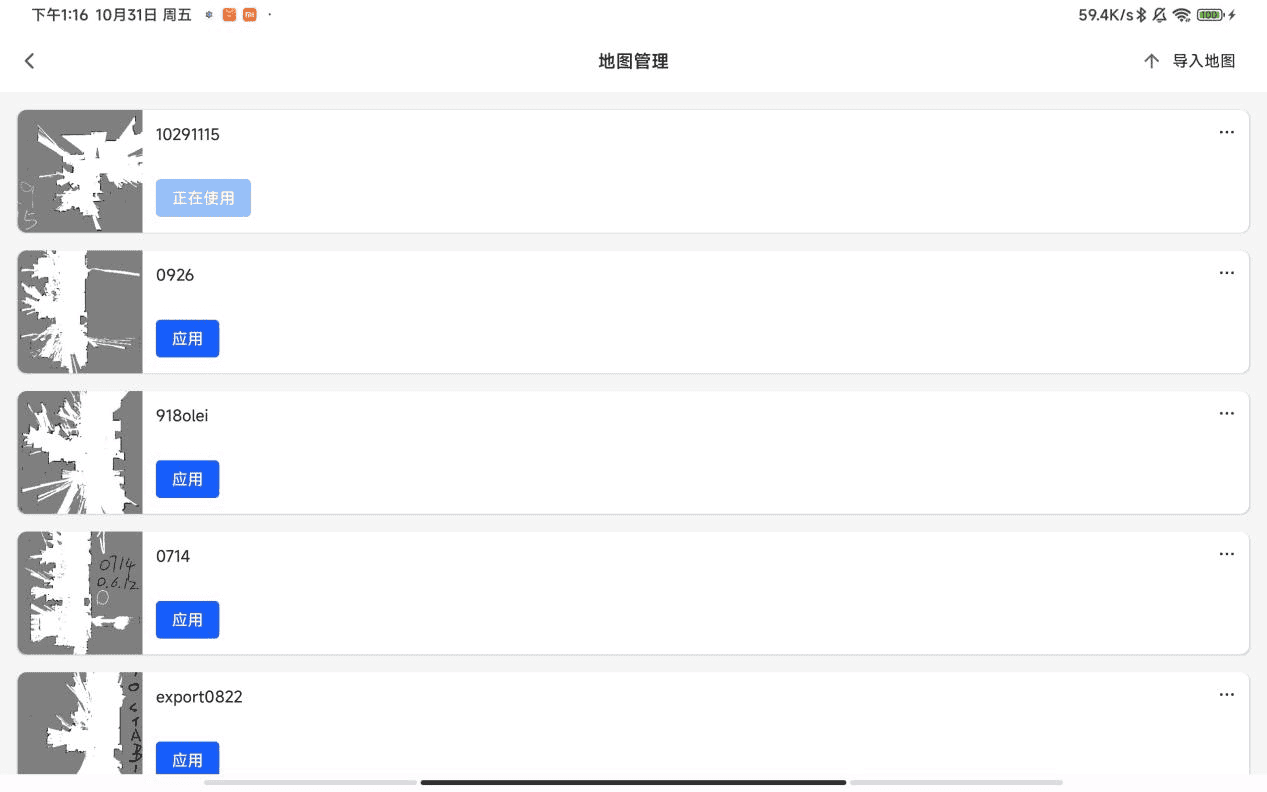
13. Application - Map Management
Function description: The map library management interface supports managing multiple created maps, including saving, loading, deleting, and renaming maps.
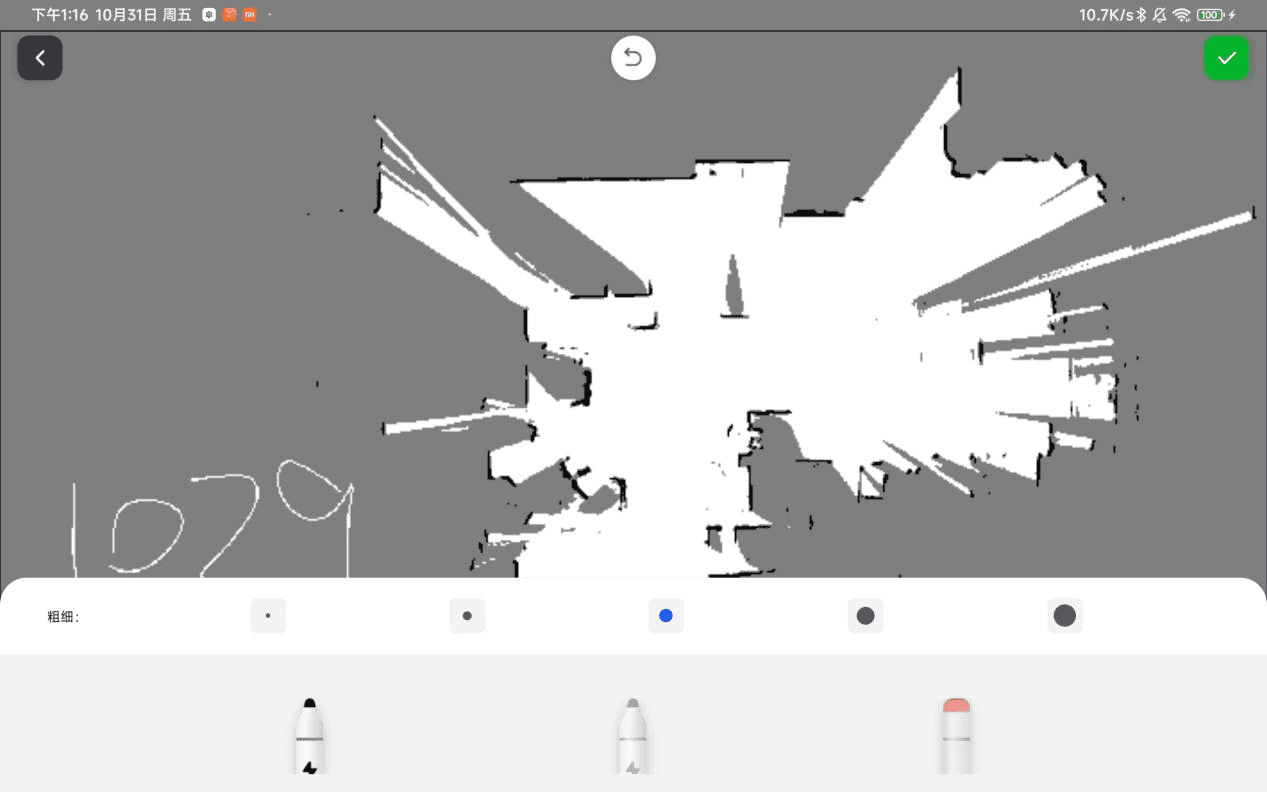
14. Application - Map Editing
Function description: A rich set of map editing tools. Users can customize the map content, such as adding/deleting obstacles, setting no-go zones, and editing waypoints.
Usage description:
- Go to "Application" → "Map Editing".
- Use the toolbar to select an editing tool.
- Draw obstacles or no-go zones on the map.
15. Application - Building Maps
Function description: The map building interface supports scanning the environment with the robot and automatically building a map, providing mapping parameter settings and real-time mapping progress display.
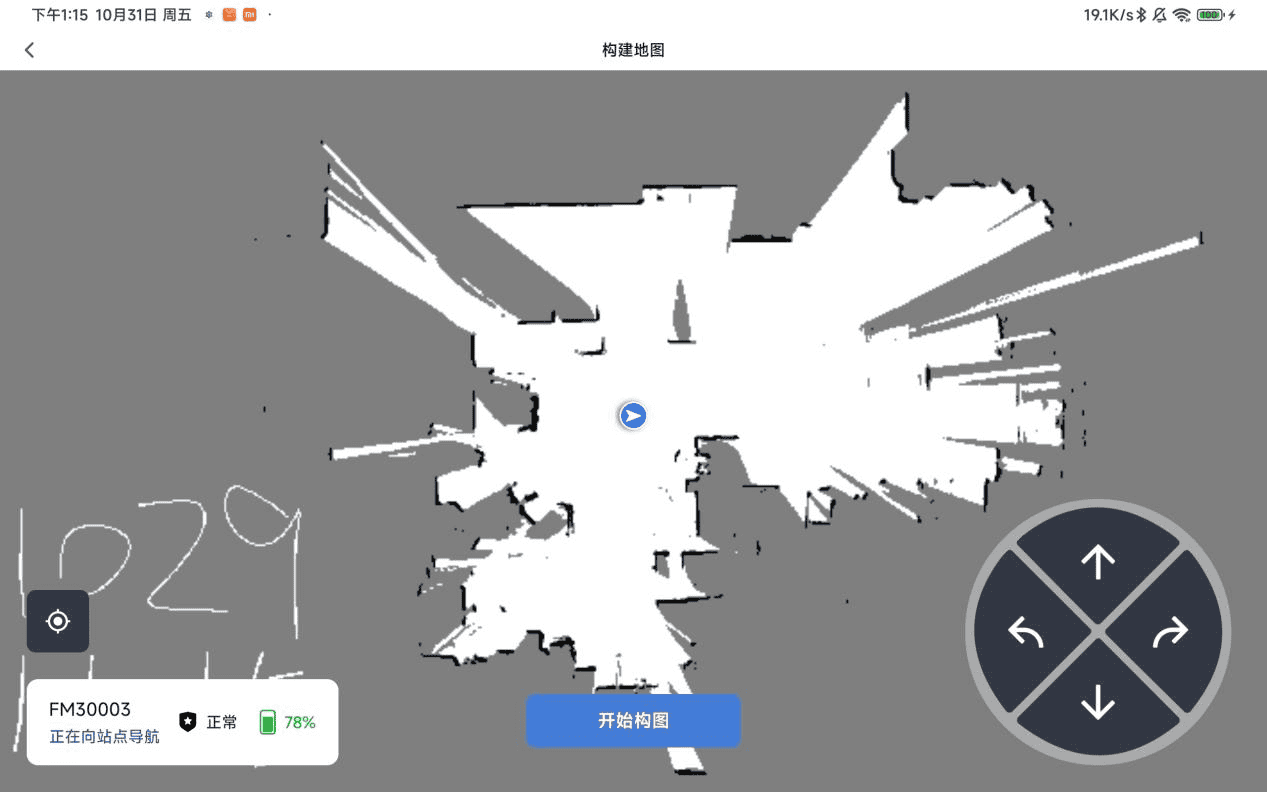
Usage description:
- Go to "Application" → "Build Map".
- Click "Start Mapping", and the robot will begin to scan the environment autonomously; moving the robot updates the map.
- Click "Save" after mapping is completed.
16. Home Map - Move, Relocalize, and Route-following Navigation
Function description: The main map operation interface of the system, integrating manual movement control, robot relocalization, and route-following navigation start, providing an intuitive map interaction experience.
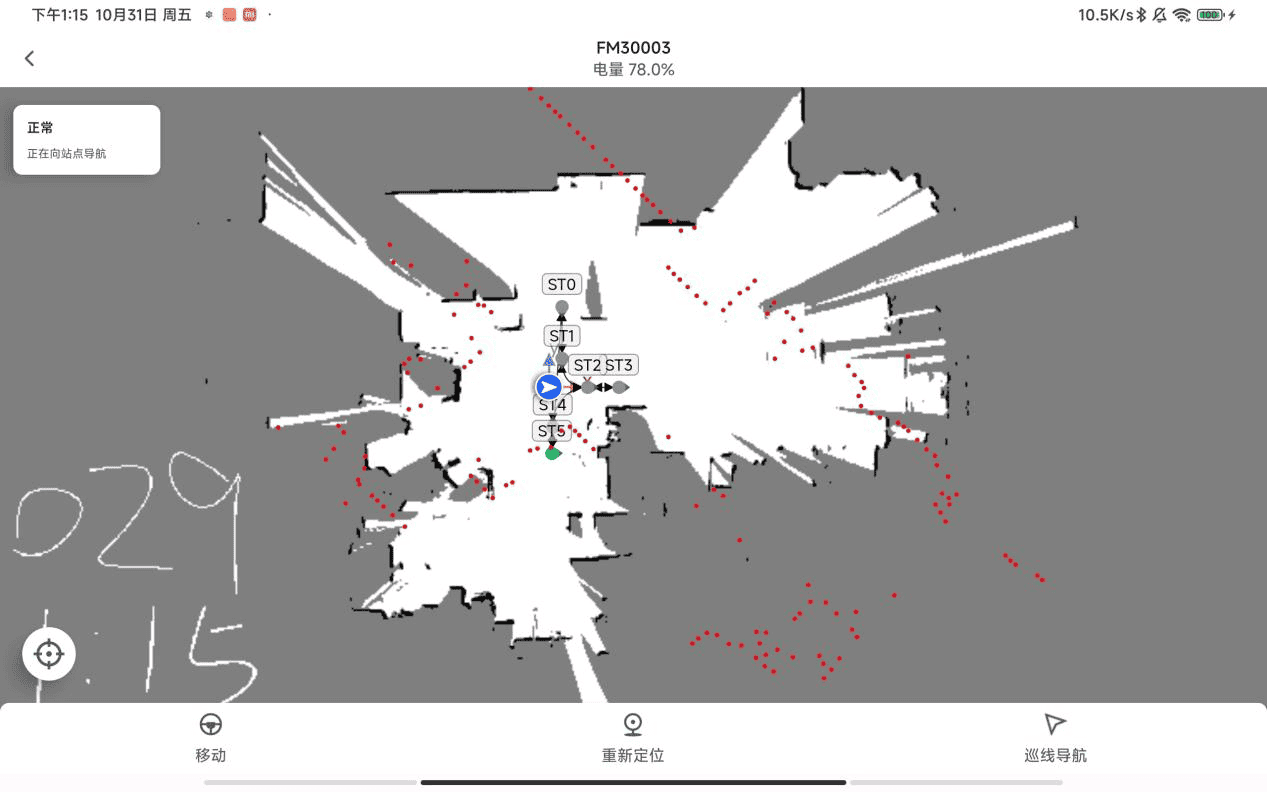
Usage description:
- Click "Move" to use "Manual Control".
- Click the "Relocalize" button and drag the robot icon to the correct position on the map to correct the localization.
- Select a preset route and click "Start Route Following", and the robot will navigate automatically along the path.
17. App Home Page
Function description: The main control panel of the system, displaying the robot's core status information, quick operation entries, map overview, and quick access to commonly used functions.
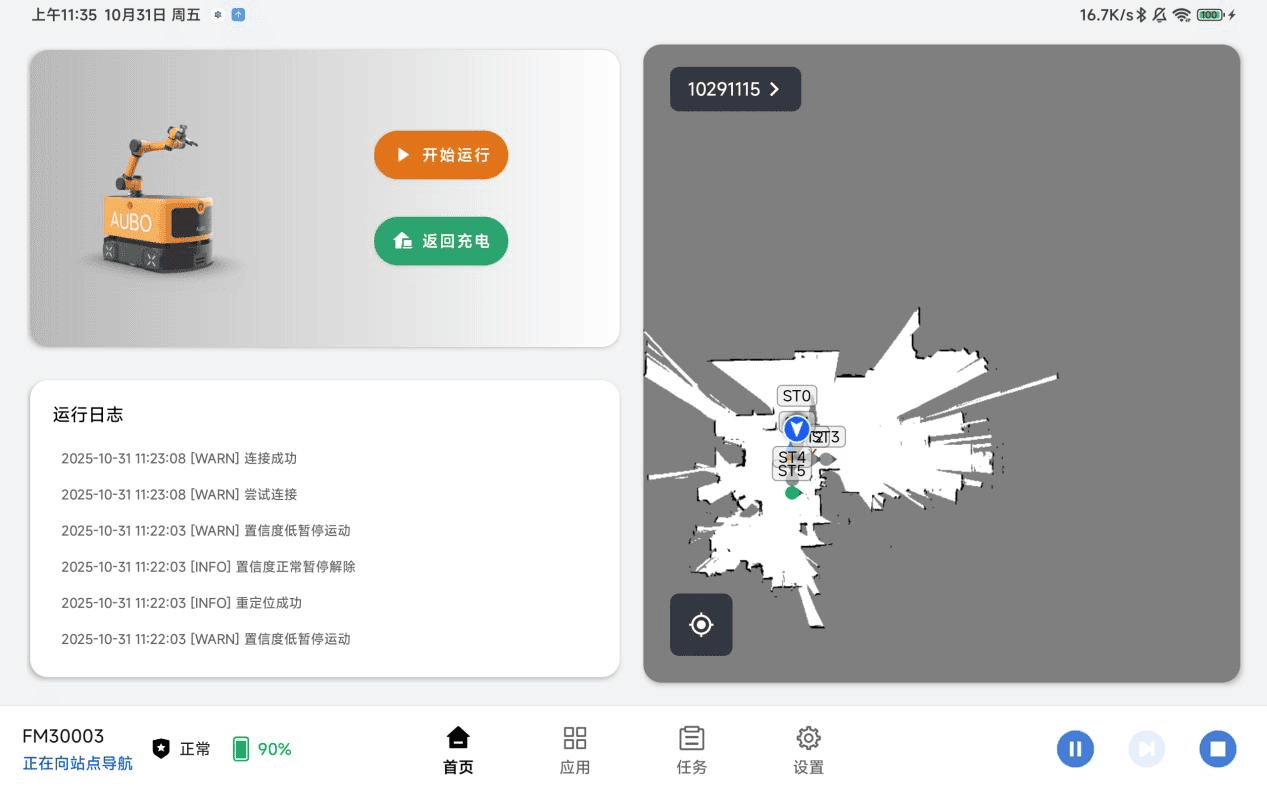
Usage description:
- The top of the home page displays core information such as robot battery level, network status, and current task.
- The middle area is the map overview, which supports zooming and dragging.
- The bottom shortcut bar provides entries to "Task", "Map", "Settings", and other commonly used functions.
- Click "Status Details" to jump to the real-time status page.
- The home page layout can be customized; long press an icon to drag and reorder.
18. App Upgrade
Function description: The system update management interface provides online App upgrade, supporting version checking, update downloading, and installation, ensuring that system functions are continuously updated.
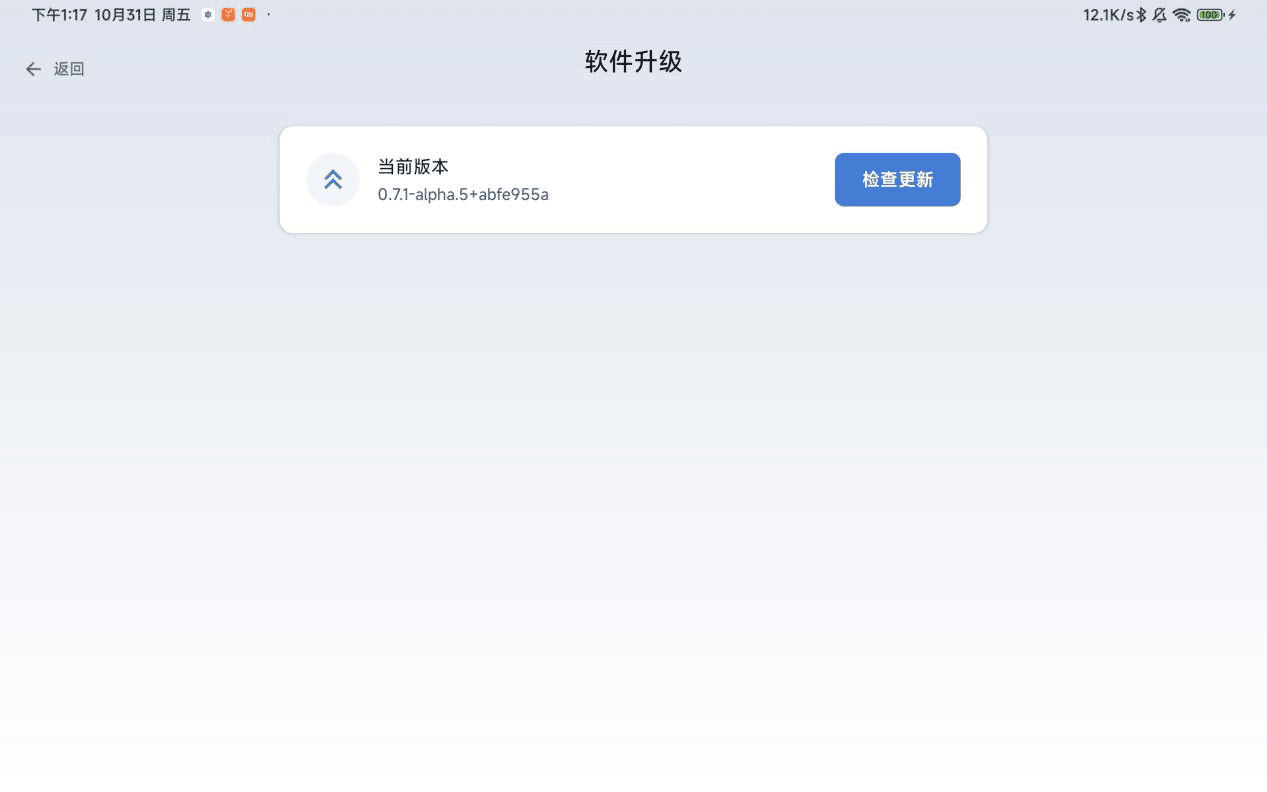
Usage description:
- Go to "Settings" → "Software Upgrade".
- Click "Check for Updates", and the system will connect to the server to detect new versions.
- If an update is available, the release notes and update size are displayed; click "Download" to start downloading the update package.
- Click "Install" after the download is completed.
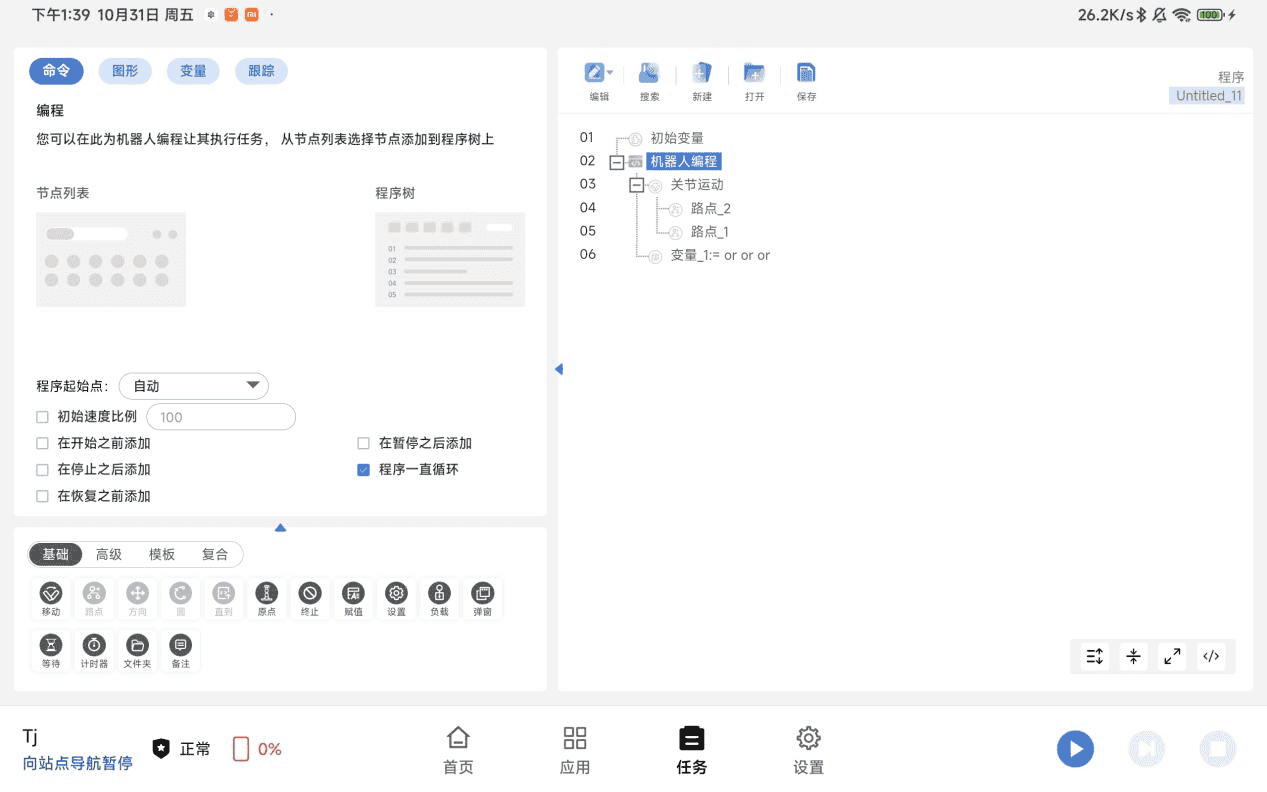
19. App Task Module
Function description: The task scheduling and management center, where users can create, edit, manage, and execute various robot tasks.
20. App Application Module
Function description: The function application integration center, which displays the entries of all system function modules by category, making it convenient for users to quickly access various application functions and improve operation efficiency.