AUBO Fenghe Series FARM200 End Electric Actuator Commissioning Manual
Tomato Picking Robot Manual
1 Scissor-type truss tomato picking manipulator
| Parameter name | Parameter value |
|---|---|
| Model | SC-TT-01 |
| Picking method | Integrated cutting and clamping picking |
| Control interface type | 12 V I/O |
| Dimensions | 200x40*120 mm |
| Weight | 950 g |
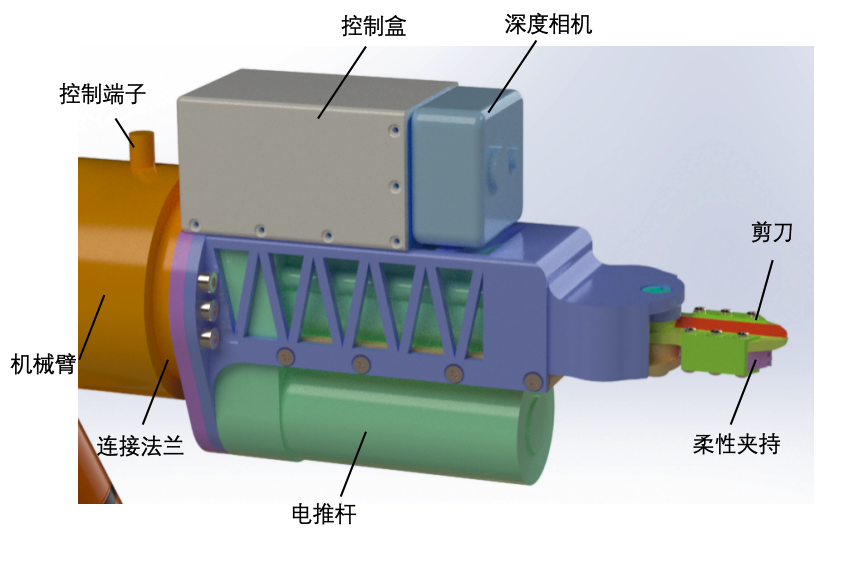
1.1 Manipulator structure
The structure of the manipulator is shown in the figure:
1.2 Installation of the picking manipulator
Installation diagram of the manipulator:
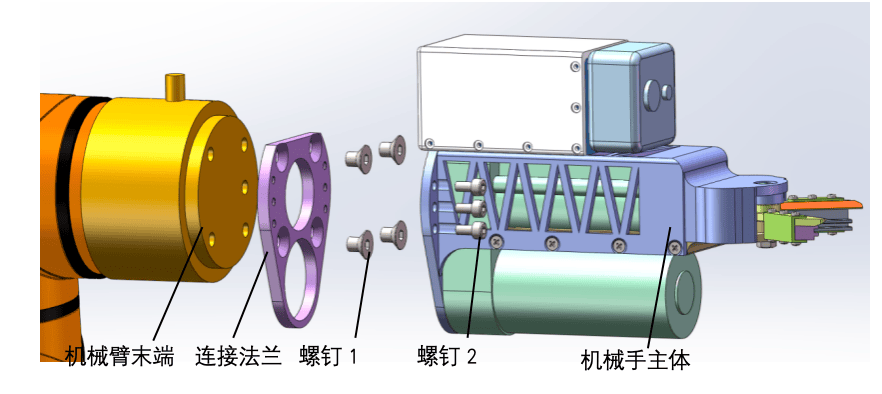
- Step 1: Fix the connection flange to the end of the robot arm with screw 1 (4 pcs, countersunk head M6x10);
- Step 2: Fix the manipulator body to the connection flange with screw 2 (6 pcs, hexagon socket M4x8).
1.3 Manipulator wiring
The picking manipulator is provided with two 2-core cables and one cable with an aviation connector.
- Cable 1 carries the basket changing signal Tool3 GND and is connected to the controller of the basket changing device;
- Cable 2 is the power supply cable, marked 24 V+ and 24 V- respectively, and is connected to the 24 VDC power supply of the vehicle;
- Insert the aviation connector cable into the control terminal of the robot arm (the male and female pins are keyed to prevent mis-insertion; insert it squarely and do not force it in).
2 Vision servo system of the truss tomato manipulator
The system can recognize truss tomatoes, including their position and ripeness information, and can control the tomato picking manipulator by visual servoing to complete automatic picking.
2.1 Voltage conversion modules
Two DC-DC converter modules are provided: 48 VDC-12 VDC and 48 VDC-19 VDC.
- The 48 VDC-12 VDC step-down module supplies power to the IPC touchscreen;
- The 48 VDC-19 VDC step-down module supplies power to the IPC host.
The input terminals of the two step-down modules are connected in parallel and connected to the 48 VDC power supply of the vehicle.
2.2 Hardware connection
- IPC power connection: Connect the IPC power cable (48 VDC-19 VDC step-down module). The input terminal of the converter module is connected to the 48 V power supply port of the AGV, and the output terminal is the IPC power cable connected to the IPC.
- Screen connection: Connect the screen power cable (48 VDC-12 VDC step-down module). The input terminal of the converter module uses the same port as the IPC, and the output terminal is connected to the screen. For the new screen, power is supplied by the IPC, so only a USB Type-C cable needs to be connected to the IPC. The screen must be connected to the IPC with an HDMI cable. The screen supports touch control, and a data cable must be used to connect the screen and the IPC when using the touch function.
- WiFi connection: To use WiFi, connect the IPC to the WiFi of the AGV.
- Network cable connection: To use a network cable, simply plug the network cable into the network port of the AGV.
- Camera connection: Use the camera data cable to connect the camera and the IPC.
2.3 Control flow
2.3.1 Starting the AGV
Press and hold the power button of the AGV until the light on the power switch turns green, then release it. Wait until the lights around the AGV stop flashing; the AGV motors are now powered on successfully.
2.3.2 Starting the robot arm
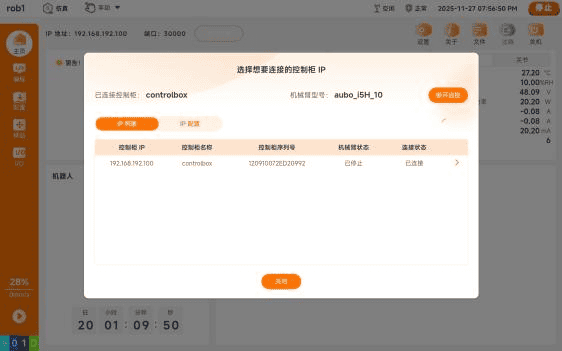
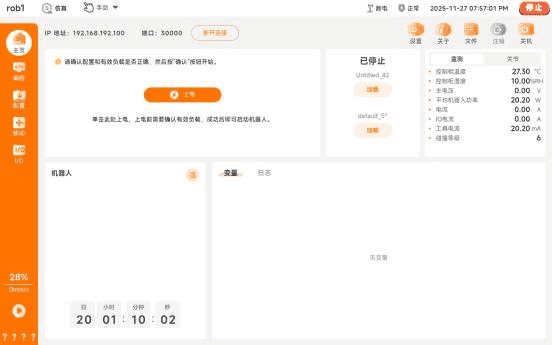
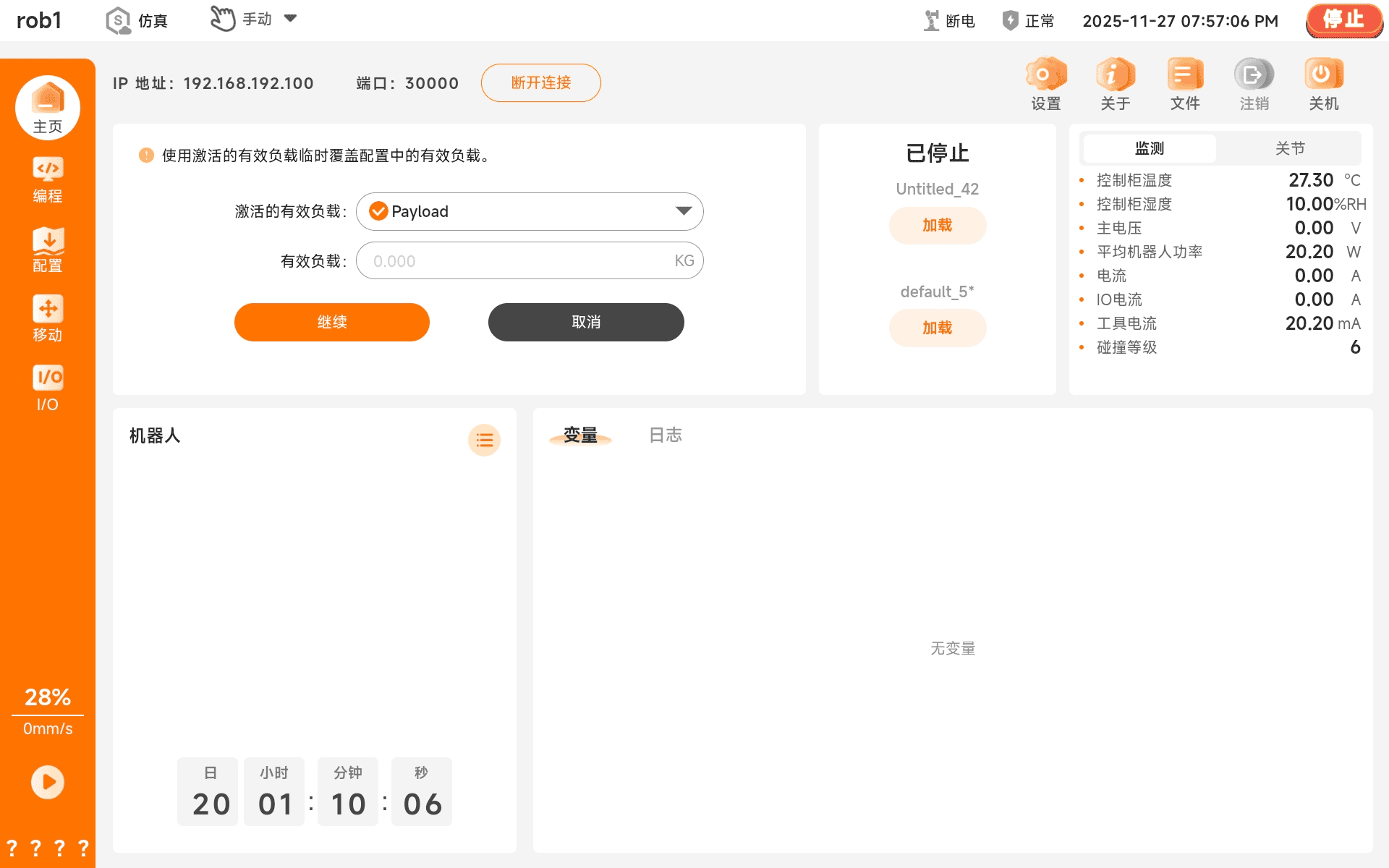
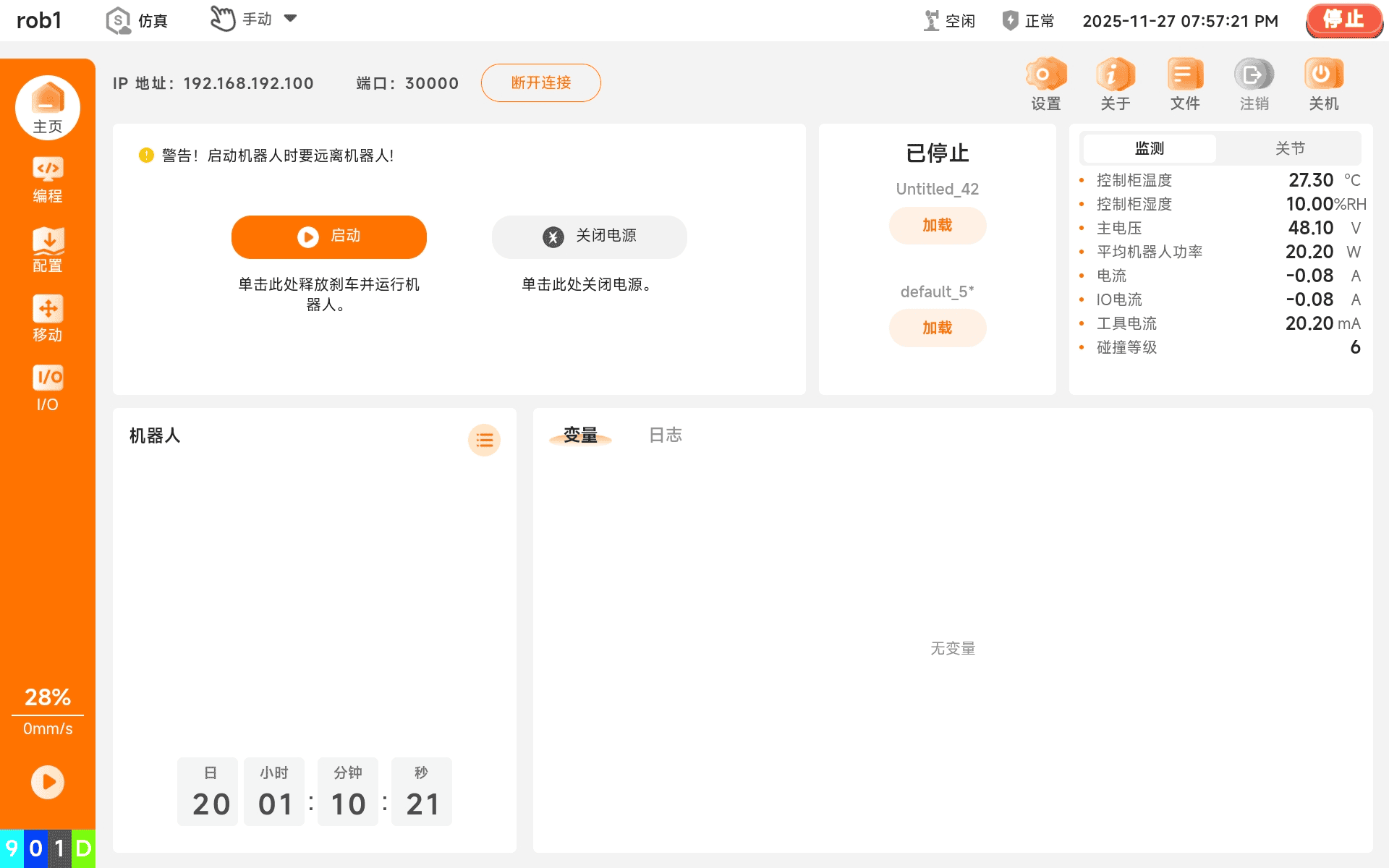
After the AGV is powered on successfully, connect the teach pendant tablet to the AGV WiFi and open AUBO STUDIO. Select the robot arm to be connected. After the connection succeeds, click Close. On the home page of the robot arm there is a power-on button; click it to power on, then click Continue (wait a moment after clicking Continue), and finally click the Start button. The robot arm emits a power-on sound and the page switches; the robot arm has started successfully.
Robot arm startup procedure:
2.3.3 Robot arm settings
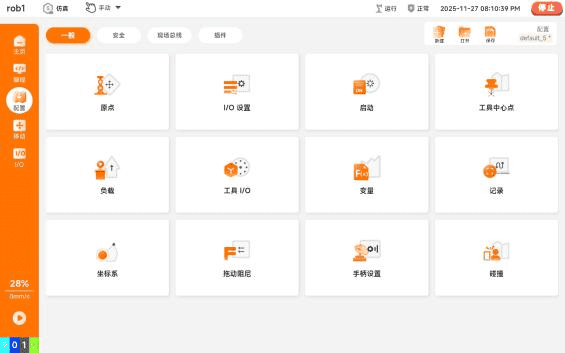
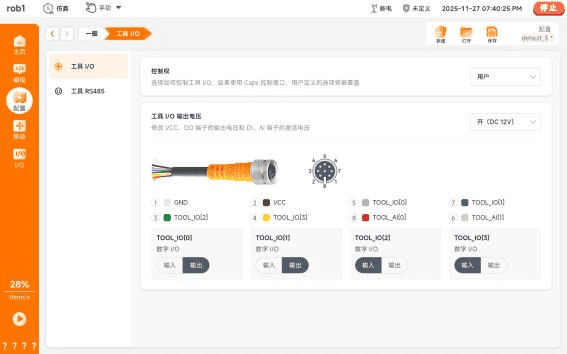
Step 1: Select Configuration in the left sidebar and click Tool I/O. On the Tool I/O page, set the marked item to On (DC 12 V), and in the marked item below, set TOOL_0 and TOOL_1 to output mode (if a basket changing device is installed, TOOL_2 must also be set to output mode). Click Save in the upper right corner. This step can be skipped the next time the robot arm is started.
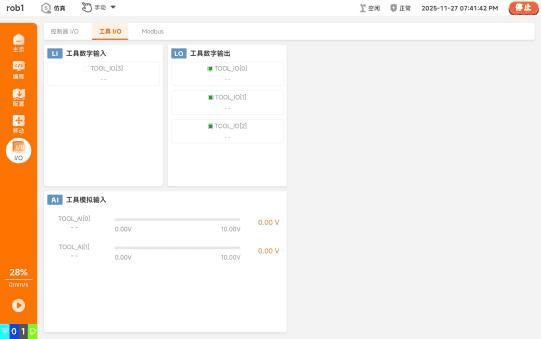
Step 2: Select I/O in the left sidebar, then select Tool I/O on the page and check all tool digital outputs (if no basket changing device is installed, the tool digital outputs only include TOOL_0 and TOOL_1, in which case only these two need to be checked). This step must be performed after every startup of the robot arm.
Robot arm configuration procedure:
2.3.4 Picking control
Before starting the program, set the joint angles of the robot arm to [0.0939, 0.6383, 2.2089, 1.5708, 1.5708, 0]. Open the robot_control folder with VS Code and run the main.py file (click the play button marked in the upper right corner of the figure). The operation interface pops up automatically after running. Click Start Program. After the parameter saving success dialog is displayed, click OK and the program starts running. The program stops automatically when the total duration is reached. To close the program, simply close the operation interface. Parameter changes made in the operation interface are not saved and will be reset to the original parameters after the next startup; you need to modify the parameters in the parameter section of main.
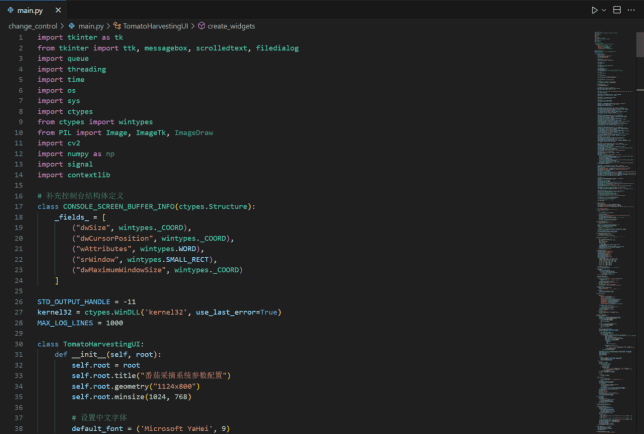
Operation interface
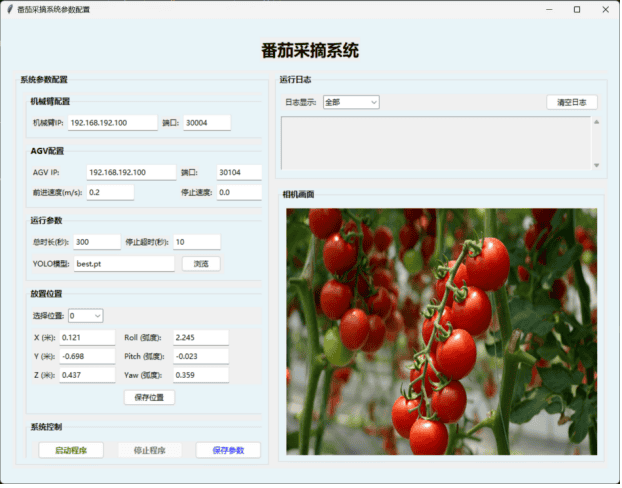
As shown in the figure, the left side of the operation interface contains the system parameter configuration, which includes the robot arm configuration, the AGV configuration, and the placement pose settings; the right side shows the camera view and the log. When the program is not running, the camera view displays an image of truss tomatoes; it switches to the camera view when the program is executed.
2.3.5 Parameter modification
Figure of the parameter section:
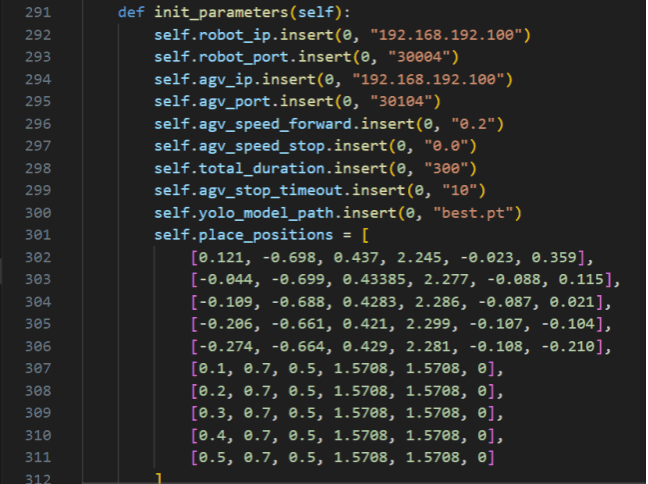
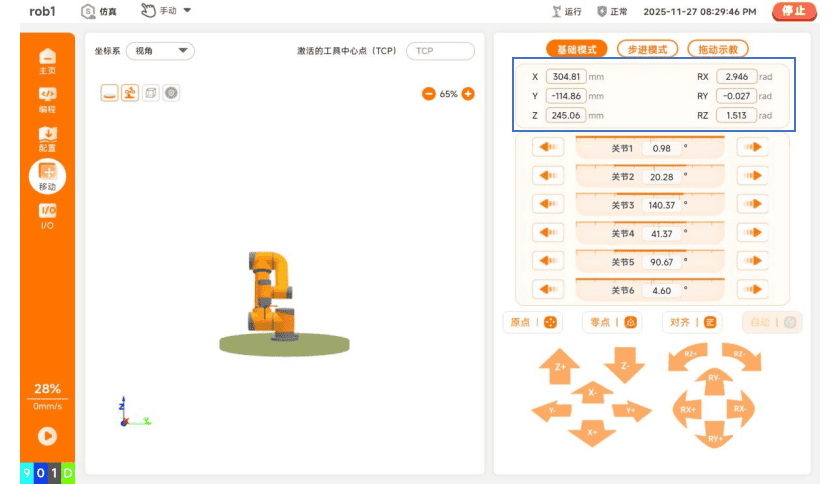
As shown in the figure, modify the relevant parameters in the main.py code according to the actual situation. From top to bottom, they are: robot arm ip, robot arm port, AGV ip, AGV port, AGV travel speed (± represents the forward and reverse directions respectively), AGV stop speed, total running duration, detection stop duration (no modification required), vision model file (no modification required), and tomato placement pose (X, Y, Z, RX, RY, RZ). To modify the tomato placement pose, drag the robot arm so that its end reaches the specified tomato placement position (the position information is changed at the place marked in the figure below). After confirming the pose to be reached, modify the tomato placement pose section in the main code.
3 Automatic basket changing device
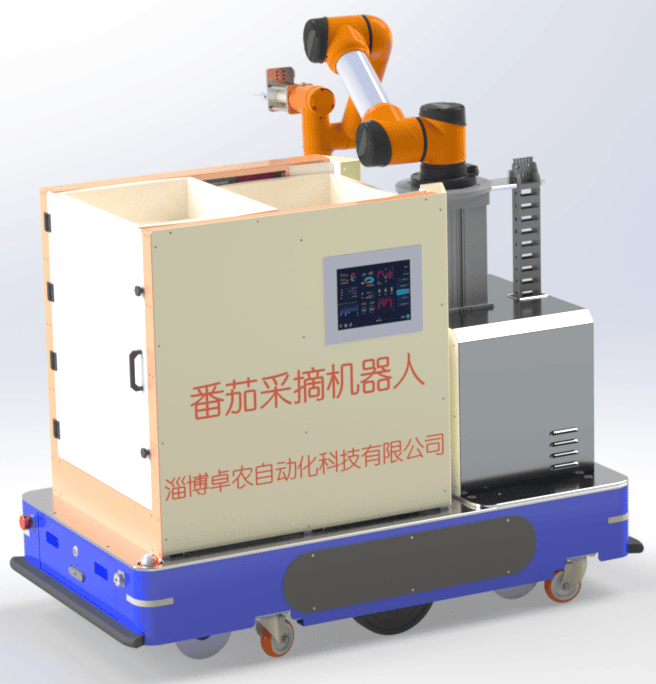
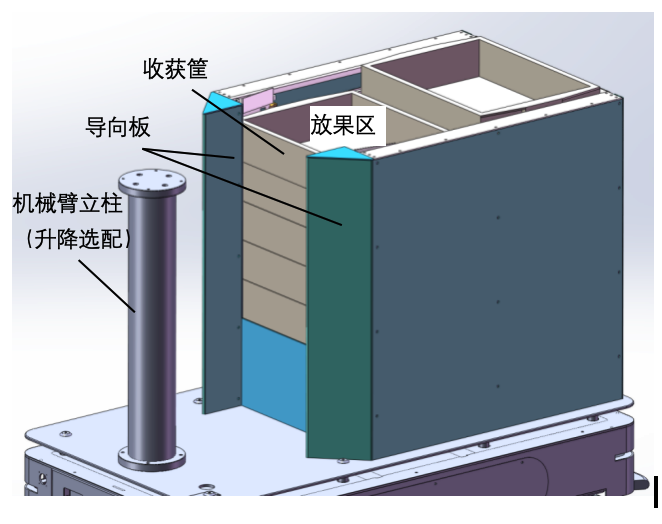
The tomato picking robot can be equipped with an optional automatic basket changing device. The manipulator places fruits into the harvest baskets in order. After a certain number of fruits have been placed in each basket, the basket changing device automatically replaces it with an empty basket, until all harvest baskets are full; the robot then returns to the unloading area to replace the baskets. This extends the continuous autonomous working time of the picking robot and improves picking efficiency. The basket changing device has a uniform width at the top and bottom, which is smaller than the width of the chassis, and a guide plate is provided at the front to prevent the vines from being scraped. An IPC touchscreen is embedded in the side of the basket changing device, which is aesthetically pleasing and convenient to operate. The basic parameters of the automatic basket changing device are shown in the table.
| Basic performance | Parameter |
|---|---|
| Maximum number of baskets (customizable) | 10 baskets |
| Harvest basket dimensions (L*W*H) | 530*380*110 mm |
| Basket changing speed | < 15 s |
| Basket changing device dimensions (L*W*H) | 853*666*803 |
| Power | < 100 W |
Structure of the basket changing device:
Overall view of the tomato picking robot: