Guide to Using the App Store
1 Introduction
The App Store is a functional module of the OPS system, providing users with app installation, update, and management services. Through the App Store, users can conveniently obtain various apps to expand system functions.
2 Precautions
- Software-supported versions:
- Wireless teaching software: Supported by ARCS 0.31.0-rc.1, App 0.9.3-rc.1 and above versions.
- Wired teaching software: Support will be available soon.
- The App Store is a functional module of the OPS system. Before using it, ensure that the OPS system has been installed.
- If you need to install the OPS system, please contact the relevant technical personnel.
3 App Store Entry
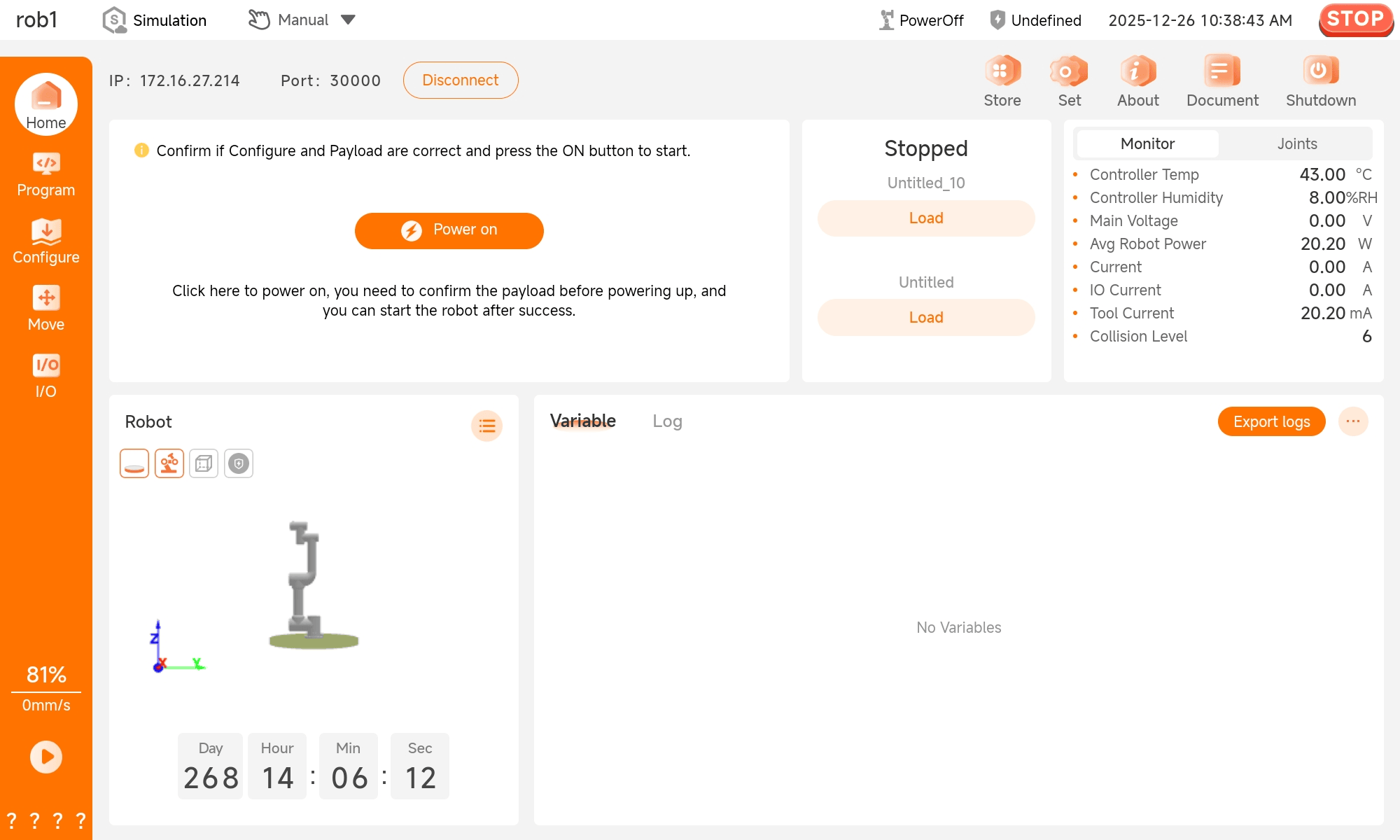
Users can click [Store] in the upper right corner of the homepage of AuboStudio software to enter the [App Store].
4 App Browsing and Searching
4.1 App List View
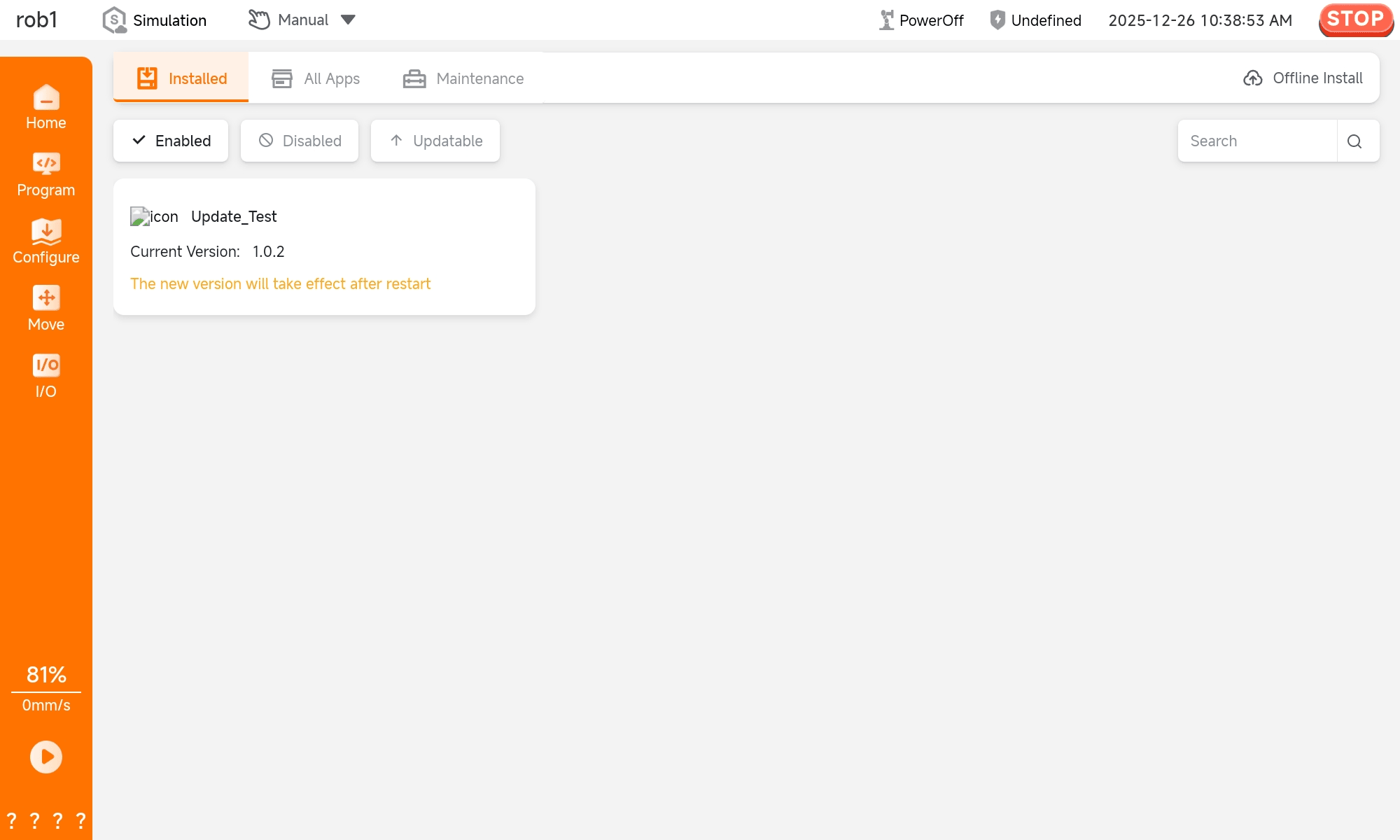
Installed: Displays all apps installed in the system.
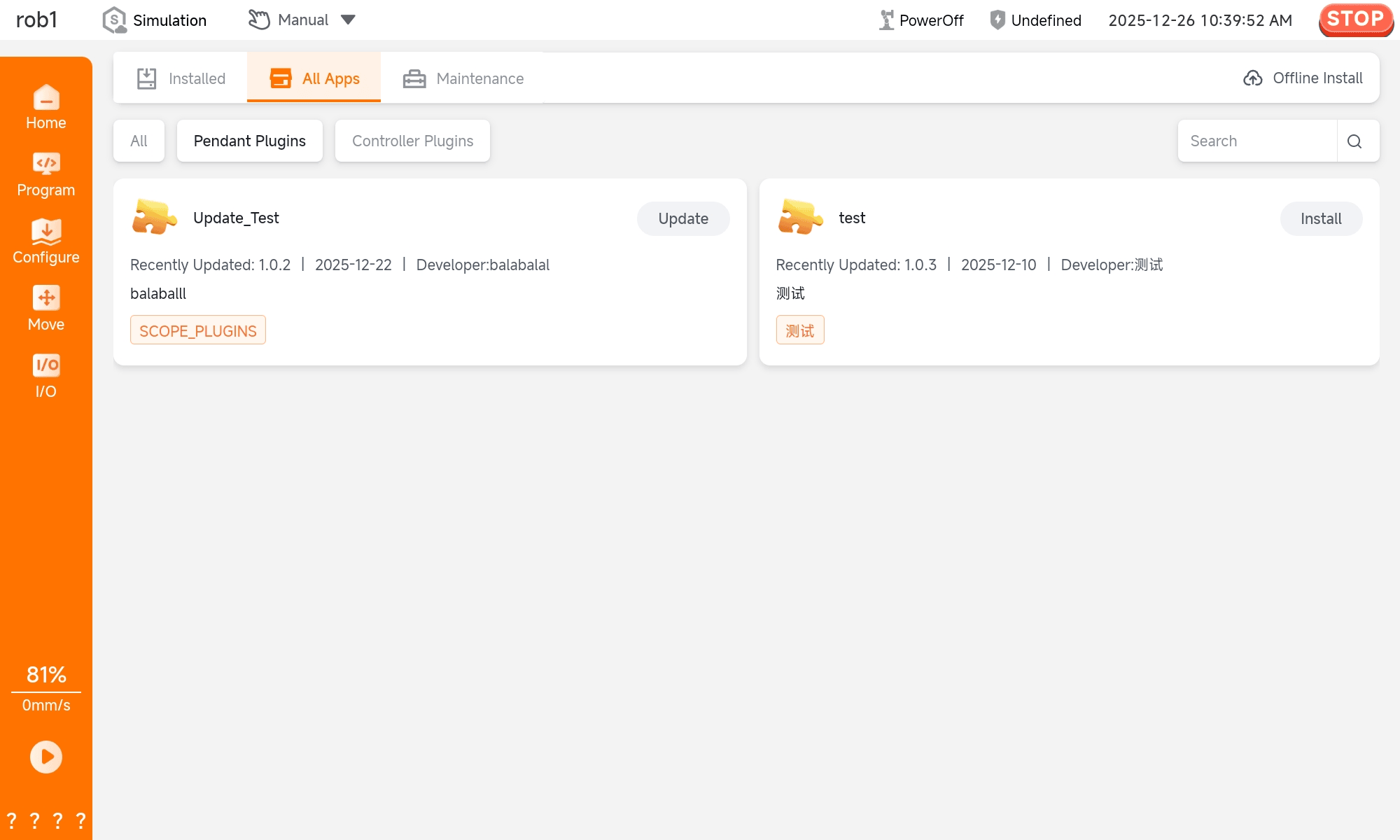
All Apps: Displays apps available from the App Store.
4.2 Search and Filtering
The two app lists support the following filtering functions:
- Fuzzy name search: Perform fuzzy search based on app names.
- Category filtering: Filter apps by app type (only in the "All Apps" list).
- Enable/disable filtering: Filter apps by app status (only in the "Installed" list).
- Updatable: Determine whether the currently installed version of the app can be updated to the online version (only in the "Installed" list).
4.3 App Details
Click the app card, and the app drawer details will be displayed on the right side of the page. 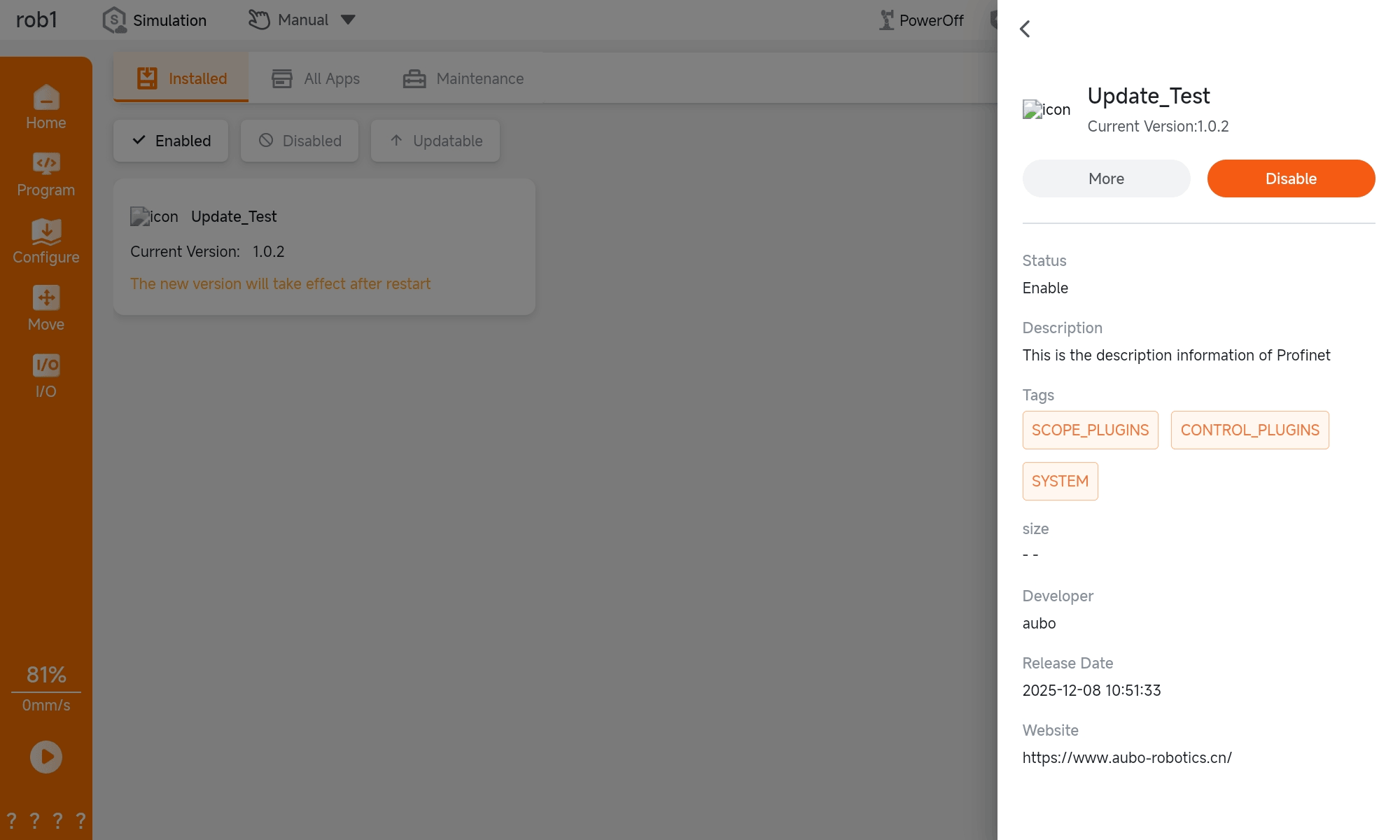
5 App Management
5.1 App Installation
5.1.1 Online Installation
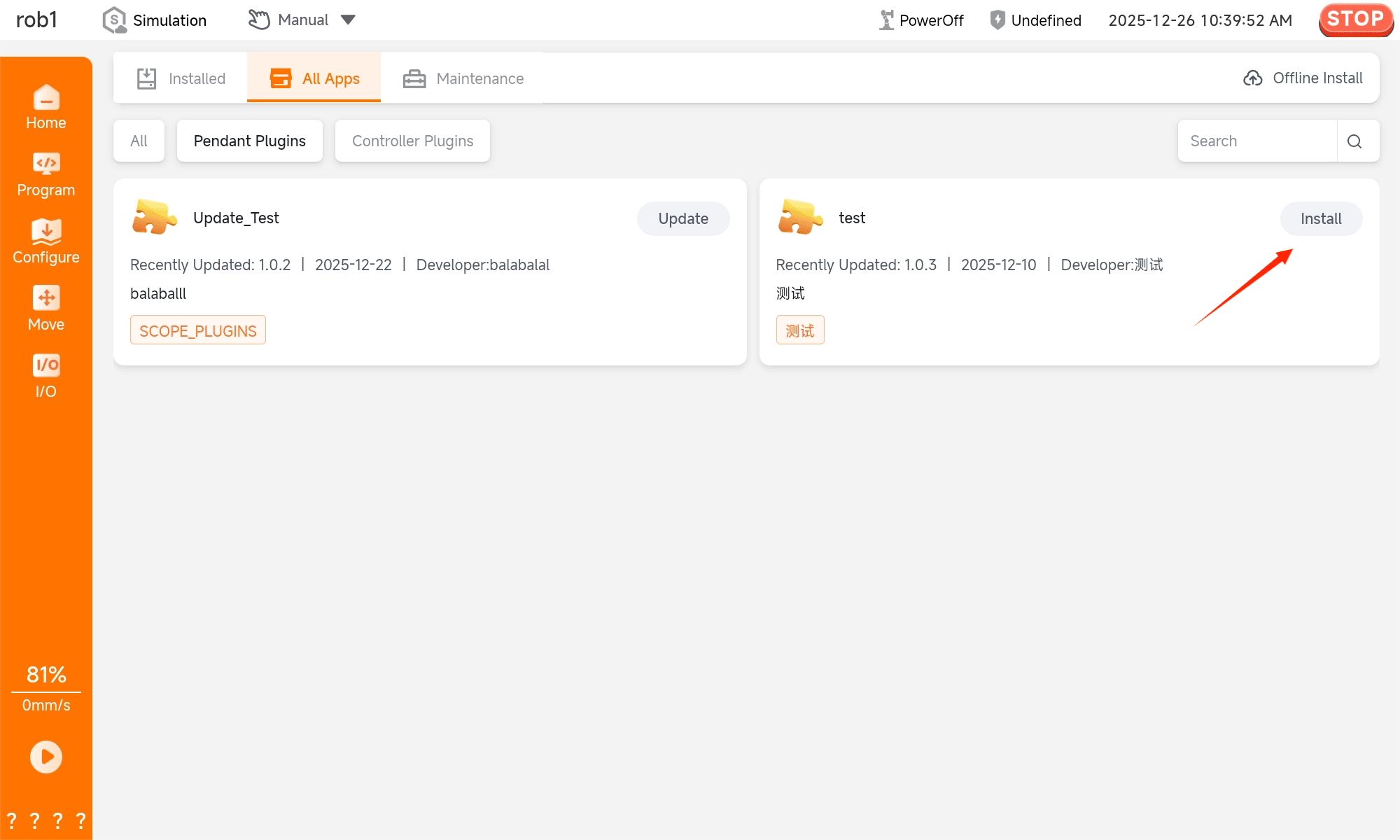
Users can directly select an app from the app list for installation:
Standard installation: The latest version is installed by default.
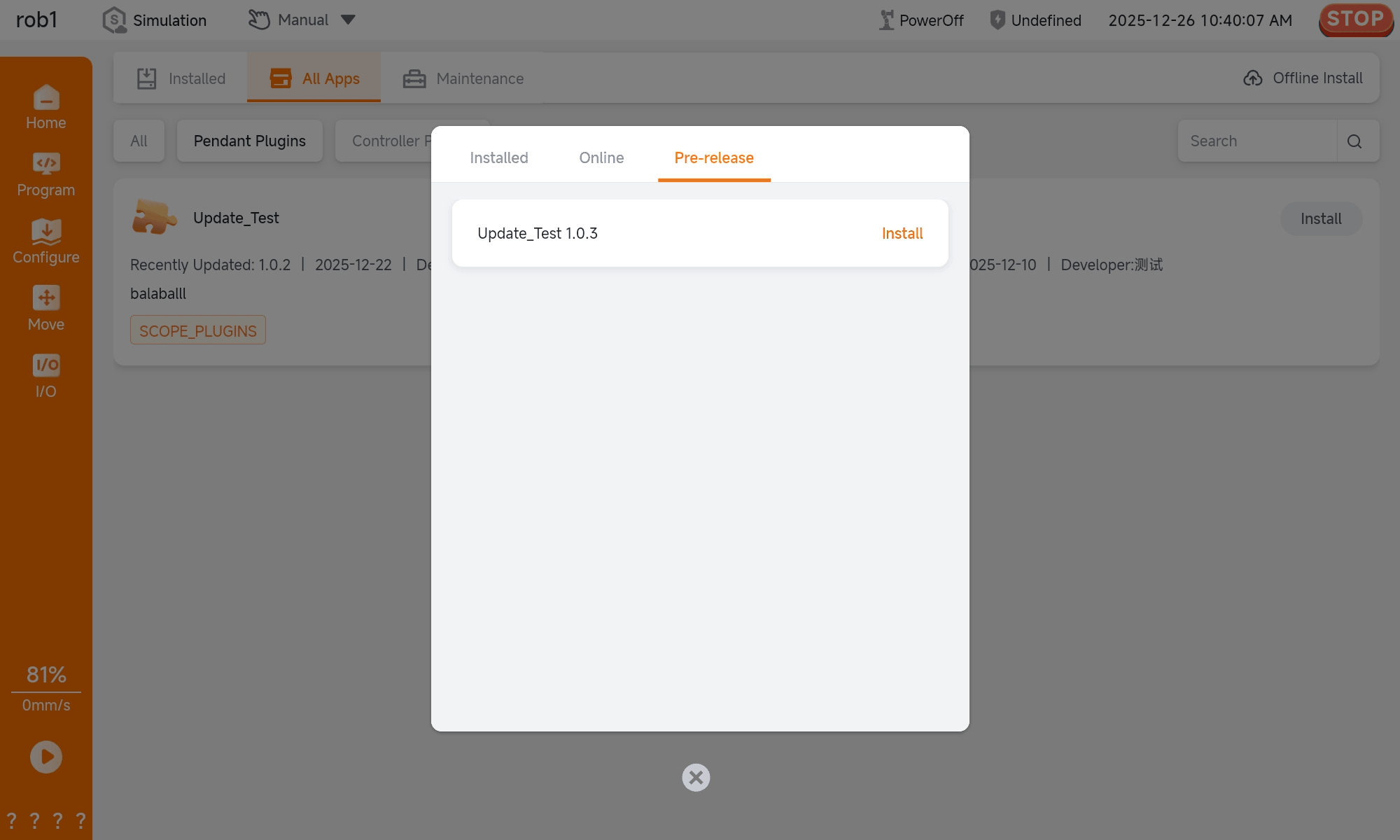
Multi-version installation: You can select the official version or the pre-release version.
5.1.2 Offline Installation
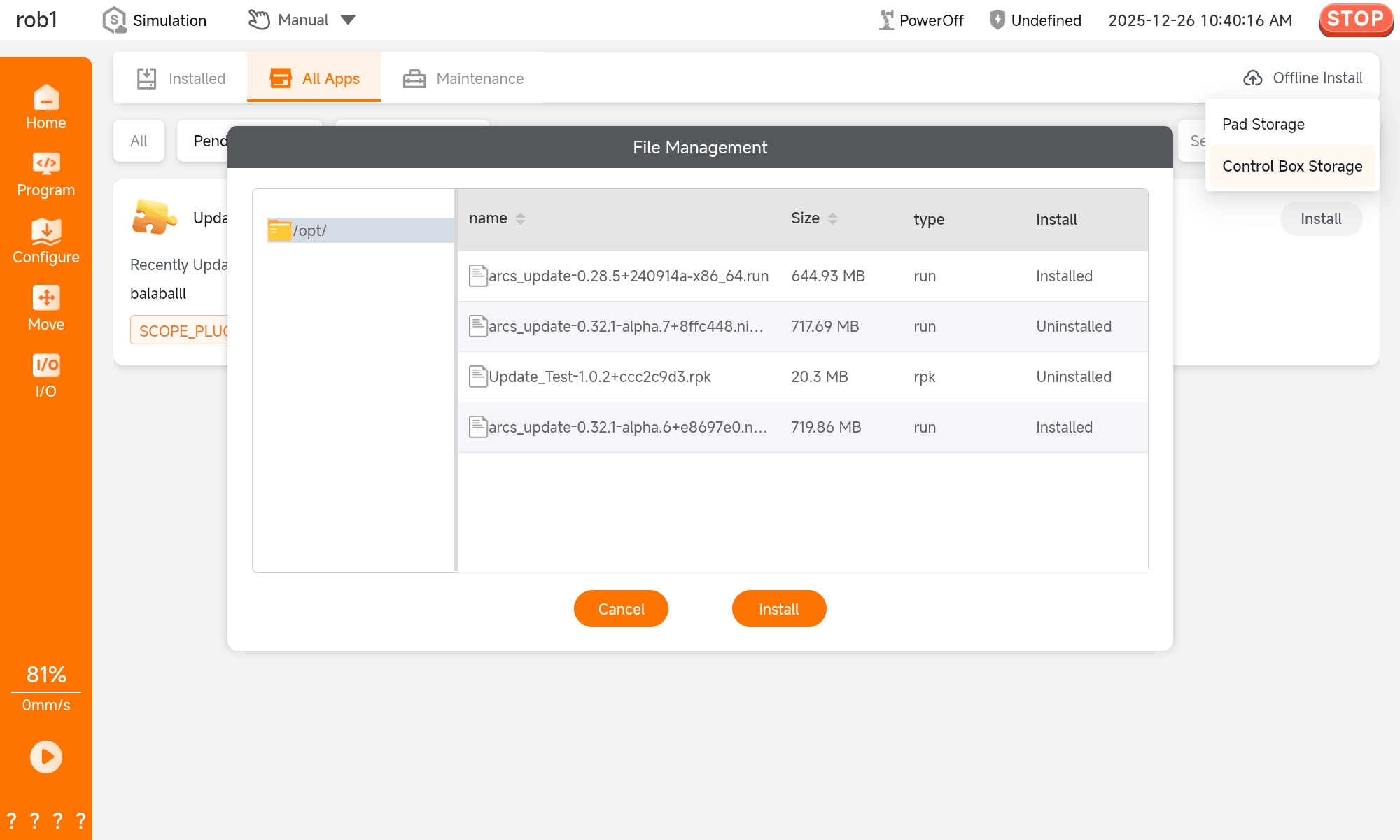
Users can upload the app installation package to the control cabinet or tablet, and click the "Offline Install" function on the right side of the top menu bar to install. 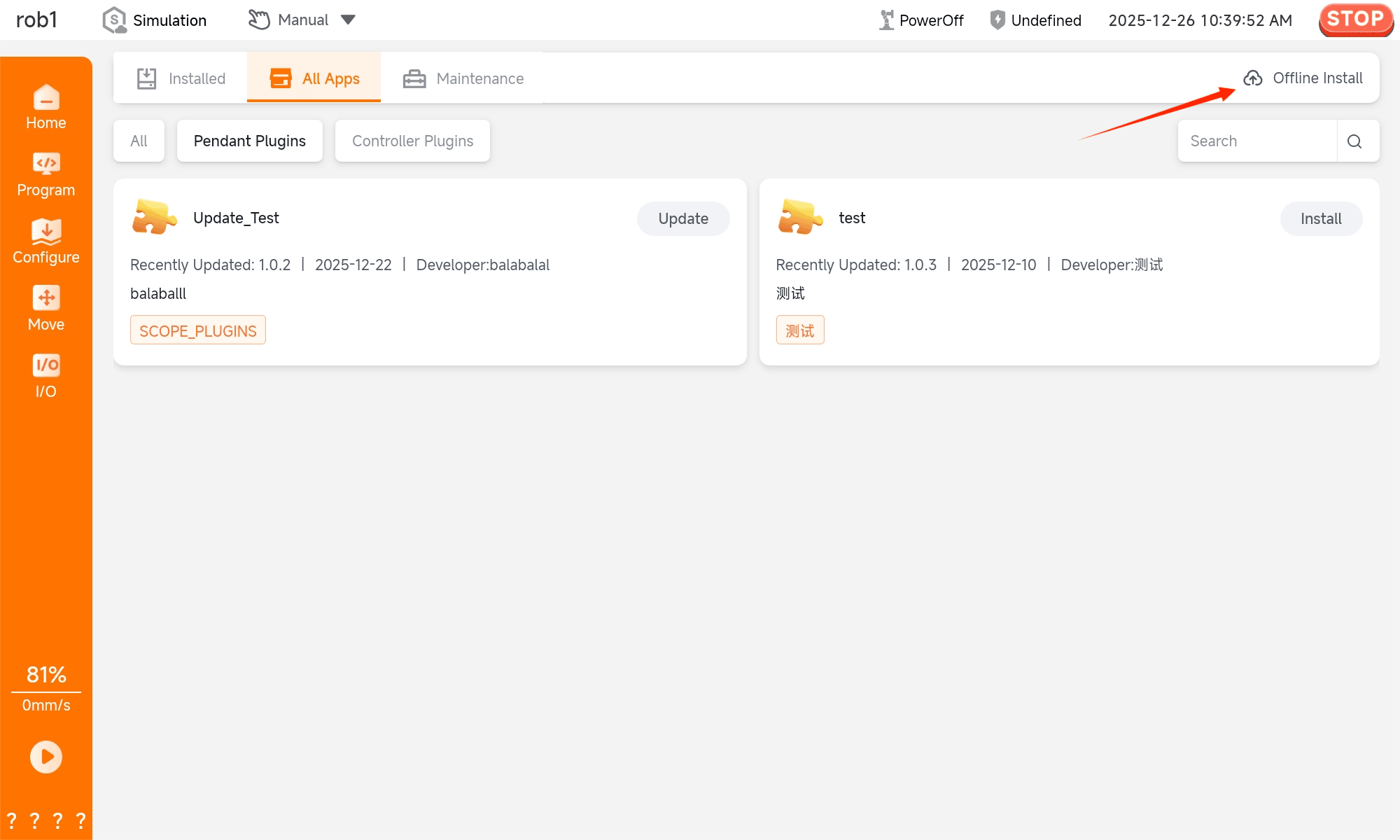
Local installation on the control cabinet and U disk installation: Click "Control Box Storage" (supports rpk format), then select the app package in the [File Management] pop-up window and click [Install].
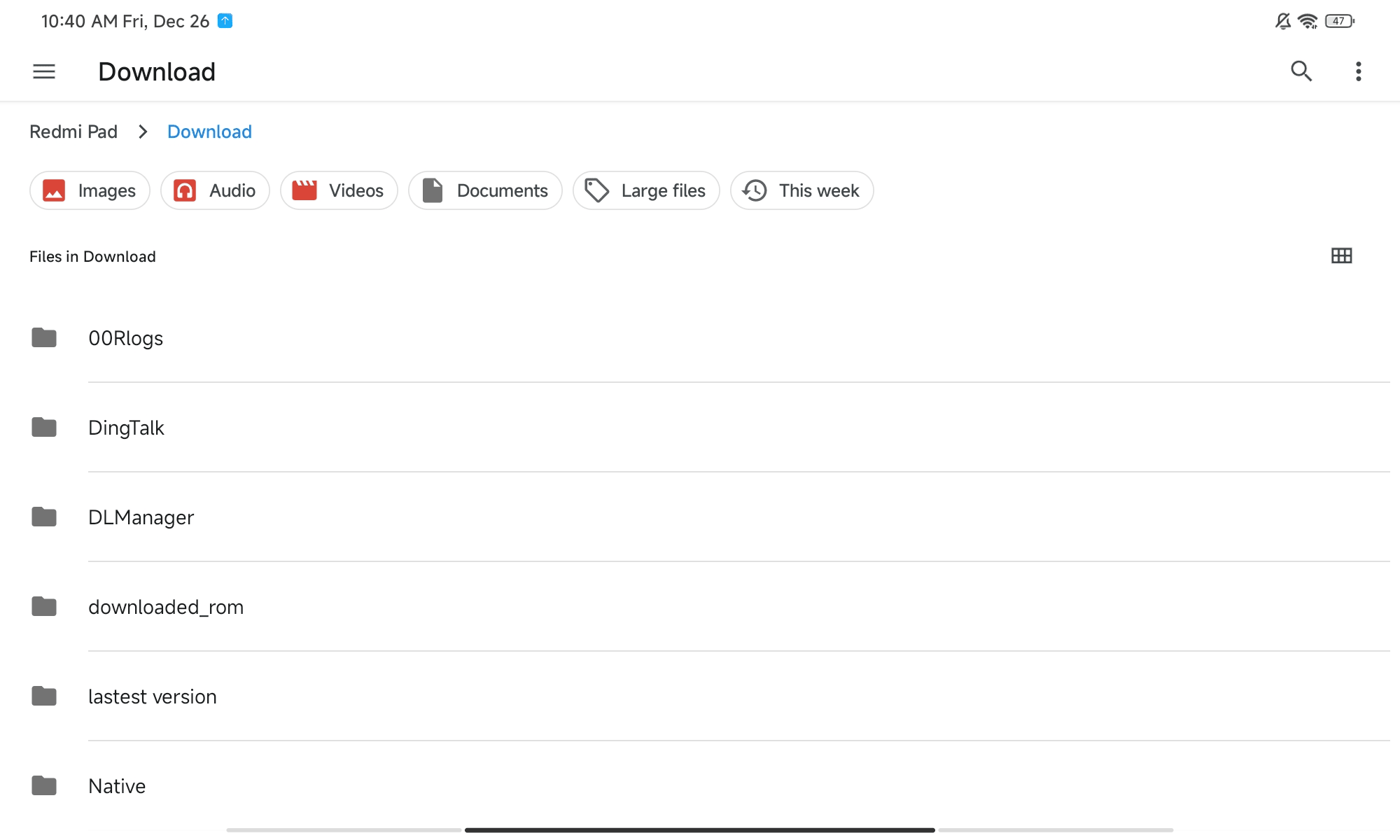
Tablet storage installation package upload: Select "Pad Storage" (supports rpk format), then select the app package in the list and click [Install].
5.2 Version Management
5.2.1 Version Switching
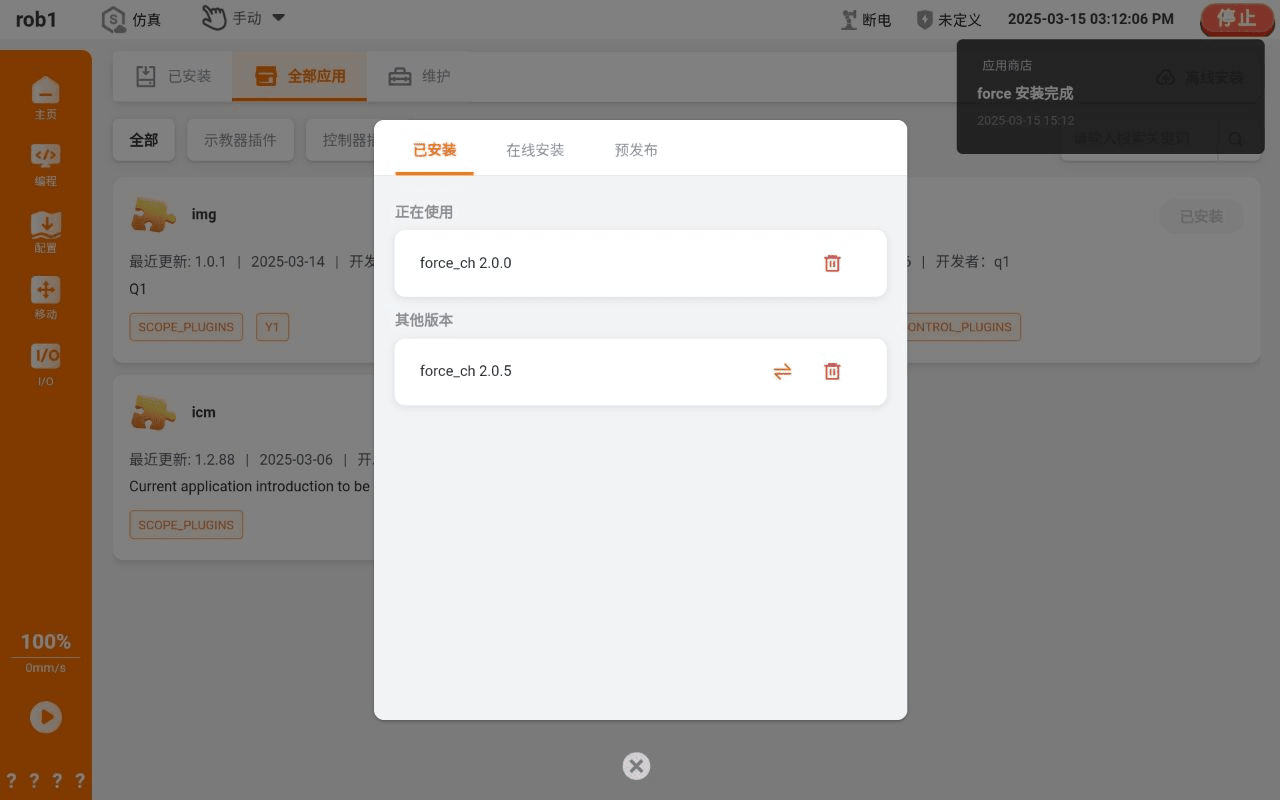
- Click the app card to pop up the app drawer page.
- Click "More > Other Versions".
- The version list displays all version information of the current app.
- Click the [switch] button of the corresponding version to switch versions.
5.2.2 App Uninstallation
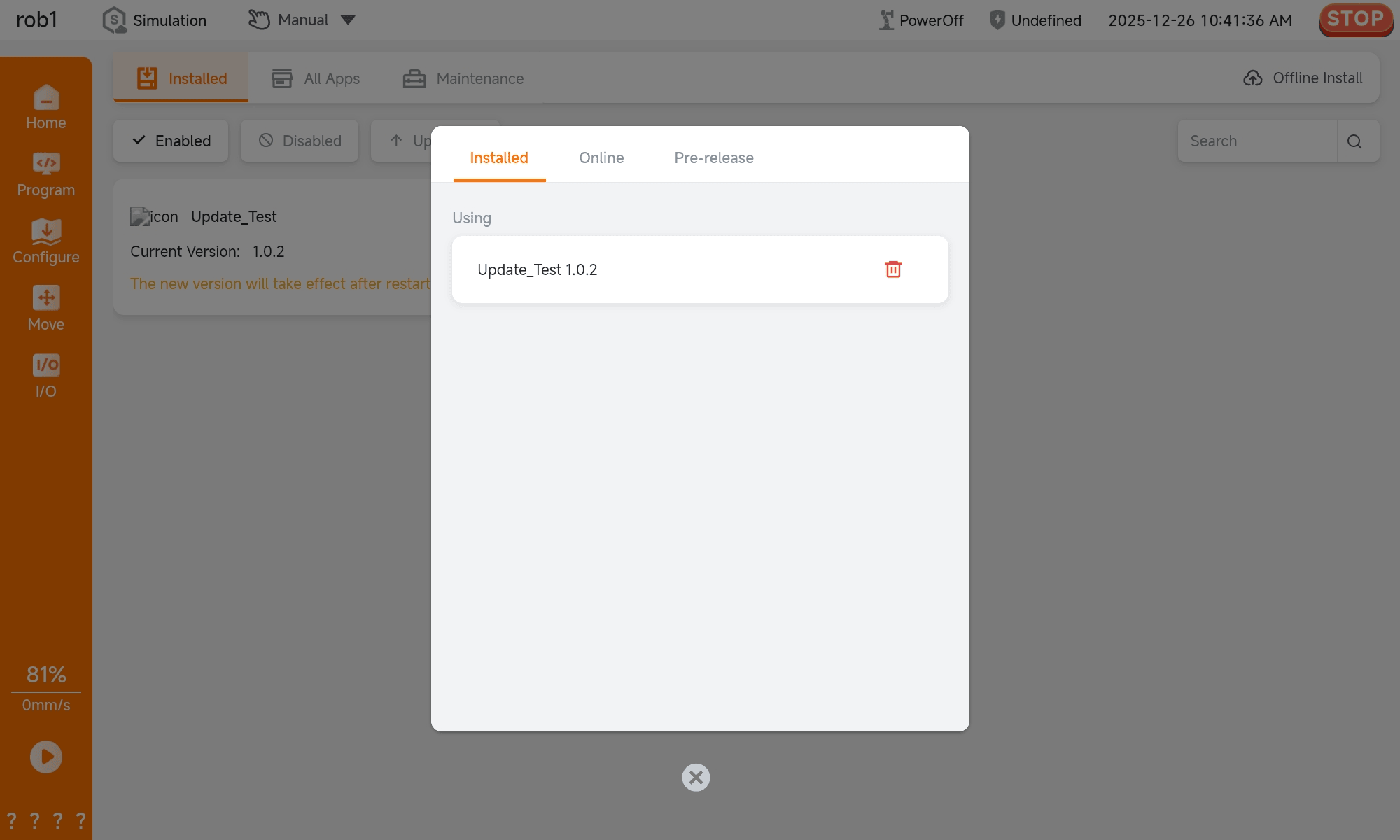
Click the [Uninstall] button of the version information to uninstall the app or the target app version.
注意
The version in use must be disabled before uninstallation.
5.3 App Operations
5.3.1 Enable/Disable
Enable: After installation, click the [Enable] button on the app drawer page. Once enabled, you can use or open the app.
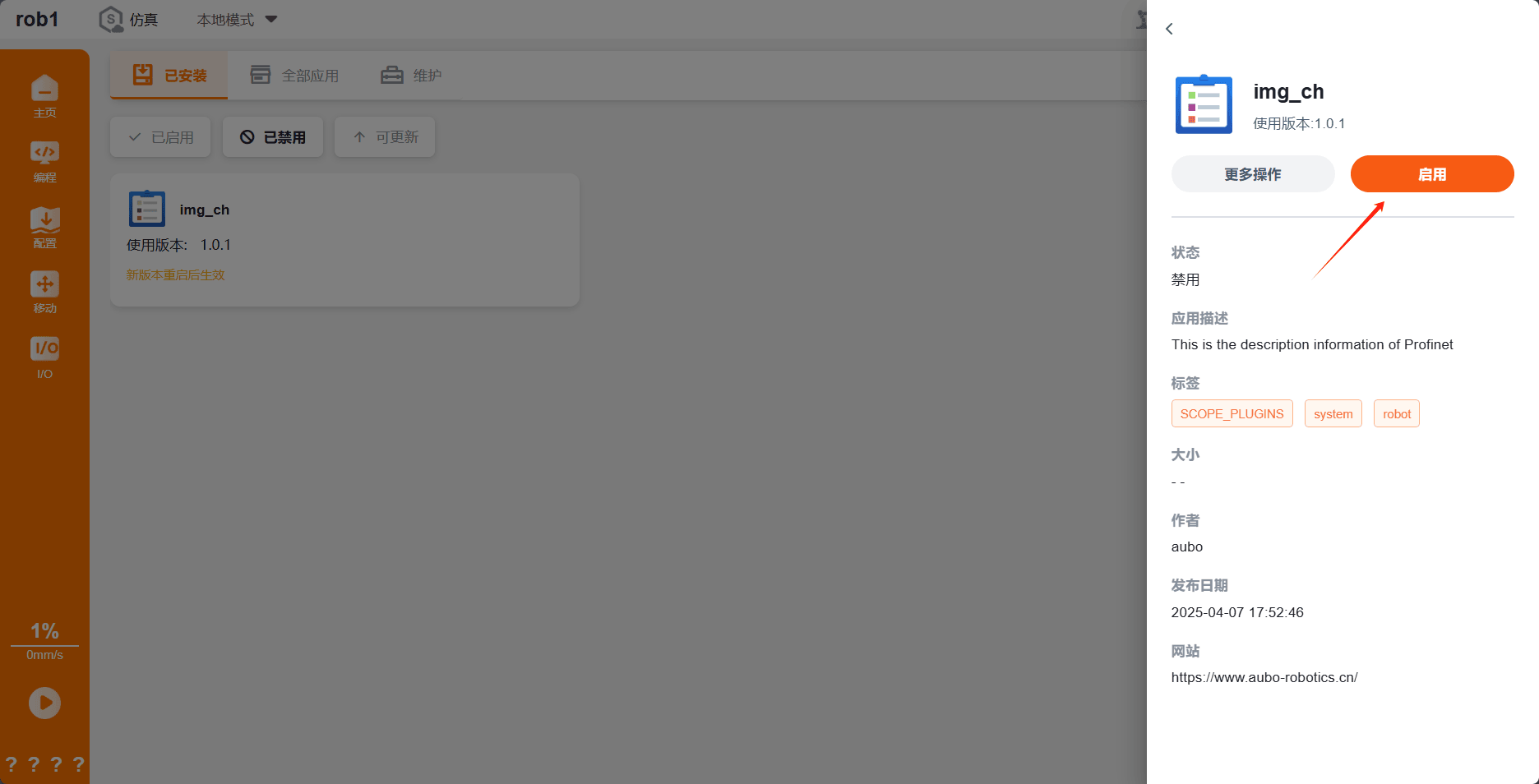
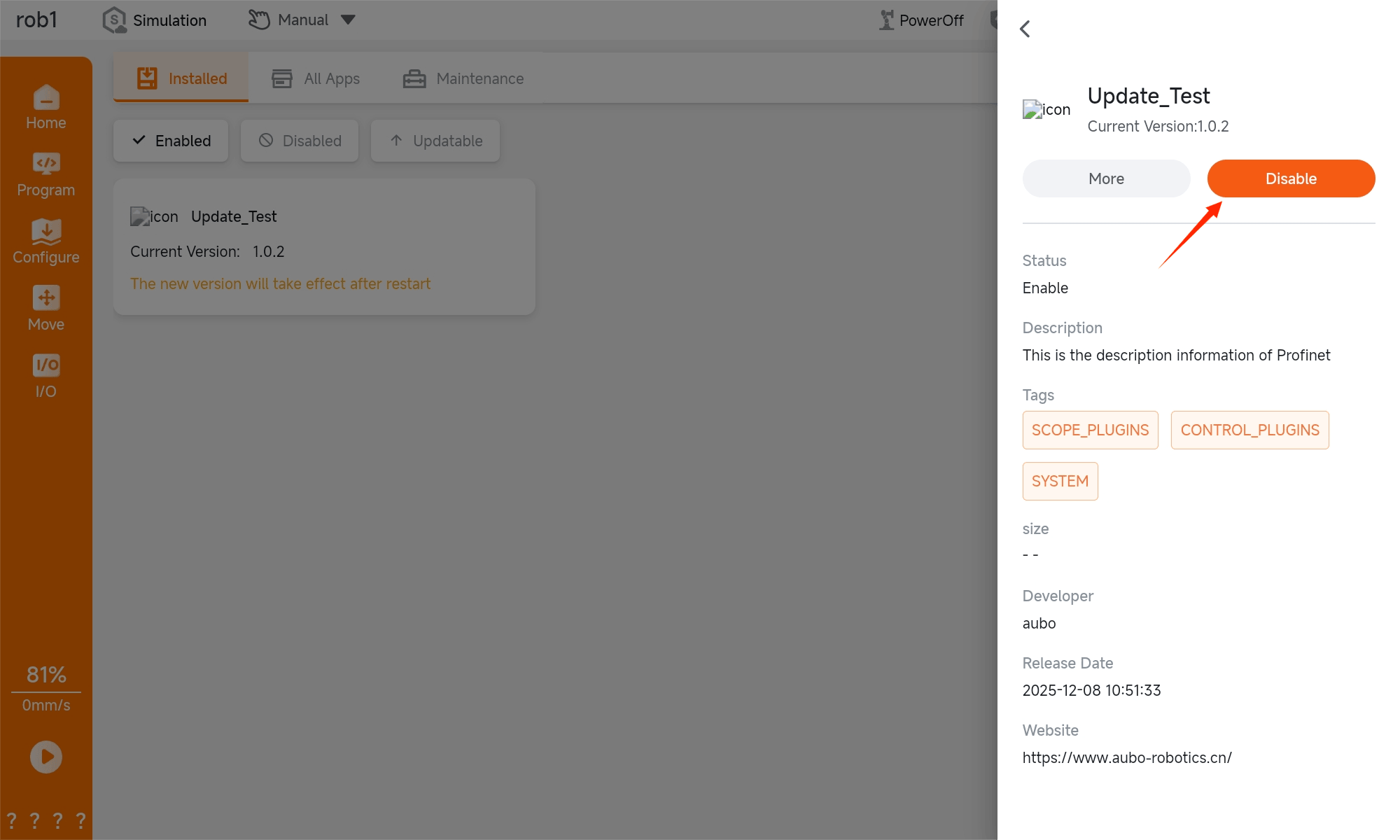
Disable: Click the [Disable] button on the app drawer page of the list. After disabling, the app can be uninstalled.
5.3.2 Open App
If the app is bound to a [Configuration] page, click [Open] to access the configuration page of the app. 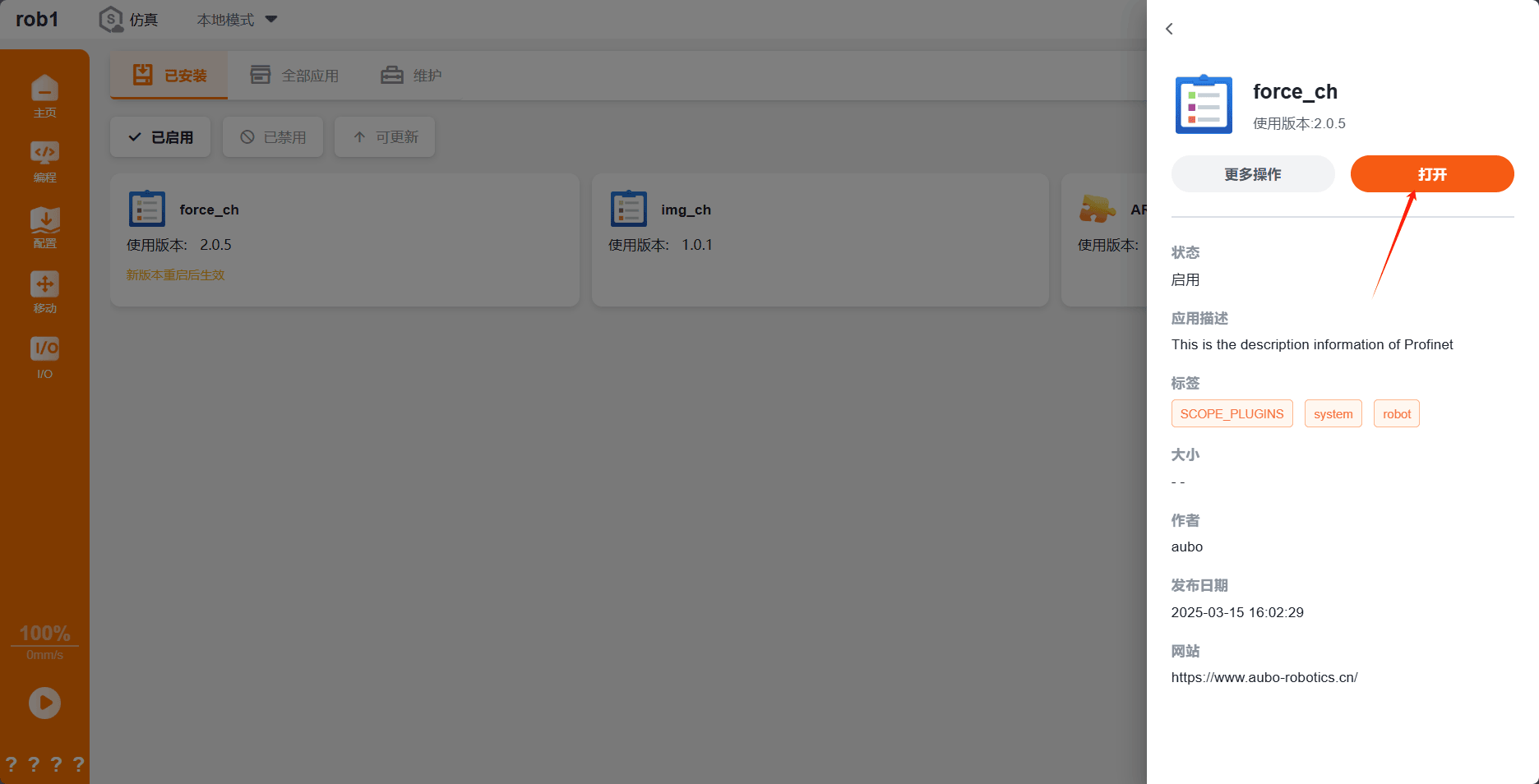
5.3.3 Activation of App Status
After the app status is changed (enabled/disabled), the ARCS system must be restarted for the change to take effect. The system will display a prompt in the card information. 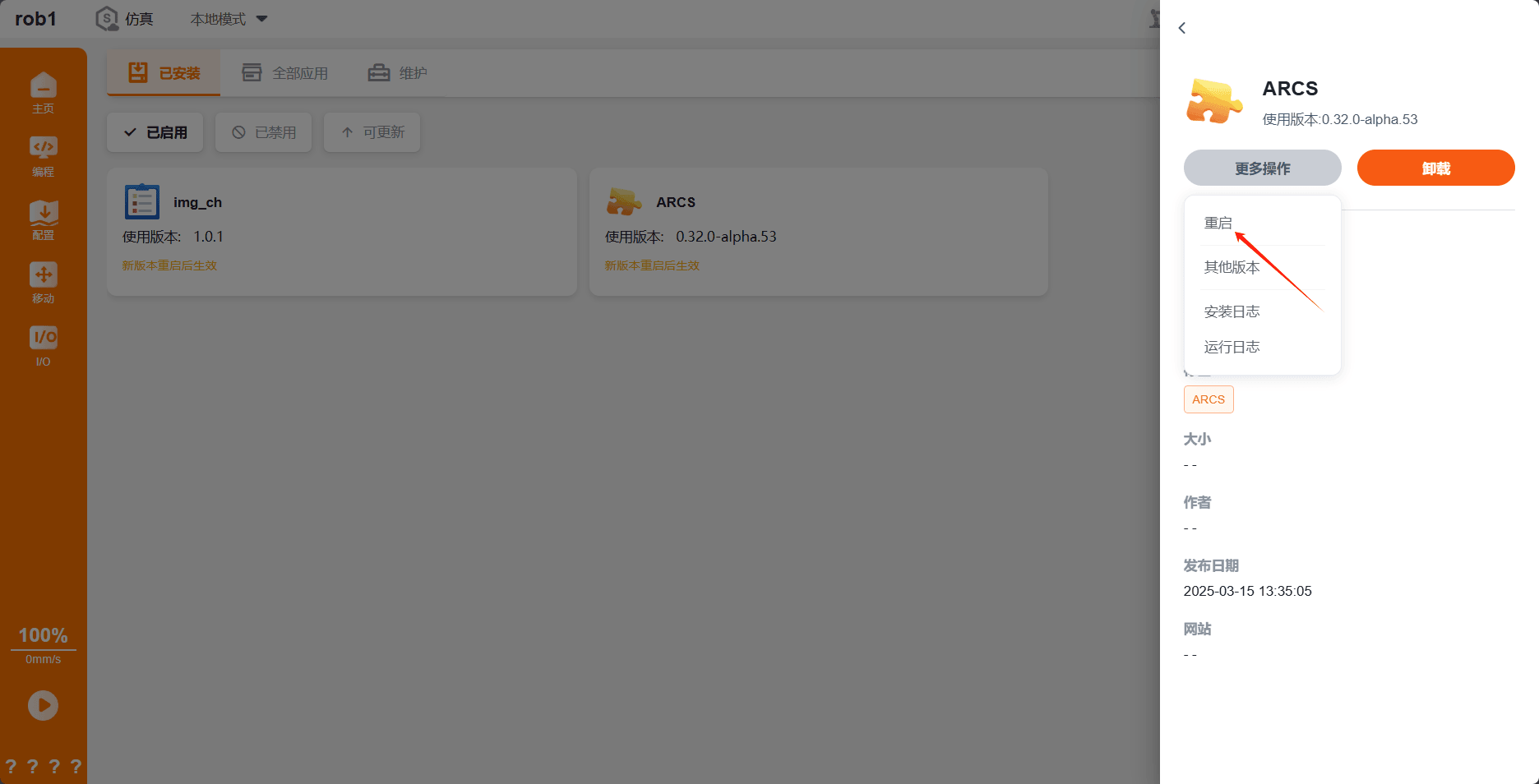
6 Monitoring and Logs
6.1 Status Monitoring
The system automatically monitors the running status of all enabled apps and displays it in real time on the app card. 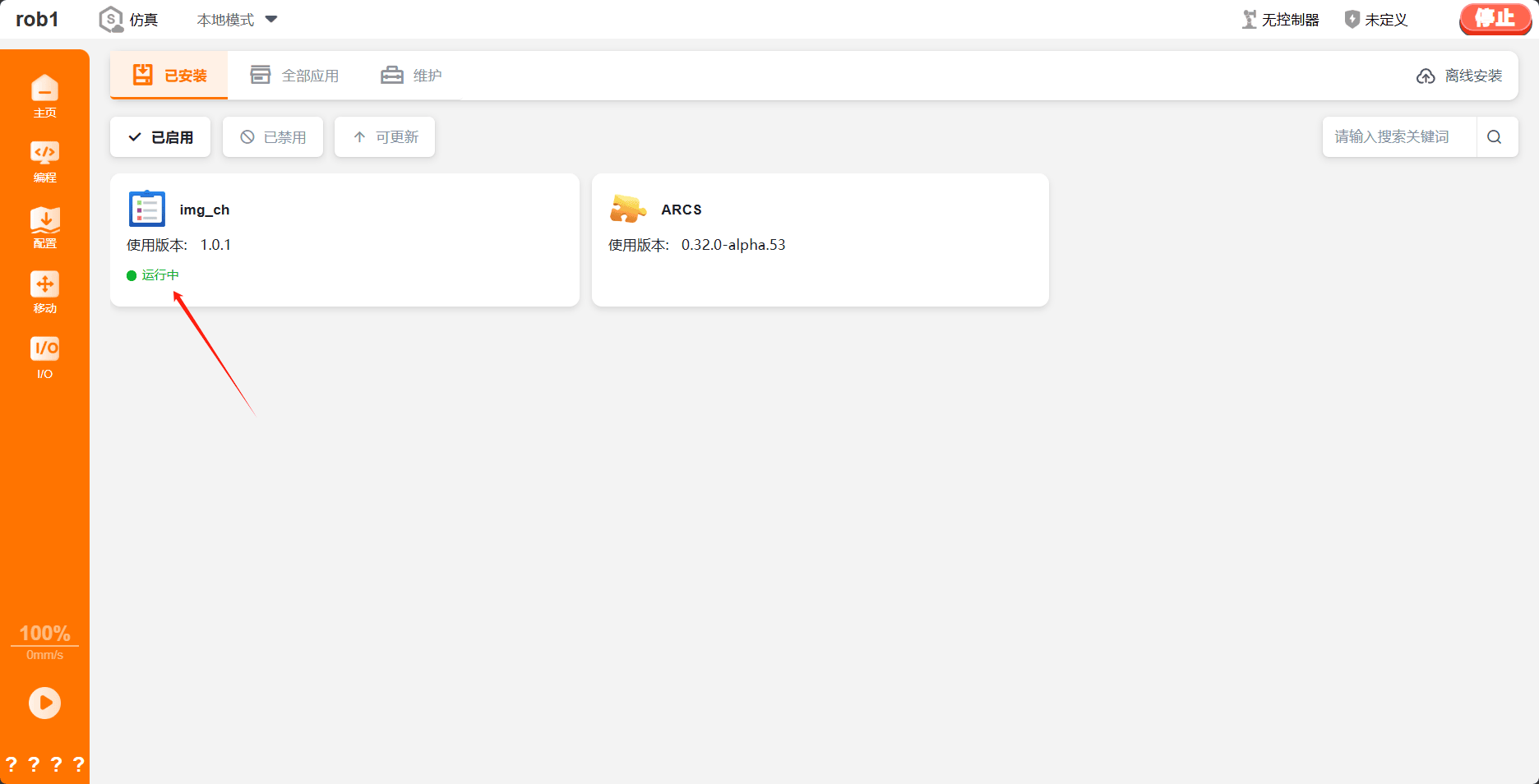
6.2 Log Viewing
6.2.1 Installation Logs
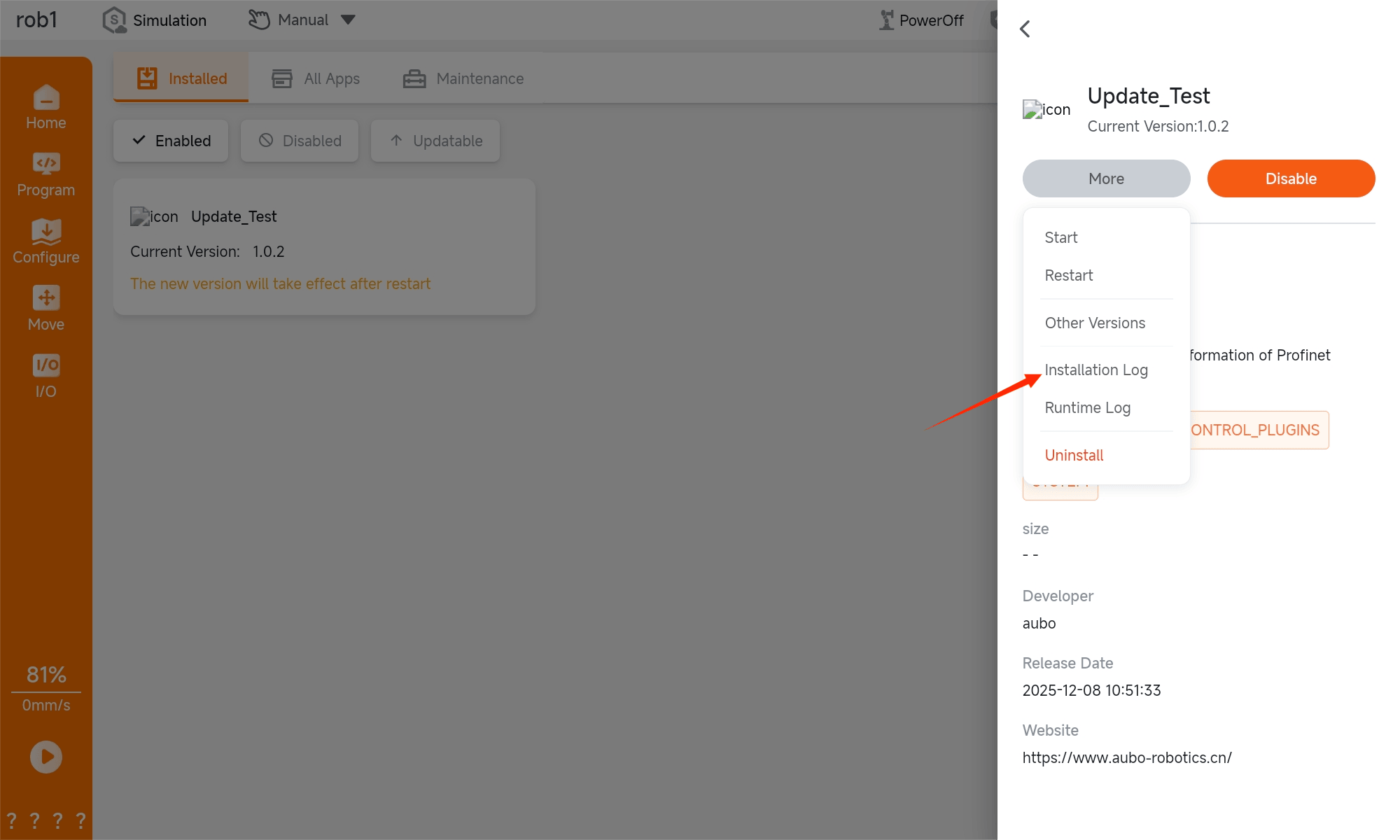
- Click the app card to pop up the app drawer page.
- Select "More > Installation Log".
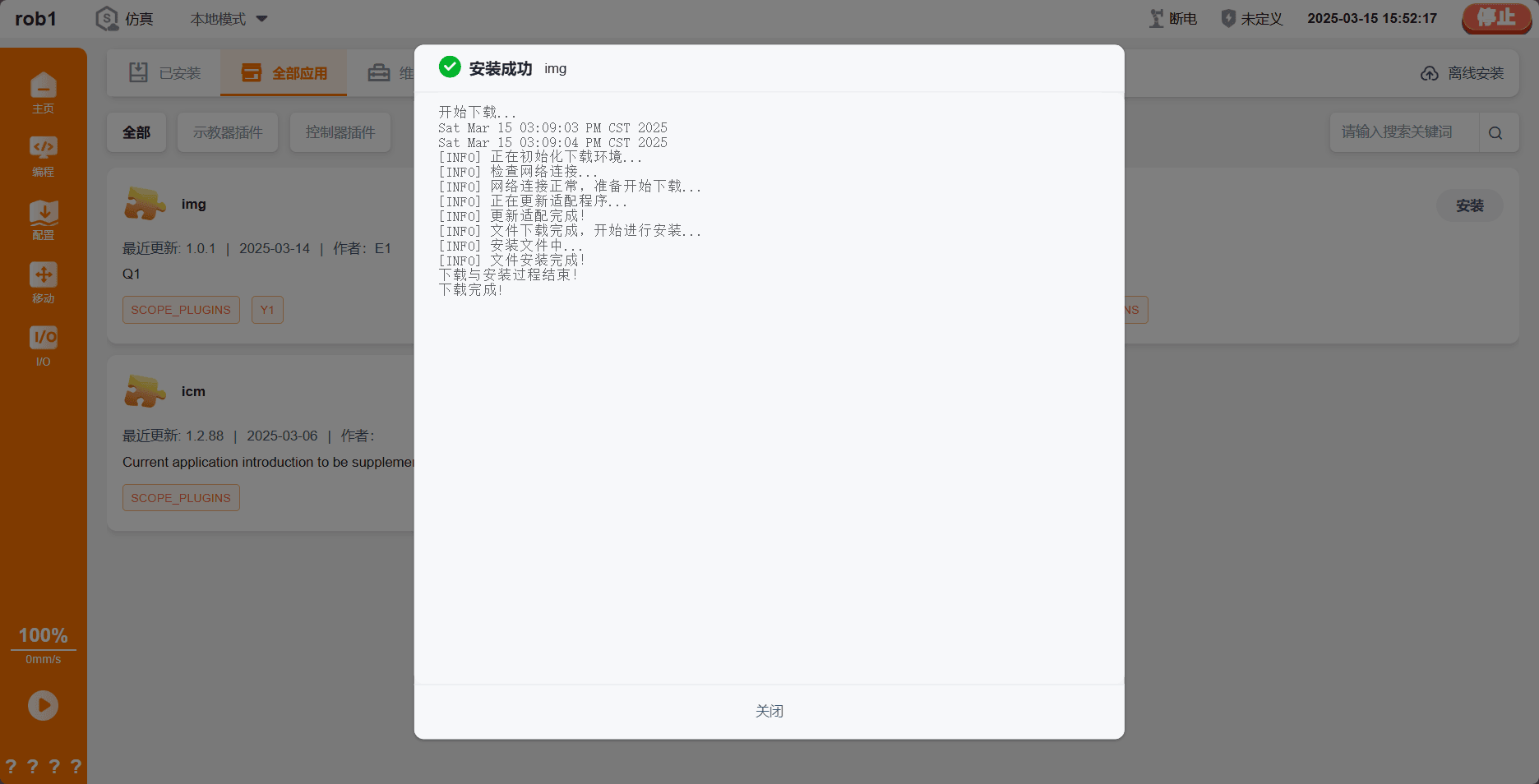
- Logs are generated in real time, and the complete logs can be viewed after the installation is completed.
6.2.2 Runtime Logs
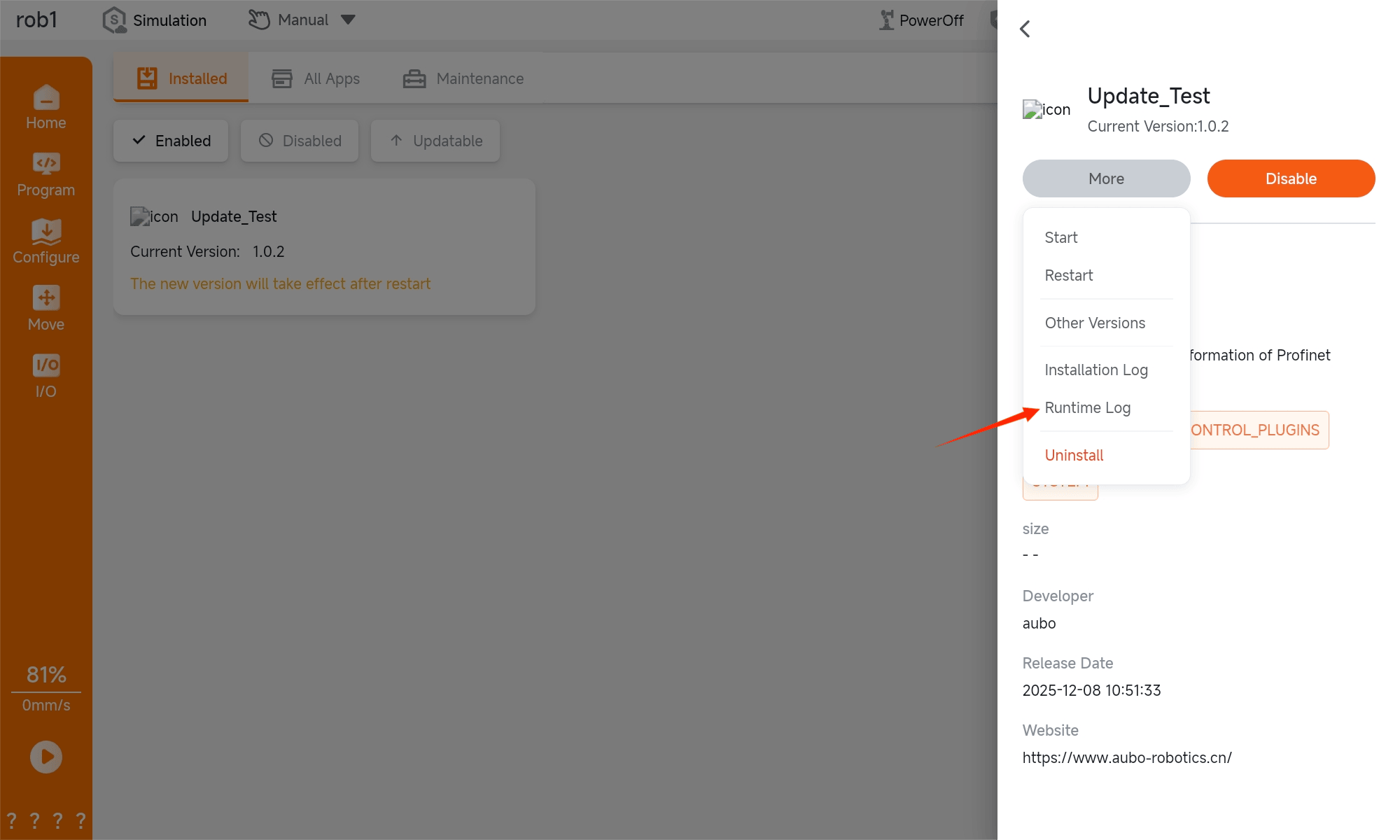
Click the card to pop up the app drawer page.
Select "More Operations > Runtime Log".
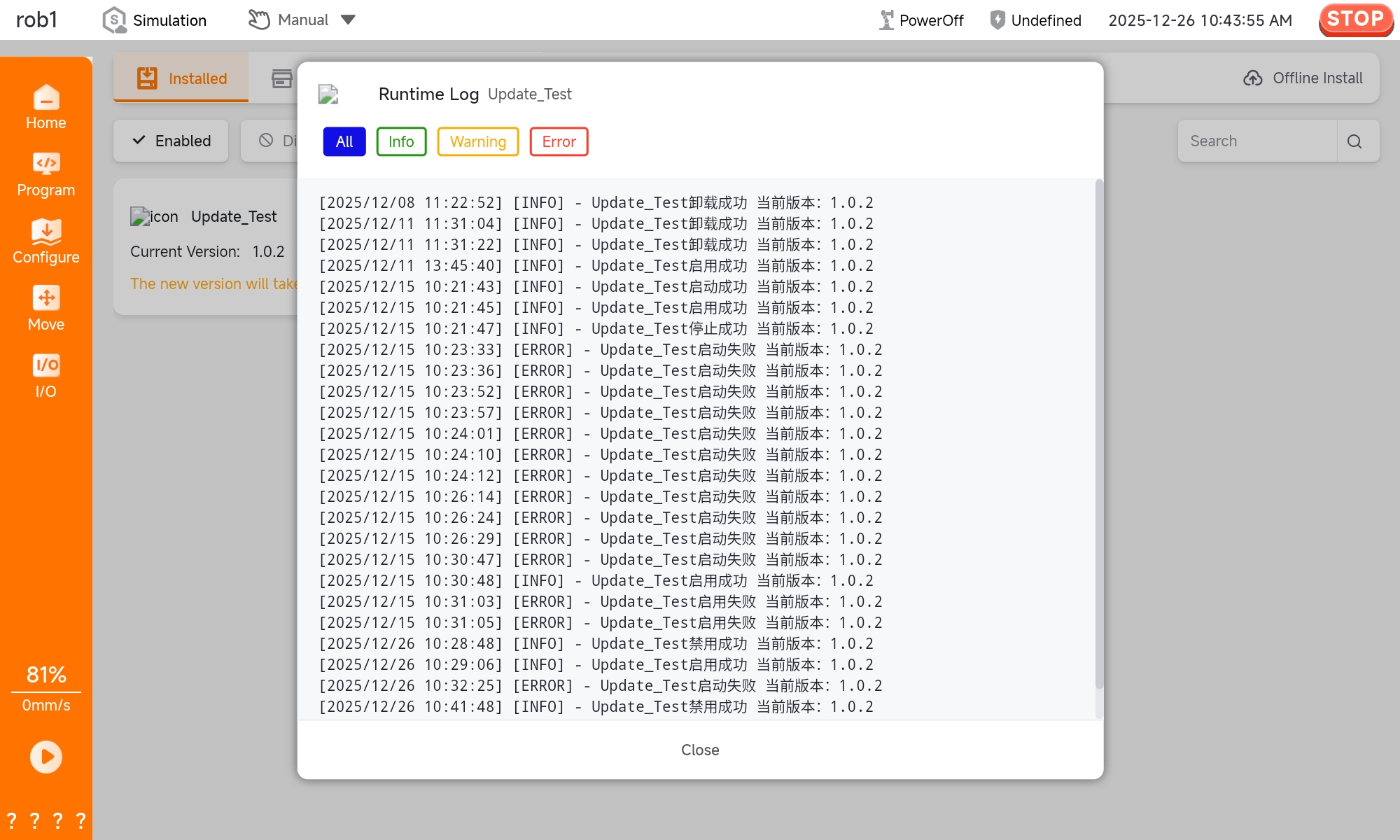
All operation records are displayed (filtering by log level is supported). The log level information is as follows:
- All: All information in the logs.
- Info: Provides general information, such as program status, controller changes, and controller versions.
- Warning: Issues that may have occurred but from which the system can recover.
- Error: Unrecoverable errors exist in the system, which will cause failures and make the robot perform a safe stop.