
Introduction to Teach Pendant Software
Interface introduction
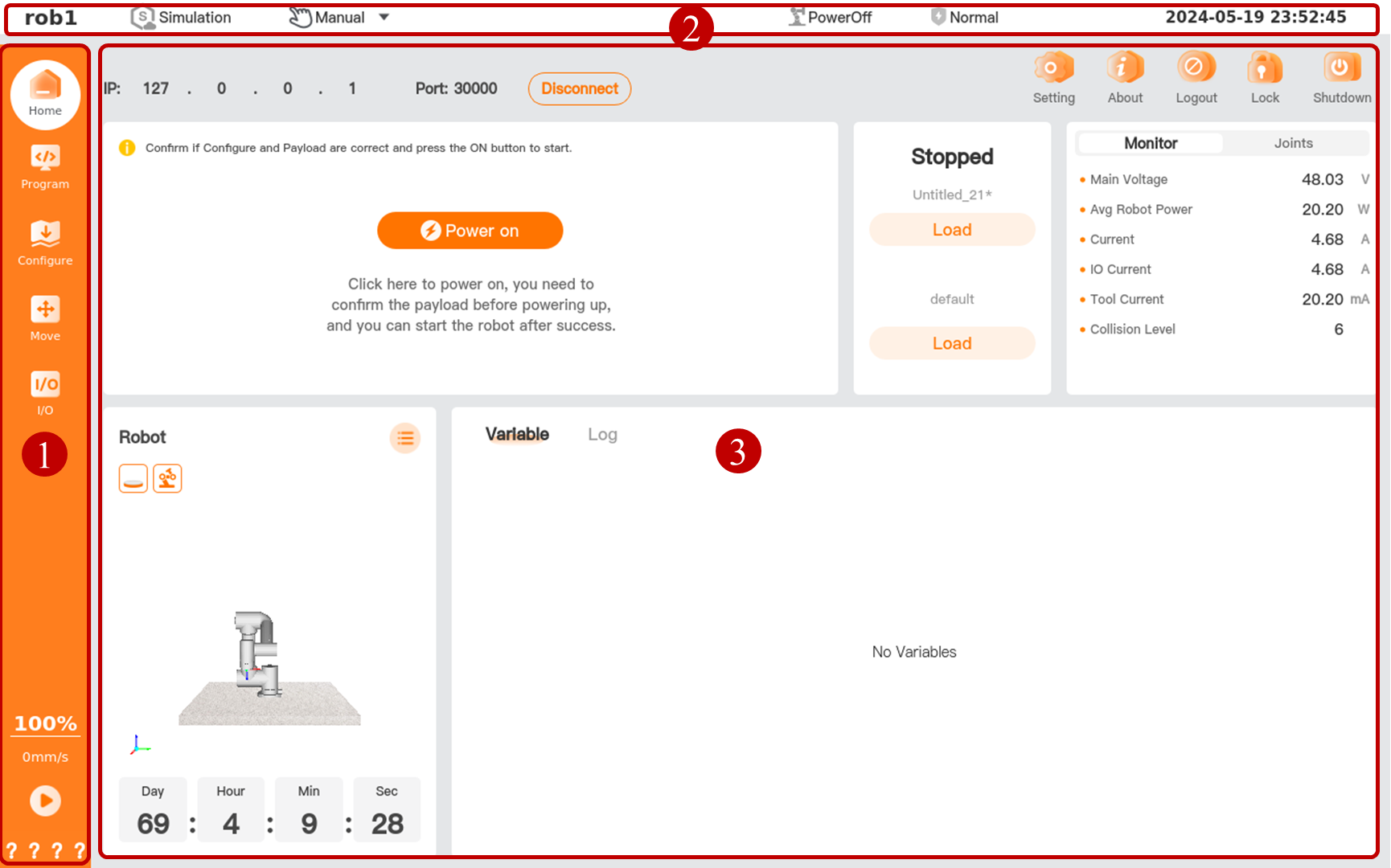
The AuboStudio interface is structured as follows:
| Serial number | Name | Description |
|---|---|---|
| 1 | Menu bar | The upper part of the menu bar contains function menus, including: Home, Program, Configure, Move, and I/O. The lower part contains program menus, including: speed, run, safe parameter. |
| 2 | Status bar | The top status bar is always at the top of the interface while the software is running. |
| 3 | User interface | The user interface provides different views for managing and monitoring the robot under different function menus, allowing the user to control the robot easily and flexibly. |
1. Function menus
| Icon | Name | Description |
|---|---|---|
 | Home | Display basic information and program progress of the robot. For more information about "Home", refer to Home Tab. |
 Program Program | Programming | Create or modify the robot program. For more information on "Programming", refer to Visual Programming. |
 | Configuration | Set up the AUBO robot and external device. For more information about "Configuration", refer to Configure Tab. |
.png) | Move | Control or adjust the movement of the AUBO robot. For more information about "Move", refer to Move Teaching. |
 | I/O | Monitor or set the controller's real-time input and output information. For more information on "I/O", refer to I/O. |
2. Program menus
| Icon | Name | Description |
|---|---|---|
 | Speed control | Speed Ratio: Set the robot's maximum running speed ratio. Click it to bring up the movement speed adjustment bar  , and drag the slider , and drag the slider  to set the maximum speed ratio. to set the maximum speed ratio. TCP Speed: Display the current terminal speed of the robot. |
    | Run/Resume Stop Pause Step | Program Run/Resume/Stop/Pause/Step button. * Only when all the nodes in the program tree comply with the predefined logic, that is, there are no nodes highlighted in yellow in the program tree, can you use the [Run] button to run the program. |
  | Safe parameter | Display a four-digit hexadecimal security check code. If the parameters in "Configure > Safety" change, the system will update the check code. * Before the system is powered on, no safe parameters are accessible to the software, and question marks are displayed here. * Click here to view details of safe parameters. |
3. Top status bar

| Serial number | Name | Description |
|---|---|---|
| 1 | Robot arm name | Display the name of the currently connected robot arm. |
| 2 | Simulation | Allow you to switch between a simulated robot arm and a real robot arm. When you turn on the Simulation button, the color of the simulation icon changes, and the system enters the simulation mode. * For detailed information on simulation mode, refer to Simulation Mode. |
| 3 | Mode switching | Allow you to switch between Manual, Auto, Linkage, and Local modes. * For detailed information on each mode, refer to Operating Mode. * Before switching the operating mode, please set an "Operating mode password". For details, refer to User Authority. |
| 4 | Robot mode | Display the current robot mode. This includes Power off, Power on, Idle, and Running modes. For details, refer to Robot Mode and Safety Mode. |
| 5 | Safety mode | Display the current system mode. This includes Undefined, Normal, etc. For details, refer to Robot Mode and Safety Mode. |
| 6 | Date | Display the current date of the controller. |
System soft keyboard
1. Text editor
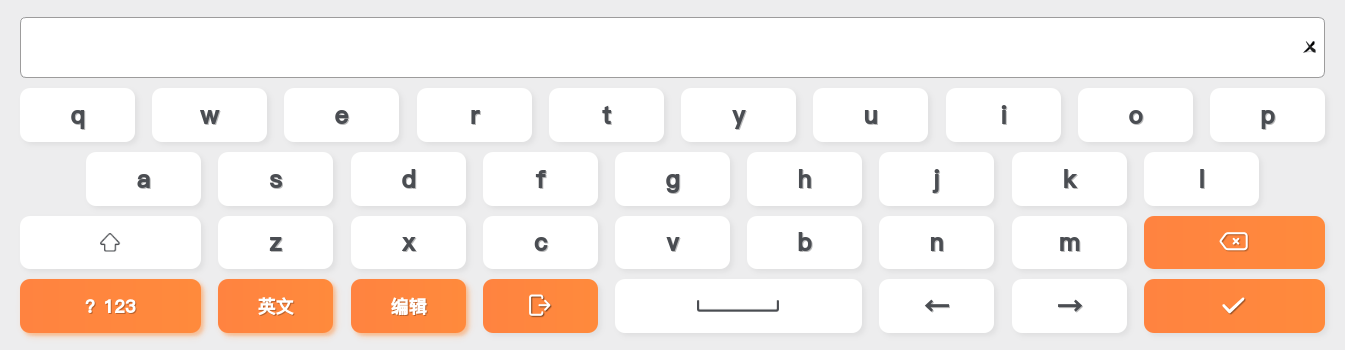
[Text Editor] Supports language switching between Chinese and English. Users can use [Text Editor] to edit and insert text.
2. Number editor
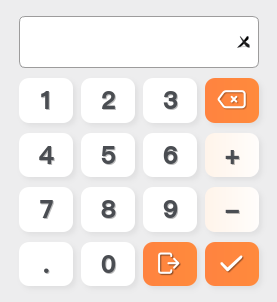
[Number Editor] Supports editing both positive and negative numbers. Users can use [Number Editor] to edit positive and negative numbers.
3. Expression editor
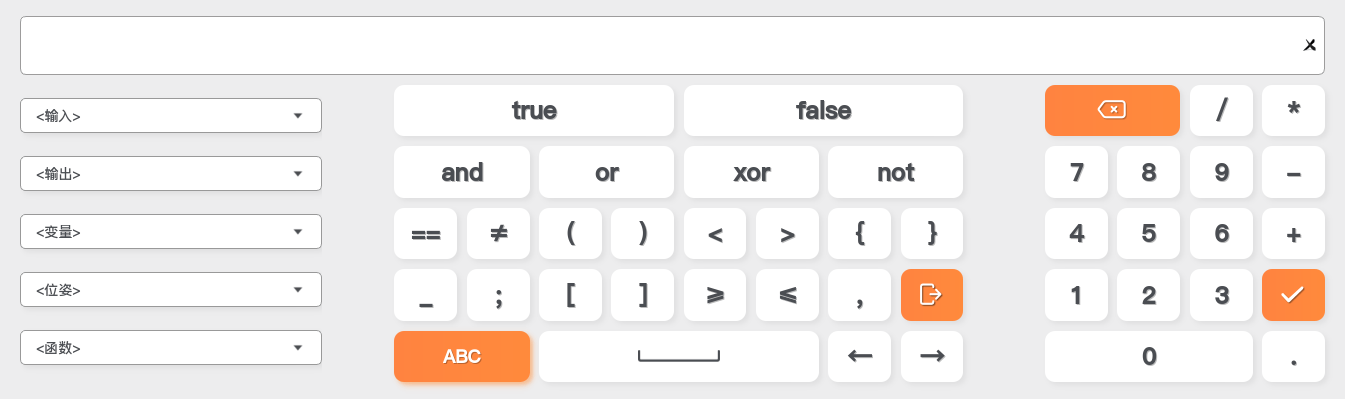
[Expression Editor] Include buttons, a special symbol keyboard, and a numeric keyboard. Click  to switch to [Text Editor]. Users can use [Expression Editor] to edit expressions.
- [Input] & [Output]: the drop-down menu contains all I/O interfaces.
- [Variables]: the drop-down menu contains all the defined variables.
- [Pose]: the drop-down menu contains all the defined coordinates.
- [Function]: the drop-down menu contains some special functions.
4. Considerations about editors
- When setting a digital signal via an expression, the value is set to true or false and the Modbus to 1 or 0. Otherwise, unpredictable errors will occur in the robot.
- When inputting a string via the expression editor, enclose the string in single quotes (') or double quotes (").
- When setting a position/pose for a variable via the expression editor, enclose the position/pose in curly braces ({}).