
Log Center
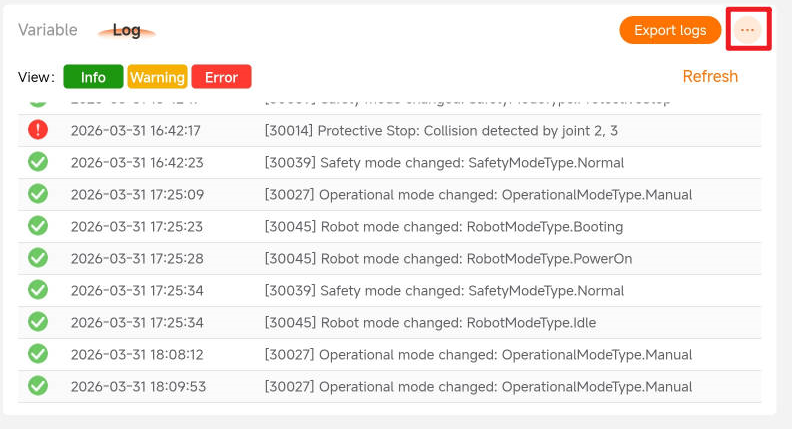
In the ARCS system, the ARCS system logs are stored within the controller system, while the Android client logs are stored on the tablet. To facilitate users' viewing, analysis, and export of logs, AUBO has launched the "Log Center" function.
In the log center, a collection of log files for a certain period of time is compressed into a compressed package, which is called an event report.
Tip
- Supported versions:
- Wired teach pendant: ARCS 0.31.1 version and above
- Android client: ARCS 0.31.0, App version 0.9.3 and above
- Log center is a function module of the OPS system. Please ensure that the OPS system is installed before using it.
- For OPS system installation, please contact the relevant technical personnel.
Entry to log center
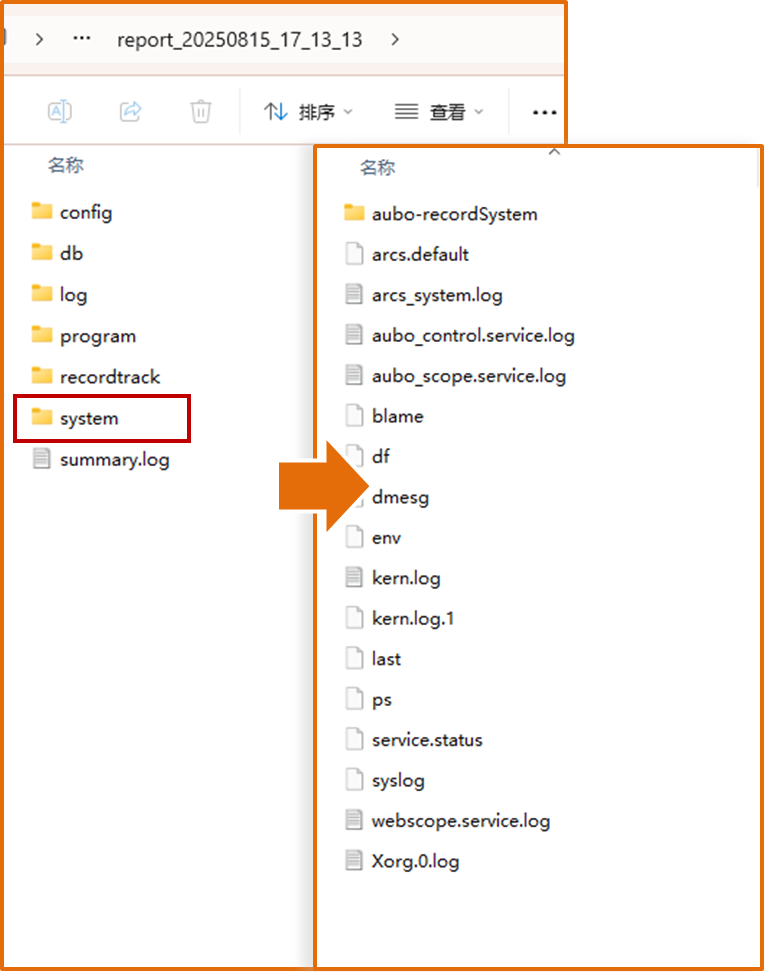
Contents of compressed package of event report
The contents of the compressed package of the event report contain a collection of Linux system logs, in addition to the existing compressed package of logs.
Operation guide
Generate event report
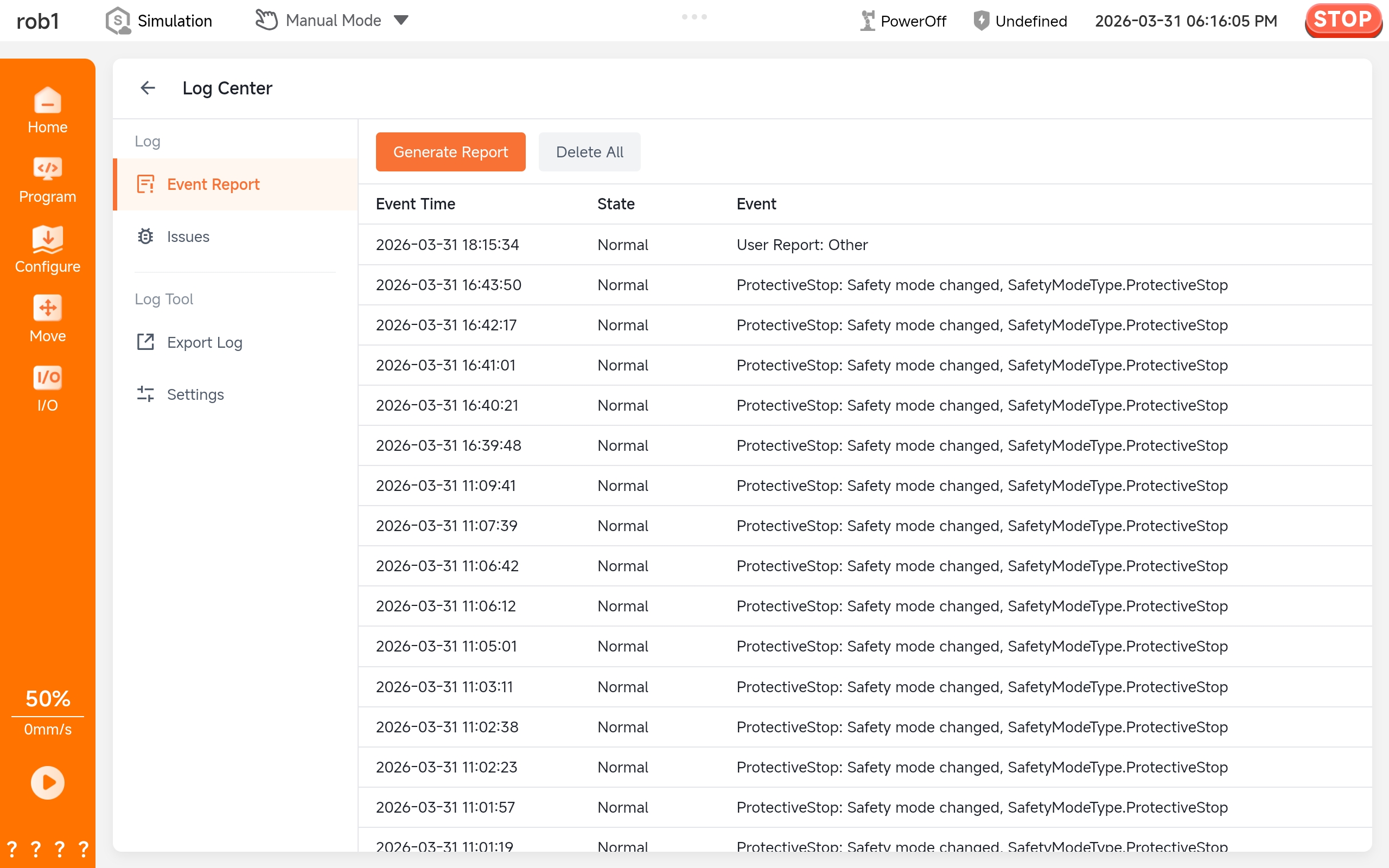
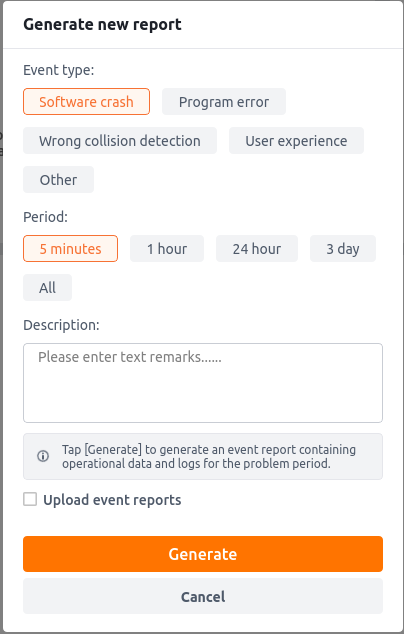
There are two ways to generate an event report. When the system detects certain anomalies, it will automatically generate an event report, such as collisions, triggered protective stops, software crashes, etc. At this point, users only need to wait for the event report to finish generating and then download and use it. Event reports can also be generated manually.
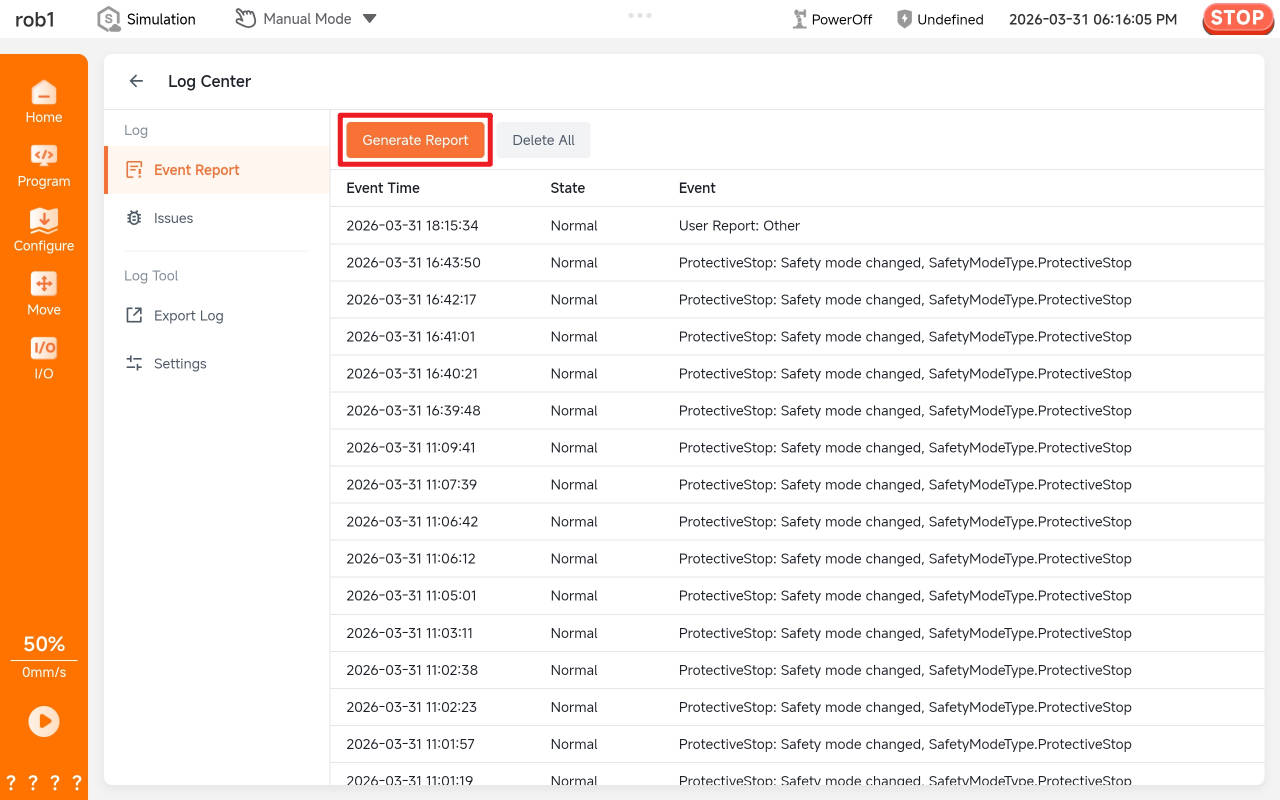
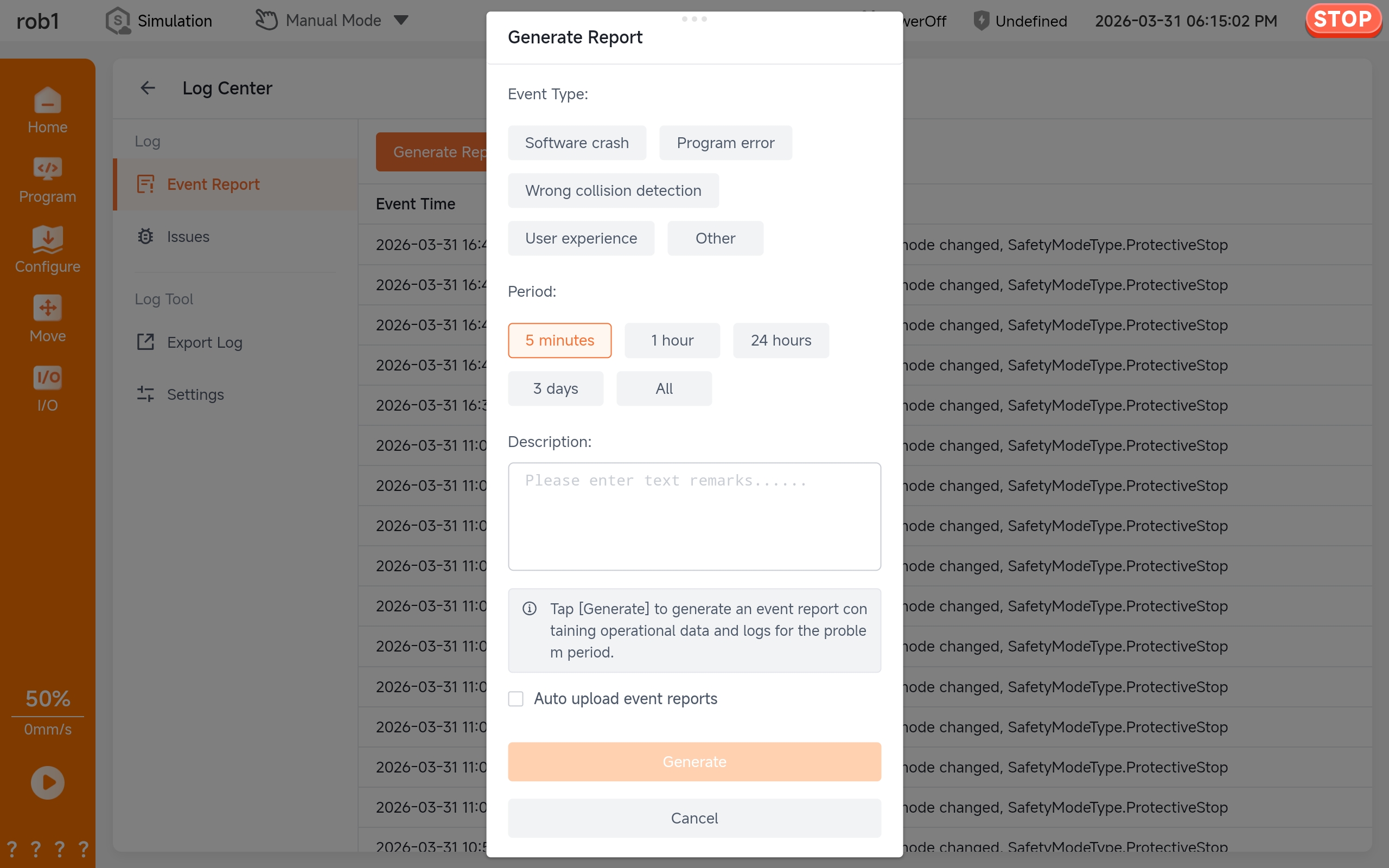
All event reports will be displayed in the list.
View event report
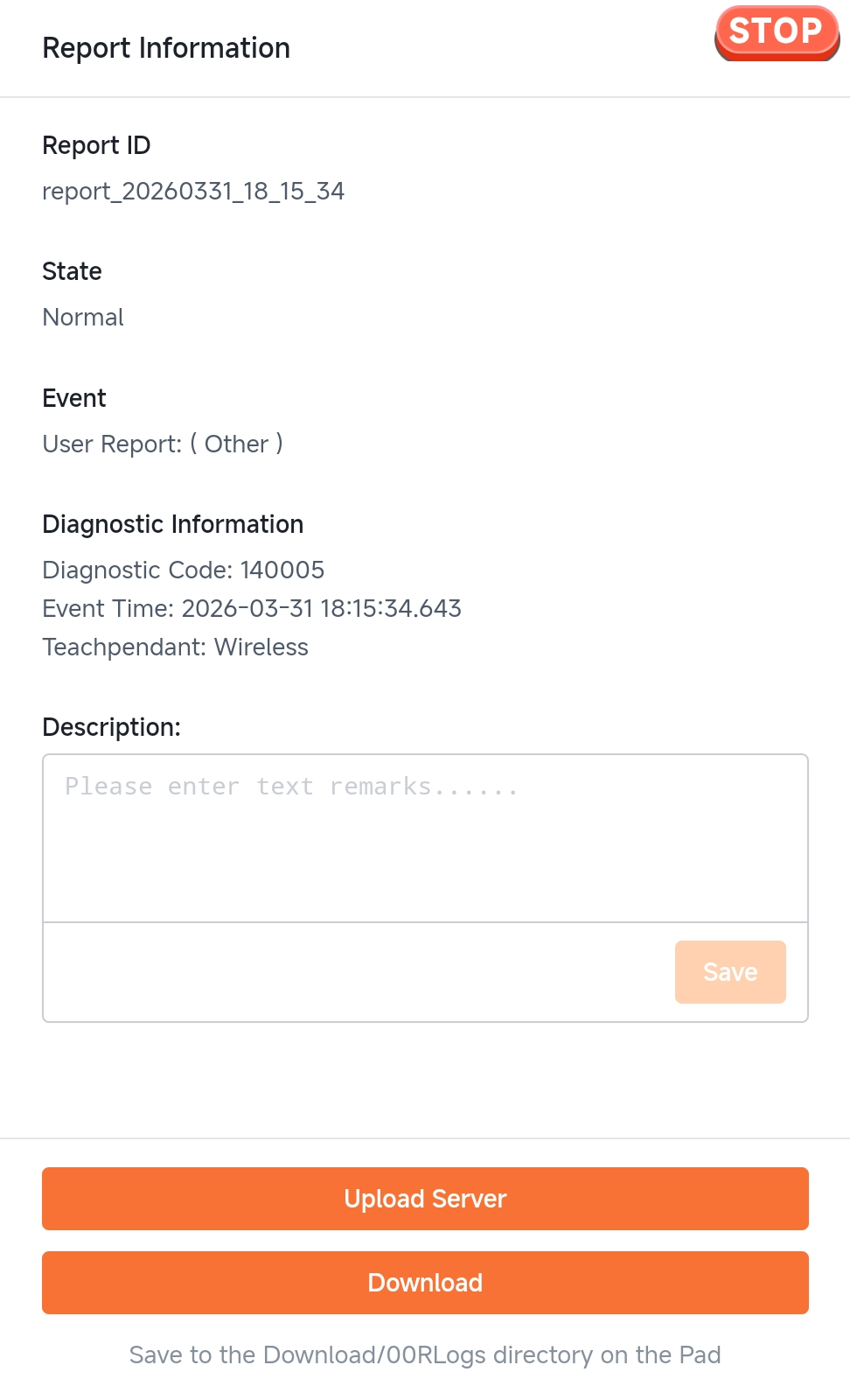
Click on a message in the event report list to display details of the event report.
Download event report
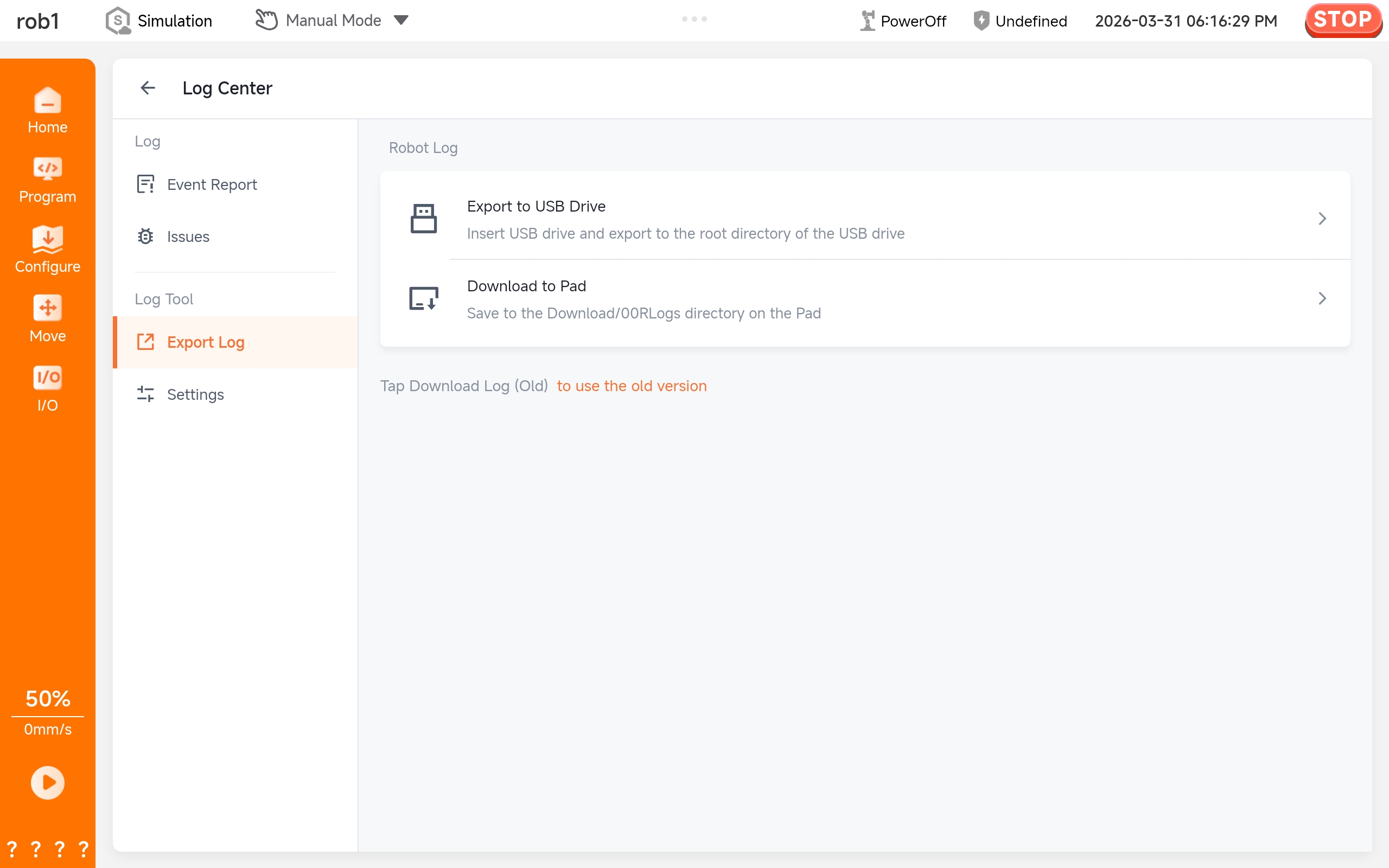
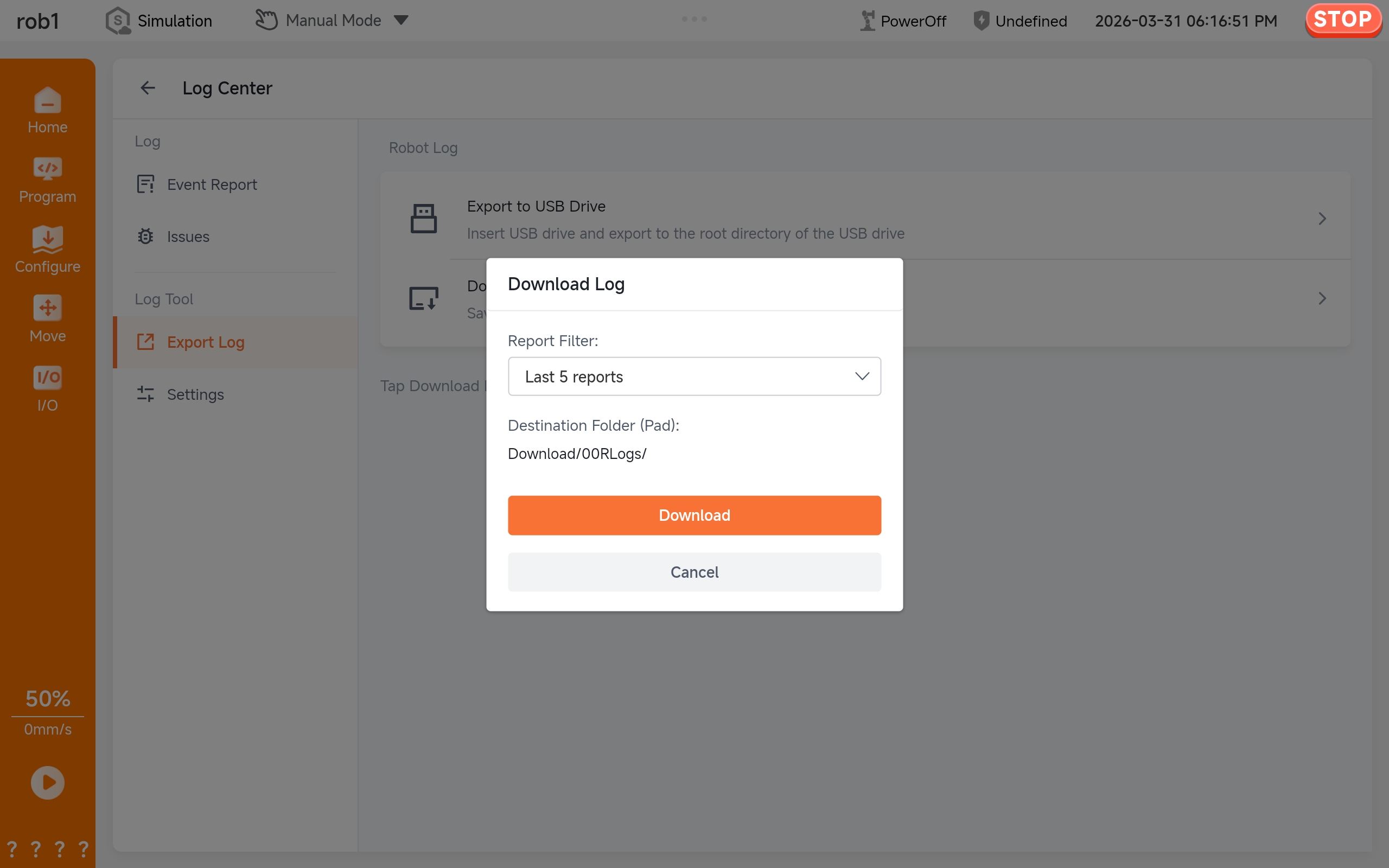
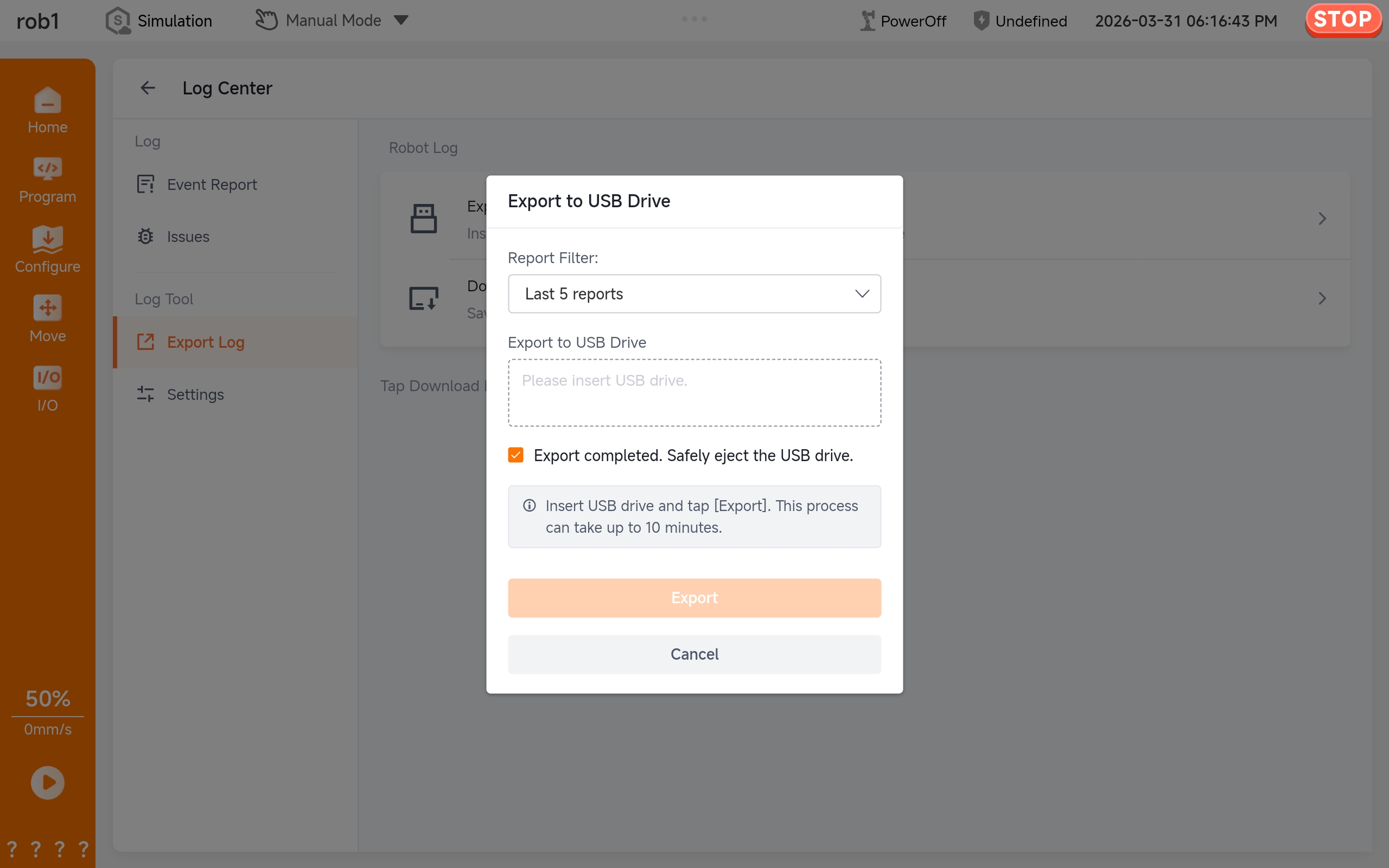
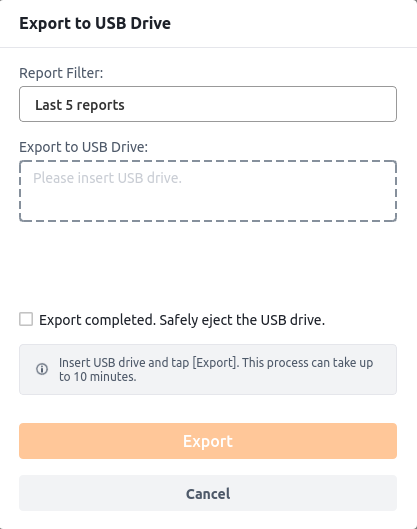
Log center offers multiple download methods, including batch download, individual download, download to USB flash drive, and download to tablet.
Save client logs
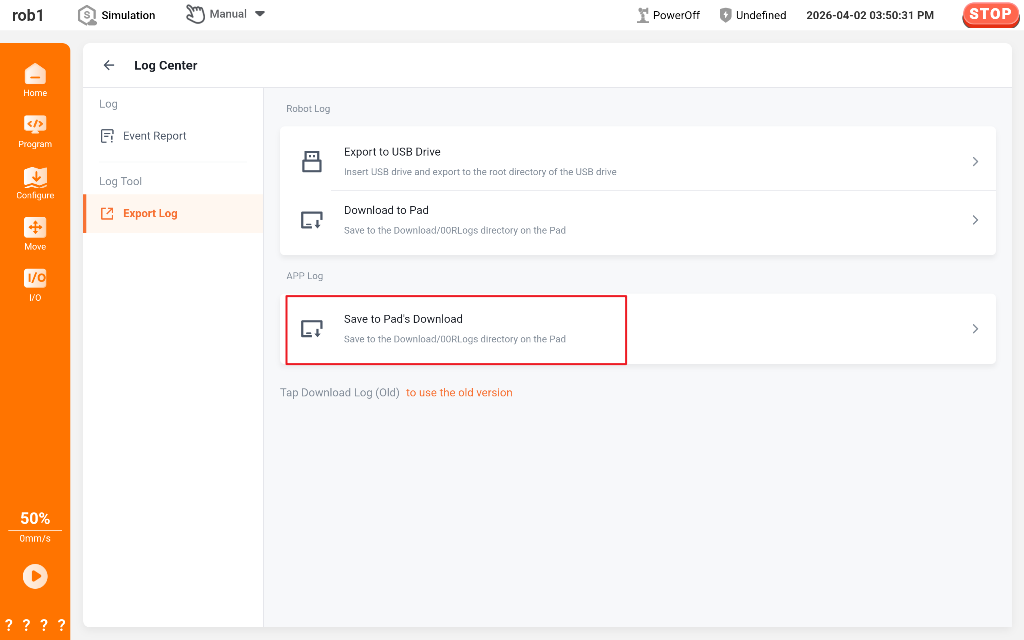
AuboStudio client logs are stored on the tablet. When the client encounters problems, client logs need to be exported separately.
Tip
For AuboStudio APP versions 0.9.4 and above, users can directly download client logs from the /Download/00RLogs/ directory on the tablet.
Floating ball teach pendant only
The floating ball is a unique feature of the wired teach pendant. It automatically appears at the edge of the screen when the system starts up. The floating ball can quickly access the Log Center and provide rapid feedback when system anomalies occur.
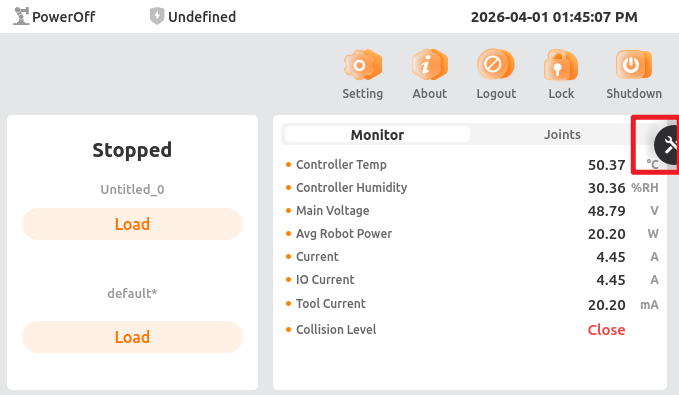
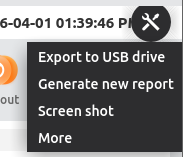
The functions of the floating ball include:
Export to USB drive
Generate a new report
Screenshot
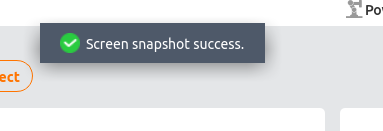
Screenshot
The "Screenshot" function can be used to capture system status and abnormal situations. Users can click "Screenshot" to take a screenshot. All screenshots are automatically saved to the controller's /root/Pictures/log_genie directory. The system can save up to 50 recent screenshots.
After taking a screenshot via "Screenshot," click "Generate New Report." The system will automatically package the relevant screenshots into a report according to the time period, which will facilitate subsequent problem analysis and diagnosis.