Program Information Card
Configurable tabs include [Command], [Graphics], [Variables], and [Backtrace]. You can view the contents under each tab when necessary.
Command
The [Command] page is for you to configure nodes selected in the program tree. After a program node is selected, the configurable items of the node will be displayed/can be set in the page [Command].
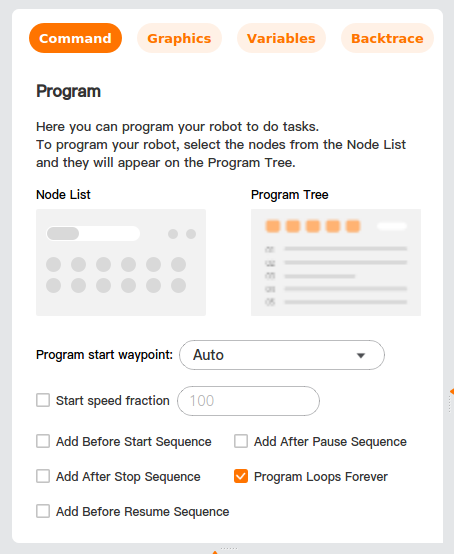
Program start waypoint: set the waypoint from which the program starts running.
- Auto: Click [Run] to enter the [Move] interface, move the robot arm to the start waypoint, and then click [OK] to start running the program.
- Ignore: Click [Run]. Then, the robot arm moves to the start waypoint, and the program starts running.
Start speed fraction: Check to set the start speed fraction of the program.
Add Before Start Sequence: Check to add a sequence to be executed before the master program starts running.
Add After Pause Sequence: Check to add a sequence to be executed after the master program pauses.
Add Before Resume Sequence: Check to add a sequence to be executed before the master program resumes running.
Add After Stop Sequence: Check to add a sequence to be executed after the master program stops.
Program Loops Forever: Check to enable the master program to run continuously.
Graphics
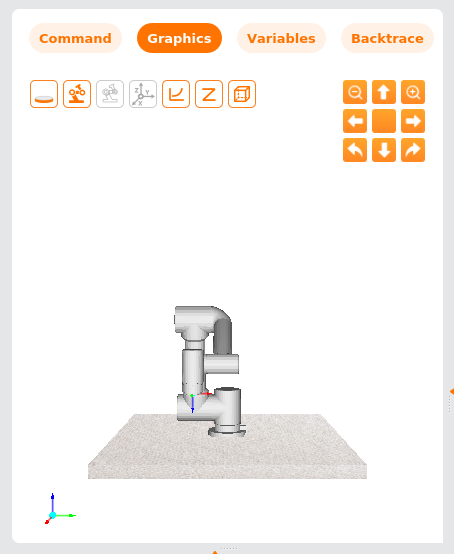
The page [Graphic] displays the 3D model of the current robot, whose actions are consistent with those of the real robot.
| Icon | Name | Description |
|---|---|---|
 | Up | Move the robot upward. |
 | Down | Move the robot downward. |
 | Left | Move the robot left. |
 | Right | Move the robot right. |
 | Turn left | Turn the robot clockwise. |
 | Turn right | Turn the robot counterclockwise. |
 | Enlarge | Enlarge the robot. |
 | Micrify | Micrify the robot. |
 | Reset | Reset the robot's position and view. |
| Icon | Name | Description |
|---|---|---|
 | Base | Hide/show base |
 | Robot arm | Hide/show robot arm |
 | Target position/pose | Hide/show position/pose of target waypoint |
 | User coordinate system | Hide/show user coordinate system |
 | Track | Hide/show track |
 | Waypoint | Hide/show waypoint |
 | Obstacle | Hide/show obstacles |
 | Tool envelope ball | Hide/show tool envelope ball |
 | Point cloud | Hide/show point cloud |
Variables
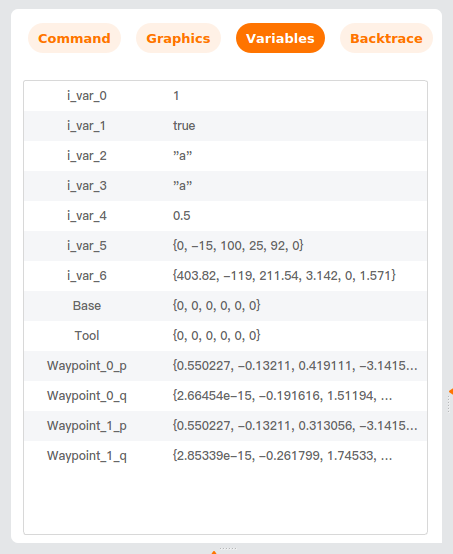
The page [Variables] displays the base coordinate system, tool coordinate system, waypoint joint angle, and end-of-tool TCP position/pose of the running program, as well as all the variables and values in the programs and profiles. The information shown in this page is the same as that on the page called out by "Home > Variables."
Types of variables
- Program variables: Such variables apply only to a running program, and their values are lost after the program is stopped. Therefore, they are general variables. Please refer to "Assignment" for more details.
- Configure variables: Such variables can be applied to more than one program, and their names and values persist until the robot is decommissioned. Therefore, they are persistent variables. Please refer to "Variables" for more details.
- Script variables: Such variables come from script files and can be assigned to different variable types. Script variables are not displayed in page [Program] or page [Configure]. They are used by a robot program to store information about the waypoint.
Based on value treatment mechanism (saved by system or not) and application scope (one program or more than one program), variables are divided into the following two types:
- Persistent variables: These variables can be applied to more than one program, and their names and values persist until the robot is decommissioned. Values of persistent variables are retained after AuboStudio or the controller is restarted. For example, the configured variables are of this kind.
- General variables: These variables apply only to the running program, and their values are lost after the program is stopped. For example, the program variables are of this type.
Data type
Bool: Boolean variables, whose value is true/false.
Integer (Int): Integer variables whose value is an integer.
Float: Floating-point variables, whose value is a floating-point number.
String: String variables, whose value is a string value enclosed in single quotes (') or double quotes (").
Pose: Pose variables, whose value is waypoint data containing 6 parameters, as described below:
- In case of MoveL, the first 3 parameters are pose parameters measured in mm, and the last 3 parameters are pose parameters measured in rad.
- In case of MoveJ, all the 6 parameters are joint angles, which are measured in rad.
Backtrace
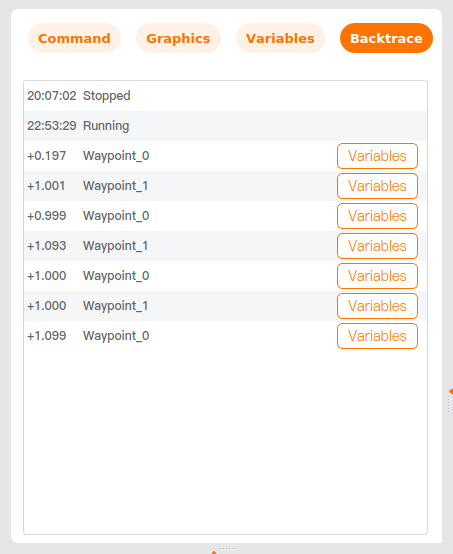
The page [Backtrace] displays the start waypoint of the current program and the time when the program runs the node. You can click [Variables] in the log list to view the detailed information, offering convenience for your program debugging.