Software Security Password
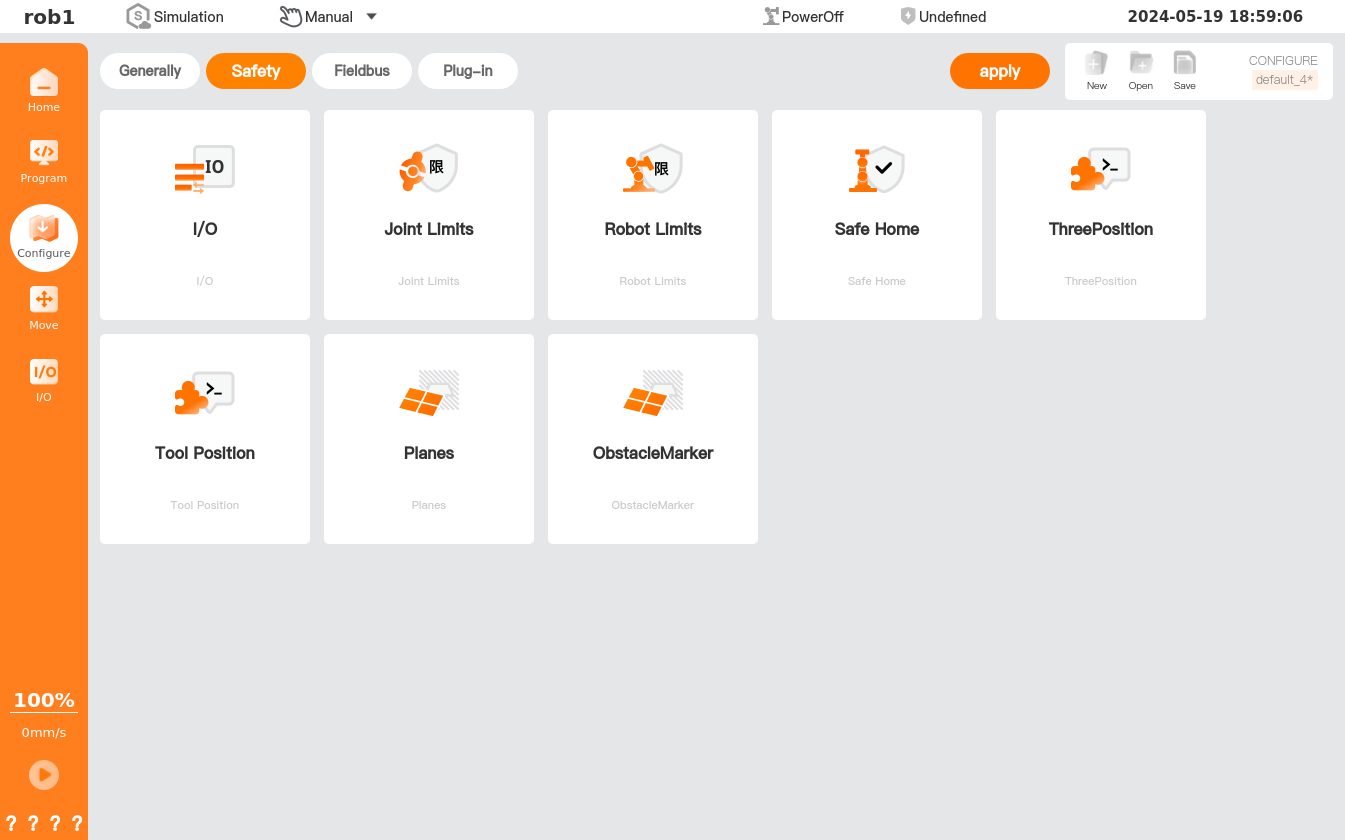
Configurations on the [Security] page include security I/O, joint limit, robot limits, safe home, etc., which can be unlocked only with the security password. For the setting method of the security password, please refer to "Classic mode."
Tip
- Any changes made to the configurations on the [Security] page will not take effect until users click on [Apply] and subsequently re-power the robot following a power-off.
- All configuration in [Safety] is saved in the installation profile. Users must click the [Save] button to save all configuration.
Security configuration unlock/lock
Click [Configure] in the menu bar on the left side of the screen, and click [Security] to enter the page with an [Unlock] popup.
Enter the security password in the "Security password" input box and click [Unlock] to enter the [Security] function configuration page.
After the page is unlocked, all configurations under the [Security] menu are unlocked.
When exiting the [Security] configuration page, all configurations under the [Security] menu will be locked.