
Wireless Teaching
When a wired teach pendant cannot meet the requirements of a usage scenario—for example, when an operator needs to move freely or on-site wiring costs are high—you can use the AuboStudio App in a browser to enable wireless teaching.
Prerequisites
- Software version: ARCS
arcs 0.32.2or later. - Environment: Make sure that the computer and controller cabinet are powered on and connected to the same local area network.
- Compatibility: Chrome, Edge, and other mainstream browsers are recommended.
Usage
Follow the procedure below to enable the wireless teach pendant function.
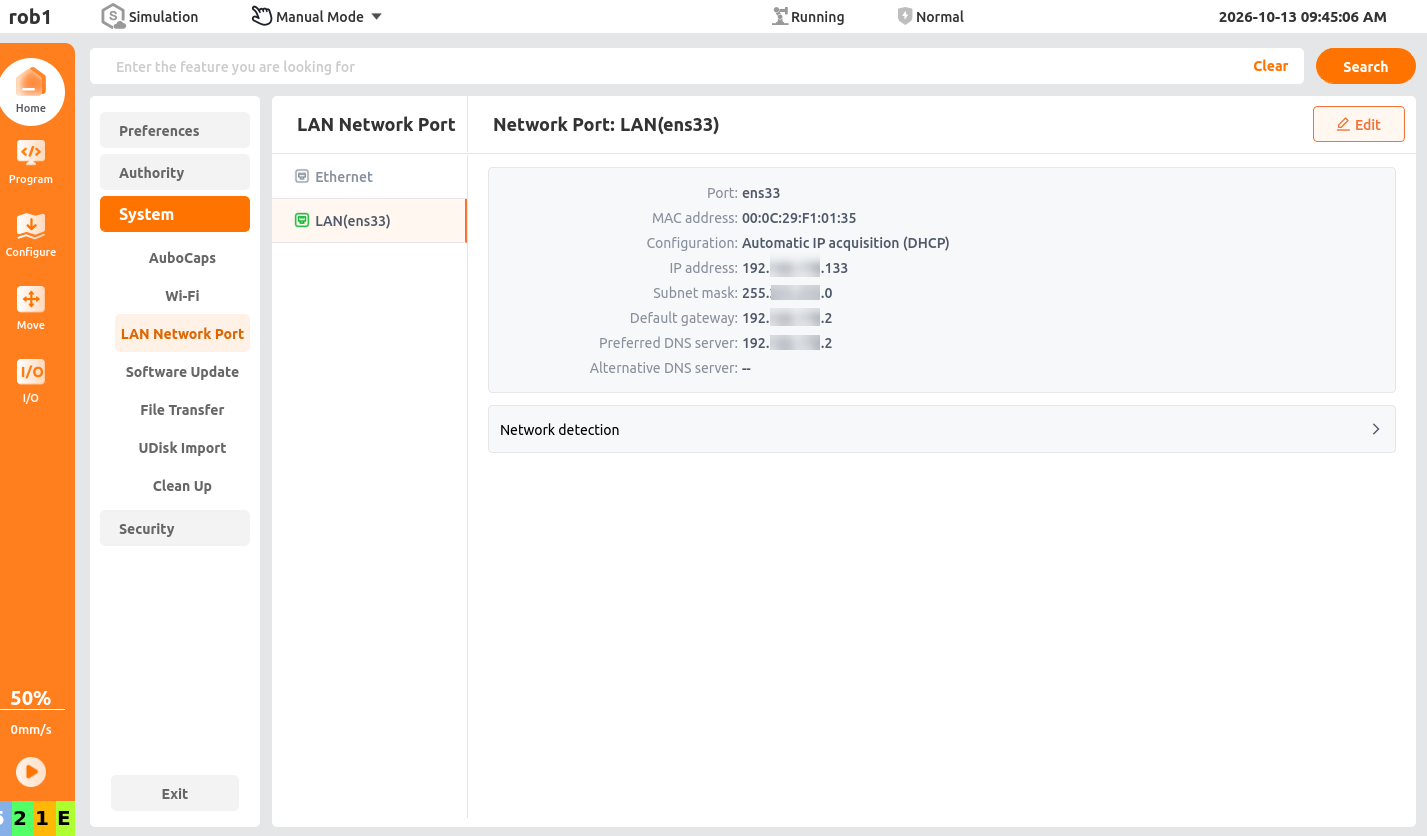
On the teach pendant home page, click "Settings > System > LAN Port > LAN (ens33)" to obtain the controller cabinet IP address.
Open a browser and enter
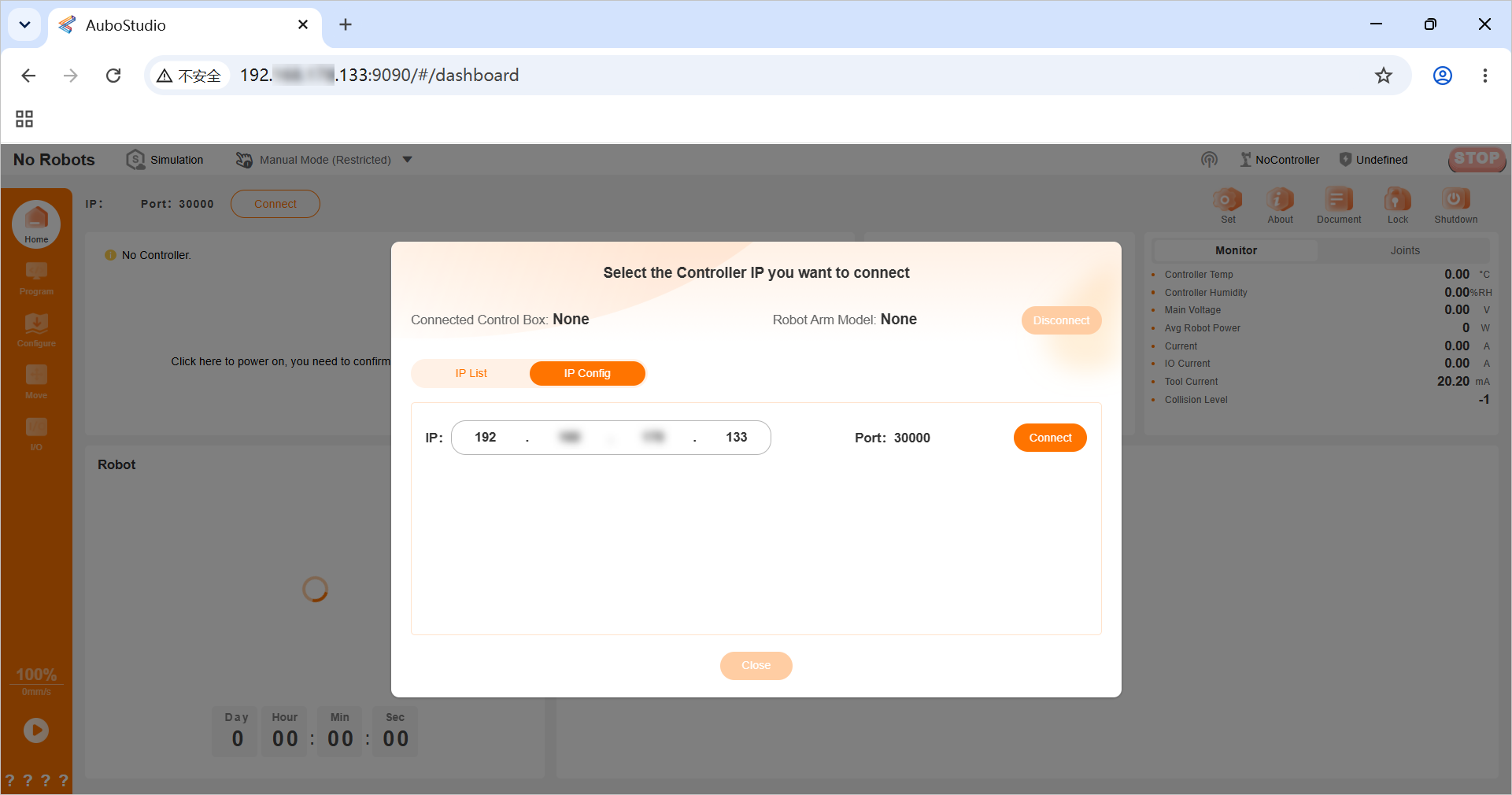
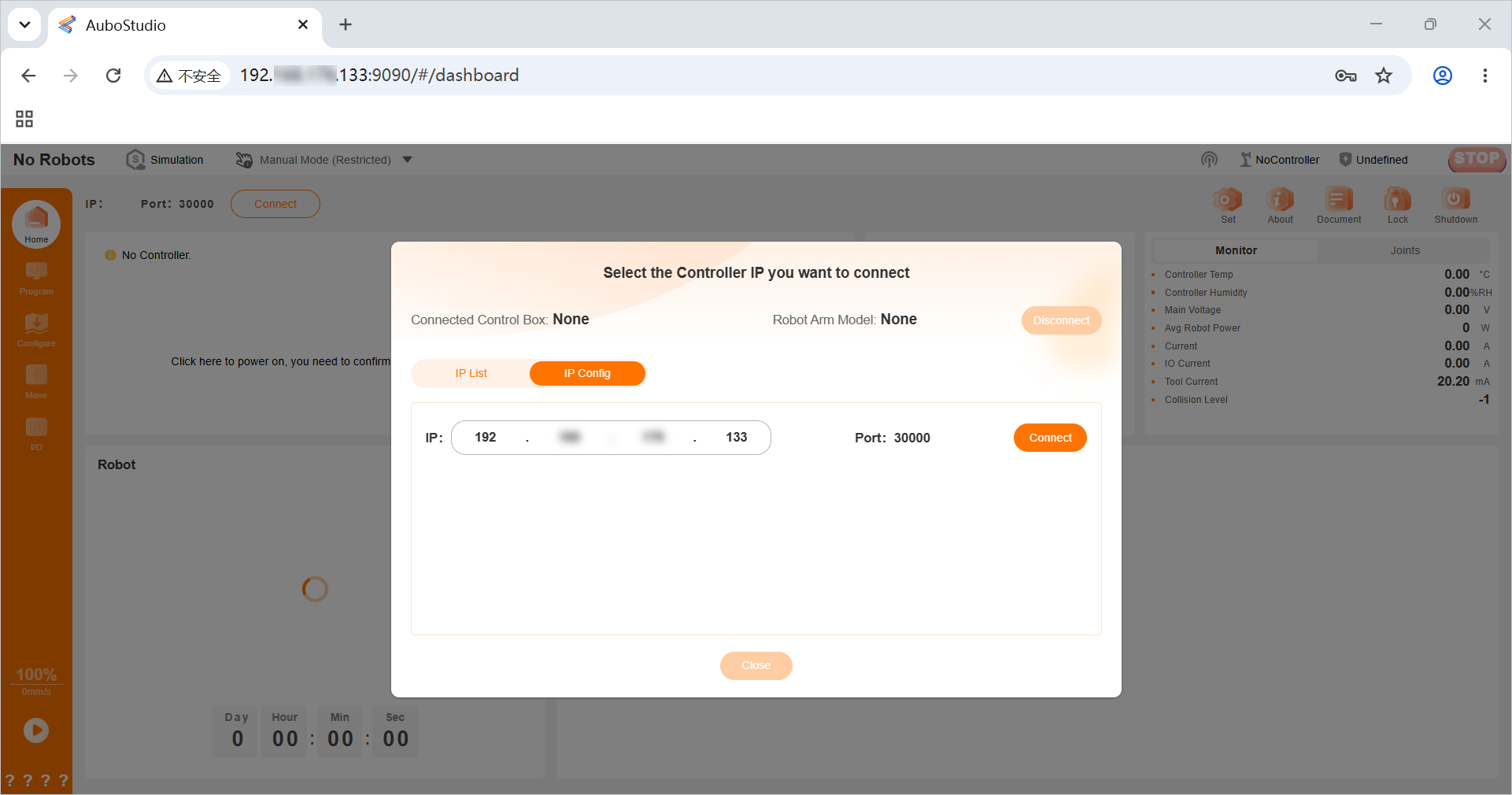
controller cabinet IP:9090in the address bar, for example,192.168.×××.×××:9090, to open the wireless teaching connection page.On the [IP Configuration] page in the dialog box, enter the controller cabinet IP address and click [Connect].
Warning:
- This system is deployed in a private, closed LAN environment and uses the unencrypted HTTP protocol. The browser's "Not secure" message is a general built-in browser warning.
- When accessing the system within the LAN, this warning does not affect normal system operation.
- HTTP does not encrypt transmitted data. Use this function only in a secure, controlled LAN environment. Do not expose the controller IP address directly to the public Internet.
A dialog box displays [Wireless Teaching Disabled]. In the dialog box, click "
 > Change Teaching Method".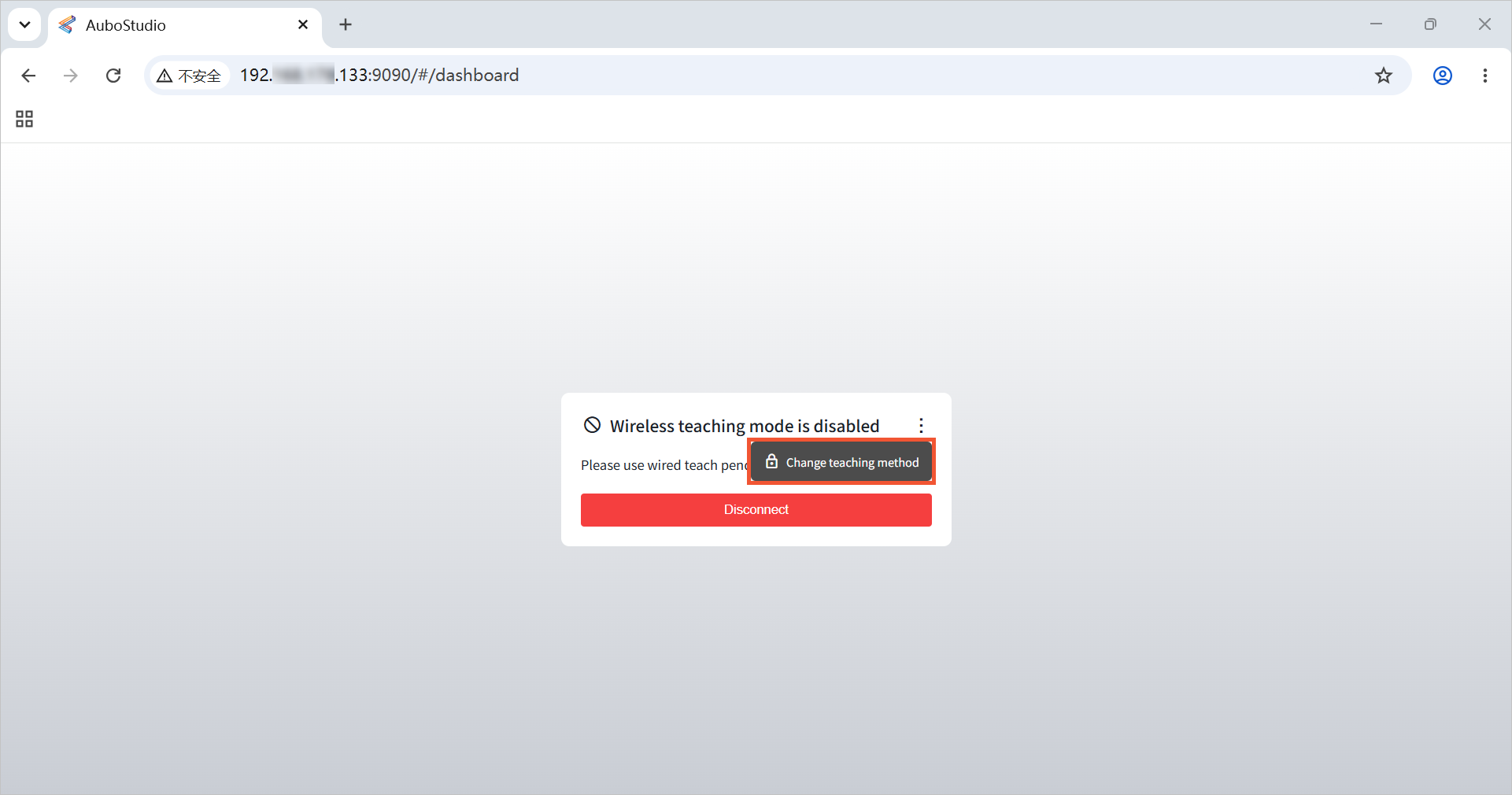
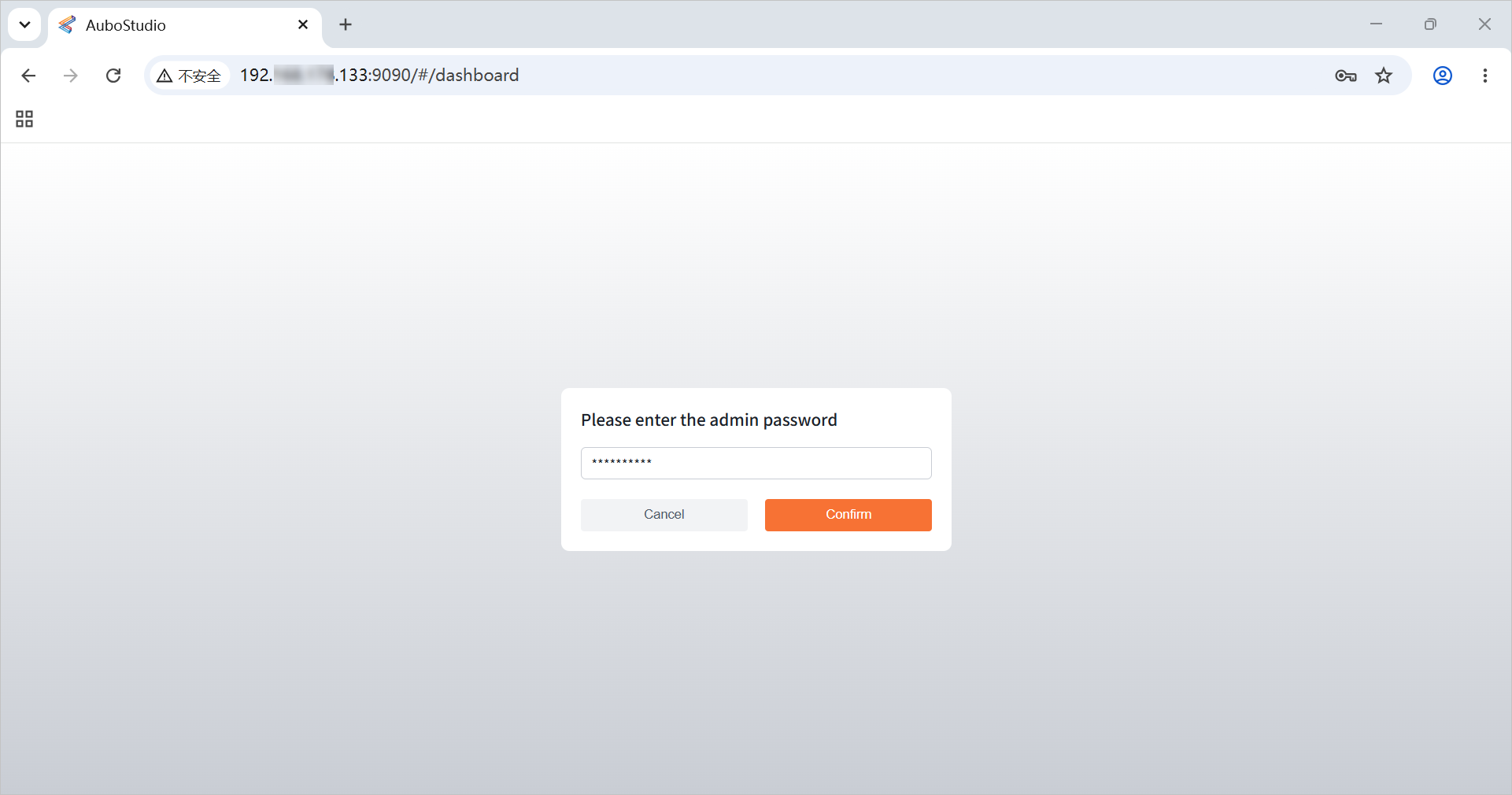
Enter the administrator password configured on the wired teach pendant and click [Confirm] to open the teaching method switching page.
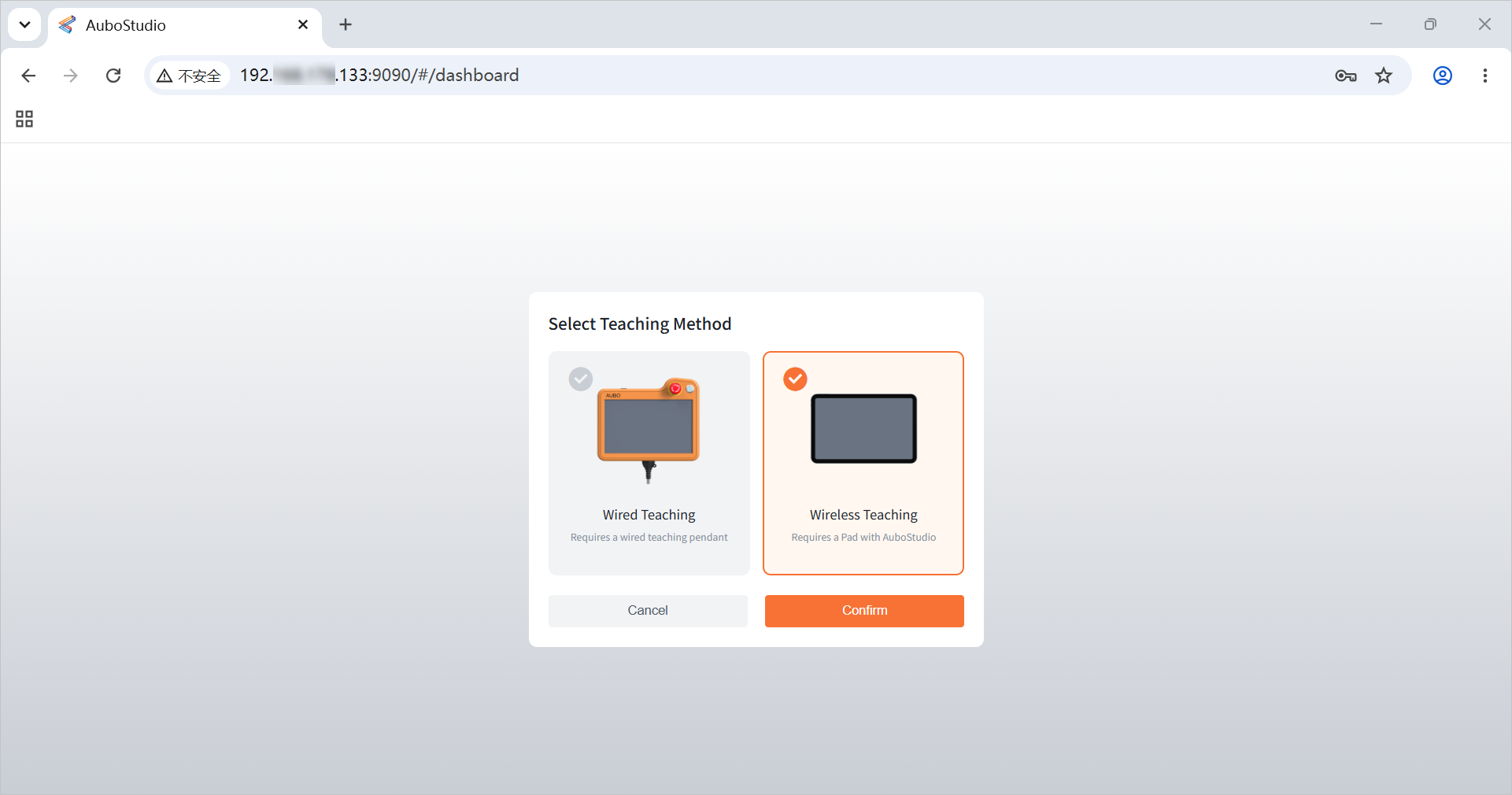
On the teaching method switching page, click "Wireless Teaching > Confirm".
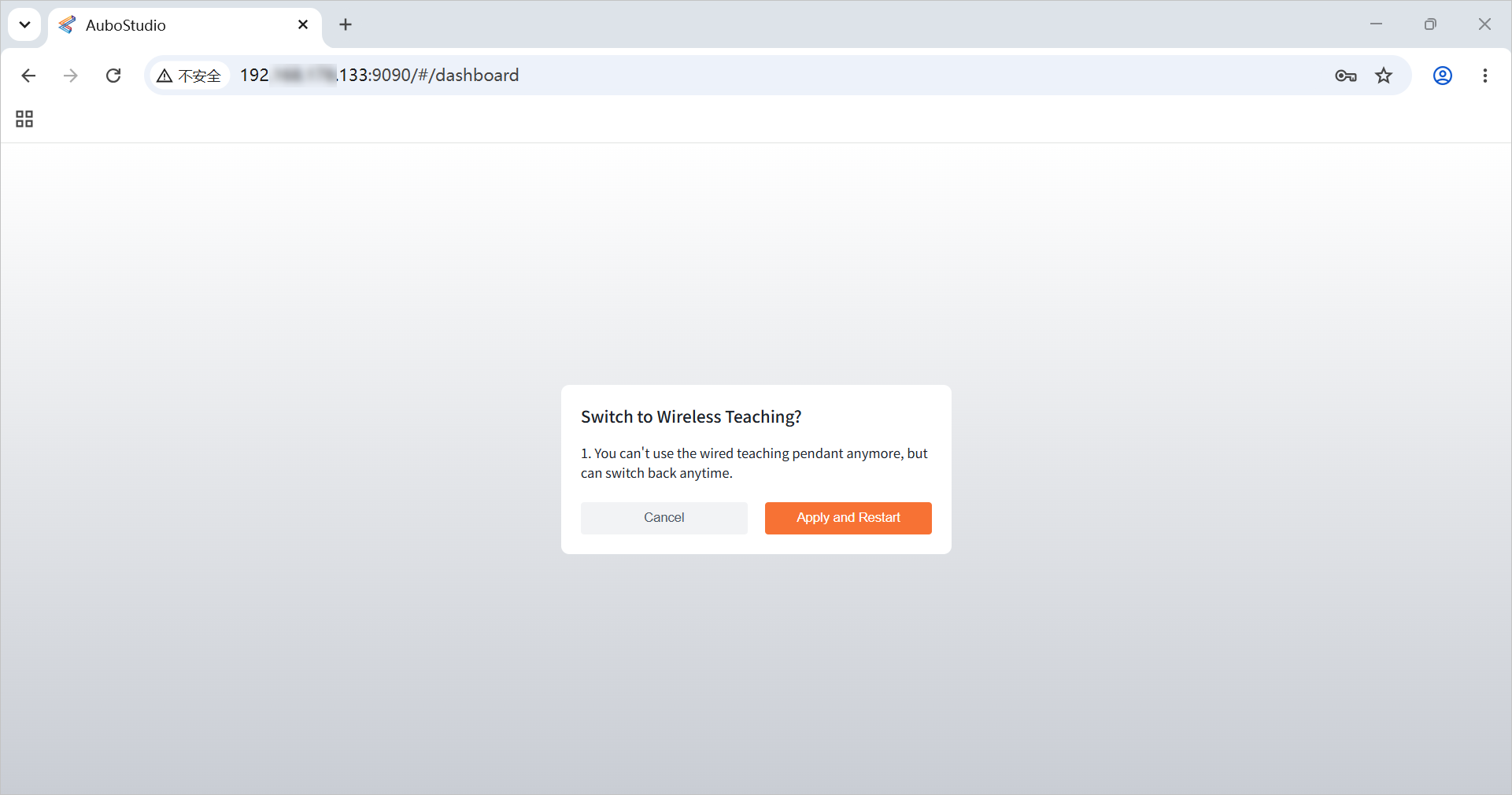
Confirm that the information in the dialog box is correct and click [Apply and Restart].
After the restart is complete, click [Connect] in the dialog box on the page. Wireless teaching is now configured.
Related issues
1. What should I do if the wireless teaching page cannot be opened using this procedure?
Troubleshoot the issue as follows.
Check network communication.
Use the
pingcommand to check whether network communication between the device running the browser and the controller cabinet is normal.Example of normal communication:
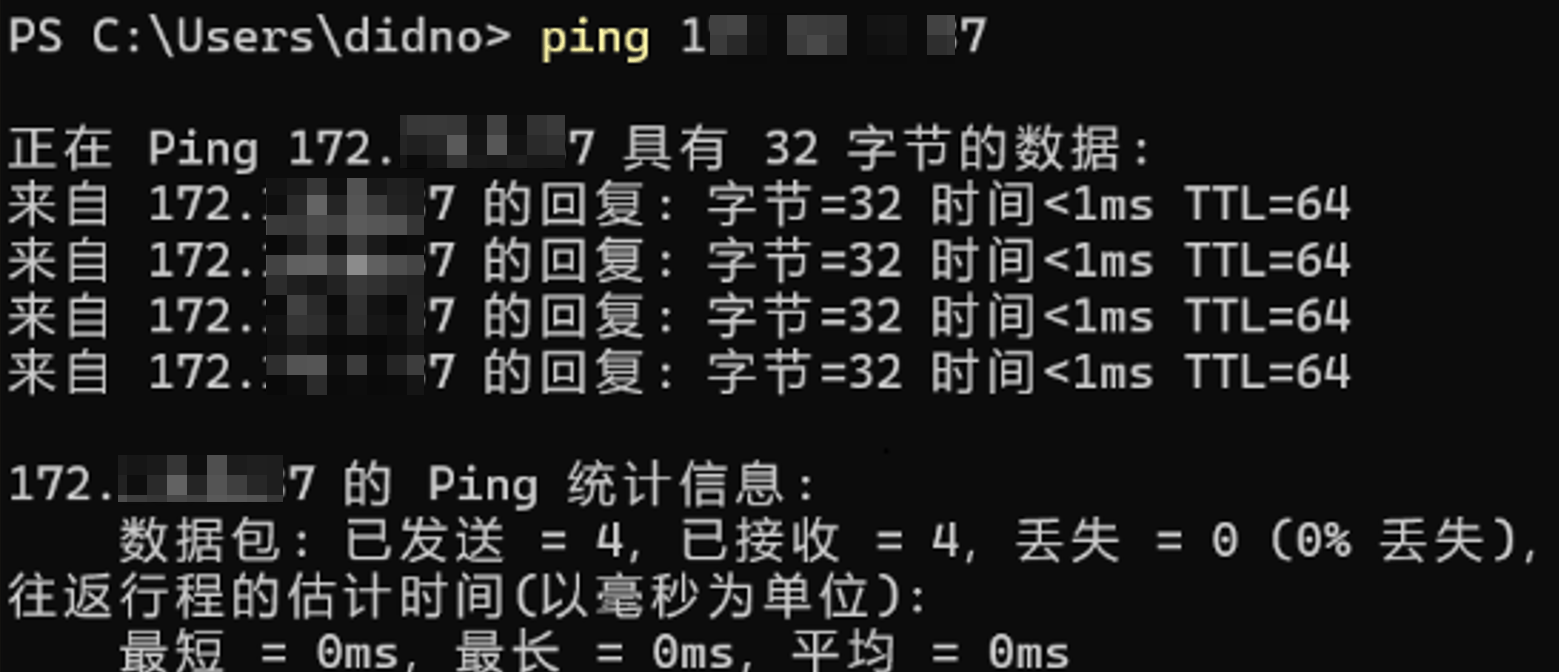
Example of abnormal communication:
A response such as
Unable to access the target hostorHost Unreachableindicates abnormal communication.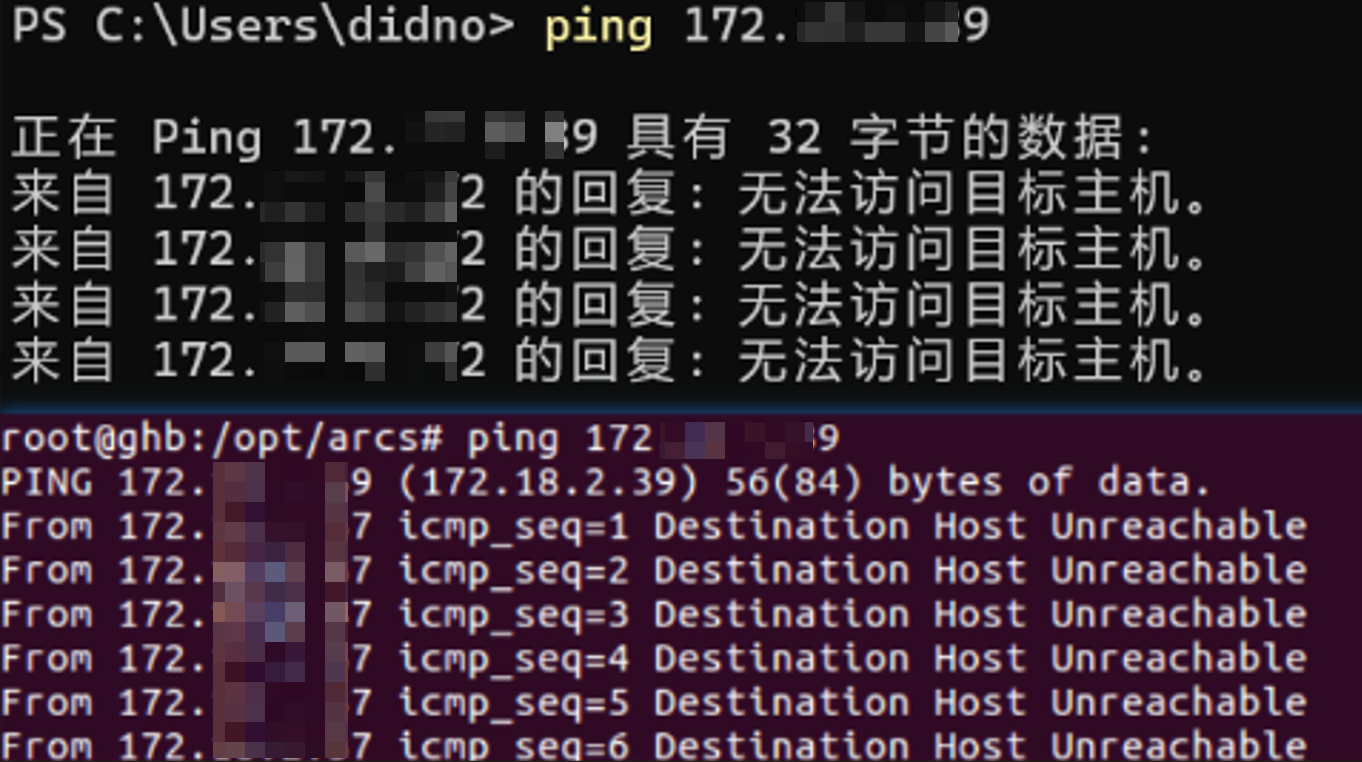
Solution:
Make sure that the device running the browser and the controller cabinet are on the same LAN by using one of the following methods:
- Check the physical connection: Use an Ethernet cable to connect the computer directly to the controller cabinet LAN port, or make sure both devices are connected to the same switch or router.
- Configure IP addresses in the same subnet: Check the computer IP address and make sure it is in the same subnet as the controller IP address. For example, if the controller is
192.168.1.129, set the computer to192.168.1.X. If the subnets differ, manually set the computer's IPv4 address to a static address in the same subnet. - Disable network proxies: Make sure that VPN or global proxy software is not enabled on the device running the browser, which could incorrectly route LAN traffic.
Check the running status.
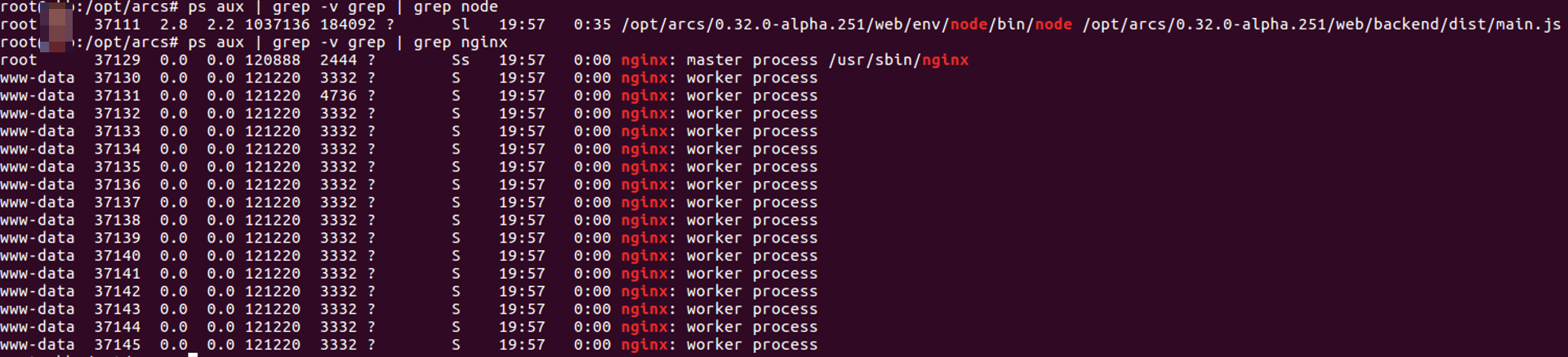
Open a terminal on the controller cabinet and use the following commands to check the status of the key services.
ps aux | grep -v grep | grep nodeps aux: Lists detailed information about all processes in the system.grep node: Filters the process list for processes containing the keywordnode(that is, Node.js processes).grep -v grep: Excludes thegrep nodesearch process itself to avoid interfering with the result.
ps aux | grep -v grep | grep nginxps aux: Lists detailed information about all processes in the system.grep nginx: Filters the process list for processes containing the keywordnginx(that is, nginx service processes).grep -v grep: Excludes thegrep nginxsearch process itself to avoid interfering with the result.
Example when the processes exist:
Example when the processes do not exist:

Solution:
If the relevant processes do not exist, the
webscopeornginxservice is not running. Troubleshoot and restore the service as follows.Step 1: Determine whether the service is disabled
Check the following configuration files in order to determine whether the services are disabled:
Check the OEM configuration: Check the
oem/before_setup.shfile in the software installation directory. If it containsexport INSTALL_WEBSCOPE=falseorexport INSTALL_NGINX=false, the corresponding service is disabled.Note:
The OEM configuration has the highest priority.
Check the global configuration: If the OEM directory does not impose a restriction, check
/etc/default/arcs. If it containsINSTALL_WEBSCOPE=falseorINSTALL_NGINX=false, the corresponding service is disabled.
Step 2: Restore the service based on the troubleshooting result
Scenario 1: The service is disabled (not installed)
If the preceding checks confirm that the services are disabled by
falsevariables, restore them as follows.Note:
Because the OEM configuration has the highest priority, before enabling the services make sure that
oem/before_setup.shdoes not force either variable tofalse. If it does, change the value totrueor delete the line.After confirming that the OEM configuration is correct, use either of the following methods to enable the services again:
Method 1: Specify variables during installation.
Go to the installation directory for the required version (replace
${version}with the version currently in use, such as0.29.1-rc.34), specify the variables, and reinstall:cd /opt/arcs/${version} INSTALL_WEBSCOPE=true INSTALL_NGINX=true ./setup.sh installMethod 2: Modify
/etc/default/arcsand reinstall.Edit the configuration file with
vim /etc/default/arcsand change the following variables totrue:INSTALL_WEBSCOPE=true INSTALL_NGINX=trueGo to the installation directory for the required version and reinstall:
cd /opt/arcs/${version}
./setup.sh install
Scenario 2: The service is installed but has stopped unexpectedly
If the configuration files do not disable the services (the variables are
true), the services are installed but have stopped unexpectedly. Reinstallation is not required; start them directly with thesvcommand:# Load environment variables source /etc/default/arcs # Start webscope ${PREFIX}/${VERSION}/share/software/runit/command/sv start ${PREFIX}/${VERSION}/share/service/runit/webscope/ # Start nginx ${PREFIX}/${VERSION}/share/software/runit/command/sv start ${PREFIX}/${VERSION}/share/service/runit/nginx/
2. What should I do if the wired teach pendant cannot be operated after wireless teaching is enabled?
After wireless teaching is enabled in a browser, the wired teach pendant is locked. On the wired teach pendant, switch the teaching method to [Wired Teaching]. The procedure is similar to switching to [Wireless Teaching] in the browser.
3. What should I do if buttons in the web-based AuboStudio App do not respond or the page becomes slow after an ARCS upgrade, but temporarily recovers after refreshing?
Cause
After an ARCS system upgrade, the browser may retain cached pages from the previous version. Conflicts between old and new front-end resources can cause buttons to stop responding, the interface to freeze, or the display to become abnormal. Refreshing the page loads the new resources temporarily, but the remaining cache can cause the problem to recur.
Other symptoms
In addition to buttons not responding, an uncleared cache may cause the following web interface problems:
- Parameters on the teaching page are displayed incorrectly, or function panels are missing.
- The controller IP connection dialog fails to load, or the connection button does not respond.
- The page layout is disordered, or some function modules remain blank and fail to load.
Standard procedure (recommended after every version upgrade)
- Close all browser tabs that have the AuboStudio App open.
- Open the browser settings and clear only cached images and files; it is not necessary to delete cookies.
- Re-enter
controller cabinet IP:9090in the address bar to access the web interface. - Alternative shortcut: Open the browser in incognito or private mode. Incognito mode does not load historical cache and can avoid resource conflicts.
Notes
Clear the cache after every ARCS system upgrade to prevent page operation failures caused by cache conflicts. The wired teach pendant and the AuboStudio App mobile application are not affected and require no additional operation.