
Template Program Node
The template program node is a built-in node designed to facilitate user access to complex functions, including scripts, pallettes, track playback, and other functions. The template program node can be applied in some specific scenarios; for example, the "script" function can make it easier for users to write a script; and the "pallet" function is used for palletizing and depalletizing.
Scripts
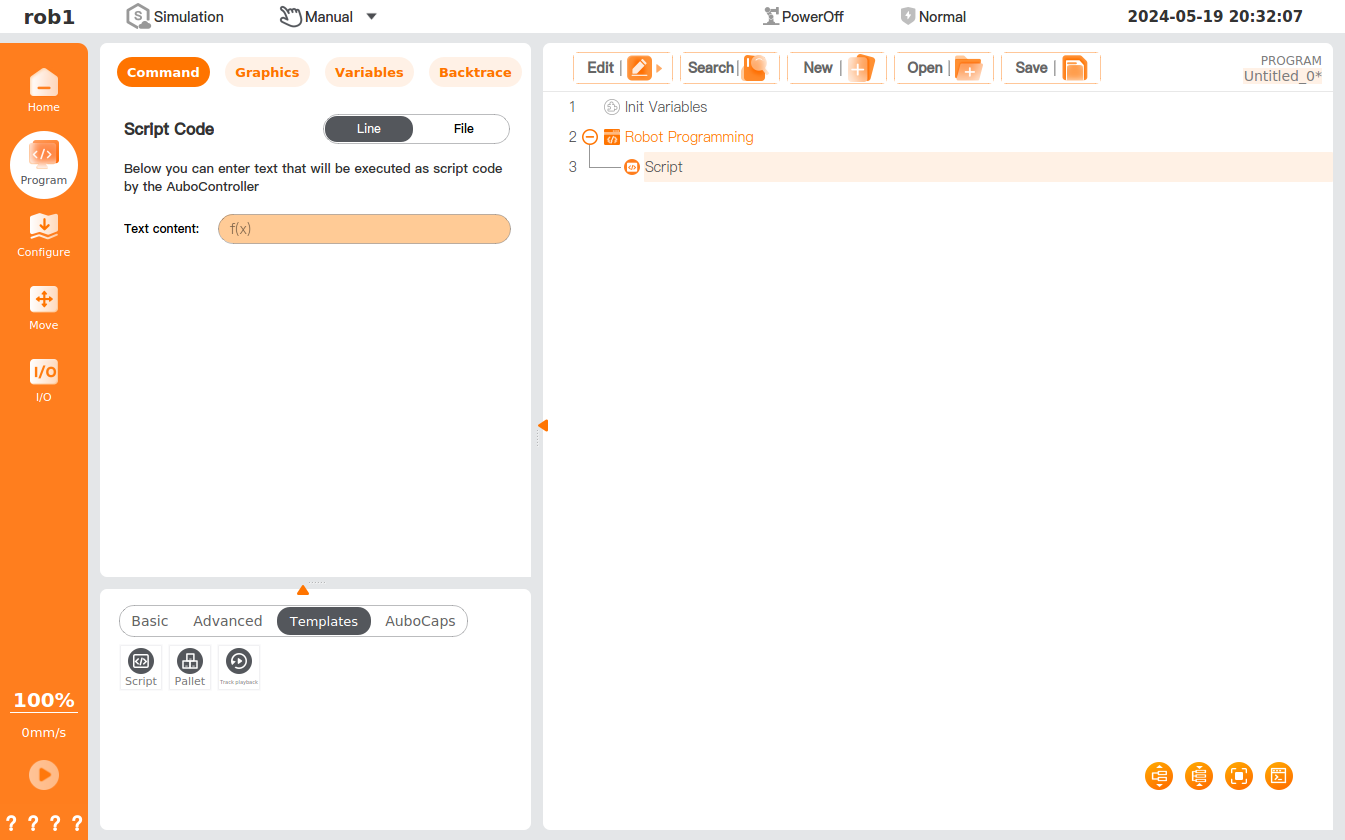
The [Script] command allows the addition of a script line or a script file.
Settings
Line: Allow entering the text to be executed as script code through the editor.
File: Allow opening or saving the script file and editing, clearing, and saving the opened script file.
Tip
- Before editing the scripts, please open the saved scripts or [Save As] the scripts, and then click [Edit] to edit the scripts. Failing to do so will prevent script editing.
- The script editor comes with a syntax checker, which is in a white background if the script code entered is correct and in yellow if it is incorrect. To ensure the script is saved to the script file, the entered script code must be correct.
Pallet
The [Pallet] command allows the creation of a palletizing or depalletizing task. Users can accomplish palletizing and depalletizing tasks through parameter configuration. This command serves as a template that guides the robot to perform repeatable operations on different items in multiple layers of different patterns.
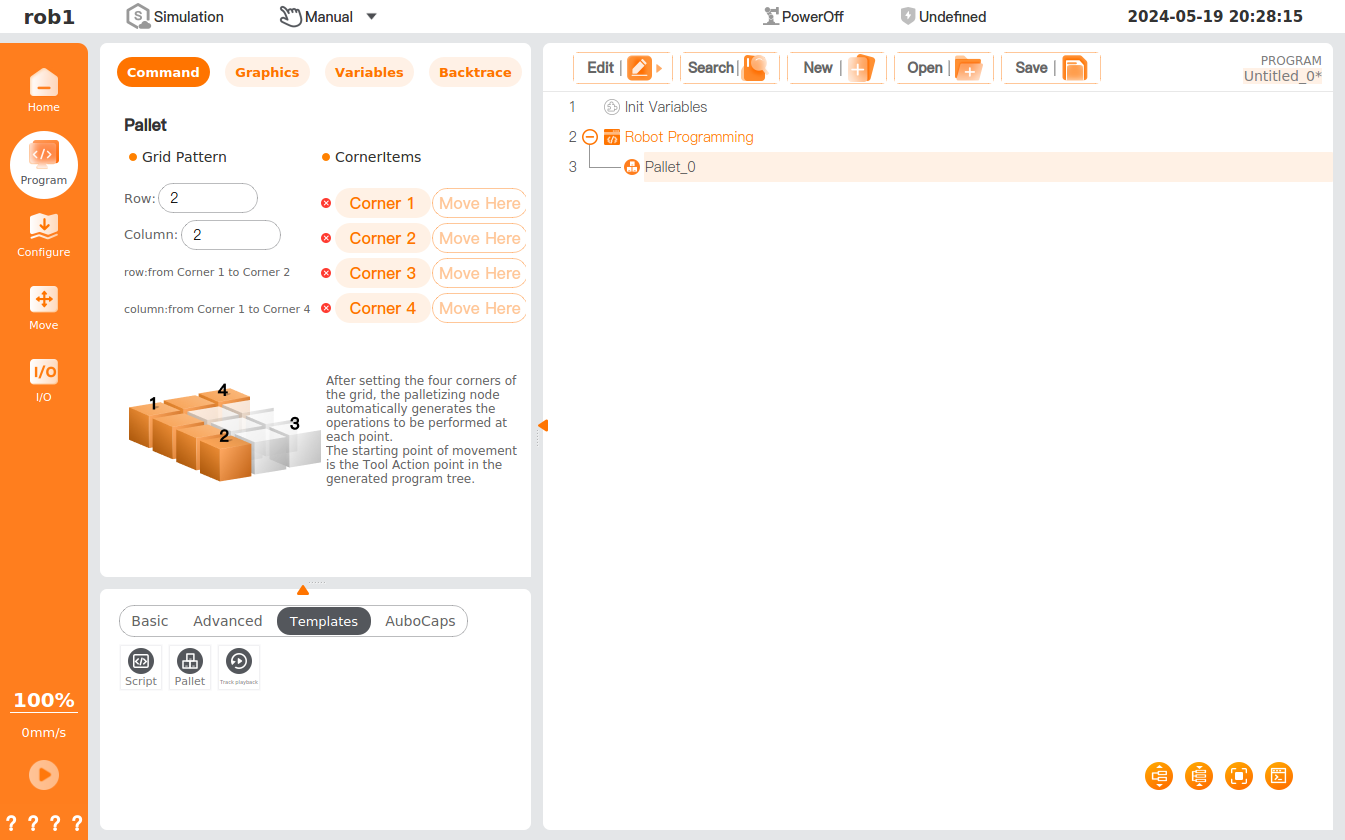
- Grid pattern: Showing row and column information for palletizing.
- Vertex: Four vertices of the palletizing pattern. Click [Corner 1] ~ [Corner 4] to set the position/pose of the four corners in turn.
- After setting the vertices of the palletizing pattern, the operation to be performed at each point will be generated in the [Pallet] node block. The starting point of robot palletizing is the working point.
- Approach point: The starting point of the end-of-arm tooling (EOAT).
- Working point: The first point of palletizing work.
- Tooling actions: Actions of the end-of-arm tooling (EOAT).
- Exit point: The end point of the end-of-arm tooling (EOAT).
Track playback
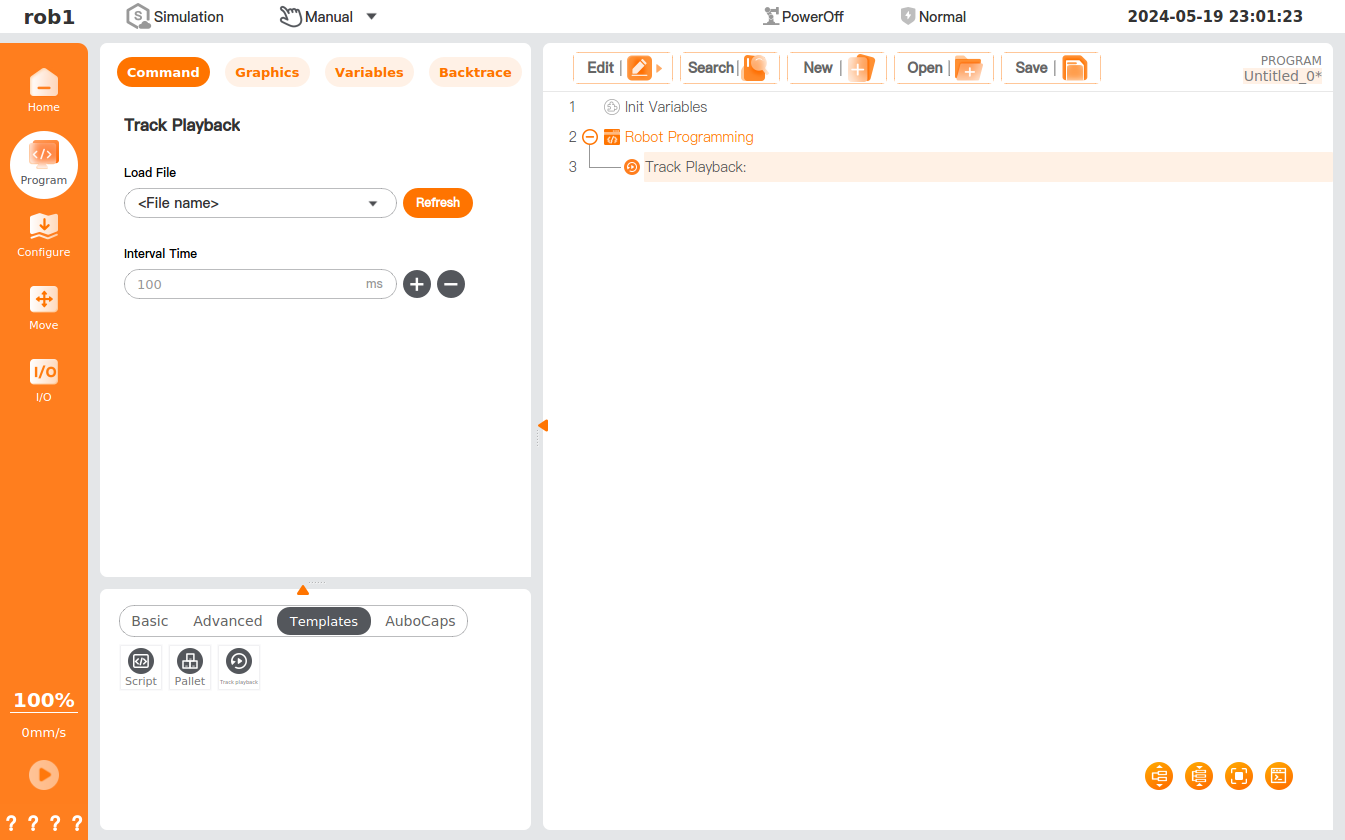
The [Track Playback] command allows insertion of the track file in the program. When the program runs to the "Track Playback" node, the track file will be played, and the robot will move along the track recorded in the file. The track file is a file that records the motion track of the robot and is generally stored in the installation profile. For the generation of the track file, please refer to "Record."
Settings
- Load file: Click "Load file" or
 the icon, and select the track file, then the program will start track playback after running to this node.
 - Refresh: Click it to refresh the "Load" drop-down menu.
- Interval Time: Used to adjust the speed at which the track is running.
Constant force control
The [Constant Force Control] command can set the force or torque value to a flexible axis, enabling the TCP to move with constant force on a curved surface.
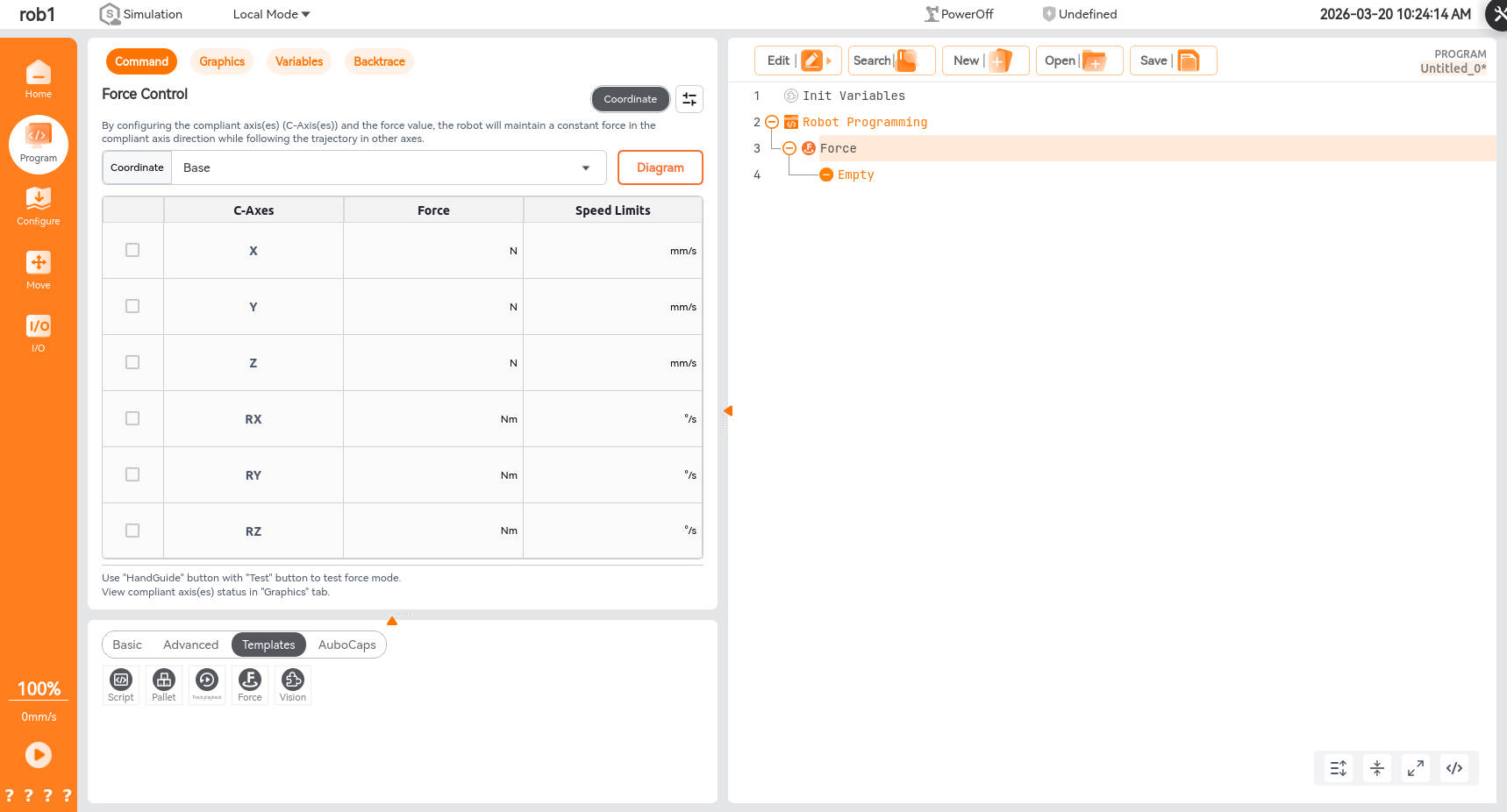
- Coordinate system mode: After configuring the flexible axis and setting the force value, the robot will keep moving with constant force in the flexible axis direction and move according to the preset track in other directions.
- Motion: The force coordinate system is adjusted according to the motion of the tool center point (TCP). The X-axis of the force coordinate system is the projection of the TCP motion direction onto the X-Y plane of the selected coordinate system, and the Y-axis is perpendicular to the X-axis in the X-Y plane.
- Speed limit: The maximum movement speed of the end in the direction of the flexible axis (when there is no reference track). The actual movement speed may be less than or equal to this speed.
- Stiffness: Generally 0.
- Damping: This value will affect the actual movement speed of the end.
- If the target force remains constant, the greater the damping, the lower the movement speed, and it may not move at all. The smaller the damping, the greater the movement speed, but the target force may overshoot after contact.
- Environmental stiffness: The deformability of tools and workpieces.
- If this value is too small, the robot arm will shake; too large a value will affect system response speed, but it is relatively safe.