App Store
App store provide users with services for installing, updating, and managing applications. Through the App store, users can easily access various applications to expand system functionality.
Tip
- Supported versions:
- Wired teach pendant: ARCS 0.31.1 version and above
- Android client: ARCS 0.31.0, app version 0.9.3 and above
- The app store is a functional module of the OPS system. Please ensure that the OPS system is installed before use.
- For OPS system installation, please contact the relevant technical personnel.
App store entry

App list view
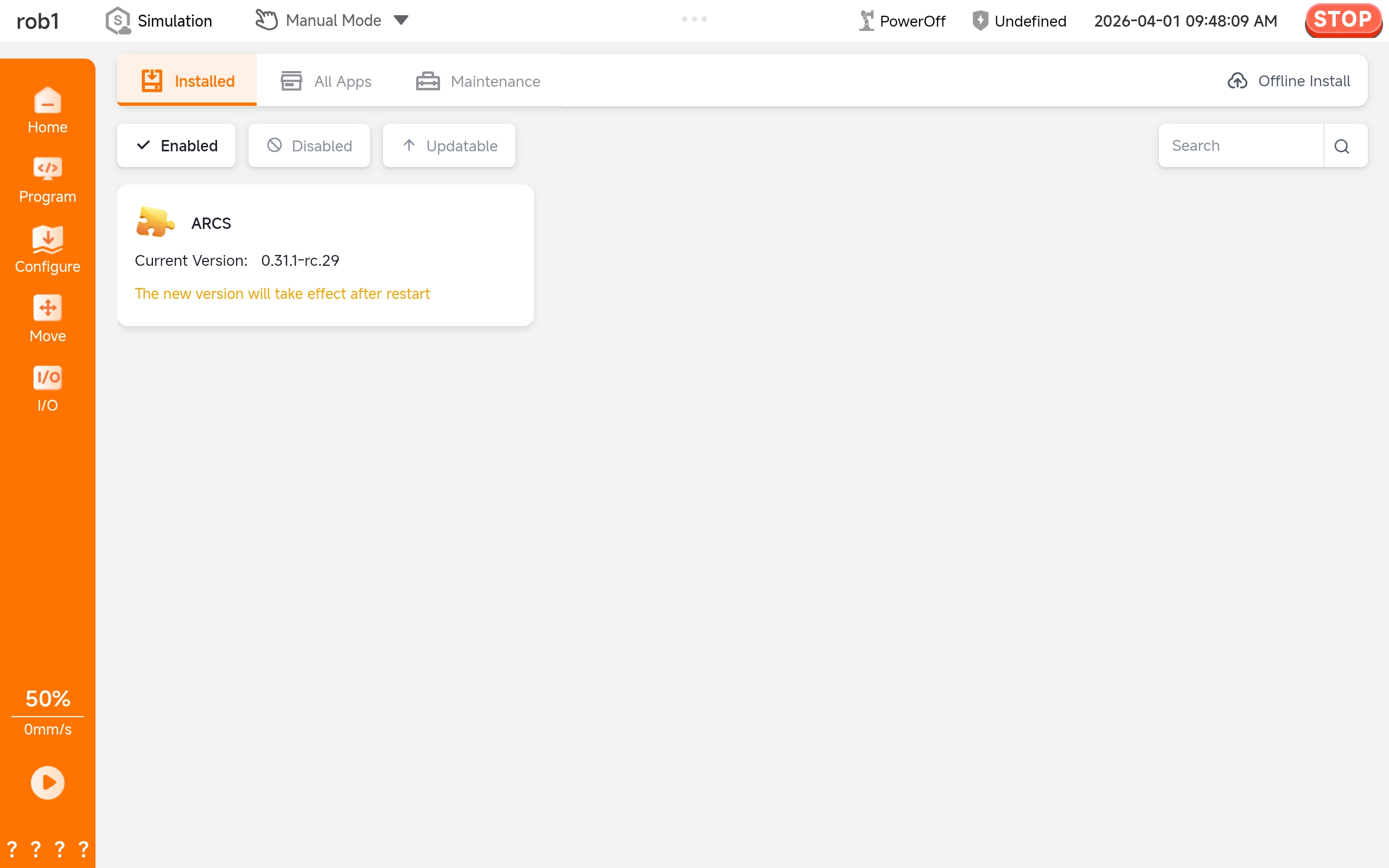
Installed: All apps installed on the system are displayed.
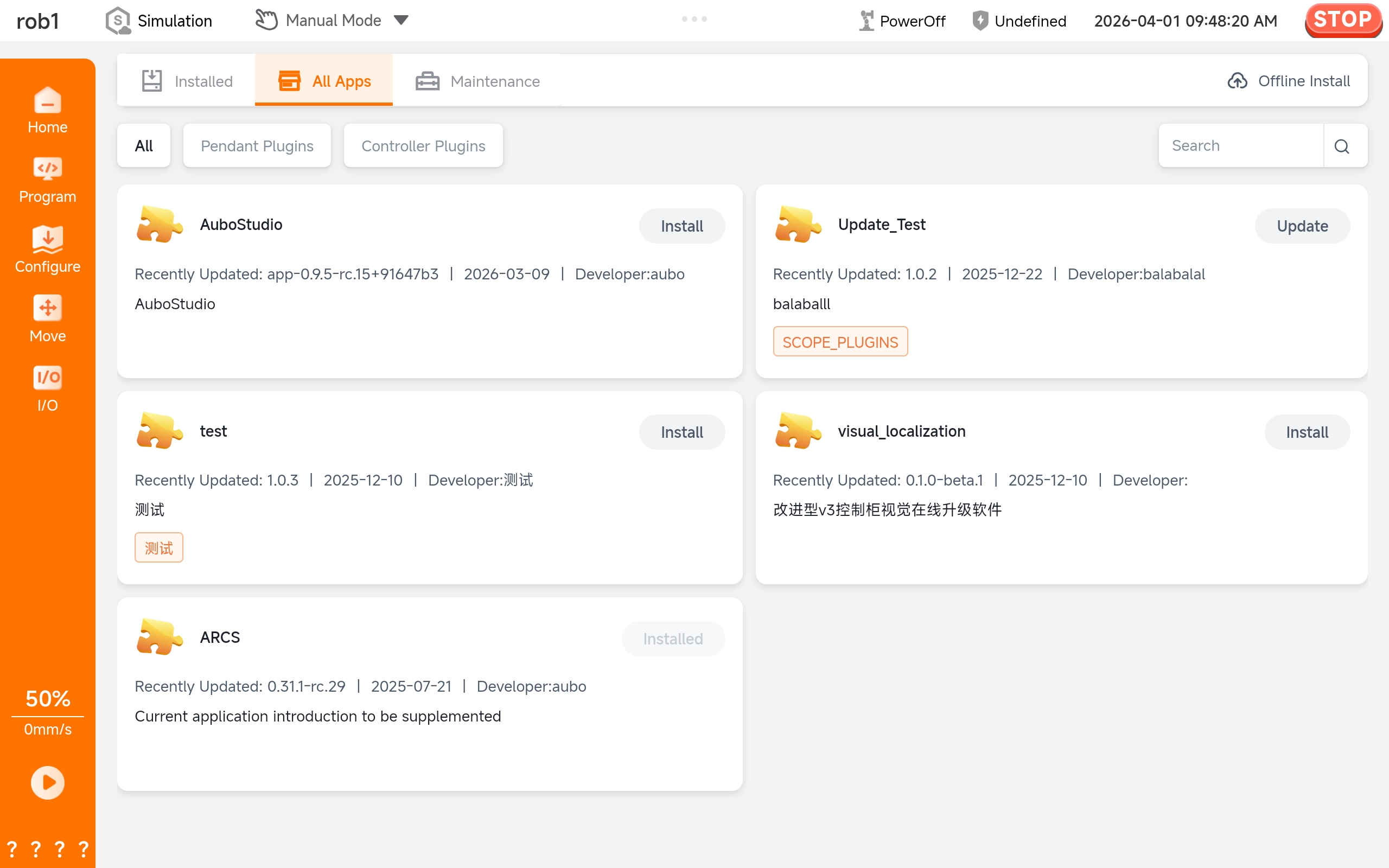
All Apps: Apps available from the store are displayed.
App details
Clicking the app tab will display app drawer details on the right side of the page.
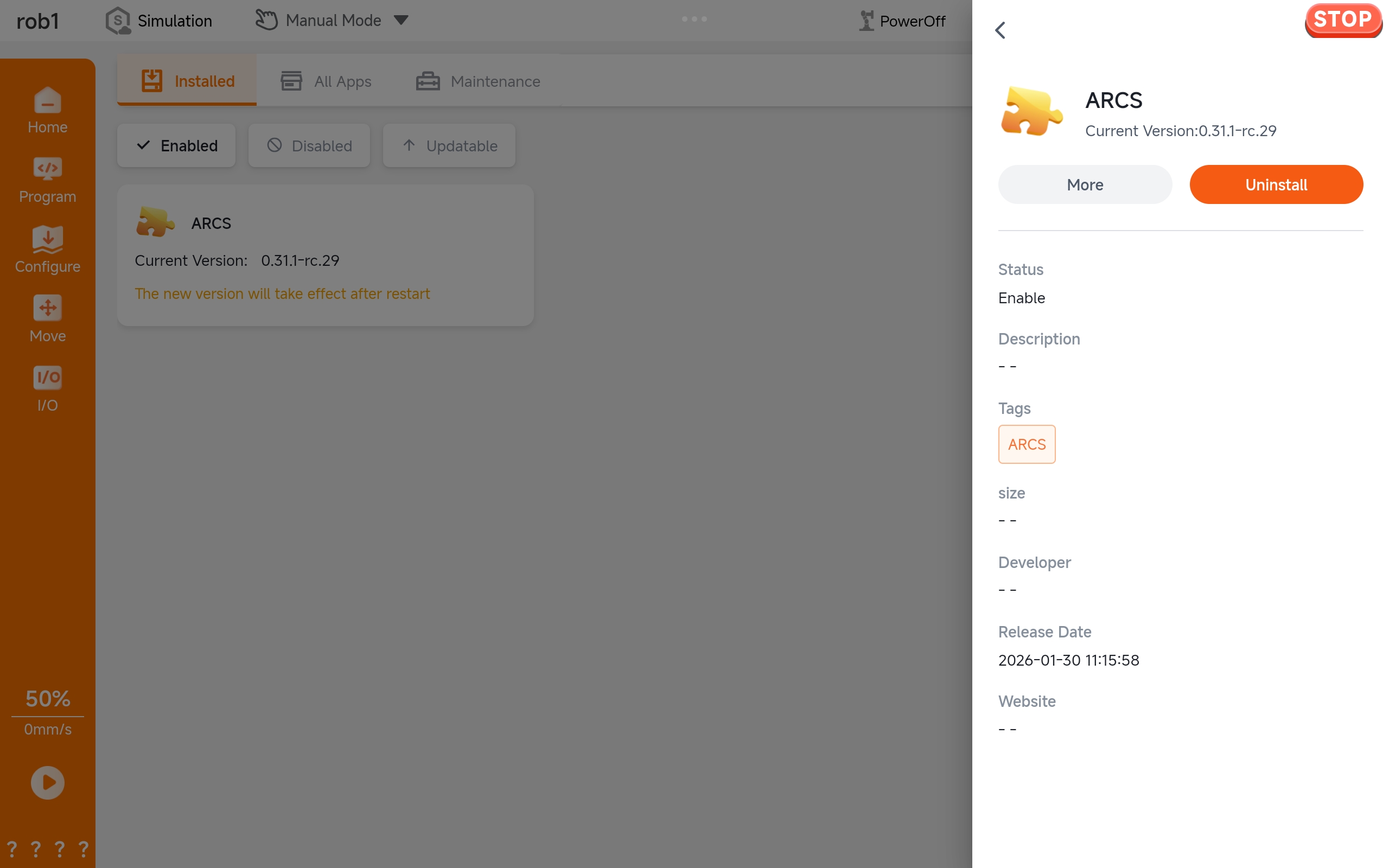
App management
Online installation
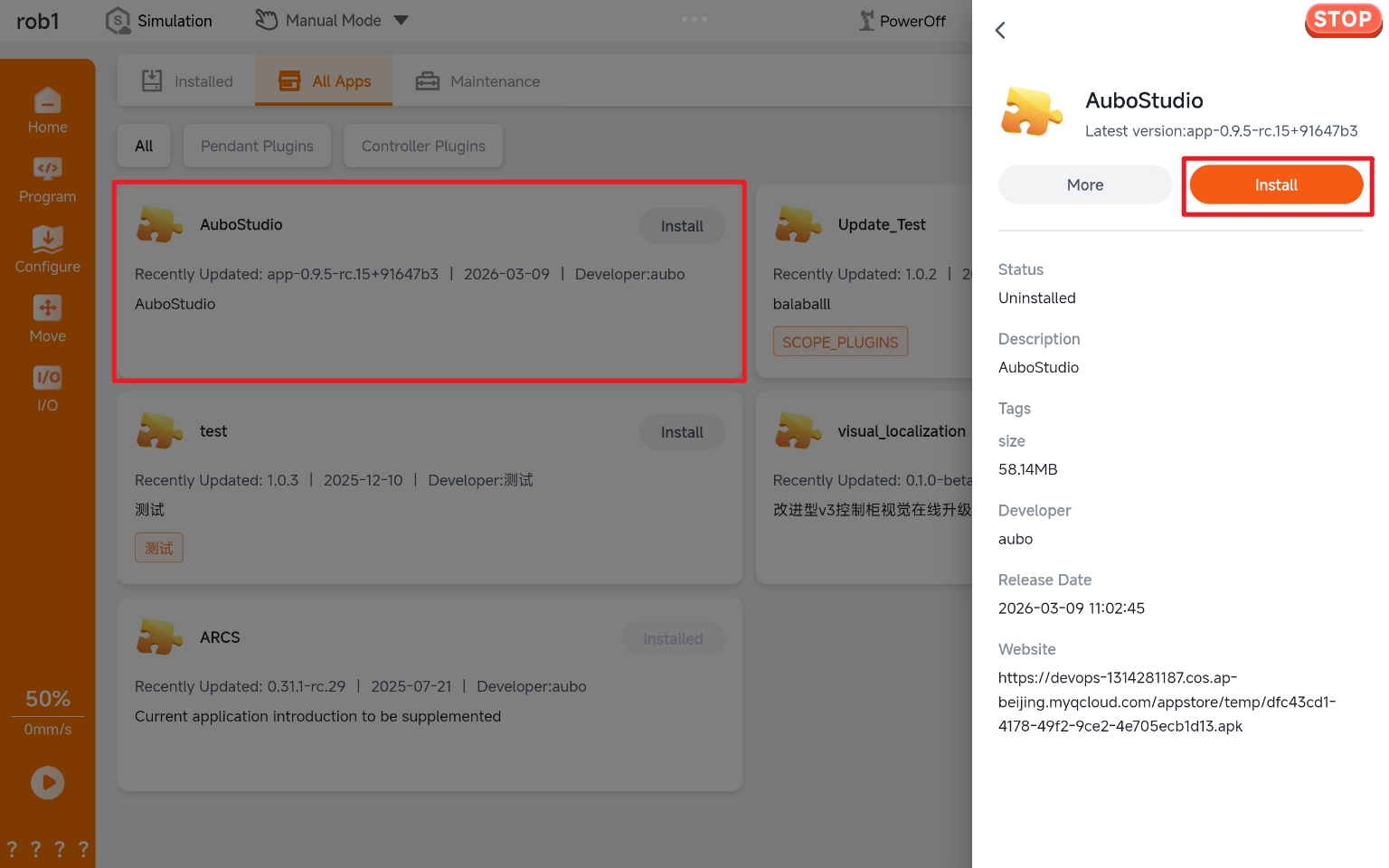
Users can directly select and install apps from the app list:
Standard installation: The latest version is installed by default.
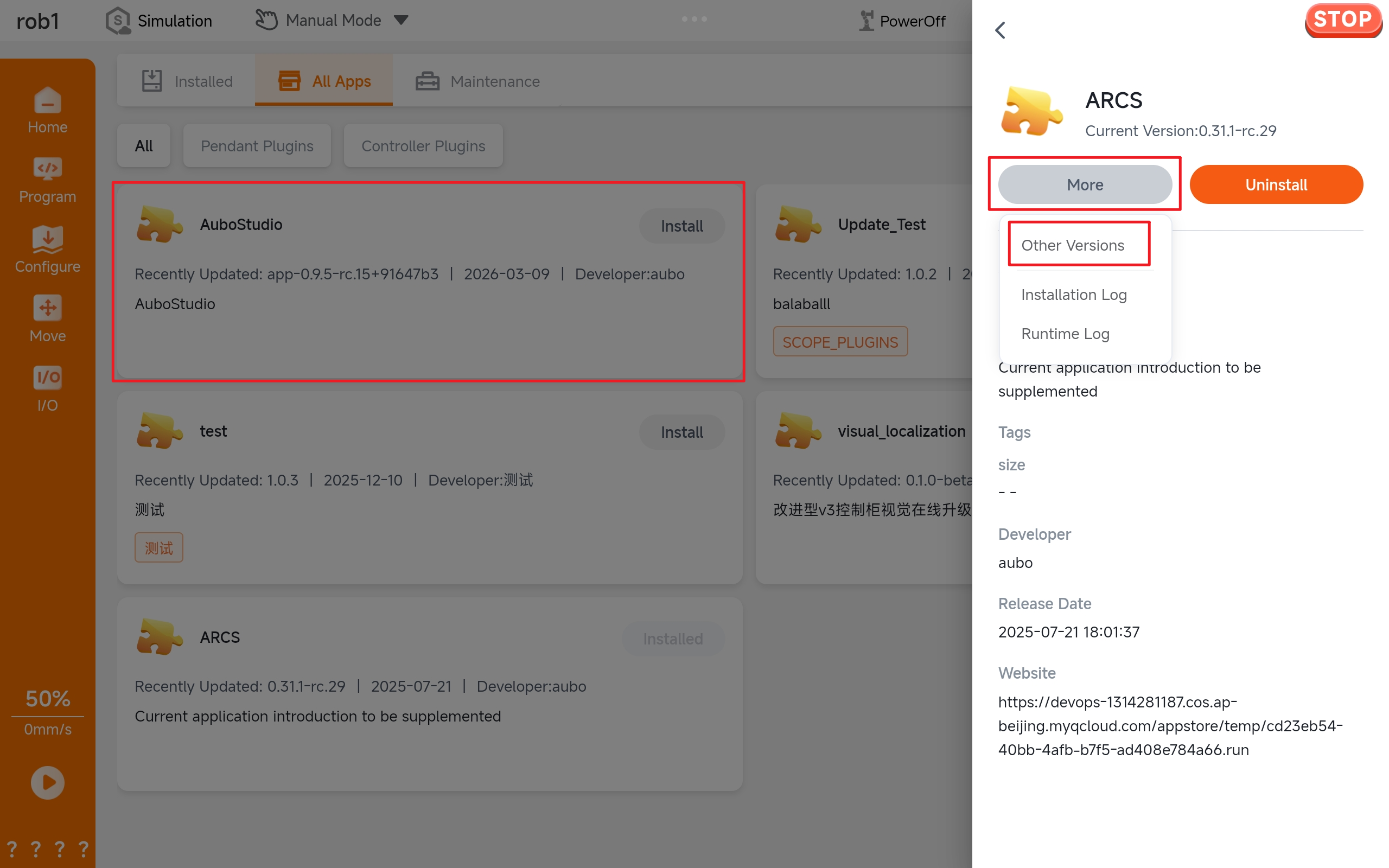
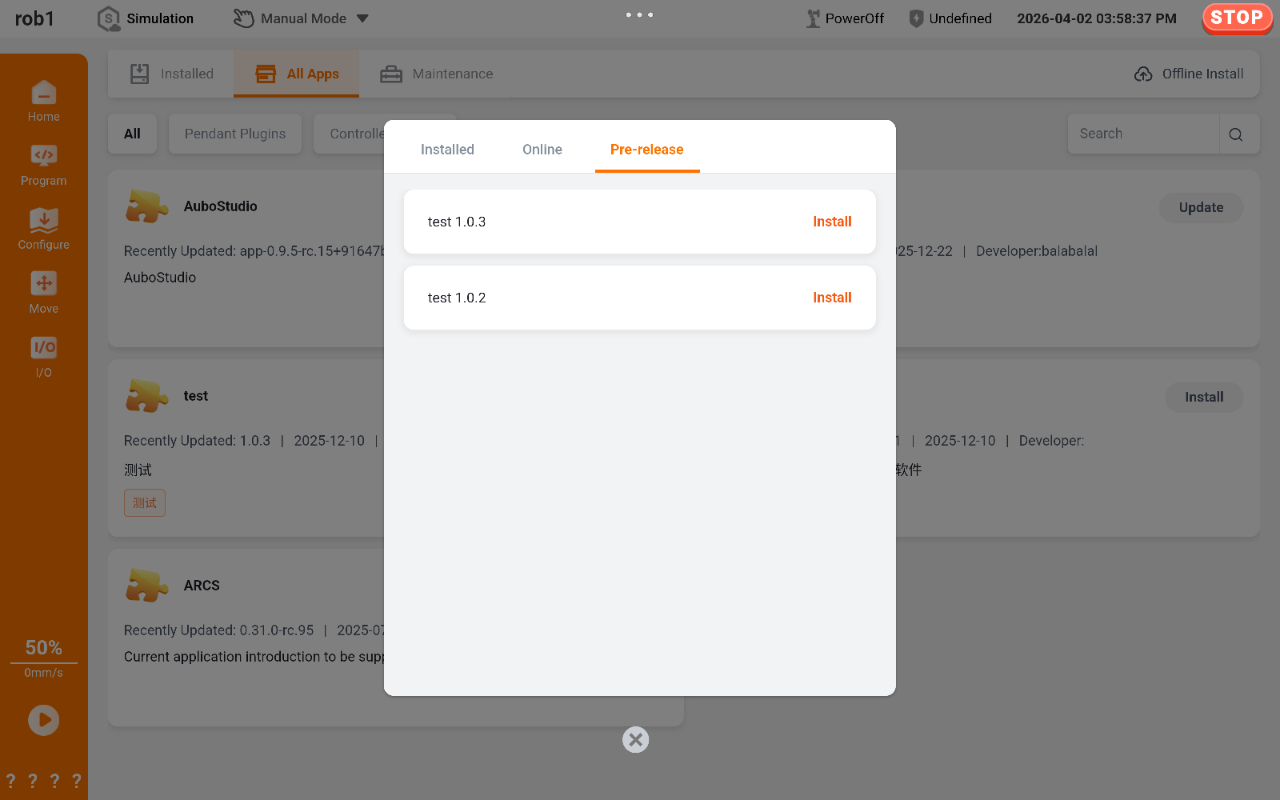
Multiple version installation: The official version or the prerelease version can be selected.
Offline installation
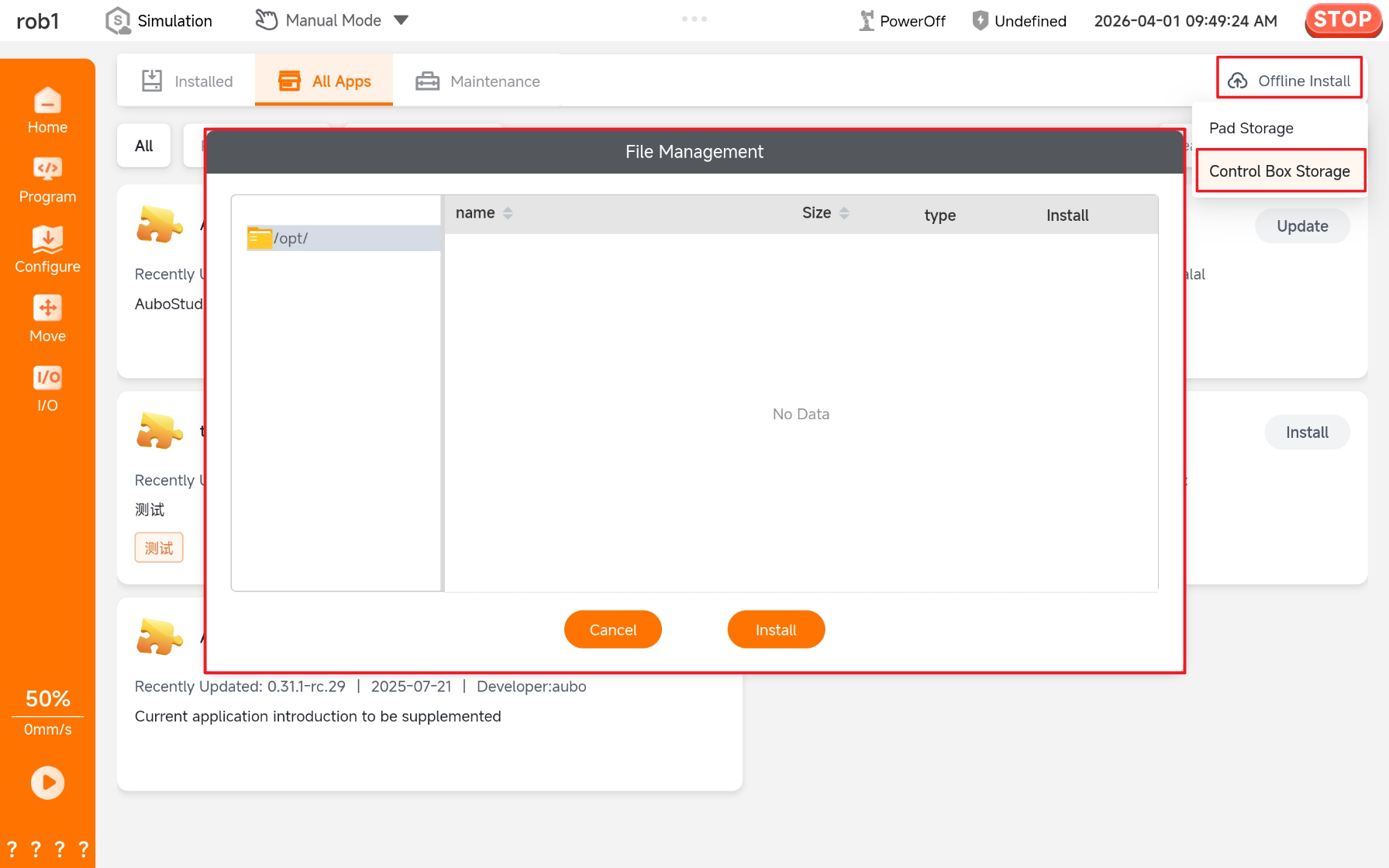
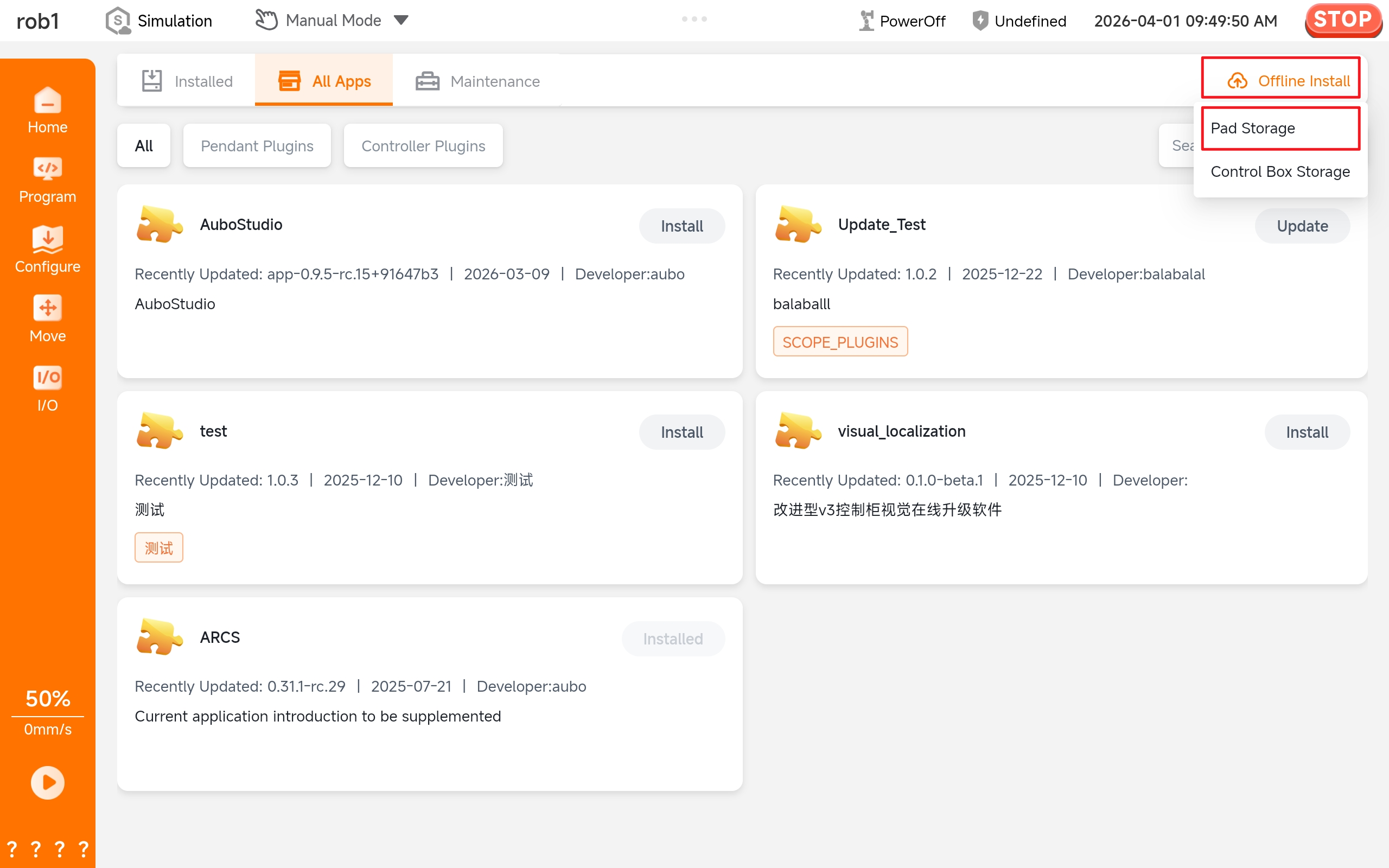
Users can upload the app installation package to the control box or tablet and install it by using the "Offline Installation" function on the right side of the top menu bar.
Local installation and USB installation for control box: Select "Open control box storage file" (RPK format supported), then select the app package from the list and click Install.
Upload installation package stored on tablet: Select "Open tablet storage file" (RPK format supported), then select the app package from the list and click Install.
Version switching
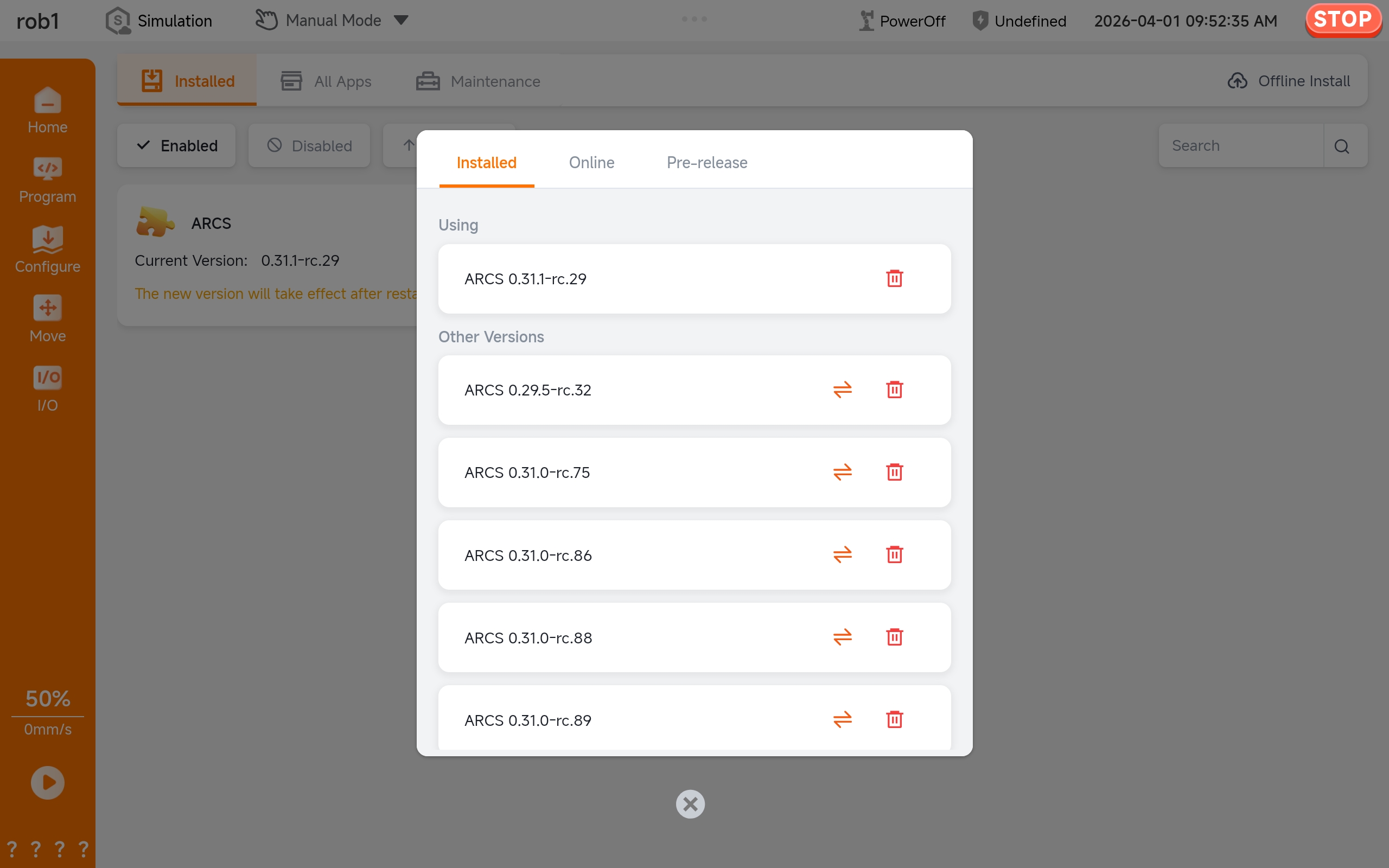
- Click the tab to display the app drawer pop-up.
- Click "More Operations > Other Versions."
- The version list displays information on all versions of the current app.
- Click the [Apply] button for the corresponding version to switch versions.
Uninstall app
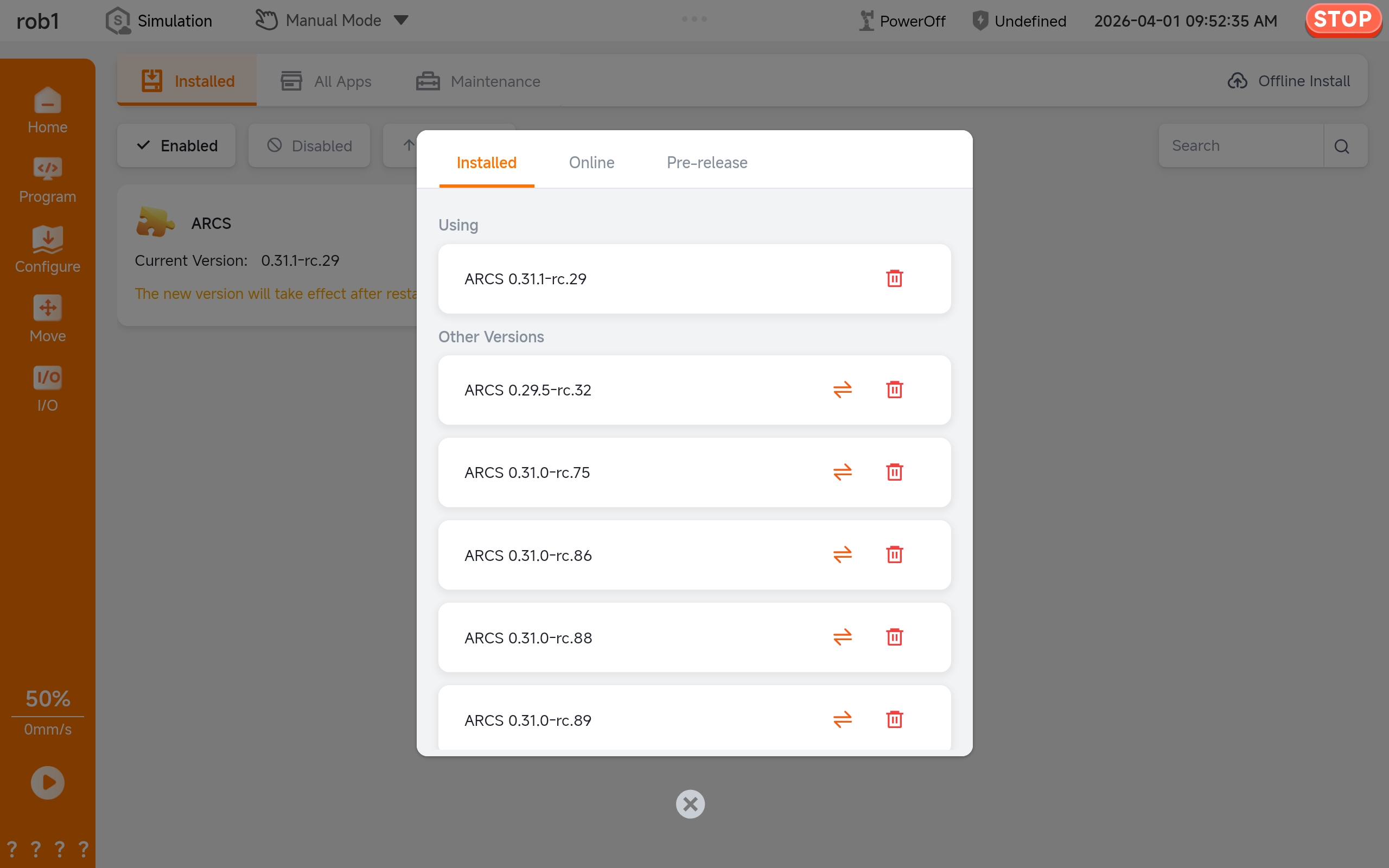
Click the [Uninstall] button in the version information.
Tip
The version currently in use must be disabled before it can be uninstalled.
Operation guide
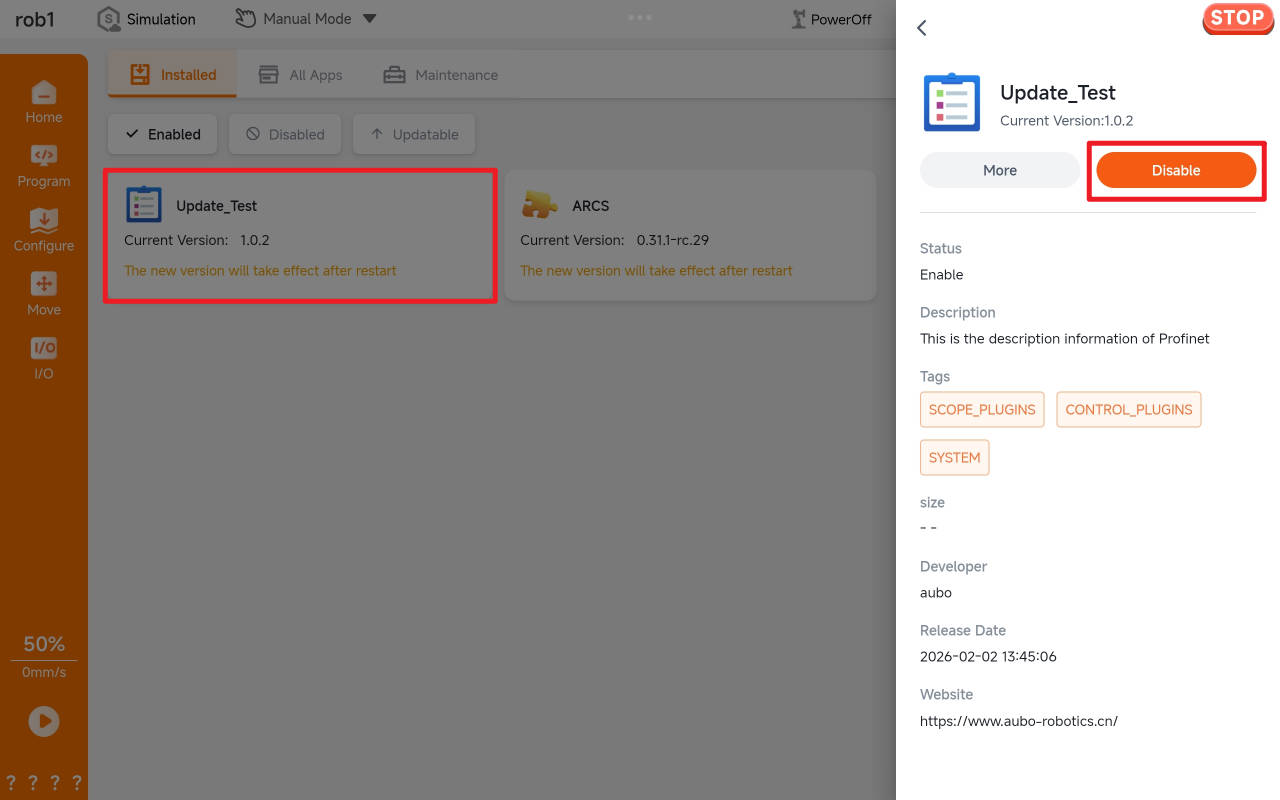
Click the [Enable/Disable] button on the app drawer page and restart the system for the changes to take effect.
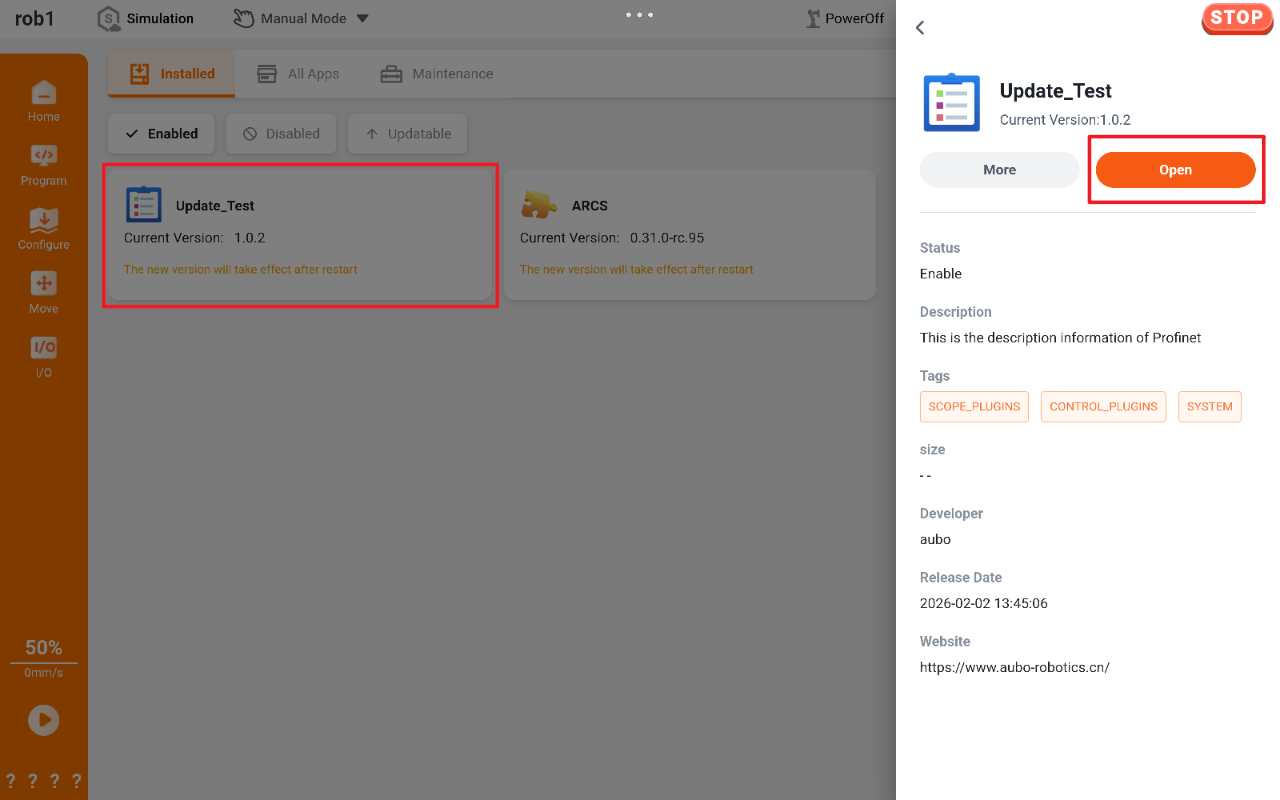
After the app is enabled, if the app is linked to the [Configure] page, clicking [Open] will access the app's configuration page.
Monitoring and log
Status monitoring
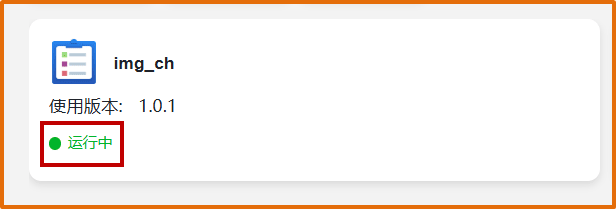
The system automatically monitors the operating status of all enabled apps and displays it in real-time on the app tab.
Installation log
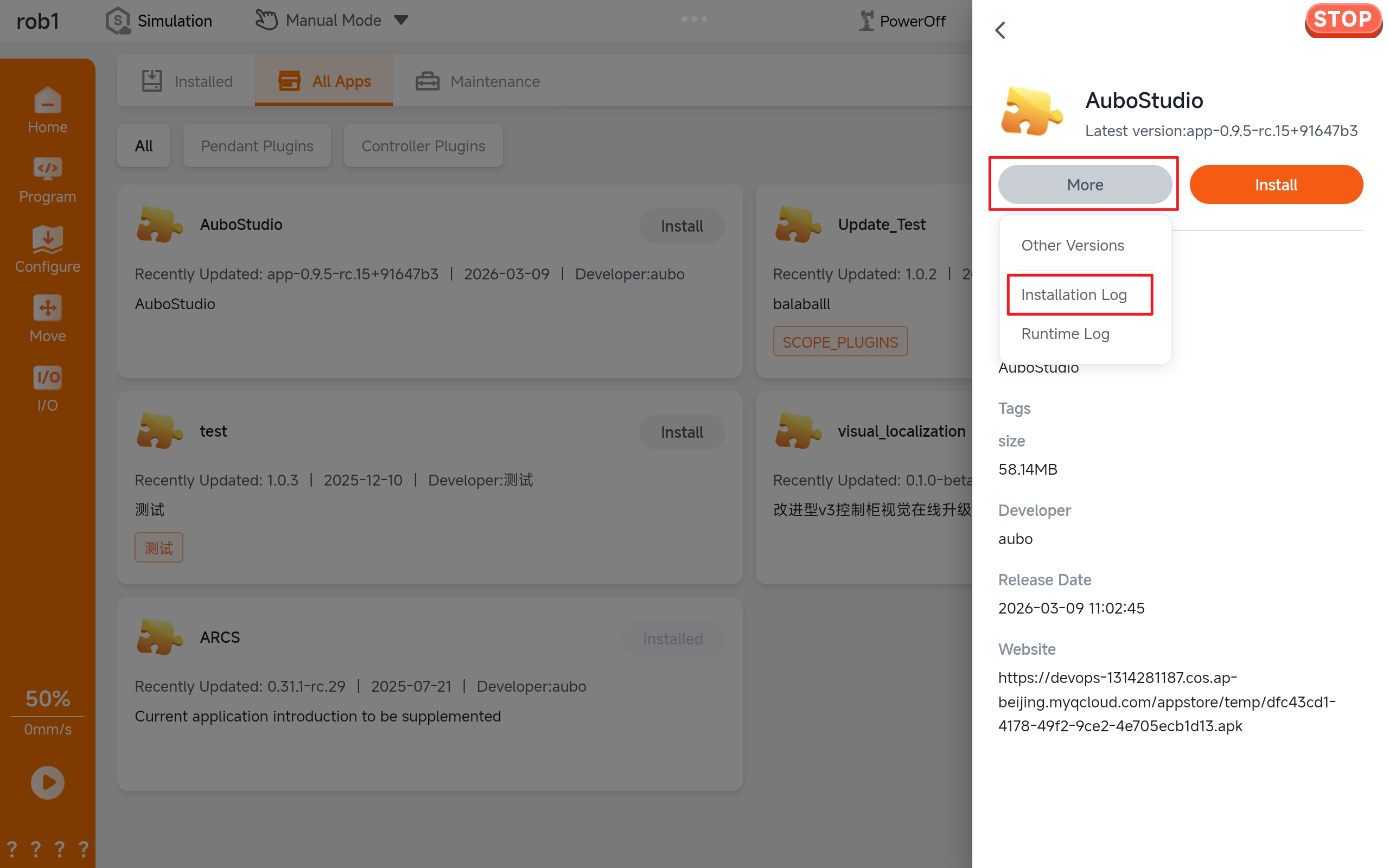
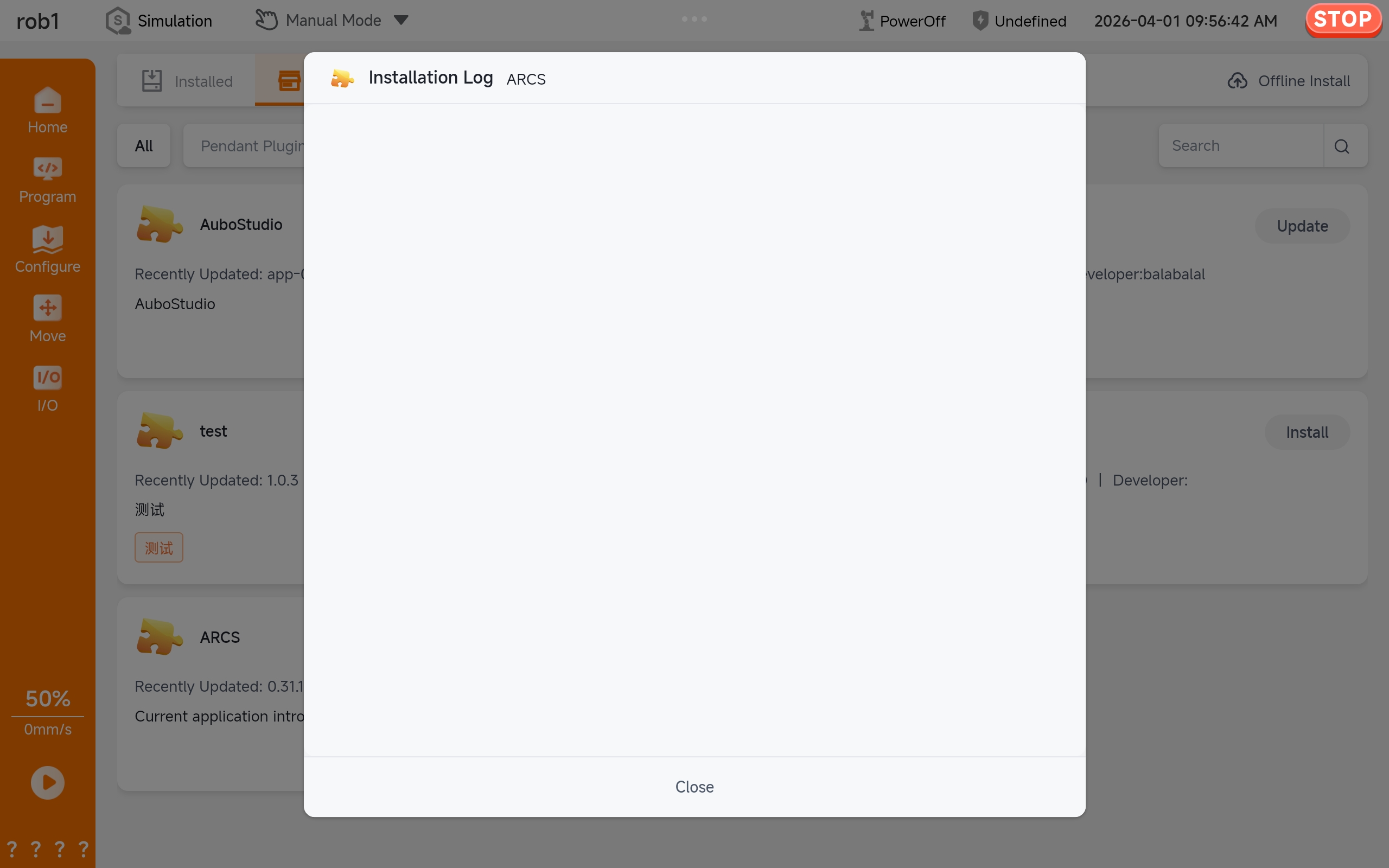
An installation log is generated in real time during app installation. After installation, you can view the log by clicking on the app tab drawer page and selecting "More Operations > Installation Log."
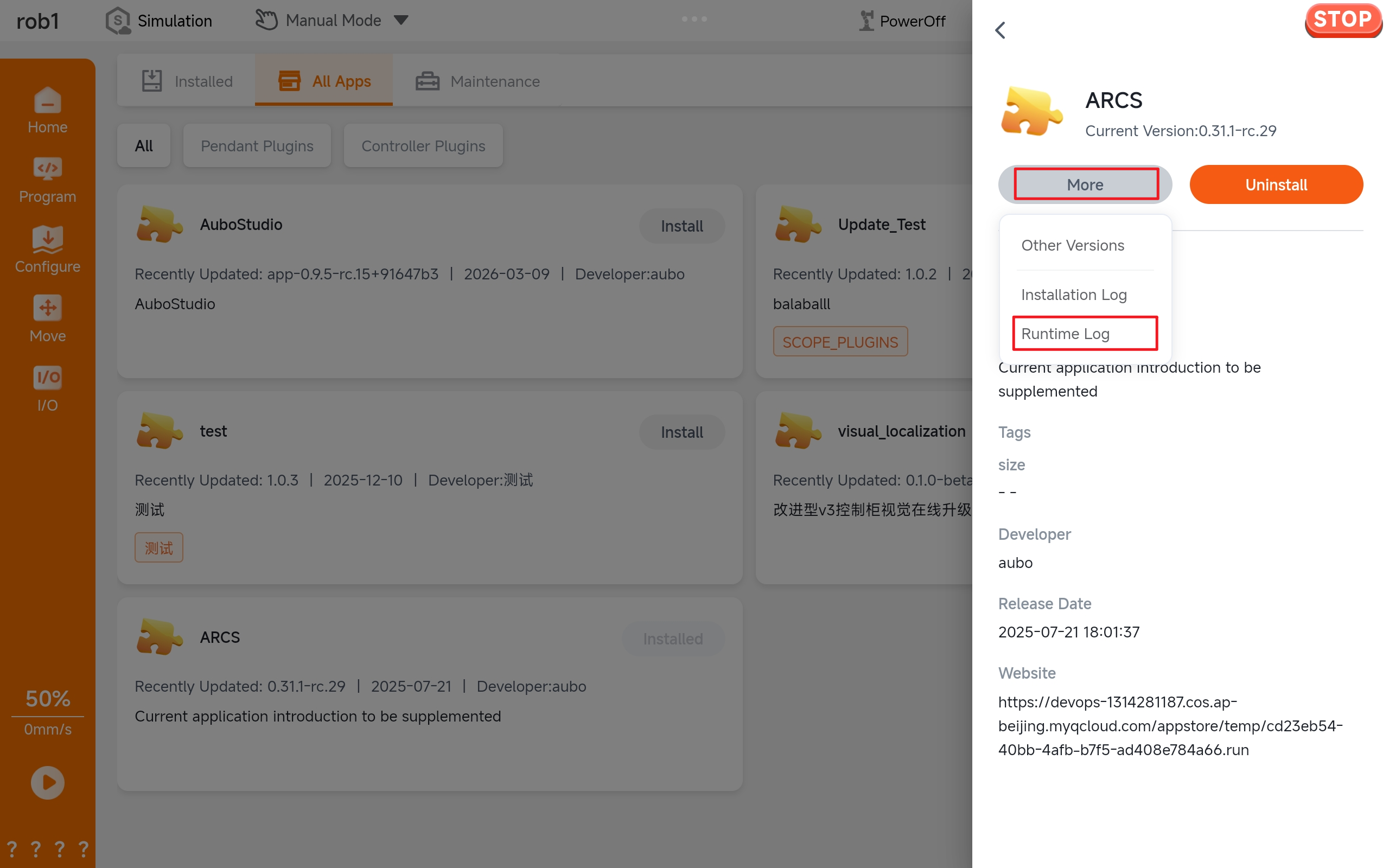
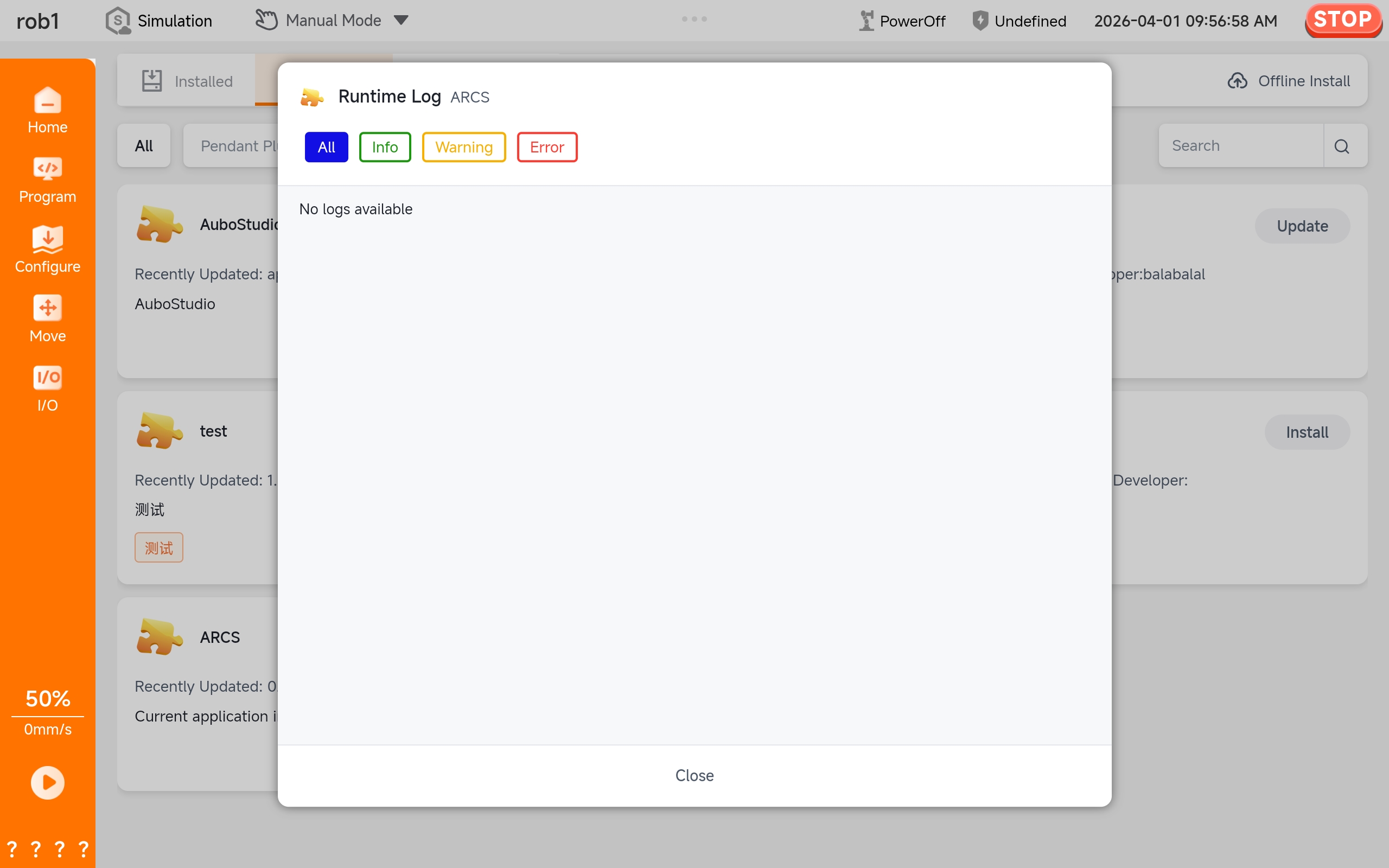
Running log
All operations are recorded in the running log, and filtering by log level is supported. Click on the app tab to display the app drawer pop-up, then select "More Operations > Running Log" to view it.