
Software Update
Software update interface
AuboStudio supports both online and offline software updates. For offline updates, first import the installation package into the controller, then access this interface for installation and upgrades.
In the [Software Update] page, you can switch software versions, manage software packages, and update software, etc.
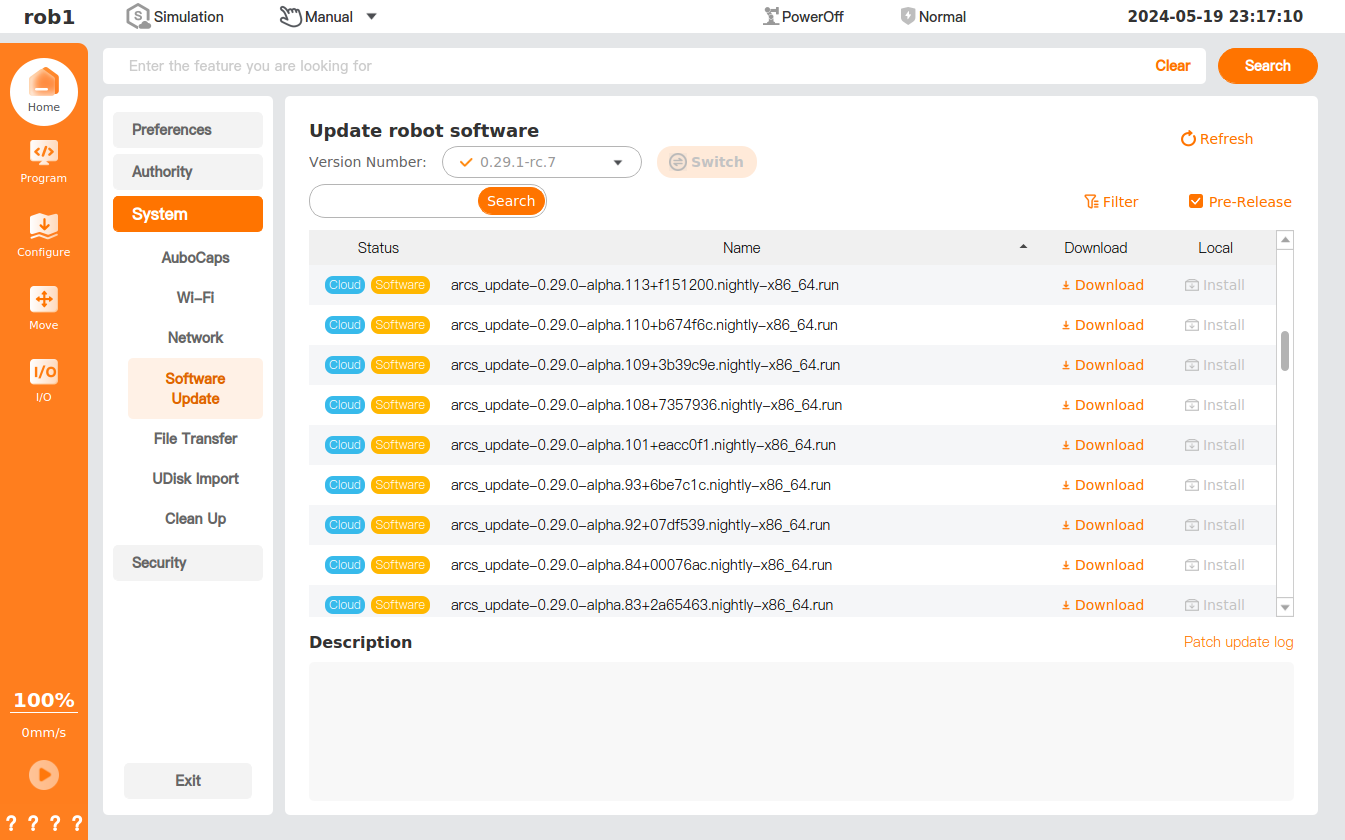
- Switch: Select the software version number in the drop-down menu, click [Switch], and restart the system to switch the software to the target version.
- Refresh: Refresh the list of software packages.
- Search: Input in the search box to search the software package.
- Filter
- Status: Search the software package by status.
- Name: Search the software package by name.
- Pre-Release: Display the software version under test. The pre-release provides the latest functional experience, but there may be some bugs, so please use it with caution.
- Download: Download the software package.
- Install: Install the software package.
- Delete: Delete the software package.
- Uninstall: Uninstall the software package.
- Patch update log: If a patch pack is installed, click here to view the update log for the current patch pack.
Software version online update
For online updates, you must ensure that the controller is plugged in with a network cable that can connect to the external network. Otherwise, the software can only be updated offline.
Note:
Before installing a new version, the system will automatically perform a resource check. If the local memory does not meet the minimum requirements for software operation, the installation will be terminated and a [System memory insufficient, unable to install] prompt will be displayed.
- In the [Software Update] page, all currently updateable installation packages are displayed in the installation package list. If the installation package of the target version is not found, you can try to click [Refresh] to refresh the list.
- Click [Download] of the target software package (
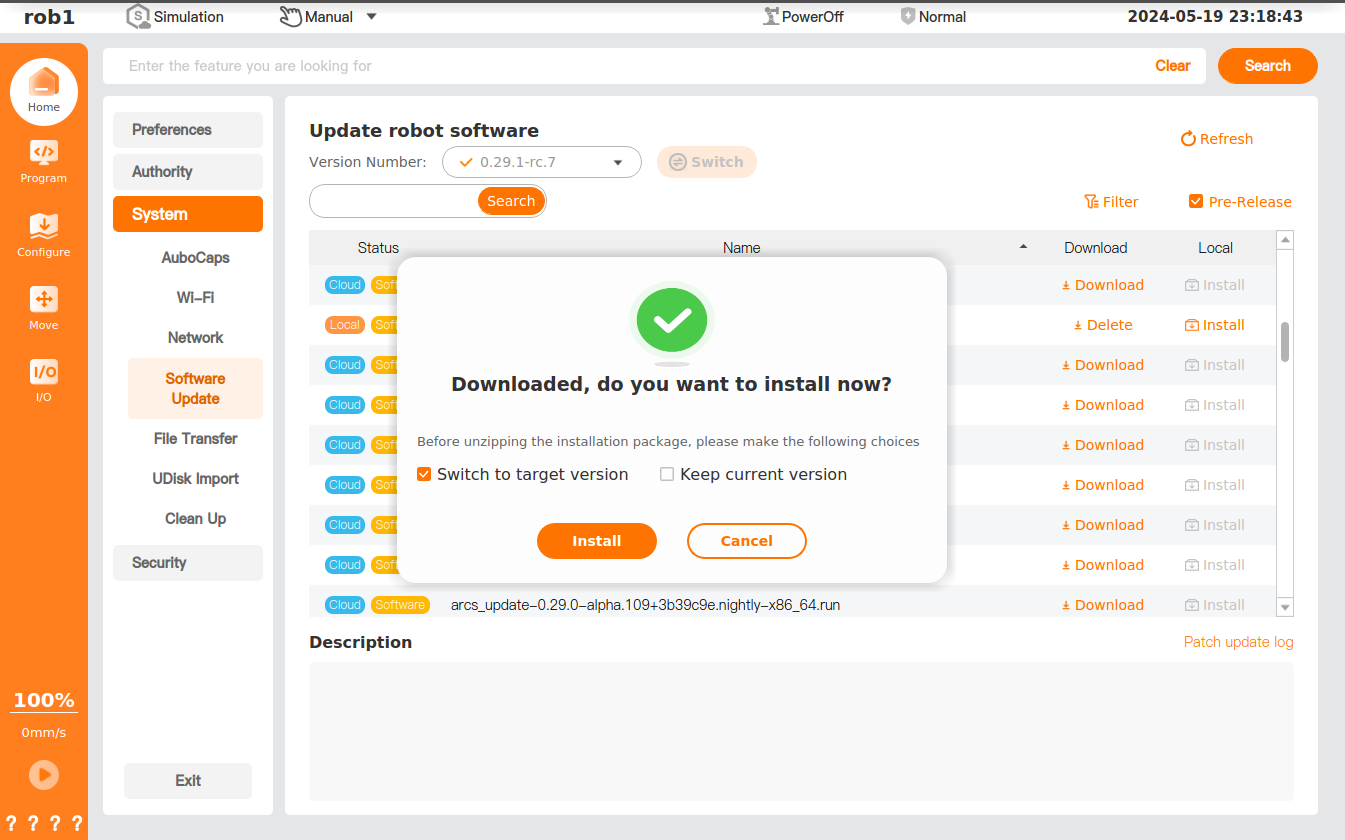
.runfile) to enter the [Download] page to download the installation package. - After downloading the software package, the [Downloaded] prompt box pops up. "Switch to target version" means that after the installation is completed, you can restart the controller to switch to the new version; "Keep current version" means that you can keep the current version. After choosing as required, click [Install] to enter the [Install] page for installation.
- If "Switch to target version" is chosen, you can restart the controller to switch to the new version. Click "Home > About" to view the current version information. If the version number is correct, the version update is successful.
Software version offline update
Download the software package (
.runfile) on the official website. Download link:- C Series / iS Series / Advanced controller: https://download.aubo-robotics.cn/arcs/
- S Series controller: https://download.aubo-robotics.cn/arcs/arm64/
Copy the installation package to a USB flash drive first, and then import it into the control box. For detailed instructions, please refer to Import from USB Flash Drive.
Enter the [Software Update] page, click [Filter], add [Local] as the [Status] filter condition in [Filter], and click [OK]. Find the uploaded software package (
.runfile), and click [Install] to enter the [Install] page for installation.If "Switch to target version" is chosen, you can restart the controller to switch to the new version. Click "Home > About" to view the current version information. If the version number is correct, the version update is successful.
Switching software version
After the software installation is completed, you can select the software version in the "Switch" drop-down menu, click [Switch], and the system pops up a window to prompt you to shut down or restart.
- Click [OK] to restart the controller. After restart, the target version is applied.
- Click [Cancel] to exit the pop-up window, and the version switching is canceled.
After switching the version and restarting the controller, you can click "Home > About" to view the current version information. If the version number is correct, the version update is successful.