
Operating Mode
AuboStudio is designed with four operating modes: Manual, Automatic, Link, and Local, which can be selected by operating the [Mode Switch]  /
/ /
/ button in the [Status Bar].
Before operating the [Mode Switch] button for mode switching, please set a mode password first. For the setting method of the mode password, please refer to User Authority.
| Manual mode | Automatic mode | Link mode | Local mode | |
| HandGuide | √ | √ | ||
| [Move] | √ | √ | ||
| [Configure] | √ | √ | ||
| [Program] | √ | √ | ||
| Execute program | √ | √ | √ | |
| Execute a program through I/O | √ |
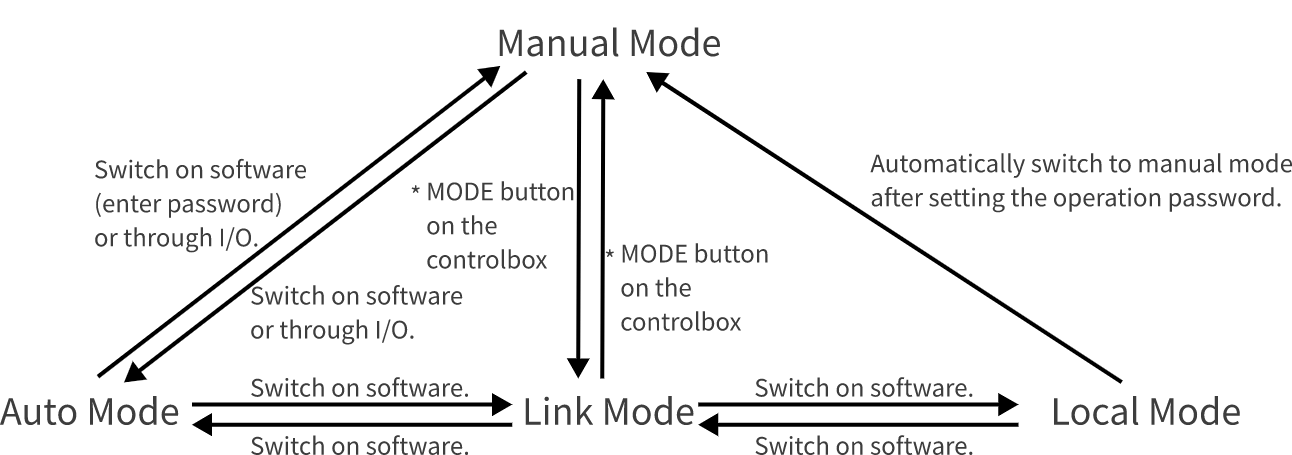
*: This function is only supported by some controller models. For details, please refer to the Hardware Manual.
2.3.1 Manual mode
In Manual mode, all the functions of the software are available for users to use, but users cannot control the robot to execute a program through I/O. This mode is usually suitable for applications with one robot only.
2.3.2 Automatic mode
In Automatic mode, users can neither edit and set programs and installation profiles, nor move the robot arm. That is, functions including [Program], [Configure] and [Move] are disabled, and the robot only executes the defined programs.
2.3.3 Link mode
In Link mode, users can neither edit and set programs and installation profiles, nor move the robot arm. That is, functions including [Program], [Configure] and [Move] are disabled, but the program is able to control through I/O. Link mode can only be switched from Automatic mode.
Tip
To unplug the wired teach pendant, first press the "TEACH PENDANT ENABLE/DISABLE" button on controller and then unplug teach pendant cable; otherwise, emergency stop will be triggered.
2.3.4 Local mode
The Local mode is activated when neither mode safety input I/Os nor mode switching password is set for the system.
Local mode is not available when the authority is Advanced.