
Jog Teaching
Basic mode
The robot is controlled in basic mode by default. This mode supports independent robot control and coordinated control of the robot with an external axis.
Note:
To prevent unintended operation, hold down all motion control buttons. The robot stops moving when the button is released.
Robot mode:
Mode tab: Select [Robot] mode.
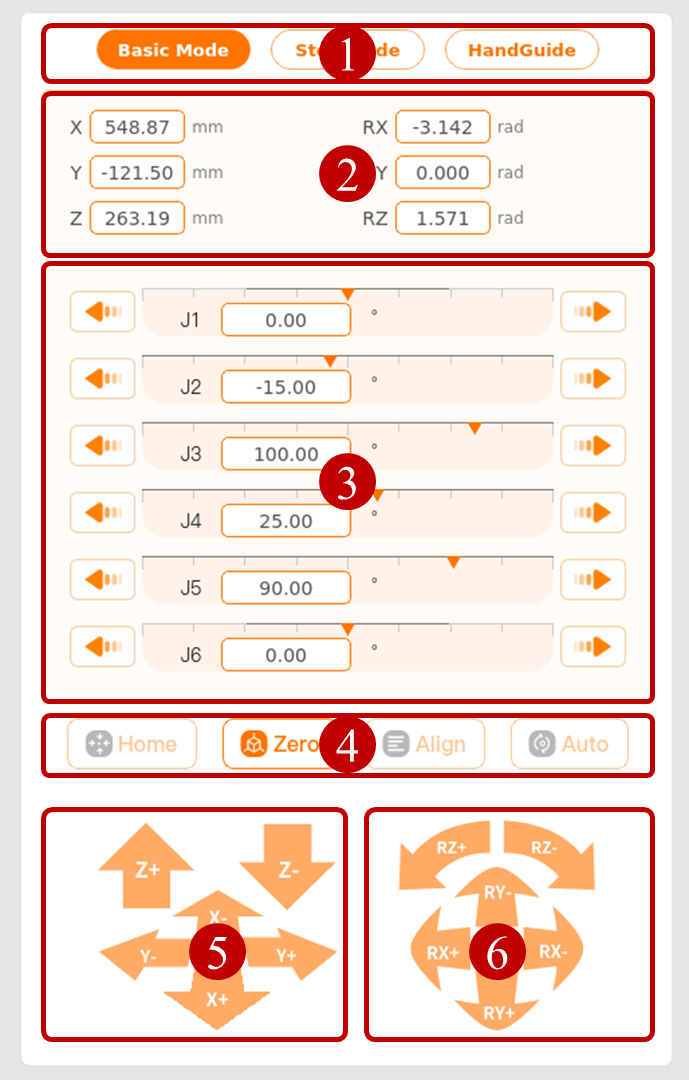
Position and pose display/setting: Display or set the coordinates of the current position of the simulation model in the base coordinate system. Once set by the user, the orange parameter displayed on the right side of the input box is the target pose of the robot.
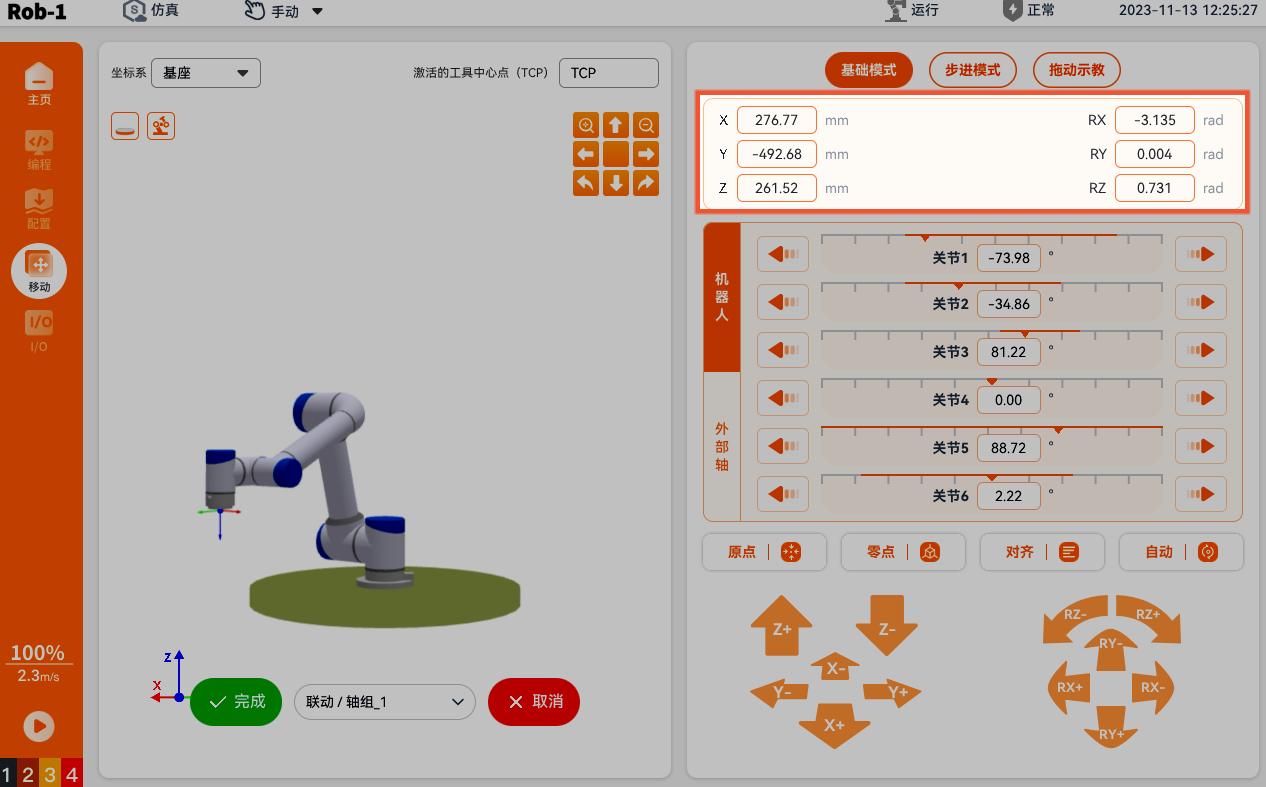
Joint control: Joint 1 (J1) to Joint 6 (J6) correspond to the six joints of the robot arm from bottom to top. Press and hold

 to control the robot. You can also enter a target value in the input box and press and hold [Auto] to control the robot.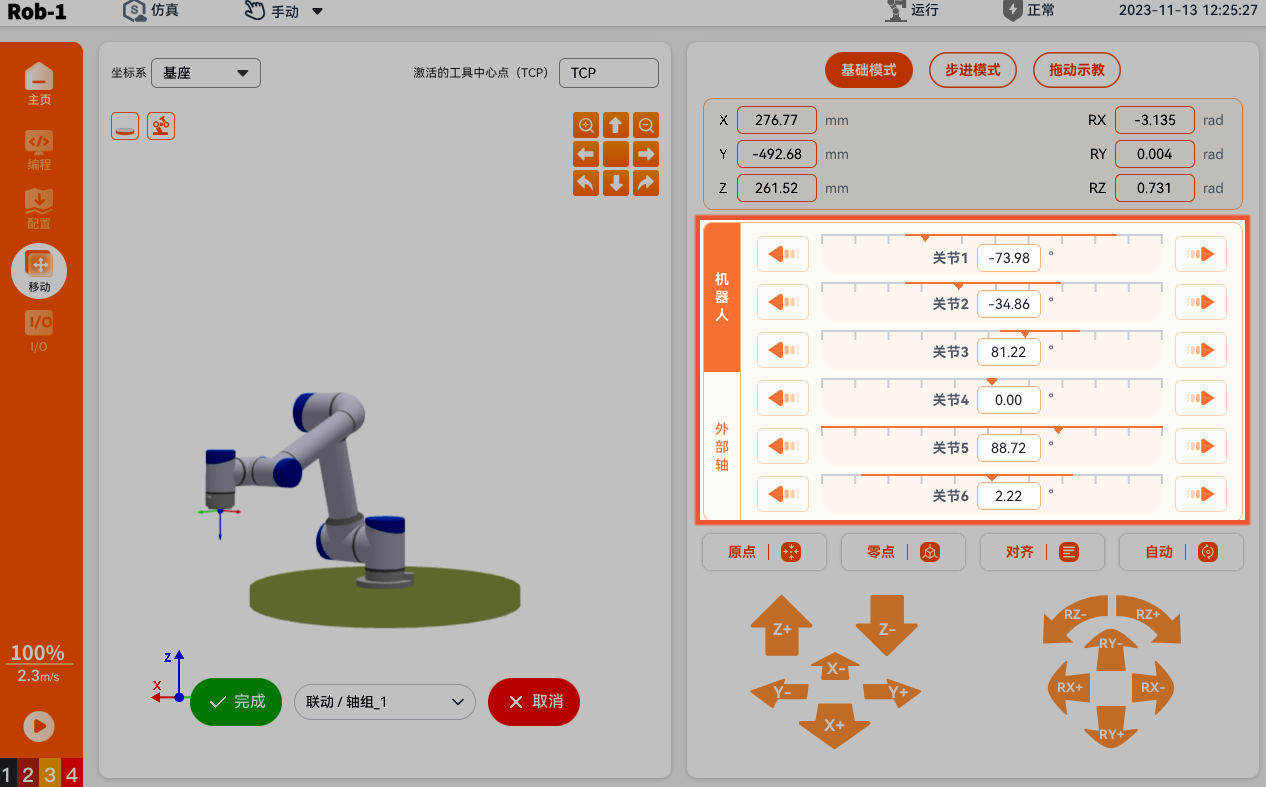
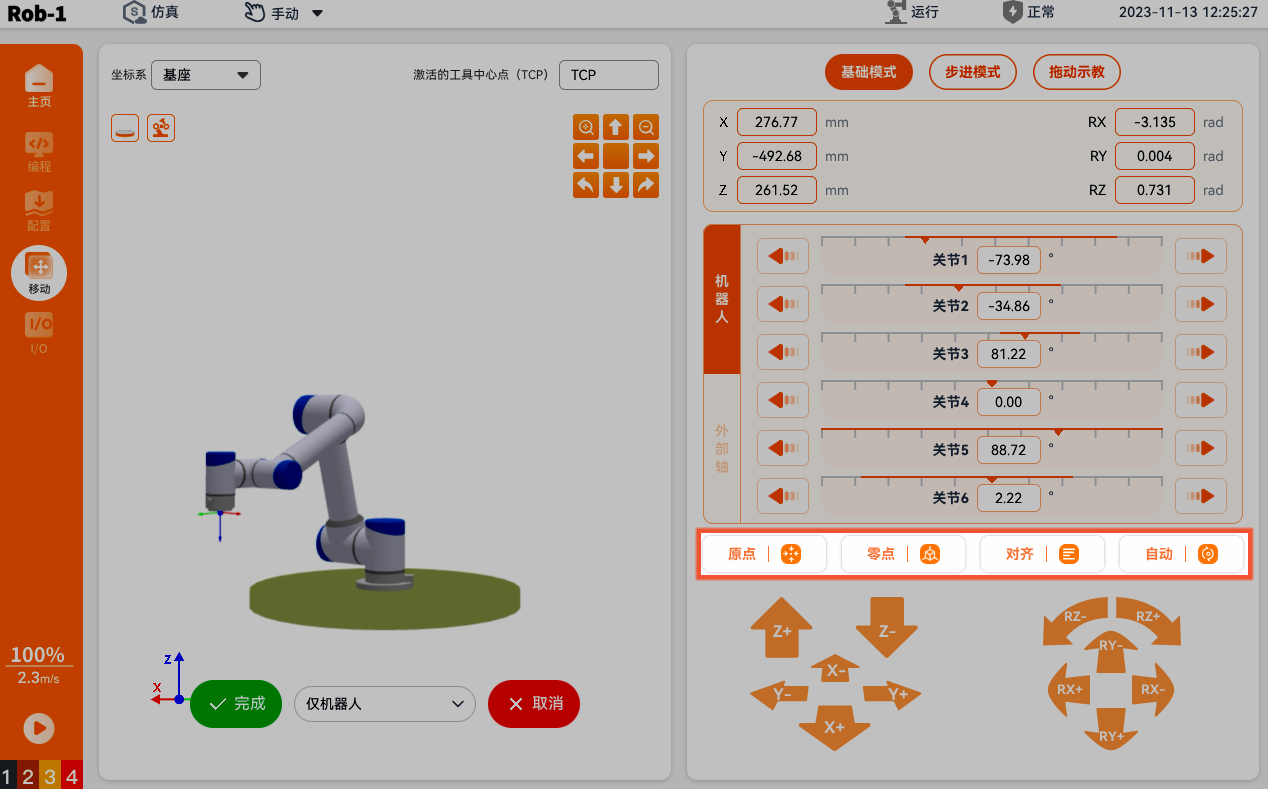
Shortcut control button: Press and hold a button to move the robot to the specified position.
- Home: The default value set in [Configure > General > Home]. Press and hold [Home] to move the robot to the home position defined in the installation settings. For details, see Home.
- Zero: The position where all joints are at 0 degrees. Press and hold [Zero] to move the robot to the upright pose.
- Alignment: Press and hold to adjust the end of the arm to the negative direction of the selected coordinate system's Z axis.
- Auto: After setting the position and pose input box, press and hold [Auto] to move the robot to the specified position.
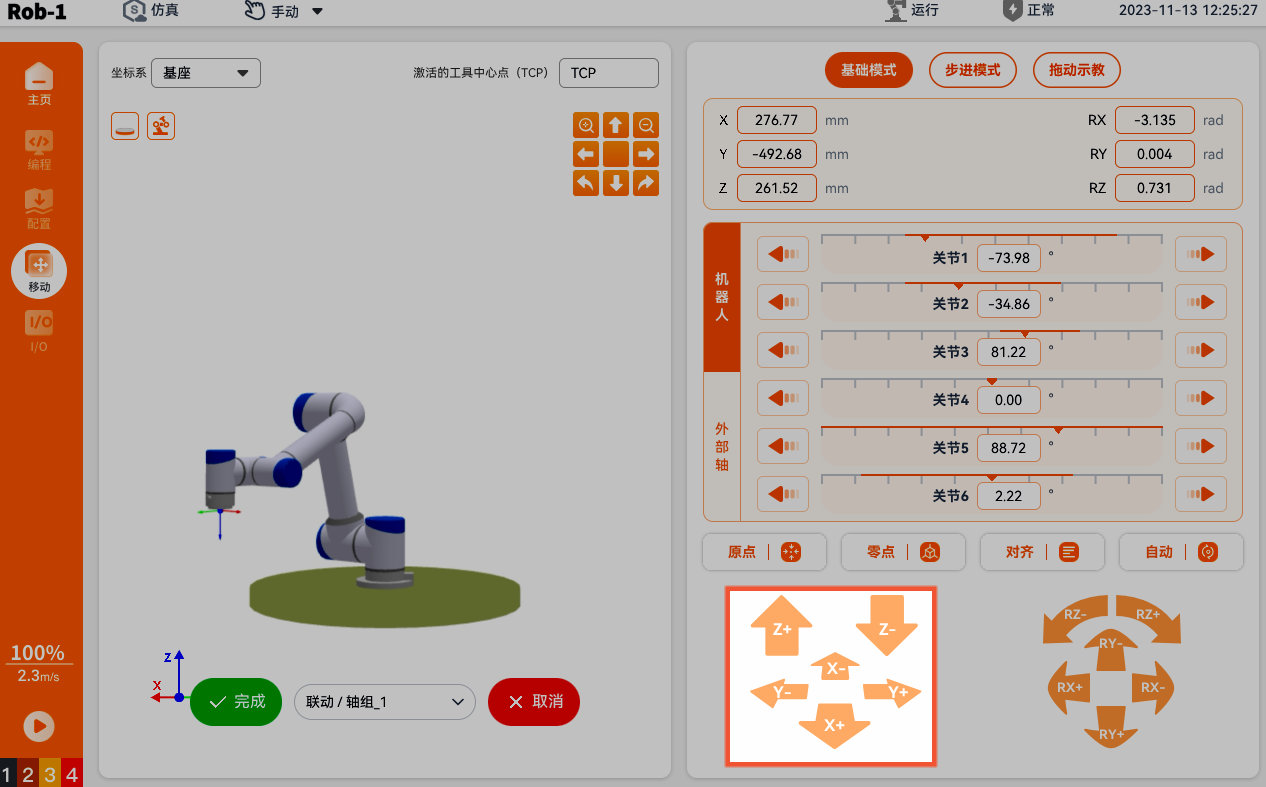
Position control button: Press and hold a button to control the robot. (X+, X-, Y+, Y-, Z+, Z-) indicate the translation movement of the robot.
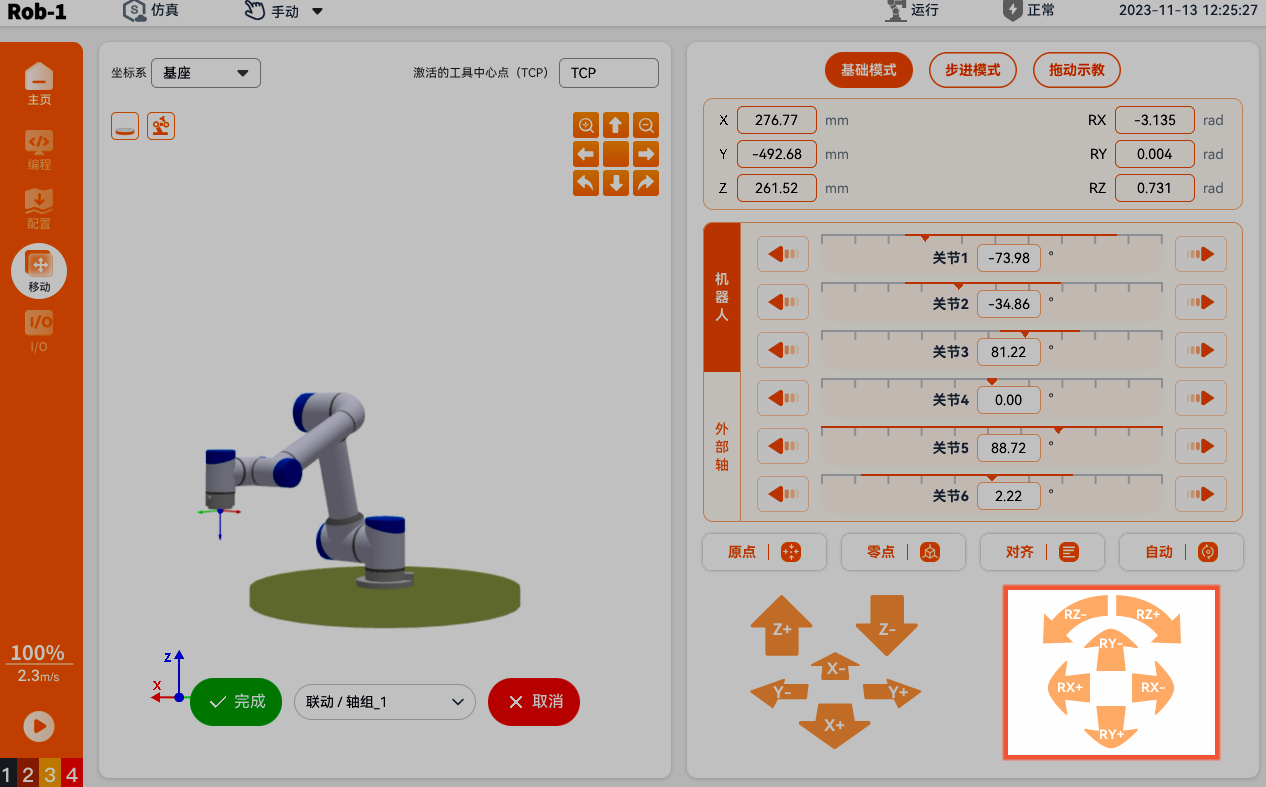
Pose control button: Press and hold a button to control the robot. (RX+, RX-, RY+, RY-, RZ+, RZ-) change the orientation of the robot tool.
Robot and external axis coordination:
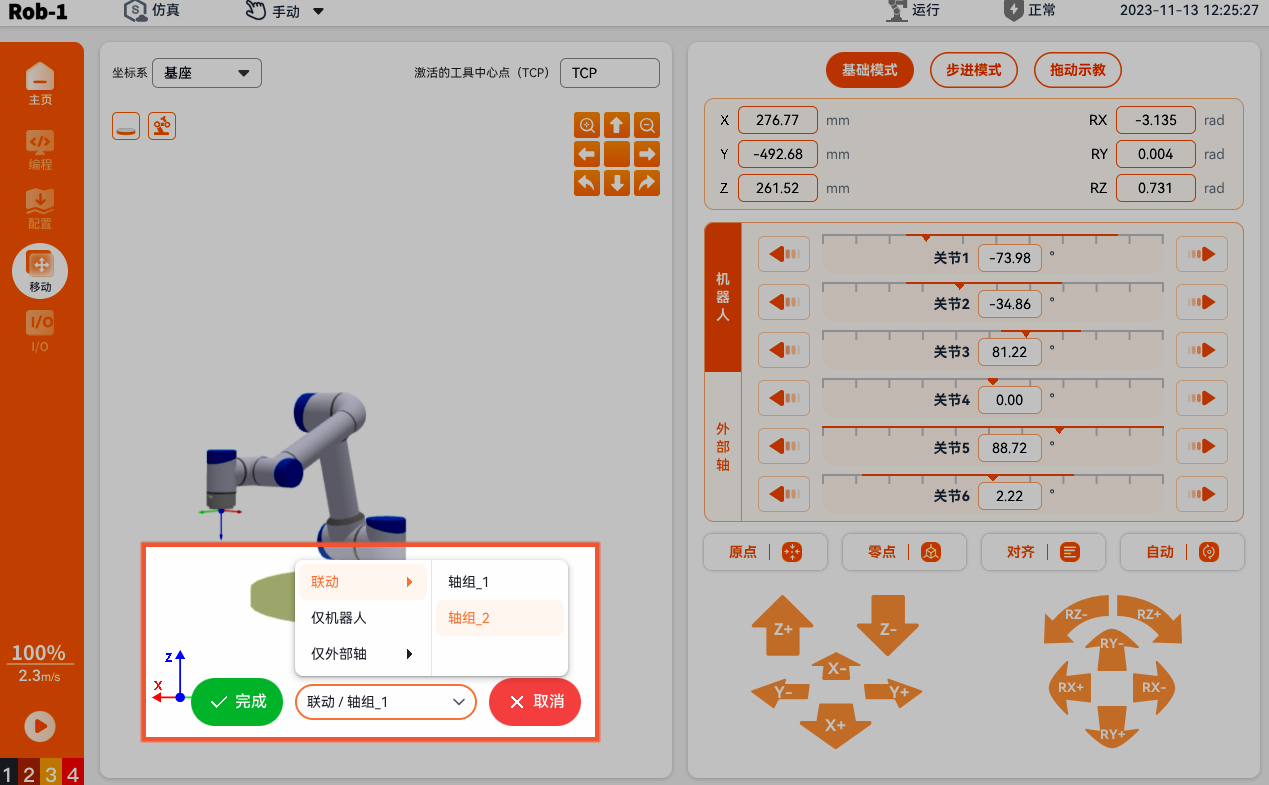
In the lower-left corner of the [Basic Mode] page, select [Coordination > Target Axis Group], and click [Complete].
Note:
- Before using the external axis on the Move page, connect the external axis on the [Configuration] page.
- The [External Axis] configuration is supported only by wireless teach pendants.
Joint control:
- Joints 1 (J1) to 6 (J6) correspond to the six joints of the robot arm from bottom to top. Press and hold to control the robot.
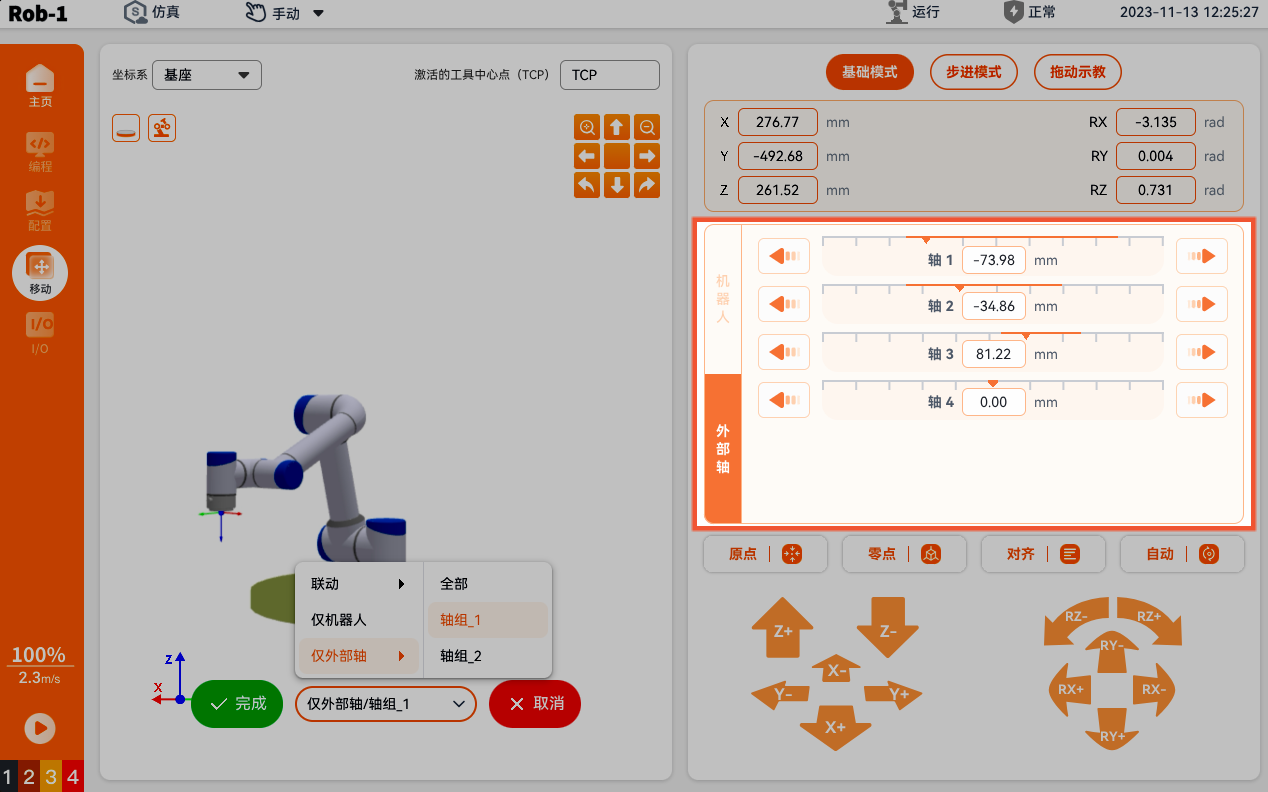
- Switch the mode tab to [External Axis]. Axes 1 to 4 correspond to the external axes in the order in which they were imported into the target axis group. Press and hold to control the external axis.
Note:
The remaining operations in robot and external-axis coordination mode are the same as those in robot-only mode.
- Joints 1 (J1) to 6 (J6) correspond to the six joints of the robot arm from bottom to top. Press and hold
Step mode
In the step mode, you can set the step value. Default step setting: position 5 mm, pose 0.0175 rad, and joint 1 deg.
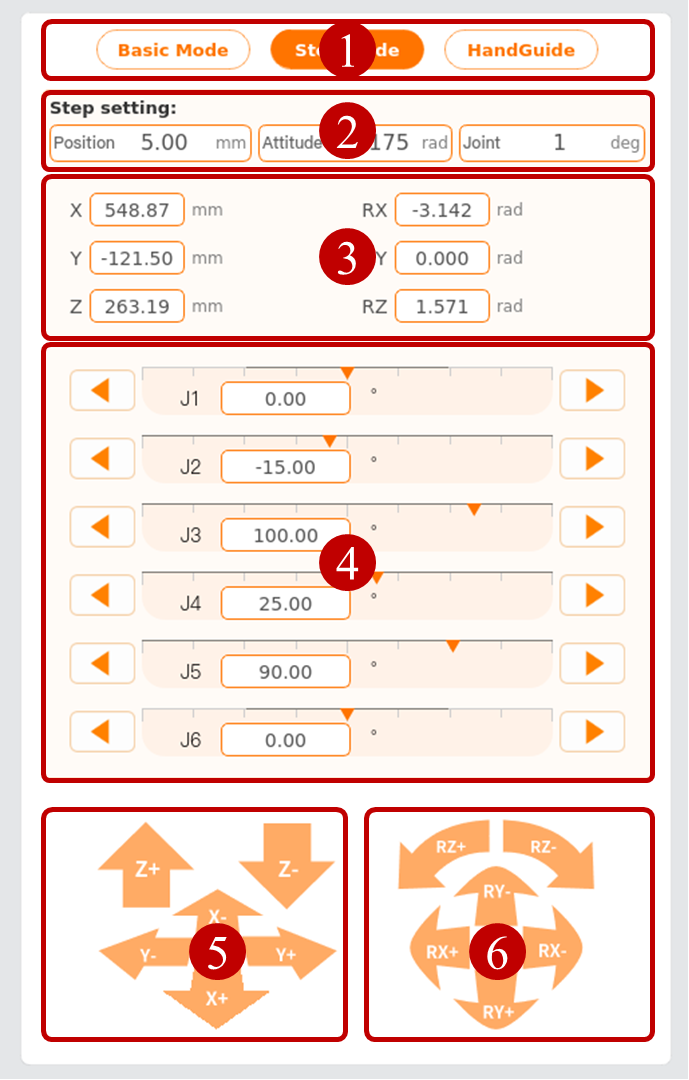
Mode tab: Select a mode to control the robot.
Step setting: Set the step. The position range is 0.01 mm ~100 mm, the pose range is 0.001 rad ~ 0.2 rad, and the joint range is 0.1 deg ~ 10 deg.
Position/pose parameter display: Display the coordinates of the current position of the robot in the base coordinate system.
Joint control: Joint 1 (J1) ~ Joint 6 (J6) correspond to the six joints of the robot arm from bottom to top. The user controls the robot by clicking

 buttons at both ends. Each click moves the robot once according to the step size.
Position control button: Click the button to control the robot. (X+, X-, Y+, Y-, Z+, Z-) indicate the translation movement of the robot.
Pose control button: Click the button to control the robot. (RX+, RX-, RY+, RY-, RZ+, RZ-) change the orientation of the robot tool.