
HandGuide
In HandGuide mode, you can manually drag the robot to the target position/pose. If the robot's position/pose is close to the joint limit or safe plane, the robot will produce a repulsive force.
When HandGuide mode is enabled, a "HandGuide" prompt will pop up in Top status bar. For specific usage methods and parameter settings, refer to "Move Teaching - HandGuide".
How to enter HandGuide mode?
Page [Move]
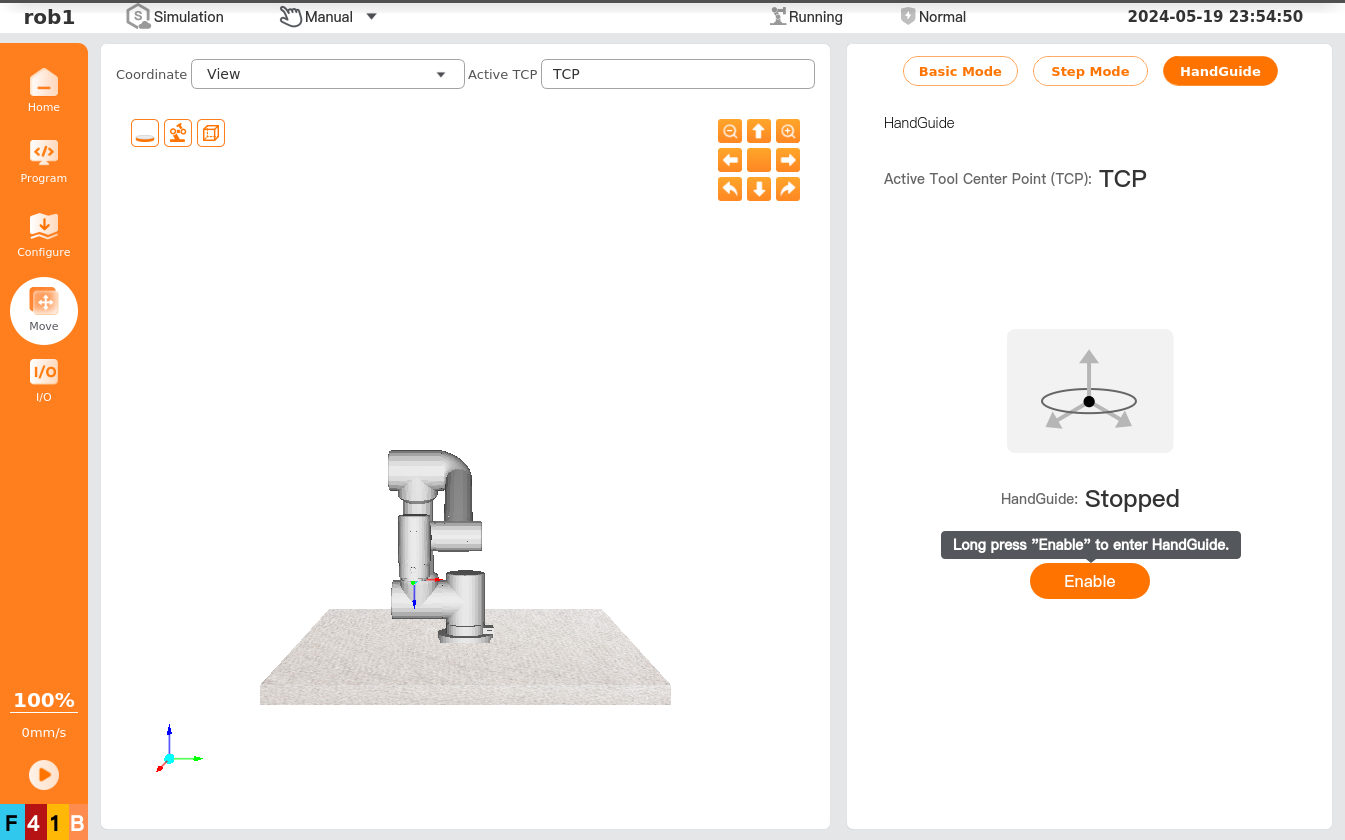
Click "Move > HandGuide" to enter page [HandGuide], press and hold [Enable]. When the icon is ungrayed, it indicates that the robot enters the HandGuide mode, and you can drag the robot to the target position/pose. To exit HandGuide mode, click [Disable] until the icon is grayed out, and then the robot stays in the current position/pose.
I/O actions
After the user sets an I/O for HandGuide, the robot enters the HandGuide mode when this I/O receives a valid signal, and then you can drag the robot to the target position/pose. When the valid signal to this I/O disappears, the robot exits the HandGuide mode. For the I/O setting method, see I/O Setup.
Teach pendant button
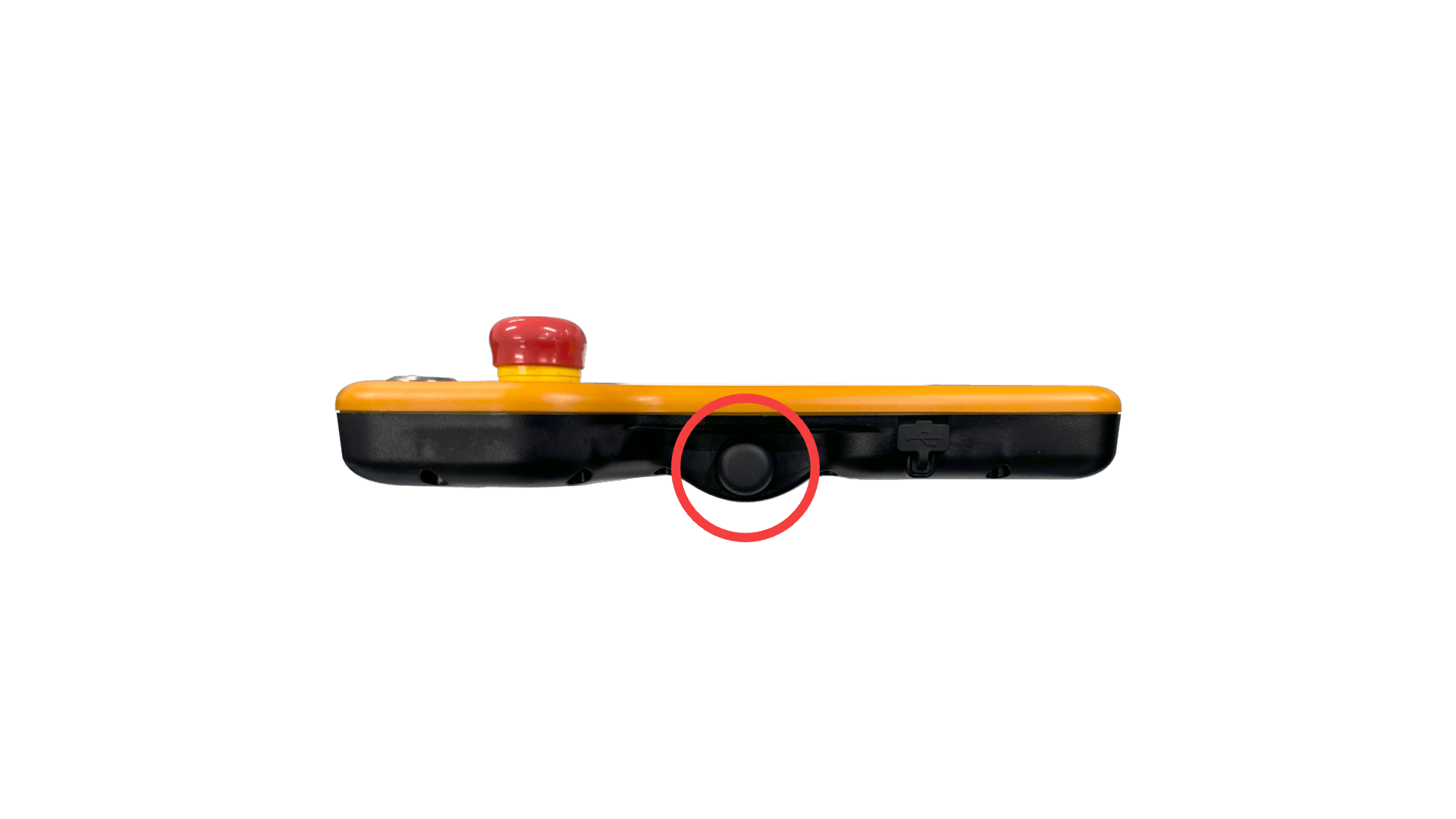
Press and hold the button on teach pendant to enter HandGuide mode, and then you can drag the robot to the target position/pose. To exit HandGuide mode, release the button, and then the robot stays in the current position/pose. This function can be set through "Configure > Safety> ThreePosition". Refer to Three-Position Switch for details.
End-Of-Arm button
Press and hold the end-of-arm teach pendant button to enter HandGuide mode, and then you can drag the robot to the target position/pose. To exit HandGuide mode, release the button, and then the robot stays in the current position/pose.
提示
The end-of-arm HandGuide button is available on some models only. Please refer to the Hardware User Manual for details.