
Advanced Program Node
Advanced program nodes can realize functions such as loop, determination, call, multi-thread, etc., improve programming efficiency, reduce the probability of program errors, and make the program more flexible and convenient.
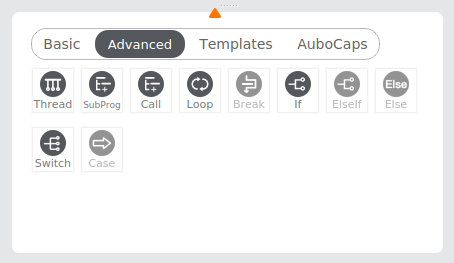
Thread
The [Thread] command is designed to create a multi-thread, that is, a program that can be parallel with the master program. The thread can be used to control other external devices that are not related to the robot arm.
Tip
- Under the
Threadnode, you can add nodes not related to motion, such asSet,Wait,Assignment, etc. - Adding nodes related to motion under the
Threadnode, such asMove,Waypoint, etc., may cause robot operation conflicts and trigger other safety risks. - It is recommended to avoid the use of multi-thread whenever possible. If multi-threading must be used, please pay attention to the parallel logic and timing matching of the primary thread and secondary thread.
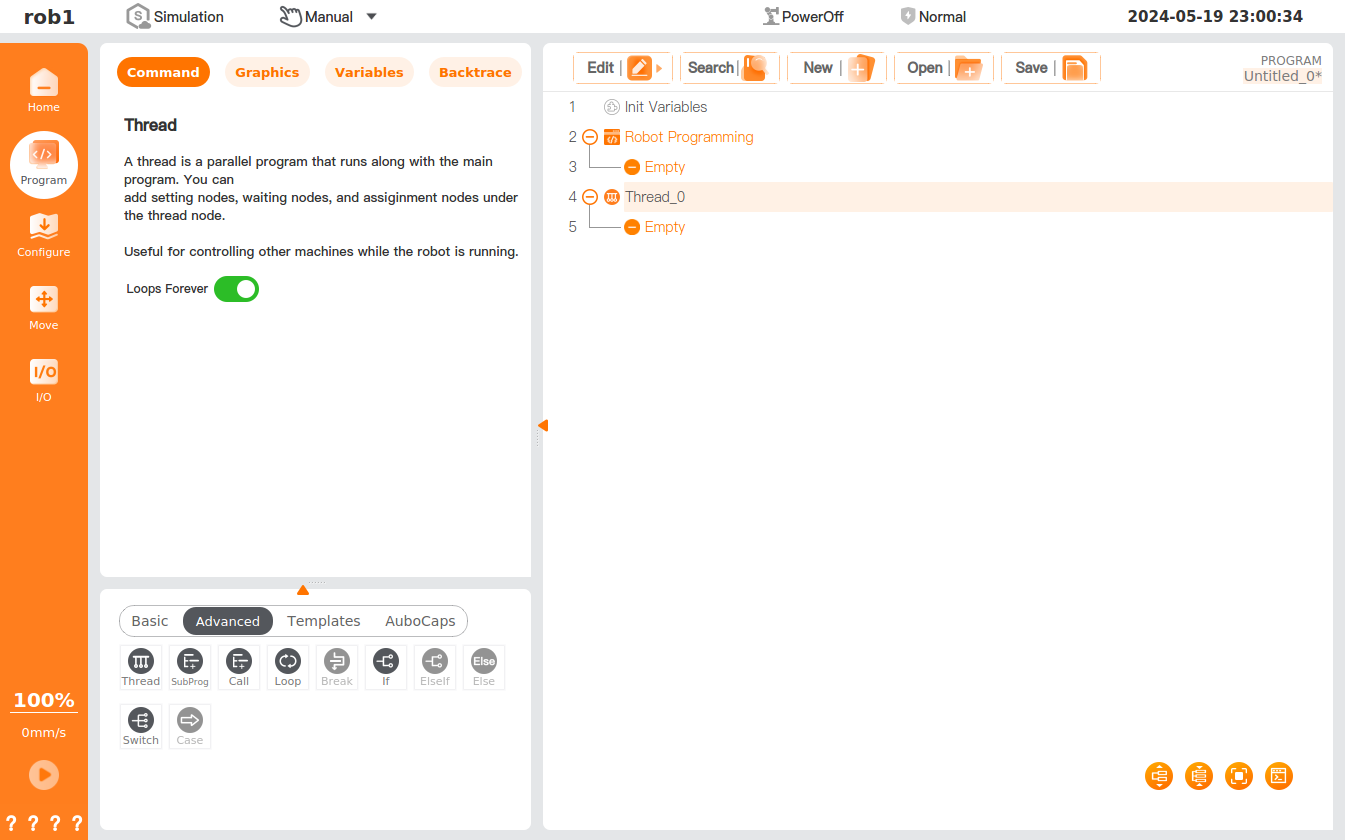
Settings
- Infinite loop: When this option is checked, the program in the thread can run in an infinite loop until stopped.
Subprog
The [SubProg] command is designed to create a subprogram, which is also known as a subproject. It is often used in conjunction with the [Call] node.
Characteristics of subprogram:
The subprogram can be either a control program or a controlled program.
The data contained in the subprogram only represents the information present when the subprogram is activated within the master program.
The subprogram can be called and run at multiple positions within multiple programs through the [Call] node.
Tip
When the subprogram is called, you need to write a program in the [SubProg] node or click
 to load the written program and then use the [Call] node to call the subprogram.
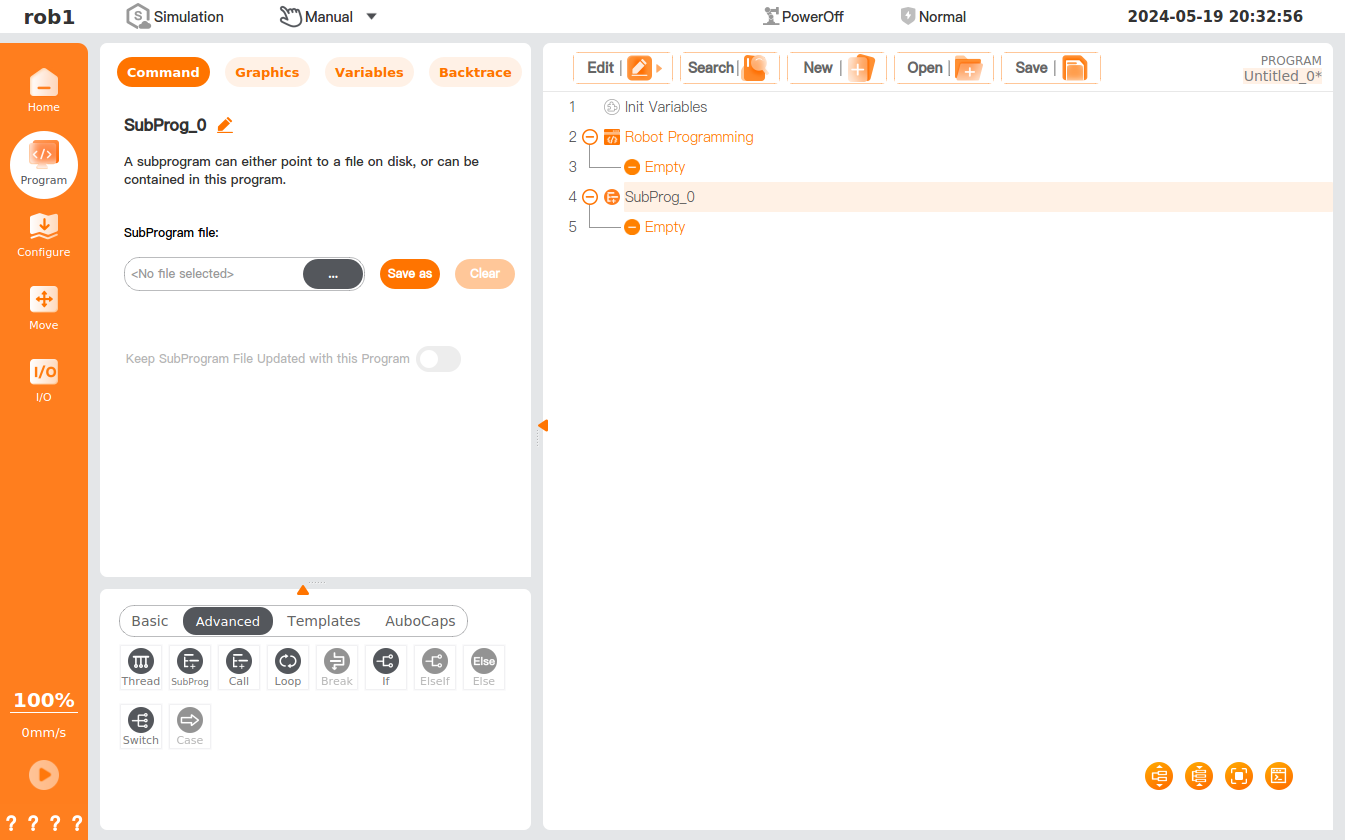
Settings
.png) : Rename the subprogram in the master program.
: Rename the subprogram in the master program.- : Load the program file.
Save as: You can save the subprogram as a separate file on the disk.
Clear: You can clear the open files within the subprogram.
Keep Subprogram files updated with this program: When this option is checked, changes in the open subprogram will be automatically saved to the subprogram file.
Tip
This option is only available in a subprogram that has been saved as a file.
Call
The [Call] command is designed to call the subprogram. When the program executes to this node, it jumps to the called subprogram.
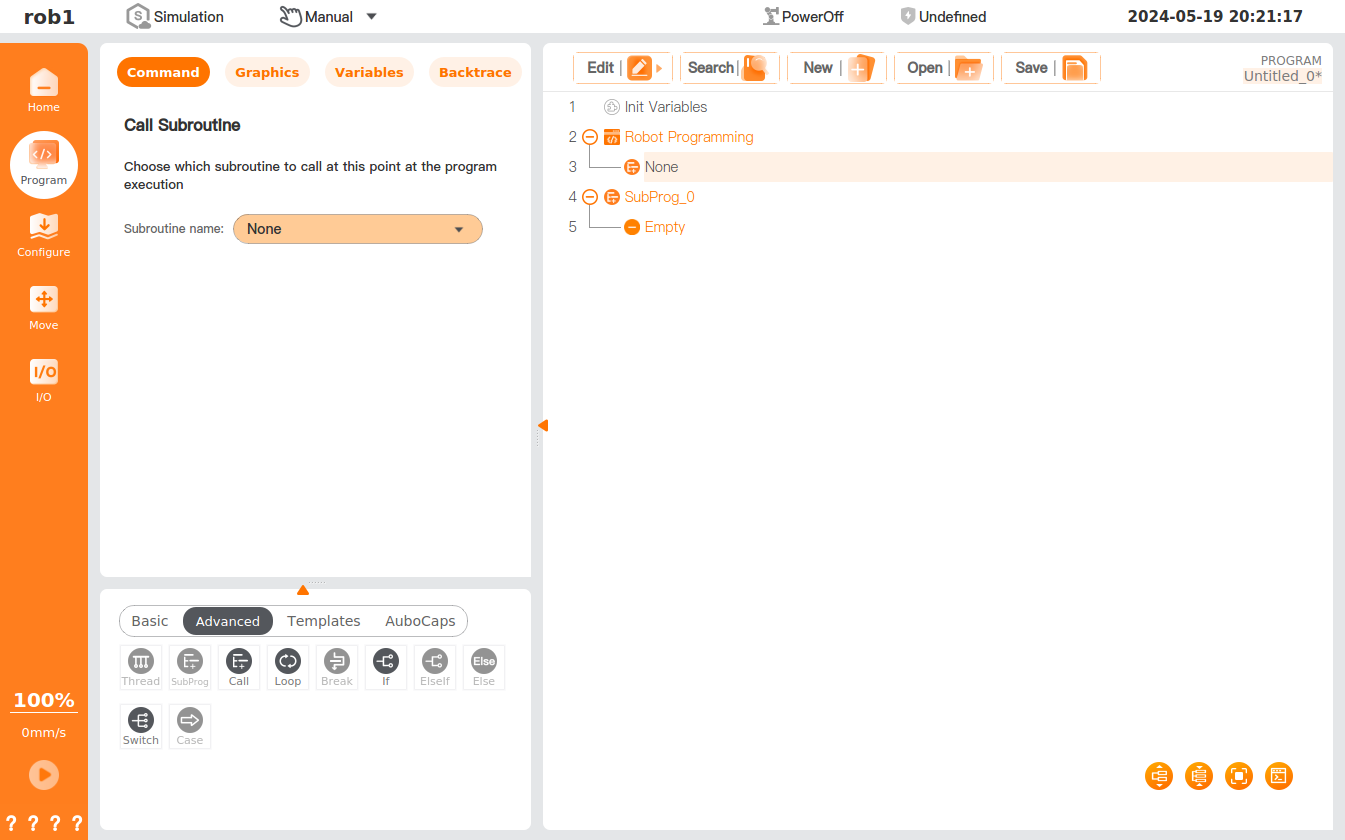
Loop
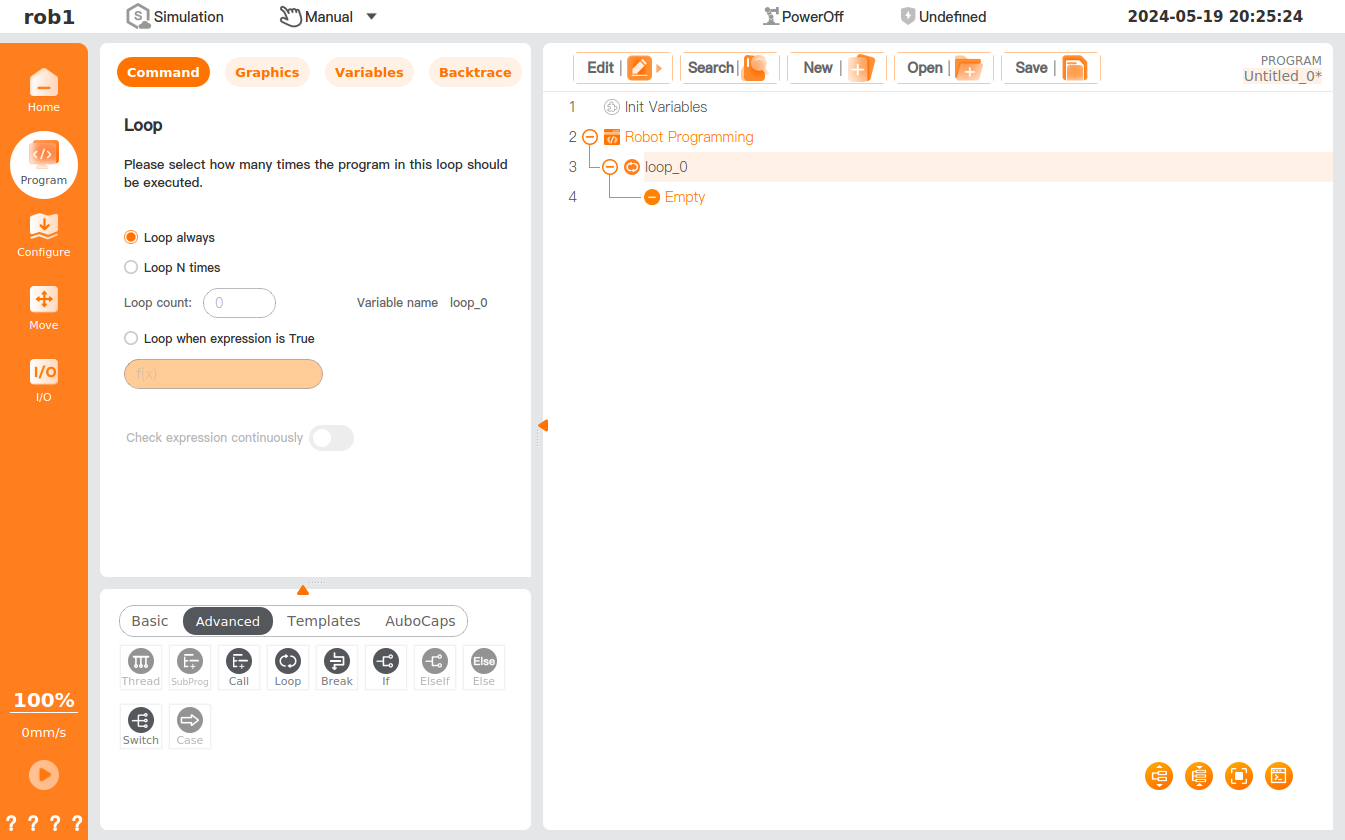
The [Loop] command is designed to create a loop program block.
Settings
Loop always: When this option is checked, the nodes in the program block will run in an infinite loop.
Loop N times: If this option is checked, after setting of the "Loop count," where
is the number of loops, the nodes in the program block will run in a loop for times. The program creates a special loop variable (loop_0 as shown in the figure) that can be used in the expression inside the loop. After entering the loop, the loop variable starts counting from to , ending the loop. Loop when expression is true: If this option is checked, after setting the expression, when the program runs to the node, whether the expression is true will be determined; if the expression is true, the loop will be entered and the node in the program block will be executed; if the expression is determined to be false, this loop will be skipped.
- Check expression continuously: If this option is checked, the expression will be continuously checked during execution of the loop program block, and once the expression is determined to be false, the [Loop] program block will be skipped at any time.
Break
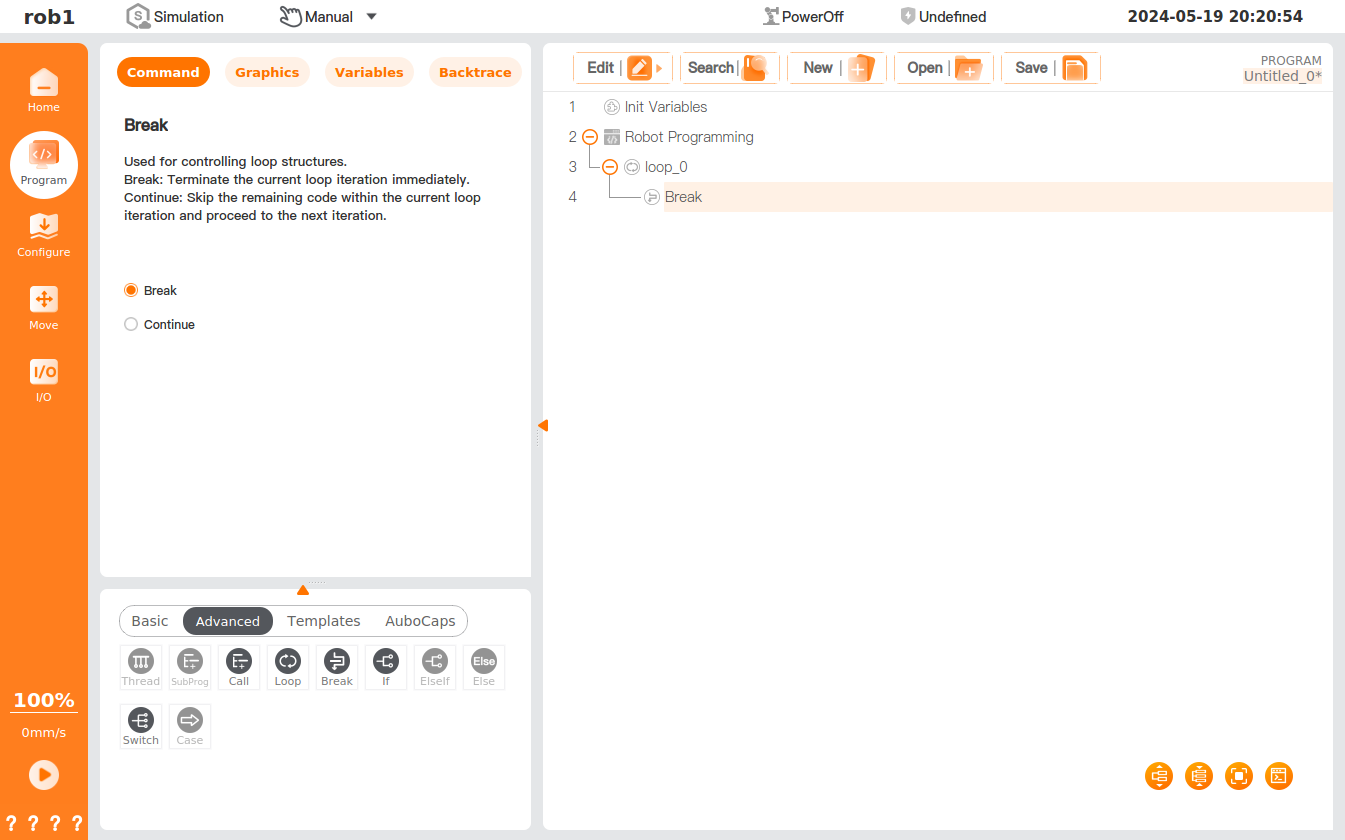
The [Break] command is designed to break the loop.
Set break mode
- Break: Terminate the current loop iteration immediately, and the program runs the next program node of the
Loopnode. - Continue: Skip the remaining code within the current loop iteration and proceed to the next iteration. If the
Loopnode does not require variable or expression determination, the next loop will be entered immediately. If theLoopnode requires variable or expression determination, determination will be made first. If it is true, the next loop will be entered; if it is false, the loop will be ended.
If/ElseIf/Else
The [If] command is designed to create a condition for the determination of the program block.
The [ElseIf] command is designed to create a condition for the determination of the program block under the "If" node.
The [Else] command is designed to create a program block under the If or ElseIf node.
1. Settings
If setting:
Click the expression
in the Ifinterface to edit the condition expression.Check expression continuously: If this option is checked, the condition expression will be continuously checked during execution of the
Ifprogram block, and once the expression is determined to be false, theIfprogram block will be skipped at any time.
ElseIf setting:
Click the expression
in the ElseIfinterface to edit the condition expression.Check expression continuously: If this option is checked, the condition expression will be continuously checked during execution of the
ElseIfprogram block, and once the expression is determined to be false, theElseIfprogram block will be skipped at any time.
2. Application
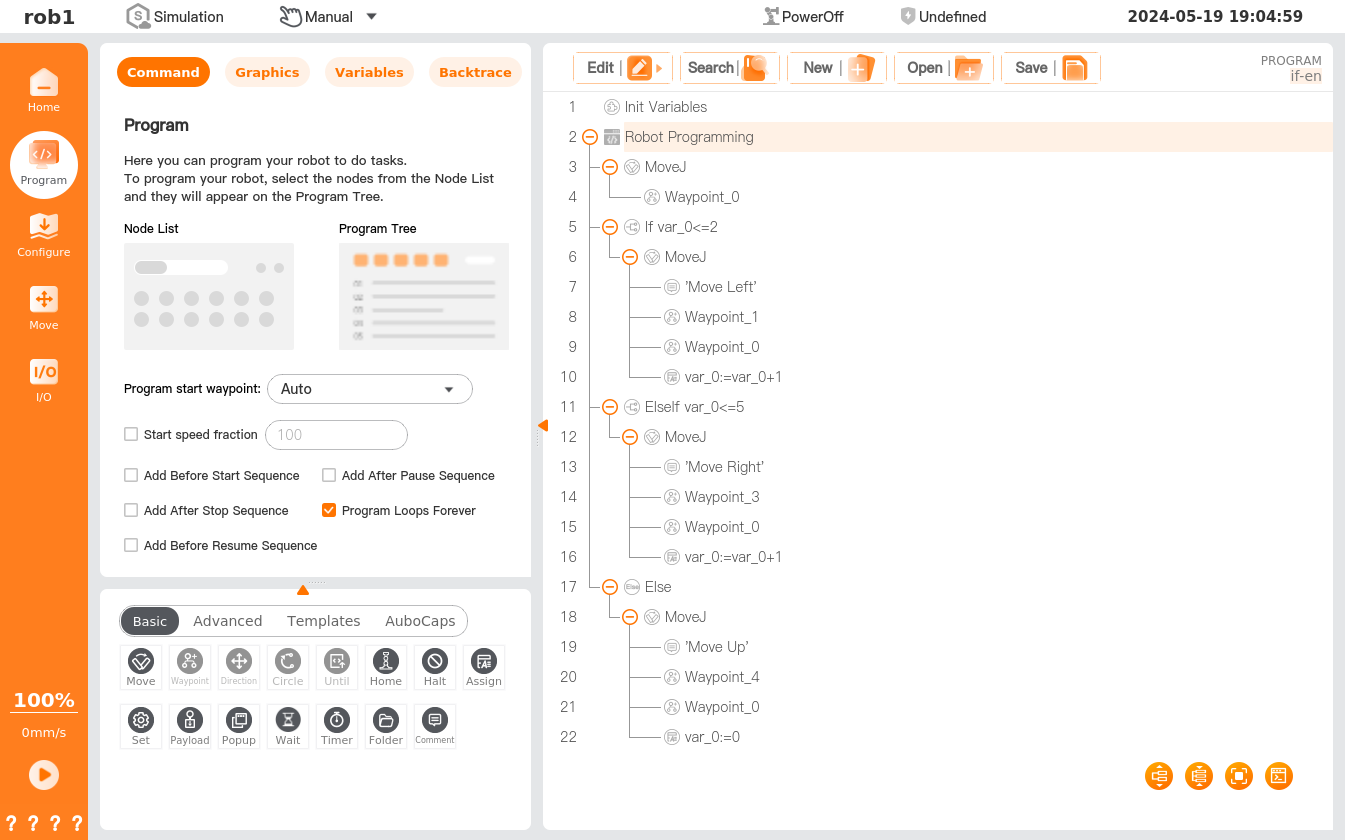
If: If theIfcondition is true, theIfprogram block is executed.If...Else...: If theIfcondition is true, the program inside thisIfnode will be executed; otherwise, the program in theElsenode will be executed.If...Else...If...Else...: If theIfcondition is true, the program inside thisIfnode will be executed; otherwise, whether the "ElseIf" condition is true will be determined. If the "ElseIf" condition is true, the program inside the "ElseIf" node will be executed; otherwise, the program inside the "Else" node will be executed.
Set an initial variable variable_0. The program starts execution and runs to waypoint_0. Determine whether variable_0 is less than or equal to 2. If variable_0 is less than or equal to 2, execute MoveJ with the comment "left." If variable_0 is greater than 2, determine whether variable_0 is less than or equal to 5. If variable_0 is greater than 2 and less than or equal to 5, execute MoveJ with the comment "right." If variable_0 is greater than 5, execute MoveJ with the comment "Up."
Switch/Case/Default
The [Switch] command is designed to create multiple switches and control the flow of the program according to the value of the variables. You can set whether to add a Default program block to the program tree. For "Synchronize," please refer to the description of "Synchronize" in "Assignment."
The [Case] command is designed to create a Case program block under Switch.
Case node can be inserted under a Switch node only. Application
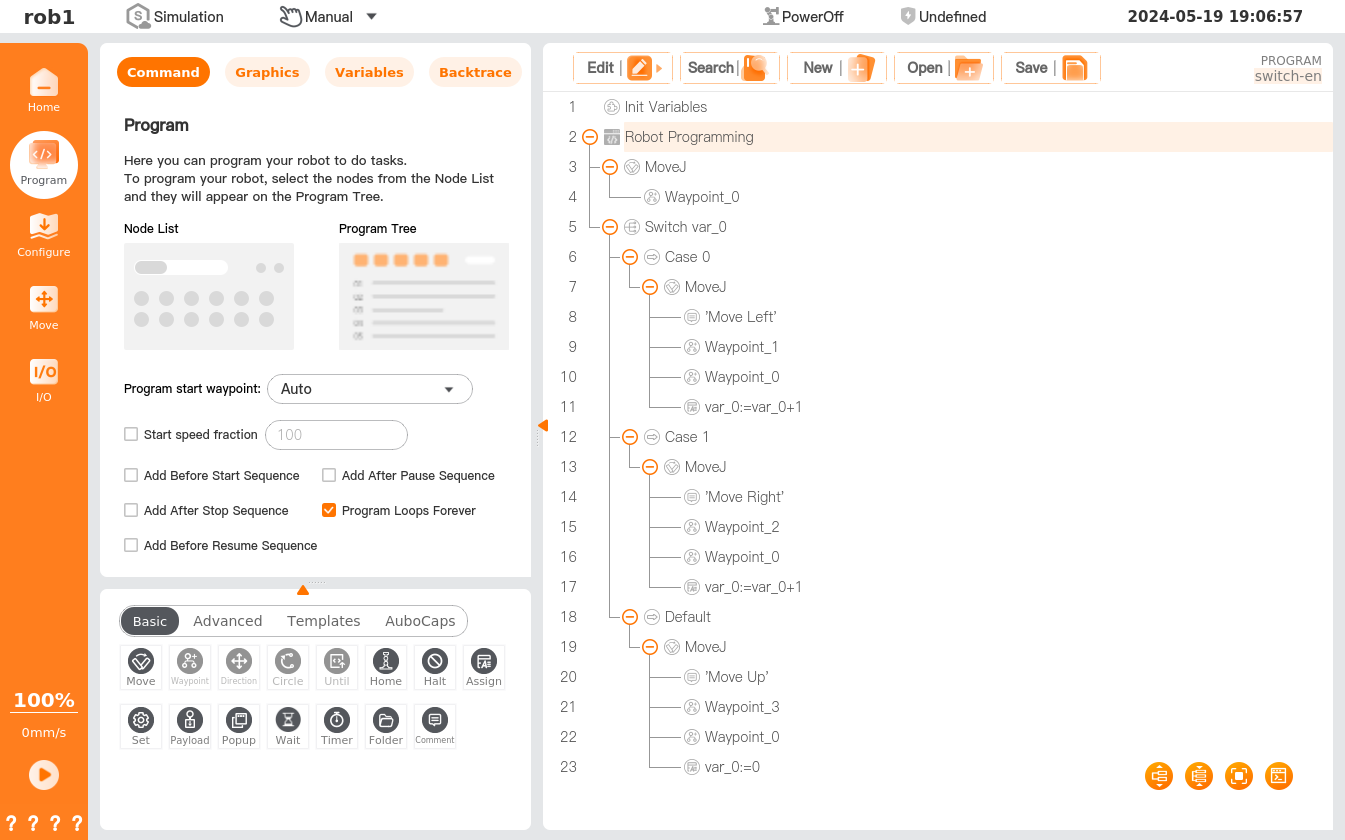
Switch...Case...Default...: Execute differentCaseprogram blocks by determining the conditions. You can enter the selection and determination condition expression in the "Switch" interface and enter the matching value in the "Case" interface. When the program runs the "Branch" node, it first calculates the value of the expression of the "Branch" node, which is then compared with the values of the "Condition" under the "Branch": if the same value is matched in all the conditions, the "Condition" program block will be executed; If no matching "Condition" value is found, the "Default" program block under that "Branch" will be executed.- A "Branch" can include 0 to several "Condition" program blocks.
- A "Branch" can include 0 to 1 "Default" program blocks, which can be added by checking the "Add default condition" in the "Branch."
Set an initial variable variable_0. Access the program and run it to waypoint_0. Determine whether variable_0 is equal to 0. If variable_0 is equal to 0, run MoveJ with the comment "Right"; if variable_0 is not equal to 0, determine whether variable_0 is equal to 1. If variable_0 is equal to 1, run MoveJ with the comment "Left." If variable_0 is neither equal to 0 nor equal to 1, run MoveJ with the comment "High."
Conveyor Tracking
Conveyor Tracking Program Information Page
The [Conveyor Tracking] function uses a camera or laser sensor to track conveyor movement in real time and synchronously adjust robot-arm motion, enabling accurate picking, assembly, or inspection of moving workpieces.
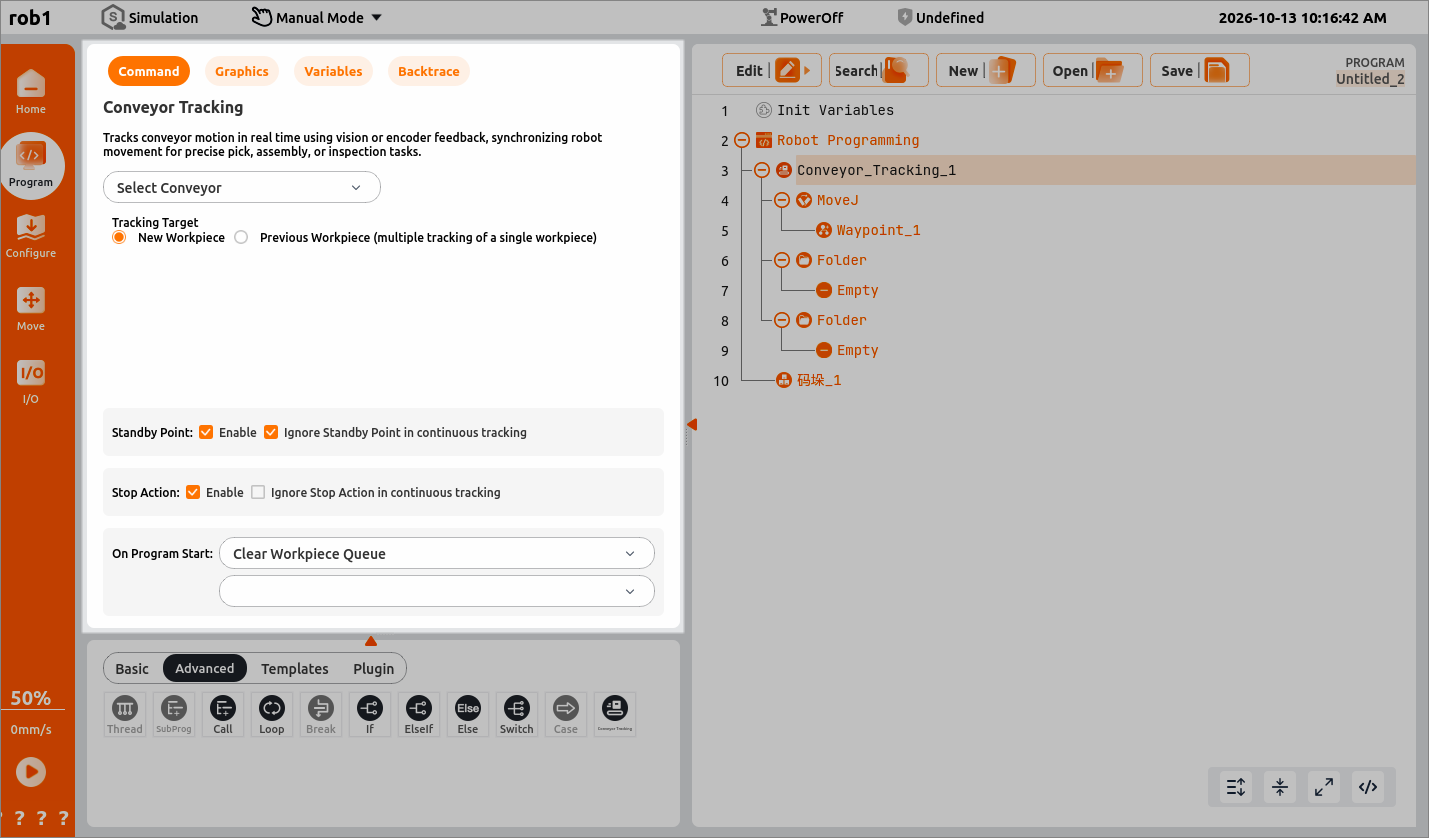
[Select Conveyor]: Select the specific conveyor equipment to track.
Note:
Make sure that the target conveyor is enabled on the [Configuration] page before selecting it.
Tracking Target:
- New Workpiece: During program execution, abandon the workpiece whose tracking information has already been captured and wait for a new workpiece, then perform the subsequent operations on the next workpiece.
- Previous Workpiece (multiple tracking operations for one workpiece): During program execution, perform the subsequent operations on the workpiece whose tracking information has already been captured.
Standby Point:
- Enable: When enabled, the robot arm returns to the preset standby position between tracking operations and waits for the next workpiece, preventing pose collisions or pose confusion.
- Ignore Standby Point During Continuous Tracking of Multiple Workpieces: When enabled, the robot arm skips returning to the standby point and directly continues tracking the next workpiece, improving efficiency.
Stop Action:
- Enable: When a tracking limit is exceeded (the workspace is exceeded or tracking capability is exhausted), the robot arm performs the preset stop action and restores its pose to the preset pose.
- Ignore Stop Action During Continuous Tracking of Multiple Workpieces: When a tracking limit is exceeded, the robot arm maintains its pose and stops directly at its current position.
At Program Startup:
- Clear Workpiece Queue: Completely resets the tracking task list when the program restarts.
- Retain Workpiece Queue:
- Continue Incomplete Tracking Actions: After the program restarts, continue processing the previously incomplete workpiece queue without losing workpieces whose tracking information has been captured.
- Abandon Incomplete Tracking Actions: After the program restarts, retain the workpiece queue but clear the previous tracking task queue and process only newly arrived workpieces.
- Ask: When the program restarts, do not automatically decide whether to continue or clear the workpiece queue. Instead, pause and issue a signal, then wait for the operator's decision before starting.
Note:
Workpiece queue: A list of workpieces detected in real time by a camera or laser sensor that are waiting for the robot arm to perform subsequent operations.
Conveyor Tracking Programming Page
After [Conveyor Tracking] is enabled, the programming page adapts automatically. The system provides a preset program framework where you can write programs in the corresponding modules.
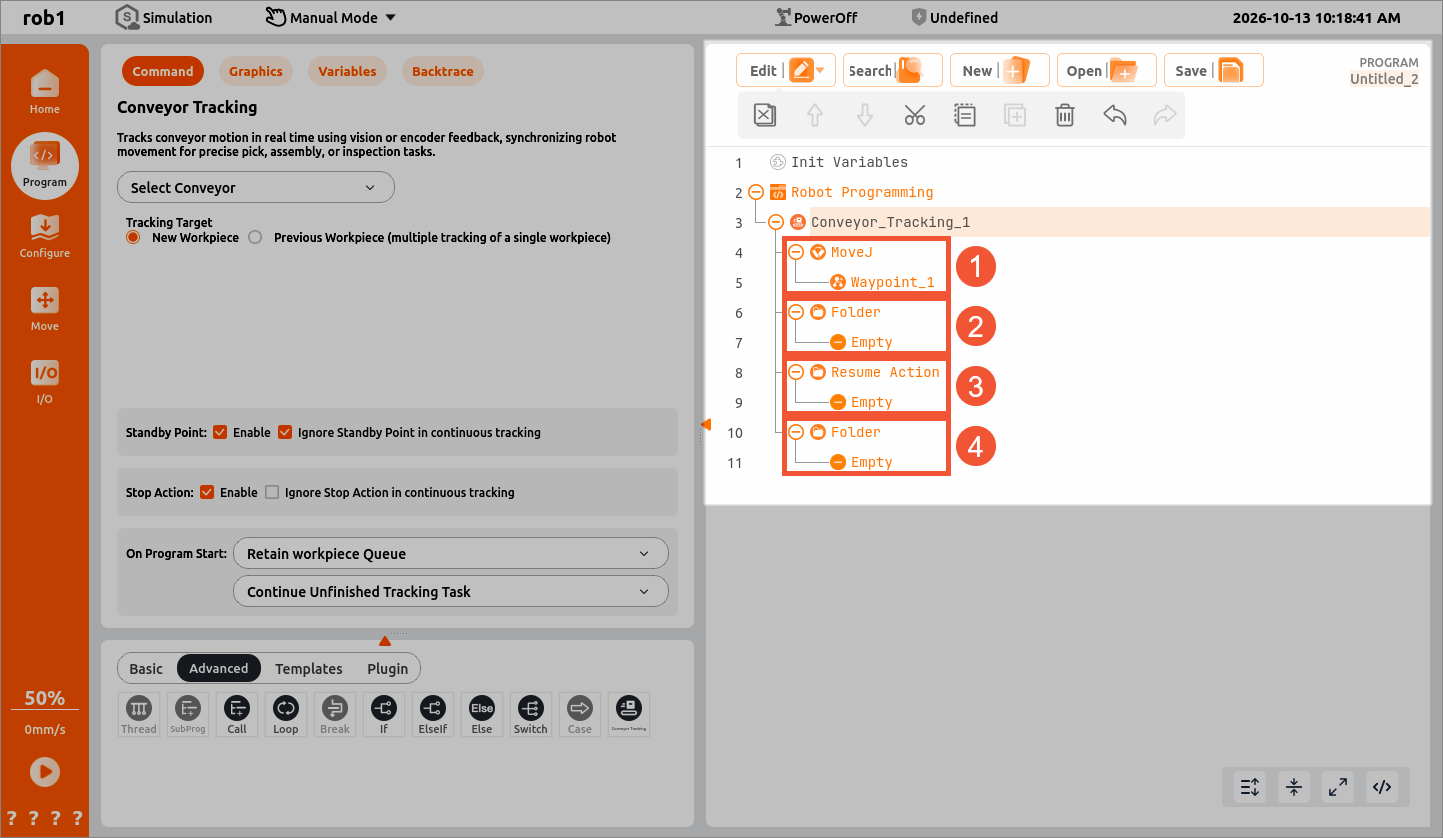
- Enable [Standby Point] on the conveyor tracking configuration page. The [Waypoint_1] node is then generated automatically in the program tree. Click [Waypoint_1] to teach the robot-arm standby point, where the robot waits for the workpiece to arrive.
- Write the robot-arm motion program to accurately pick, assemble, or inspect moving workpieces. When a workpiece is detected, the branch program runs automatically.
- On the conveyor tracking program information page, enable [Retain Workpiece Queue] and select [Continue Incomplete Tracking Actions]. The corresponding module then appears in the program tree. After the program restarts, its custom branch logic runs to continue processing incomplete workpieces.
- Enable [Stop Action] on the conveyor tracking configuration page. The [Stop Action] branch appears in the program tree and automatically runs its custom closing actions when a tracking limit is exceeded (the workspace is exceeded or tracking capability is exhausted).