
General
Home
The [Home] page contains the common positions/poses of the robot, where you can customize the home position/pose or quickly move the robot to the common positions/poses.
- Robot: Allow simulating the current robot status.
- Home: Allow viewing the position/pose parameters of the current "Home," setting the common positions/poses, or controlling the movement of the robot to the common positions/poses.
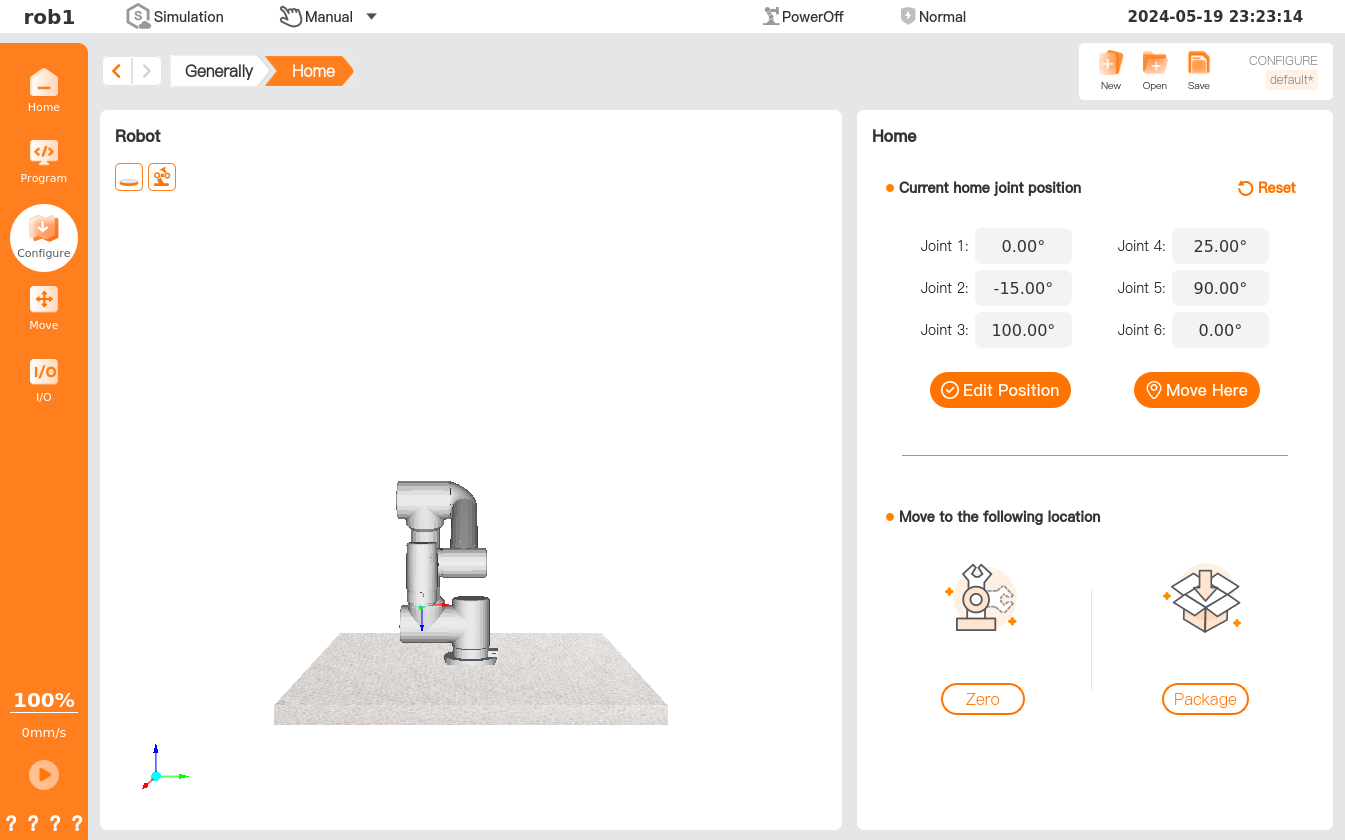
- Edit Position: Edit the user-defined home position/pose. Click [Edit Position] to enter the [Move] page and move the robot to set the position/pose. Click [OK] to save and return.
- Move Here: Move the robot quickly to the home position/pose. Click [Move Here] to quickly enter the [Move] page, where the orange numbers in the joint control box indicate the joint parameters of the current home position/pose. Long press [Home] or [Auto] to move the robot to the home position/pose, and then click [OK] or [Cancel] to return.
- Restore Default: Clear the user-defined home position/pose and restore the default home position/pose.
- Zero: Move the robot quickly to the zero position/pose.
- Package: Move the robot quickly to the packaging position/pose. The packaging position/pose is used when the robot is being packaged for shipment.
I/O setup
For I/O configuration methods, please refer to I/O Configuration, and for an introduction to configurable I/O functions, please refer to I/O Function.
Start
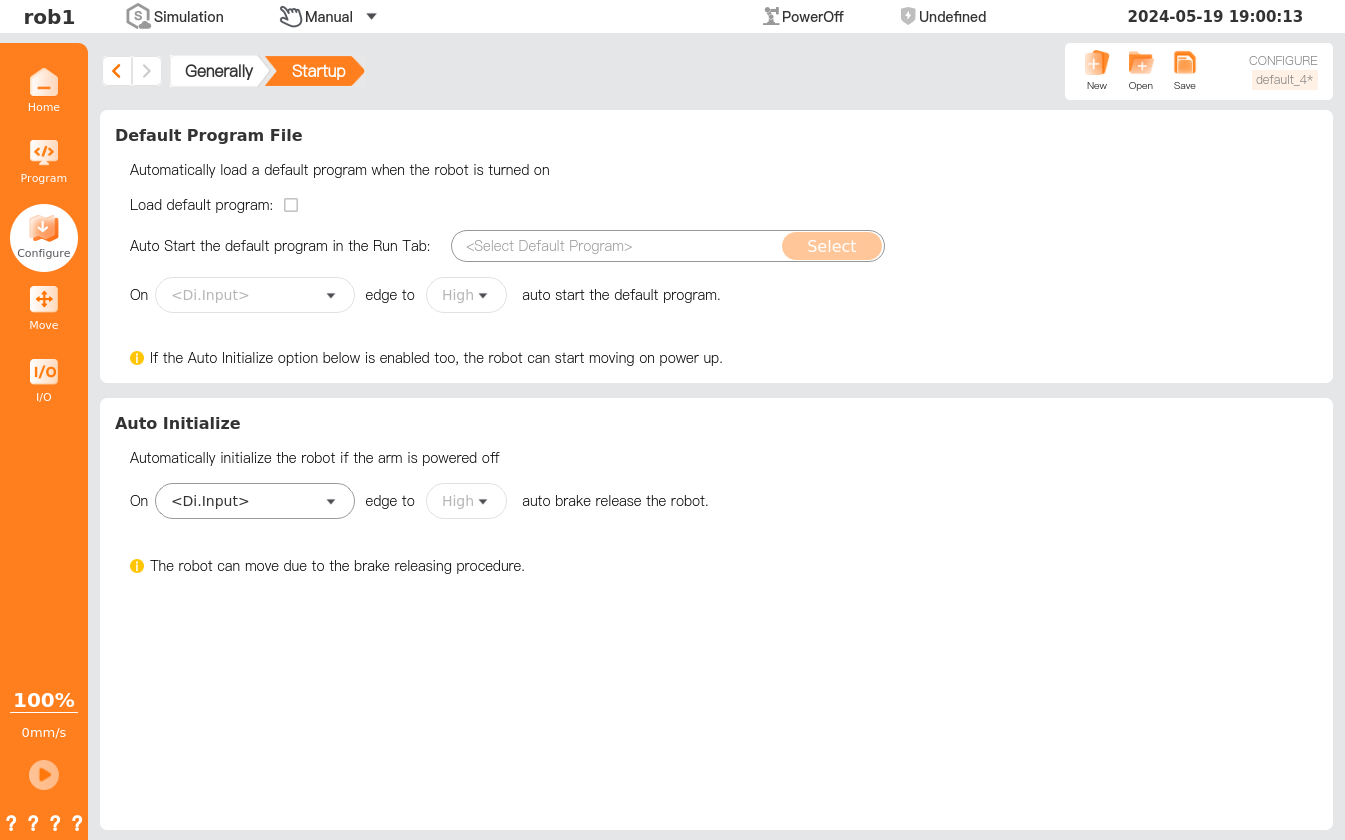
[Start] allows setting of the default program and auto initialization. A default program is a program loaded automatically upon boot of the controller, which is loaded automatically when the system starts running without loading any programs. Auto initialization, i.e., when the robot receives an initialization signal in the power-off state, it will start initialization to restore to the operable status.
Warning
- When automatic robot connection, automatic power-on, and automatic loading are enabled, the robot runs the program immediately after the controller is powered on, provided that the input signal matches the selected signal level. For example, in the case of low level, it is no need to transit an edge level to the selected signal level.
- Be careful when setting the signal level to a low level. The input signal is set at a low level by default, allowing the program to run automatically without interference from external signals.
Tip
Exiting the running program or clicking the "Stop" button in the teach pendant software will disable the auto-start feature until the "Run" button is pressed again.
TCP
Please refer to Basic robot operations - Load and TCP.
Payload
Please refer to Basic robot operations - Load and TCP.
Tool I/O
The robot end (joint 6) is equipped with two types of interface: an 8-pin tool I/O interface and a 4-pin tool RS485 interface, which can provide power supply and control signals to end-of-arm tooling (EOAT) (such as a gripper). The end interface configuration may vary for different models; please refer to the actual product and product specifications for details.
Tool I/O interface
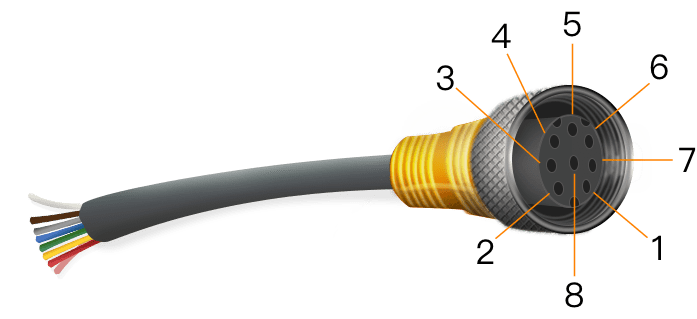
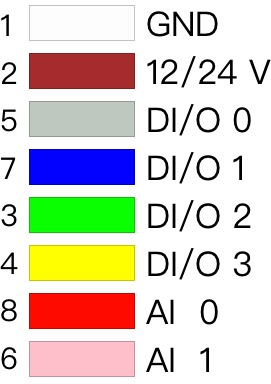
The tool I/O interface is an 8-pin connector, as shown in the figure below. Users can configure 4 channels of digital I/O via pins 3/4/5/7, and configure analog input via pins 6/8, with the analog voltage of 0V ~ 10V; pin 2 can be configured with output voltage of 0 V, 12 V, and 24 V.
[Tool I/O] page allows settings of the EOAT control mode, power voltage and digital I/O communication direction. For the function settings of each I/O interface for EOAT, please refer to “I/O Function.” For the status monitoring of I/O interfaces, please refer to the “I/O Tab.”
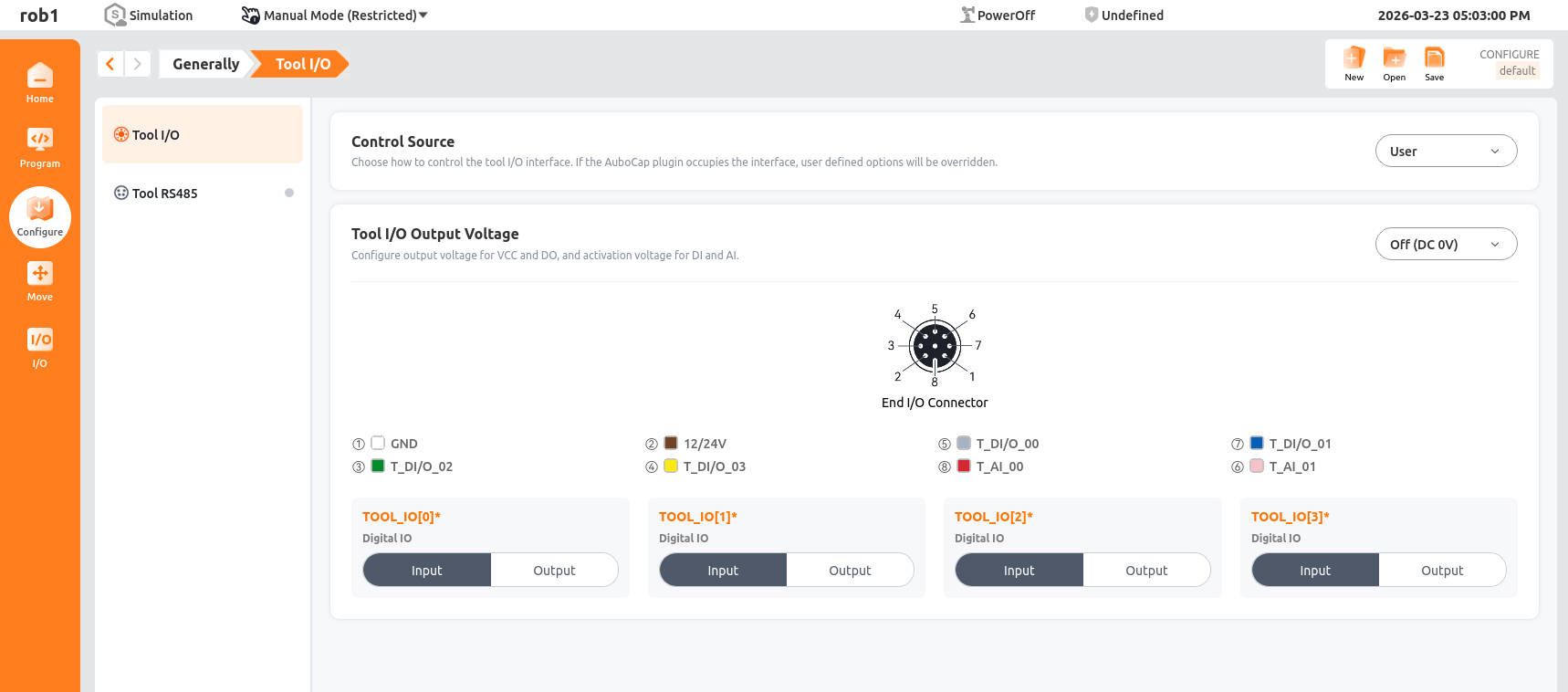
- Control right: Control the switching of tool I/O interfaces.
- Tool I/O output voltage: Set the voltage level (in V) for the tool's digital I/O in output mode. After replacing tools or resetting system, please double-check to ensure that the voltage matches the tool's rated voltage.
- TOOL_IO[0] ~ TOOL_IO[3]: Set the communication direction of the tool's digital I/O.
Tool RS485 interface
After configuring and activating a tool, the system automatically sets the default Tool Center Point (TCP) at the sensor flange based on the sensor dimensions and mounting position. Additionally, the sensor model will be synchronously displayed when showing the robot model.
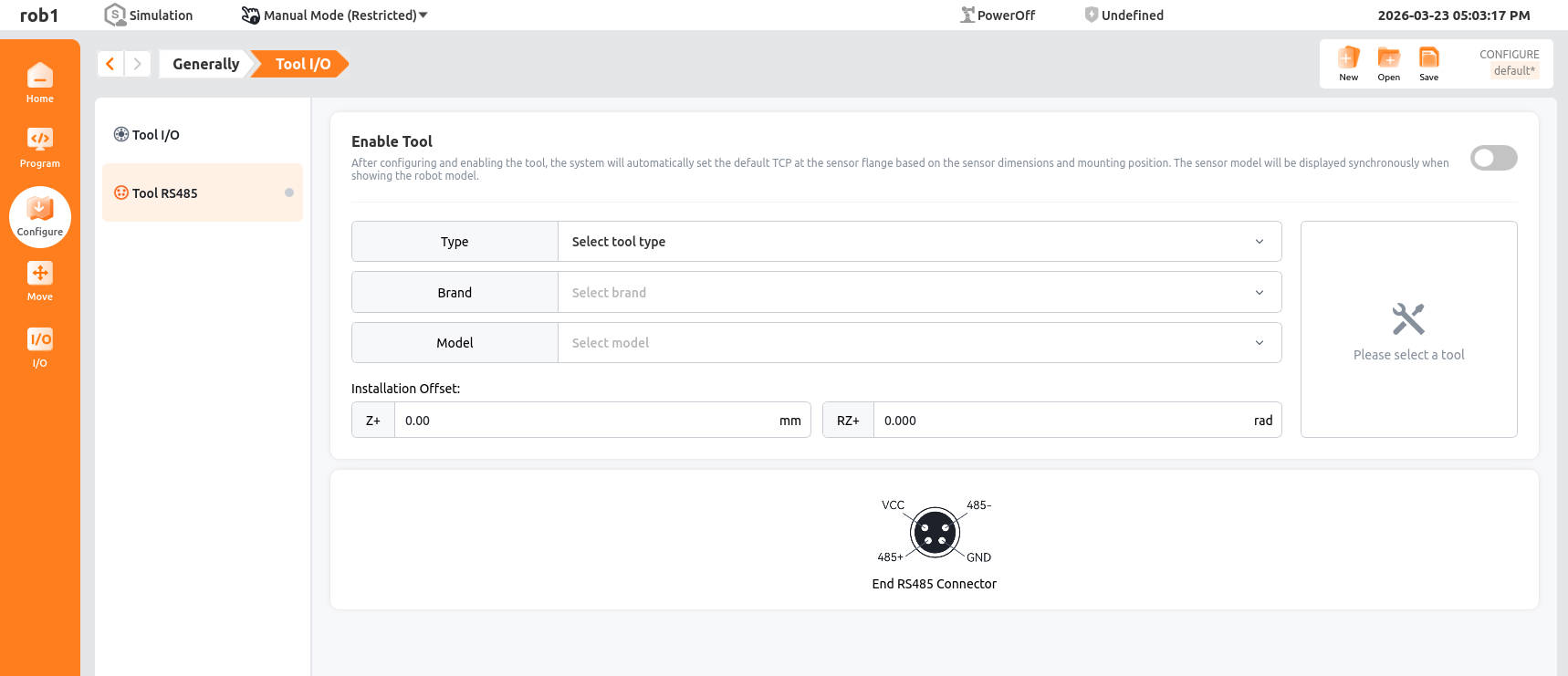
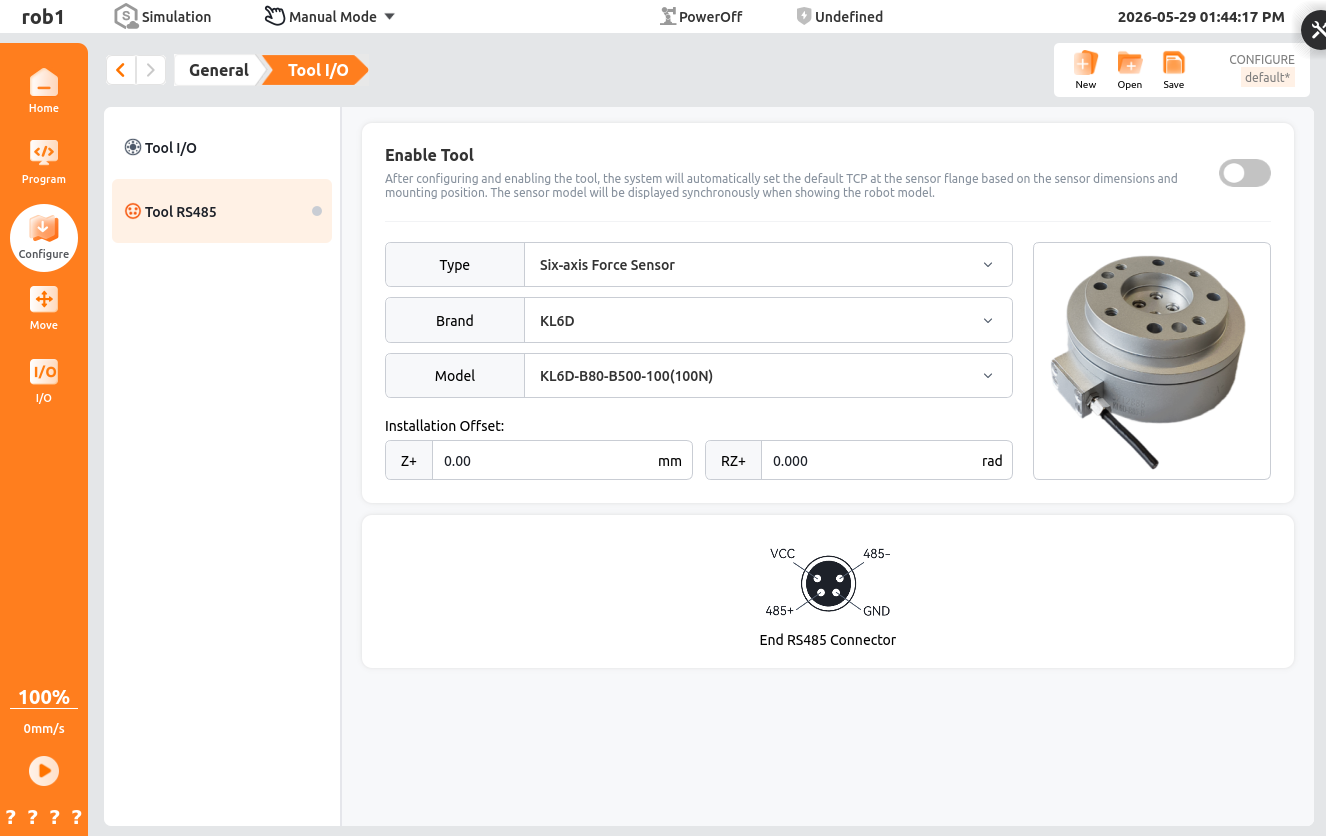
Activate Tool
Fill in the tool parameters, then toggle the button in the upper right corner of the page to activate the sensor.
- Type: Select six-axis force sensor.
- Brand: Currently supports Kunwei, Yuhong Minxin, Yuli, Zhili, Keli, Landian, and Xinjingcheng.
- Model: The corresponding model under the selected brand.
- Mounting Offset: Used to compensate for the offset between the sensor coordinate system and the flange coordinate system. Generally 0; currently only Yuli sensors require an offset of 45°.
After toggling the button, the activation status can be identified by the activation indicator light. Upon successful activation, the [Zero Calibration] and [Sensor Debugging] function buttons will appear.
Activation indicator light:
Gray when not activated.
Green when activation is successful.
Red when activation fails.
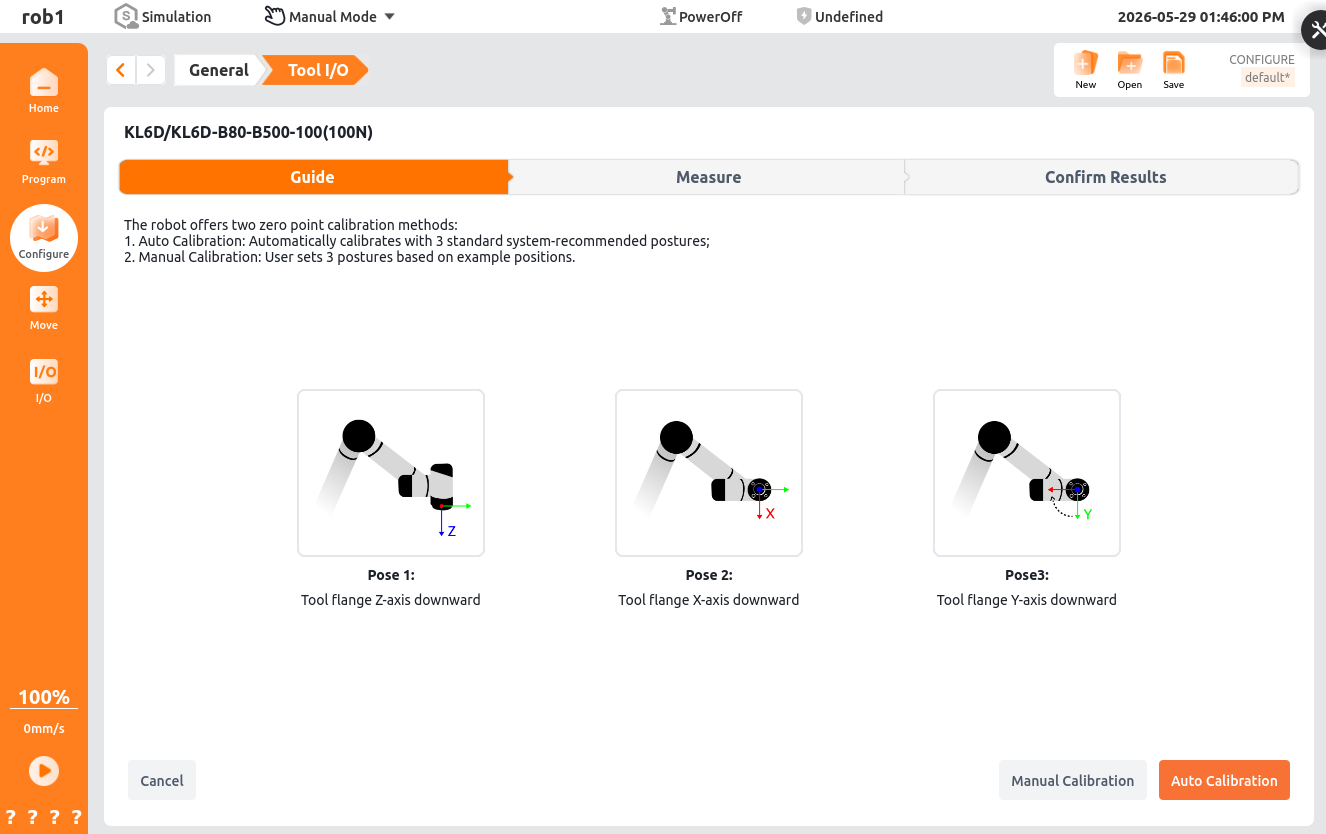
Zero Calibration The zero calibration home page displays the bias from the last calibration. To recalibrate, click the [Recalibrate] button in the lower right corner of the page to enter the recalibration screen. Recalibration includes both manual calibration and automatic calibration functions.
- Automatic calibration: Achieved by autonomously moving to three preset poses; be mindful of potential interference during use.
- Manual calibration: Requires teaching three poses according to prompts, then starting the calibration process.
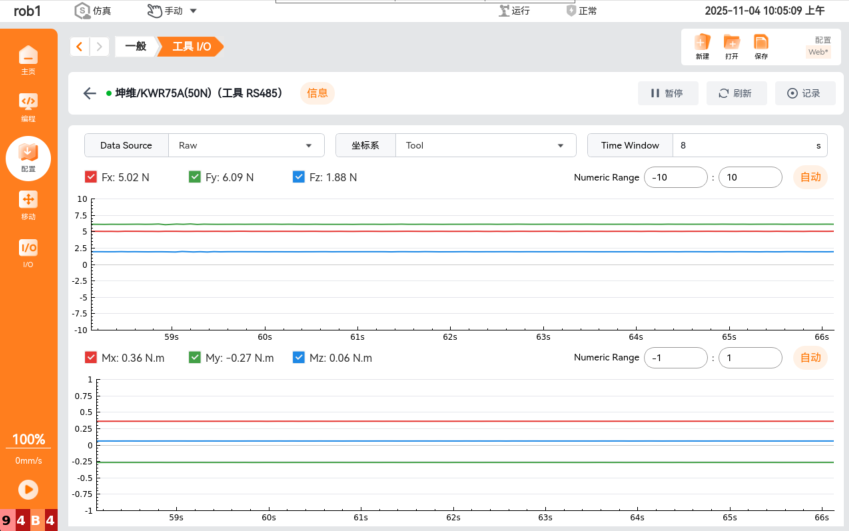
Sensor Debugging The sensor debugging screen is primarily used to view sensor data curves and also provides capabilities for recording data, replaying data, selecting data types and coordinate systems, and setting the data display time.
Variables
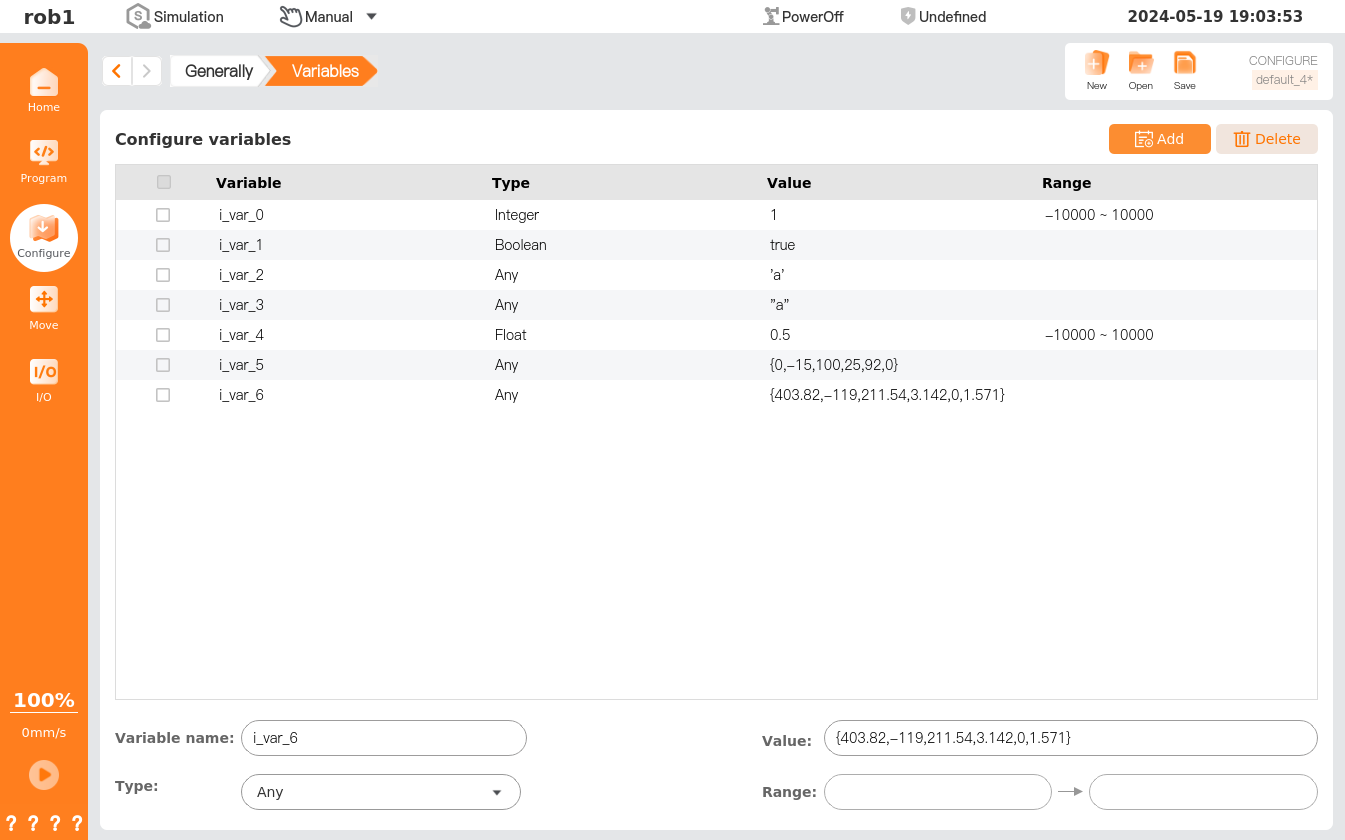
The [Variables] page allows you to create configuration variables and set their initial values. Click [Save] on the configuration management toolbar to save them to the configuration file. During program execution, this page can update the status of configuration variables in real time.
Note:
Variables in the ARCS system are divided into the following three types:
- Configuration variables: These variables can be used by multiple programs. As long as the currently loaded configuration file is not switched, the variable names and values remain saved. They are persistent variables.
- Program variables: These variables apply only to the running program, and their values are lost after the program stops. They are regular program variables. For details, see Programming Tab - Basic Program Nodes - Assignment.
- Script variables: These variables come from script files and can be assigned different variable types. Script variables are not displayed on the [Programming] page or the [Configuration] page. Robot programs use script variables to store waypoint information.
Add variables
Variables can be added in two ways.
Method 1: Click [Add] on the variables page to start adding a variable.
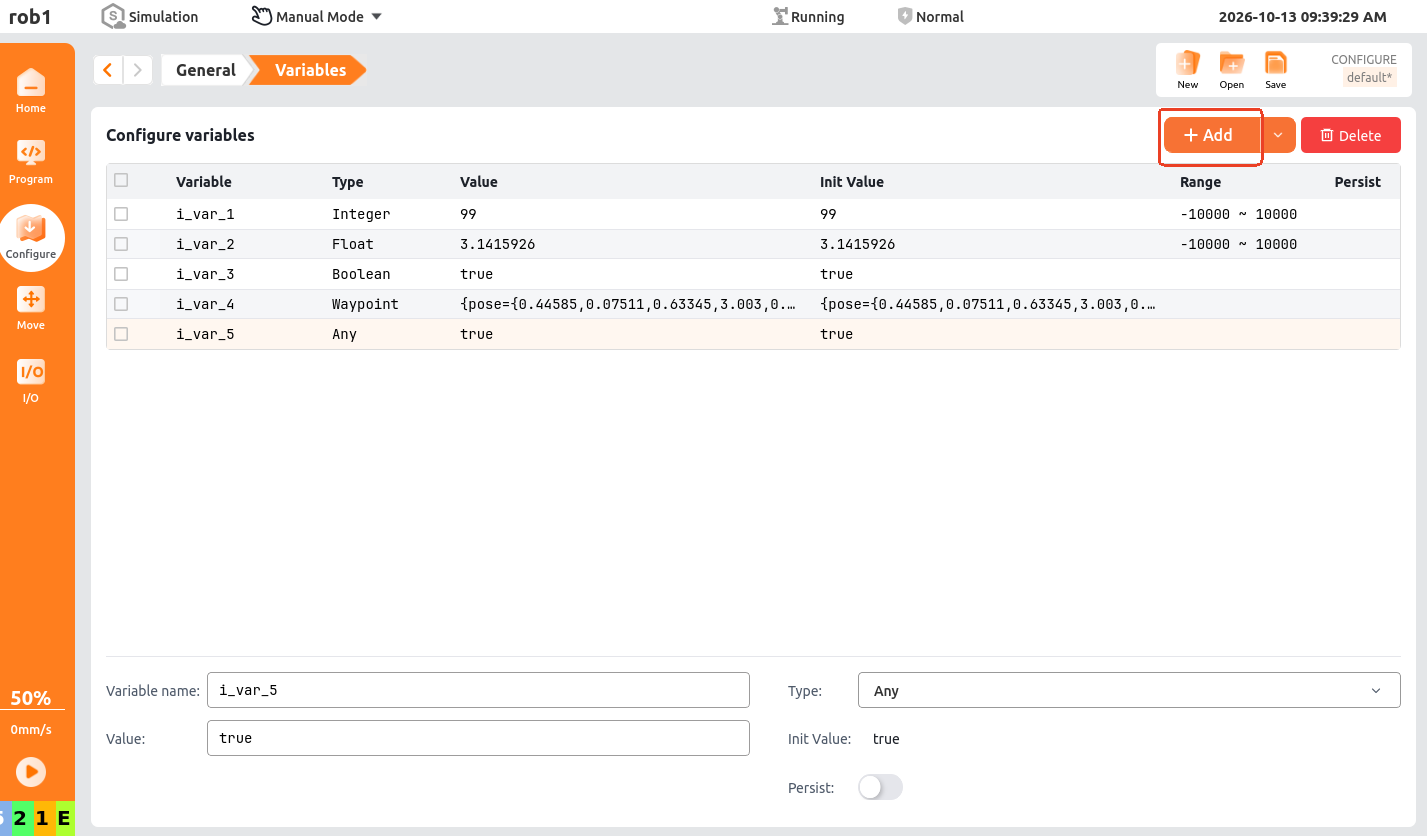
Variable Name: The name of the new variable. You can modify it as needed.
Type: The type of the new variable. Supported types include [Integer], [Float], [Bool], [Waypoint], and [Any].
Value: The value of the variable type. It can be changed in the program through assignment and other operations.
Variable Type Description Example Integer An integer value. Custom value limits are supported. The configured limits must not exceed the range: -10000 ≤ value range ≤ 10000.99Float A decimal value using 64-bit double-precision floating point, with up to 16 significant digits. Custom value limits are supported. The configured limits must not exceed the range: -10000 ≤ value range ≤ 10000.3.14Bool A logical state type that supports only two values: trueandfalse.trueWaypoint A robot composite point data type that contains Cartesian pose, joint angles, TCP offset, and posture feature information. It is used to completely save a robot motion target point. You can modify it by clicking [Teach] or [Edit] at the bottom of the page. Click [Move Joint Here] to move the robot to the waypoint variable position. {pose={0,0,0,0,0,0},joint={0,0,0,0,0,0},tcpoffset={0,0,0,0,0,0},feature={0,0,0,0,0,0}}Any Can store multiple data types, such as integer, float, bool, and waypoint. 0Note:
- The [Value] of a [Waypoint] variable can be modified by clicking [Teach] or [Edit].
- On the [Waypoint] variable configuration page, click [Teach] to go to the Move page. After setting the robot waypoint on the Move page, click [OK]. After confirming that the information in the pop-up window is correct, click [Confirm] to finish setting the waypoint.
- On the [Waypoint] variable configuration page, click [Edit]. In the pop-up window, modify the corresponding parameters and click [Confirm] to finish setting the waypoint.
- If the current robot pose is different from the pose set in the [Waypoint] variable, click [Move Joint Here] to go to the Move page. On the Move page, click [Auto] to move the robot to the pose set in the [Waypoint] variable.
- The [Value] of a [Waypoint] variable can be modified by clicking [Teach] or [Edit].
Initial Value: After a variable is created or modified on the variables page, the corresponding value is synchronized as the initial value.
Global Persistence: Controls whether [Initial Value] or the [Value] changed in the program is used when loading the variable in the program.
Enable [Global Persistence]
The [Initial Value] input box is hidden. When [Value] is modified while the program is running, the modified value is saved persistently. After the teach pendant restarts, the variable loads the last saved [Value] from the program.
Disable [Global Persistence]
The [Value] entered when the variable is created is synchronized and saved as [Initial Value]. During program execution, [Value] can be modified, but [Initial Value] remains fixed. After the teach pendant restarts, the variable loads [Initial Value] as the current [Value].
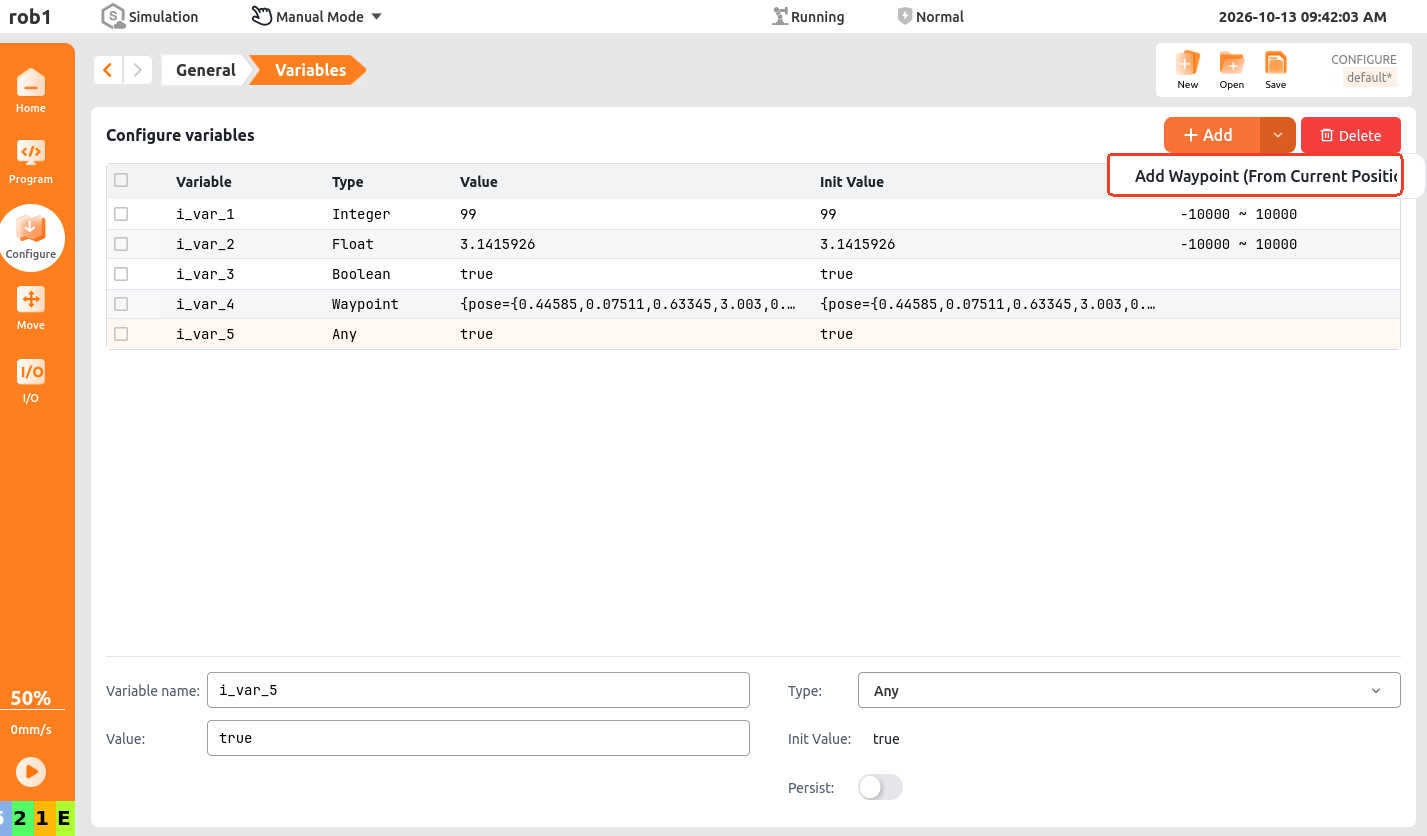
Method 2: On the variables page, click [ > Add Waypoint (from Current Position)] to go to the Move page. After setting the robot waypoint on the Move page, click [OK]. After confirming that the information in the pop-up window is correct, click [Confirm] to finish setting the waypoint.
Note:
This method applies only to creating [Waypoint] variables.
Delete variables
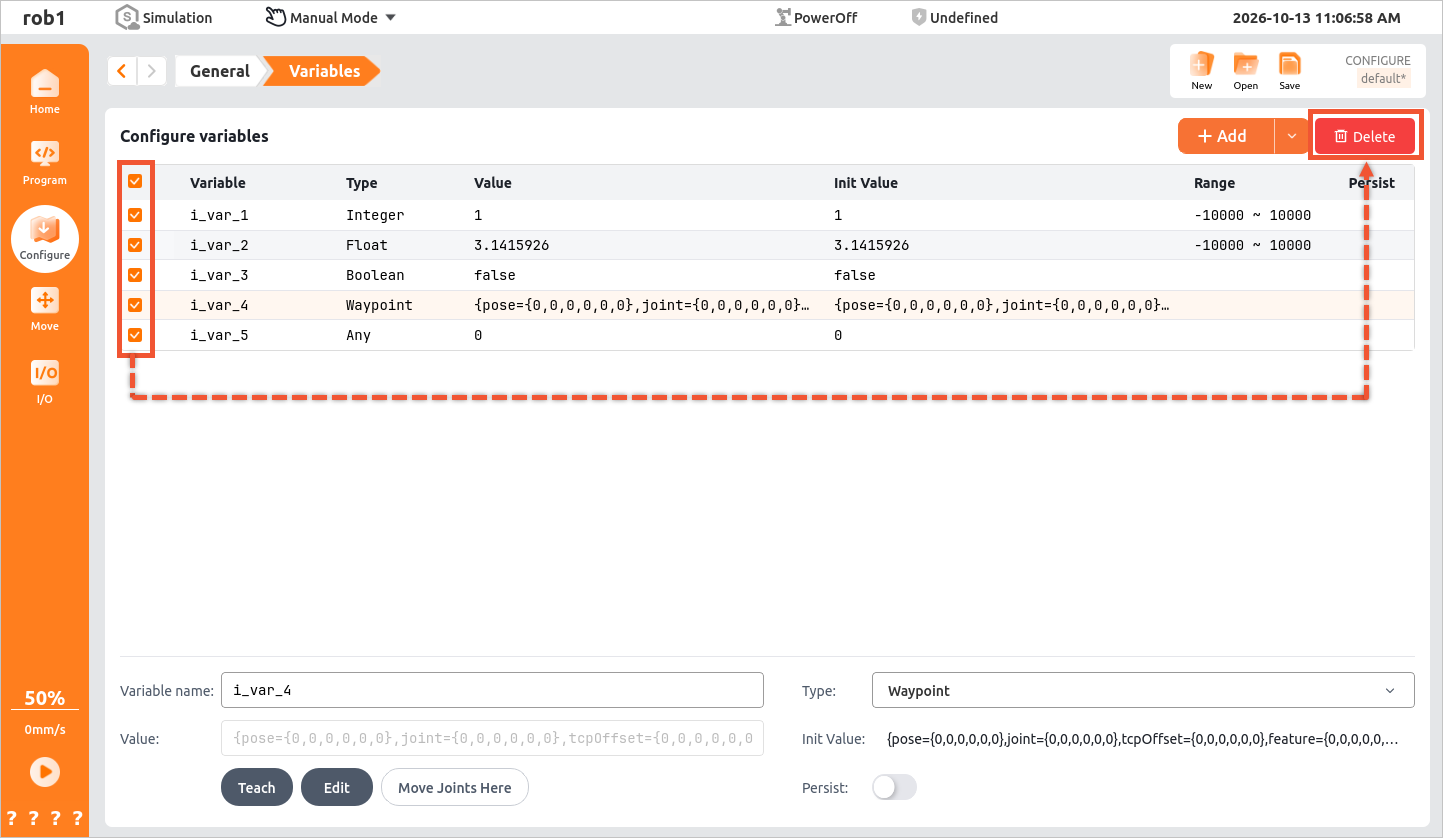
Select the target variable on the left side of the variables page, and click [Delete] in the upper right corner of the page to delete the target variable.
Modify variables
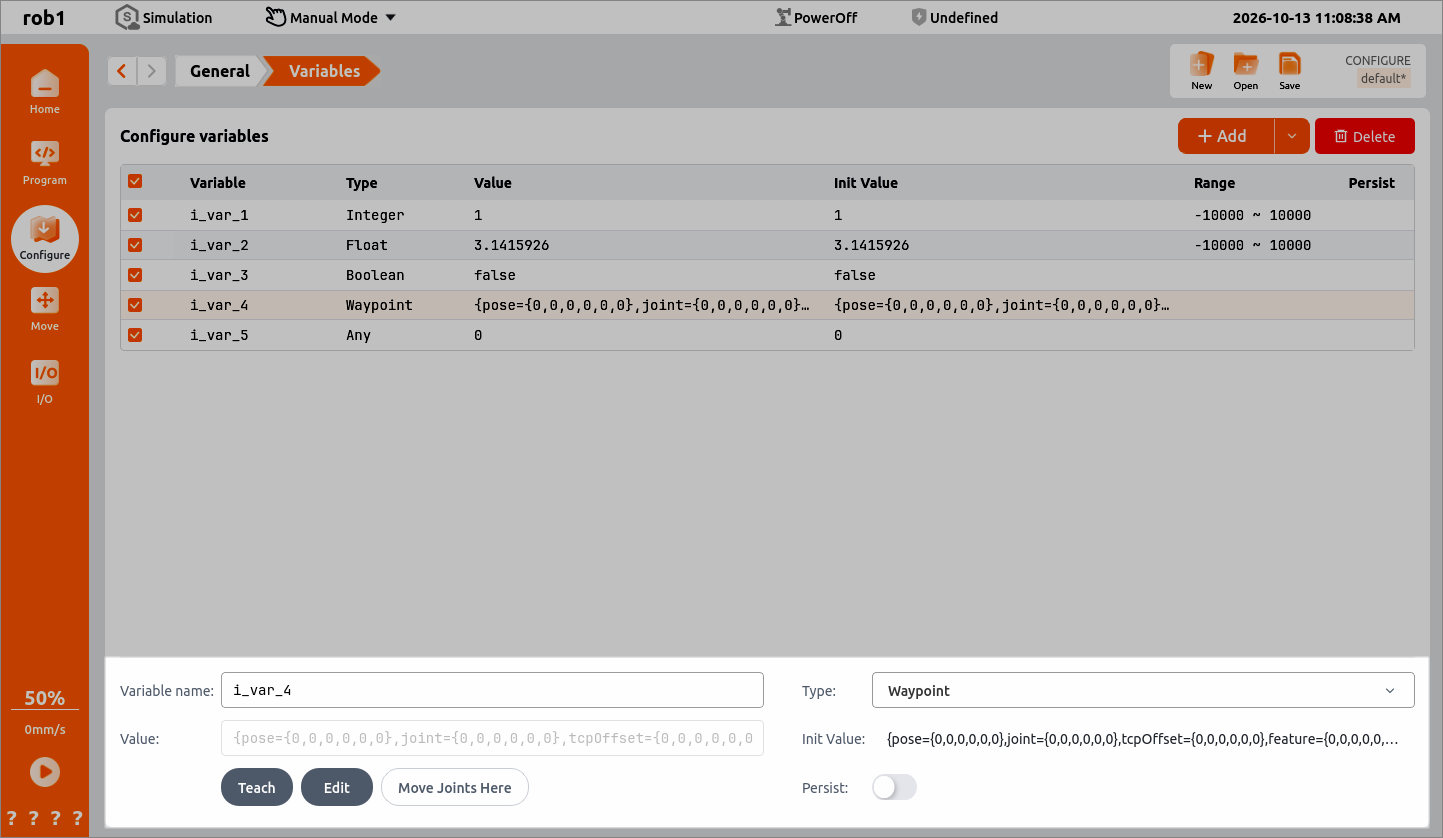
Select a variable on the variables page. Then modify the parameters in the lower area of the page. The parameter setting rules are the same as those used when creating parameters.
Record
The [Record] page stores the tracks of robot movement for a period of time, and the stored tracks can be added to the program.
- Simulation model: Simulate robot status.
- Track: Create/Edit/Save/Delete tracks.
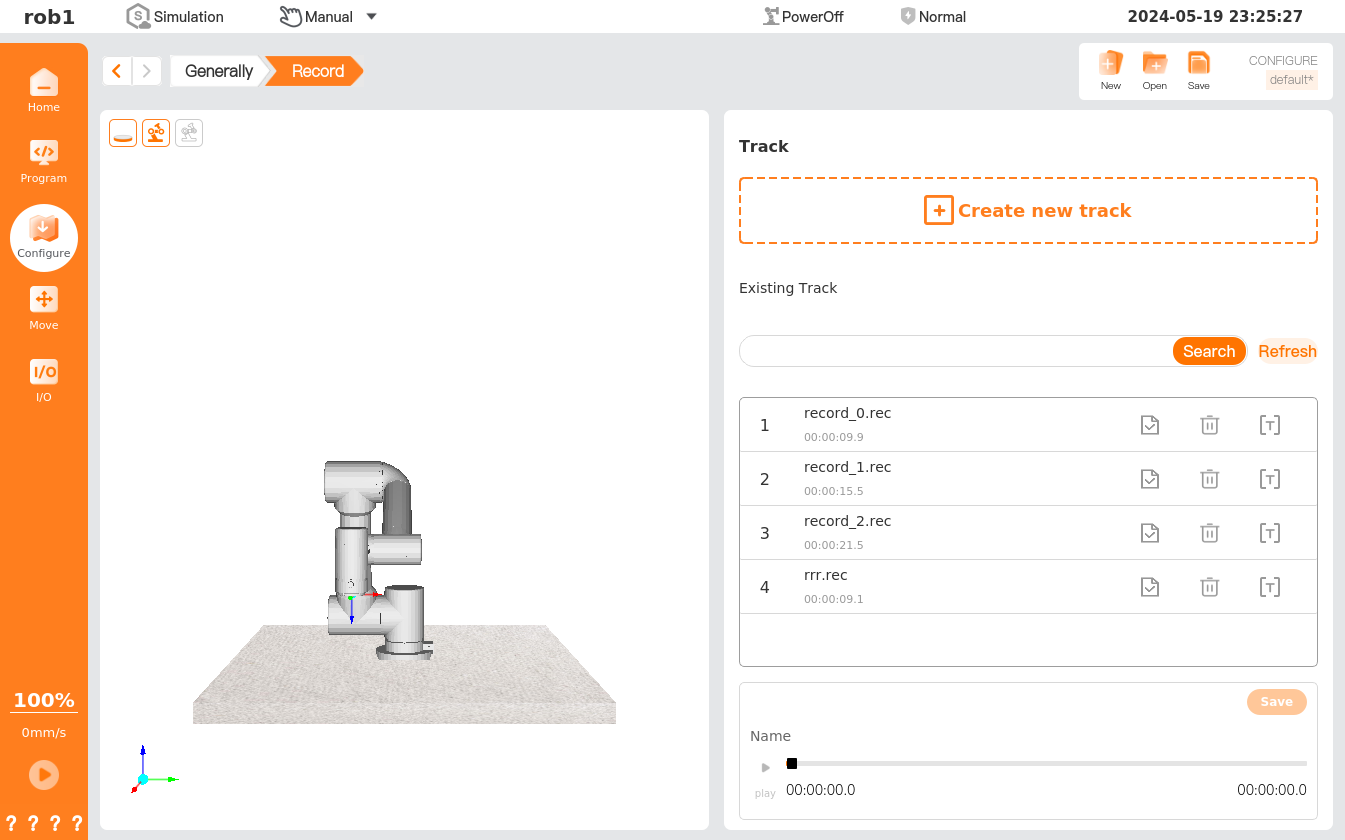
- Create Track: Click [Create Track] to enter the [Move] page, and control the robot using the position/pose control button; then the system will start recording the track of the robot. After the running is completed, click [OK] to name and save the track.
- Search: Search for a certain track by its name.
- Refresh: Refresh the list of tracks.
 Load: Load a track.
 Rename: Rename a track file.
.png) Delete: Delete the track.
Delete: Delete the track. Play: Play the currently loaded track. Click [Play], then enter the [Move] page to move the robot to the initial position, and click [OK] to start playing the moving track. At this time, clicking on [Play] will switch to [Stop] status
  .
.
Create a new track
Click [Create Track] to enter the [Move] page, then click
 to start recording. Control the robot using the position/pose control button. The system will record the robot's track and time. Click
  to exit the [Move] page. After recording, click
  to display a pop-up prompting you to name the track file. After naming, click [Save] to return to the [Record] page.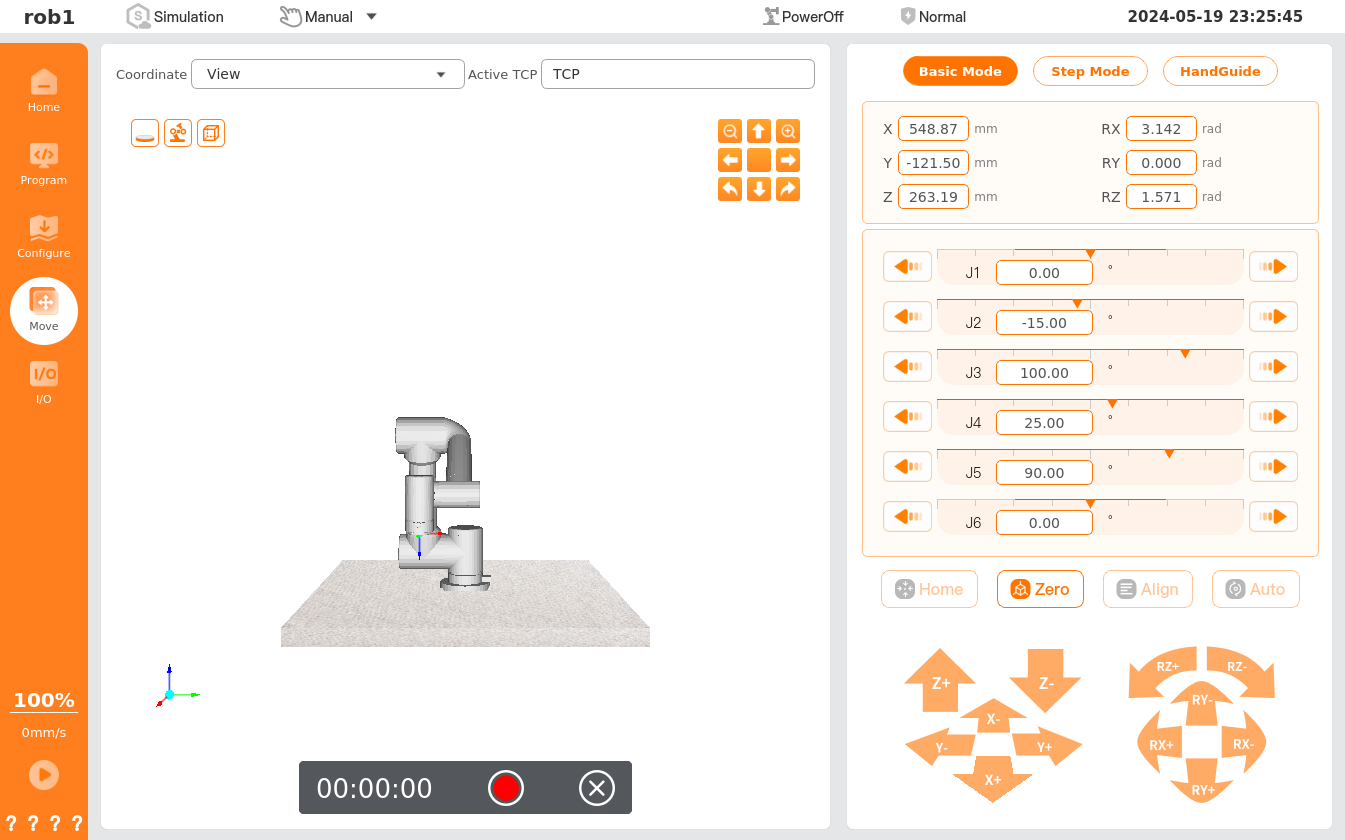
Click
to rename the recorded track.Select the saved track file from the track list and click [Load]
to load the track into the player.
Coordinate system
Please refer to Basic robot operations - Coordinate system.
Drag damping
Please refer to Move teaching - HandGuide - Drag damping.
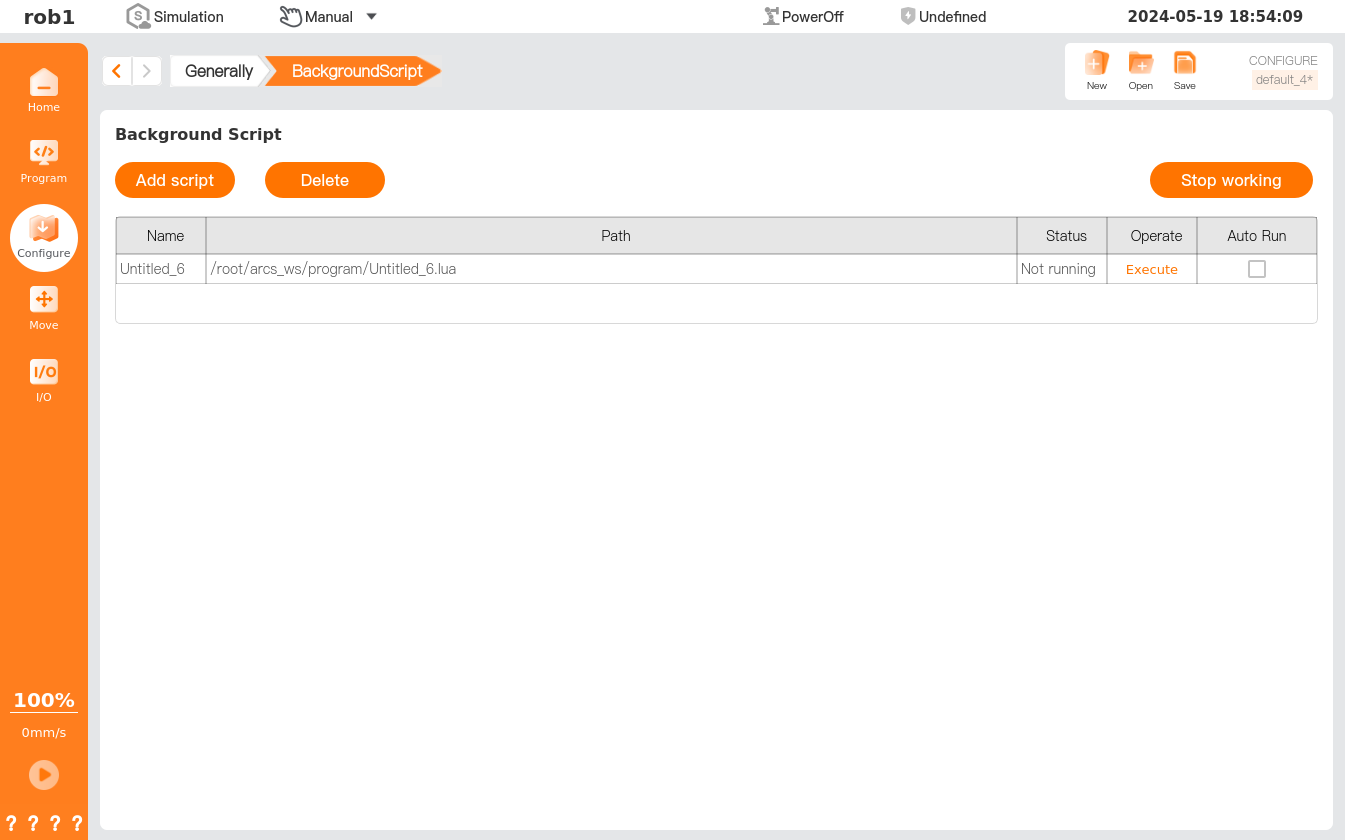
Background script
[Background Script] allows setting of multiple scripts running in the background, tailored to users' needs.
Tip
The scripts added in [Background Script] are not allowed to contain robot motion commands.
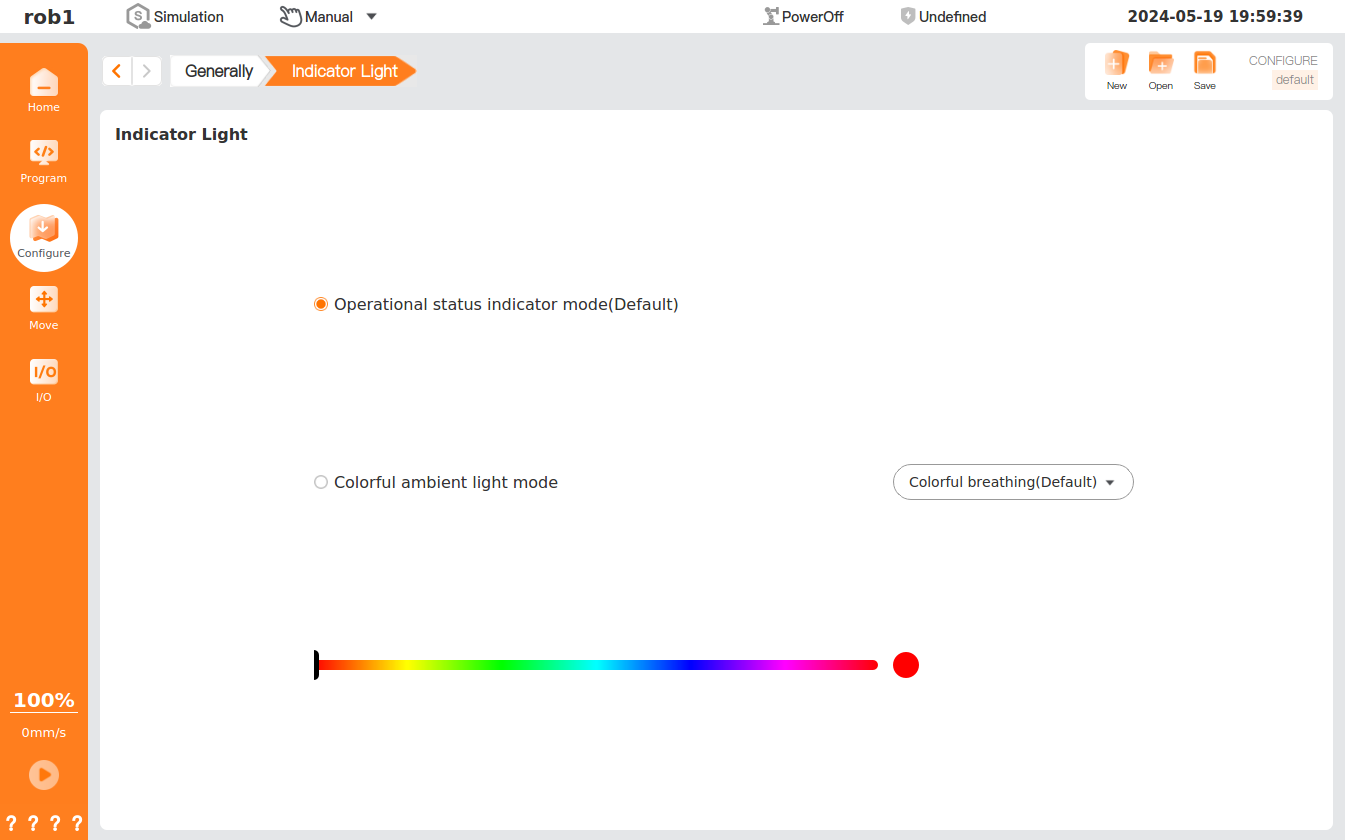
Indicator light*
[Indicator Light] allows setting of the mode of the robot indicator light. This function is only supported by some robot arm models. Please refer to the Hardware User Manual for more details.
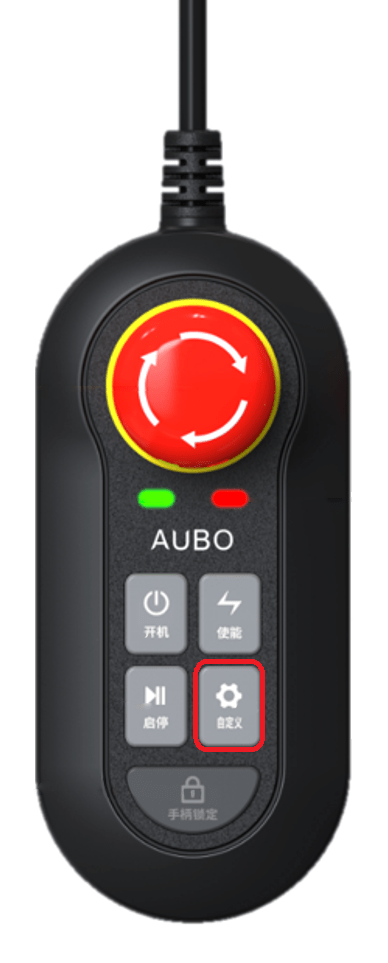
Handle setting*
[Handle Setting] allows setting of the control mode of the handle matched with the product and configuration of the functions of the custom button on the handle. This feature is only supported by some controller models. Please refer to the Hardware User Manual for more details.
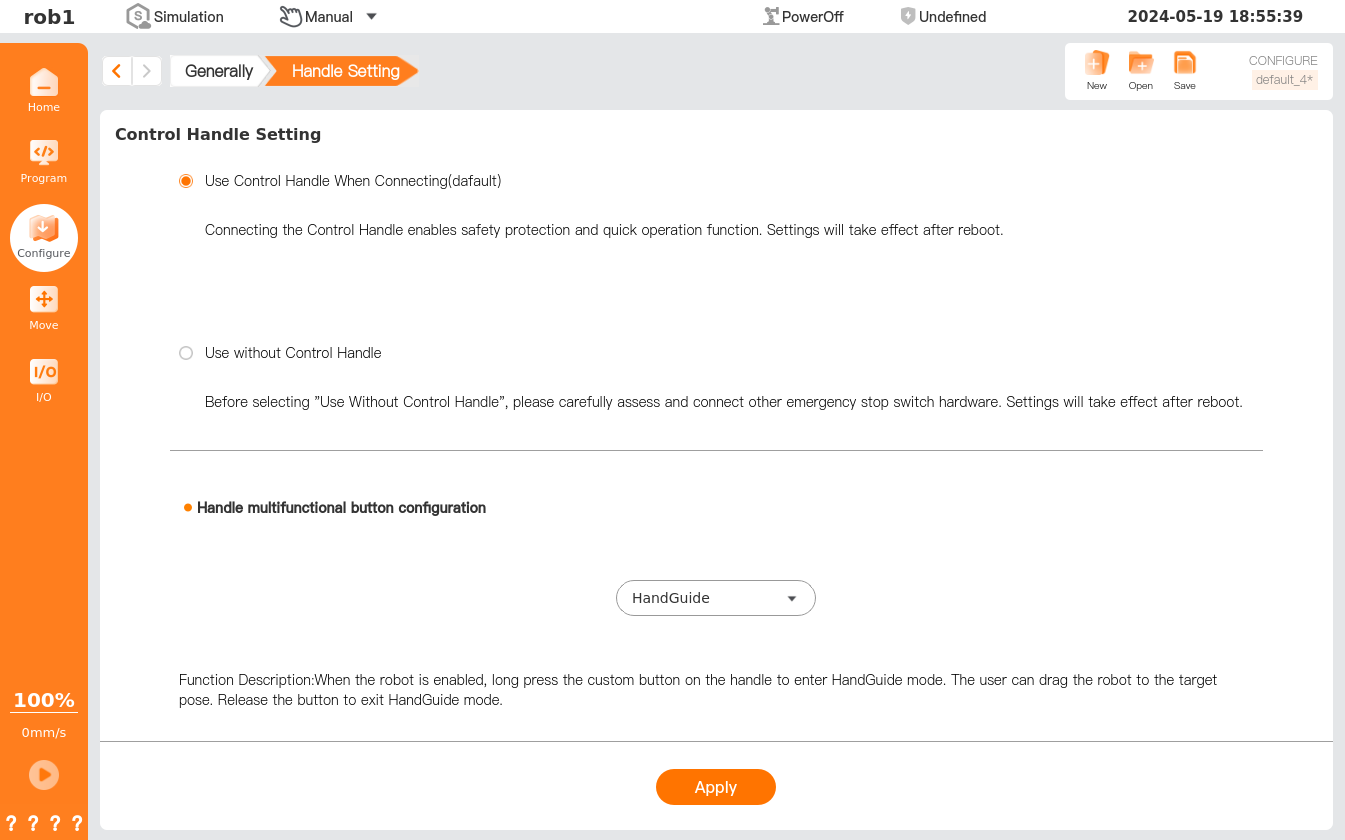
Info
Clicking [Apply] will only make the handle settings effective temporarily. To ensure that the relevant settings can be found upon restart, click [Save] to save the current installation profile.
Conveyor Tracking
The [Conveyor Tracking] function enables a collaborative robot to use a camera or laser sensor to identify workpieces and follow workpieces on a continuously moving conveyor, performing dynamic operations such as picking and processing. Configure the conveyor tracking parameters on the [Configure > Conveyor Tracking] page.
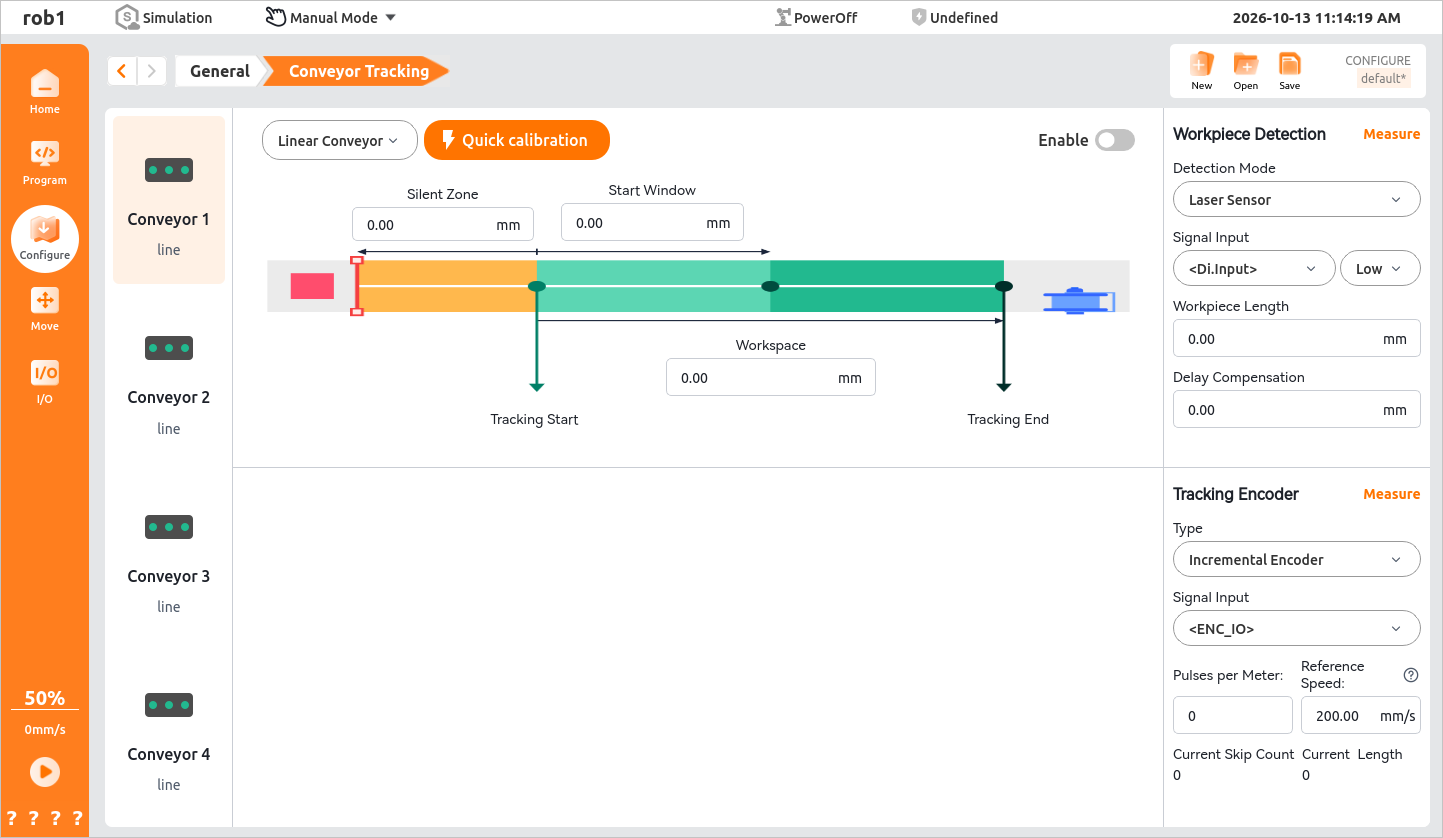
1. Hardware connection
Before configuring [Conveyor Tracking], connect the [Tracking Encoder] and [Laser Sensor] / [Camera] to the controller.
RS485 incremental encoder wiring:
- Connect the encoder's 24 V and 0 V to the controller cabinet power interface.
- Connect the encoder's A and A- wires to the ENC A+ and ENC A- interfaces.
- Connect the encoder's B and B- wires to the ENC B+ and ENC B- interfaces.
- Connect the encoder's Z and Z- wires to the ENC Z+ and ENC Z- interfaces.
Laser sensor wiring:
- Connect the laser sensor's 24 V and 0 V to the 24 V and 0 V terminals of the user-input I/O module.
- Connect the laser sensor signal wire to DI0X of the user-input I/O on the controller cabinet.
Note:
Currently, only iS and G40 controllers support connection to incremental encoders.
- For the G40 controller cabinet electrical interfaces, see the CB-G40 User Manual.
- For the iS controller cabinet electrical interfaces, see the CB-iS User Manual.
2. Software configuration
After confirming that the hardware is connected correctly, quickly configure conveyor tracking through the teach pendant or AuboStudio.
2.1 Preparation
Select a target conveyor on the [Conveyor Tracking] page to start [Quick Calibration], [Tracking Encoder Measurement], or [Workpiece Measurement].
Select a conveyor on the [Conveyor Tracking] page. Up to four conveyors can currently be selected.
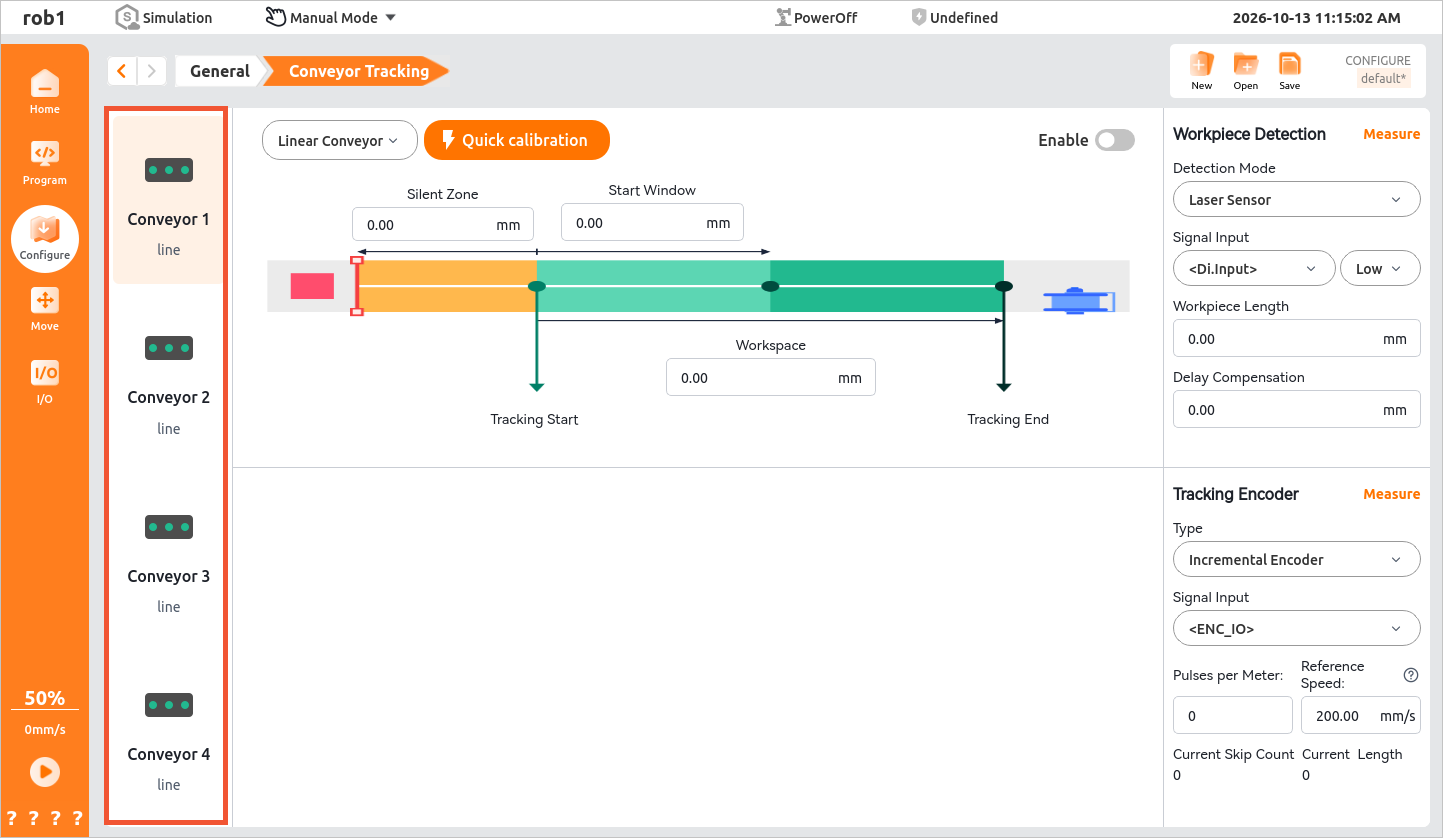
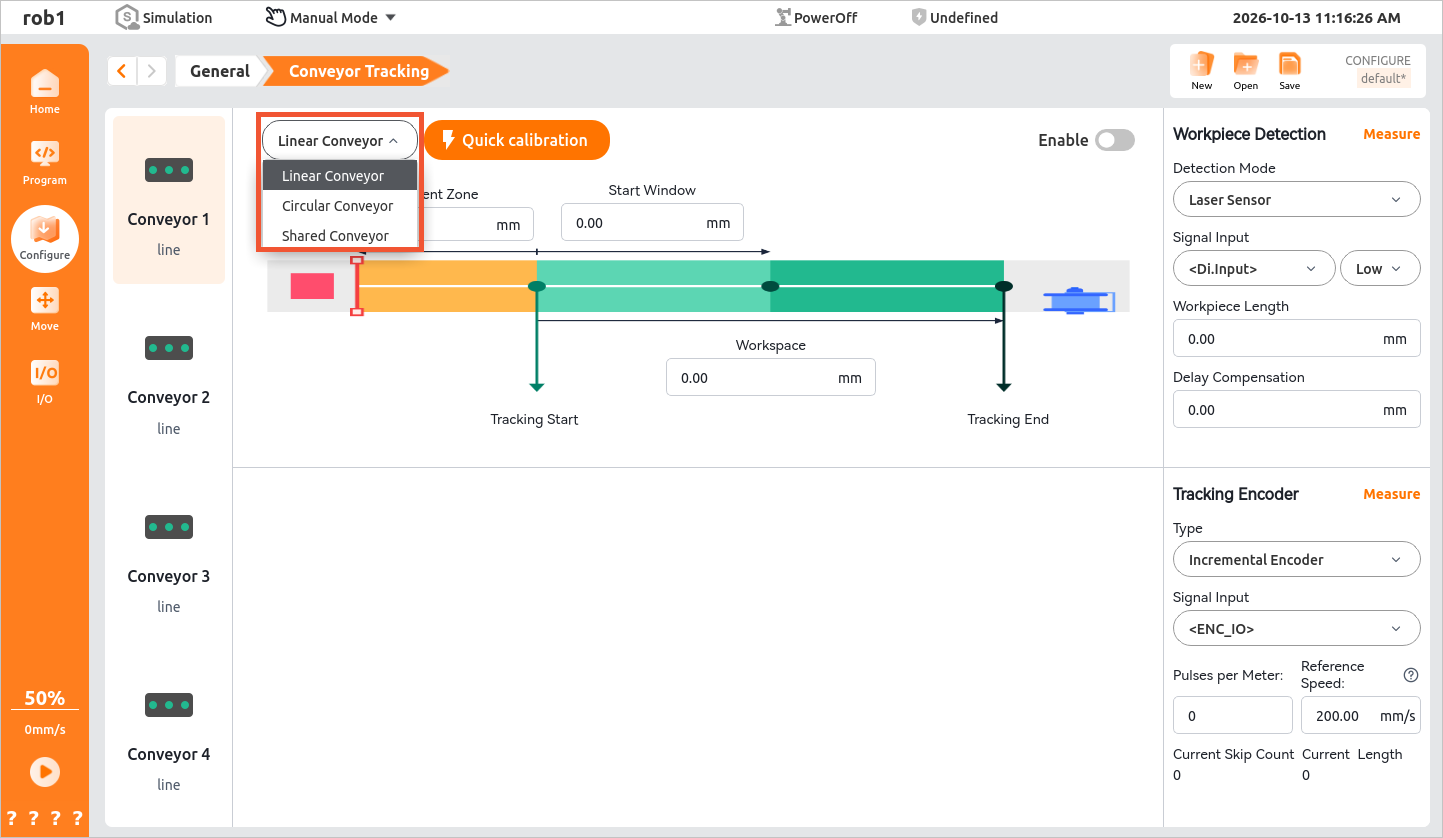
After selecting the conveyor, select its type.
- Linear conveyor: Workpieces are continuously transported in one direction along a straight line.
- Circular conveyor: Workpieces continuously circulate around a closed loop.
2.2 Quick Calibration
On the [Conveyor Tracking] page, click [Quick calibration] to configure the parameters related to conveyor tracking.
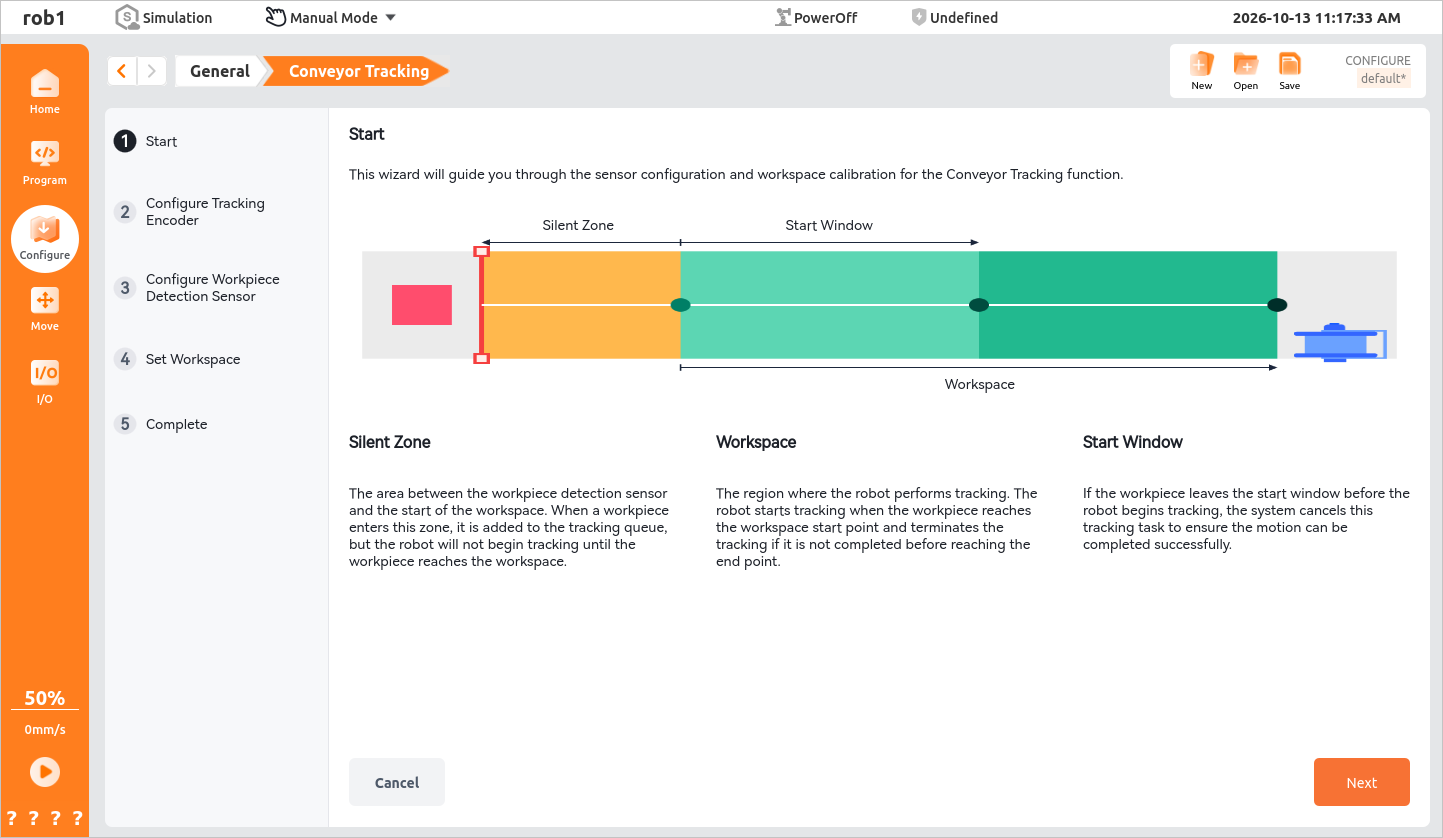
After starting [Quick calibration], the [Start] page opens. This overview page explains the definitions of the conveyor tracking logic zones and helps operators understand the calibration principle. Click [Next] when finished.
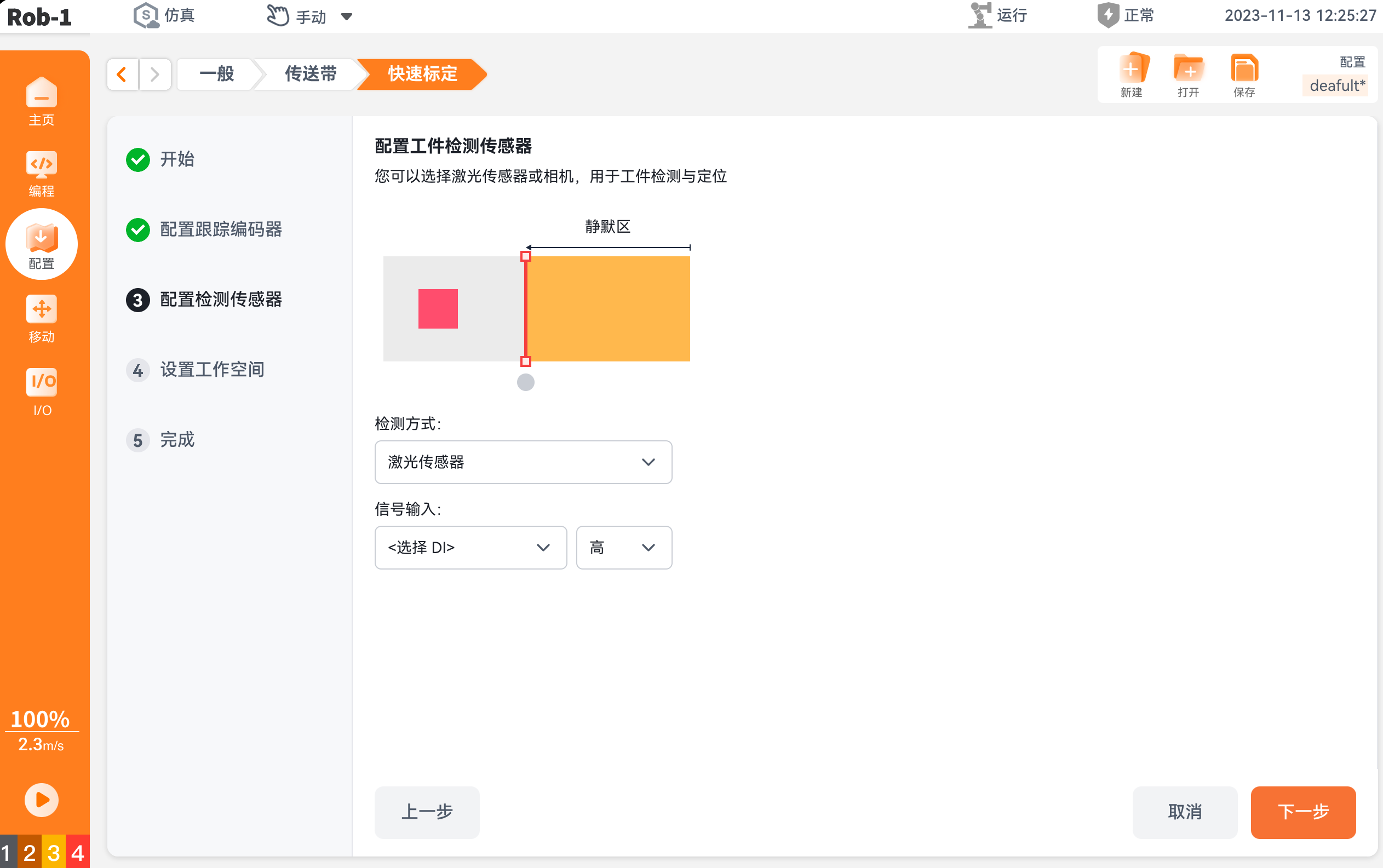
- Silent zone: The area between the workpiece detection sensor and the start of the workspace. After a workpiece enters the silent zone, it is added to the tracking queue, but the robot does not start tracking. Tracking can start only after the workpiece reaches the start of the workspace.
- Workspace: The complete area in which the robot performs conveyor tracking operations. If tracking has not finished when the workpiece reaches the end of the workspace, the robot terminates the current tracking operation.
- Start window: The area between the start of the workspace and the end of the start window. Tracking can start while the workpiece is in the start window. If the robot has not started tracking when the workpiece leaves the start window, tracking for that workpiece is abandoned so that the tracking operation can be completed safely.
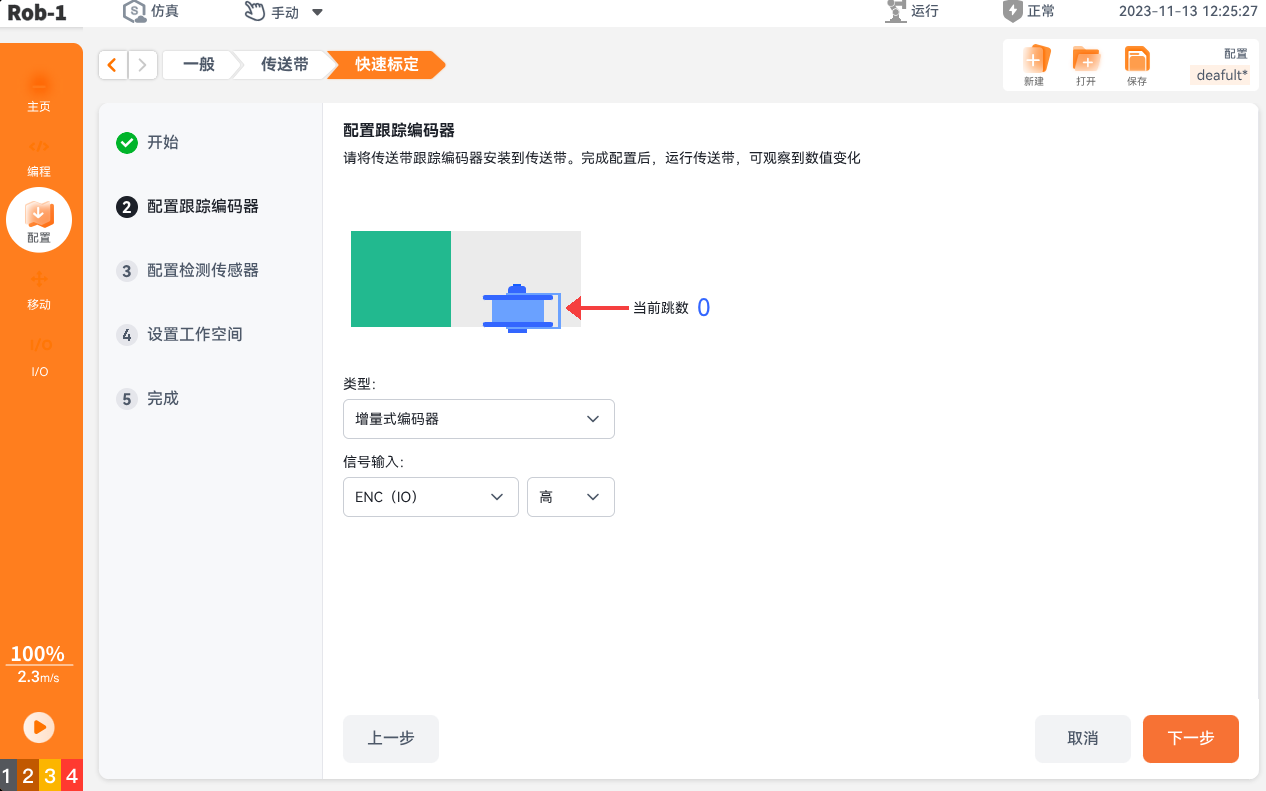
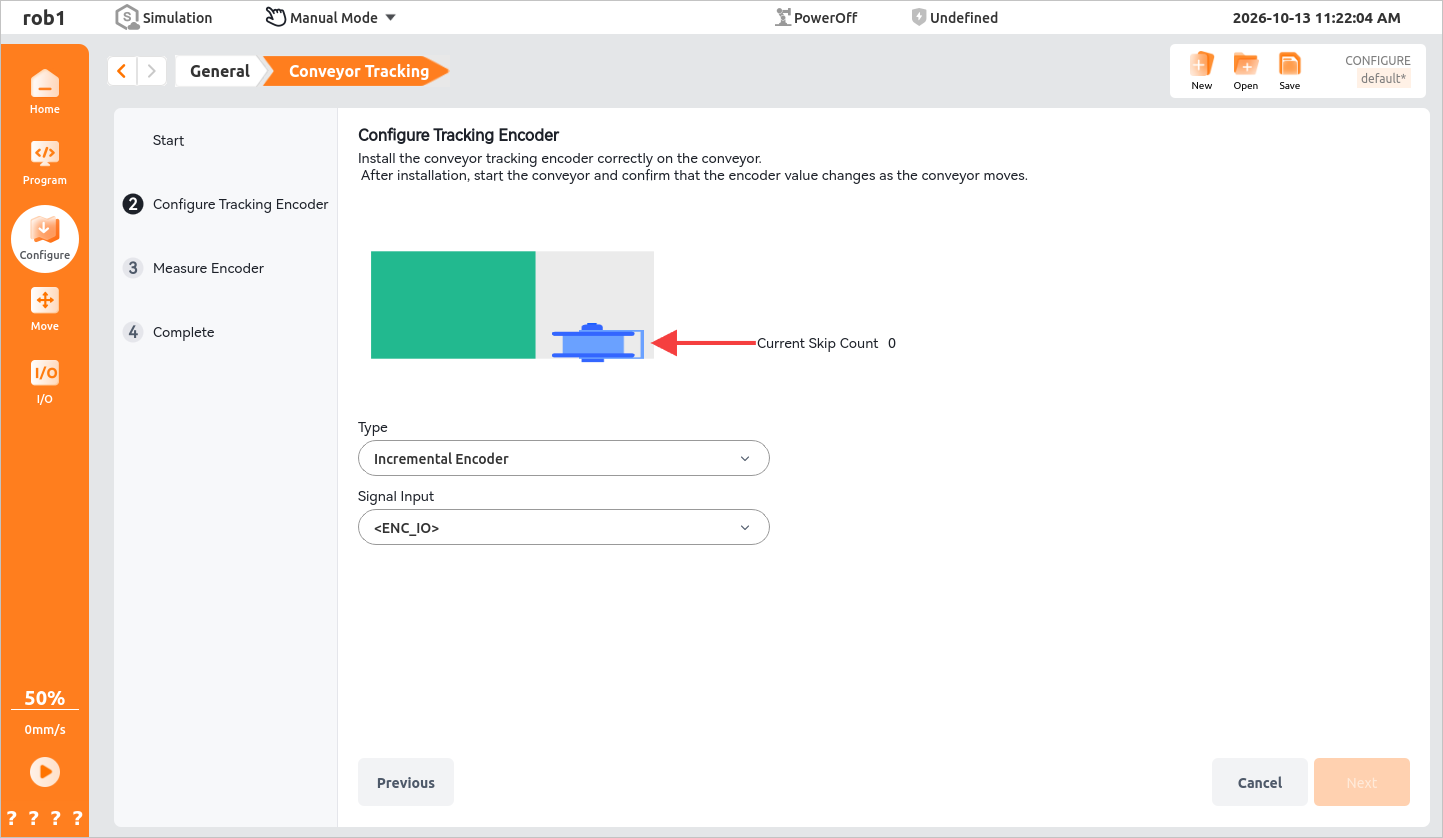
On the [Configure Tracking Encoder] page, install and wire the tracking encoder to the conveyor. Run the conveyor and check that the pulse count changes normally, then click [Next].
Current Pulse Count: The real-time encoder pulse count. The value should change synchronously while the conveyor is running.
Type: Select the encoder type. Incremental encoders are supported.
Note:
Incremental encoder: Uses A/B quadrature pulses to measure relative displacement. The system calculates the conveyor travel distance based on pulse increments to track workpieces.
Signal Input: Select the hardware channel corresponding to the encoder.
The [Configure Detection Sensor] page configures the workpiece detection device. Select a laser sensor or camera to trigger tracking after identifying a workpiece. Click [Next] after setting the parameters.
- Detection Method:
- Laser Sensor: Detects a workpiece through a digital signal. After the workpiece triggers the sensor, the system records it in the tracking queue in the silent zone.
- Camera: Identifies the workpiece visually and obtains its initial position information.
- Signal Input: Select the digital DI channel to which the sensor is connected.
- Detection Method:
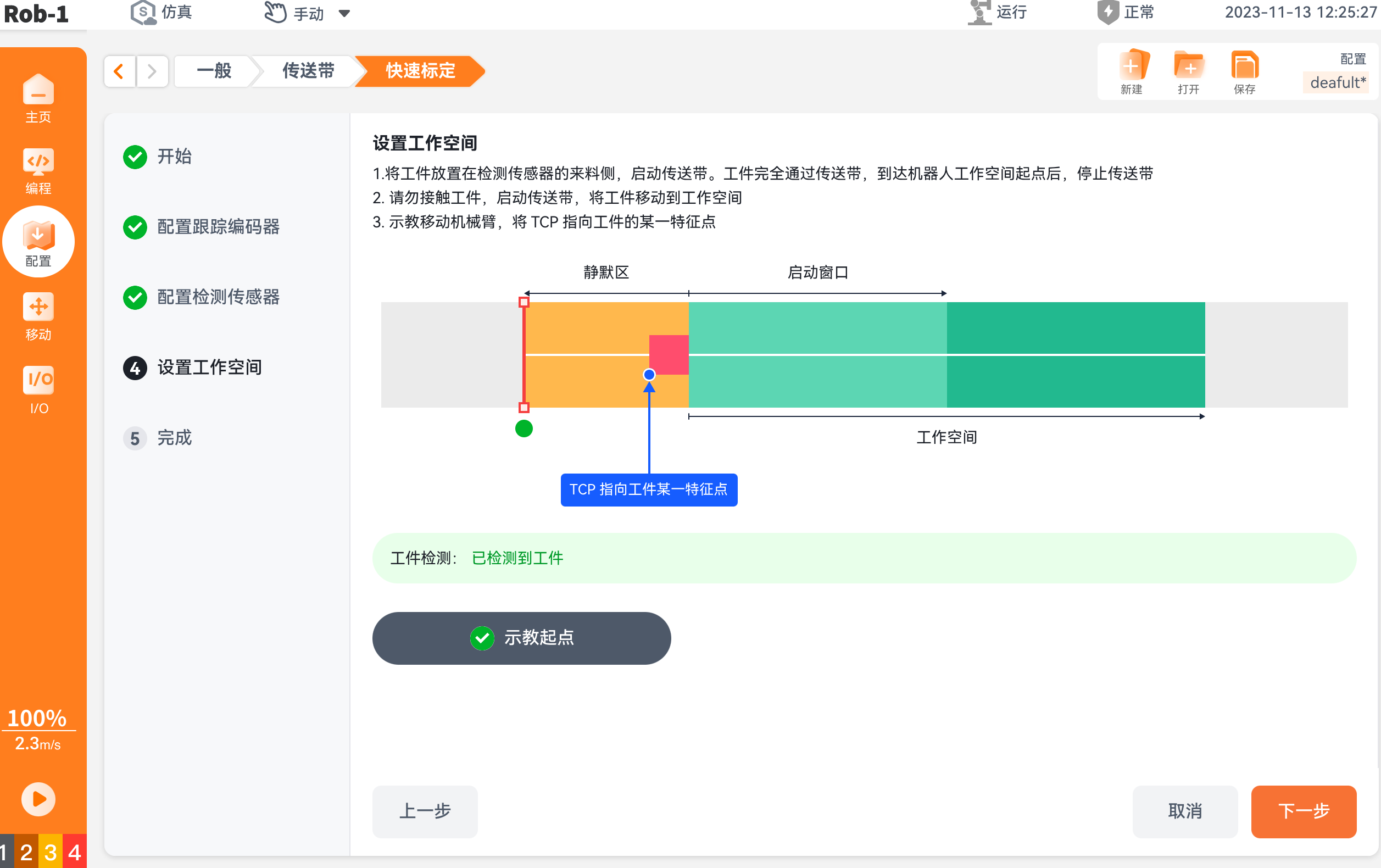
On the [Set Workspace] page, configure the robot workspace as follows.
Place a workpiece on the incoming side of the laser sensor. The [Workpiece Detection] status is [No Workpiece Detected]. Start the conveyor. When the workpiece passes the [Laser Sensor], the status changes to [Workpiece Detected].
When the workpiece reaches the start of the [Workspace], stop the conveyor. When the [Teach Start Point] button appears, click it to go to the [Move] page. Teach the robot so that the TCP points to a characteristic point on the workpiece, then click
 [Teach Start Point] and restart the conveyor.
Note:
Select a characteristic point according to the following recommendations:
- Choose a rigid feature with high recognizability that is easy to align visually, such as a workpiece corner, the center of a round hole, or a locating boss.
- Choose a point near the center of the workpiece rather than at its edge.
- Avoid deformable, burred, or easily worn areas.
For robot teaching operations on the Move page, see Jog Teaching.
When the workpiece reaches the end of the [Start Window], stop the conveyor. Click [Teach Start Window End] when it appears, teach the robot so that the TCP points to the configured characteristic point, click
[Teach Start Window End], and restart the conveyor.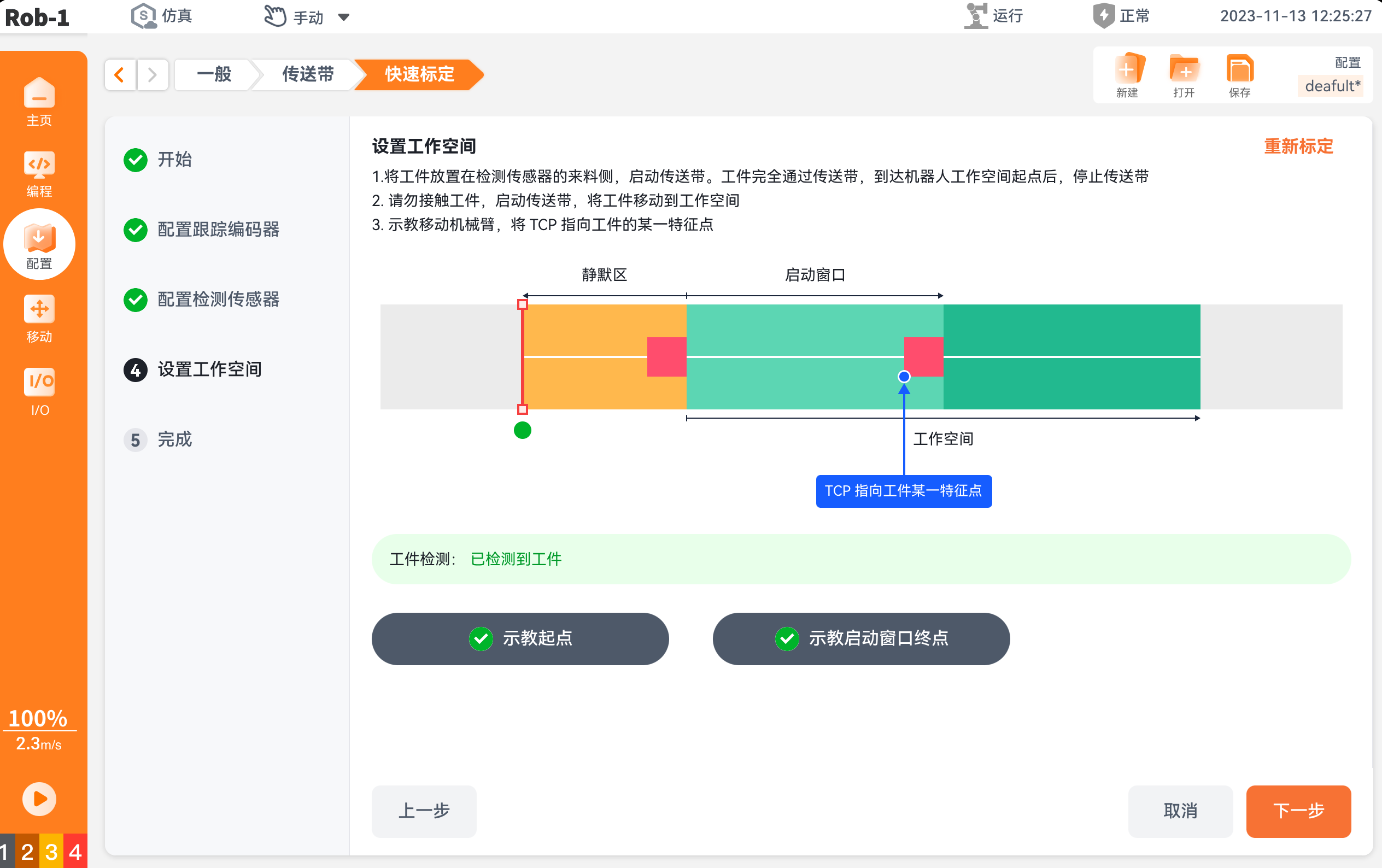
When the workpiece reaches the end of the [Workspace], stop the conveyor. Click [Teach End Point] when it appears, teach the robot so that the TCP points to the characteristic point, and click
[Teach End Point]. Workspace configuration is complete; click [Next].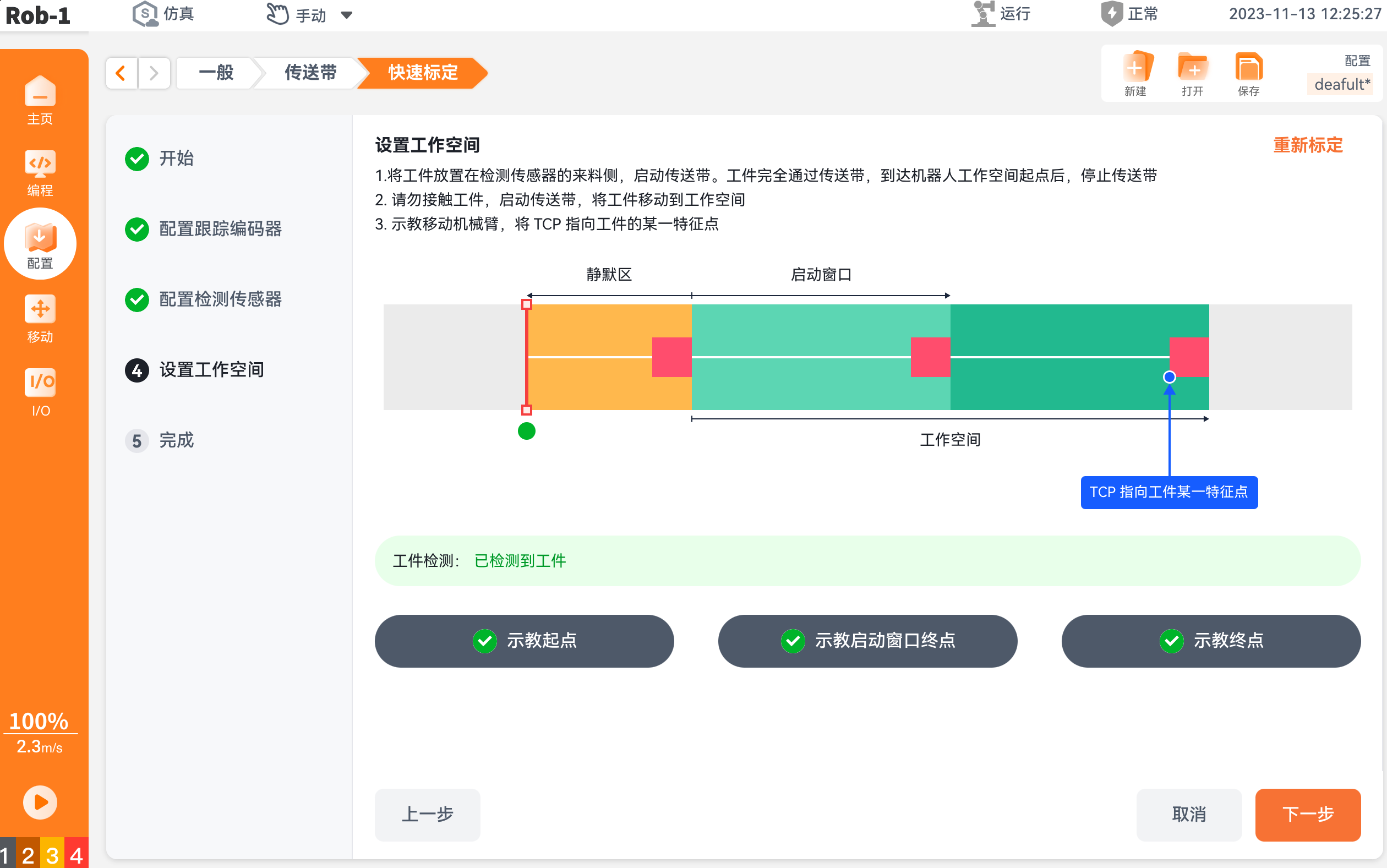
On the [Complete] page, confirm that the information is correct and click [Apply] to finish [Quick Calibration].
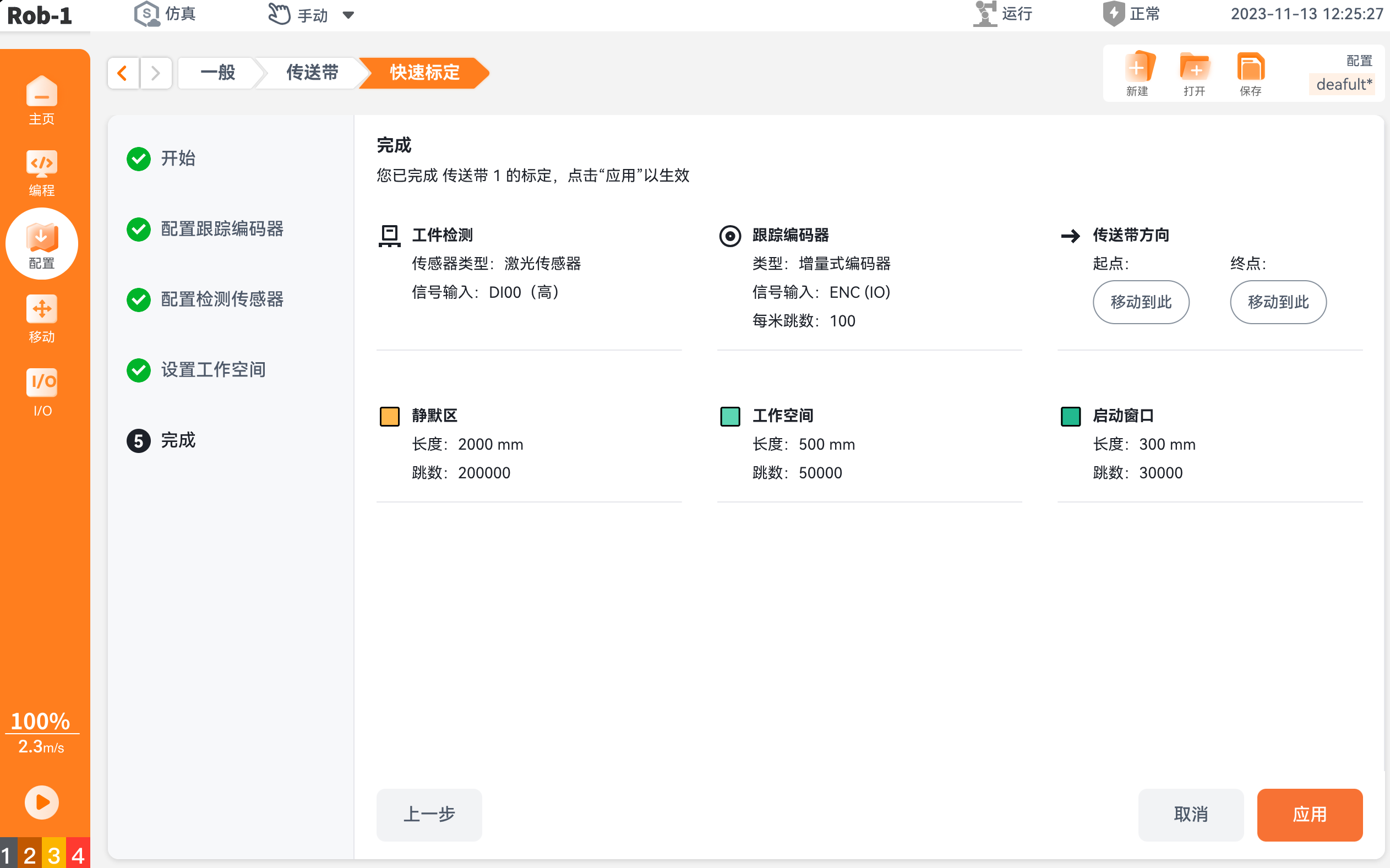
Note:
To modify the configuration after [Quick Calibration] is complete, click [Quick Calibration] on the [Conveyor Tracking] page to perform a second calibration, then modify the parameters in the relevant steps.
2.3 Tracking Encoder Measurement
After [Quick Calibration] is complete, use the following procedure to remeasure the [Tracking Encoder] parameters.
Click [Measure] in the lower-right corner of the [Conveyor Tracking] page to open the [Tracking Encoder Measurement] page.
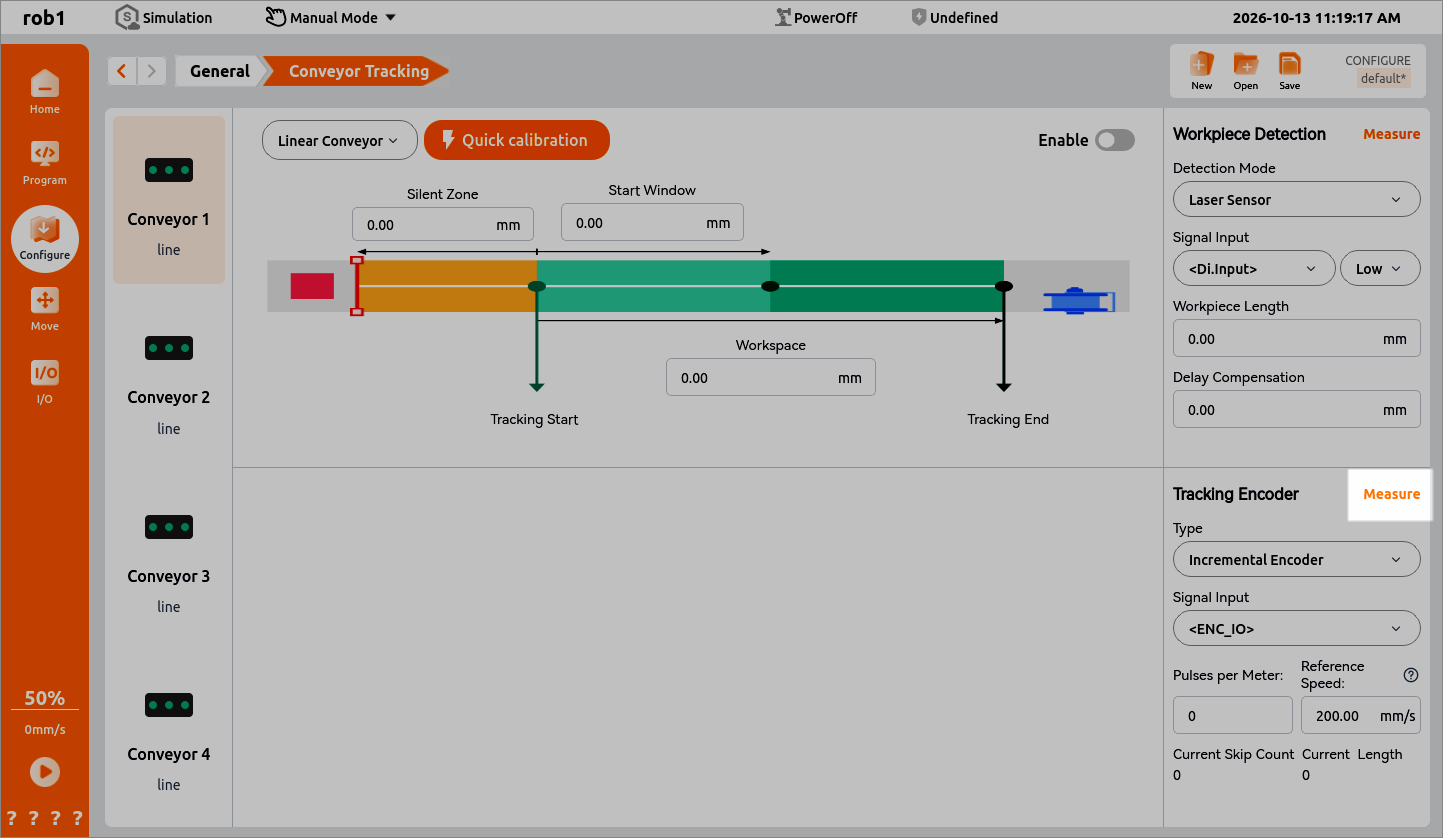
The [Start] page provides an overview of tracking encoder measurement. After understanding the principle, click [Next].
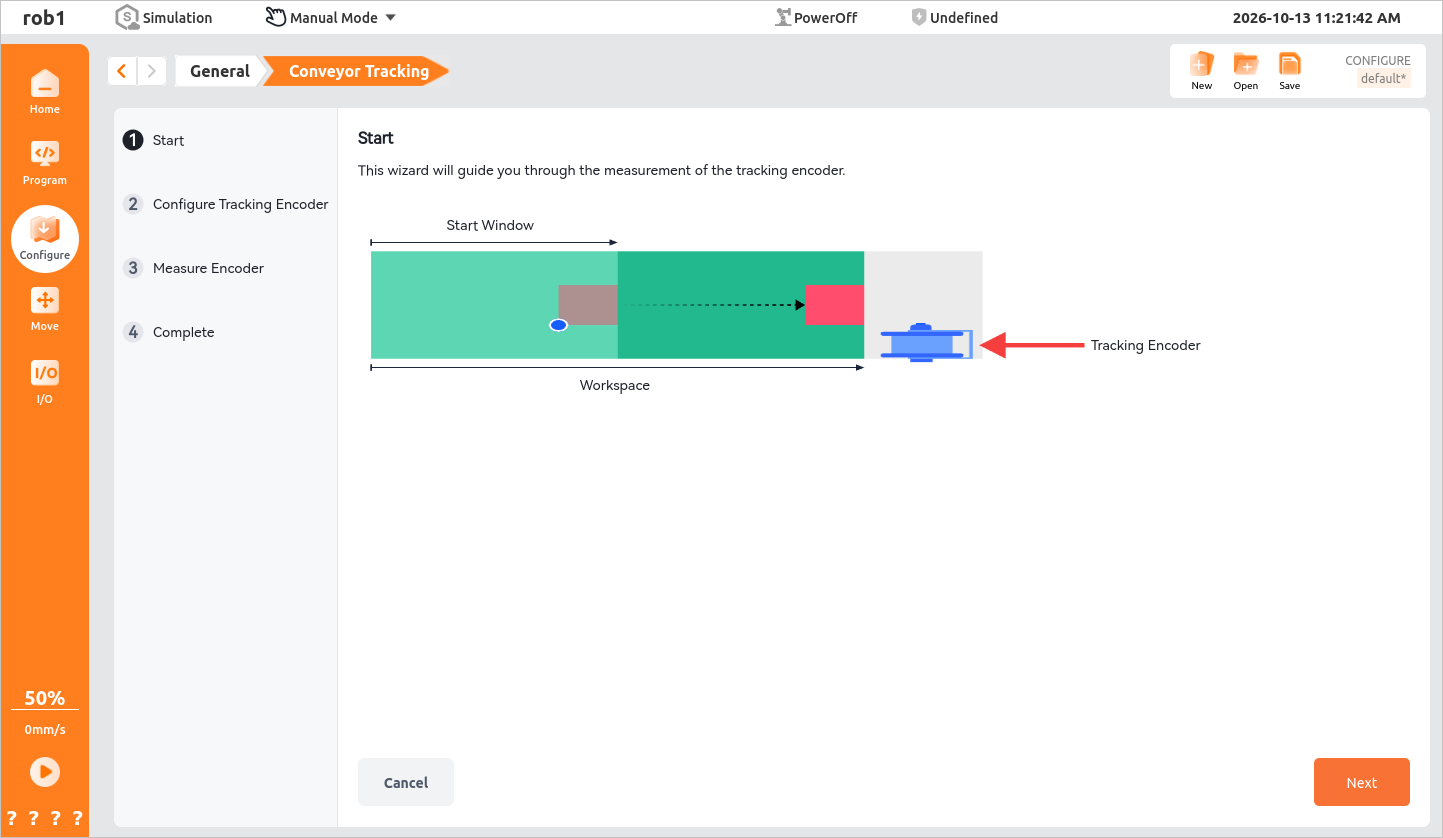
On the [Configure Tracking Encoder] page, modify [Signal Input] as needed, then click [Next].
On the [Measure Encoder] page, modify [Teach Start Window End] and [Workspace End] from the [Quick Calibration] procedure.
Place a workpiece in the robot workspace and click [Teach First Waypoint] to go to the [Move] page. Teach the robot so that the TCP points to the configured characteristic point, click
[Teach First Waypoint], and restart the conveyor.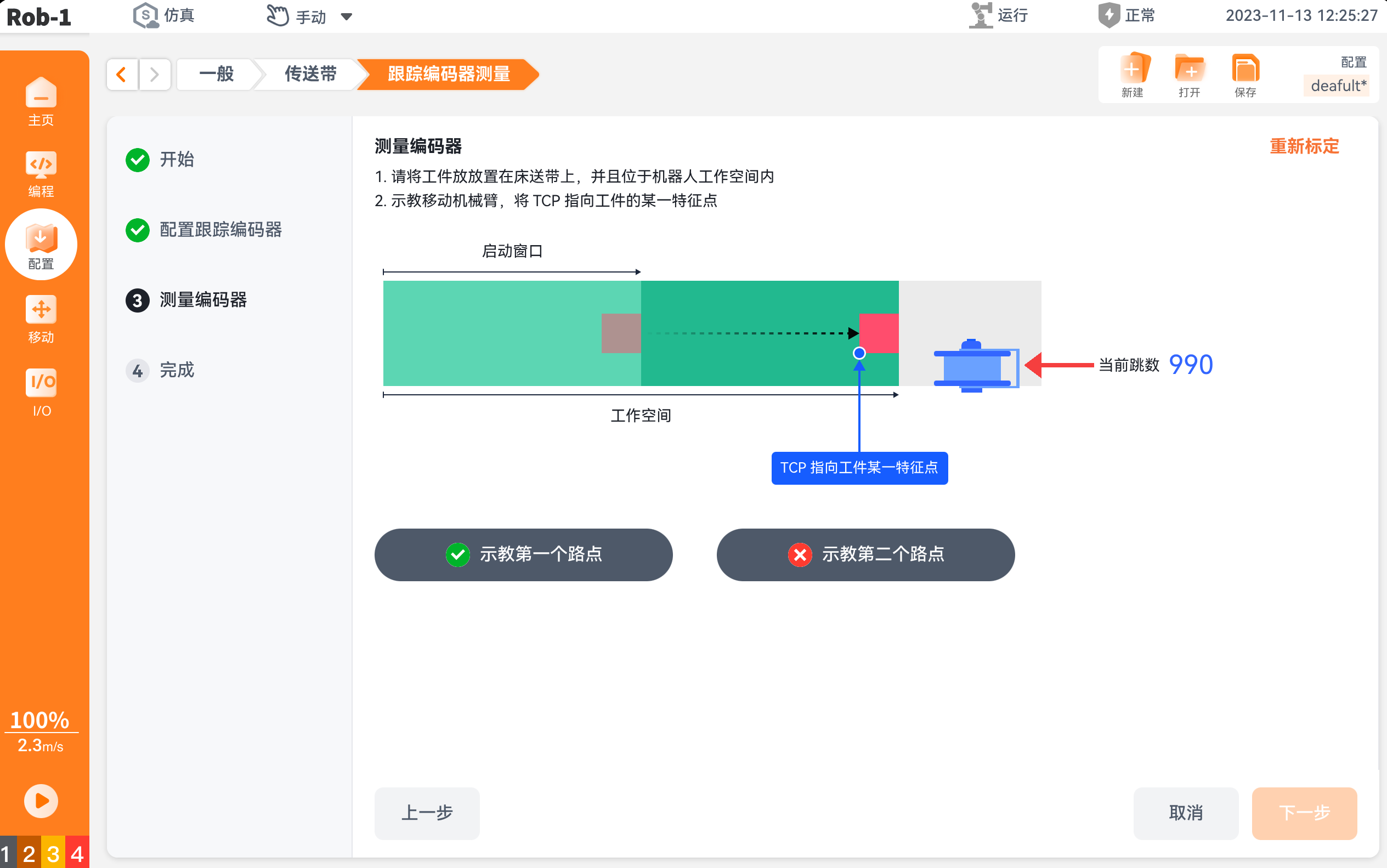
Note:
The [Teach First Waypoint] modified here corresponds to [Teach Start Window End] in the [Set Workspace] step of [Quick Calibration]. After modification, [Teach Start Window End] is updated synchronously.
When the workpiece reaches the end of the [Workspace], stop the conveyor. Click [Teach Second Waypoint], teach the robot so that the TCP points to the characteristic point, click
[Teach Second Waypoint], and click [Next].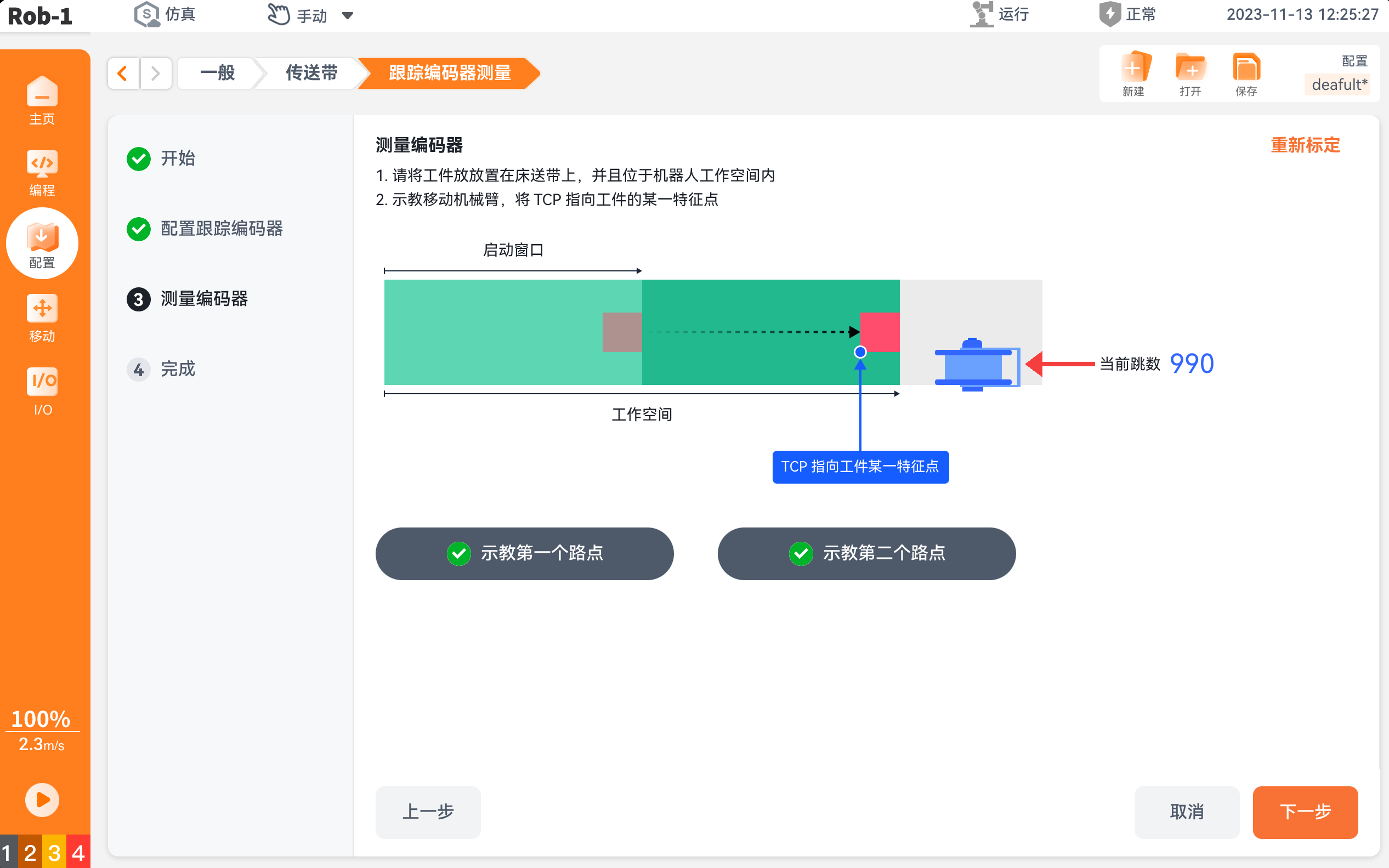
Note:
The [Teach Second Waypoint] modified here corresponds to [Workspace End] in the [Set Workspace] step of [Quick Calibration]. After modification, [Workspace End] is updated synchronously.
On the [Complete] page, confirm the changes and click [Apply] to make them effective.
Note:
To modify the configuration after [Tracking Encoder Measurement] is complete, click [Measure] on the [Conveyor Tracking] page to perform a second measurement, then modify the parameters in the relevant steps.
2.4 Workpiece Measurement
Use [Workpiece Measurement] to quickly measure workpiece parameters.
Click [Measure] in the upper-right corner of the [Conveyor Tracking] page to open the [Workpiece Measurement] page.
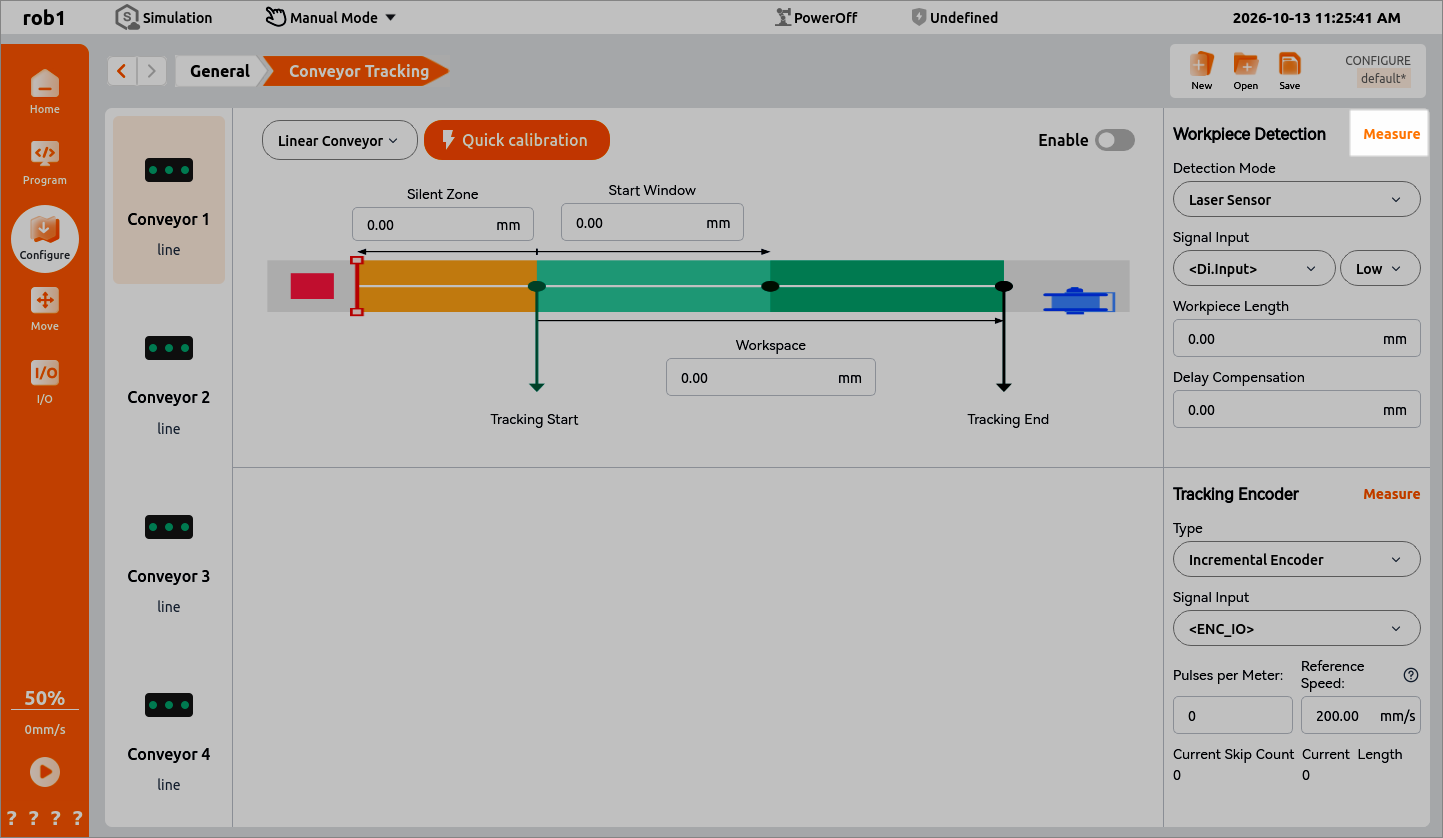
The [Start] page provides an overview of the workpiece length measurement wizard and explains the silent zone and start window. Click [Start] after understanding the process.
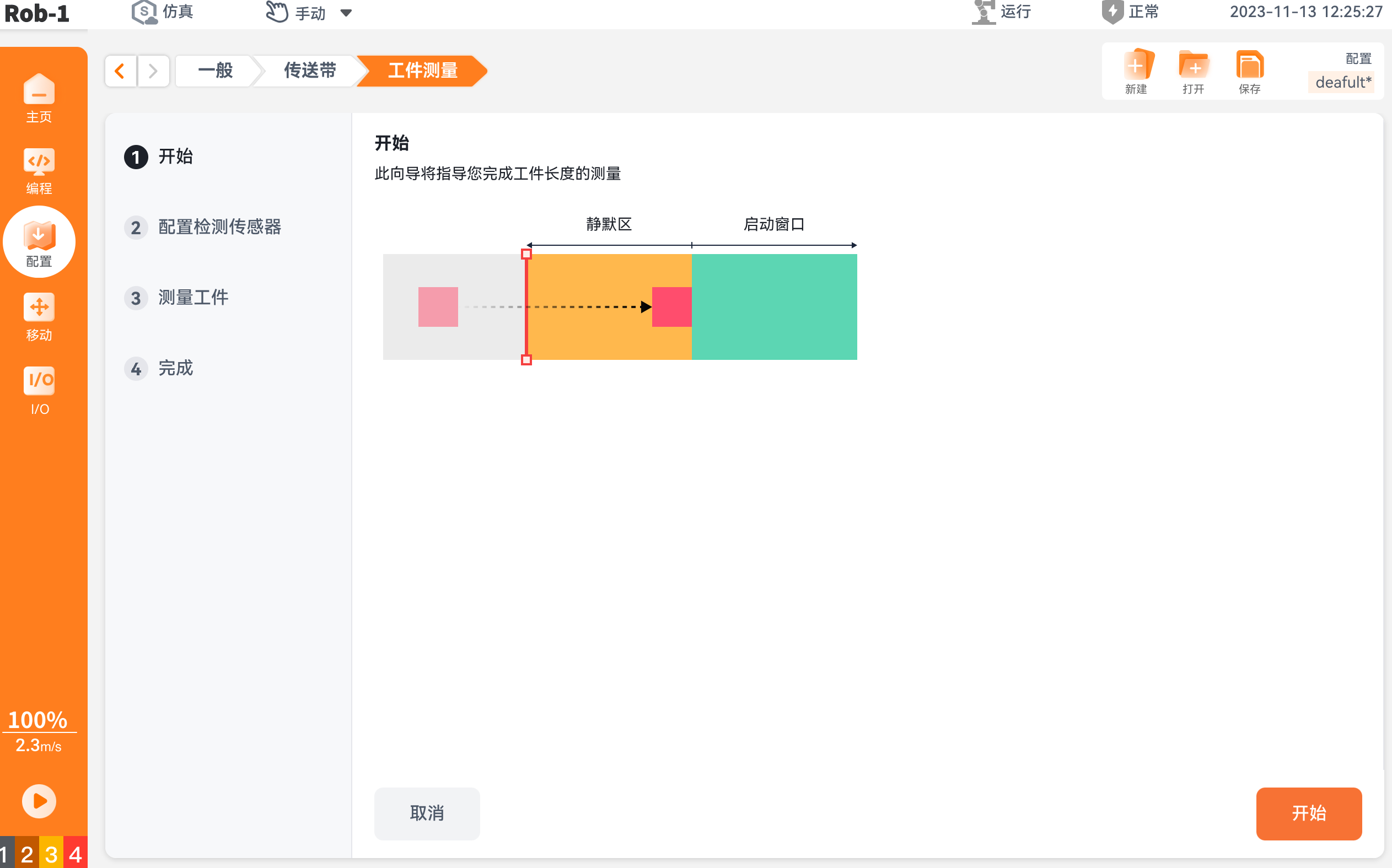
On the [Configure Detection Sensor] page, confirm the sensor configuration and status, then click [Next].
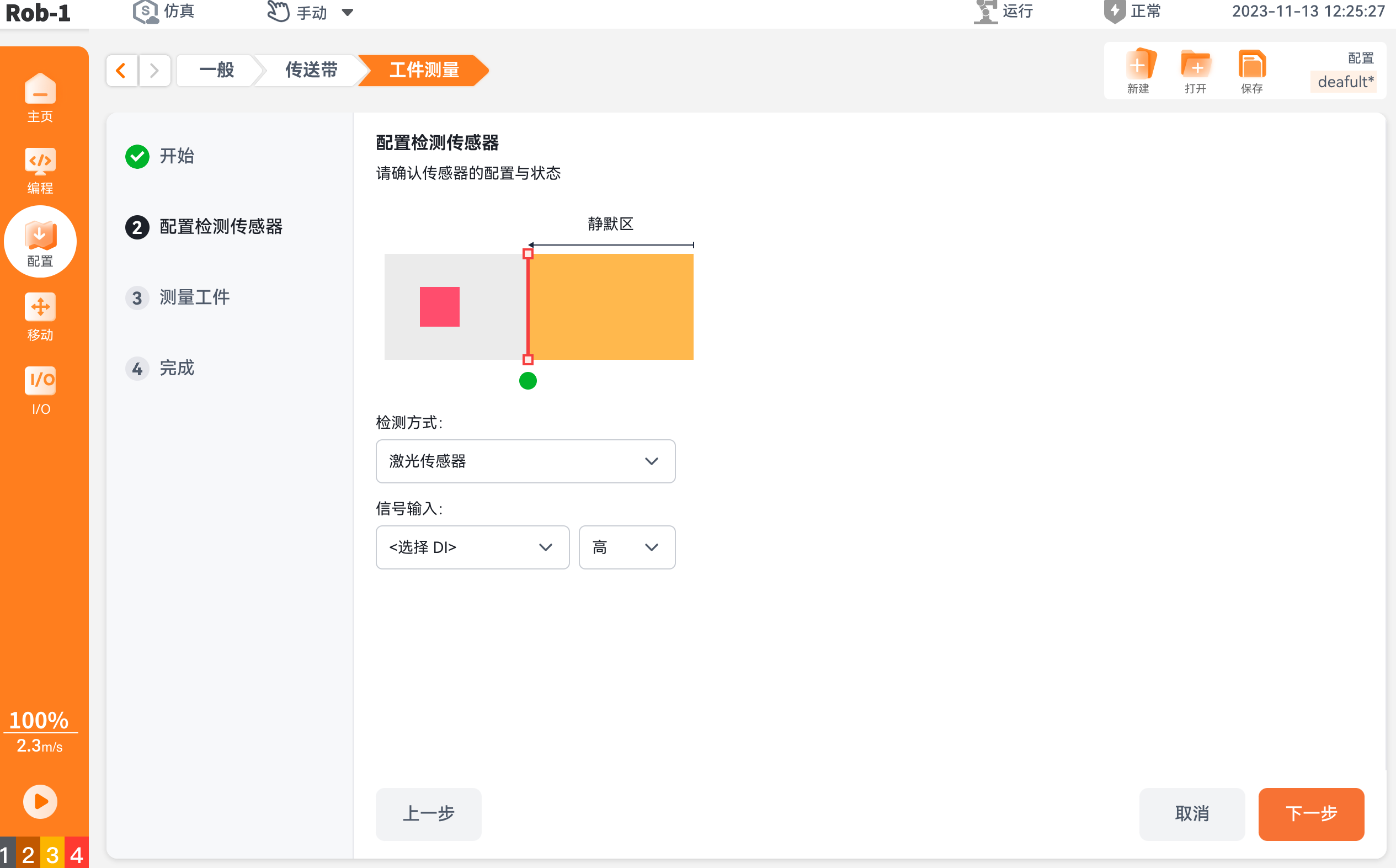
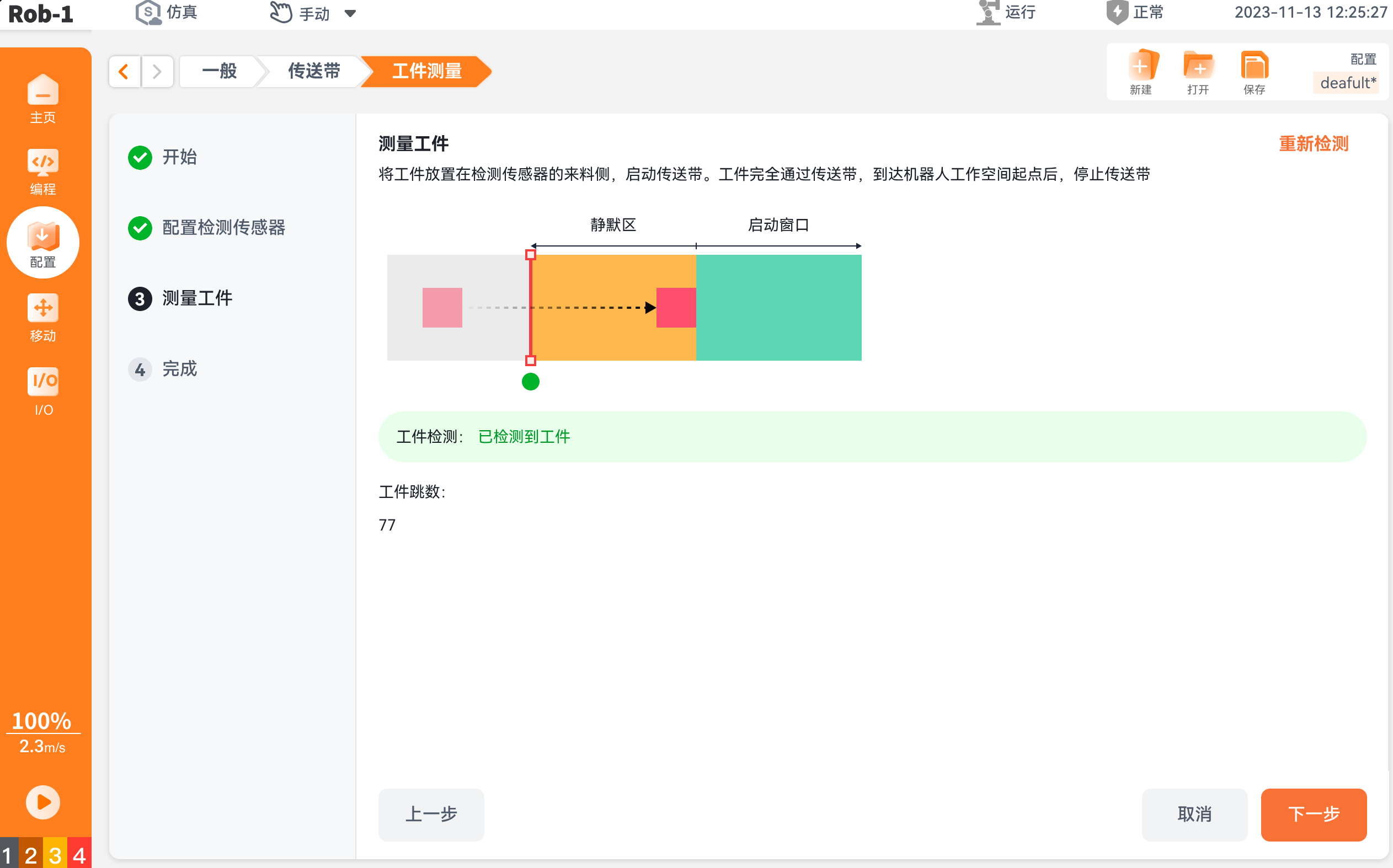
On the [Measure Workpiece] page, place the workpiece on the incoming side of the detection sensor and start the conveyor. After the workpiece passes completely through the conveyor and reaches the start of the robot workspace, stop the conveyor. When [Workpiece Detection] changes to indicate that a workpiece has been detected, click [Next].
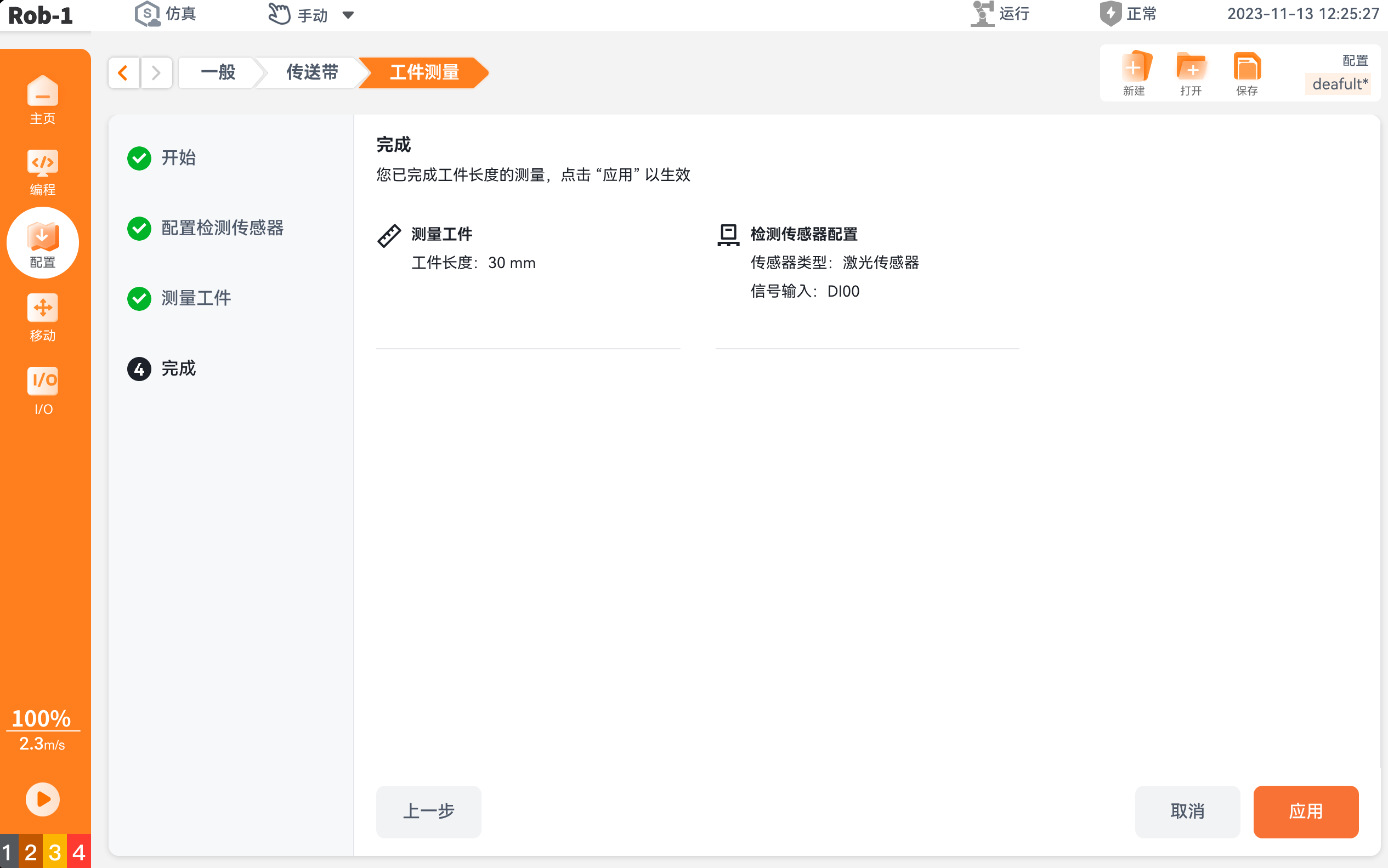
On the [Complete] page, confirm the [Workpiece Length] and sensor configuration, then click [Apply].
Note:
To modify the configuration after [Workpiece Measurement] is complete, click [Measure] on the [Conveyor Tracking] page to perform a second measurement, then modify the parameters in the relevant steps.
2.5 Enable conveyor
Select the target conveyor on the [Conveyor Tracking] page and click  to enable it. You can then add the conveyor to a program on the [Programming] page. For more information, see Conveyor Tracking.
Gripper
The [Gripper] function supports the integration of commonly used electric gripper brands within the software, connecting to the robot arm end or control cabinet via RS485 communication interface, and providing complete configuration and online programming capabilities on the teach pendant.
1. Hardware Connection
Connect the gripper to the robot arm end or control cabinet via the RS485 communication interface.
Note:
Before configuring the gripper, ensure that the gripper is physically connected correctly and the power supply system is functioning properly.
2. Software Configuration
On the teach pendant, navigate to "Configure > General > Gripper" in the left sidebar.
Click [Add] at the bottom left of the gripper configuration page to begin adding a new gripper device.
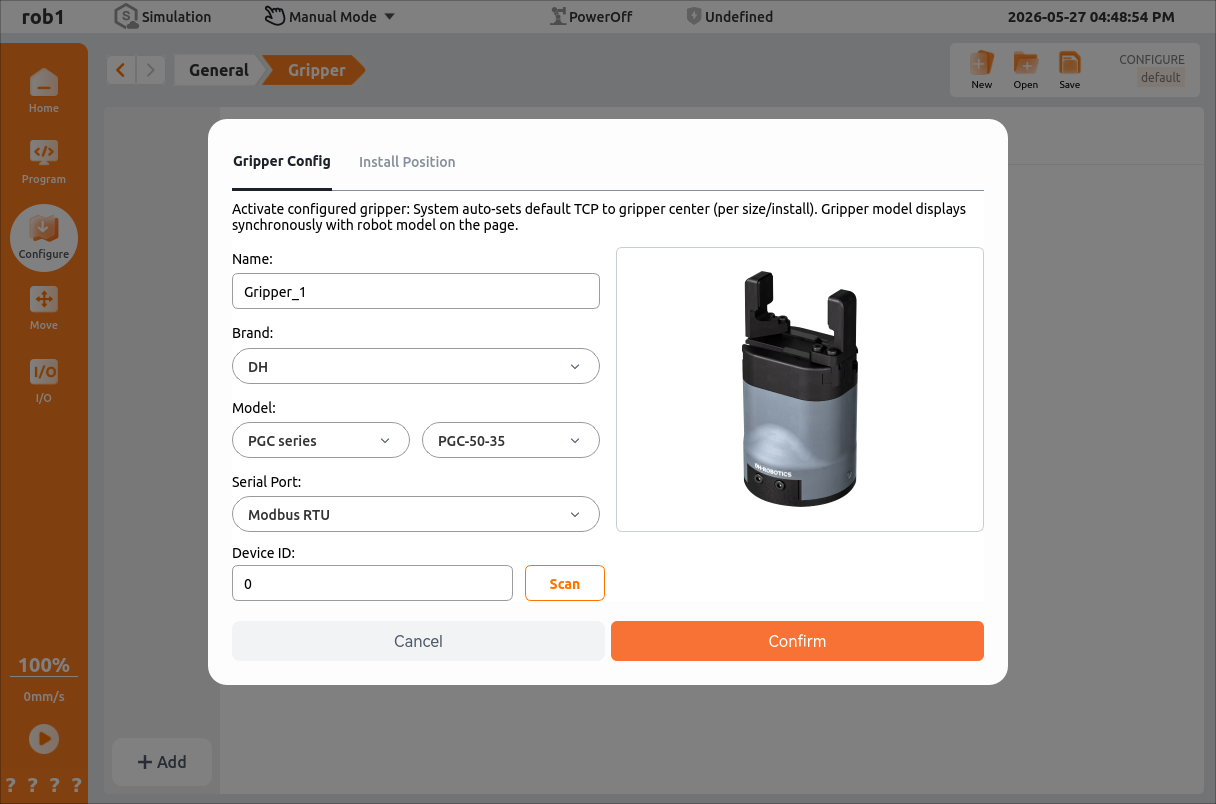
Gripper Configuration
Activate configured gripper: The system will automatically set the default TCP to the gripper center (based on dimensions / mounting), and the gripper model will be synchronously displayed with the robot arm model on the page.
- Name: Gripper name.
- Brand: Gripper brand. Currently supports Da Huan, Rou Chu, and Jun Duo.
- Model: Select the specific gripper model under the corresponding brand.
- Serial Port: Select the communication serial port identified by the system to establish a data connection channel with the gripper.
- Device ID: Unique device identifier.
Mounting Position
- Enable: Used to enable / disable the gripper mounting position configuration function.
- X/Y/Z (mm): Defines the linear offset of the gripper in the robot end flange coordinate system, in millimeters.
- RX/RY/RZ (°): Defines the attitude rotation angle of the gripper in the robot end flange coordinate system, in degrees, corresponding to rotation around the X, Y, and Z axes respectively.
After configuration, click [Confirm] to complete the addition of the new gripper device.
Once the gripper is added, it can be configured.
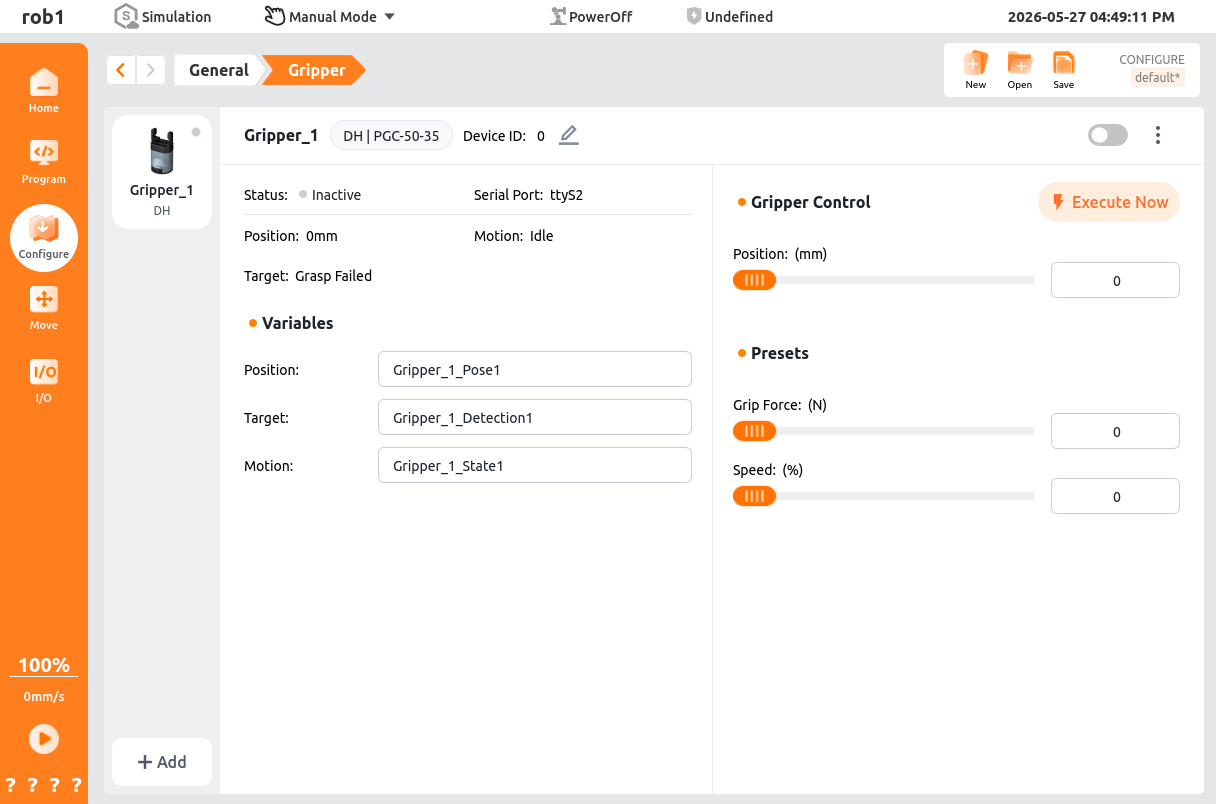
- Gripper Enable Button: Controls whether the gripper is enabled.
- Gripper Information:
- Device ID: The device ID set when adding the gripper, used to distinguish between different grippers in multi-device scenarios; it can be modified.
- Gripper Status:
- Not Started: The gripper is not enabled.
- Normal: The gripper is enabled and functioning normally.
- Communication Fault: The gripper cable connection is incorrect.
- Gripper Fault: The gripper hardware is damaged or functionally defective.
- Gripper Over Temperature: The gripper temperature exceeds 85 °C.
- Gripper Voltage Abnormal: The gripper supply voltage is outside the normal range.
- Gripper Current Abnormal: The gripper supply current is outside the normal range.
- Gripper Enable Failed: The gripper enable process was not completed or the enable conditions are not met.
- Communication Serial Port: The serial port number set when adding the gripper.
- Gripper Position: The current opening / closing position of the gripper, in millimeters (mm).
- Movement Status: The movement status of the gripper, including [Idle] and [Moving].
- Object Detection: The built-in grasping status feedback function of the gripper, which determines whether the gripper has successfully grasped the target object through position closed-loop and current / force control feedback.
- Gripper Control
- Gripper Position: The target displacement for gripper opening and closing, set within the device stroke range (0~26 mm). Once set, the gripper will move to the specified position.
- Parameter Presets
- Gripping Force: The clamping force when the gripper closes, which directly affects grasping stability and workpiece safety. It should be adjusted according to the workpiece material and weight.
- Gripper Speed: The movement speed of gripper opening and closing, expressed as a percentage of the device's maximum speed. Lower values result in smoother motion.
- Variables
- Gripper Position: Retrieves the current position value of the gripper (0-26 mm), which can be used to determine whether the gripper has reached the position.
- Object Detection: Retrieves the result of object detection (Success / Failure), which can be used for grasp logic decisions (e.g., trigger an alarm and retry upon failure).
- Movement Status: Retrieves the movement status of the gripper (Idle / Moving), which can be used for process waiting (e.g., wait for the gripper action to complete before proceeding to the next step).
3. Programming Usage
In the programming tree, click "Templates > Gripper" to add a [Gripper] node.
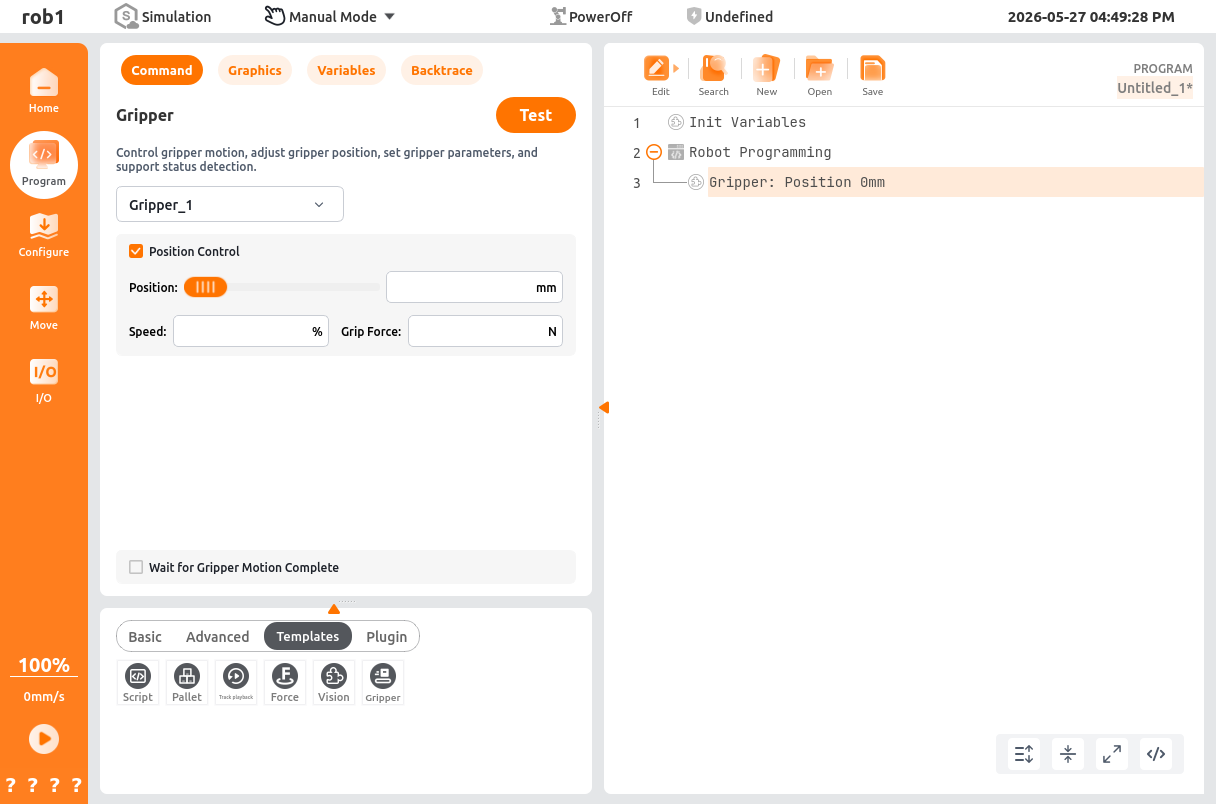
Select the gripper added in [Configuration] and choose whether to enable [Position Control].
Enable [Position Control]:
- Control Logic: The gripper moves to the specified target position and then stops. If the gripping force reaches the set threshold during movement, it will also stop early and determine that the grasp is successful.
- Applicable Scenarios: Standardized grasping where workpiece dimensions are known and a fixed opening is required, or scenarios requiring precise control of the gripper stroke.
- Effective Parameters: Gripper Position (mm), Gripper Speed (%), Gripping Force (N).
Disable [Position Control]:
The gripper will prioritize the set gripping force as the control target, performing force-controlled adaptive grasping.
- Control Logic: The gripper continuously moves in the closing direction until it detects that the set gripping force threshold has been reached (workpiece grasped) or the mechanical limit position is reached, after which it stops. The target position parameter will be ignored.
- Applicable Scenarios: Scenarios with unknown / variable workpiece dimensions, fragile workpieces, or flexible grasping, where position deviation could otherwise cause workpiece damage.
- Effective Parameters: Gripper Speed (%), Gripping Force (N).
Choose whether to enable [Wait for Gripper Motion Complete]
- Enable [Wait for Gripper Motion Complete]
- Control Logic: The robot main program will enter a waiting state and will not execute subsequent instructions until the gripper action has completed (reached the target position / triggered the force control stop condition).
- Applicable Scenarios: Processes such as grasping and placing that require confirmation that the gripper action has completed before moving, to prevent workpiece dropping or program logic confusion.
- Disable [Wait for Gripper Motion Complete]
- Control Logic: The robot main program will not wait for the gripper action to complete and will immediately execute subsequent instructions. The gripper action and robot motion proceed asynchronously in parallel.
- Applicable Scenarios: Scenarios with extremely high cycle time requirements where the gripper action and robot movement do not interfere with each other, improving program execution efficiency.
- Enable [Wait for Gripper Motion Complete]
Run [Test] to move the gripper according to the set parameters.
External Axis
When a workpiece exceeds the working range of the robot arm in welding, handling, polishing, or other applications, an external axis (such as a linear rail or positioner) can be integrated to extend the working range and achieve coordinated seven-axis control.
1. Hardware connection
Before software configuration, complete the wiring between the external axis and the controller cabinet.
Note:
Complete the wiring only after both the controller cabinet and external axis have been completely powered off.
Single external axis
The external-axis drive is connected directly to the robot controller cabinet network port with an Ethernet cable, and communication is established through the EtherCAT bus protocol.
Multiple external axes
Each external axis has an independent drive, and the drives are connected in series using Ethernet cables. Connect the first drive to the controller cabinet network port; the controller cabinet then communicates with all external-axis drives through the Ethernet bus.
2. Software configuration
AuboStudio supports configuration, status monitoring, and motion debugging for external axes. Linear rails, positioners, and other external axes can be connected for coordinated control with the robot.
2.1 External axis
Add external axis
After confirming that the external axis is correctly connected to the controller, add it on the [External Axis] page.
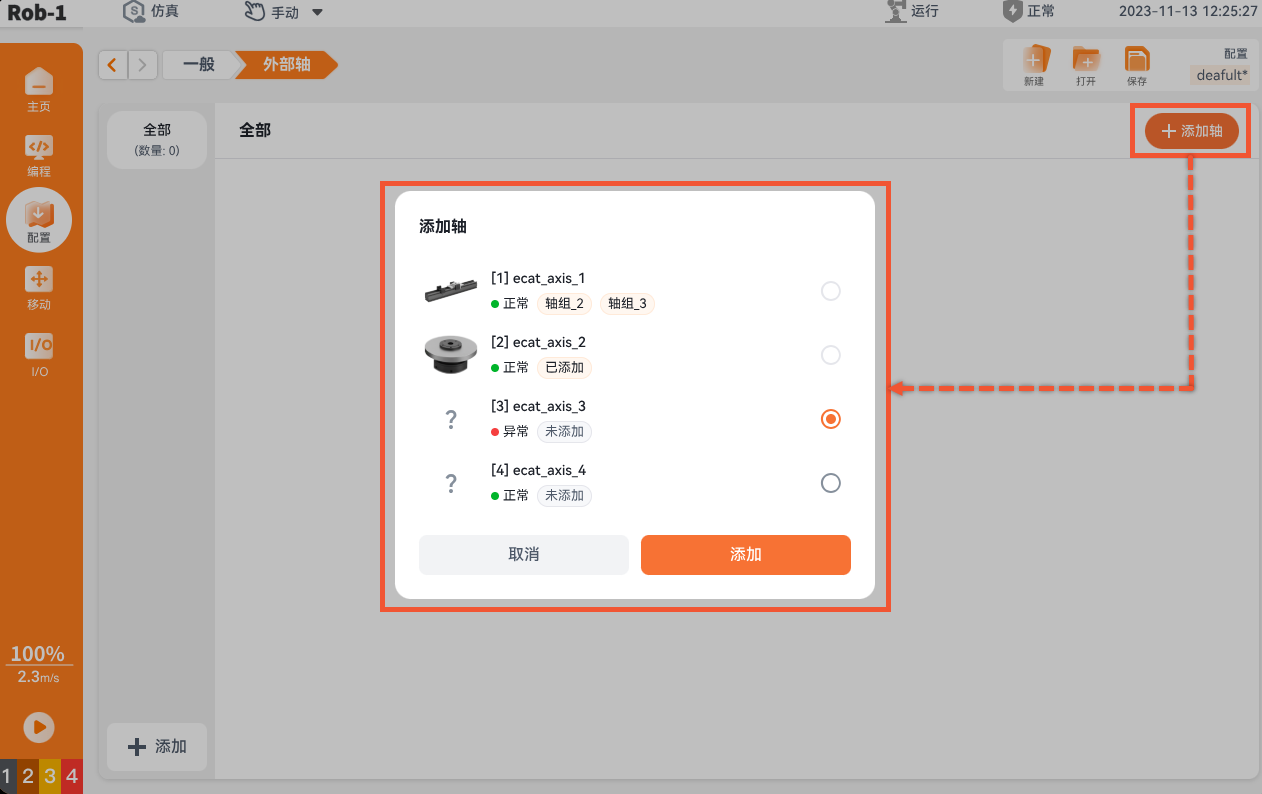
Click [Add Axis] on the external-axis configuration page. Select the target external axis that has not yet been added, confirm the information, and click [Add].
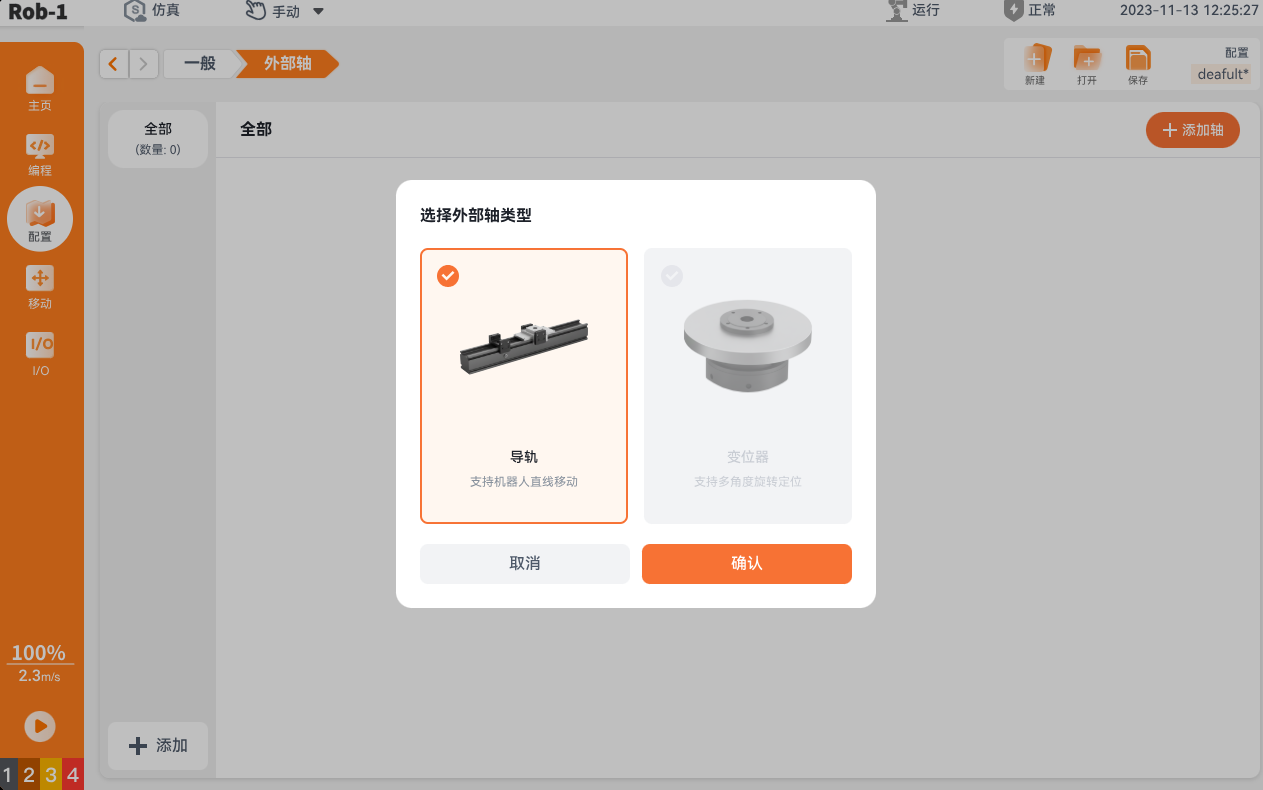
Confirm the external-axis type in the dialog box and click [Confirm].
- Linear Rail: Supports linear movement after the robot is connected to a linear rail.
- Positioner: Supports multi-angle rotary positioning after the robot is connected to a positioner.
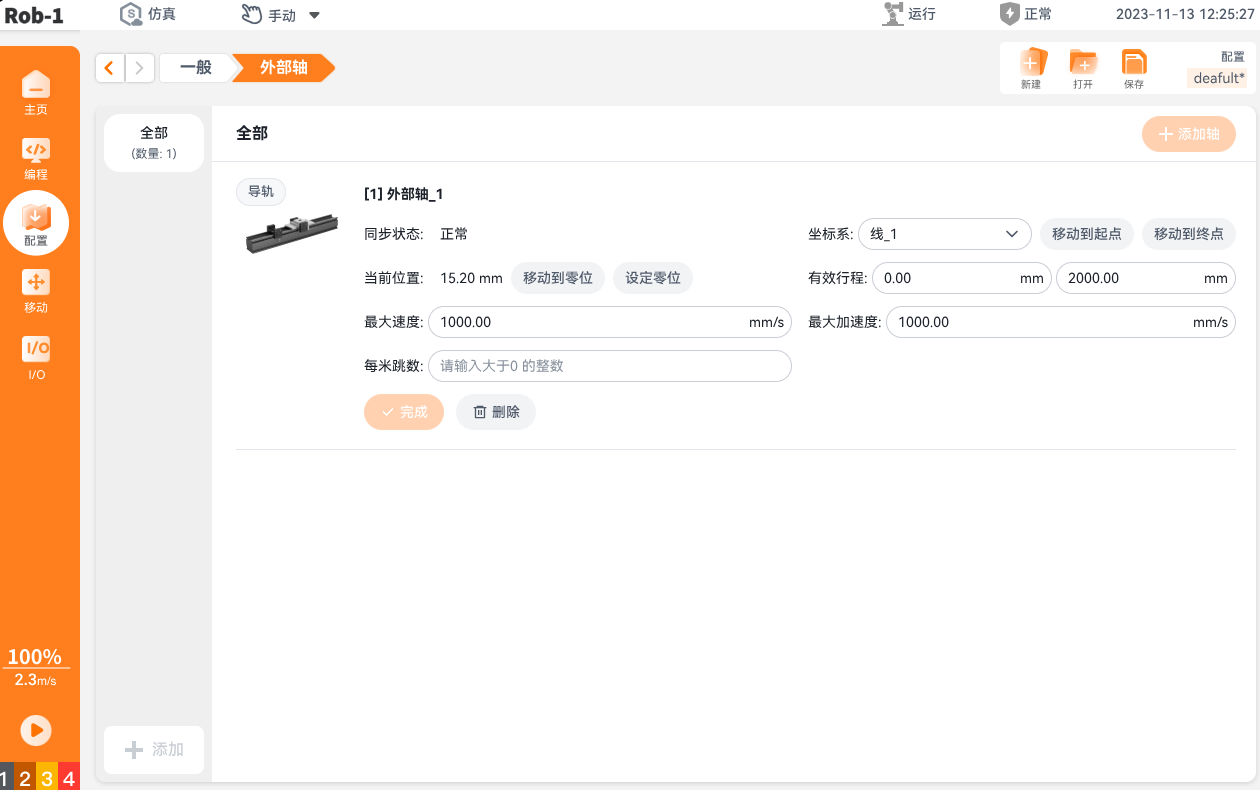
After the external axis is added, configure its parameters on the [External Axis] page.
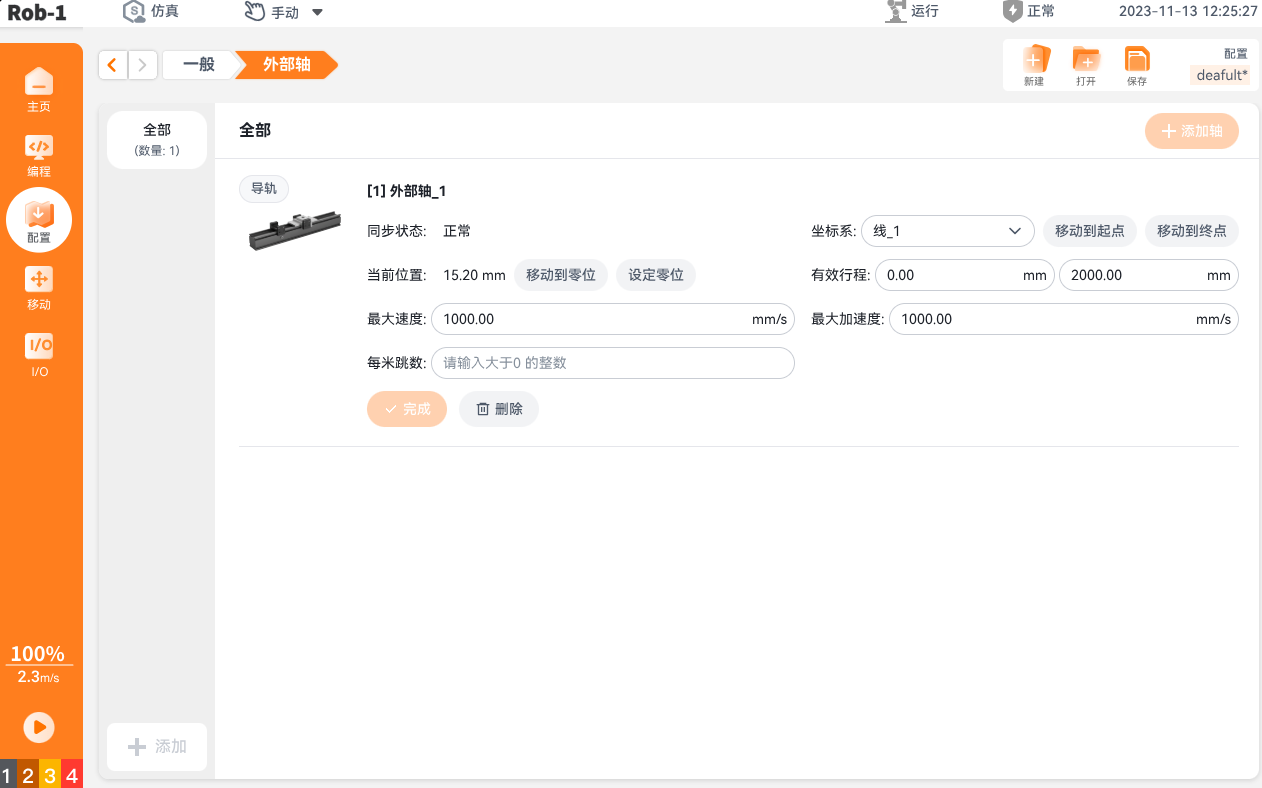
- Synchronization Status: The servo communication status between the controller and external axis.
- [Normal]: The external axis can perform coordinated interpolation with the robot arm.
- [Abnormal]: The external axis cannot perform synchronized motion with the robot and linear rail.
- Coordinate System: The name of the linear coordinate system associated with the external axis. This coordinate system is used when calling linear-rail motion in a robot program.
- Move to Start: Drives the slide to the lower limit of the effective travel range.
- Move to End: Drives the slide to the upper limit of the effective travel range.
- Current Position: The real-time coordinate of the rail slide relative to the external-axis zero point, in mm.
- Move to Zero: Automatically moves the rail to the preset external-axis zero position.
- Set Zero: Defines the current slide position as the external-axis coordinate zero point.
- Effective Travel: Sets the operating range of the external-axis slide to prevent impact with the rail's mechanical hard limits.
- Maximum Speed: The maximum permitted slide speed, in mm/s.
- Maximum Acceleration: The maximum slide acceleration and deceleration, which reduces shock when the system starts and stops.
- Pulses per Meter: A coordinated-interpolation parameter indicating the number of interpolation points per meter of slide travel. A larger value makes synchronized robot and rail motion smoother.
- Synchronization Status: The servo communication status between the controller and external axis.
Modify external axis
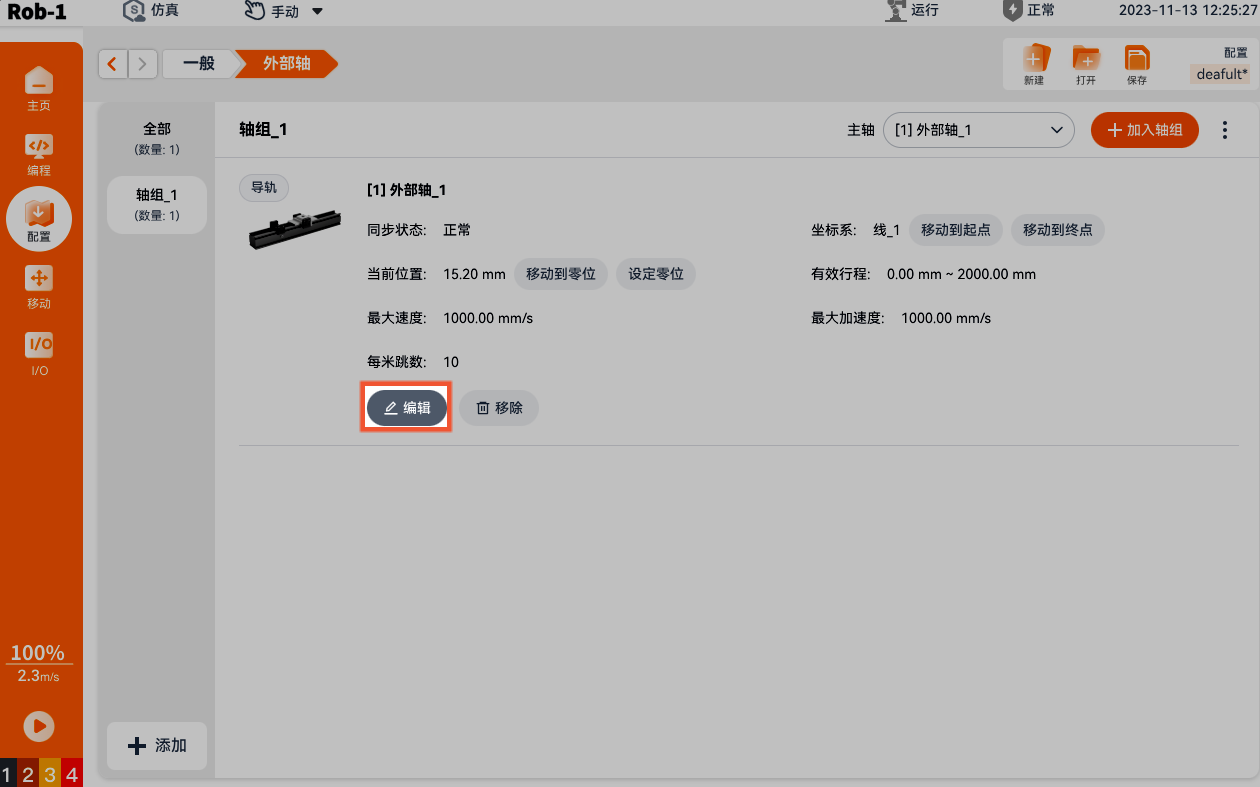
On the [External Axis] page, click [Edit] under the target external axis. Modify the parameters and click [Complete].
Delete external axis
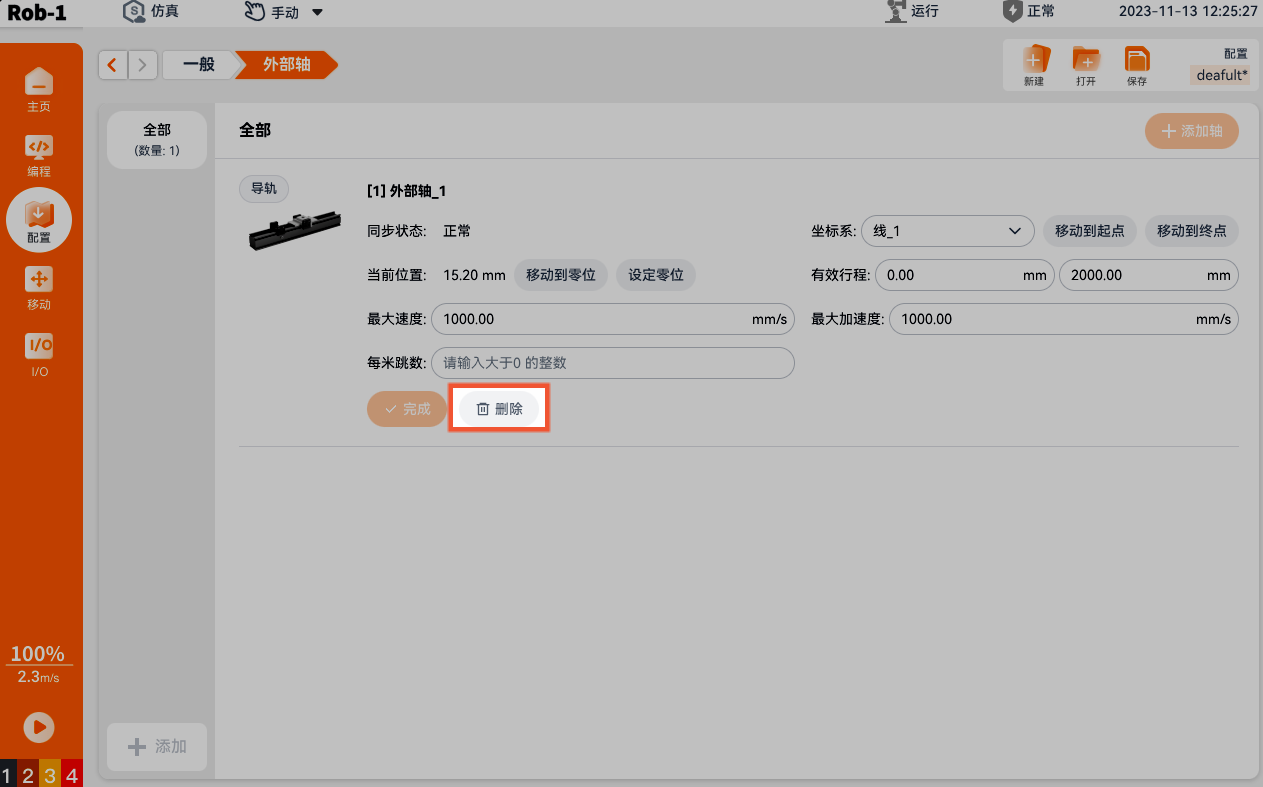
Delete from [All]: The [All] page contains all added external axes. Click [Delete] below the target external axis, confirm the information in the dialog box, and click [Delete].
Note:
If an external axis has been assigned to an axis group, it is removed from that axis group.
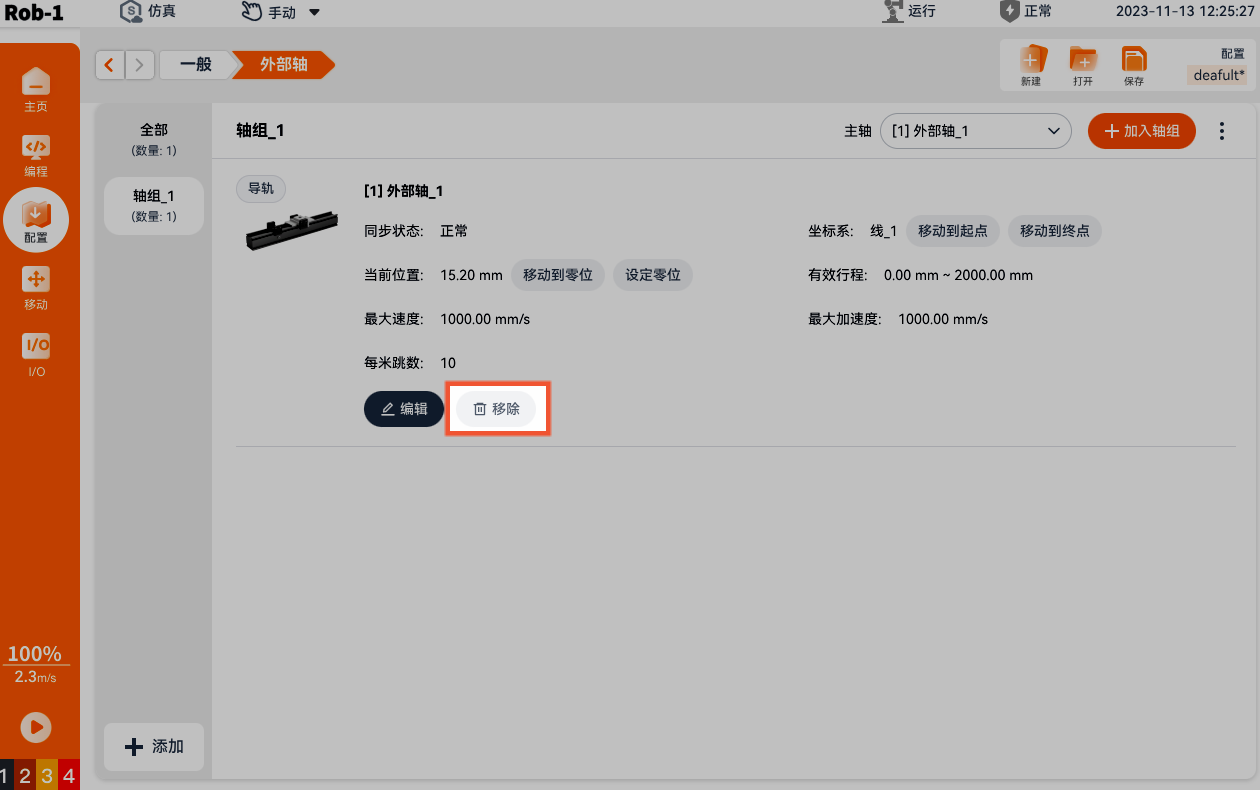
Remove from [Axis Group]: The [Axis Group] page contains all external axes added to the current axis group. Click [Remove] below the target external axis, confirm the information, and click [Remove].
Note:
- After the target external axis is removed from the axis group, all synchronized settings for its axis configuration are lost and cannot be recovered.
- After the external axis is removed from the [Axis Group] page, all of its configuration parameters on the [All] page are also lost.
2.2 Axis group
Add axis group
When one external axis is insufficient, create an axis group to use multiple external axes together.
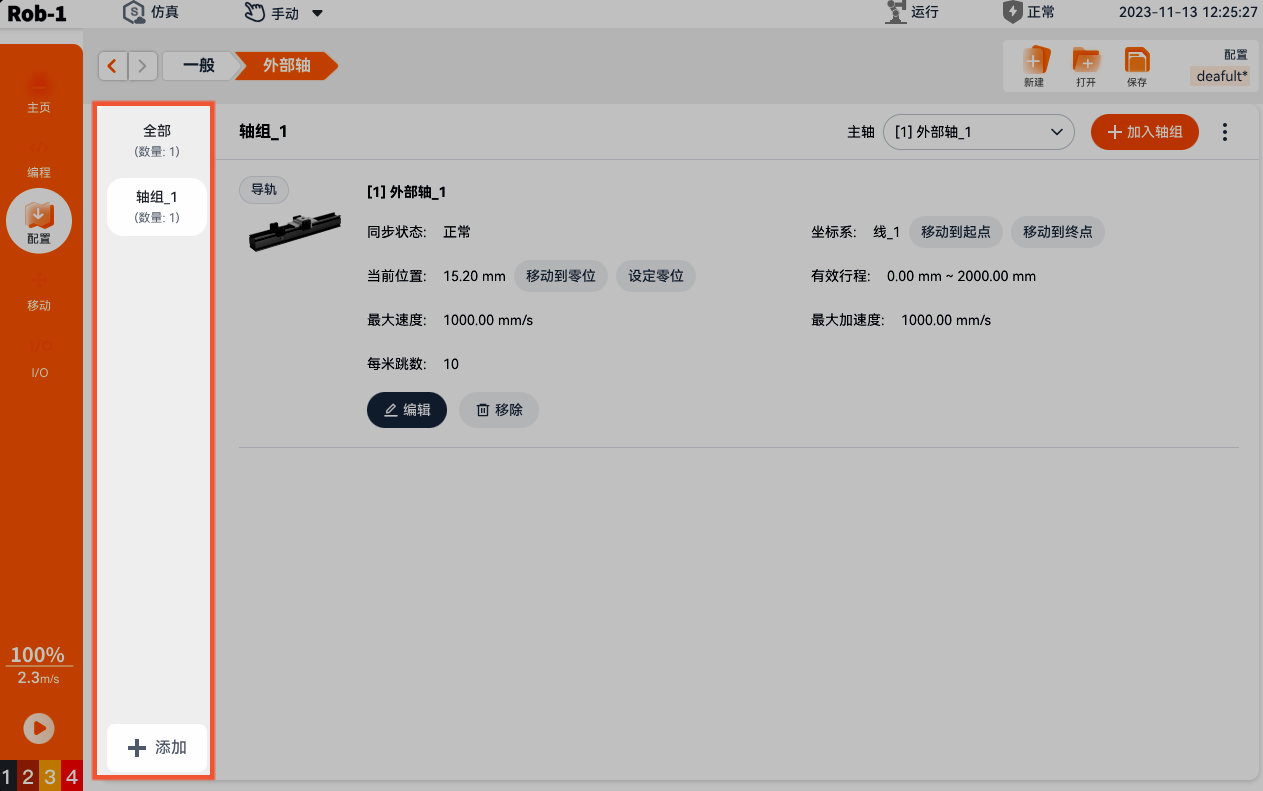
Click [Add] in the lower-left corner of the [External Axis] page, enter an axis group name in the dialog box, and click [Confirm].
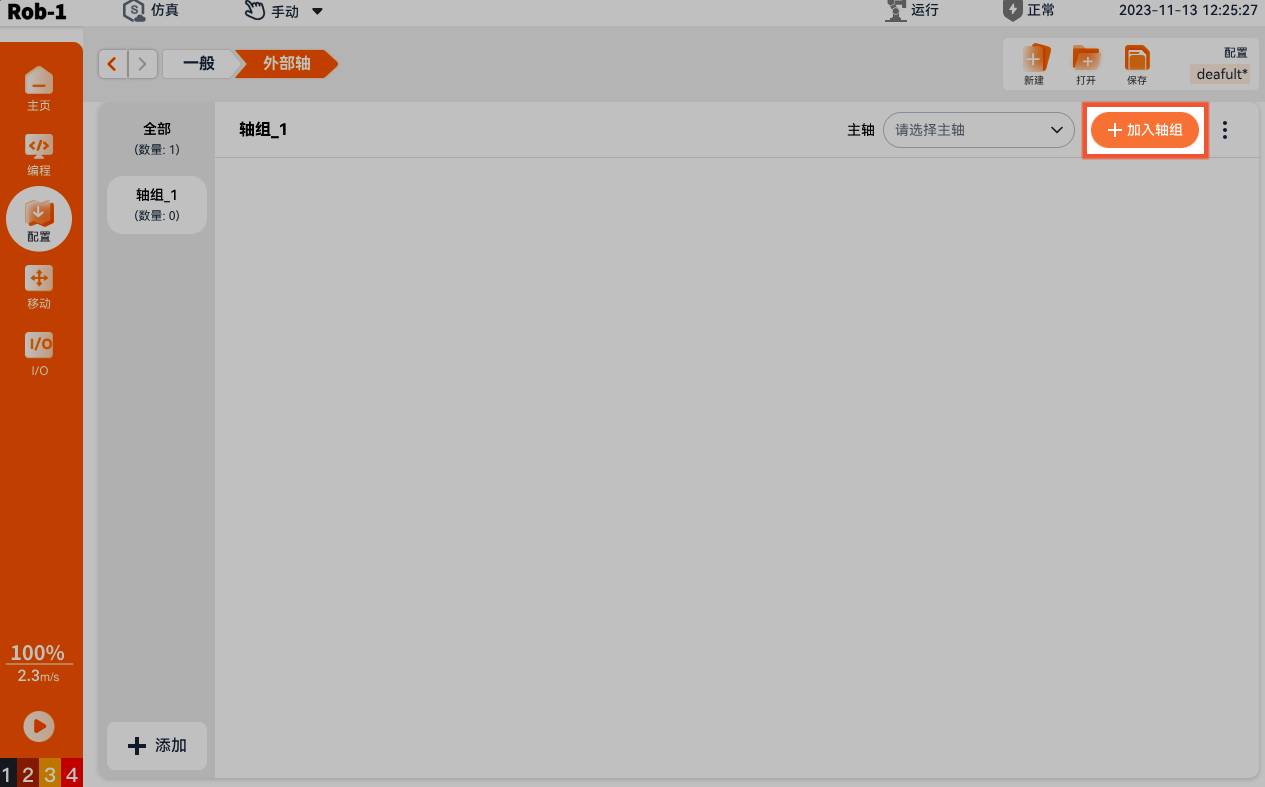
On the target [Axis Group] page, click [Add to Axis Group] in the upper-right corner. Select the target external axis in the dialog box and click [Add] to import it into the axis group.
Modify or delete external axes in the axis group in the same way as on the [External Axis] page.
Modify axis group
On the target axis group page, click "
 > Edit" in the upper-right corner. Modify the axis group [Name] in the dialog box and click [Confirm].
Delete axis group
On the target axis group page, click "
> Delete" in the upper-right corner. Confirm the information and click [Confirm].Note:
After an axis group is deleted, all synchronized settings for the external axes in the group are lost and cannot be recovered.
Collision
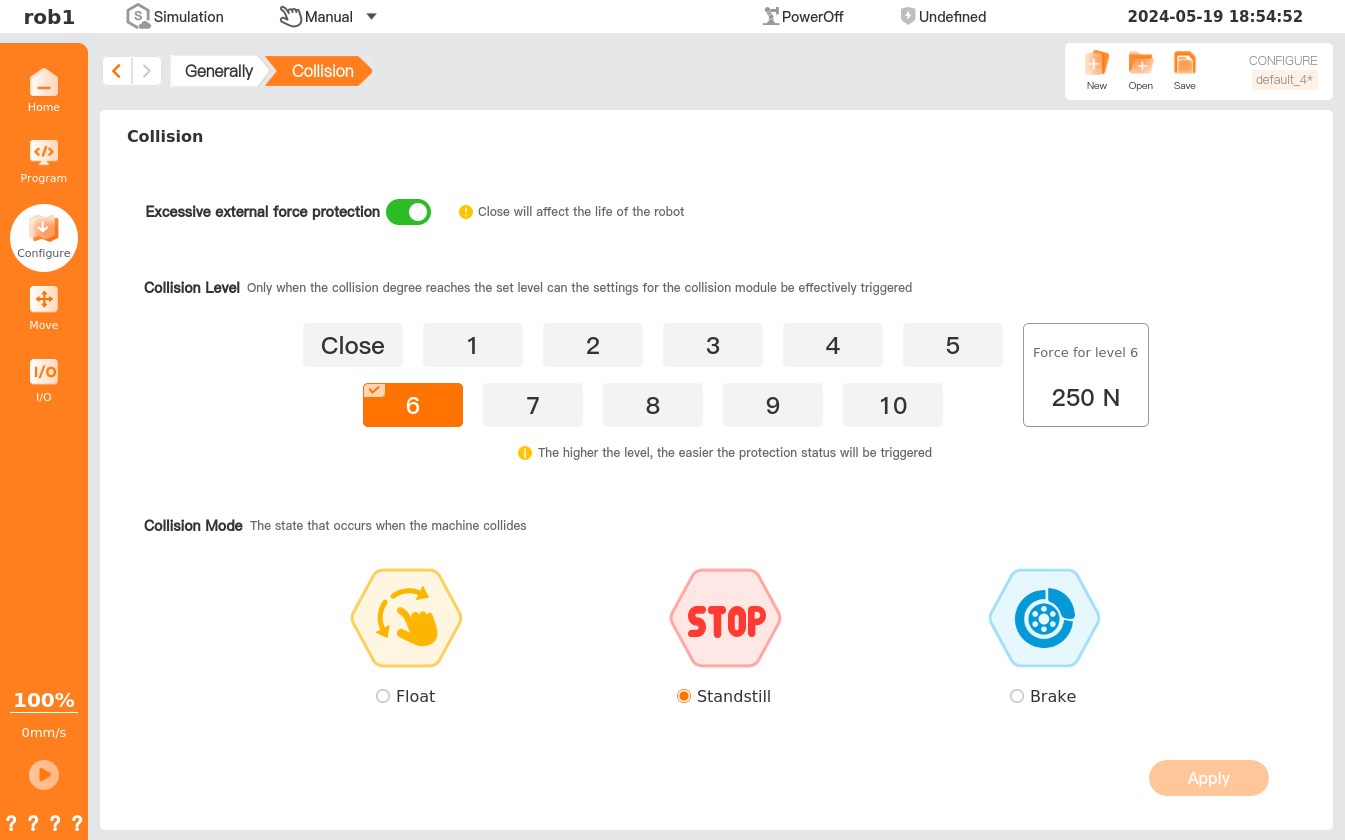
The AUBO robot is equipped with protection against excessive external forces; it can detect external forces and take appropriate actions to safeguard itself and prevent damage to the surrounding environment and personnel.
The [Collision] page allows settings of collision level and collision mode, etc. The user can change the collision level and the method for handling a robot collision based on the actual situation to ensure the safety and reliability of the robot in use.
1. Protect against excessive external force
Open: If the robot is in a static state and subjected to an external force that exceeds the safe level judged by the system, the robot will enter the HandGuide mode to prevent damage to critical moving parts.
Close: If the robot is subjected to an excessive external force in the static state, its key actuating components may be damaged, shortening the robot's service life.
2. Collision level
The robot features 10 safety levels that determine the sensitivity of the robot when a collision event is triggered. The lower the value, the higher the safety level, and the more force needed to trigger the collision event. The system default collision level is Level 6.
3. Collision mode
This mode involves how the robot is going to act after a collision event occurs.
- Floating after collision: After a collision, the robot stops and enters the HandGuide mode, allowing the operator to manually drag it to any safe position.
- Quiesce after collision: After a collision, the robot stops and remains stationary.
- Brake engagement after collision: After a collision, the robot stops and remains stationary with the brake engaged (this function is applicable only to robots with firmware version 1.*.*).