
What is a Program?
A program is a set of commands that a robot can recognize and execute. The robot is programmed to achieve the movement and control requirements in a specific application. In AuboStudio, users can write programs using the [Programming] interface of the system or write scripts using the interface of the system. This section will introduce how to program using the [Programming] interface. For instructions on using scripts, refer to "Lua Script Programming."
On page [Program], a program consists of a program block and program nodes, in which the program block is composed of multiple nodes for the convenience of code management. The robot's movement path is composed of a series of waypoints, which can be set by teaching or configuration items in [Command]. To control the movement and I/O signal sending/receiving, you can create and write one or more programs or set variables to run commands such as "ELSEIF" and "Loop."
First program
The following is a simple program demonstrating how to write programs in AuboStudio. This example program enables the robot to move back and forth between two waypoints.
In page [Program], click [New] in the program manager tool bar to create a new program file.

Under the [Basic] tab, click [Move]
 to add the [Move] node to the program tree. Then click [Waypoint]
  to add a [Waypoint] node to the program tree. Now the program has a [Move] node, and two waypoints under this node, namely [Waypoint _0] and [Waypoint _1].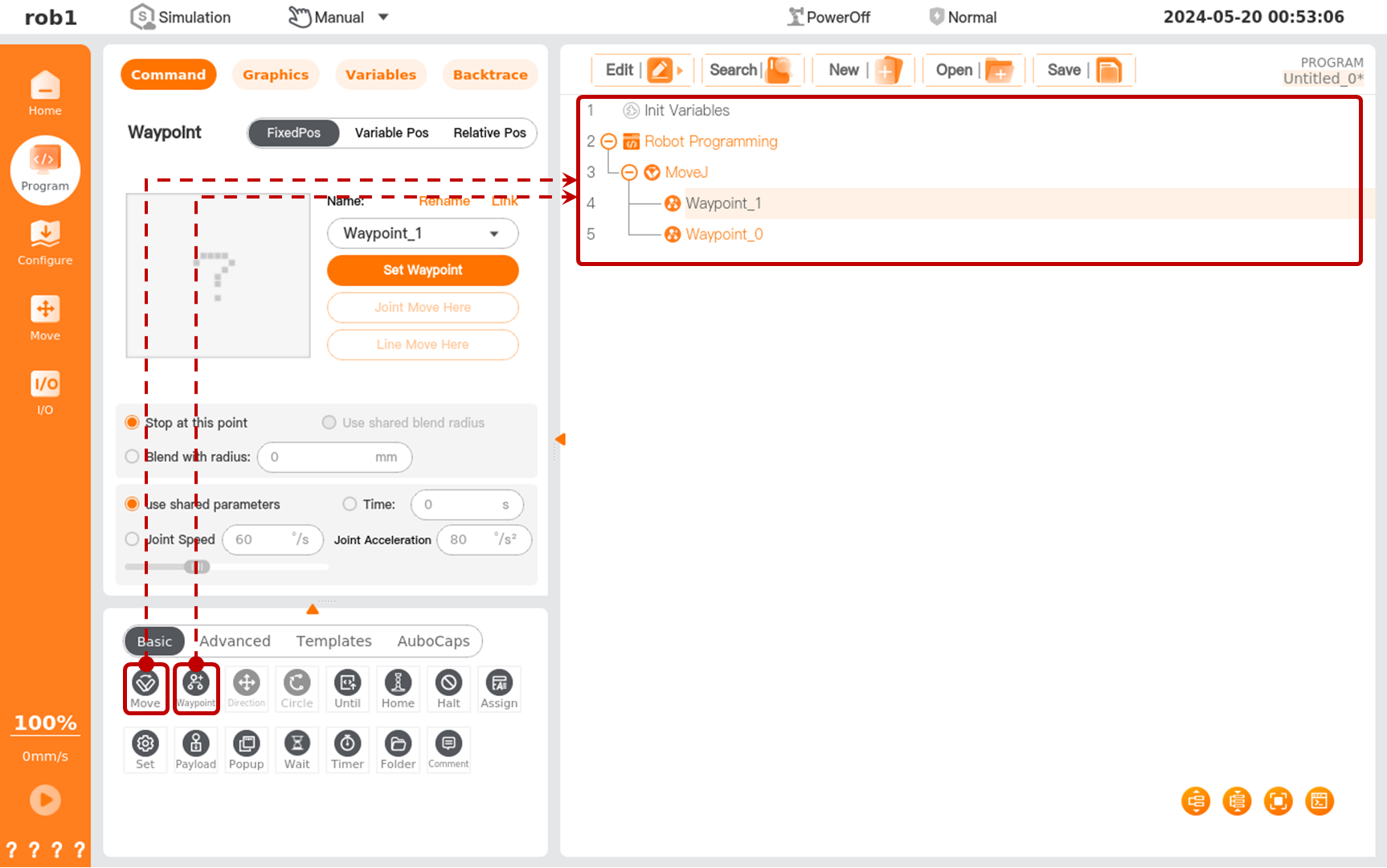
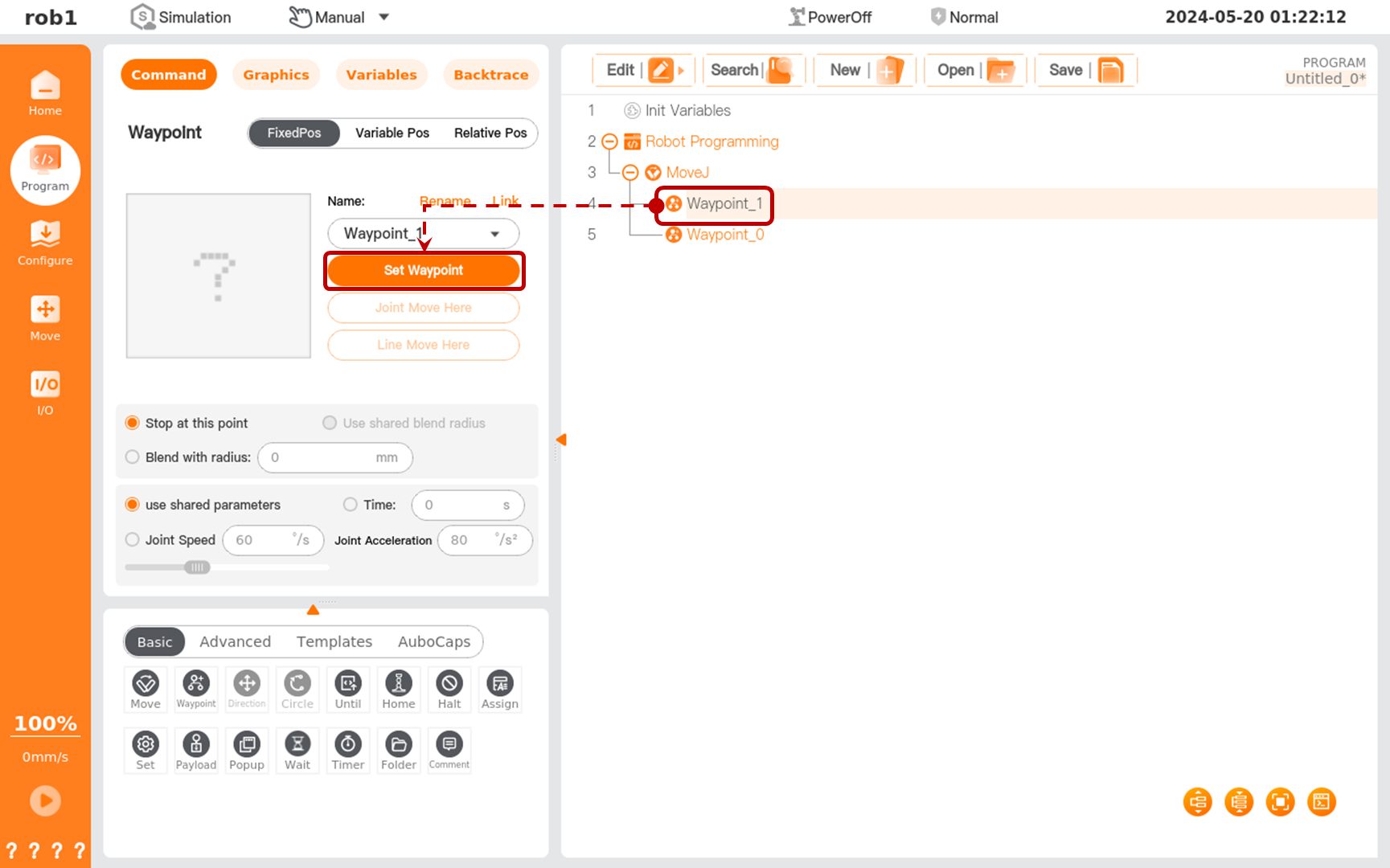
Click [Waypoint_1]. Then, click [Set Waypoint] under [Command] tab to enter page [Move].
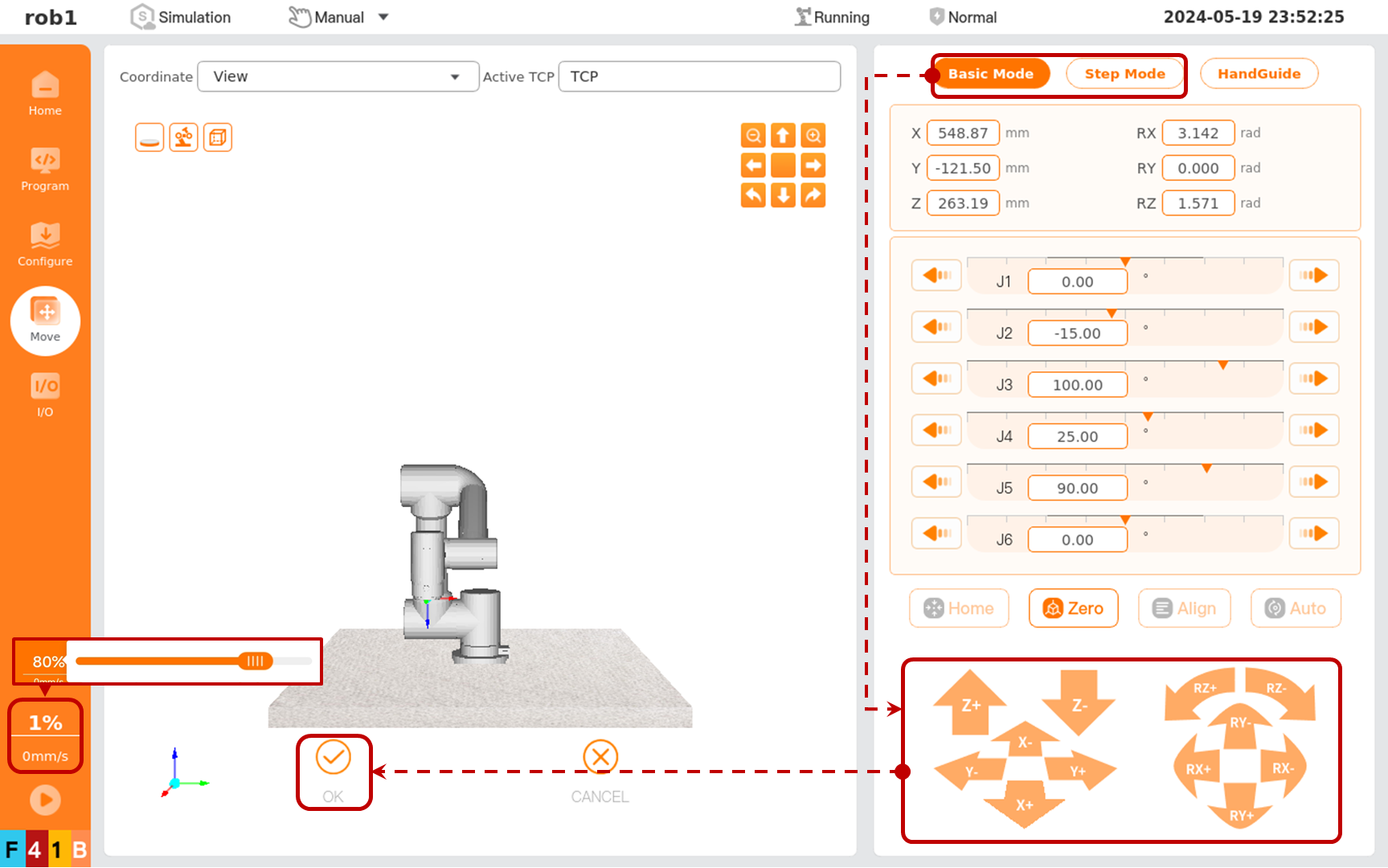
Users can select [Basic Mode] or [Step Mode]. Click [Position/Pose Control] to move the robot to the target position. After confirming the position, click [OK] to exit page [Move], ending the position/pose settings of [Waypoint _1].
Tip
Before moving the robot arm, click the [Speed] button on the left menu bar, and drag the [Speed Bar] slider to adjust the movement speed of the robot arm.
Repeat steps 3 to 4 to assign a value to [Waypoint_0].
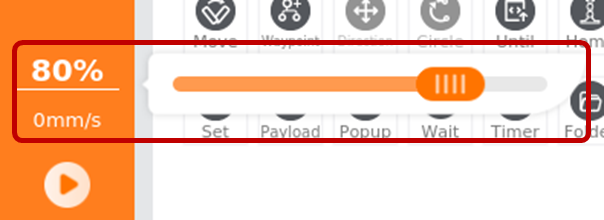
Click [Speed] on the left menu bar to pop up [Speed Bar] slider, and drag the slider to adjust the speed.
Click the [Run] button on the left menu bar, select [Run Program from Start Point] to enter the [Move] interface. Then press and hold [Auto] until this button is grayed out to move the robot arm to the start position of the program. At this time, click the [Confirm to Start Program] button to run the program, then the robot moves between [Waypoint_0] and [Waypoint_1].
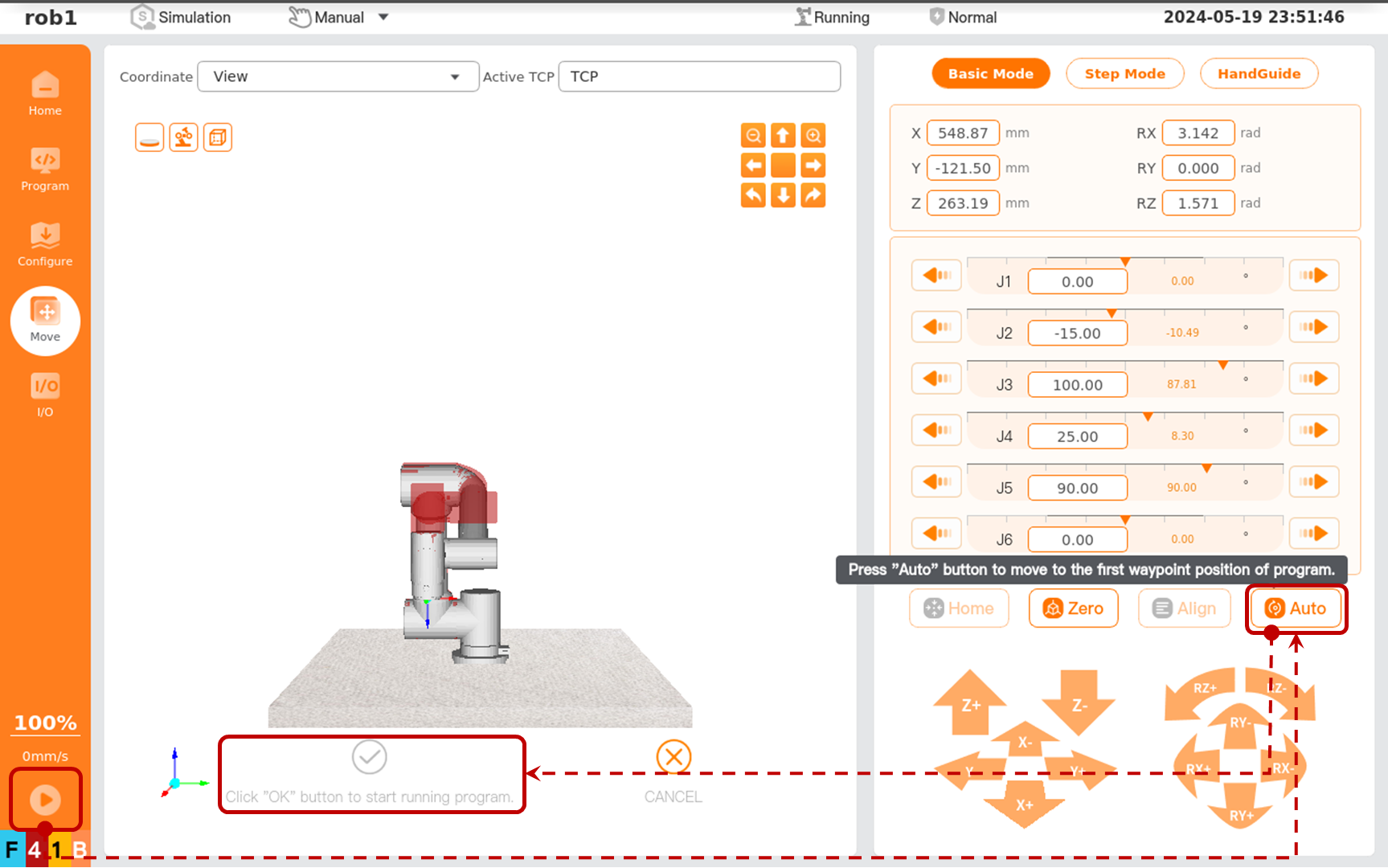
Congratulations! You have completed the first robot program! This program enables the robot to move between [Waypoint_0] and [Waypoint_1].