
(Customer) Software Licensing and Activation Trial Extension Guide
1. Overview
This document guides users through extending the robot software trial period.
If your robot trial period is about to expire or has already expired and you want to continue using it, export the device information file from the control cabinet and send it to your sales representative. After you receive the authorization file from the sales representative, import it into the control cabinet to extend the trial period. Read this document for the detailed procedure.
2. Export the Device Credential
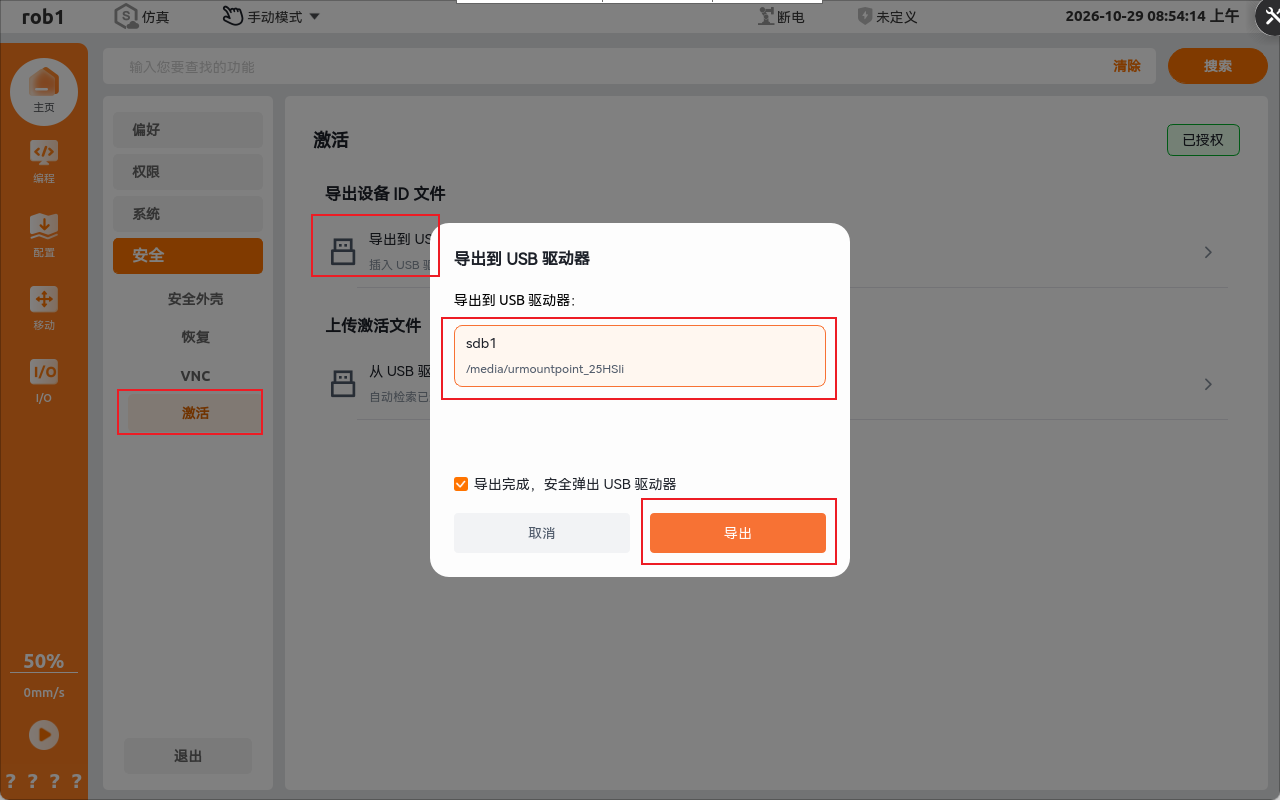
To renew the trial period, first export the .id device information file from the control cabinet. Then send the exported file to your sales representative and specify how long you need to extend the trial period. Follow these steps to export the file.
- Insert a USB flash drive into the USB port on the control cabinet panel.
- Go to Settings > Security > Activation.
- Click Export to USB Drive.
- Select the inserted USB device.
- Click Export and wait for the interface to display “Export successful”.
- Remove the USB flash drive. You can find the exported
.idfile in the root directory of the USB flash drive. - Send the
.idfile to your sales representative, specify how long you need to extend the trial period, and wait for the sales representative to provide the activation file.
3. Import the Authorization File and Activate
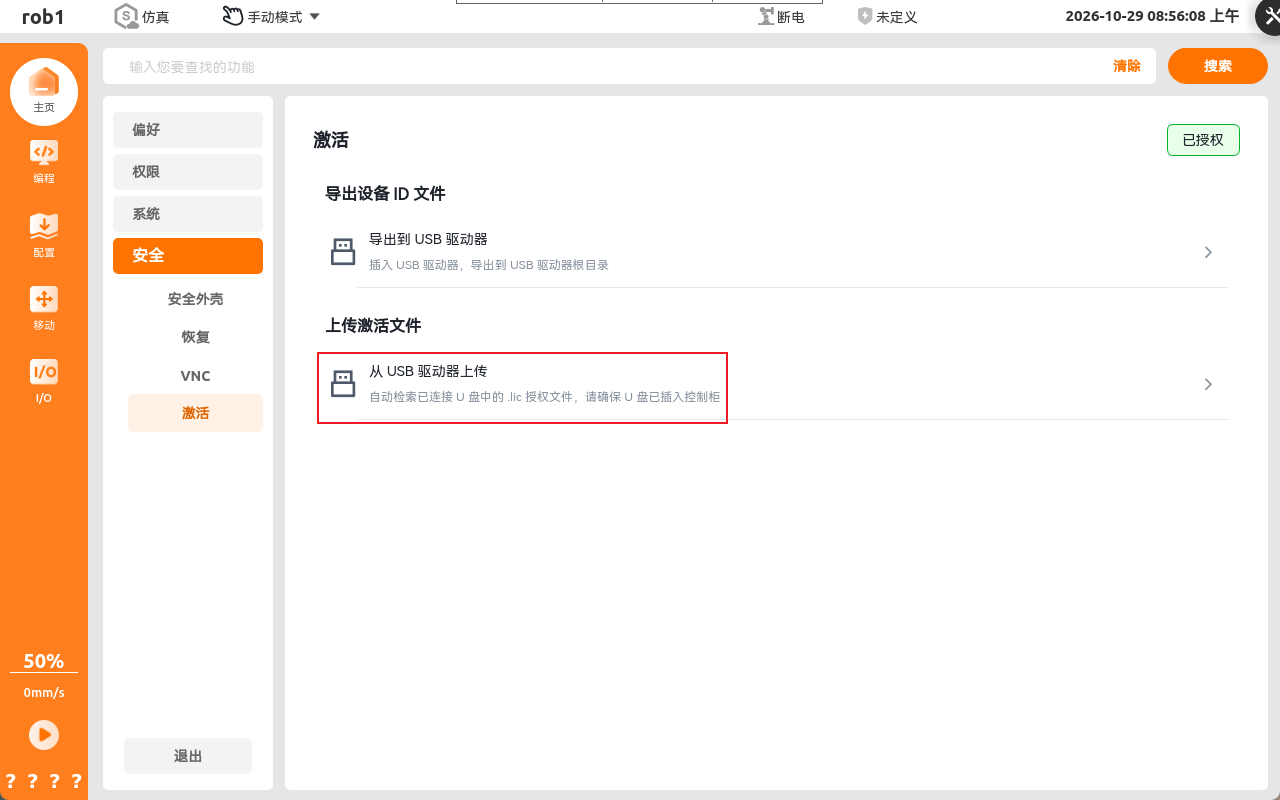
After you receive the authorization file provided by your sales representative, with the .lic file extension, follow these steps to activate it.
- Insert the USB flash drive containing the
.licauthorization file into the USB port on the control cabinet panel. - Go to Settings > Security > Activation.
- Click Upload from USB Drive.
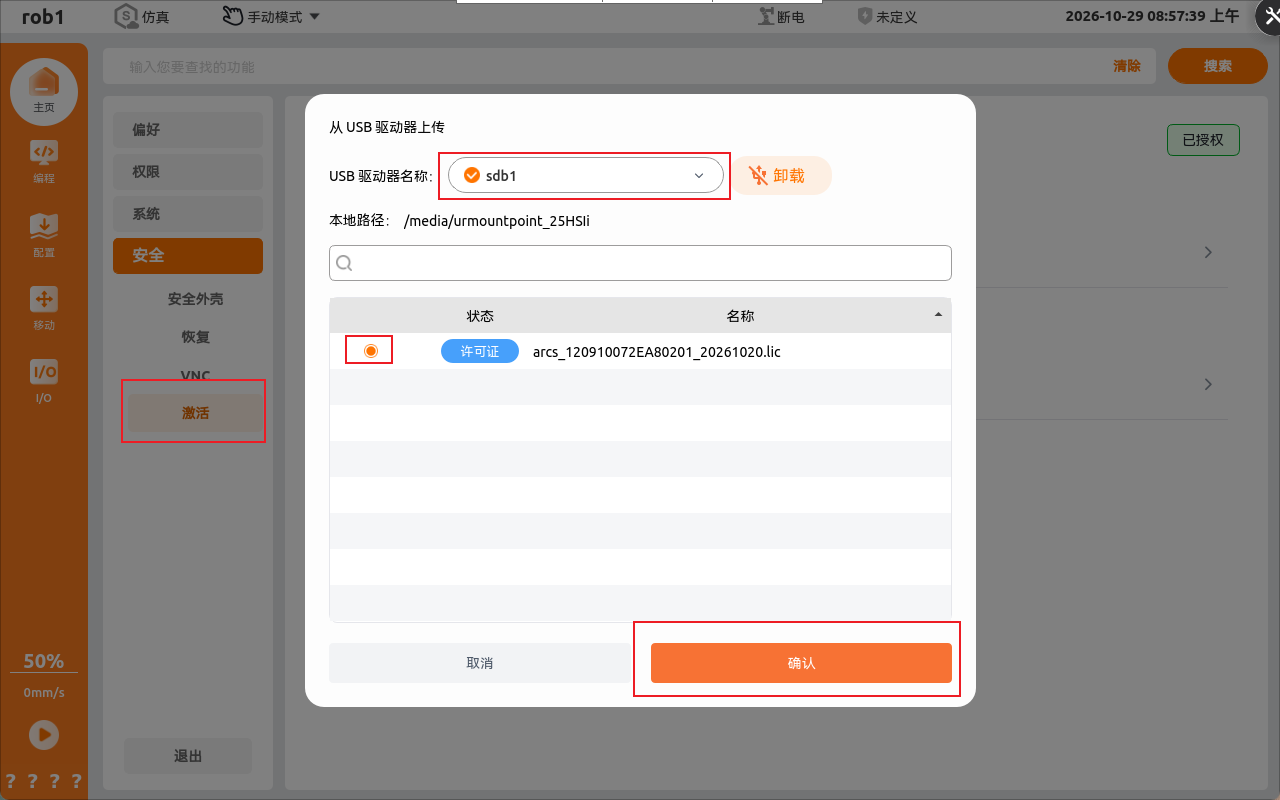
- Select the inserted USB drive from the drop-down list.
- Select the target authorization file in the file list.
- Click Confirm to complete the import. The authorization status and remaining time on the interface update immediately.
- Check the remaining authorization time in the upper-right corner of the interface to confirm that activation succeeded.
Note: If you repeatedly import different valid authorization files, the system recalculates and updates the remaining time according to the latest logic.
4. Authorization Expiration Reminder and Trial Extension
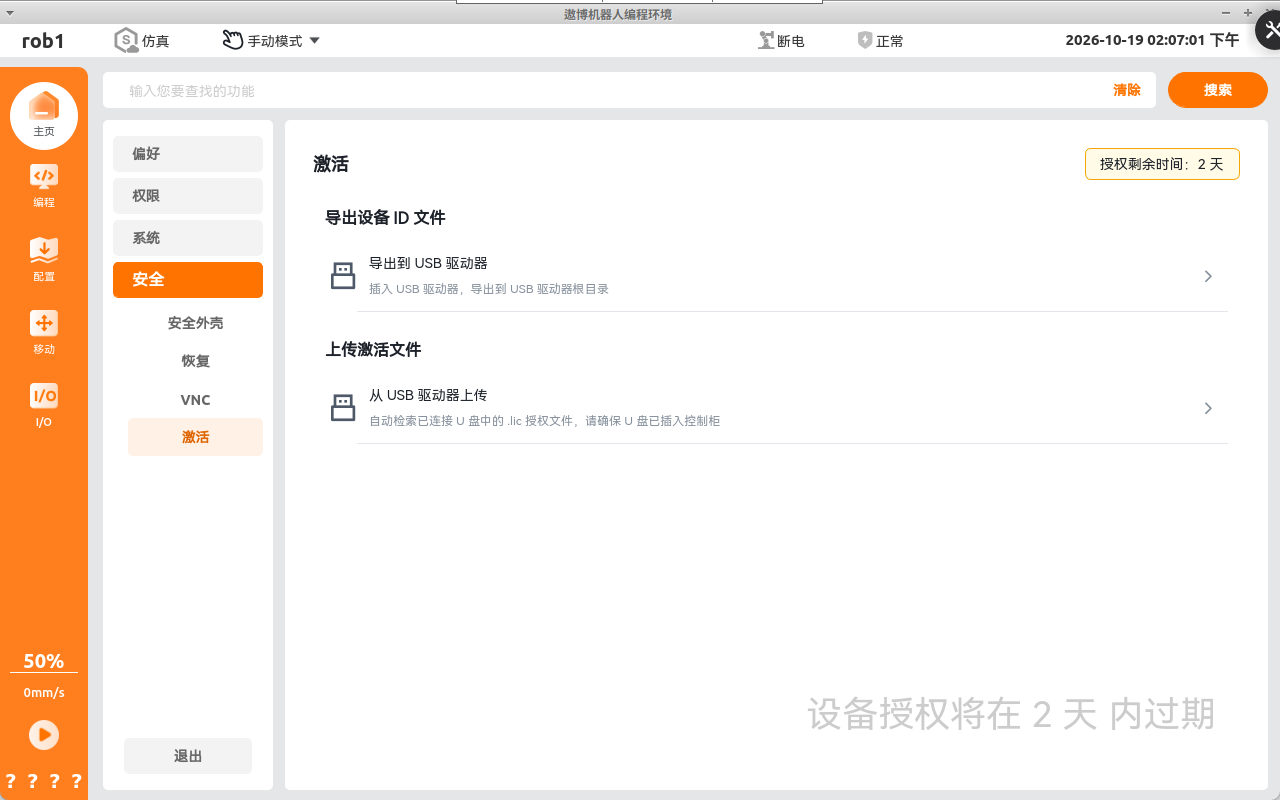
4.1 Expiration Reminder (≤ 7 Days)
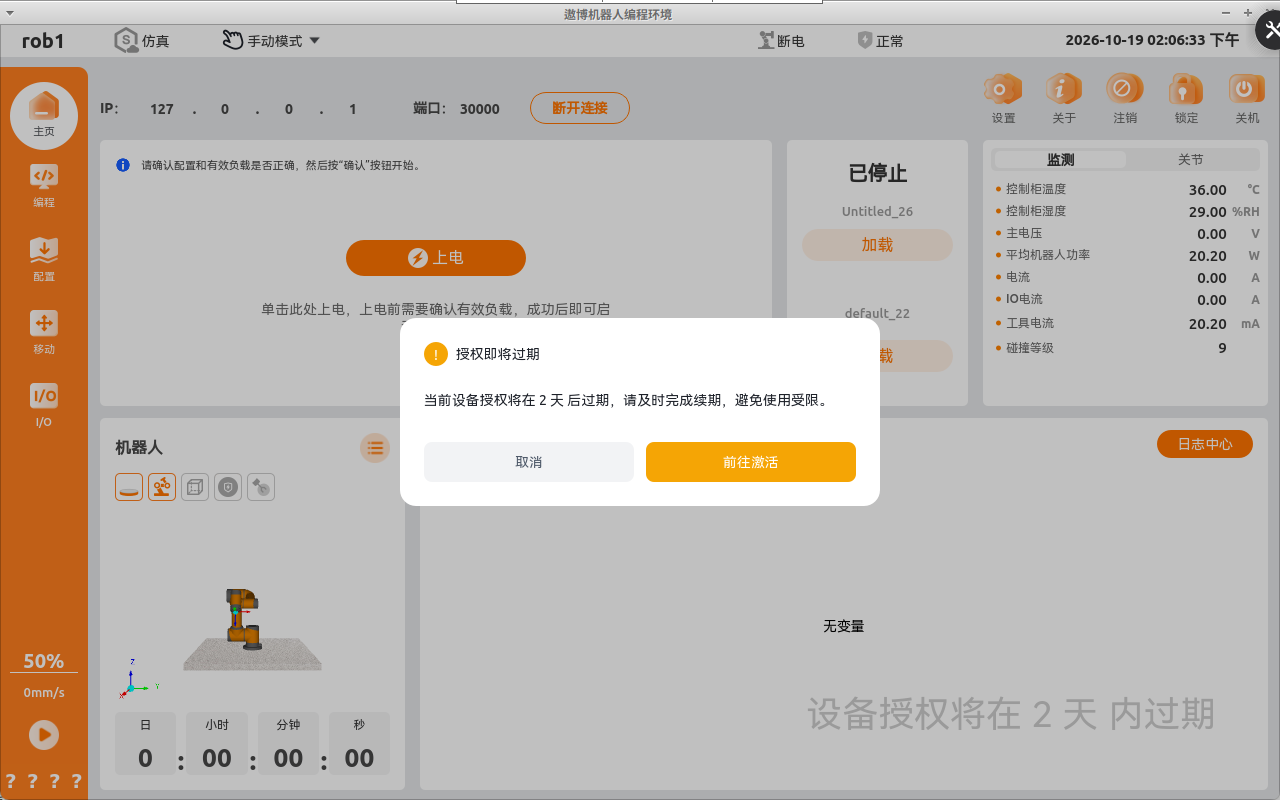
When the authorization time is ≤ 7 days, a pop-up automatically displays the remaining time the first time the robot is started each day. You can choose either of the following:
A persistent watermark reminder appears in the lower-right corner of the home page.
4.2 Urgent Expiration Reminder (≤ 1 Day)
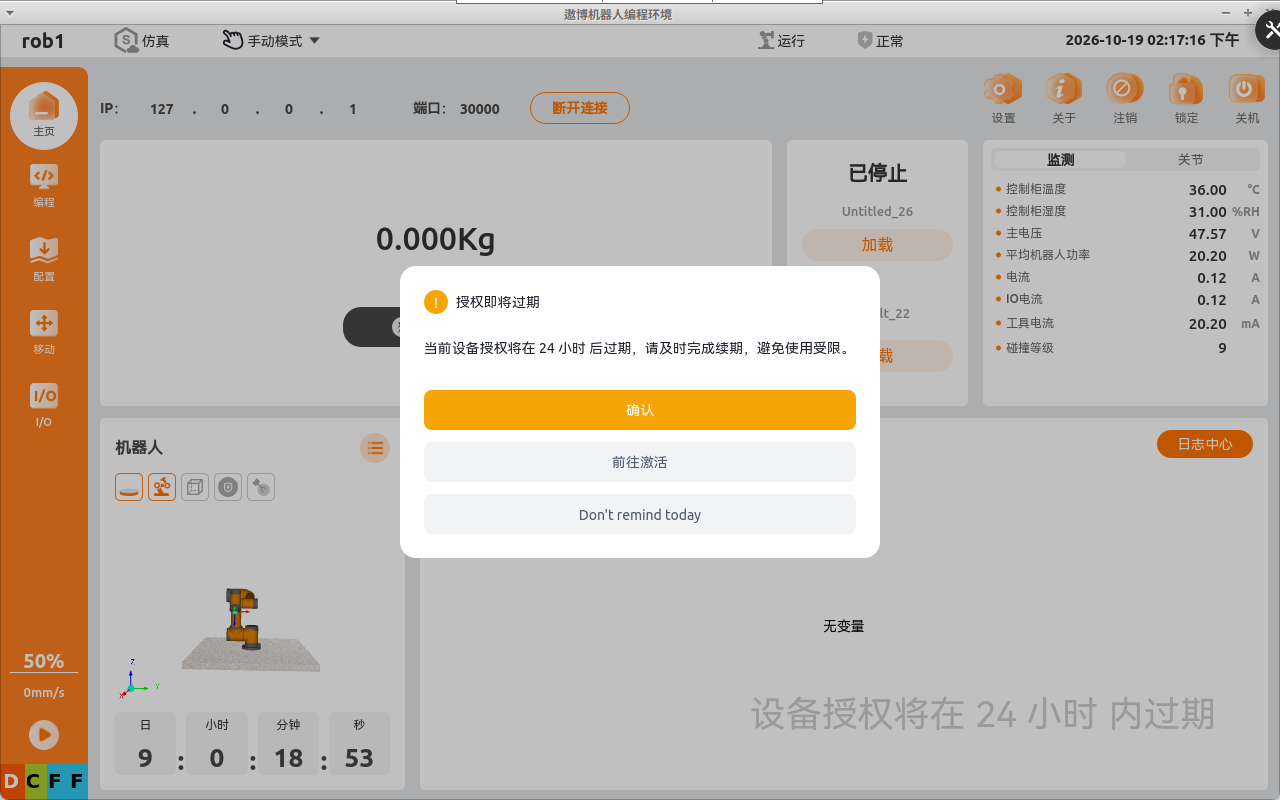
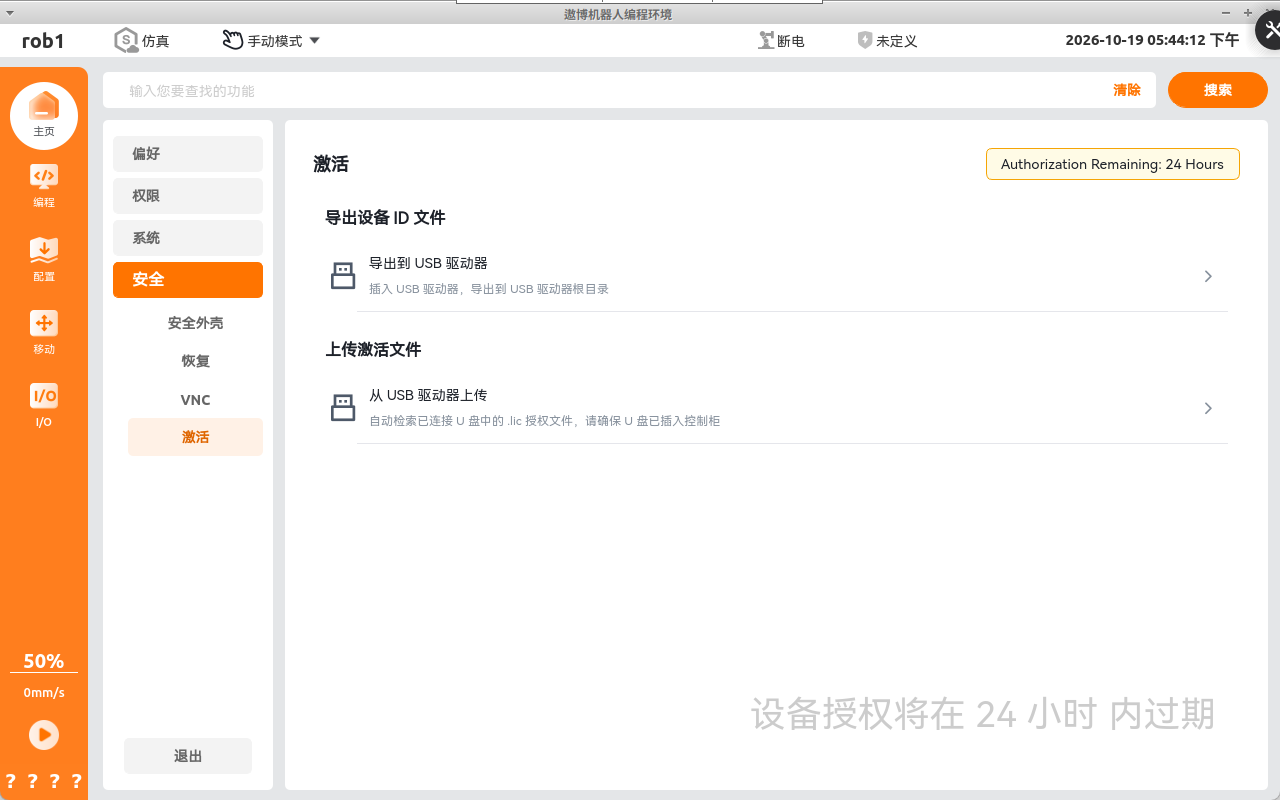
When the authorization time is ≤ 1 day (within 24 hours), the unit for the remaining authorization time automatically changes to “hours”.
In this state, every time you click Run Program, the system displays a pop-up stating that the authorization is about to expire. You can choose one of the following:
Click Confirm. The pop-up closes and the program continues to run.
Click Go to Activation. The system automatically opens Settings > Security > Activation. Reactivate the software by following the procedures in Chapter 2 and Chapter 3 to extend the trial period.
Click Do not remind me again today. No further pop-up reminder appears that day.
4.3 Expired State
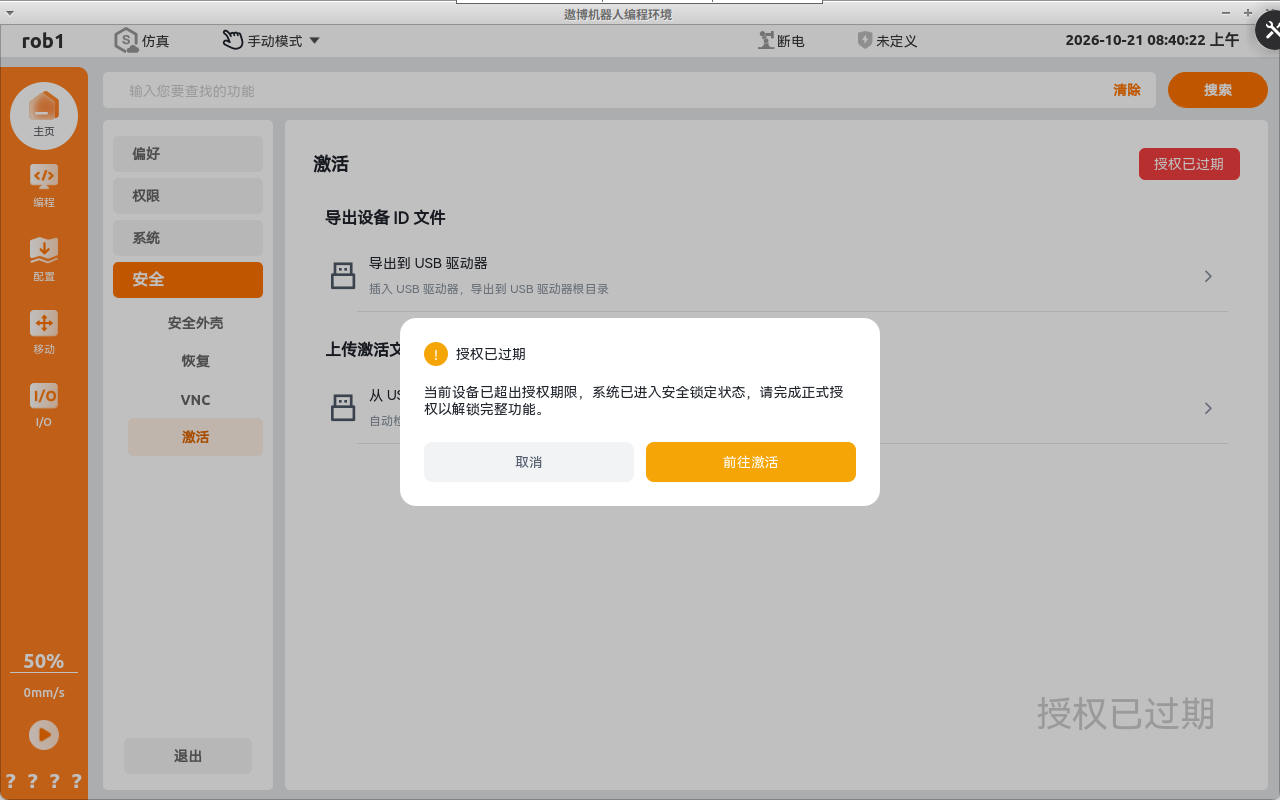
- When the authorization has fully expired, the activation interface clearly displays the status Authorization expired.
- In this state, the robot cannot be powered on, and firmware versions cannot be installed or switched. When you click Power On or attempt to install a version, the system forcibly displays a blocking pop-up that only allows you to choose Go to Activation or Cancel.
- To continue the trial, click Go to Activation to automatically open Settings > Security > Activation, and reactivate the software by following the procedures in Chapter 2 and Chapter 3 to extend the trial period.
5. Frequently Asked Questions and Notes
- The import operation displays “The current device is not in the authorization list”. The authorization file is not for this robot. Confirm that the
.licfile returned by the manufacturer corresponds to the same device as the.idfile you provided. If necessary, export the.idfile again and contact the manufacturer. - The import operation displays “Activation is invalid or verification failed”. The file may be empty or damaged. Ask the manufacturer to send the authorization file again and import it again.
- The Security interface displays “Abnormal time” and activation cannot be imported. The control cabinet system time is incorrect. Synchronize the time first, then import the authorization file after the time returns to normal.
- The authorization has expired and clicking Power On is blocked by a pop-up. This is the normal expiration protection mechanism; only Go to Activation or Cancel is available. Complete the extension procedure in this document before powering on.
- Restoring factory settings does not clear or reset the authorization time. You must still renew the authorization according to this document after it expires.
- Manually changing the system time cannot extend the trial period. The software records the actual operating time at a lower level, so changing the system time cannot extend the usage period. Do not attempt this.