
Wi-Fi Signal Testing and Channel Tuning Guide
1. Test Signal Strength
- Download and install the Cellular-Z software on the Android tablet
Simply search for the software in the app store.
- Make sure the control cabinet antenna is free of obvious obstructions and that the control cabinet's Wi-Fi can be found. Open Cellular-Z to view the signal strength, frequency, channel, and other information of the control cabinet's self-hosted AP.
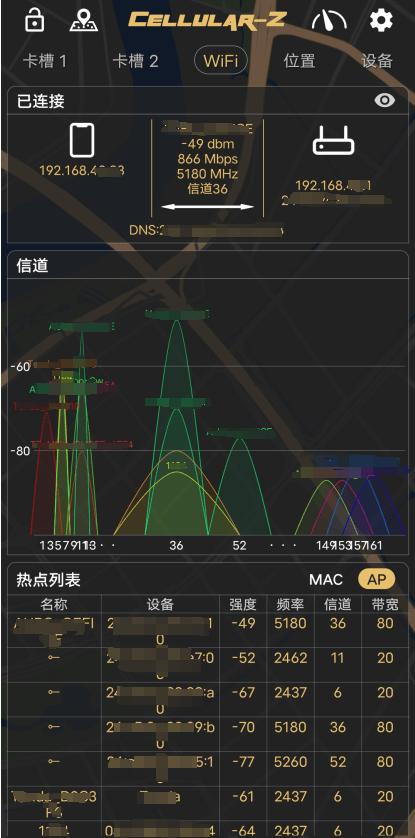
Signal strength note: Signal strength is the guarantee of the highest link rate. It is recommended to keep the signal strength between -45 dBm and -30 dBm.
2. Channel Rating
- Download and install the Wi-Fi Analyzer software on the Android tablet
Download link: https://download.aubo-robotics.cn/3rd-party/WiFiAnalyzer-3.0.12.apk
Connect the Android tablet to the Wi-Fi to be tested
View the signal strength of all Wi-Fi networks
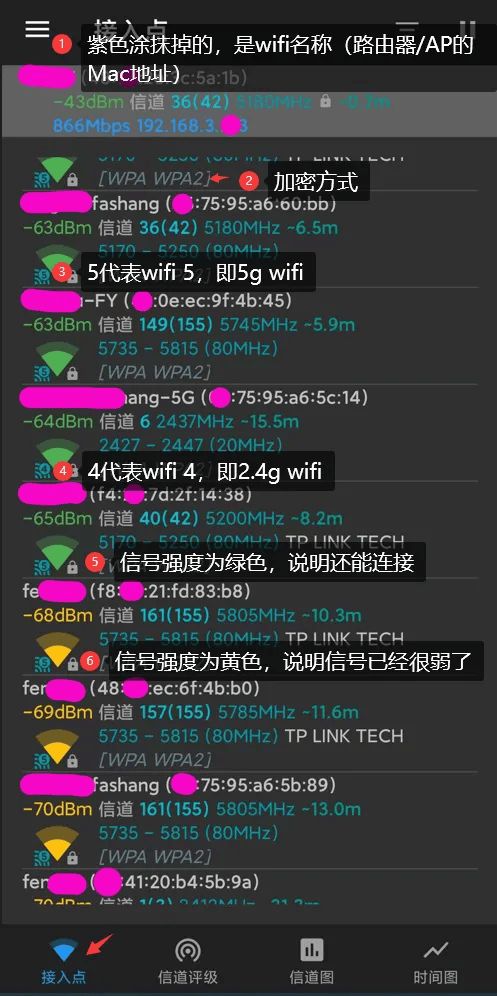
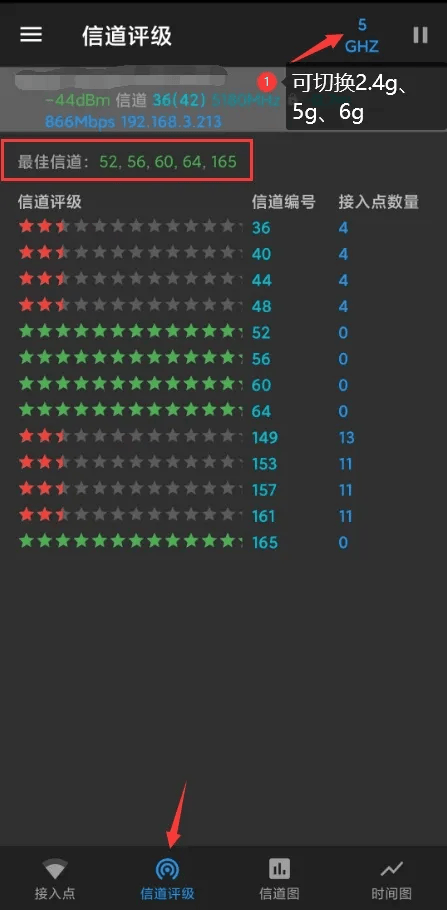
- View the current channel signal strength at each frequency and the channel recommended for the Wi-Fi. If the signal is too poor, it is recommended to change the channel.
As shown in the figure below, you can switch between 2.4G or 5G channels in the upper-right corner. Self-hosted APs generally only have 2.4G channels.
3. Change the Wireless Network Channel
3.1 x86 Version
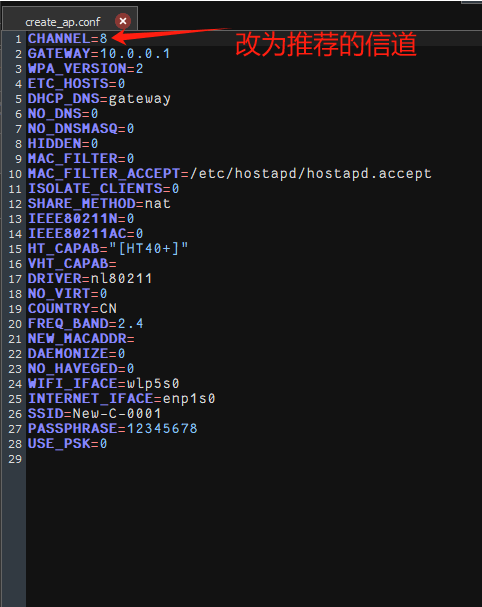
Confirm the channel recommended for the current Wi-Fi from the previous step, and modify it here
Modify the
CHANNELparameter in the /etc/create_ap.conf configuration file
- Restart the network after saving
systemctl restart create_ap
systemctl enable create_ap
3.2 arm Version
The arm version is divided into the S control cabinet and the ES control cabinet, which use different wireless network environments (hostapd and create_ap) in the old and new versions respectively.
Based on the channel recommended for the current Wi-Fi confirmed in the previous step, modify it here
Modify the
channelparameter in the/etc/hostapd-2.4g.confconfiguration file
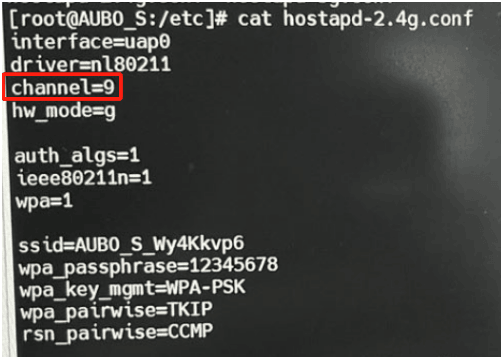
- Restart the network after saving
# Restart the wireless network using hostapd
bash /etc/init.d/S99WIFI.sh restart