
USB Storage Device Troubleshooting Guide
Currently, the ARCS (Linux-based) operating system supports USB drive recognition, including but not limited to FAT32, NTFS, and exFAT file systems. In practice, when a USB drive cannot be recognized or mounted, the cause may involve file system issues, hardware connection faults, system configuration or permission problems, etc. The following is a systematic troubleshooting step guide:
1. Hardware Troubleshooting
First ensure that the USB drive's own hardware works normally and that it is correctly inserted into a USB port.
Steps:
- Try inserting the current USB drive into other USB ports, or test it on another computer, to rule out hardware faults in the USB drive or the USB interface.
- If the USB drive cannot be recognized on other devices either, the USB drive itself may be damaged.
2. Check Whether the System Has Mounted It
A system mounting error, or failure to unmount the mount directory in time, may prevent a new USB device from being mounted again.
Steps:
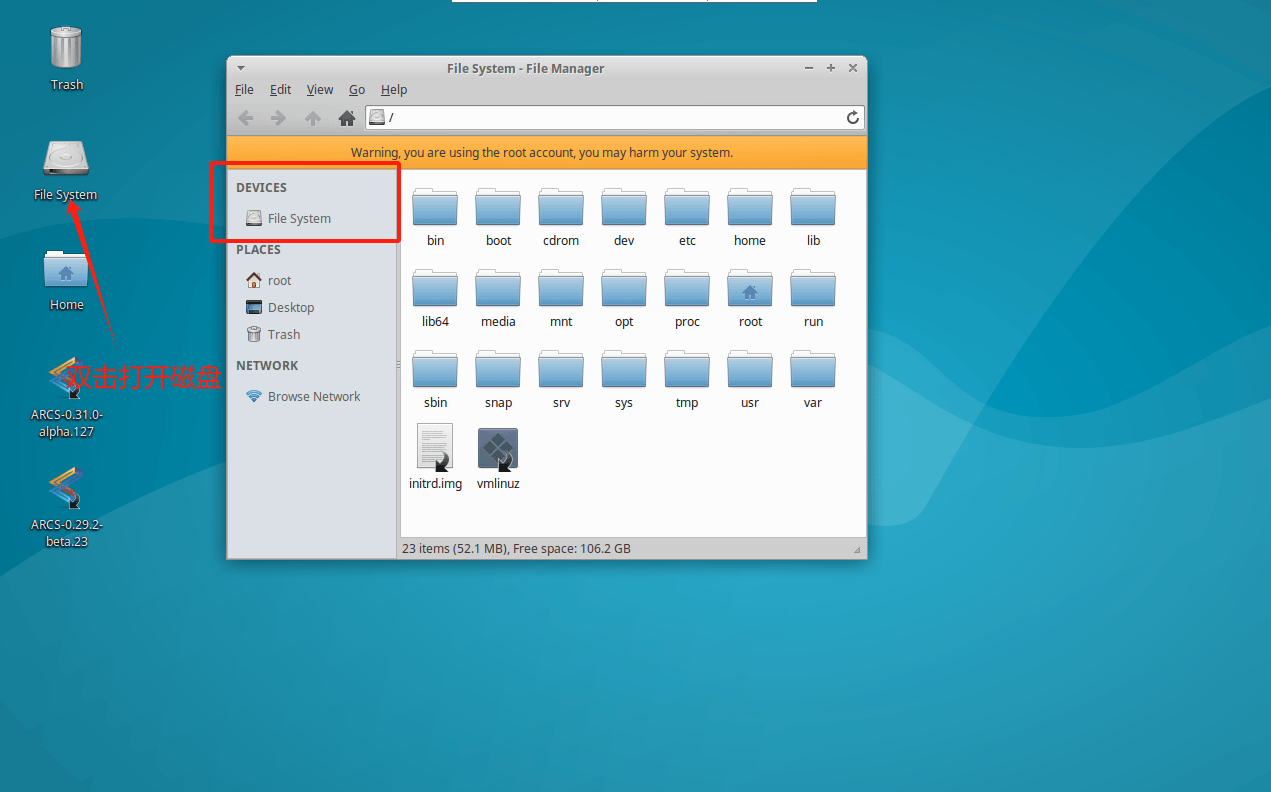
- Log out of the ARCS software and open the file system from the desktop.
- When no USB drive is connected, check whether any other invalid drive letters exist.
- If an invalid drive letter exists, manually eject it, then reconnect the USB drive and test.
3. Detecting Hardware Connection via the System
Use system logs and command-line tools to detect whether the USB drive is detected by the operating system.
Steps:
Use the
tailcommand to view the system log in real time when the USB drive is connected, and look for output information about the USB device:tail -f /var/log/syslog
Normally, you should see information similar to
New USB device found, indicating that the USB drive has been detected by the system.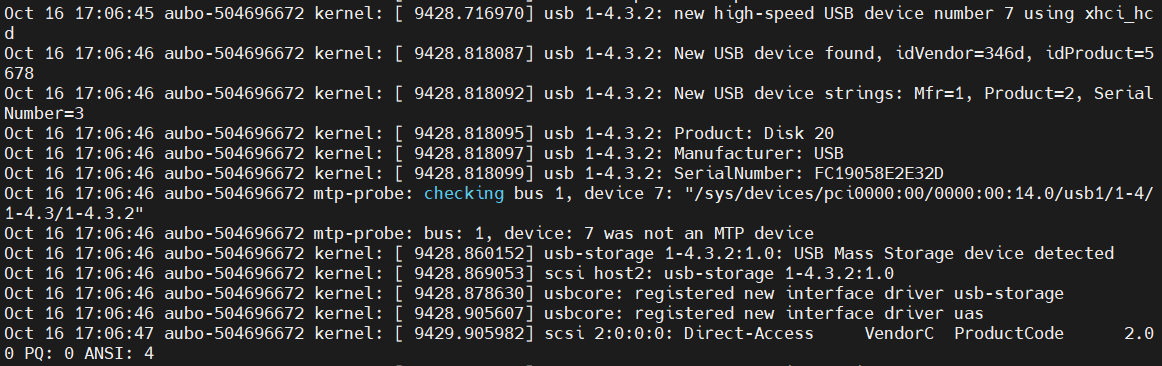
To check whether the USB drive is recognized as a block device, you can use the
lsusbcommand to list all USB devices:lsusb
The output should contain information about your USB drive. If nothing is displayed, there may be a hardware fault or a USB driver issue.
Use the
fdiskcommand to view the block devices recognized by the system:fdisk -l
List all disk and partition information and check whether there is a new device (usually
/dev/sdbor/dev/sdc, depending on the system configuration). If the USB drive exists but the partition information is empty or the format is incorrect, it may be a file system problem.
4. File System Check
If the current system lacks the driver corresponding to the USB drive's file system, mounting may fail.
FAT32:
- The FAT32 file system is natively supported by the Linux kernel, so no additional driver installation is required.
NTFS:
For the NTFS file system, Linux usually uses the
ntfs-3gdriver; run the following command to check whether the driver is working normally:dpkg -l | grep ntfs-3gIf the command returns relevant information, the driver is installed; otherwise, install the driver by running the following command:
sudo apt install ntfs-3g
exFAT:
Support for the exFAT file system usually requires installing exfat-fuse and exfat-utils.
dpkg -l | grep exfatIf the command returns relevant information, the driver is installed; otherwise, install the driver by running the following command:
sudo apt install exfat-fuse exfat-utils
5. Auto-Mount Issues
Sometimes the USB drive is recognized, but is not mounted due to a configuration problem with the auto-mount tool.
Steps:
Check whether the
udevservice is running normally:systemctl status udev
Try mounting the USB drive manually:
Insert the USB drive and identify the device name (usually
/dev/sdbor a similar device):fdisk -l
Create a mount point (i.e., an empty directory). The USB drive is usually mounted under the /media directory:
mkdir /media/usb
Mount the USB drive; use the
mountcommand to mount the USB drive to the mount point just created (assuming the device name is/dev/sdb1and the mount point is/media/usb):mount /dev/sdb1 /media/usb
Check the mount status and view all mounted file systems:
df -h
6. USB Drive Reset
If the USB drive's file system is damaged, mounting may fail; try formatting the current USB device and then test.
Steps:
Insert the USB drive into the computer's USB port:
sudo mount /dev/sdX1 /media/usb
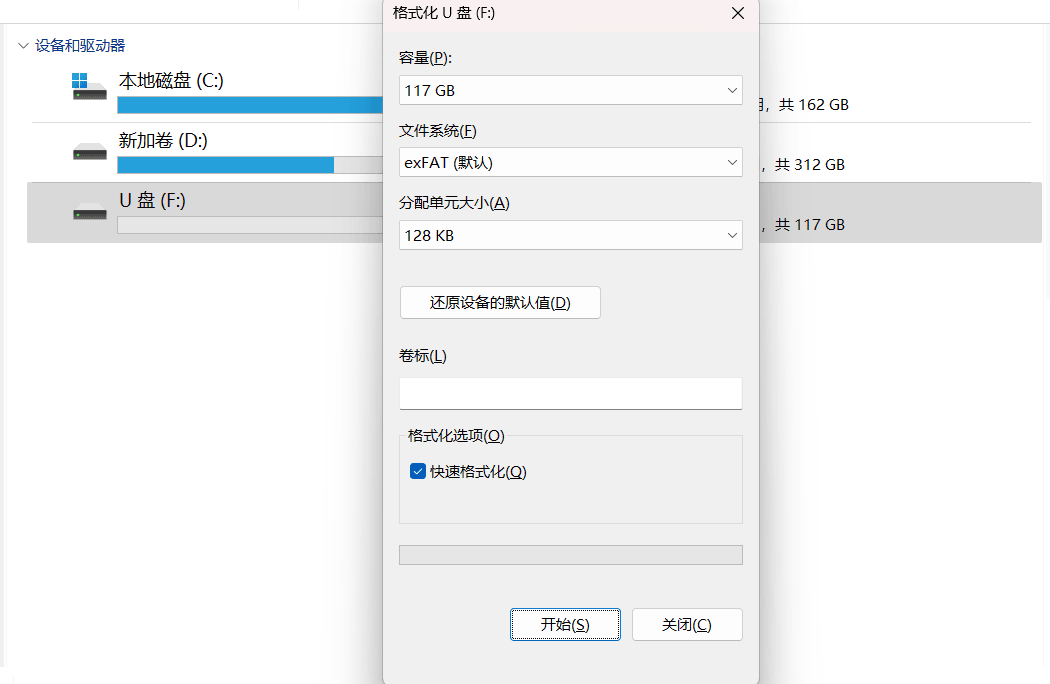
In "This PC", you will see the USB drive listed under "Devices and drives"; right-click it and select Format.
Through the above process, you can generally troubleshoot and resolve the problem of a USB drive not being recognized under the ARCS operating system on your own. If it is determined to be a system problem, please report it to colleagues in the R&D Center - Software Department, who will trace the device source. If it is a USB drive hardware fault, you can try replacing the USB drive for further use.