iS Control Cabinet NIC Driver Not Upgraded May Cause False Collisions
Because of a driver support issue in the official kernel for certain Realtek NIC models, a patch is required to replace it with the official driver from the NIC vendor. This issue may cause false collisions when the device runs for a long time.
Prototype types where the problem has been found: iS control cabinet (CE) + i20 / iS control cabinet (CE) + iS7
r8168 patch package download link: https://download.aubo-robotics.cn/patch/install-r8168/magic_file_install_r8168_patch_v1.0.0+3c3586d.sh
Affected Product Range
Control cabinet type: iS control cabinet / iS control cabinet (CE)
Receipt date: October 30, 2024 – December 25, 2024
The specific method to determine this is as follows:
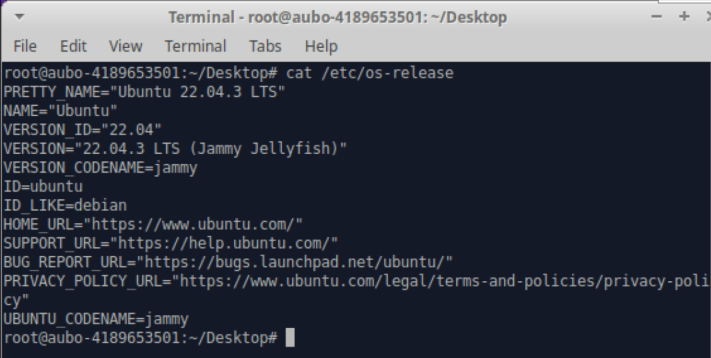
- The control cabinet system is 22.04. Confirm by entering
cat /etc/os-releasein the terminal.
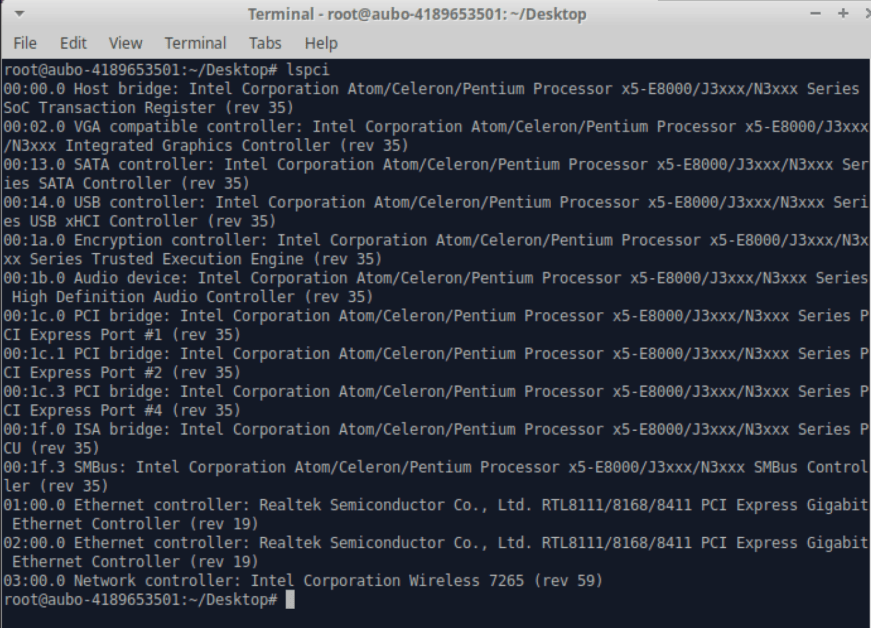
- The NIC is a Realtek one. Confirm by entering
lspciin the terminal.
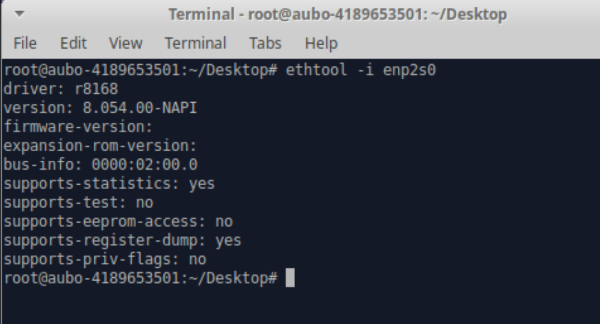
- The NIC driver is 8169. Enter the command
ethtool -i enp2s0and press Enter; the "driver" field shows 8169.
Patch Package Installation Method
1. Device preparation:
USB drive (exFAT type recommended)
2. Operation steps:
Copy the patch package to the USB drive and plug it into the USB port of the teach pendant.
Enter the [Home] screen of the teach pendant software, and click the Settings button.
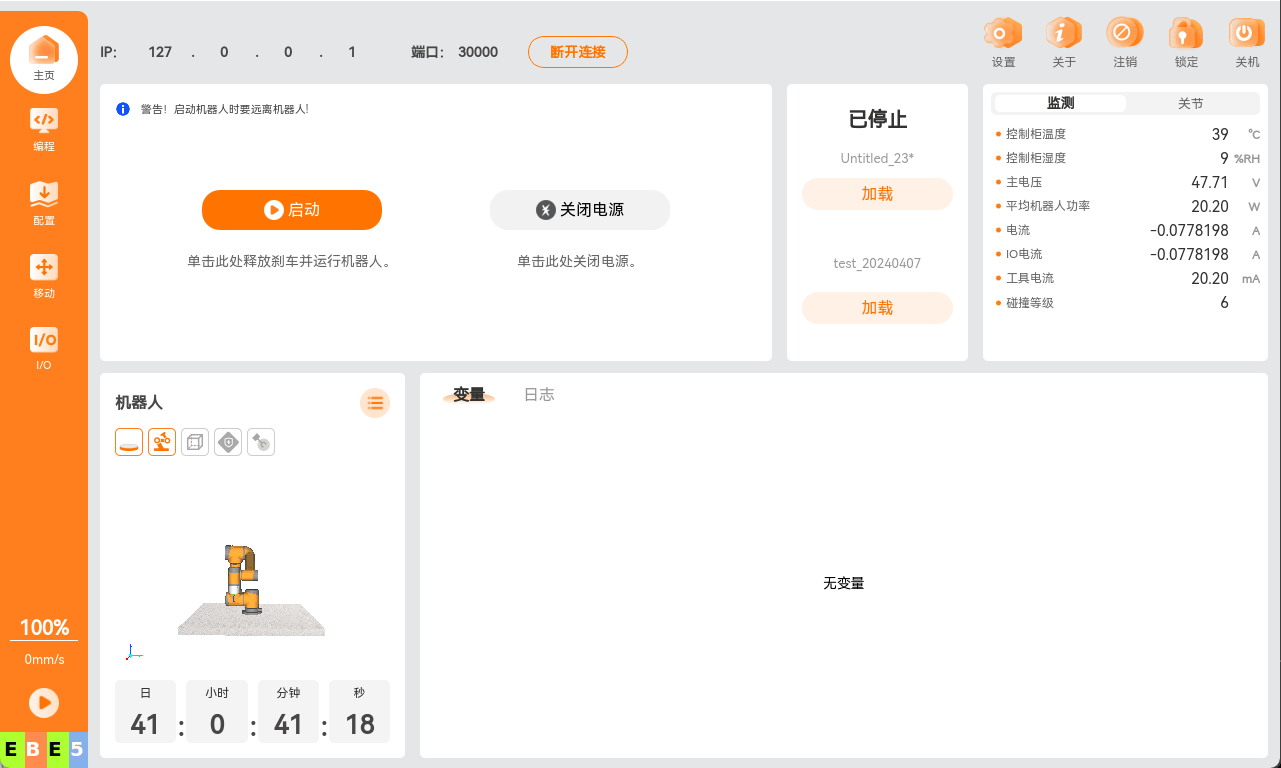
- Enter the System - USB Drive Import screen, select the inserted USB drive, select the patch package, and click Run.
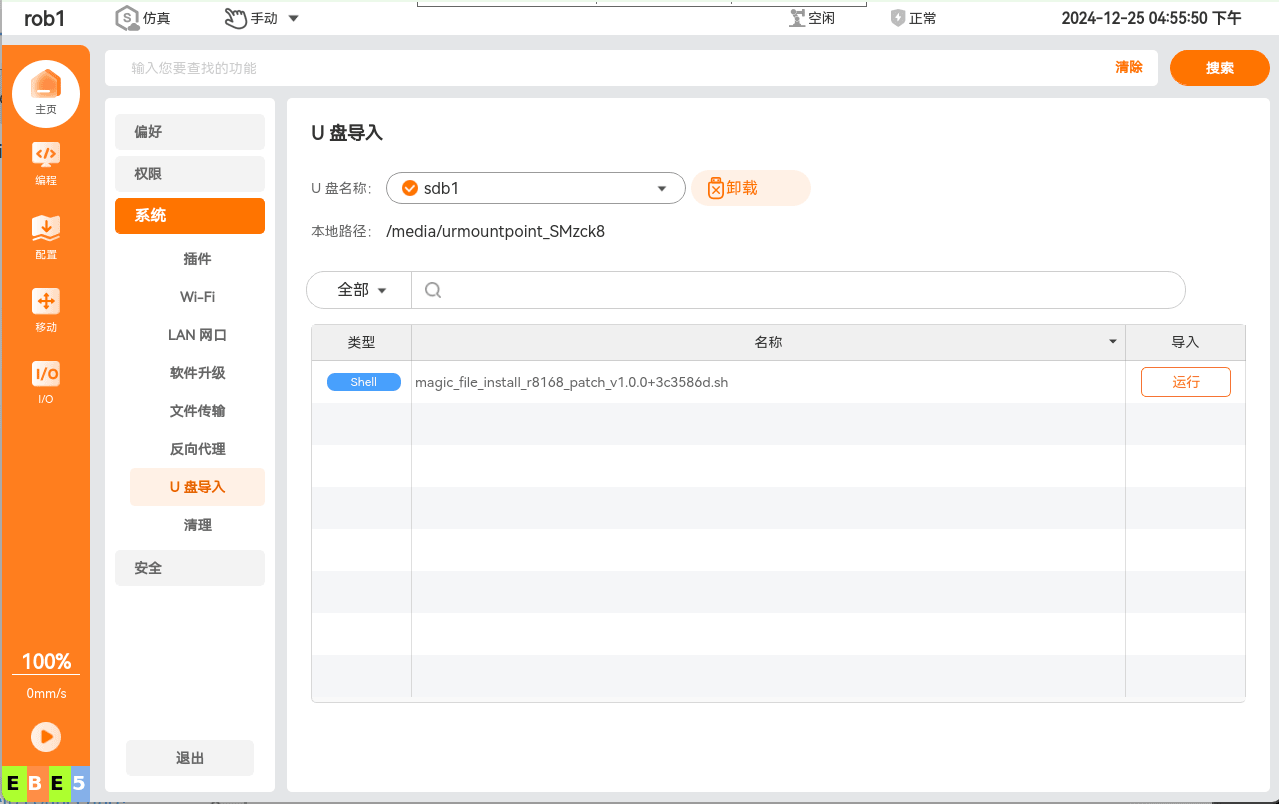
How to Confirm the r8168 Patch Package Is Installed Successfully:
1. Device preparation
Mouse / keyboard
2. Operation steps
Enter the [Home] screen of the teach pendant software, click the Log Out button, and enter the desktop.
Connect the mouse to the USB port of the control cabinet, right-click, and select "Open Terminal Here" to enter the terminal.
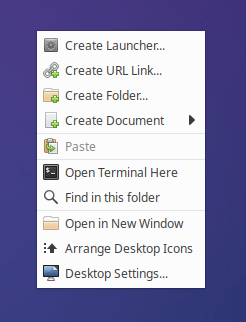
- Connect the keyboard to the USB port of the control cabinet, use the keyboard to enter the command
ethtool -i enp2s0, and press Enter. Displaying r8168 indicates the patch package was installed successfully.