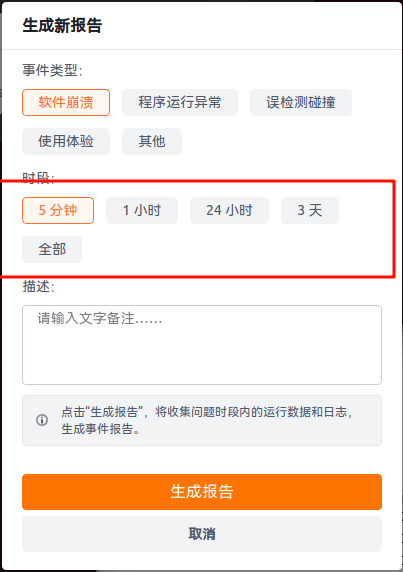
Log Center User Guide
1 Introduction
Logs are the primary means of analyzing system problems. When a system problem occurs, log files help developers locate the cause of the problem and find a solution. We call the compressed package that collects log files over a period of time an "event report". The Log Center provides functions for generating, viewing, and exporting event reports. ARCS system logs are usually stored in files within the control cabinet system, while APP client logs are usually stored on the tablet.
注意
- Supported software versions:
- Wireless teach pendant software: supported in ARCS 0.31.0-rc.1 and App 0.9.3-rc.1 and later
- Wired teach pendant software: coming soon
- The Log Center is a functional module of the OPS system. Please confirm that the OPS system is installed before use.
- To install the OPS system, please contact the relevant technical staff.
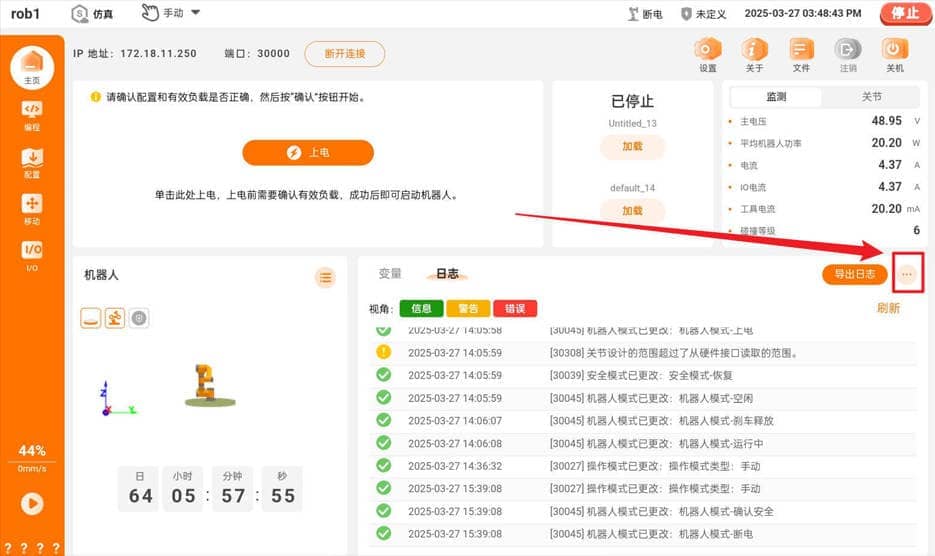
1.1 Log Center Entry
1.2 Contents of the Event Report Archive
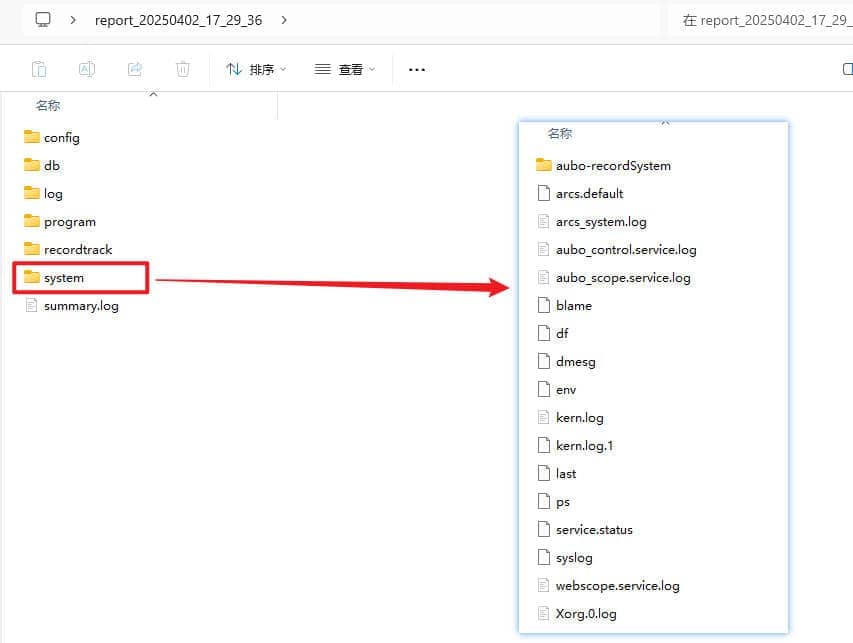
Compared with the old log archive, the contents of the event report archive add the collection of Linux system logs.
1.3 Notes
There are slight differences between the Log Center of the wired teach pendant and that of the client (APP), for example:
The client (APP) Log Center has an "Export Log" button next to it, while the wired teach pendant does not have this button.
The client (APP) Log Center adds functions such as "Download to Tablet" and "Save to Download".
The wired teach pendant Log Center adds functions such as "Floating Ball" and "Screen Snapshot".
2 Log Center Operation Guide
2.1 Generating an Event Report
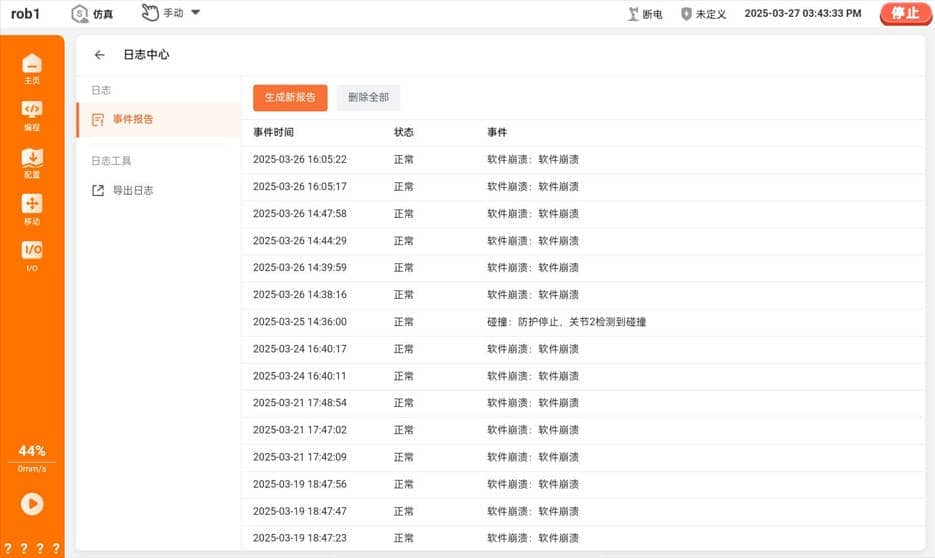
There are two ways to generate an event report. When the system monitors certain anomalies, it automatically generates an event report, such as on collision, protective stop, or software crash. In this case, you only need to wait for the event report generation to finish and then download and use it. You can also generate an event report manually.
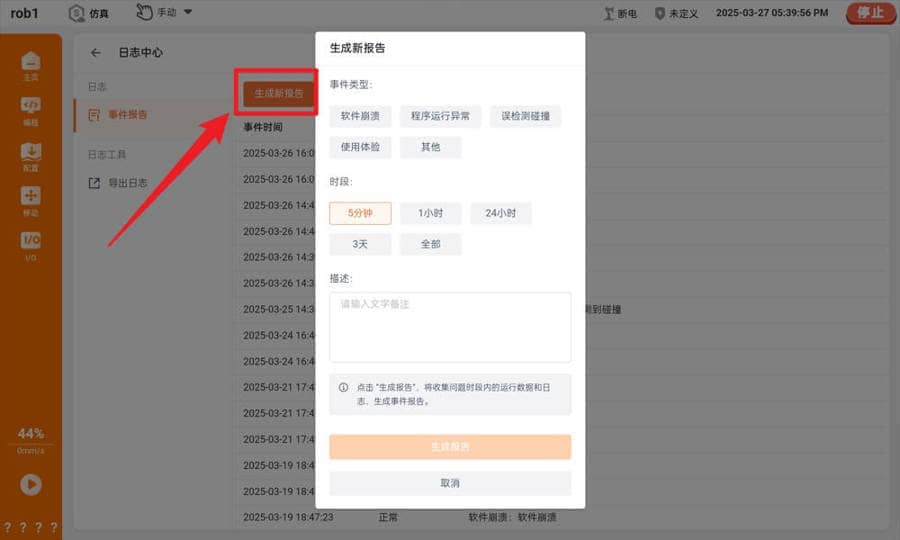
All event reports are displayed in the list.
2.2 Viewing an Event Report
Click an item in the event report list to view the details of the event report.

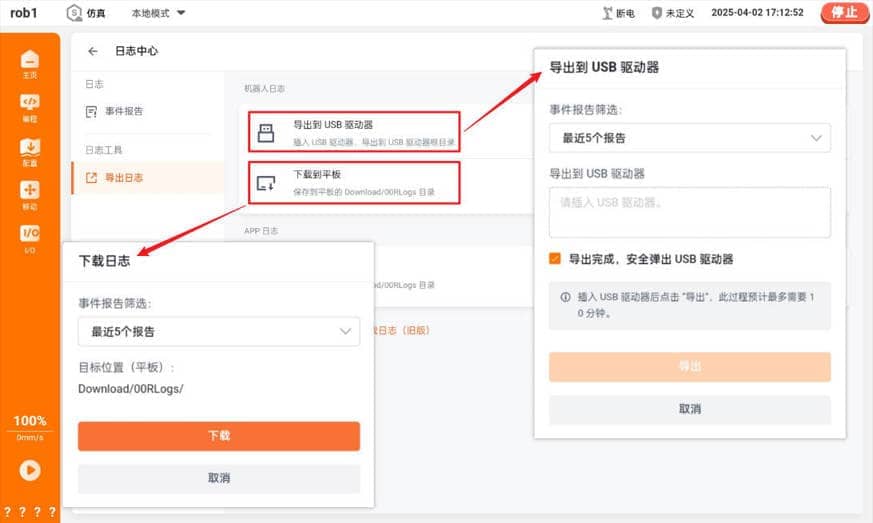
2.3 Downloading an Event Report
The Log Center provides multiple download methods. You can download in batches or individually, and download to a USB drive or to the tablet.
2.4 Saving App Logs to the Tablet
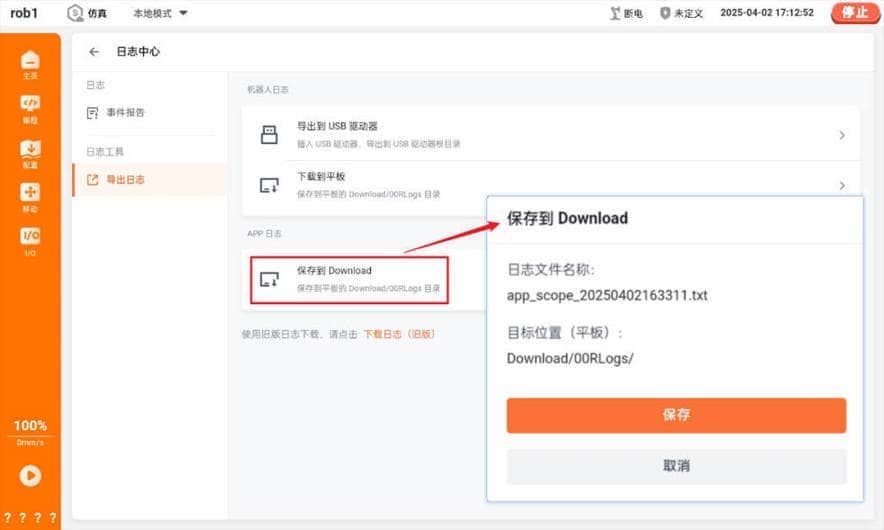
App logs are not stored in the control cabinet but on the tablet computer. Therefore, the event report does not include App logs. When a problem occurs with the App, you need to export the logs separately.
3 Floating Ball (Wired Teach Pendant Only)
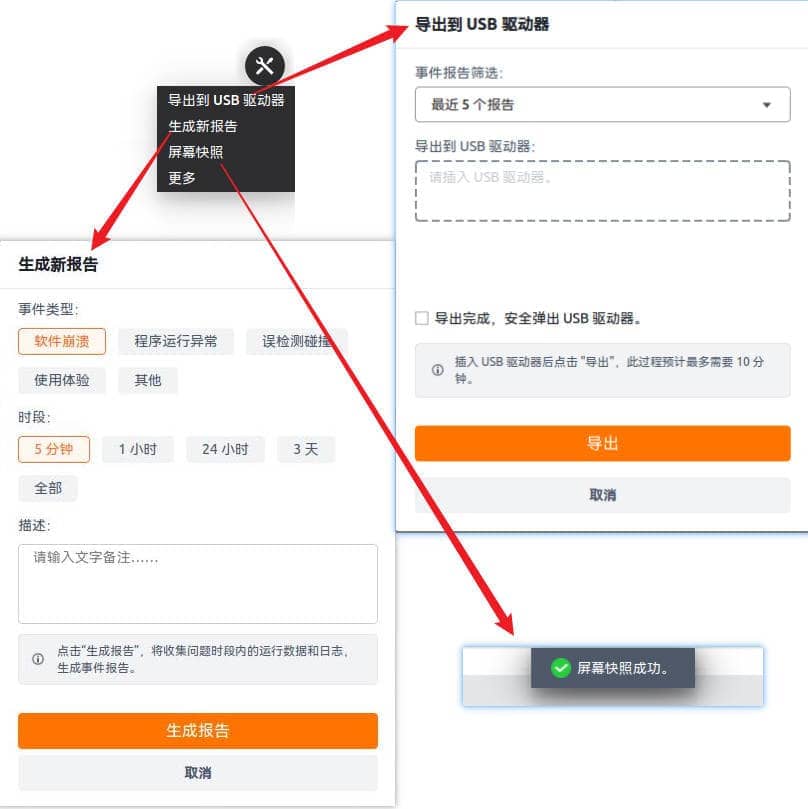
The Floating Ball is a feature unique to the wired teach pendant. It is automatically displayed at the edge of the screen when the system starts. The Floating Ball can:
- Quickly access the Log Center
- Quickly provide feedback when the wired teach pendant encounters an abnormal situation
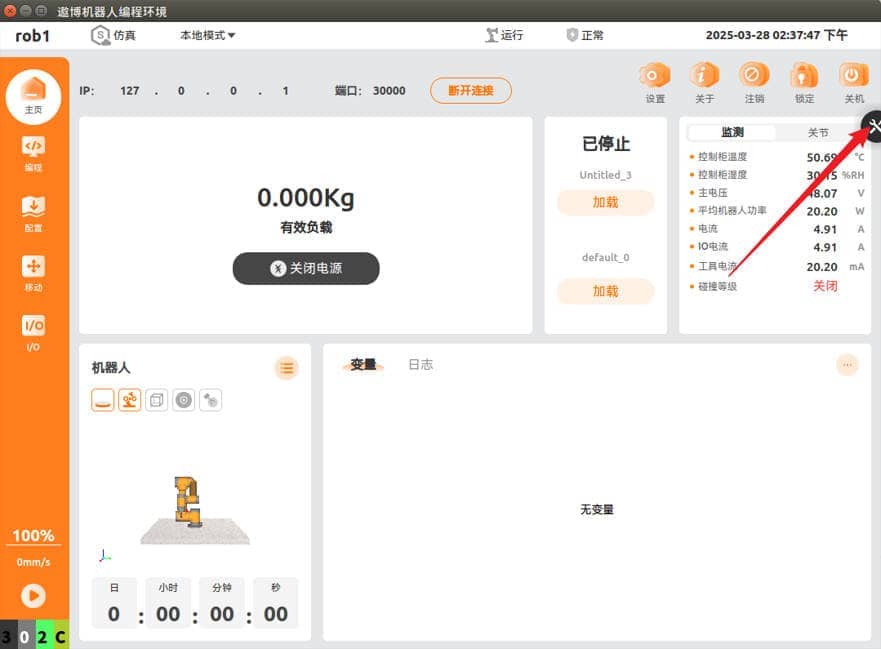
The functions of the Floating Ball are:
- Export to USB drive
- Generate a new report
- Screen snapshot
3.1 Screen Snapshot
The "Screen Snapshot" function can be used to capture system status and abnormal situations. Click "Screen Snapshot" to take a screenshot. All screenshots are automatically saved to the /root/Pictures/log_genie directory on the control cabinet, and the system saves up to 50 of the latest screenshots.
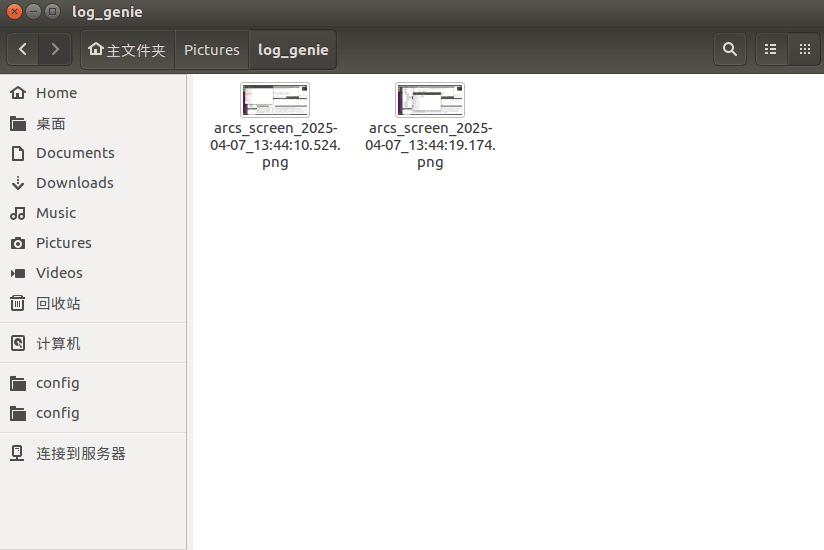
When an event report is generated, the system automatically packages the relevant screenshots into the report according to the specified time period, to facilitate subsequent problem analysis and diagnosis.