System Backup and Restore Tutorial
1. Verify Whether System Backup and Restore Is Supported
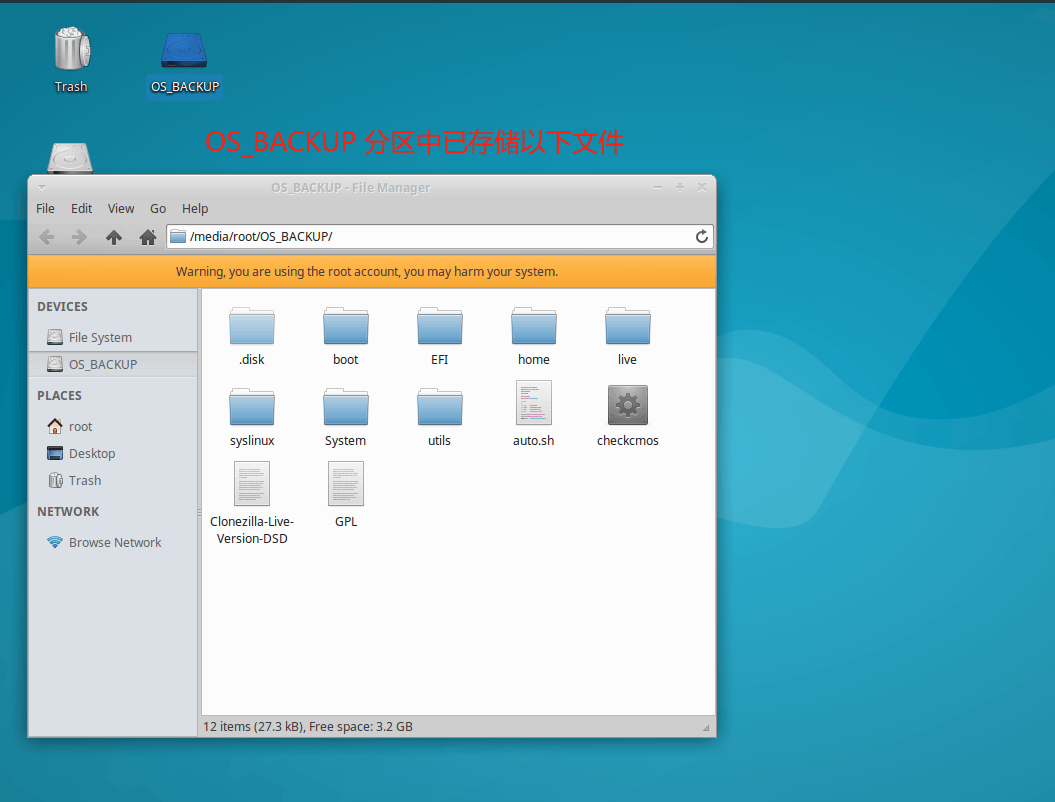
Xubuntu system. The desktop already has an OS_Backup partition, and opening the partition shows related files inside. As shown in the figure below
When the system starts, repeatedly press the Delete key to enter the BIOS screen. In the
Advancemenu, theOS Backup And OS Recoveryoption value isEnabled. Otherwise, you need to modify the option value and press the F10 key to save.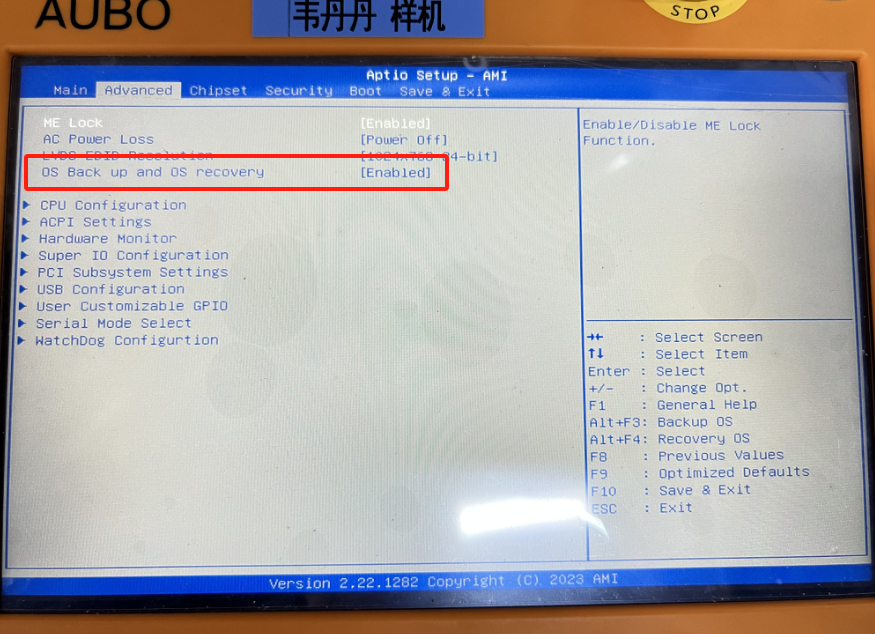
2. System Backup Steps
The hard disk areas participating in the backup can be selected by yourself. Refer to 5. Backup Partition Selection for the operation.
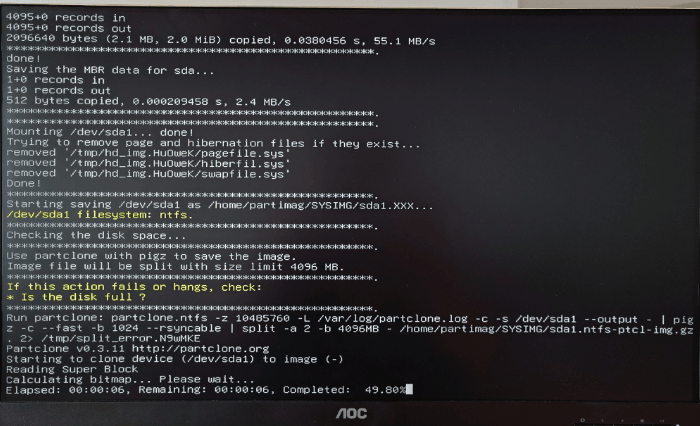
When the system starts, repeatedly press the Delete key to enter the BIOS screen. Use the key combination Alt + F3, click Confirm, and the computer automatically restarts and begins the backup.
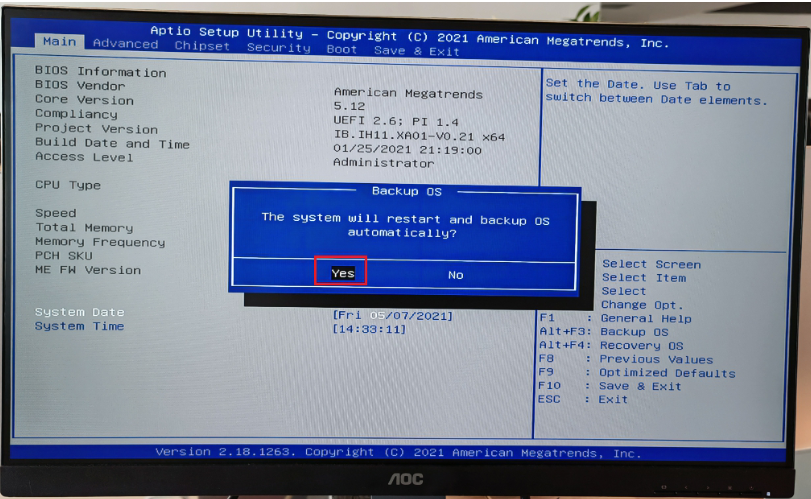
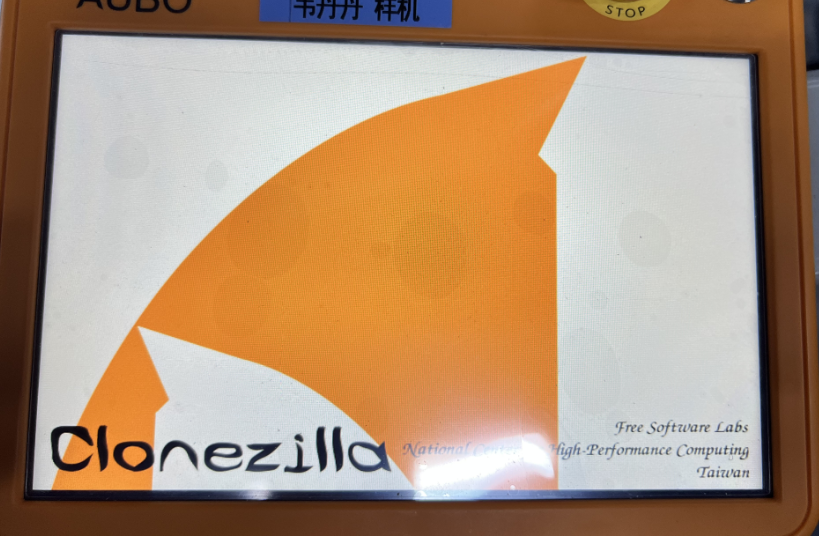
After the following screen appears, no further operation is needed. The system automatically starts the backup and automatically restarts into the system after the backup is complete.
3. System Restore Steps
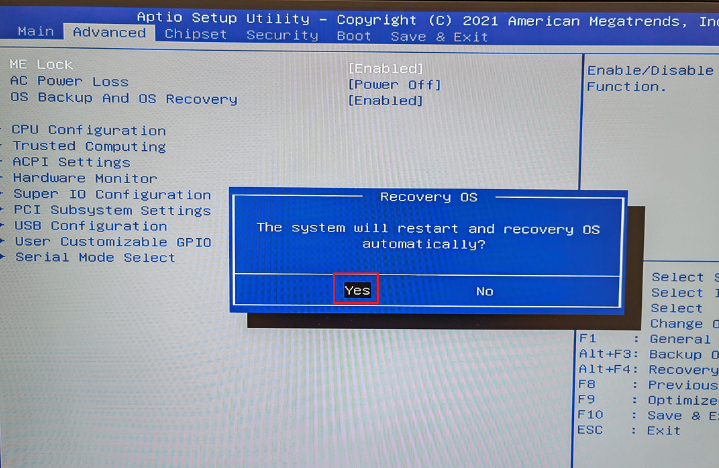
When the system starts, repeatedly press the Delete key to enter the BIOS screen. Use the key combination Alt + F4, click Confirm, and the computer automatically restarts and begins the restore.
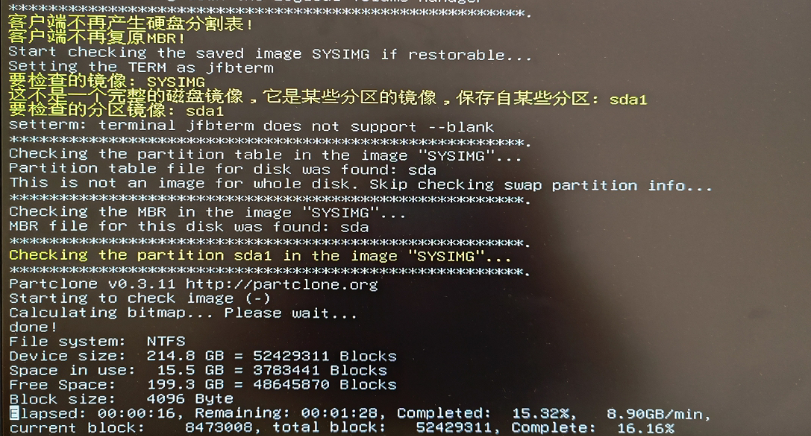
After the following screen appears, no further operation is needed. The system automatically starts the restore and automatically restarts into the system after the restore is complete (the restore takes about 5 to 10 minutes, depending on the hardware configuration; restoring to an SSD takes less time than to a mechanical HDD).
4. Restore Using the Button
With the control cabinet powered off, use a pen tip (a sharp object) to press and hold the
restore buttonwithout releasing it. While holding it, press the power button to power on. After the startup animation appears, release the restore button. The system automatically starts the restore and automatically restarts into the system after the restore is complete.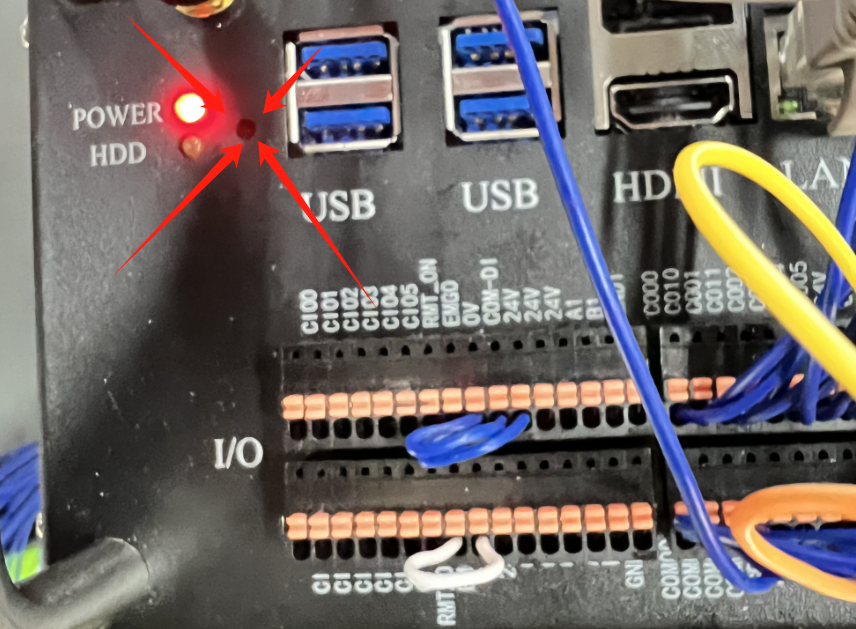
5. Backup Partition Selection
Check the current hard disk partition layout. Enter
fdisk -lin the terminal./dev/sda4 is the area where the backup is stored and cannot be backed up. The other partitions can be backed up.
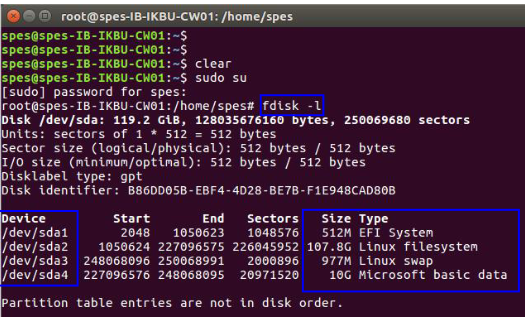
Modify the script files, namely the backup.cfg and restore.cfg scripts in the OS_Backup/EFI/boot directory.
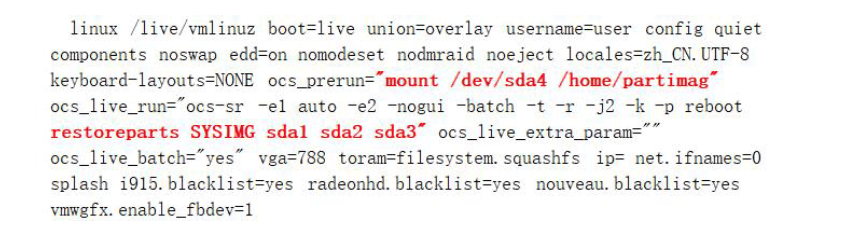
In the OS_Backup/EFI/boot/backup.cfg file, the part marked in red in the figure below indicates that the three partitions sda1, sda2, and sda3 are about to be backed up, booting from the sda4 partition.
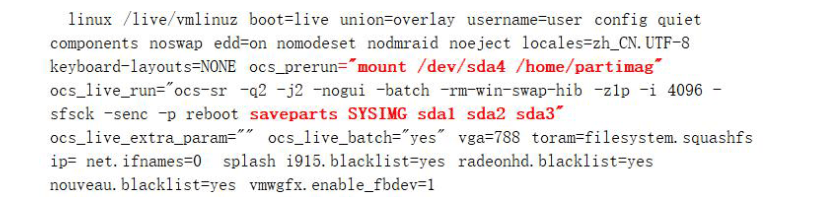
The OS_Backup/EFI/boot/backup.cfg file is the same; modify the following content.