
Mobile Configuration for the AUBO Virtual Machine
1. Installing the Virtual Machine and ARCS
For instructions on installing the virtual machine and installing ARCS in the virtual machine, please refer to: https://docs.aubo-robotics.cn/application_notes/06-arcs-virtual-machine/
2. Installing the AuboStudio APP on a Mobile Device
The AuboStudio APP is a mobile control software developed by AUBO specifically for AUBO robot arms. It currently supports only tablet Android systems. When AUBO products ship from the factory, the AuboStudio APP is installed on the tablet computer that comes with the robot arm. Users can also install it on other mobile devices as needed. For the software installation environment requirements, please refer to "Table 2-1 AuboStudio APP Installation Environment Requirements".
2.1 AuboStudio APP Installation Instructions
Because different mobile devices have system differences, the following only describes the necessary installation steps, for reference only.
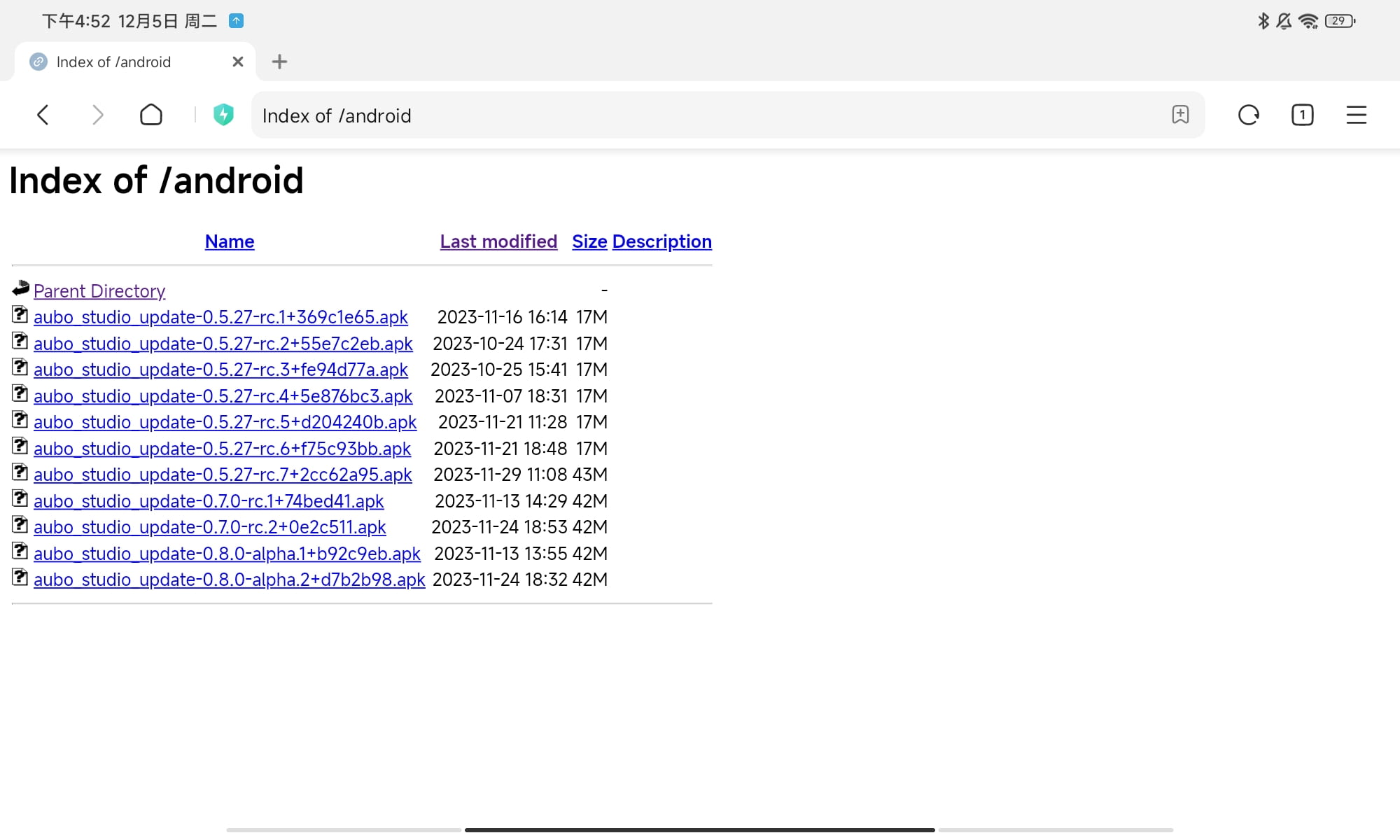
Download or import the AuboStudio APP client installation package (
.apkfile) to the mobile device.- Client installation package download link: https://download.aubo-robotics.cn/android/
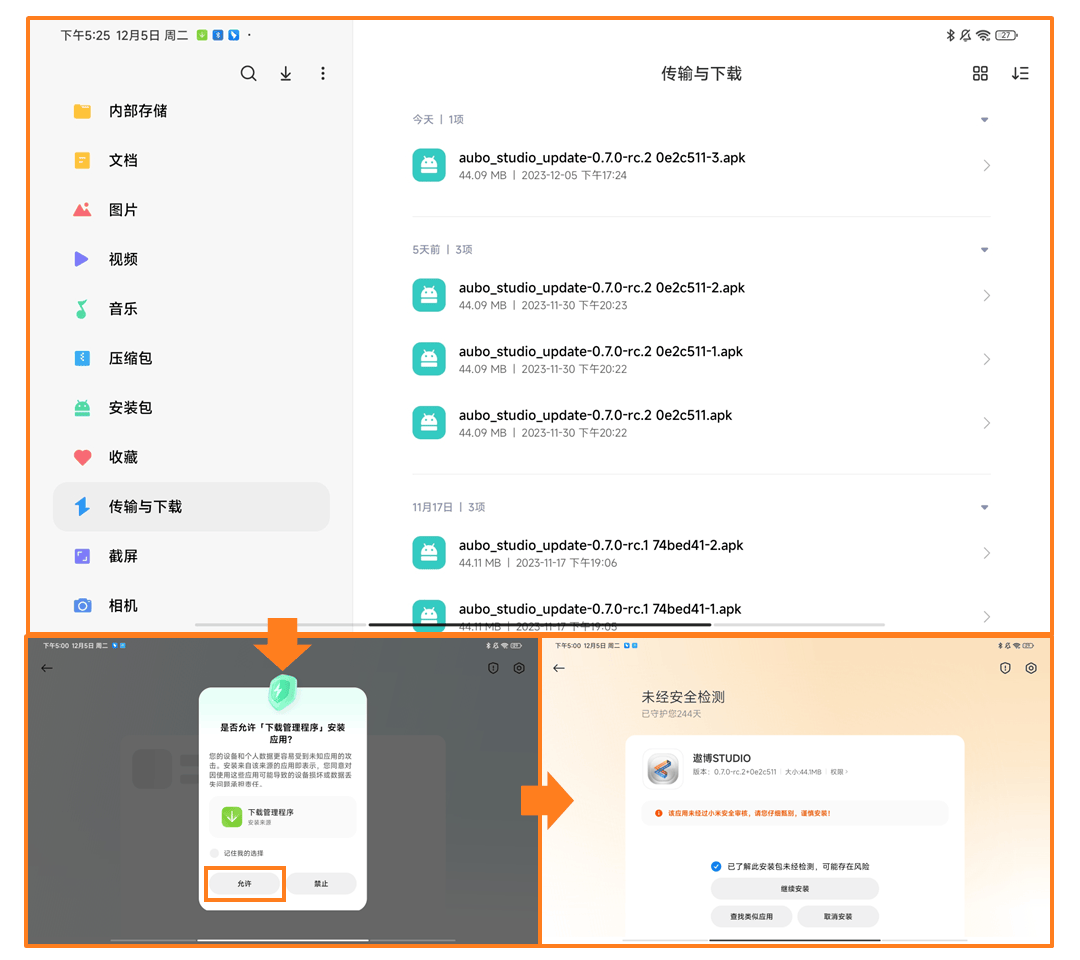
Open "File Manager" on the mobile device, find the downloaded or imported AuboStudio APP client installation package, tap the installation package to enter the software installation steps, and install it following the on-screen prompts.
Note: The mobile device system may pop up a prompt asking whether to allow the ⌈Download Manager⌋ to install apps; tap 【Allow】.
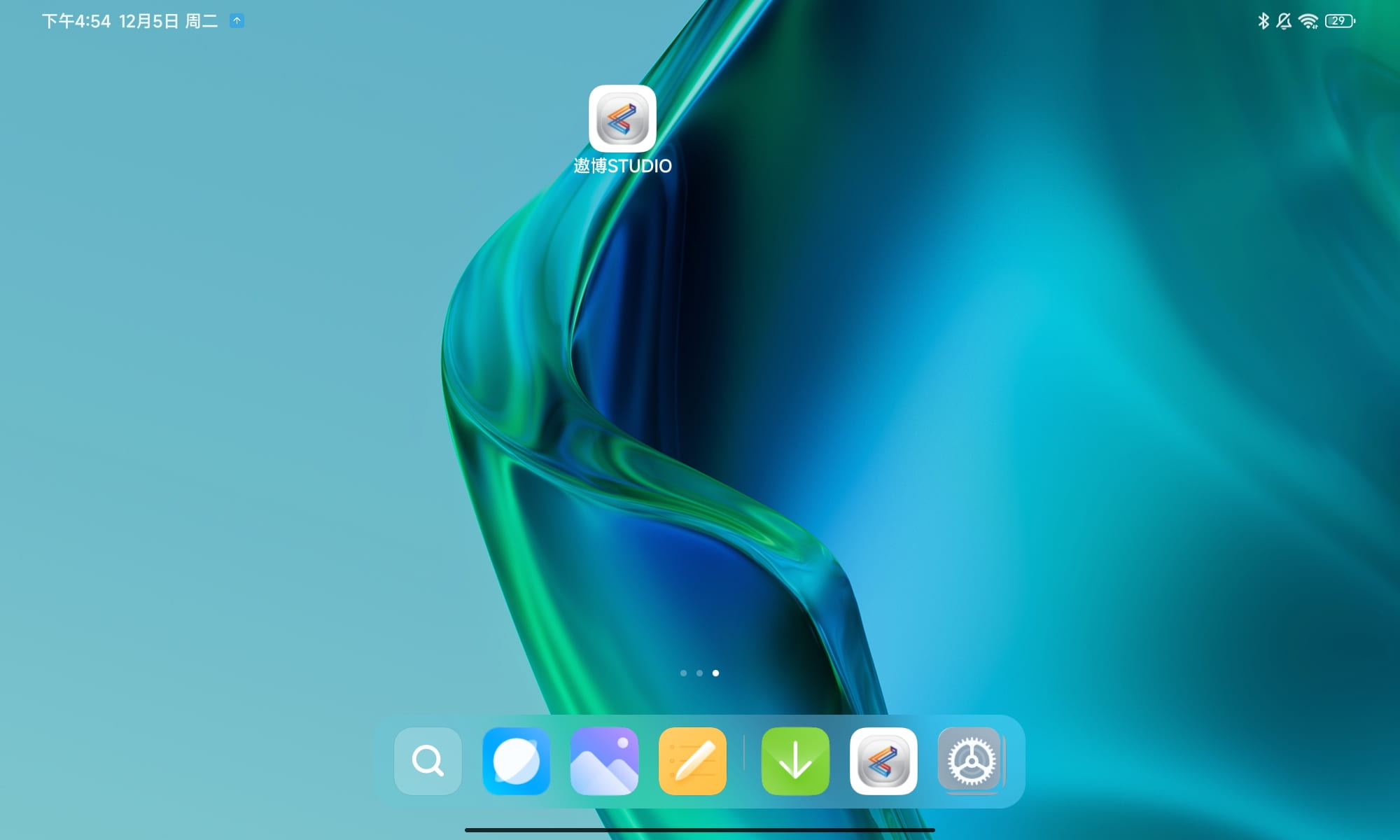
After installation is complete, the AuboStudio APP icon appears on the mobile screen. Tap the icon to open the software.
Note: The AuboStudio APP needs to obtain permissions such as "Read and write device storage", otherwise the software may not work properly.
2.2 AuboStudio APP Installation Environment Requirements
| Category | Name | Requirement | Remarks |
|---|---|---|---|
| Hardware | CPU | armeabi-v7a: ARM processors of the 7th generation and above (ARM 32-bit) | Most phones currently on the market use this CPU type |
| armeabi-v8a: 8th generation, 64-bit ARM processors (ARM 64-bit) | Devices released in the last two years use this CPU type | ||
| x86 | A small number of tablets use x86. When Intel x86 is selected in the AS emulator, an x86 processor is used, and other common third-party emulators usually use x86 | ||
| Display | Minimum resolution 1280*800 px Recommended screen ratio 8:5 | - | |
| Software | Operating system | Android 10 and above | - |
3. Connecting the Virtual Machine to the Mobile Device
Open "Settings > WLAN" on the mobile device, select the currently connected network, and view the mobile device's IP address (for example, the current mobile device IP address is
172.19.10.239).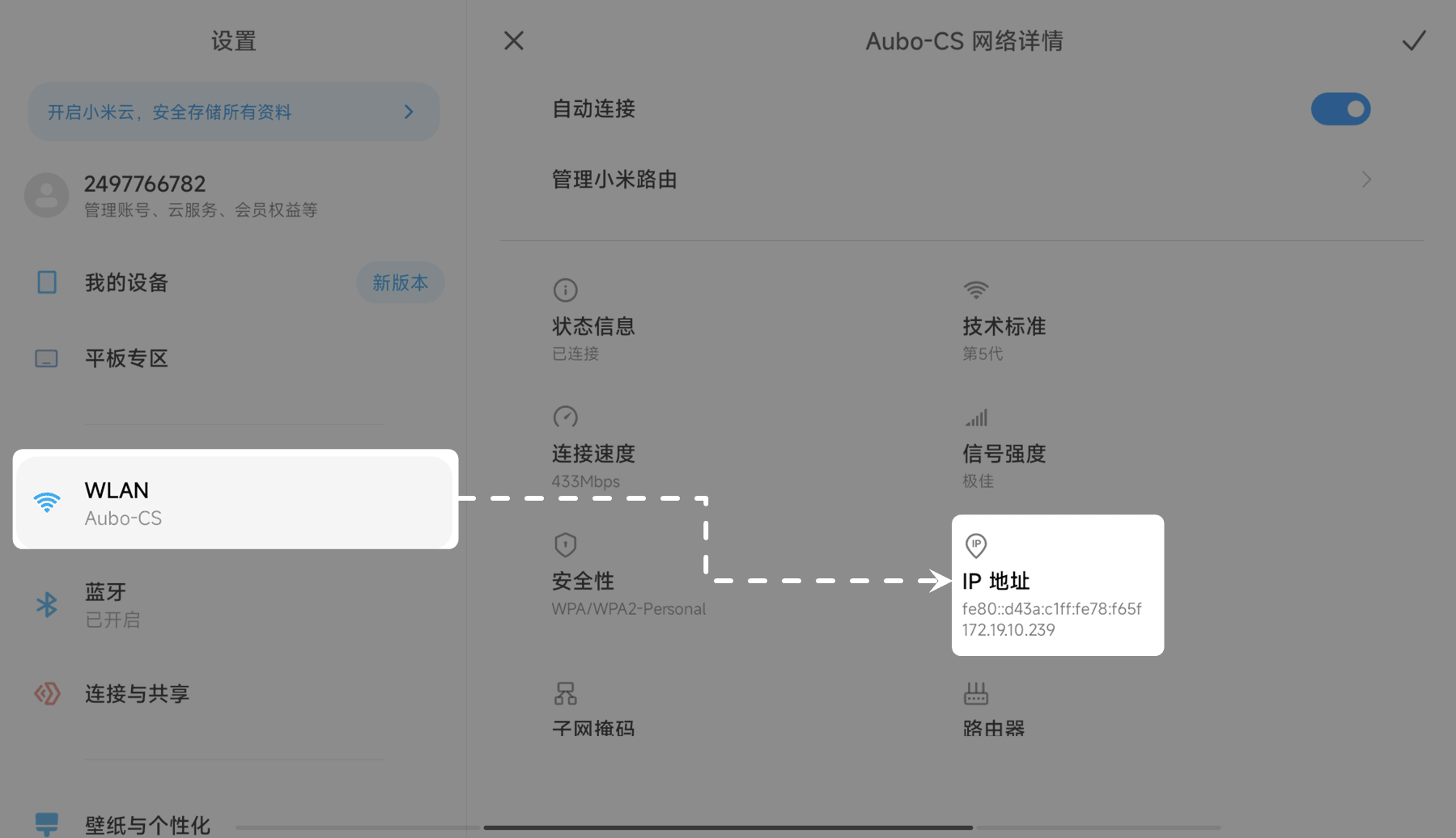
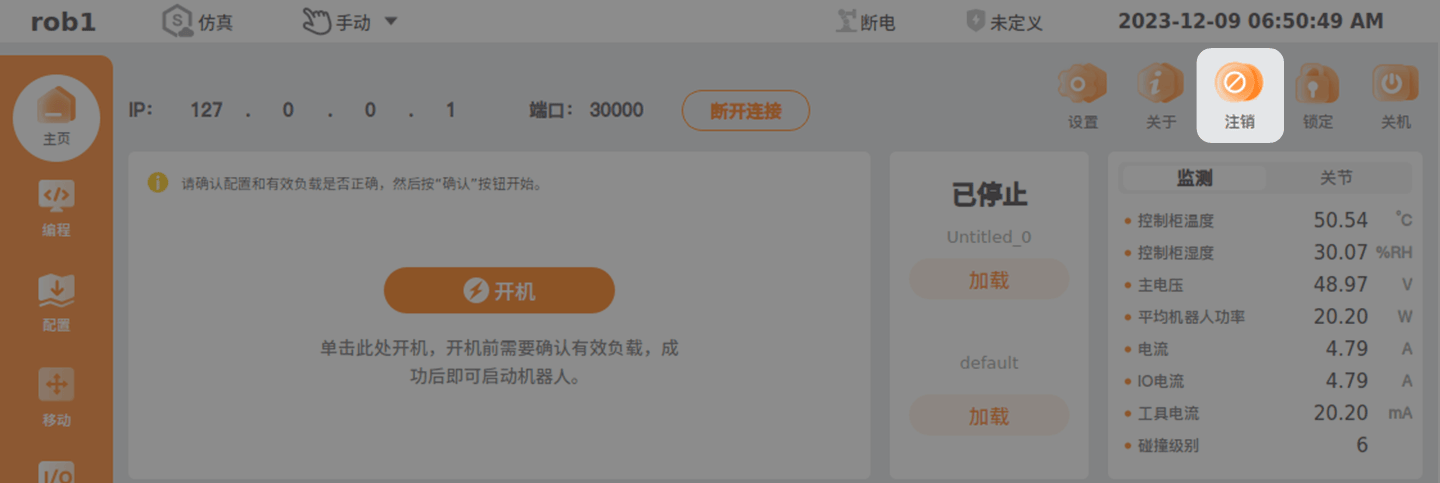
Open VMware Workstation, start the virtual machine, and after entering ARCS, click 【Log out】 to enter the system interface.
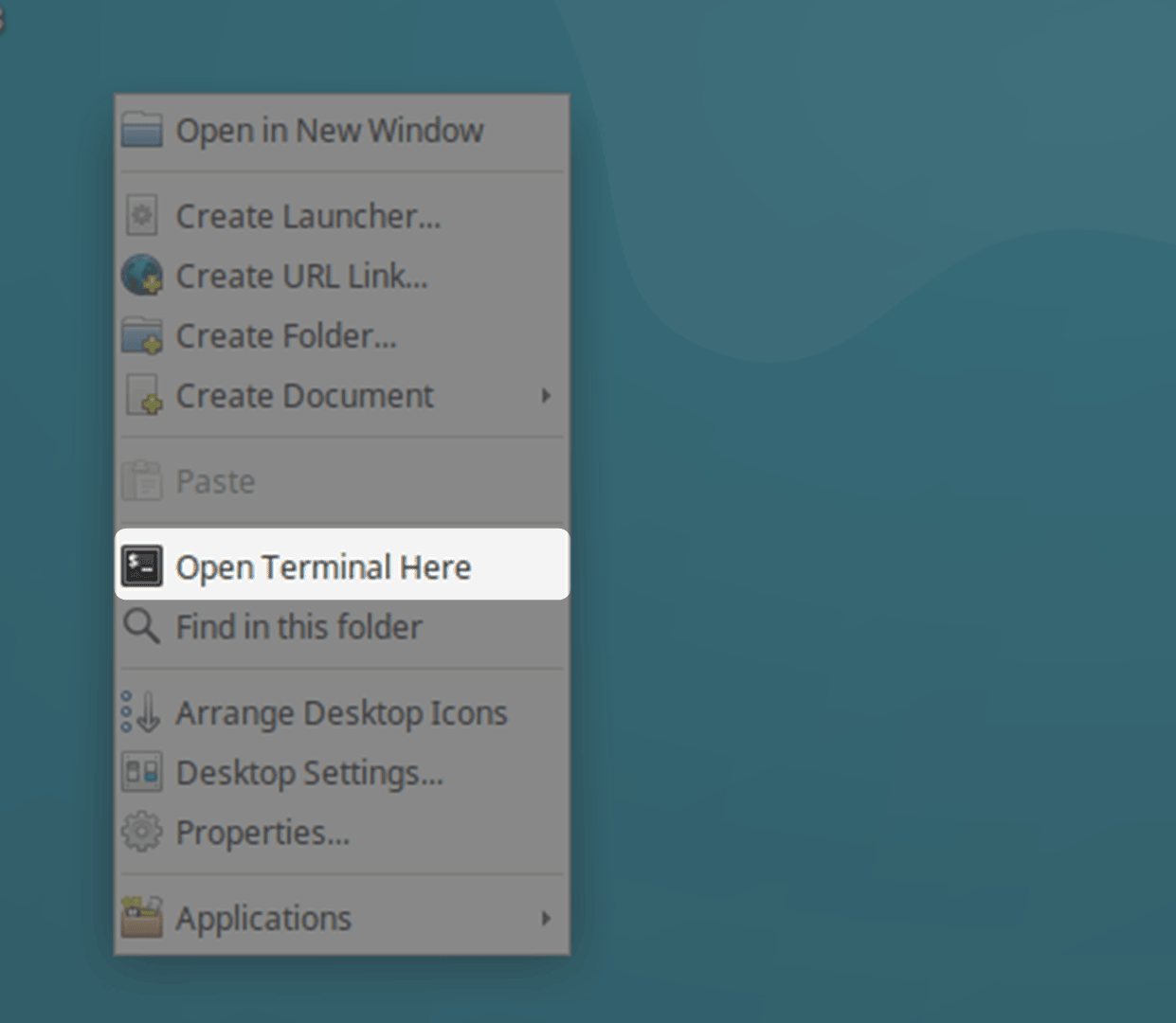
Right-click to bring up the drop-down menu, select "Open Terminal Here", and open the 【Terminal】 window.
Enter the command
ifconfigin the 【Terminal】 and press 【Enter】 on the keyboard to view the virtual machine IP address (for example, the current virtual machine IP address is172.19.10.206).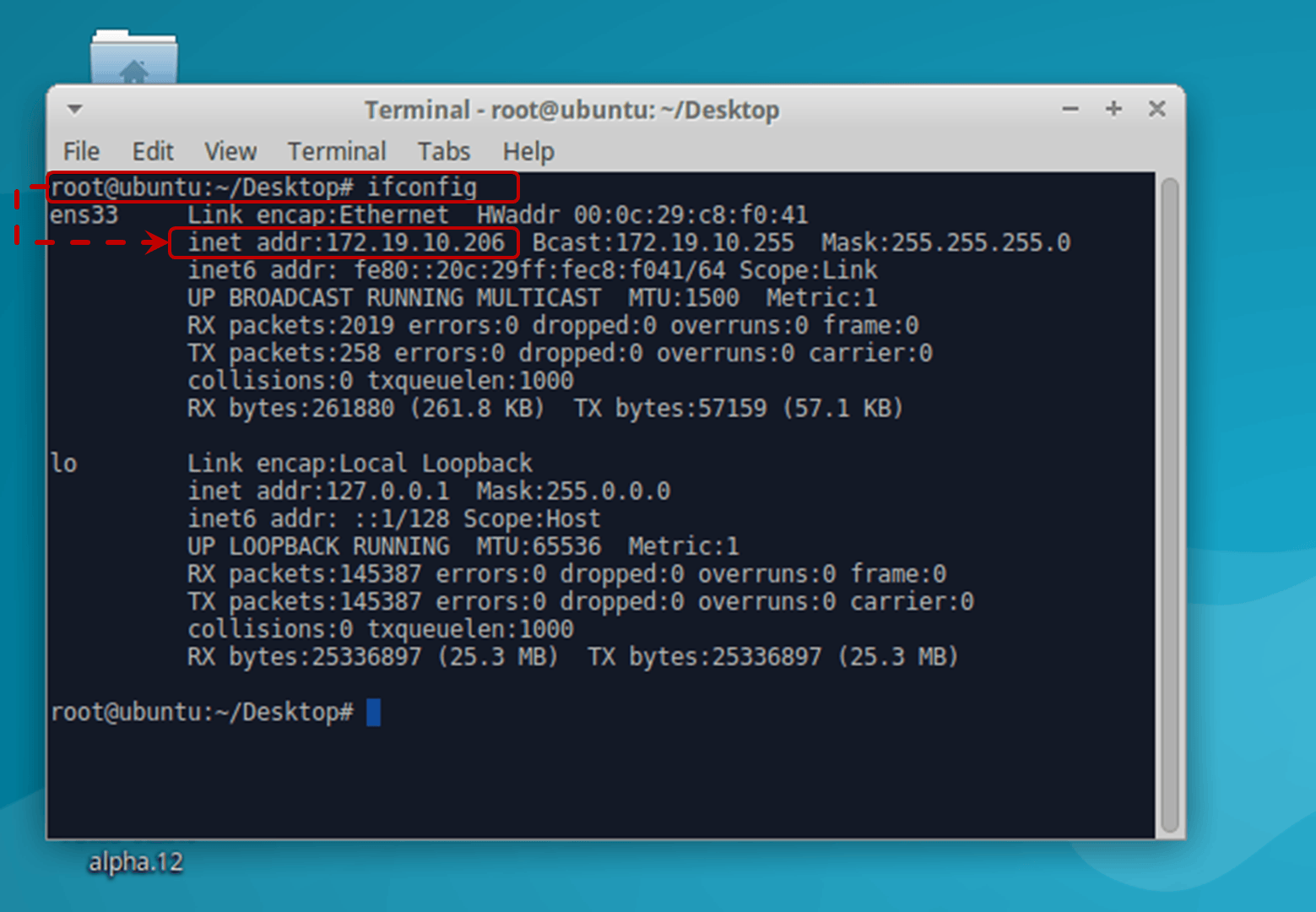
Enter the command
ping 172.19.10.239in the 【Terminal】 and press 【Enter】. When the 【Terminal】 window displays the following, it means the mobile device can connect to the virtual machine.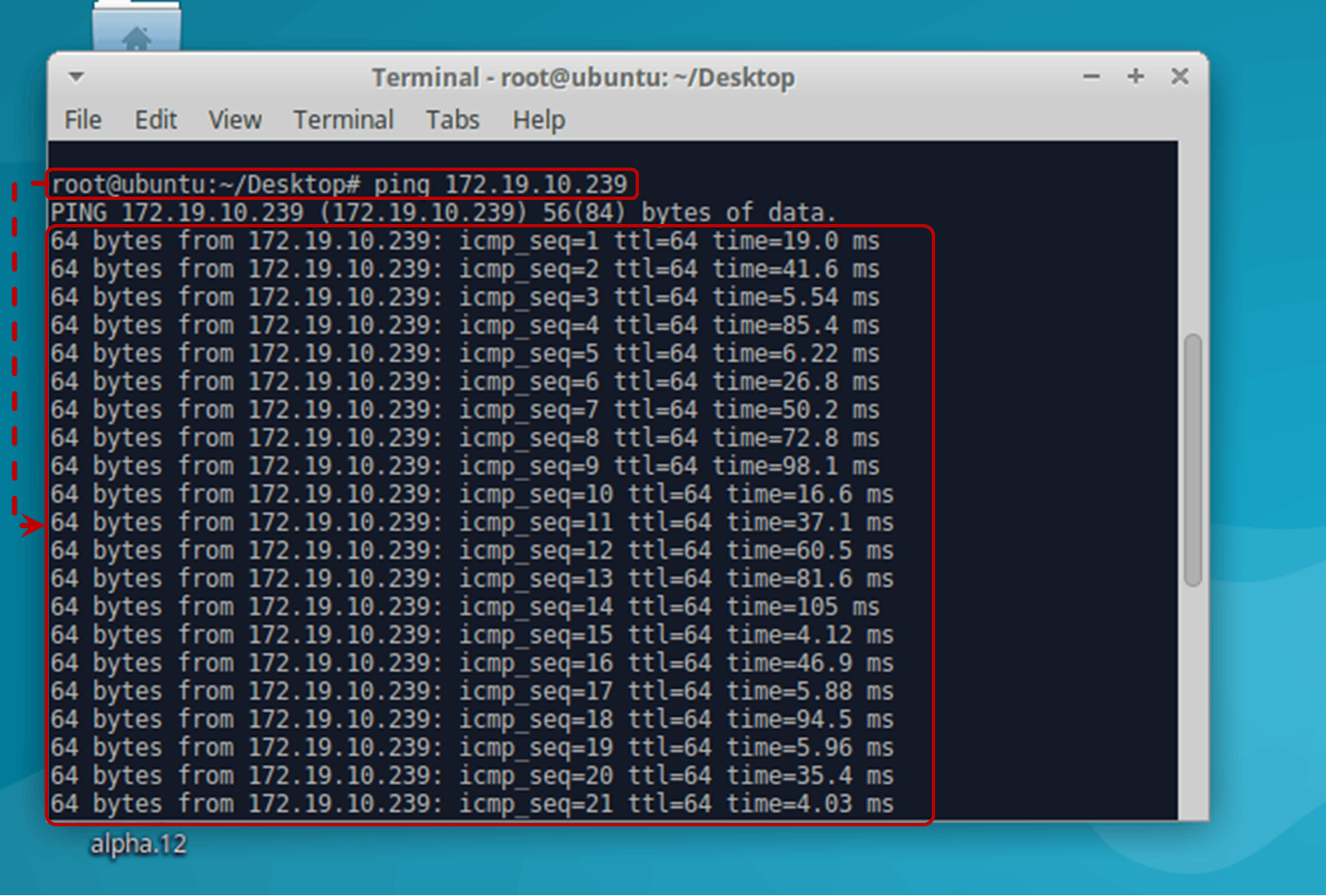
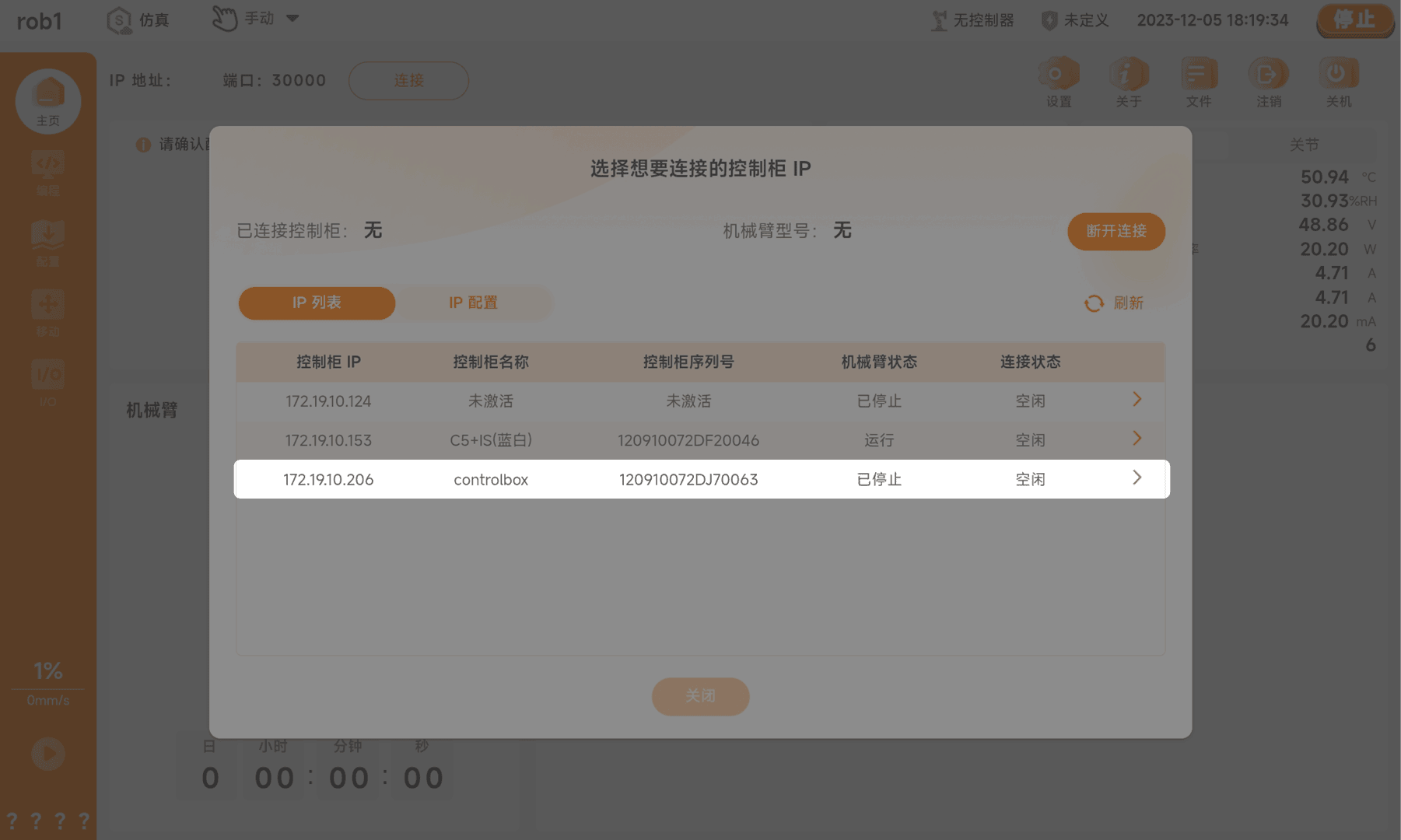
Open the AuboStudio APP on the mobile device; the 【Control Cabinet Connection】 window pops up. When the virtual machine IP (
172.19.10.206) appears under "Control Cabinet IP" in the 【IP List】, tap that entry to connect to the virtual machine ARCS.Note: If the virtual machine IP does not appear in the list, try tapping the 【Refresh】 button to refresh the list.
4. Troubleshooting: Mobile Device Cannot Connect to the Virtual Machine
If the mobile device cannot connect to the virtual machine, it may be because the virtual machine's network is not configured as "Bridged mode". Refer to the following steps to change the virtual machine's network configuration, then try connecting the mobile device to the virtual machine again.
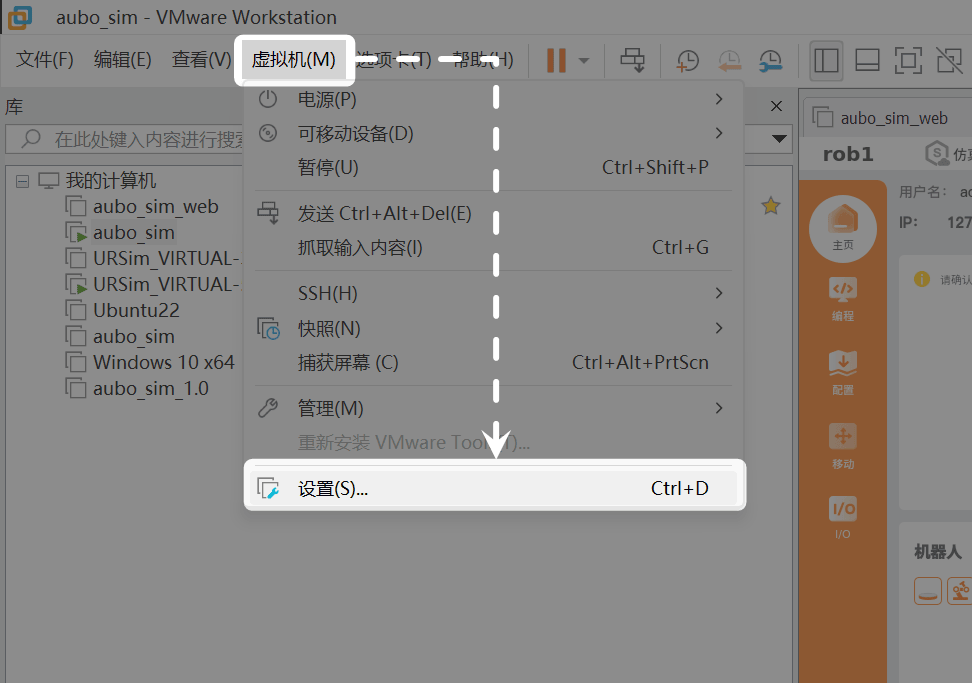
Open VMware Workstation, select the virtual machine, click "Virtual Machine > Settings", and open the 【Virtual Machine Settings】 window.
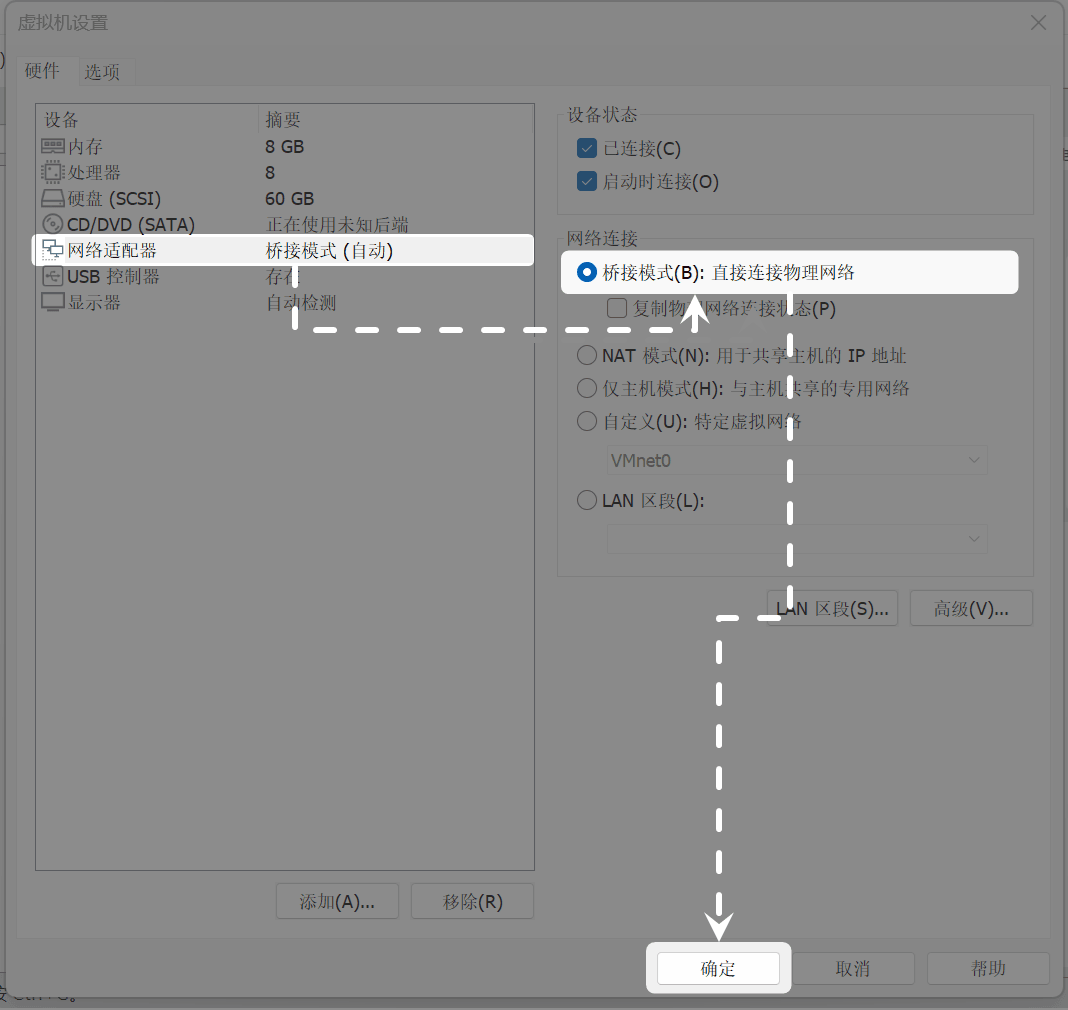
Click "Network Adapter", select "Bridged" for "Network connection", and click 【OK】.
Restart the virtual machine.