
OPS System Installation Instructions
1. Applicable Versions
The OPS system applies to the following versions:
- Wired teach pendant: ARCS 0.31.0-rc.1 and above
- Wireless teach pendant: App 0.9.3-rc.1 and above
2. OPS System Overview
OPS is a dedicated operations and maintenance system running on the AUBO control system. It supplements AuboStudio with the following two modules:
- App Store: Manages the lifecycle of controller applications, supporting the installation, version management, uninstallation, and online/offline upgrade of applications from different channels.
- Log Center: Replaces the traditional way of exporting all logs, streamlines and unifies the log directory structure, and provides real-time packaging and one-click retrieval of abnormal logs to improve troubleshooting efficiency.
3. OPS System Download
The OPS system is released as an installation package or a script file. Download and import it into the controller, then install it through the software update function of the teach pendant. Download links:
Note:
- The OPS system provides two types of installation files:
.runis the complete installation package, and.shis the script file. The.shfile of the official release is recommended for simpler operation. - Insufficient hard disk space will cause the installation to fail. Make sure sufficient disk space is available beforehand.
4. OPS System Installation
Refer to Program and File Management to import the downloaded OPS installation package into the controller.
On the wireless teach pendant, click "Settings > System > Update".
Note:
If you are using a wired teach pendant, click "Settings > System > Software Update".
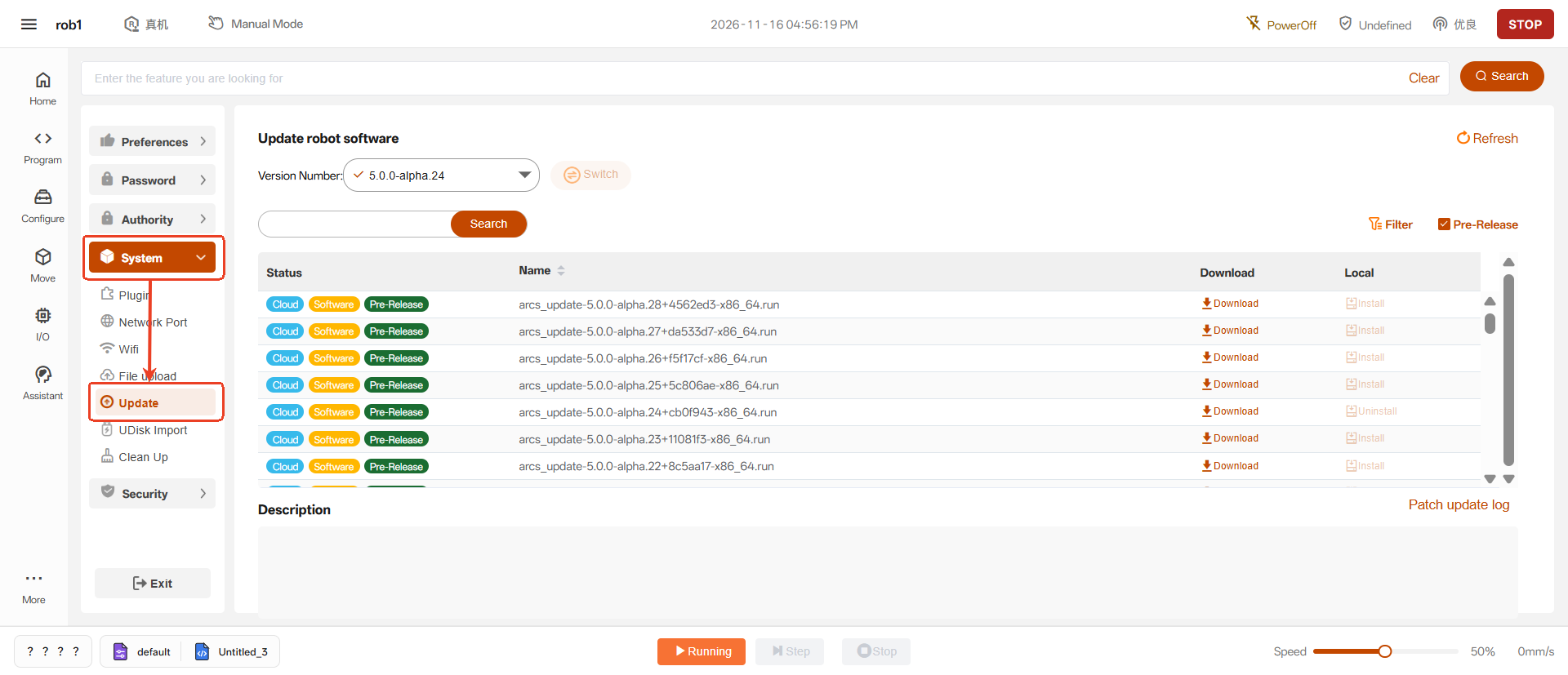
On the [Update] page, click [Filter], select [Local] in Status, and click [Apply].
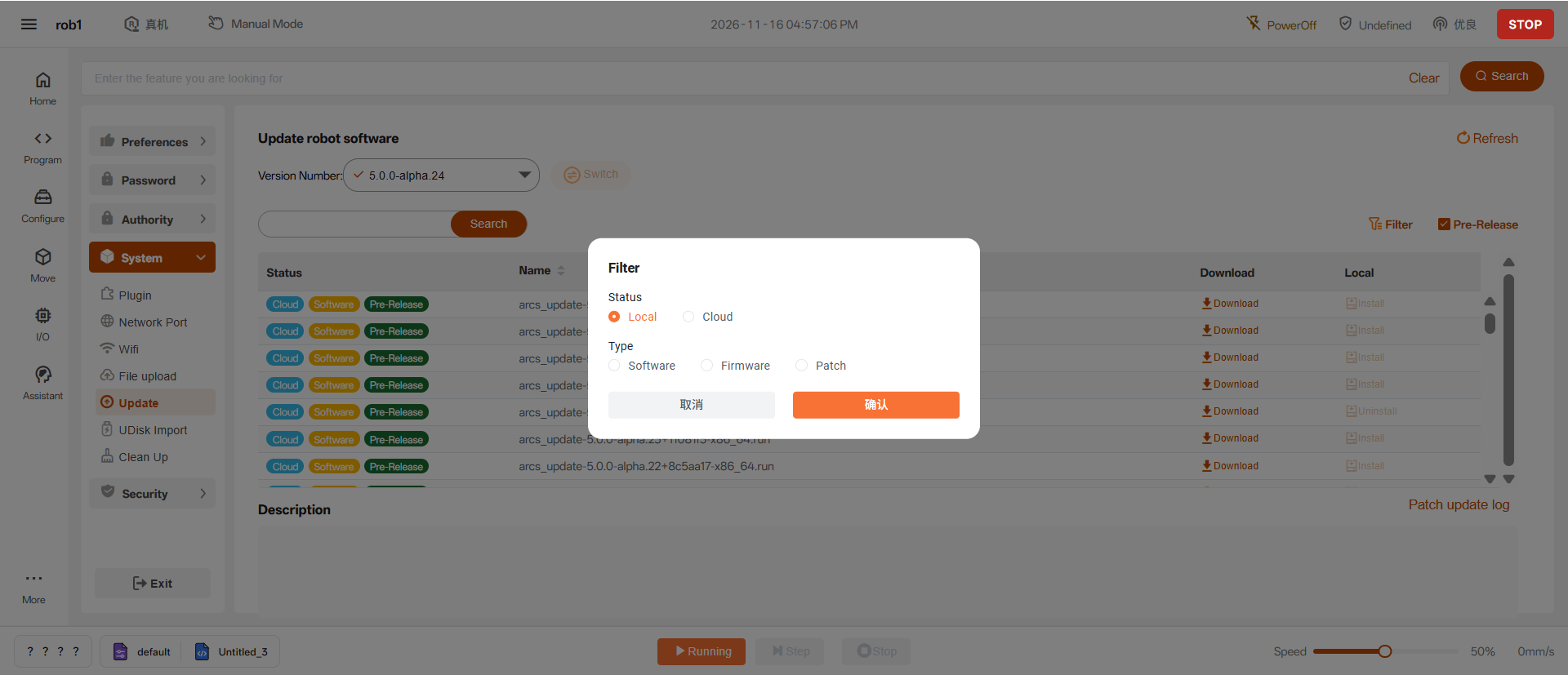
Note:
The image above shows the [Update] page of the wireless teach pendant. If you are using a wired teach pendant, perform this step on the [Software Update] page.
The OPS installation package imported into the controller is then displayed on the [Update] page. Click [Execute].
Note:
This installation uses the
.shscript file. To install the.runpackage instead, click [Install] on this page.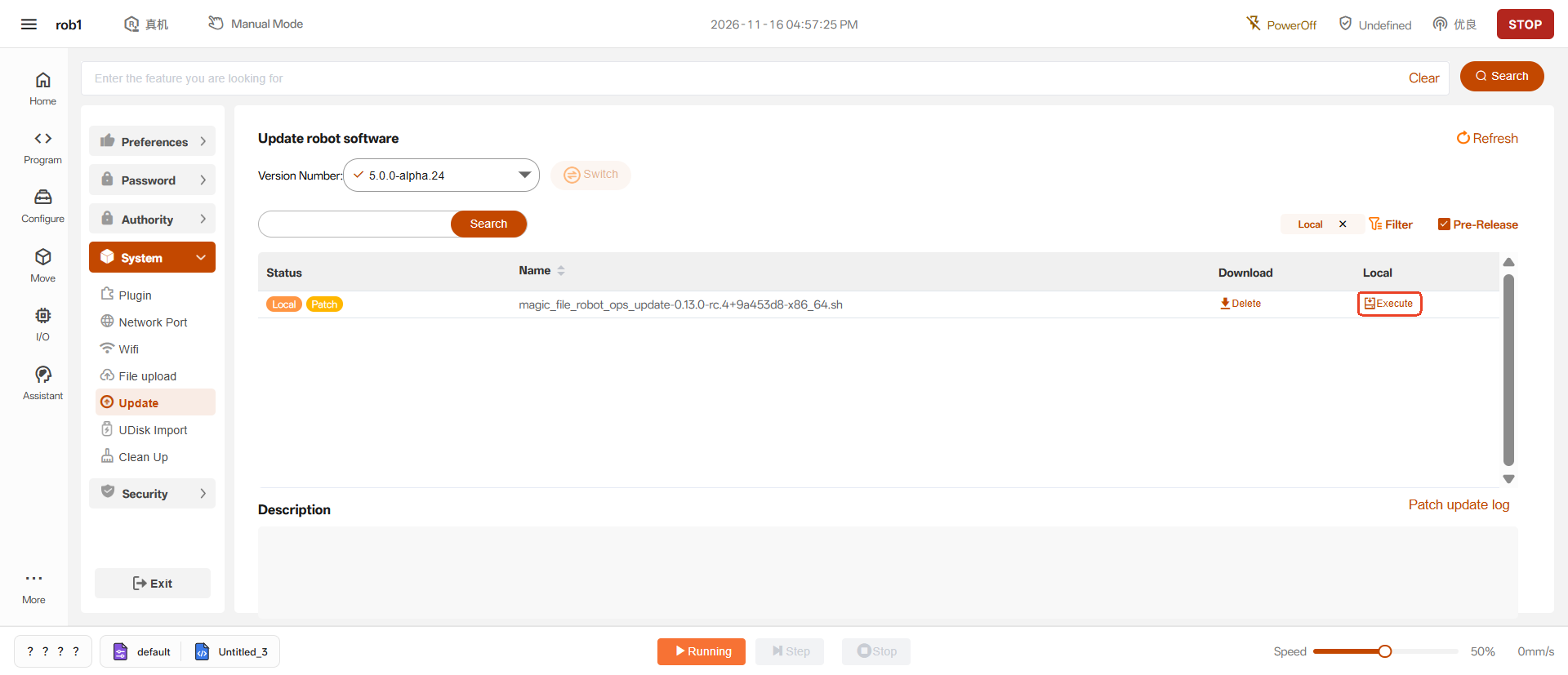
After confirming the information, click [Confirm] in the dialog box to start the installation.
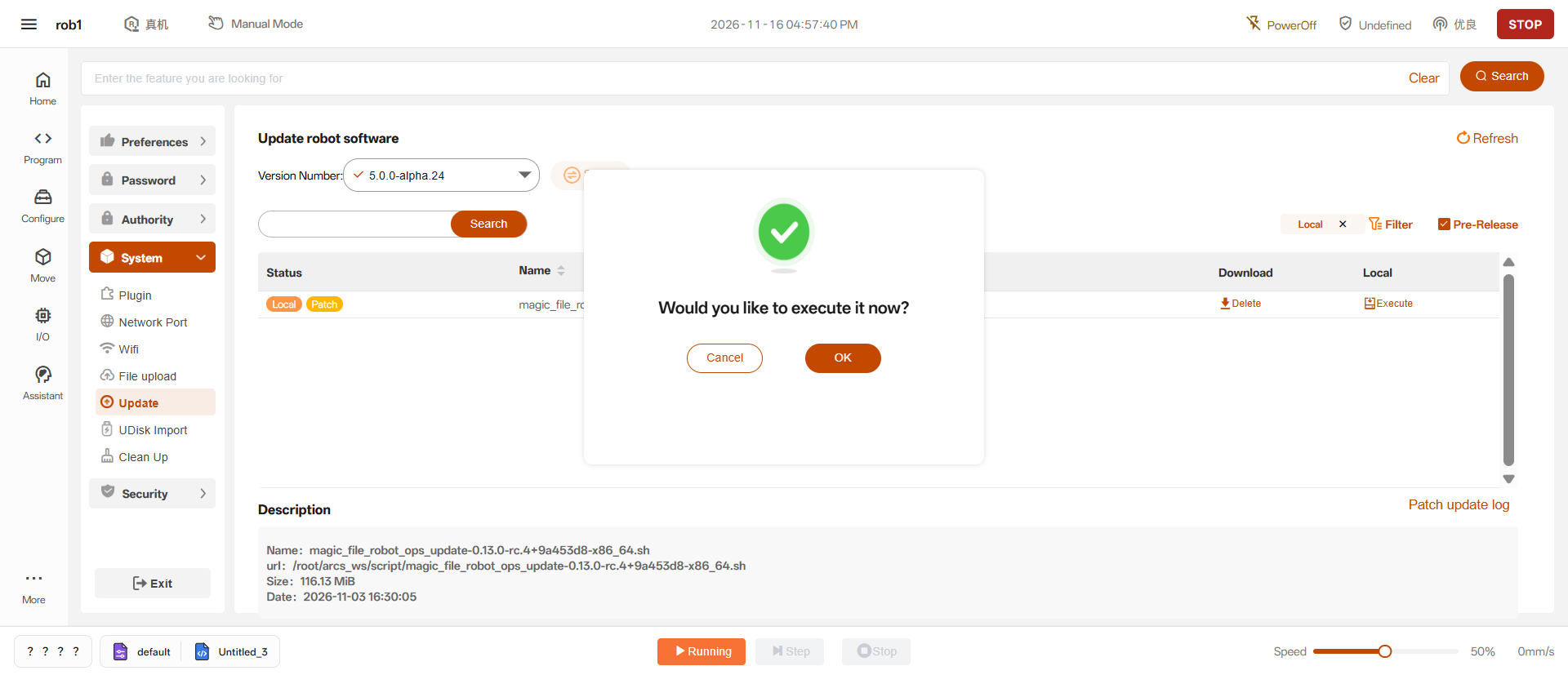
When [Completed] is displayed, click [Exit] and restart the controller.
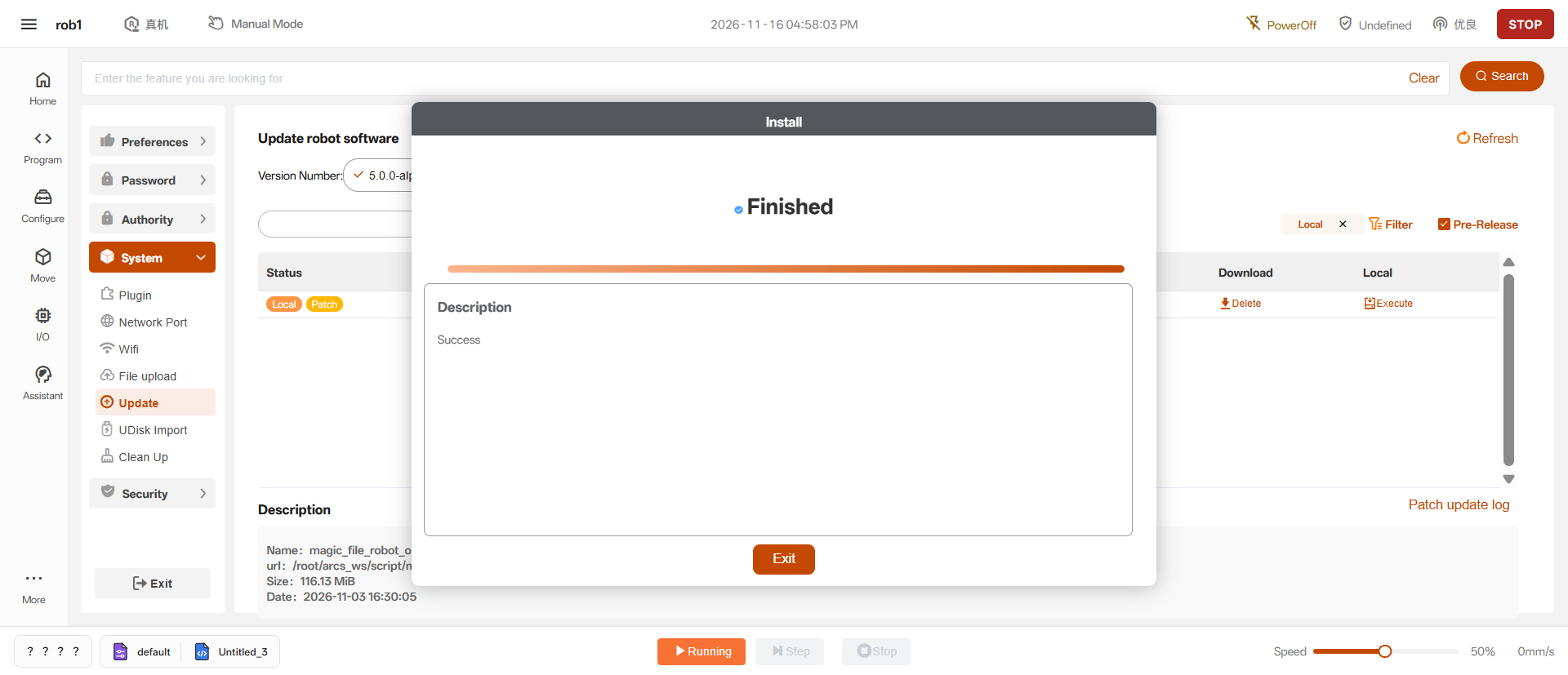
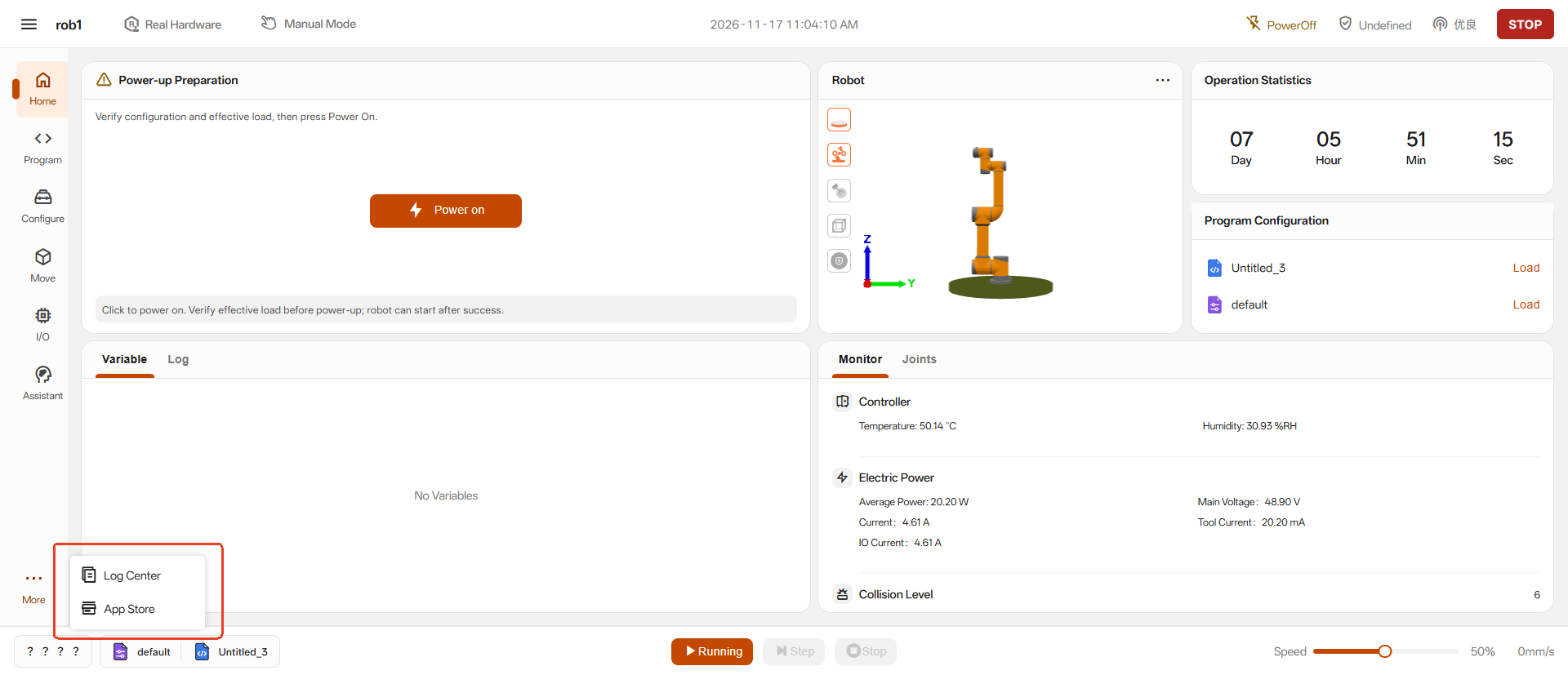
Restart the controller. On the home page of the teach pendant, click [More] in the lower-left corner to access the [Log Center] and [App Store] entries.
5. Version Upgrade Mechanism
The OPS system uses an overwrite upgrade mechanism. When a new version is released, there is no need to manually uninstall the old version; simply repeat the installation process:
- Obtain the latest
.runpackage or.shscript file from the OPS download page. - Repeat the OPS system installation steps in Section 4. The script automatically detects the path of the old version and overwrites it with the latest components and configuration updates.
- After the script finishes, restart the controller to switch to the new version.