18 ARCS Log Copy Guide
There are currently three ways to copy ARCS logs:
- Download logs through the ARCS software
- Copy logs directly to a USB drive
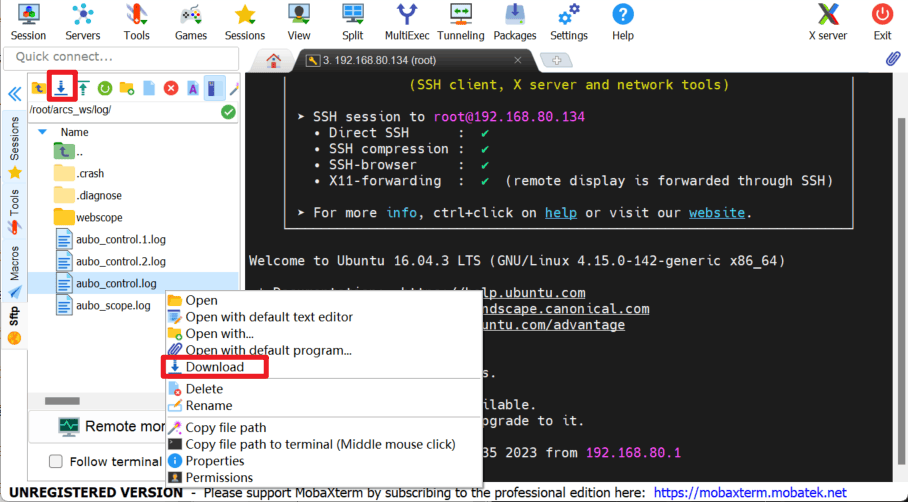
- Copy logs remotely through MobaXterm
1. Download Logs Through ARCS
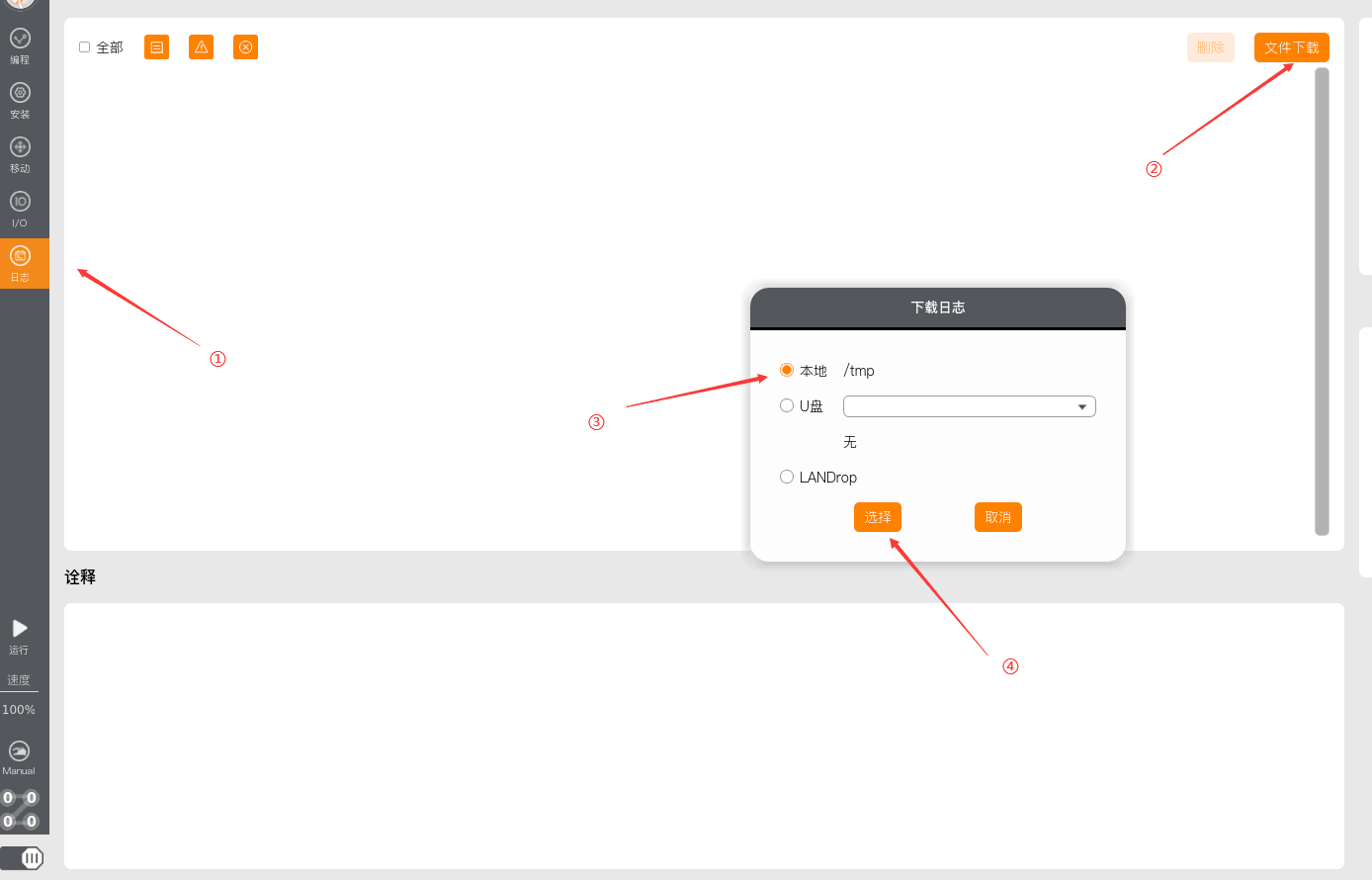
1.1 Download to Local /tmp
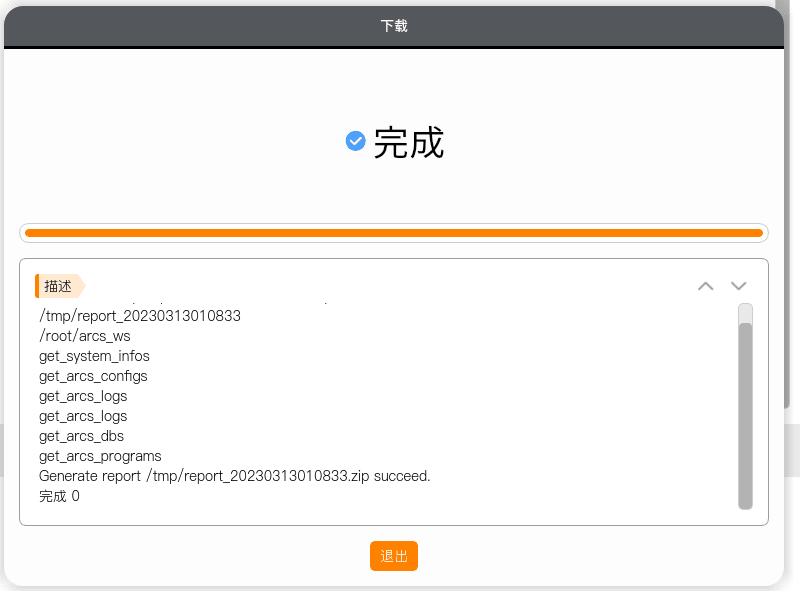
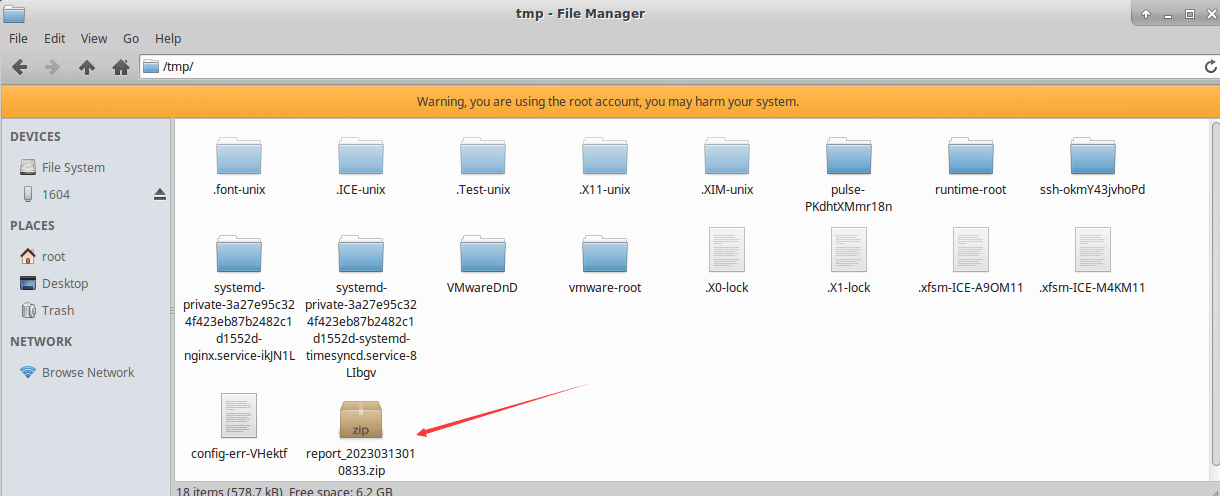
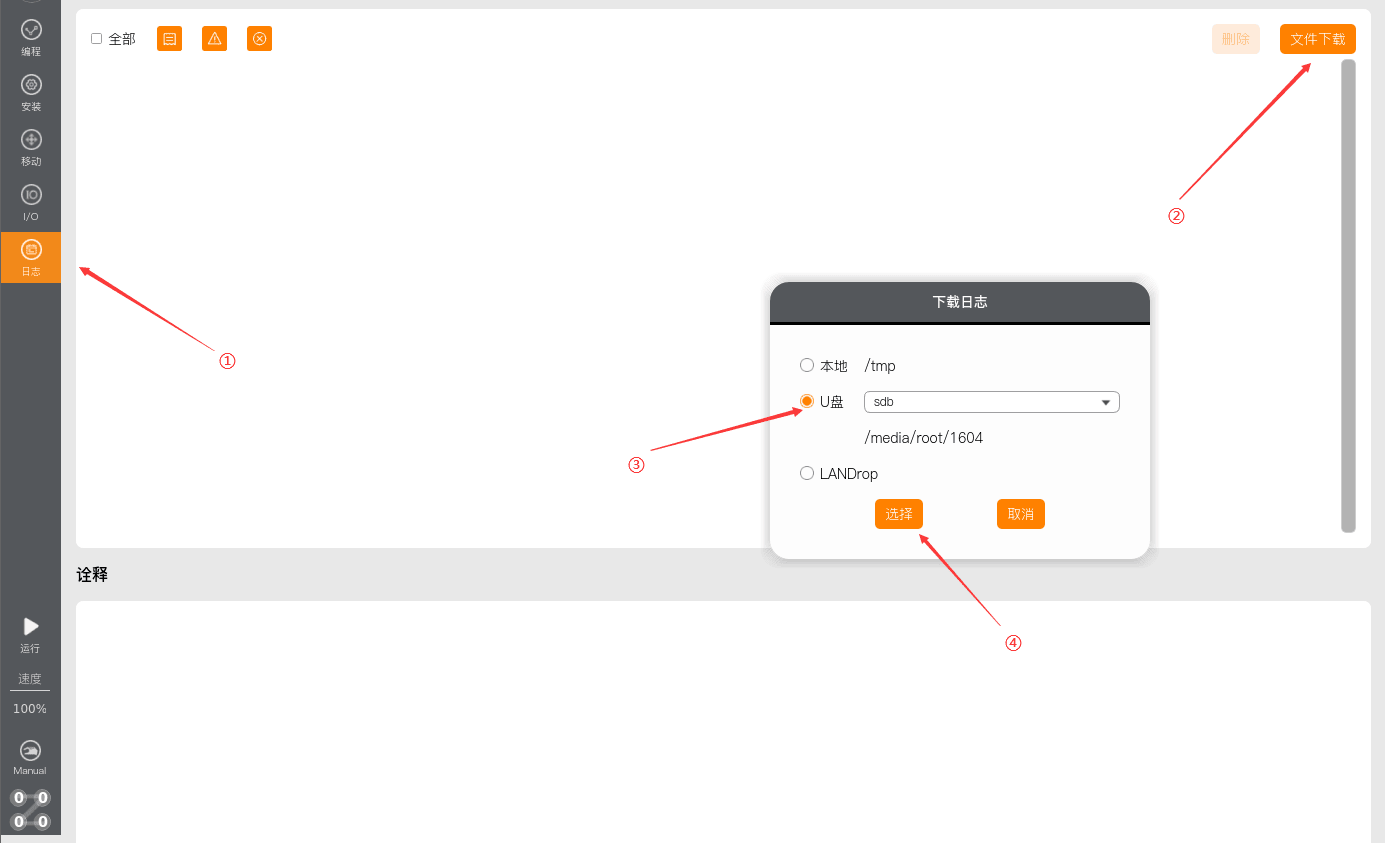
Click "Logs > File Download > Local /tmp > Select". Once the download is complete, you can view the log files in the /tmp directory.
1.2 Download to a USB Drive
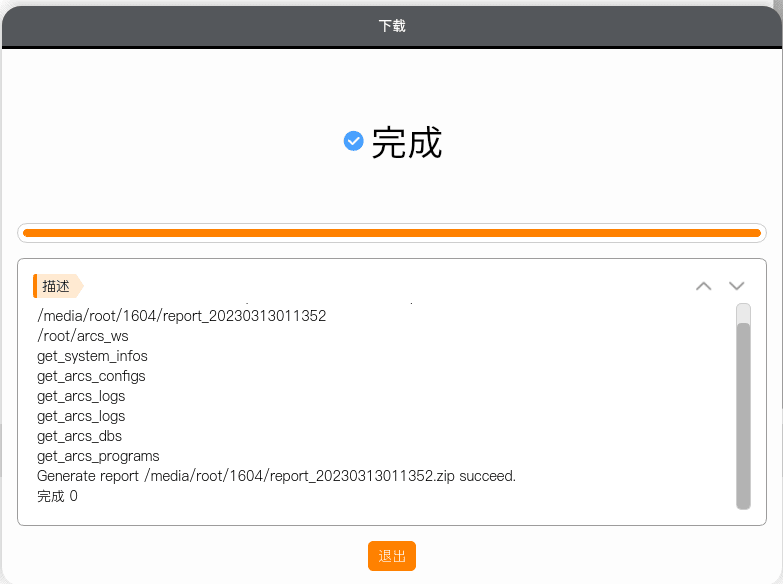
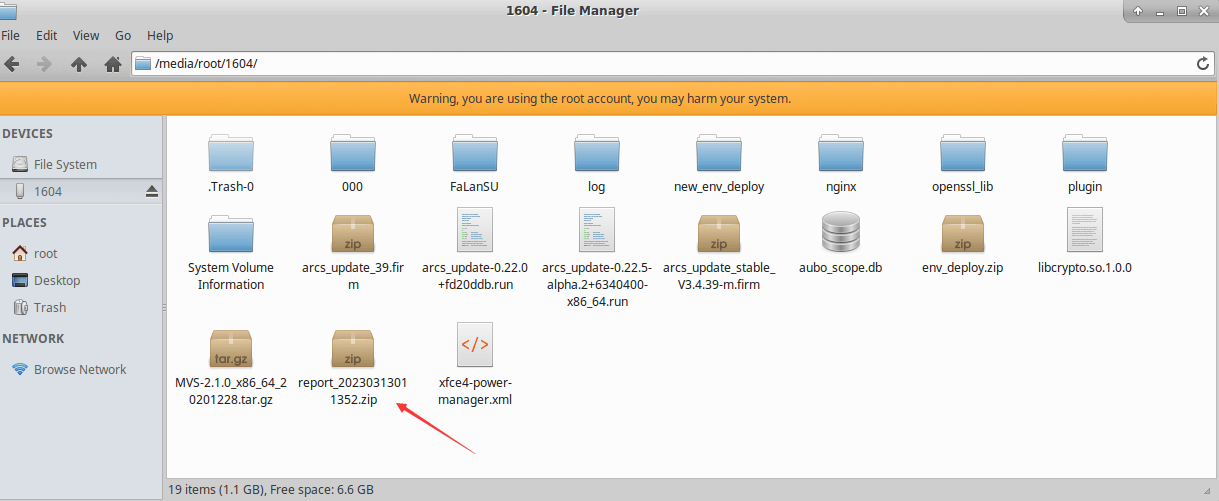
Click "Logs > File Download > USB drive > Select". Once the download is complete, you can view the log files on the USB drive.
1.3 Export Logs via LANDrop
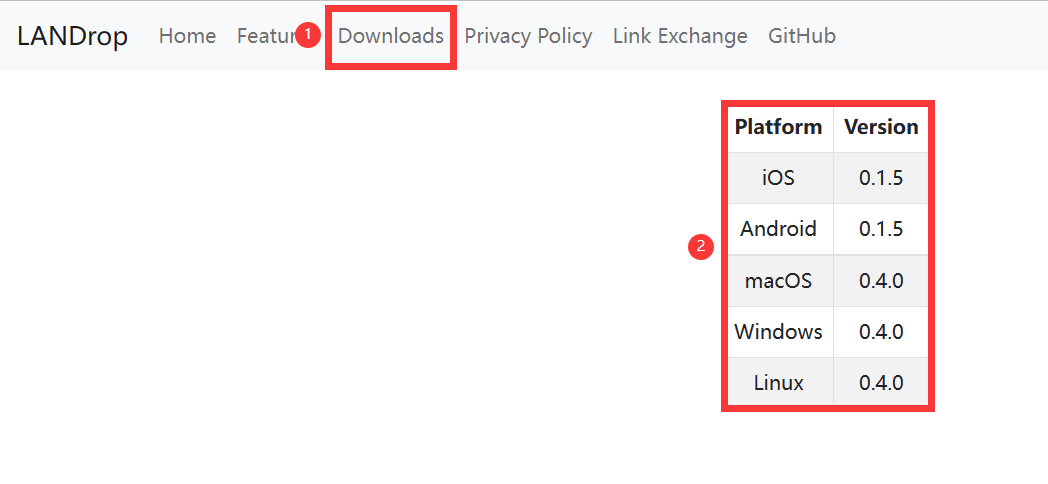
Download LANDrop on the other device from the official website (https://landrop.app/?ref=appinn)
① Click
Downloads② On the page you are redirected to, find the version required by your operating system and click its name to download it
ps: Alternatively, download it from the cloud storage at: download.aubo-robotics.cn/tools/LANDrop
Open
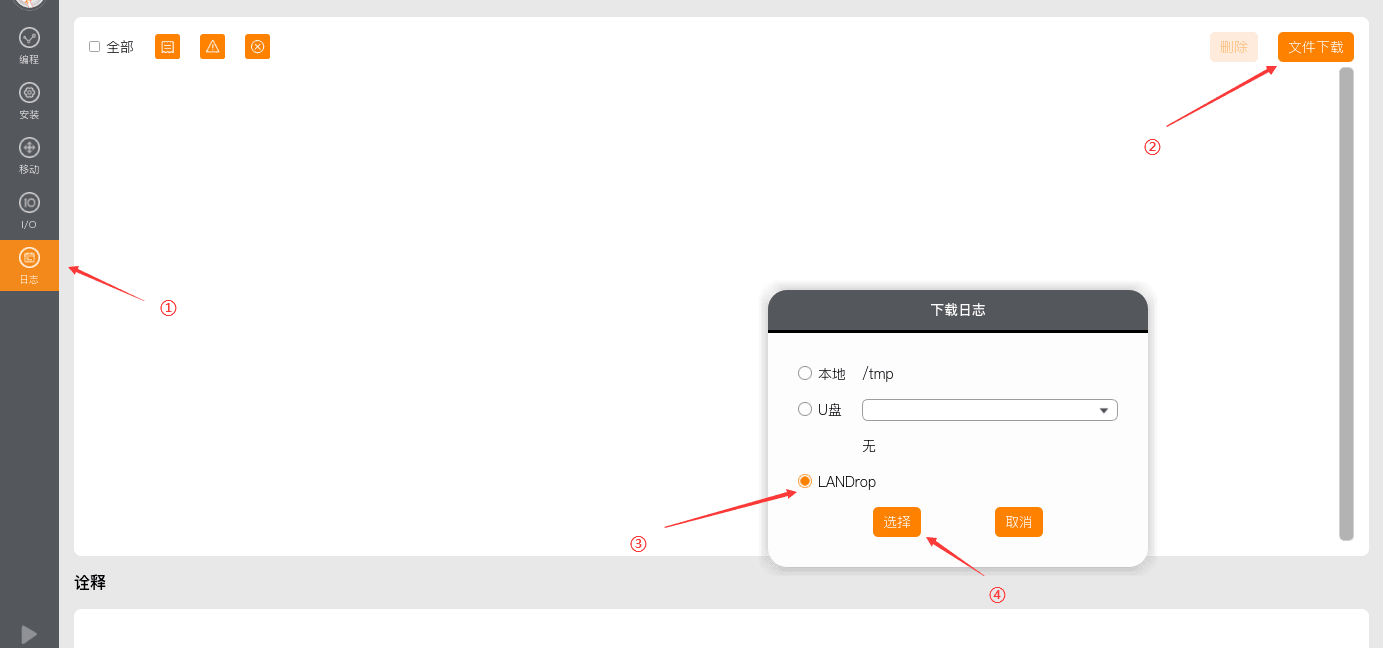
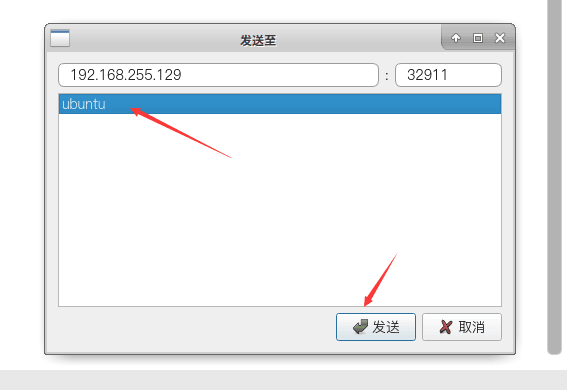
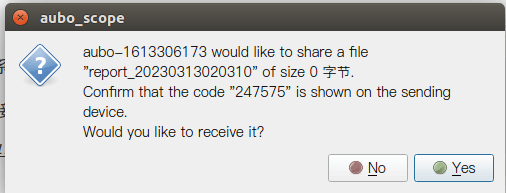
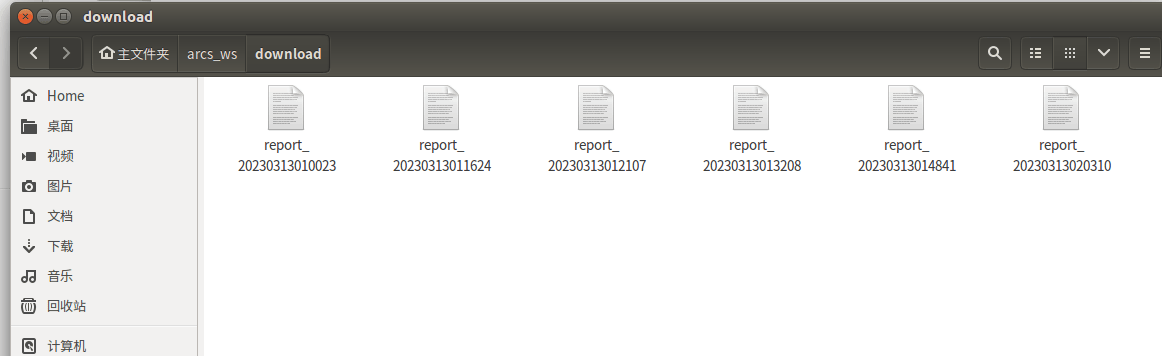
LANDropon the other device.In the ARCS software, click "Logs > File Download > LANDrop > Select", select the name of the device with LANDrop installed, and click "Send" to export the logs to that device.

2. Copy Directly to a USB Drive
Insert the USB drive into the control cabinet and wait a few seconds; the USB drive will then be shown on the interface.
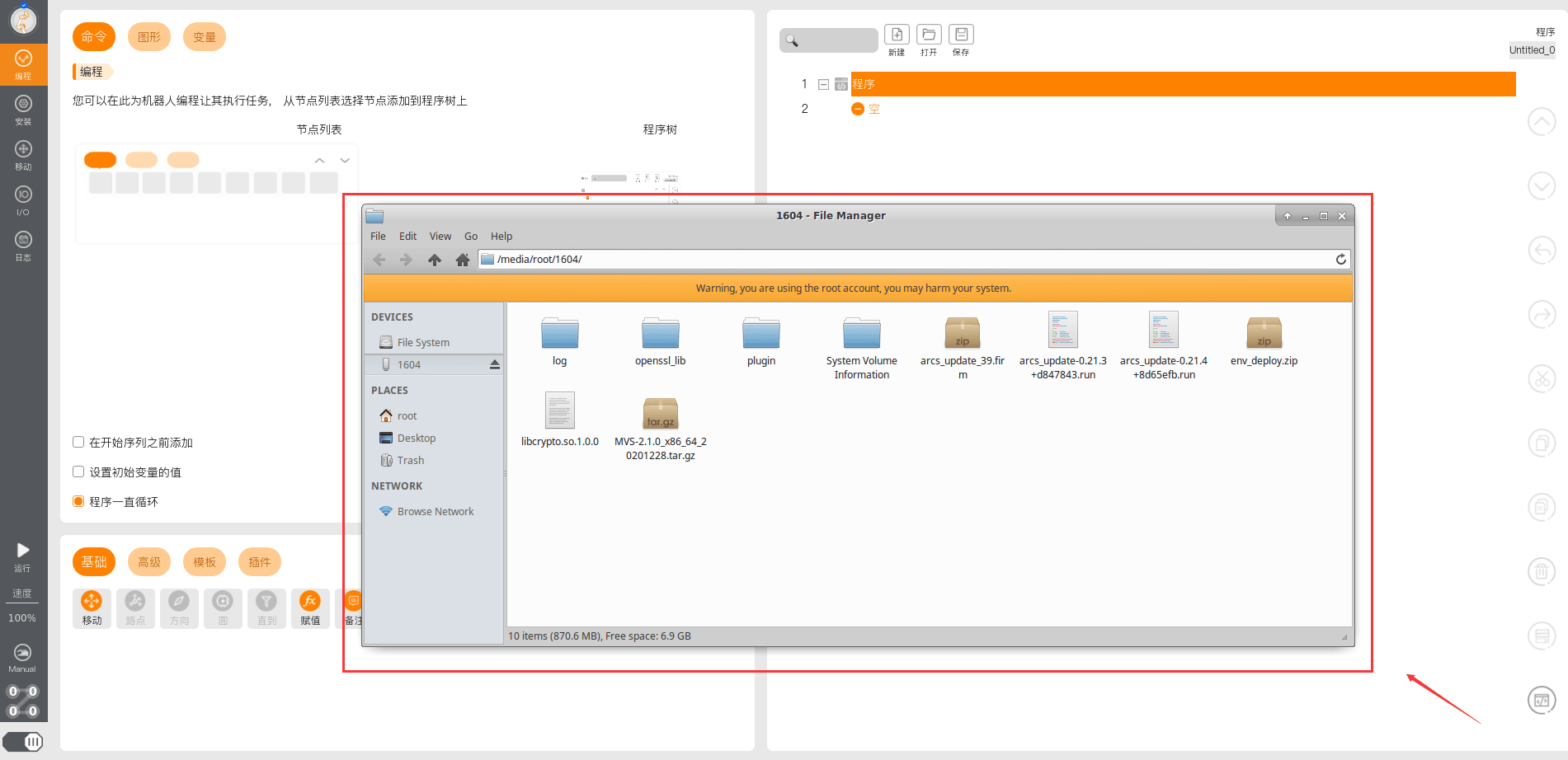
Open the
rootdirectory, right-click to copy thearcs_wsfolder, and paste it to the USB drive.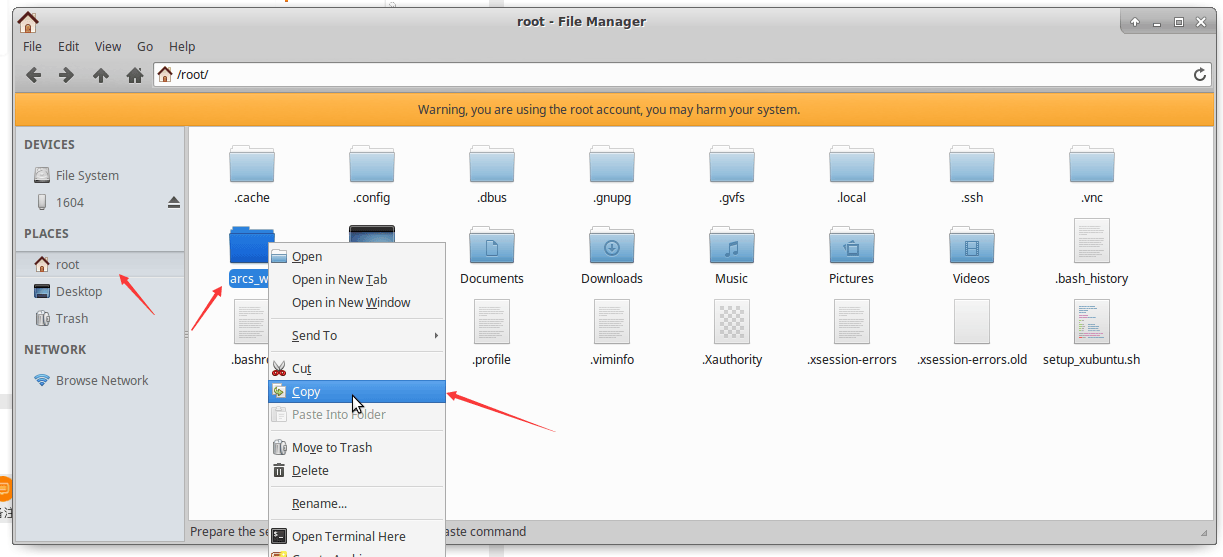
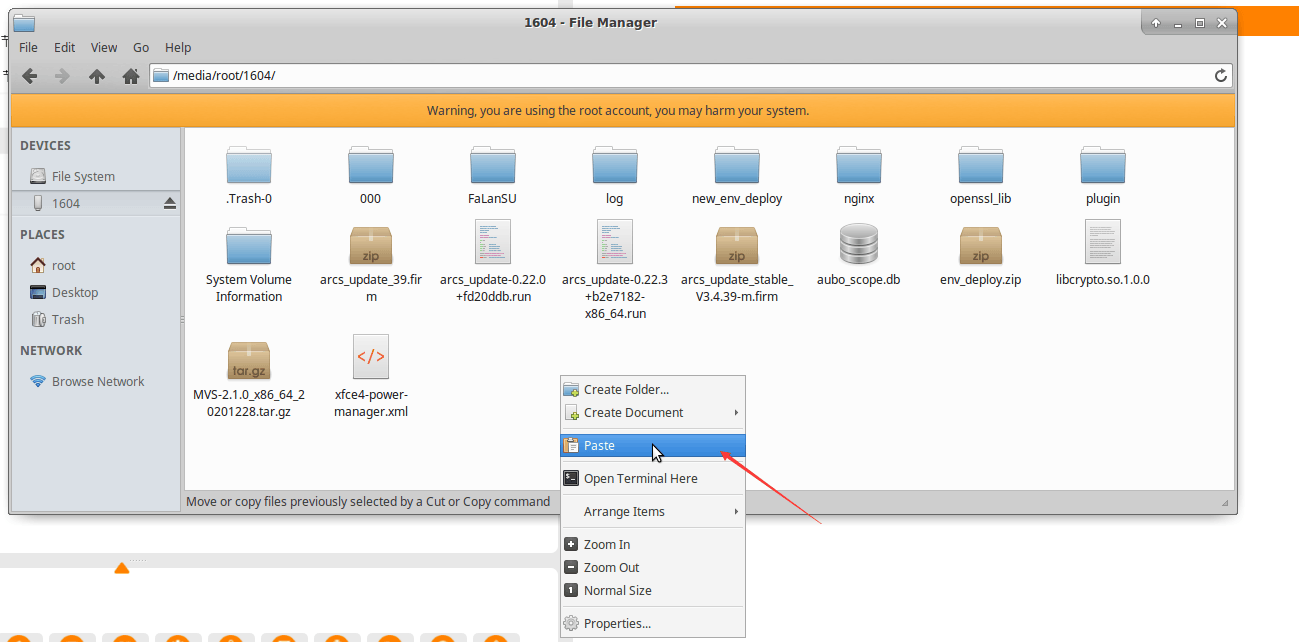
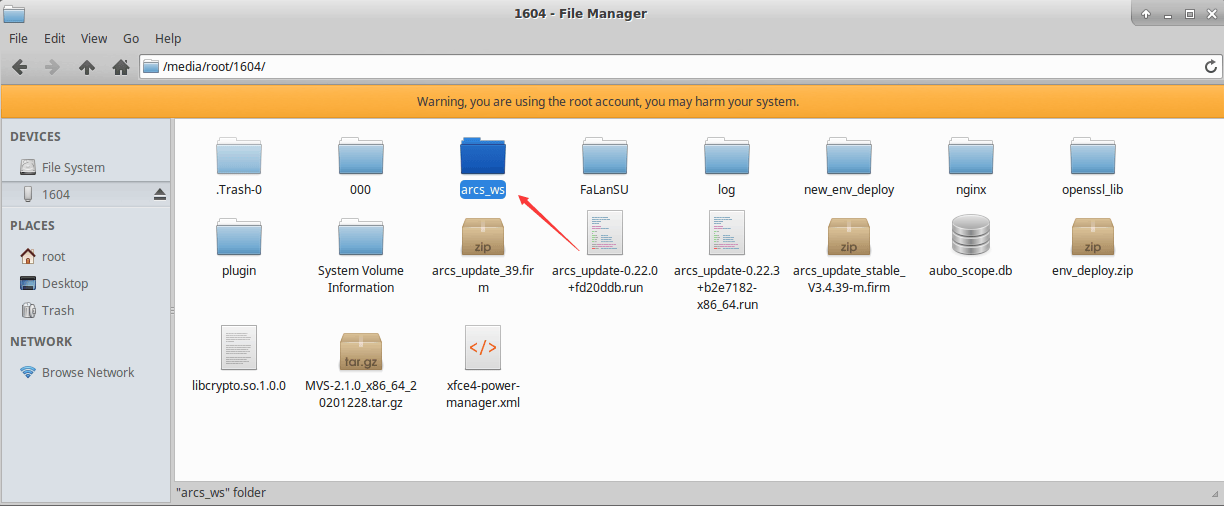
3. Copy Logs Remotely via MobaXterm
For the MobaXterm configuration, refer to "14 Reverse Proxy Guide".
After MobaXterm is configured, open MobaXterm on the remote device, locate the logs in the file directory on the left, and copy them out. There are several ways to copy:
Drag the files directly to the desktop or a folder;
Click the [Download] button on the toolbar above;
Select the files, right-click and choose "Download".